TLS Certificates
What Are TLS Certificates?
The TLS Certificates module provides centralized visibility and lifecycle controls for certificates used by management and compute services. It supports certificate inventory review, filtering, add/renew operations, and delete actions.
Start Here
Open
Control Center -> Compute Policies -> TLS Certificates.Continue to the detailed steps below.
Quick and Important Information
Key Concepts
Status: Valid, expiring soon, or expired certificate state.Days Left: Remaining validity window before expiry.Type:MGMTandComputecertificate classes.Fingerprint: Certificate identity hash for verification.
Actions
Add: Register a new certificate and metadata.
Filter: Narrow view to targeted certificate records.
Renew/Delete: Perform lifecycle operations on selected records.
Rotate CA: Update CA material for infrastructure trust chains (where applicable).
Tip
Review Expiring Soon items regularly and schedule renewals before expiry windows close.
Tip
Use certificate fingerprints during validation to confirm the exact certificate in use.
Warning
Expired MGMT certificates can prevent access to the Control Center UI.
Warning
Deleting a certificate that is still in use can disrupt service connectivity.
Step: Review TLS Certificates Dashboard
When to Use: Use this first when reviewing certificate posture and expiry risk.
Purpose: Understand current certificate inventory and summary posture before any certificate change.
Steps:
Open
Control Center -> Compute Policies -> TLS Certificates.Review summary cards:
Total Nodes,Valid Certificates,Expired,Expiring Soon, andAuto Renewal.Review certificate rows for
Status,Days Left,Type,Algorithm,Expiration,Fingerprint, andActions.In
Actions, review available row operations, includingRenewandDelete.Identify certificates that require renewal or follow-up.
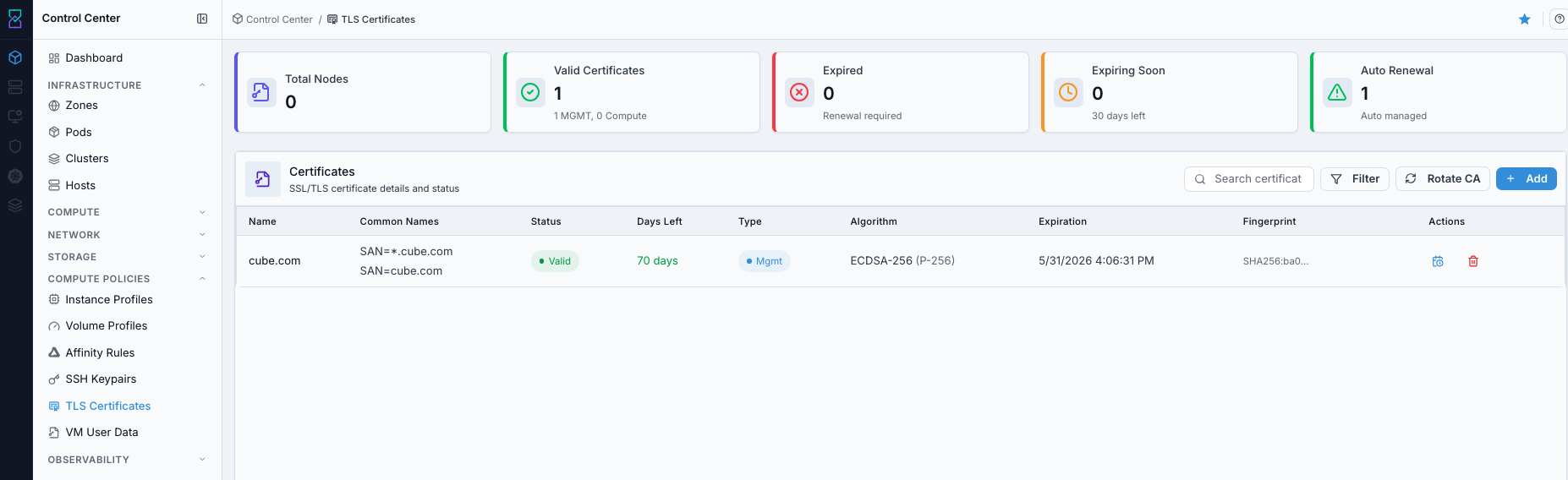
TLS Certificates dashboard.
Screen Overview and Actions
This screenshot shows the TLS Certificates dashboard with summary cards and certificate rows.
From this screen, you can review expiry posture, open certificate details, start filter/create workflows, and use row actions including
RenewandDelete.
Expected Outcome:
You can identify current certificate posture and select the correct record for next action.
You can locate row actions for certificate lifecycle operations, including
Delete.
If this fails:
Refresh and retry.
Confirm required fields and actions are visible on the page.
Review the on-screen error message and retry.
Step: Open TLS Certificates Help Panel
When to Use: Use this when certificate field semantics or action behavior is unclear.
Purpose: Open contextual guidance for TLS certificate operations.
Steps:
Open
Control Center -> Compute Policies -> TLS Certificates.Click the help icon in the top-right corner.
Review guidance for certificate inventory and actions.
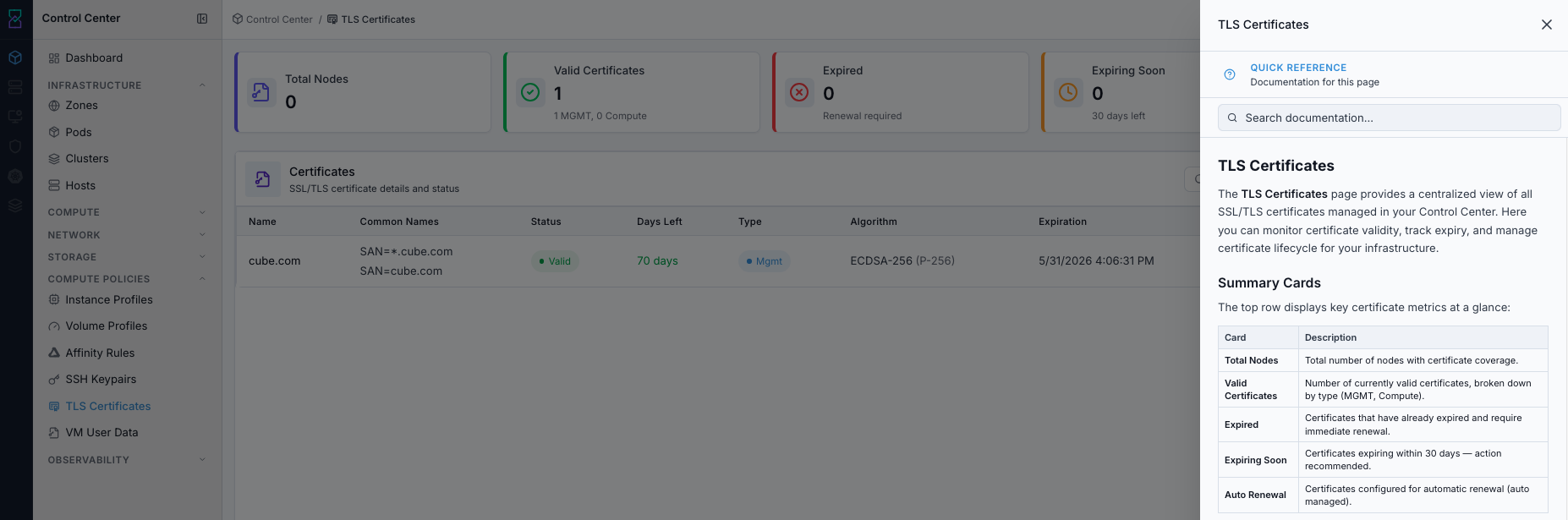
TLS Certificates help panel.
Screen Overview and Actions
This screenshot shows the TLS Certificates help panel.
From this screen, you can review field definitions and action behavior before lifecycle operations.
Expected Outcome:
Help panel opens with page-level field and action guidance.
If this fails:
Refresh and retry.
Verify browser/script restrictions.
Review the on-screen error message and retry.
Step: Apply TLS Certificates Filters
When to Use: Use this when narrowing the certificate list to specific status or search criteria.
Purpose: Reduce noise and focus on certificates that need action now.
Steps:
Open
Control Center -> Compute Policies -> TLS Certificates.Use available filter controls and search input to narrow result rows.
Confirm only relevant certificate records remain visible.

TLS Certificates filters.
Screen Overview and Actions
This screenshot shows the TLS Certificates filter/search controls.
From this screen, you can narrow records by status/search criteria to focus on certificates needing action.
Expected Outcome:
Filtered view shows only targeted certificate records for faster operational action.
If this fails:
Clear and reapply filters.
Verify records exist in current scope.
Review the on-screen error message and retry.
Step: Create TLS Certificate
When to Use: Use this when onboarding new trust material for a managed service or integration.
Purpose: Add a new certificate record for secure service trust and encryption.
Steps:
Click
+ Addon the TLS Certificates page.Enter required certificate values and metadata.
Save the record.
Confirm the new certificate appears in the dashboard.
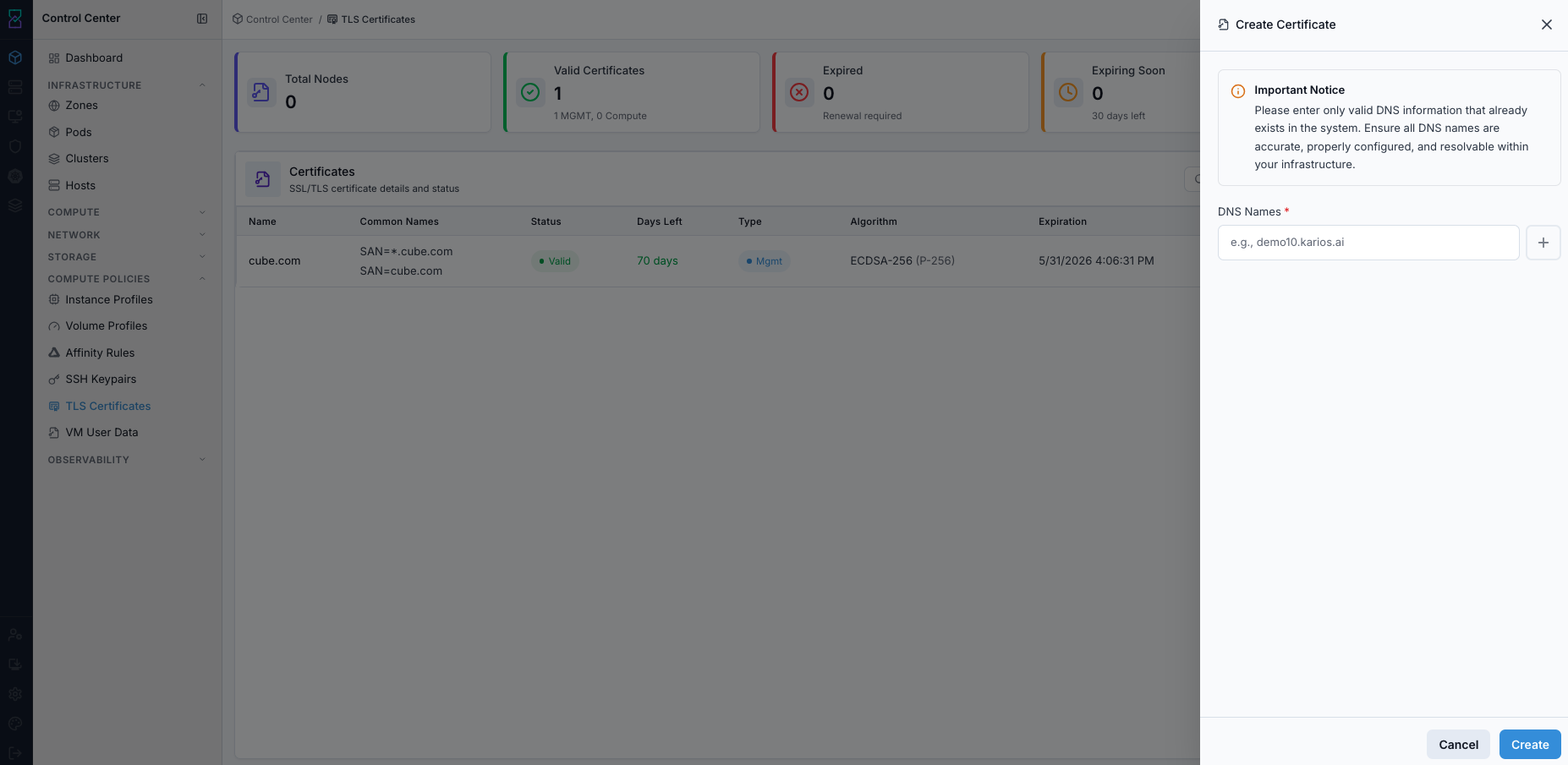
Create TLS Certificate form.
Screen Overview and Actions
This screenshot shows the create TLS certificate form.
From this screen, you can enter certificate data and metadata, then save the new certificate record.
Expected Outcome:
New certificate record is visible in the dashboard.
If this fails:
Validate certificate format and required fields.
Confirm key/certificate pairing if key material is required.
Review the on-screen error message and retry.
Step: Review TLS Certificate Details
When to Use: Use this after create/rotate or before deletion to review certificate metadata and trust details.
Purpose: Confirm certificate validity and detailed metadata before operational decisions.
Steps:
Open a certificate row from dashboard.
Review details fields such as issuer, validity window, fingerprint, and status.
Confirm metadata matches expected service requirements.
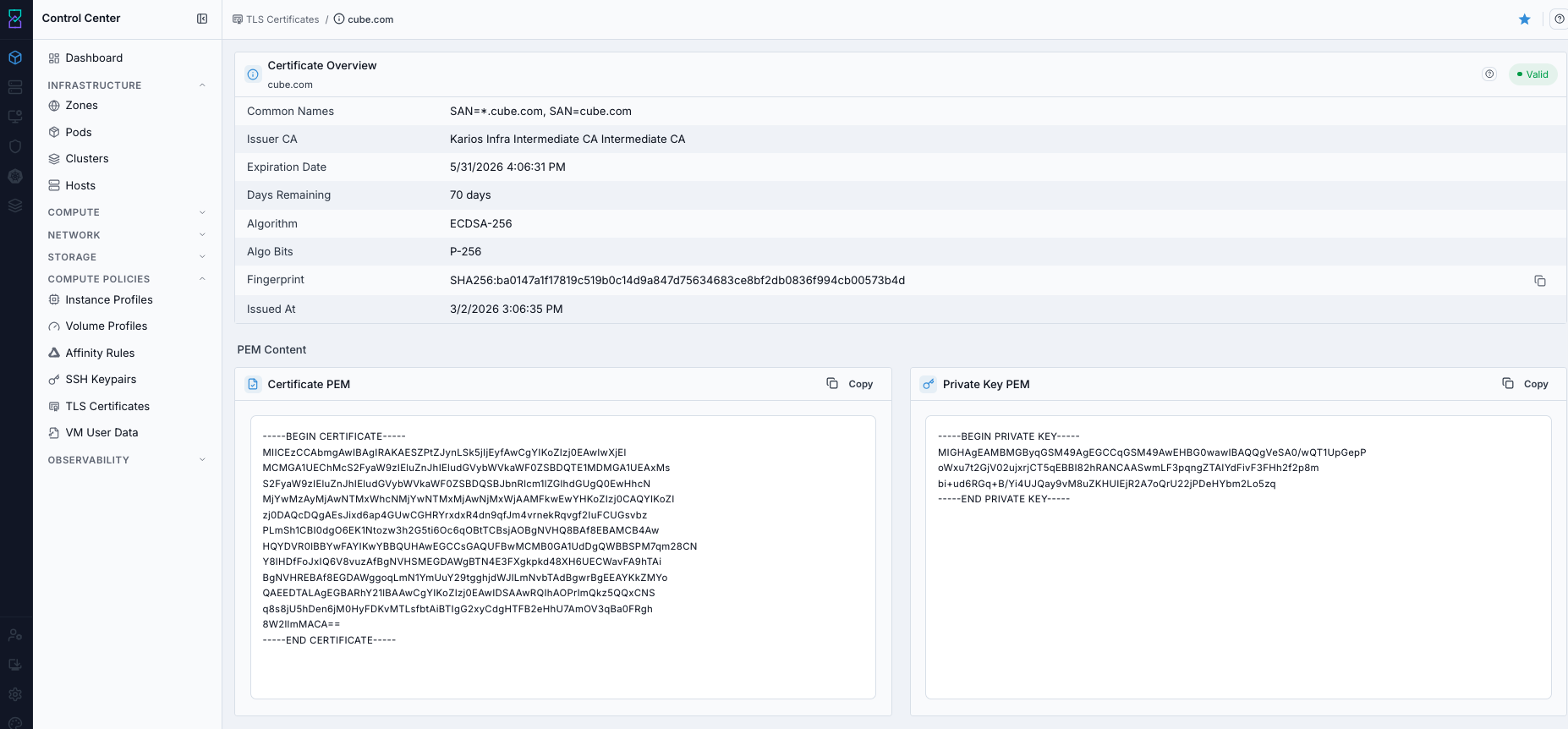
TLS Certificate details page.
Screen Overview and Actions
This screenshot shows the details page for one TLS certificate.
From this screen, you can review fingerprint, validity window, and status before renew/delete decisions.
Expected Outcome:
Certificate details are reviewed for audit and service trust operations.
If this fails:
Refresh details and retry.
Confirm record visibility in current scope.
Review the on-screen error message and retry.
Step: Retire Unused Certificate
When to Use: Use this only when a certificate is no longer needed and no active dependency remains.
Purpose: Remove stale certificate records while preserving active service trust.
Steps:
Confirm no active integration/service uses the target certificate.
Delete or deactivate using available row/detail actions.
Recheck service trust and health in monitoring flows.
Expected Outcome:
Obsolete certificate records are removed without impacting active endpoints.
If this fails:
Verify dependency mapping before retry.
Confirm delete permission in current scope.
Review the on-screen error message and retry.