VM Templates
Use this page to register VM templates and validate readiness.
Quick User Steps
When to Use:
Use this page when you need to publish or validate reusable VM images.
Purpose:
Confirm VM templates are ready and usable for VM provisioning workflows.
Steps:
Open
Control Center -> Storage -> VM Templates.Register a template and confirm state reaches
Ready.Open template details and verify visibility/scope is correct.
Use the template in VM create flow under
Compute -> Virtual Machines.
Expected Outcome:
At least one VM template is
Readyand selectable during VM provisioning.
If this fails:
Validate URL/artifact reachability and template format compatibility.
Confirm OS type, hypervisor, and zone metadata are correct.
Review related events in Observability.
VM Templates
UI path: Control Center -> Storage -> VM Templates
Purpose
The Templates Dashboard provides a centralized view of all VM templates available in Control Center. Use it to browse pre-configured VM images, manage template availability, and provision virtual machines faster.
When to Use VM Templates
Use this module when you need to:
Standardize VM builds using reusable template baselines.
Add or validate OS images before VM provisioning.
Review readiness, visibility, and format compatibility before production use.
Overview
Templates are pre-built VM images used for rapid and repeatable deployment. The dashboard shows metadata, readiness state, visibility scope, and image format for each template.
Templates Table
The main table displays available VM templates with the following columns:
Column |
Description |
|---|---|
|
Unique identifier or technical template name. Click to view details. |
|
User-friendly name, often including architecture or profile details. |
|
Operating system type (for example Ubuntu, Windows Server, Rocky Linux). |
|
Current template state (for example |
|
Access scope ( |
|
Whether this template is highlighted as recommended. |
|
Template image format (for example |
|
Row delete icon and, in the |
Template Status Indicators
Status Badges
Status |
Meaning |
|---|---|
|
Fully prepared and available for VM provisioning. |
|
Template is being downloaded, processed, or optimized. |
|
Preparation failed. Template cannot be used until resolved. |
|
Template has been allocated but is not yet ready. |
Visibility Badges
Visibility |
Meaning |
|---|---|
|
Accessible to all users in the Control Center based on permissions. |
|
Restricted to owner/account scope. |
Featured Badges
Featured |
Meaning |
|---|---|
|
Marked as recommended in VM provisioning workflows. |
|
Available but not marked as featured. |
Template Types and Operating Systems
Linux Templates
Pre-configured Linux images optimized for cloud deployment.
Common distributions:
Ubuntu (20.04 LTS, 22.04 LTS, 24.04 LTS)
Debian GNU/Linux 12
Rocky Linux (8, 9)
Oracle Linux (8, 9)
OpenSUSE (15.5)
Characteristics:
Lightweight and fast to deploy.
Cloud-init capable for automated customization.
patched and suitable for standard cloud workloads.
Use cases:
Development and testing environments.
Web services and application backends.
Container and microservice platforms.
Data services and processing workloads.
Windows Templates
Pre-configured Windows Server images.
Supported versions:
Windows Server 2019
Windows Server 2025
Windows-2019-Golden-Template (environment-specific optimized image)
Characteristics:
Full Windows Server feature set.
RDP and enterprise integration support.
Suitable for Microsoft stack workloads.
Use cases:
.NET and enterprise applications.
Active Directory and identity services.
SQL Server and Microsoft platform services.
Legacy Windows application hosting.
Specialized Templates
Examples include:
jammy-ubuntu-standard(Cloud-init ready baseline)sdi(specialized development image)Rocky Linux
x86_64variants
Template Formats
Format |
Description |
Best for |
|---|---|---|
|
Raw disk image (no compression) |
Performance-critical deployments. |
|
QEMU copy-on-write image |
Storage efficiency in KVM environments. |
|
Virtual hard disk format |
Hyper-V compatibility and Azure workflows. |
|
VMware disk format |
VMware interoperability and vSphere-oriented workflows. |
Quick Actions
Click the row Actions menu (⋮) or delete icon for template operations:
Delete: Remove template registration (with confirmation).View Details: Open complete template metadata and state.CopyorClone: Create a derivative template for controlled modifications.Download: Download template artifact when download is enabled.Edit: Update template metadata/settings where allowed.
Warning
Deleting a public or actively used template can impact dependent teams/workloads. Verify impact before deletion.
Creating and Registering Templates
From VM Snapshot
Prepare and configure the source VM.
Stop the VM and create a snapshot.
Convert the snapshot to a template.
Set template metadata (name, display name, visibility).
Confirm and monitor template status.
From Boot Image
Provision a VM from a Boot Image.
Complete OS installation and required customization.
Install guest tooling (Cloud-init/agents) as needed.
Stop the VM and create a template.
Set metadata and publish.
Register External Template
Prepare template artifact (
RAW,QCOW2,VMDK, and other supported formats).Upload artifact to reachable storage or provide URL.
Register the template in Control Center.
Set metadata and format values.
Monitor import until state is
Ready.
Template Preparation Tips
Include these before creating reusable templates:
Cloud-init support for automated initialization.
Guest agents/drivers required by your hypervisor.
Current security patches.
SSH and key-based access for Linux images where required.
DHCP-compatible networking configuration.
Cleanup of temporary files, logs, and transient keys.
Template Size and Deployment Profile
Use this as planning guidance. Actual behavior depends on storage and network conditions.
Size |
Deployment profile |
Recommended use |
Characteristics |
|---|---|---|---|
|
Low deployment overhead |
Minimal systems |
Minimal footprint and limited pre-installed software. |
|
Moderate deployment overhead |
Standard OS |
Basic OS with common tools. |
|
Elevated deployment overhead |
Feature-rich OS |
OS plus common development/runtime libraries. |
|
High deployment overhead |
Specialized stacks |
Pre-configured applications and service components. |
|
Very high deployment overhead |
Complex stacks |
Large multi-component environments. |
Template Management Tips
Use naming conventions with OS, version, and architecture (for example
Ubuntu-22.04-LTS-x64).Keep display names clear and user-friendly.
Version templates to track lifecycle updates.
Feature only used templates.
Use
Privatevisibility for internal or custom images.Refresh templates periodically with updates and security patches.
Validate template readiness and compatibility before broad release.
Monitor template storage usage and retire outdated images.
Keep backup copies/version history for critical templates.
Step: Review VM Templates Dashboard
When to Use:
Use this when performing Review VM Templates Dashboard in the active storage workflow.
Purpose:
Execute Review VM Templates Dashboard and confirm the expected UI/state outcome for this storage resource.
Steps:
Open
Control Center -> Storage -> VM Templates.Review the OS summary cards across the top (
Ubuntu,Windows,RHEL / CentOS,FreeBSD,Other) for template counts by OS family.Review table rows for name, OS type, status, visibility, featured, and format/size.
Confirm template
StatusisReadywhere needed.
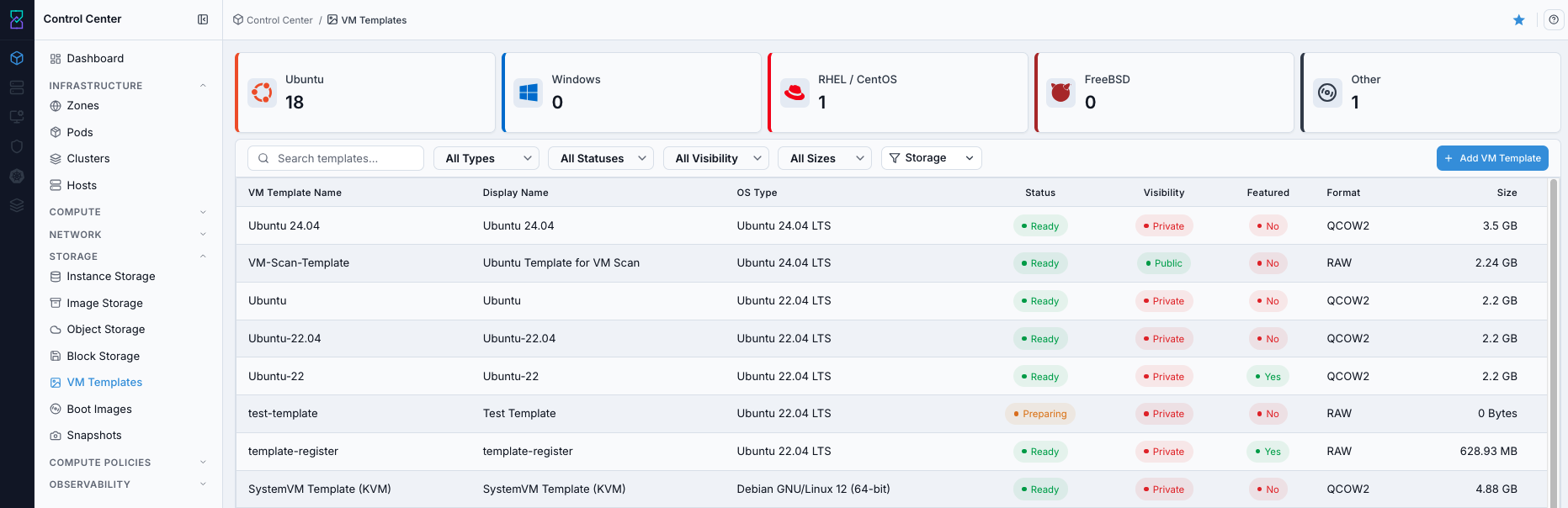
VM Templates dashboard.
Expected Outcome:
VM Templates dashboard loads with template rows and status indicators visible.
If this fails:
Verify backend health and available capacity for the target storage resource (pool/store/endpoint and zone scope).
Check blocking dependencies for this action (attachments, snapshots, templates, buckets, object locks, or maintenance state).
Review Observability Events/Alerts for the storage object and retry only after resolving the root cause.
Step: Open VM Templates Help Panel
When to Use: Use this after opening VM Templates when you need field definitions and workflow guidance.
Purpose: Open contextual help separately from dashboard and filtering actions.
Steps:
Open
Control Center -> Storage -> VM Templates.Click the help icon in the top-right corner.
Review help content for template fields and actions.
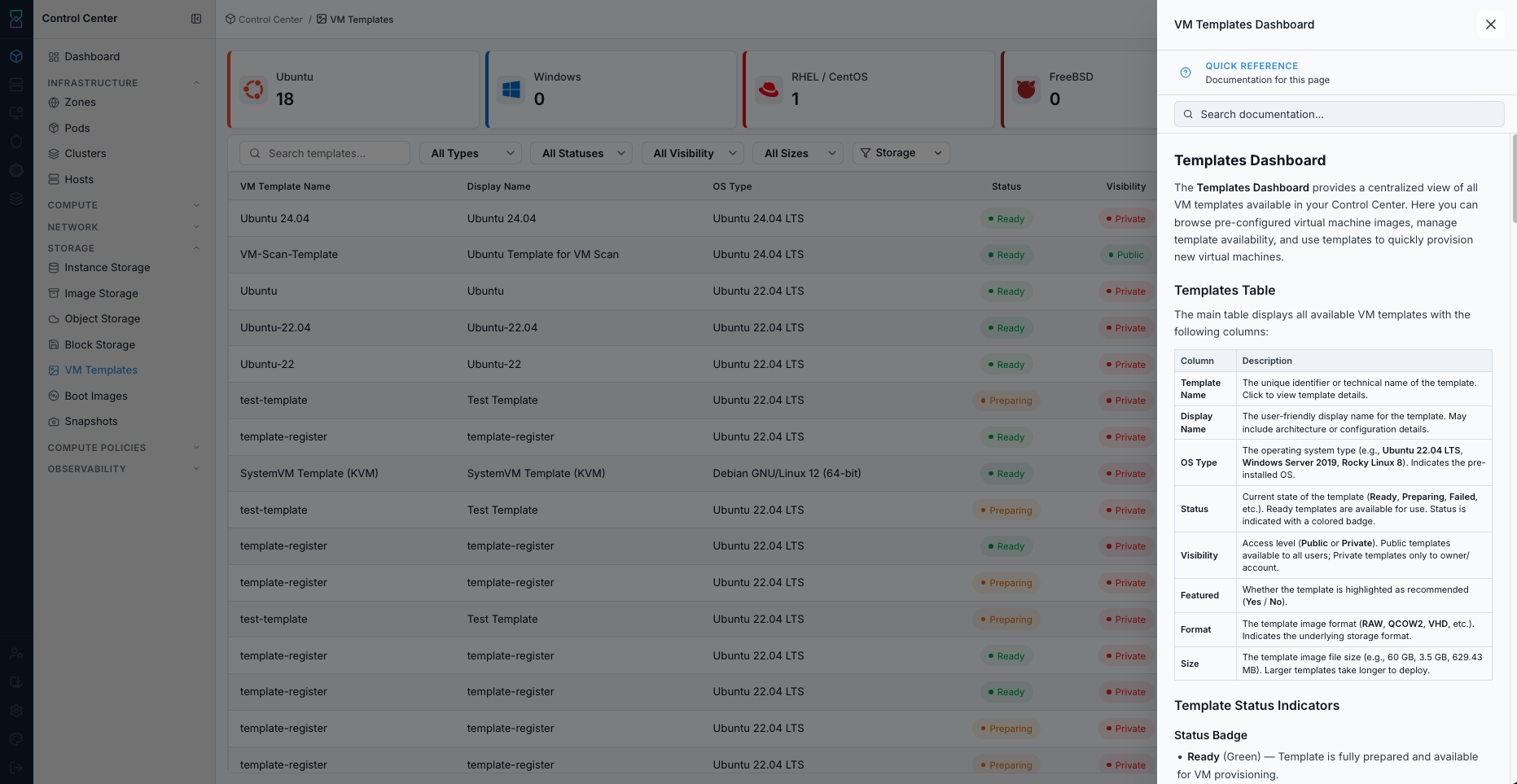
VM Templates help panel.
Expected Outcome:
The VM Templates help panel opens with page-specific guidance.
If this fails:
Verify backend health and available capacity for the target storage resource (pool/store/endpoint and zone scope).
Check blocking dependencies for this action (attachments, snapshots, templates, buckets, object locks, or maintenance state).
Review Observability Events/Alerts for the storage object and retry only after resolving the root cause.
Step: Use VM Templates Filters
When to Use: Use this when you need to narrow template rows by lifecycle or metadata attributes.
Purpose: Find target templates faster before registering, reviewing, or deleting.
Steps:
Open
Control Center -> Storage -> VM Templates.Apply filters for status, visibility, format, and size as needed.
Use search to locate a specific template name.
Confirm the filtered list contains only the intended rows.

VM Templates dashboard filters.
Expected Outcome:
The template list updates to match selected filter/search criteria.
If this fails:
Verify backend health and available capacity for the target storage resource (pool/store/endpoint and zone scope).
Check blocking dependencies for this action (attachments, snapshots, templates, buckets, object locks, or maintenance state).
Review Observability Events/Alerts for the storage object and retry only after resolving the root cause.
Step: Register Template from URL
When to Use:
Use this when performing Register Template from URL in the active storage workflow.
Purpose:
Execute Register Template from URL and confirm the expected UI/state outcome for this storage resource.
Steps:
Click
+ Add VM Template.On the
Register VM Templatetab, fill required fields:
Template Name
Display Text
URL
Hypervisor
Format
Zone
OS Type
Select
Is Windows templateonly for Windows guests (registers the template with the virtio root disk controller).Click
Register.
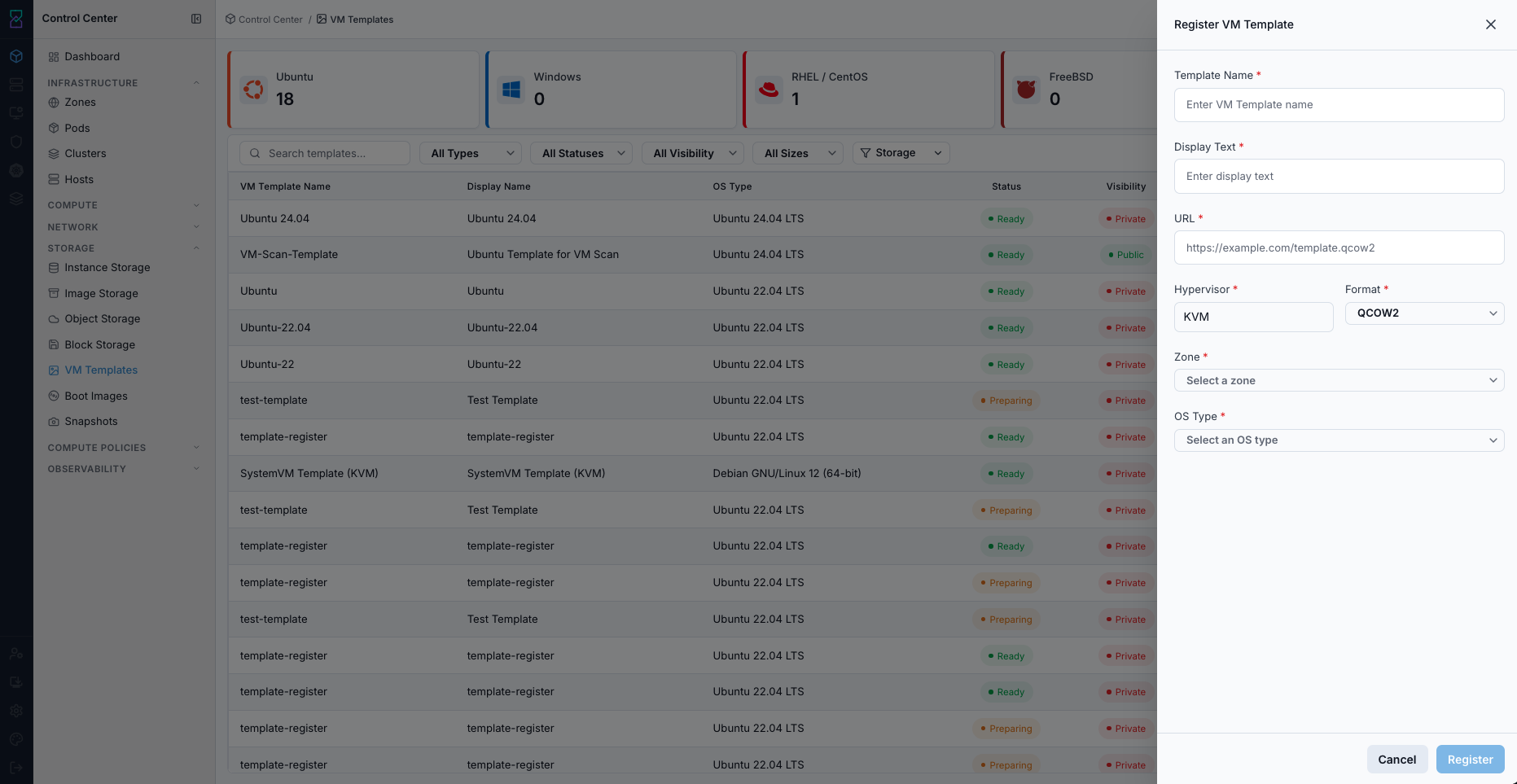
Register Template form.
Expected Outcome:
New template row is created and import processing begins.
Statuschanges toReadyafter successful preparation.
If this fails:
Verify backend health and available capacity for the target storage resource (pool/store/endpoint and zone scope).
Check blocking dependencies for this action (attachments, snapshots, templates, buckets, object locks, or maintenance state).
Review Observability Events/Alerts for the storage object and retry only after resolving the root cause.
Step: Upload VM Template
When to Use:
Use this instead of Register Template from URL when you have the template file
locally rather than a reachable URL.
Purpose: Upload a template file directly; Karios registers it and the system VM downloads it in the background.
Steps:
Click
+ Add VM Template.Switch to the
Upload VM Templatetab.Fill required fields:
Template File
Template Name
Display Text
Hypervisor
Format
Zone
OS Type
Click
Upload.
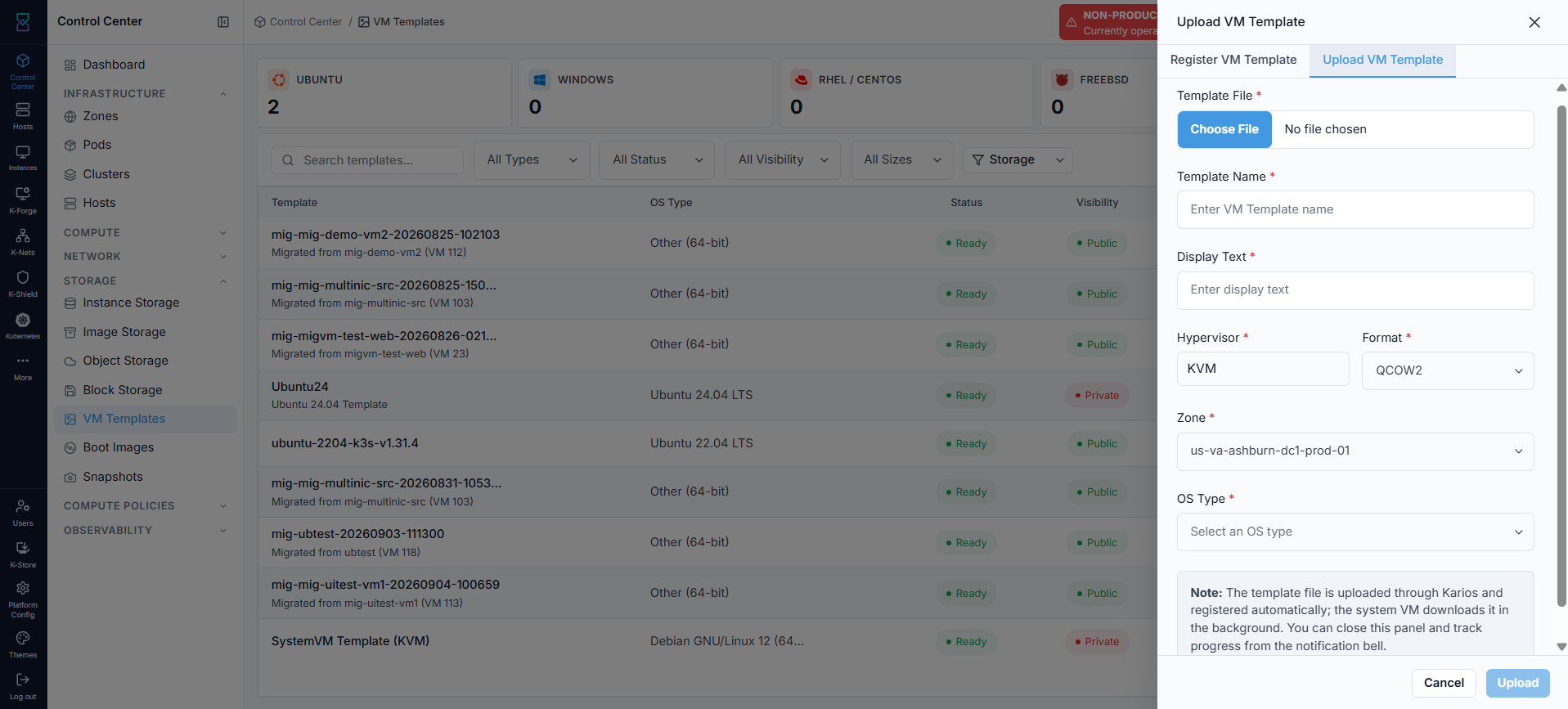
Upload VM Template form.
Expected Outcome:
The template is registered immediately; you can close the panel and track download progress from the notification bell.
Statuschanges toReadyonce the system VM finishes downloading it.
If this fails:
Verify backend health and available capacity for the target storage resource (pool/store/endpoint and zone scope).
Check blocking dependencies for this action (attachments, snapshots, templates, buckets, object locks, or maintenance state).
Review Observability Events/Alerts for the storage object and retry only after resolving the root cause.
Step: Review Template Details
When to Use: Use this when validating whether a template is safe and compatible for VM provisioning.
Purpose: Interpret the template details UI correctly before using the template in production workflows.
Steps:
Click a template name to open details.
Review the cards on the details page and confirm each value:
Basic Information:
NameandDisplay Text: human-readable template identity.
ID: unique template identifier used for support/API tracing.
Status: template lifecycle state (must beReadyfor provisioning).
AccountandDomain: ownership scope.
OS & Zone Information:
OS Type NameandOS Type ID: guest OS mapping.
ZoneandZone ID: where the template is available.
Metadata & Flags:
Visibility:PublicorPrivateaccess scope.
Featured: whether template is highlighted in selection workflows.
VM Template TypeandCross Zones: distribution/behavior flags.
Format & Hypervisor:
Format(for exampleQCOW2),Hypervisor(for exampleKVM), andArchitecture.
Bootable,Password Enabled,SSH Key Enabledcapability flags.
Size & Download:
Total SizeandPhysical Sizefor capacity planning.
Direct DownloadandExtractableflags.
Source Information:
URLandChecksumused for source integrity validation.
Download Status by Datastore:Confirms whether the template is downloaded and usable on datastore targets.
Confirm
StatusisReadyand datastore download state is healthy before provisioning.
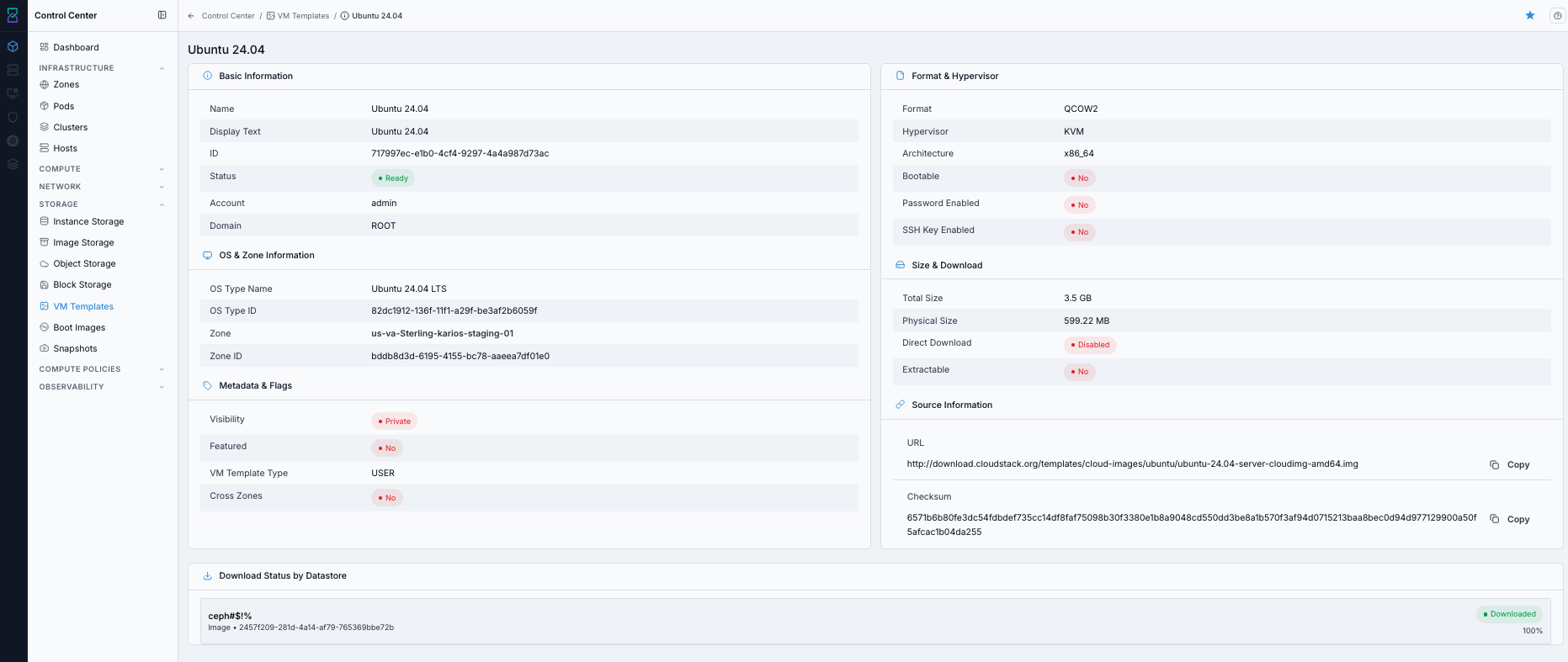
Template details page.
Expected Outcome:
You can map each details card to its operational meaning.
Template compatibility, ownership scope, source integrity, and readiness are validated before use.
If this fails:
Verify backend health and available capacity for the target storage resource (pool/store/endpoint and zone scope).
Check blocking dependencies for this action (attachments, snapshots, templates, buckets, object locks, or maintenance state).
Review Observability Events/Alerts for the storage object and retry only after resolving the root cause.
Warnings
Wrong OS type, hypervisor, or format values can block deployment from a template.
Do not provision from templates that are not in
Readystate.Confirm dependencies before deleting used templates.
If this fails:
If template registration fails, verify URL reachability, credentials, and image format compatibility.
If a template remains unusable, validate
Status,OS Type,Format, andHypervisormappings in details.If a delete action is blocked, check whether active VMs or policies depend on the template.
Review Observability for related error events when needed.