VM User Data
What Is VM User Data?
VM User Data is a startup script/config payload that runs during VM initialization to automate first-boot setup. It helps standardize day-0 configuration without manual post-launch steps.
Start Here
Open
Control Center -> Compute Policies -> VM User Data.Continue to the detailed steps below.
Quick and Important Information
Key Concepts
Script Payload: Bash/python/bootstrap content executed at boot.Cloud-Init: Common execution path for Linux guest initialization.Type: Script language/type selected when creating the entry.Scope: Account/domain ownership of the user-data entry.
Actions
Create: Click
+ Create, define metadata, and save script content.Edit/Delete: Update or retire entries as needed for future provisioning.
Attach in VM create: Select user data in VM provisioning flow.
Tip
Keep user-data scripts idempotent so reruns do not cause configuration drift.
Tip
Test scripts on a test VM first before using them in VM provisioning.
Warning
Do not embed secrets directly in user-data payloads.
Warning
Large or long-running scripts can delay VM readiness; split non-critical tasks where possible.
Step: Review VM User Data Dashboard
When to Use: Use this first when validating available automation payload entries.
Purpose: Confirm existing VM user-data entries before create/attach operations.
Steps:
Open
Control Center -> Compute Policies -> VM User Data.Review existing payload entries and metadata, including the
Actionscolumn.In
Actions, review available row operations, includingDelete.Identify target entry for create/update workflows.
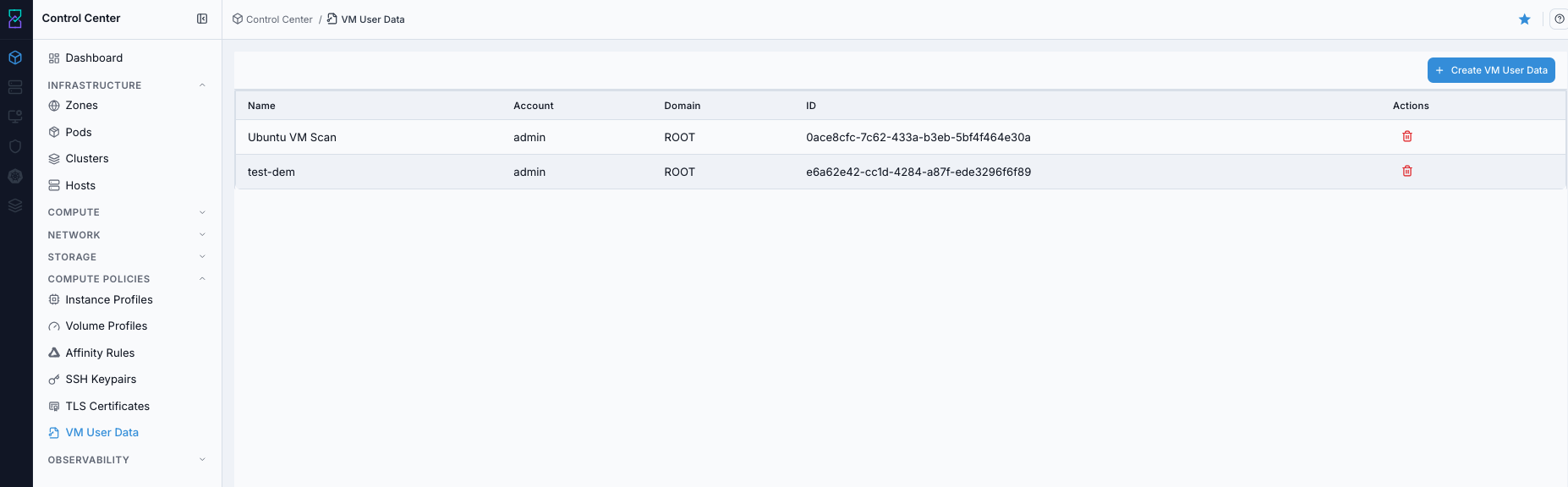
VM User Data dashboard.
Screen Overview and Actions
This screenshot shows the VM User Data dashboard table.
From this screen, you can review existing entries, create new entries, and use row actions including
Delete.
Expected Outcome:
You can identify available user-data entries and target scope.
You can locate the row
Deleteaction for user-data lifecycle operations.
If this fails:
Refresh and retry.
Verify permission and account/domain scope.
Review the on-screen error message and retry.
Step: Open VM User Data Help Panel
When to Use: Use this when payload fields or controls are unclear.
Purpose: Open contextual guidance for VM user-data operations.
Steps:
Open
Control Center -> Compute Policies -> VM User Data.Click the help icon in the top-right corner.
Review guidance for create/edit and usage behavior.
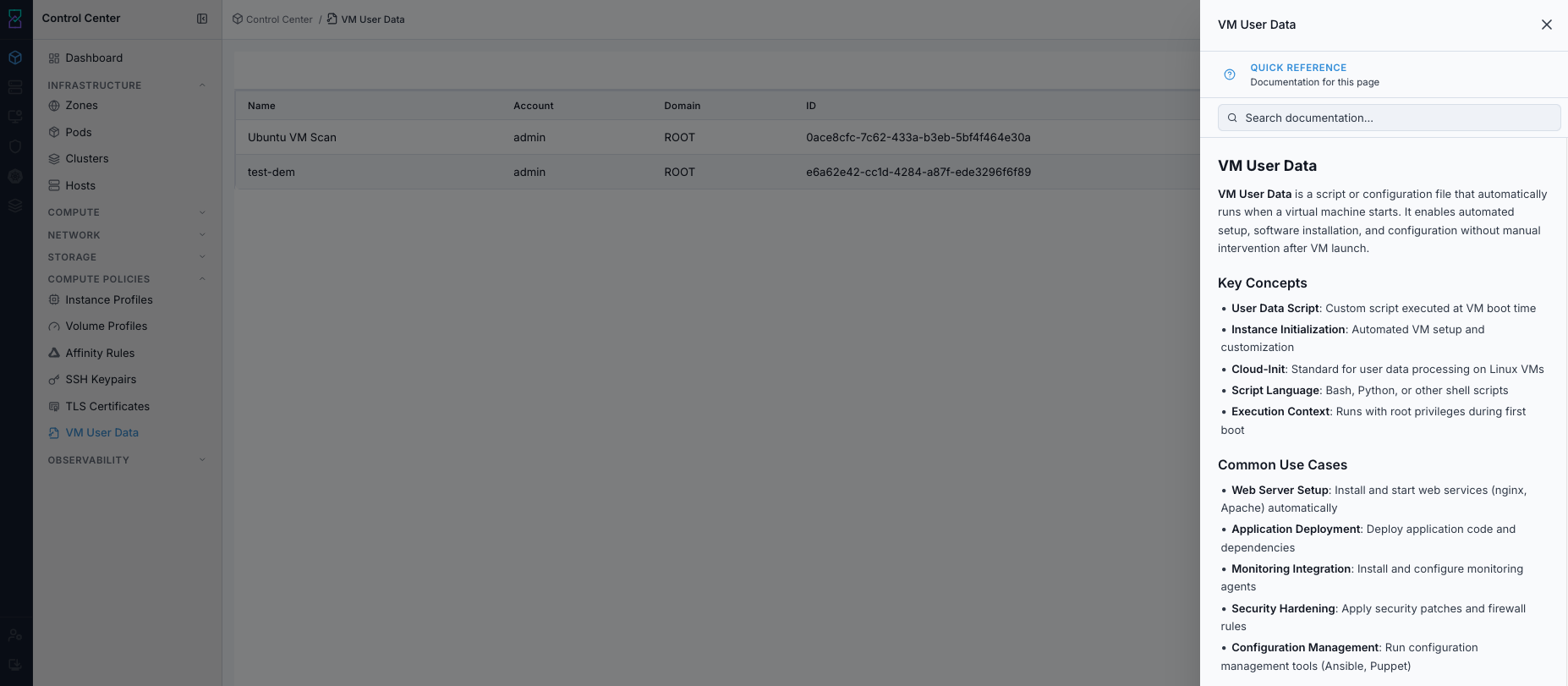
VM User Data help panel.
Screen Overview and Actions
This screenshot shows the VM User Data help panel.
From this screen, you can confirm supported fields and usage behavior before creating or editing entries.
Expected Outcome:
Help panel opens with page-level guidance.
If this fails:
Refresh and retry.
Verify browser/script restrictions.
Review the on-screen error message and retry.
Step: Create VM User Data Entry
When to Use: Use this when no existing payload satisfies required first-boot automation.
Purpose: Create a reusable automation payload for VM provisioning.
Steps:
Click
+ Create.Enter
Nameand selectDomain.Select script
Type(for example bash or python).Enter script content.
Save the entry.
Confirm it appears in dashboard rows.
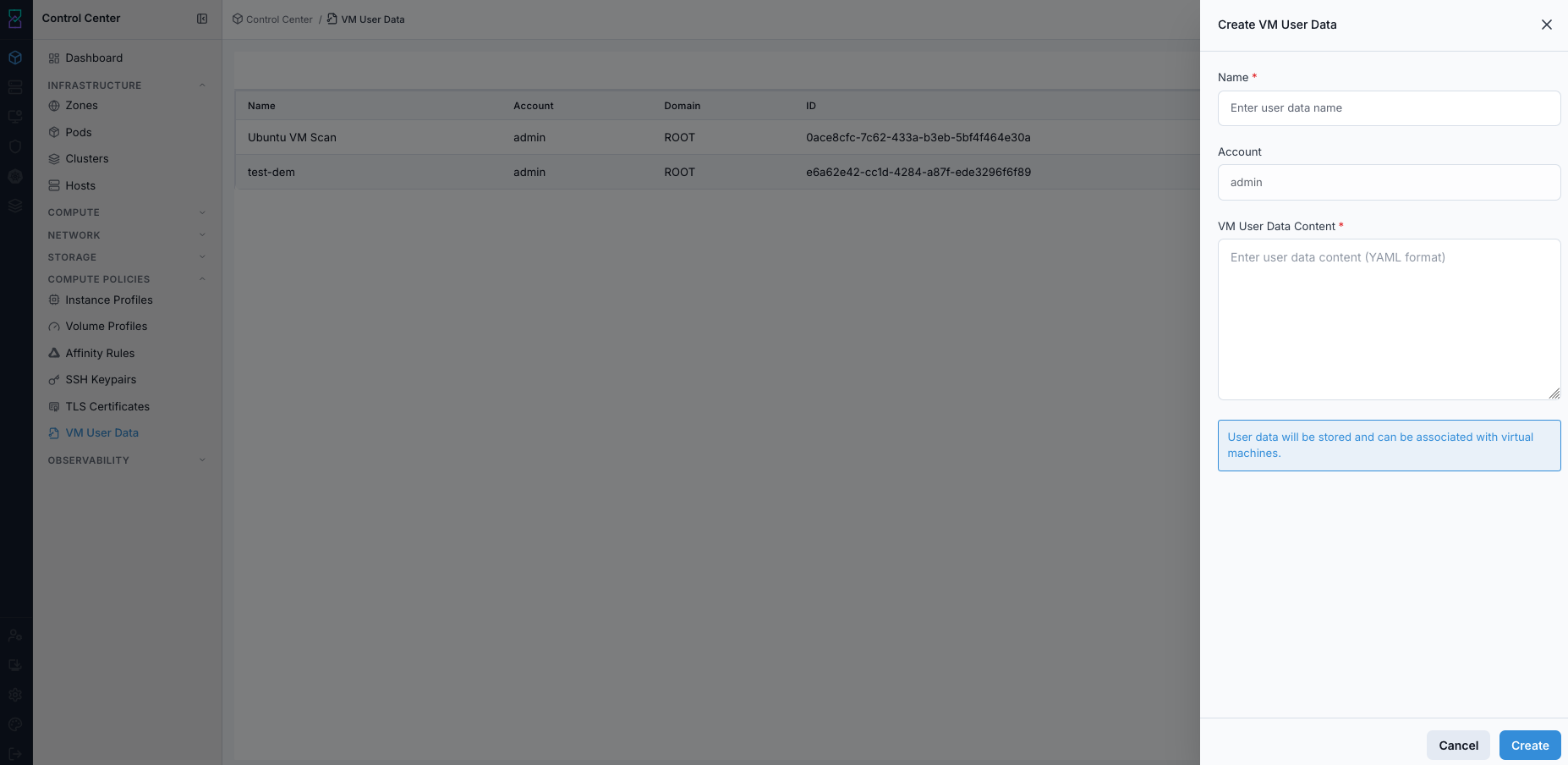
Create VM User Data form.
Screen Overview and Actions
This screenshot shows the create form for a VM user-data entry.
From this screen, you can set metadata, choose script type, paste payload content, and save the entry.
Expected Outcome:
New user-data entry is available in VM provisioning workflows.
If this fails:
Validate payload format and required fields.
Verify the form accepts the payload content.
Review the on-screen error message and retry.
Step: Attach VM User Data During VM Create
When to Use: Use this when provisioning a VM that needs first-boot automation.
Purpose: Apply the correct payload to the VM at create time.
Steps:
Open the Create VM panel.
Select the required VM user-data entry.
Complete provisioning.
Validate first-boot behavior from VM console/logs.
Expected Outcome:
VM bootstraps with expected first-boot configuration.
If this fails:
Confirm the entry was attached in the Create VM panel.
Validate payload syntax and idempotency.
Review VM console and on-screen error messages, then retry.
Step: Delete VM User Data (When Retiring)
When to Use: Use this only when a payload is no longer needed and not used by active runbooks.
Purpose: Retire outdated automation entries.
Steps:
Identify unused entry.
Delete and confirm.
Verify it is no longer selectable for new VMs.
Expected Outcome:
Deprecated payload is removed from new provisioning flows.
If this fails:
Verify the delete action is available for the selected entry.
Confirm entry is not protected by policy.
Review the on-screen error message and retry.