Support Bundle
Purpose
Support Bundle provides a single dashboard to generate and download diagnostic bundles for troubleshooting and support escalation.
When to Use
Use this page when:
support requests a diagnostic bundle for incident analysis
recurring failures need packaged evidence for escalation
you need a single artifact that includes troubleshooting context
Step: Open Support Bundle Dashboard
When to Use:
Use this first before entering any bundle input values.
Purpose:
Confirm the bundle form is available and ready for action.
Steps:
Navigate to
Control Center -> Observability -> Support Bundle.Confirm bundle form fields and generation action are visible.
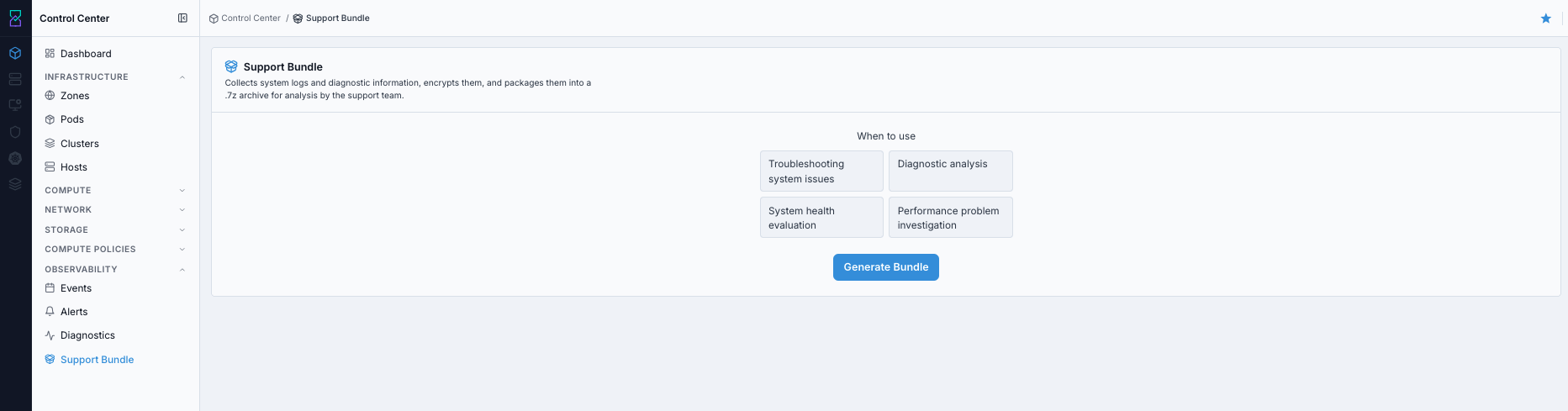
Support Bundle dashboard.
Tip
Confirm dashboard fields are visible before entering data so generation does not fail due to missing required inputs.
Expected Outcome:
The Support Bundle dashboard is loaded and ready for input.
If this fails:
Refresh the page.
Re-open
Support Bundlefrom the sidebar.
Step: Select Password Method
When to Use:
Use this before generating any bundle.
Purpose:
Choose how bundle protection is applied before generation.
Steps:
In the bundle form, choose the password method option.
Confirm method selection before generating the bundle.
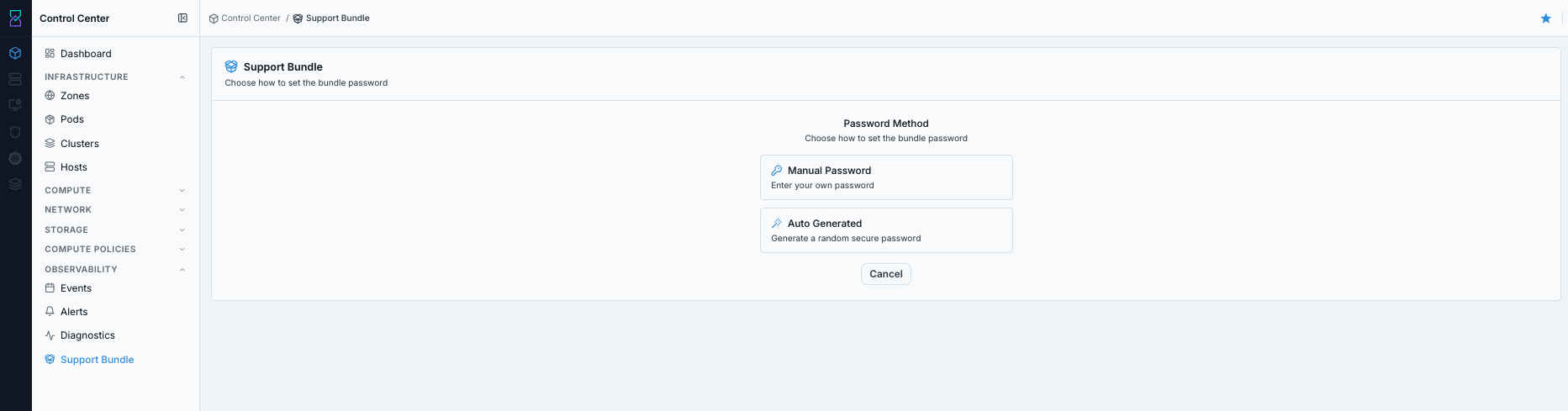
Support Bundle password method selection.
Tip
Choose password method first, then fill only fields required for that method.
Warning
Keep bundle passwords secure.
Expected Outcome:
One password method is selected and input requirements are clear.
If this fails:
Re-select the desired method.
Refresh once if method controls are unresponsive.
Continue with the selected method flow after controls recover.
Step: Automatic Password Flow
When to Use:
Use this when automatic password generation is preferred for fast bundle creation.
Purpose:
Generate a password automatically and continue with bundle creation.
Steps:
Choose the automatic password method.
Click the action to generate password automatically.
Continue to bundle generation.
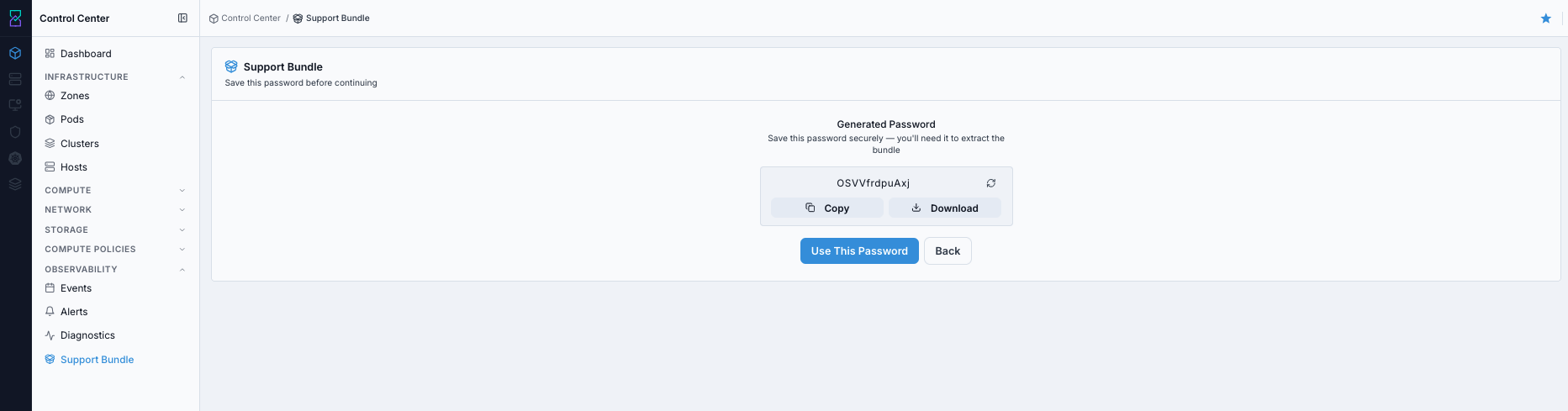
Automatic password generation flow.
Expected Outcome:
Password is generated automatically and the form is ready for bundle generation.
If this fails:
Step: Manual Password Flow
When to Use:
Use this when policy requires operator-defined password control.
Purpose:
Set the password manually and continue to bundle generation.
Steps:
Choose the manual password method.
Set the password value in the form.
Continue to bundle generation.
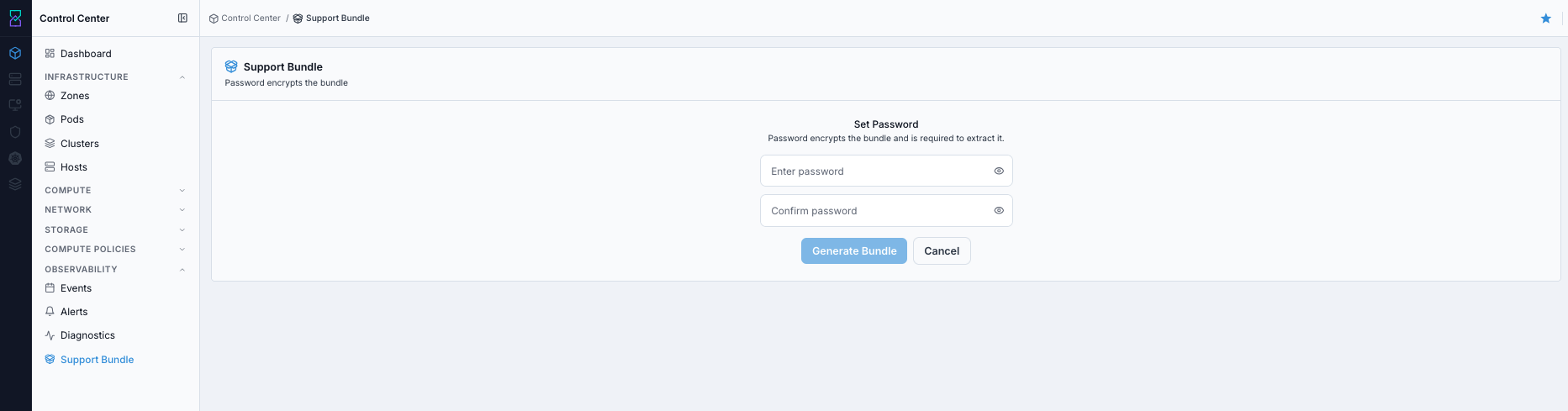
Manual password set flow.
Expected Outcome:
Manual password is accepted and the form is ready for bundle generation.
If this fails:
Reconfirm password field validity.
Retry once with the same method.
Escalate with captured error details if failure persists.
Step: Generate and Download Support Bundle
When to Use:
Use this after password setup is complete.
Purpose:
Create and retrieve a support-ready diagnostic bundle.
Steps:
Click
Generate Support Bundle.Wait for generation to complete.
Click
Download.Attach the downloaded bundle to the support ticket.
Expected Outcome:
A support bundle is generated successfully and downloaded for escalation use.
Warning
Do not regenerate repeatedly without changing inputs; capture first failure details before retrying.
If this fails:
Retry download once.
Check browser/session state.
Regenerate only if the previous bundle is unavailable.
Tip
Attach the bundle with incident timestamp and affected resource IDs for faster support triage.