Image Storage
Use this page to configure and validate image-store endpoints for VM templates, boot images, and snapshot artifacts.
Image Storage
UI path: Control Center -> Storage -> Image Storage
Purpose
Stores templates, Boot Images, snapshots, and VM backups. NFS-backed.
When to Use Image Storage
Use this module when you need to:
Register or validate the zone image store used by templates, Boot Images, snapshots, and backups.
Troubleshoot template, Boot Image, or snapshot transfer issues.
Confirm the correct store URL, zone scope, and provider before image lifecycle operations.
Overview
Image storage holds the read-only and archival data that powers your cloud: OS templates, uploaded Boot Images, volume snapshots, and VM backups. System VMs (SSVM) manage data transfer between image storage and hypervisor hosts.
List View
Field |
Description |
|---|---|
|
Identifier for this image store. |
|
Transfer protocol used (for example |
|
|
|
Mount path (for example |
|
|
|
Row |
Provider (NFS) is set when adding the store and shown on the store details page.
Actions
Action |
Description |
|---|---|
|
Update the store name or URL. |
|
Remove the store. Allowed only when no active templates, Boot Images, or snapshots depend on it. |
Warning
Deleting an image storage store is irreversible. Ensure all required data has been migrated or is no longer needed before proceeding.
System VM Dependency (SSVM)
Each image storage store is served by an Image Storage VM (SSVM). The SSVM handles:
Template downloads and caching
Snapshot uploads and restores
Boot Image streaming to VMs
SSVM State |
Impact |
|---|---|
|
Normal operations. |
|
No template or snapshot operations are possible. |
|
Check system VM logs and recover SSVM health. |
How to Verify SSVM State
Open
Control Center -> Compute -> Virtual Machines.Filter to system VMs and locate the Image Storage VM (SSVM) for the target zone.
Confirm VM
StateisRunningbefore template, snapshot, or Boot Image transfer operations.If state is not healthy, check Observability for related failures.
First Recovery Actions (SSVM Stopped or Error)
Start or restart the SSVM using VM actions.
Wait for VM state to return to
Runningand re-check image-store operations.If recovery fails, collect event evidence and escalate to platform operations.
Filtering & Search
Filter by
Zoneto isolate target environment.Filter by
Provider(NFS).Search by
NameorURL.
Step: Understand Image Storage Controls (What Each Click Does)
When to Use:
Use this when performing Understand Image Storage Controls (What Each Click Does) in the active storage workflow.
Purpose:
Execute Understand Image Storage Controls (What Each Click Does) and confirm the expected UI/state outcome for this storage resource.
Steps:
Use this quick map before changing or deleting an image store:
Control |
What it is |
What happens when clicked |
|---|---|---|
Storage name |
Entry point for one image store |
Opens the details page where you validate capacity, configuration, and tabs. |
Row |
Dashboard operation menu |
Provides |
|
Directory/file view of backend path |
Shows folders and files available at the configured URL/path for validation. |
Browse row action icons |
File/folder operations in |
Download icon fetches a file; folder icon opens that directory level. |
Tip
If VM template/boot image imports fail, check Browse first to confirm expected paths and files exist.
Expected Outcome:
Task completes and the related storage view updates as expected.
If this fails:
Verify backend health and available capacity for the target storage resource (pool/store/endpoint and zone scope).
Check blocking dependencies for this action (attachments, snapshots, templates, buckets, object locks, or maintenance state).
Review Observability Events/Alerts for the storage object and retry only after resolving the root cause.
Step: Review Image Storage Dashboard
When to Use:
Use this when performing Review Image Storage Dashboard in the active storage workflow.
Purpose:
Execute Review Image Storage Dashboard and confirm the expected UI/state outcome for this storage resource.
Steps:
Open
Control Center -> Storage -> Image Storage.Confirm at least one row is present.
Verify
Protocol,Scope,URL, andStorage Usagevalues.Confirm row-level
Actionsis available.
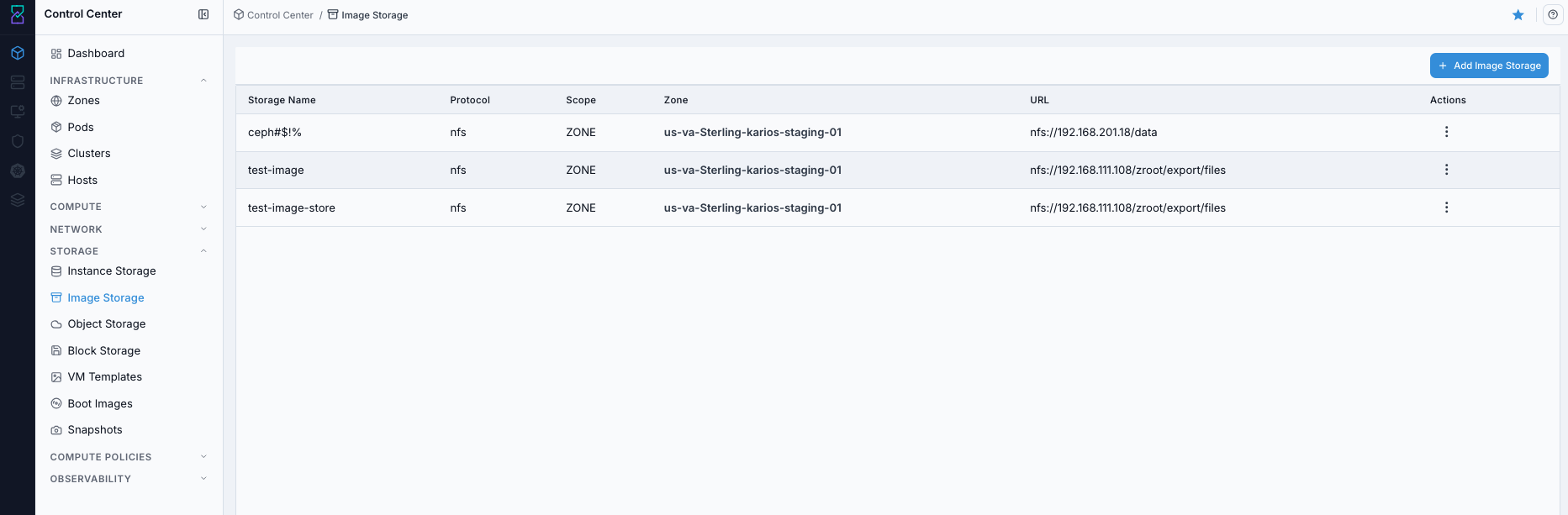
Image Storage dashboard.
Expected Outcome:
The dashboard loads with image store rows and key columns visible.
You can identify the target store before taking actions.
If this fails:
Verify backend health and available capacity for the target storage resource (pool/store/endpoint and zone scope).
Check blocking dependencies for this action (attachments, snapshots, templates, buckets, object locks, or maintenance state).
Review Observability Events/Alerts for the storage object and retry only after resolving the root cause.
Step: Open Image Storage Help Panel
When to Use: Use this after opening the dashboard when you need field definitions and page-level guidance.
Purpose: Open contextual help without mixing help flow into dashboard review.
Steps:
Open
Control Center -> Storage -> Image Storage.Click the help icon in the top-right corner.
Review definitions for dashboard fields and available controls.
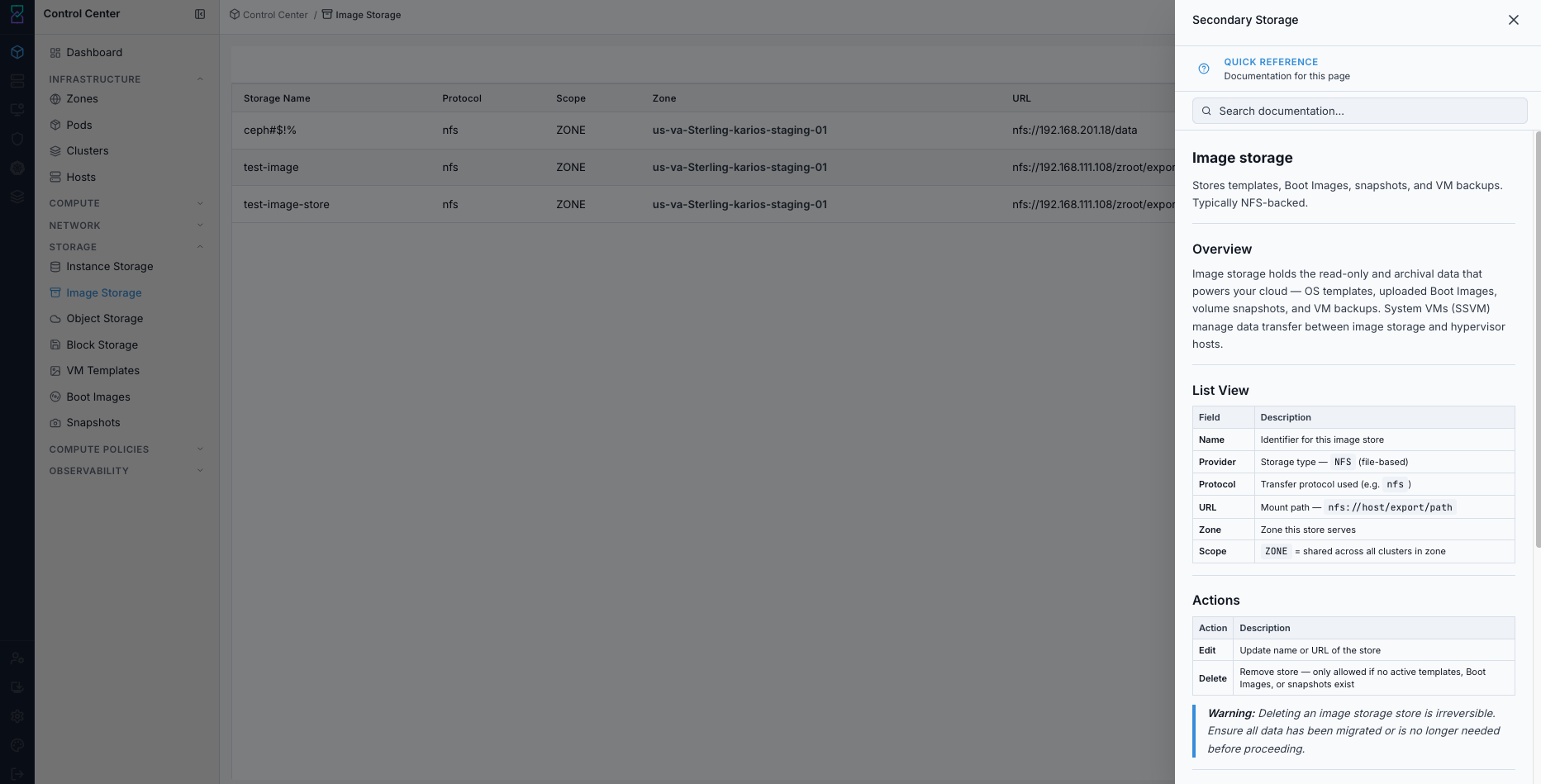
Image Storage help panel.
Expected Outcome:
The help panel opens and explains Image Storage fields and controls.
If this fails:
Verify backend health and available capacity for the target storage resource (pool/store/endpoint and zone scope).
Check blocking dependencies for this action (attachments, snapshots, templates, buckets, object locks, or maintenance state).
Review Observability Events/Alerts for the storage object and retry only after resolving the root cause.
Step: Review Image Storage Row Actions
When to Use: Use this when you need to understand or execute row-level operations from the dashboard.
Purpose: Validate available row actions and confirm what each action triggers.
Steps:
Open
Control Center -> Storage -> Image Storage.Open the row
Actionsmenu for the target store.Review available operations:
View Snapshots
View Templates
View Boot Images
Edit
Delete
Use only the required action for the current task.
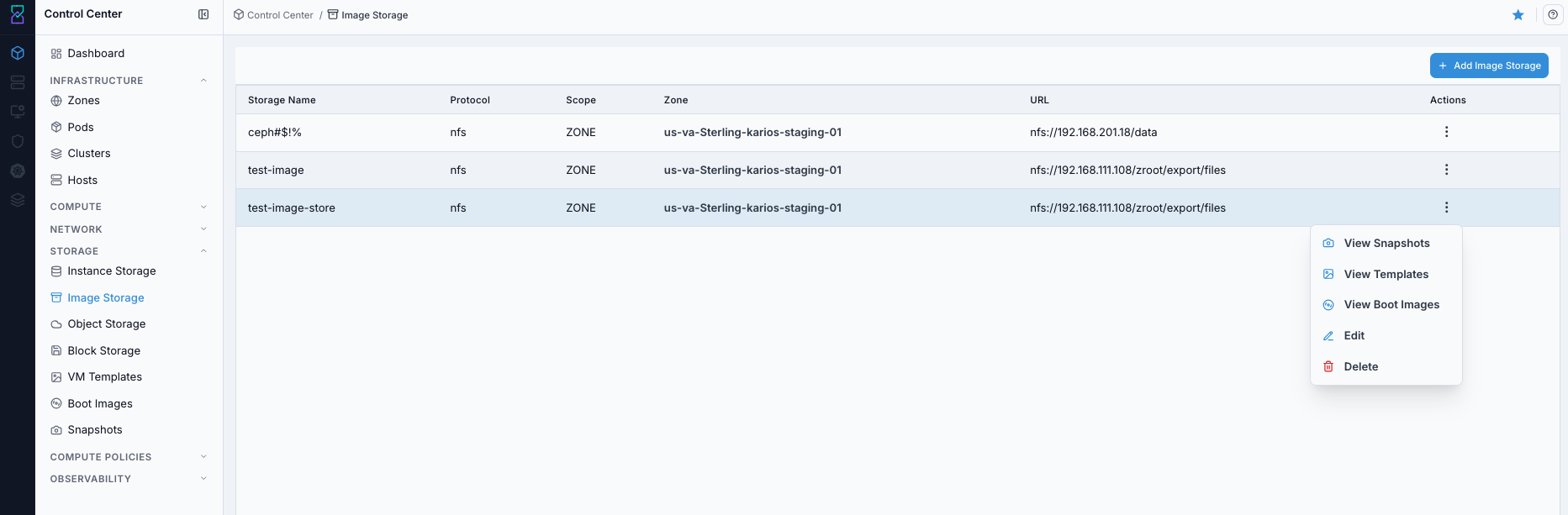
Image Storage row actions menu.
Expected Outcome:
Row actions are visible and trigger the expected navigation or lifecycle operation.
If this fails:
Verify backend health and available capacity for the target storage resource (pool/store/endpoint and zone scope).
Check blocking dependencies for this action (attachments, snapshots, templates, buckets, object locks, or maintenance state).
Review Observability Events/Alerts for the storage object and retry only after resolving the root cause.
Step: Add New Image Store
When to Use:
Use this when performing Add New Image Store in the active storage workflow.
Purpose:
Execute Add New Image Store and confirm the expected UI/state outcome for this storage resource.
Steps:
Click
+ Add Image Storage.Choose a connection method:
Karios NFS (management VIP)(pick from the standard Karios NFS exports) orCustom server(type any server IP and path by hand).Fill required fields:
Storage Name
Provider
Server
Path
Zone
Click
Add Image Storage.Verify the new row appears on the dashboard.
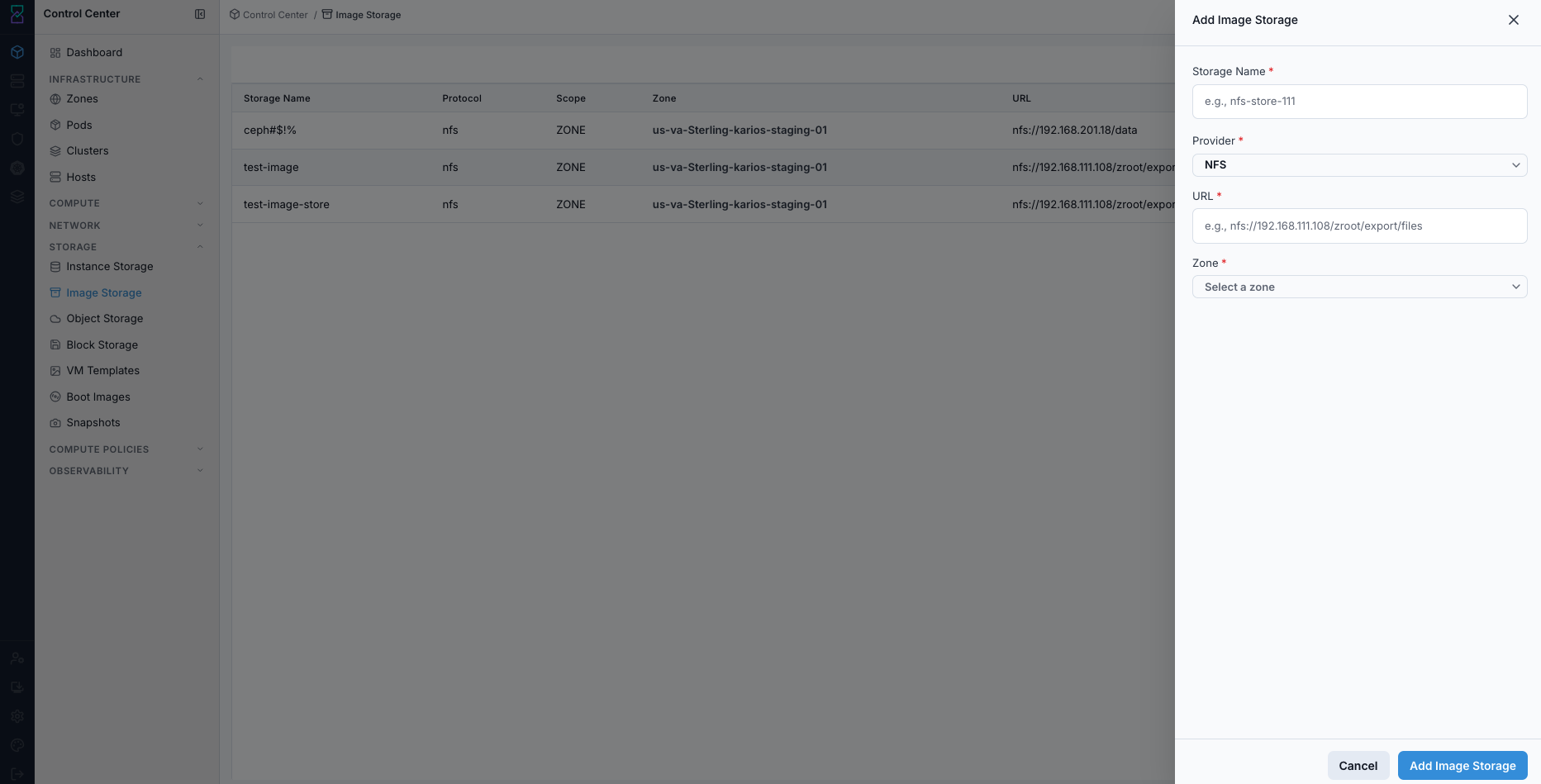
Add New Image Store form.
Expected Outcome:
A new image store row is visible with the configured URL and zone.
The store opens in details view and is available to dependent workflows.
If this fails:
Verify backend health and available capacity for the target storage resource (pool/store/endpoint and zone scope).
Check blocking dependencies for this action (attachments, snapshots, templates, buckets, object locks, or maintenance state).
Review Observability Events/Alerts for the storage object and retry only after resolving the root cause.
Step: Review Details and Header Action Icons
When to Use:
Use this when performing Review Details and Header Action Icons in the active storage workflow.
Purpose:
Execute Review Details and Header Action Icons and confirm the expected UI/state outcome for this storage resource.
Steps:
Click a storage name to open the details page.
Review capacity metrics and general configuration values.
Use top-right icons to navigate or manage the store:
View Snapshots
View Templates
View Boot Images
Edit
Delete
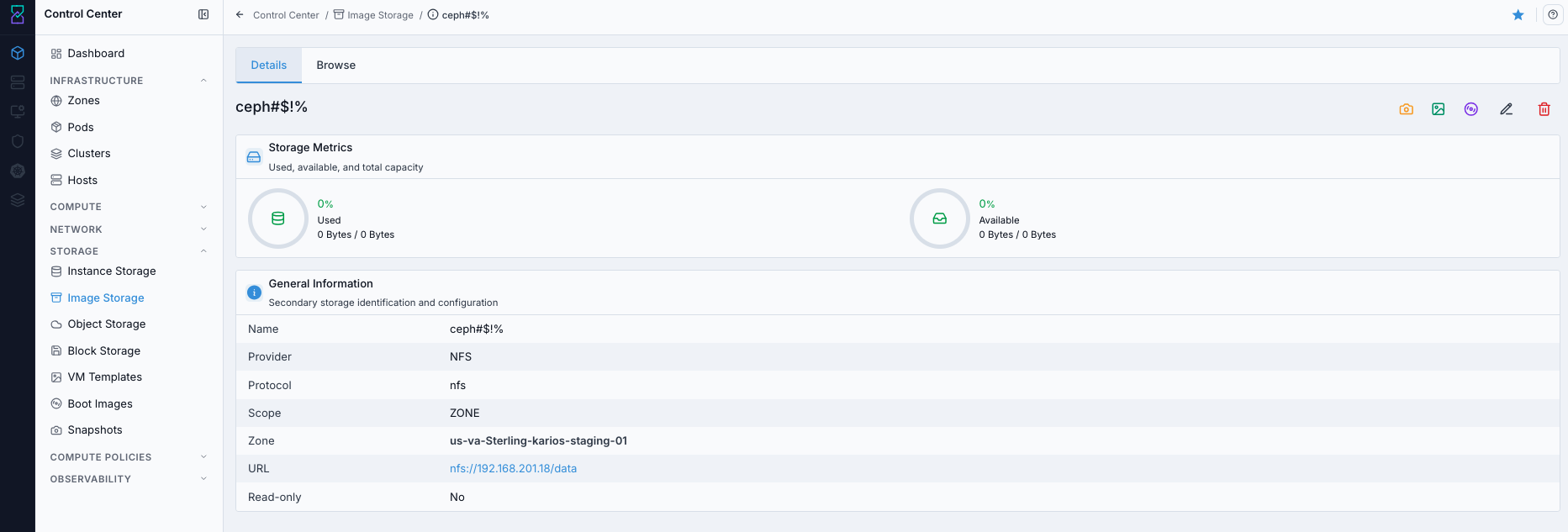
Image Storage details page with header action icons.

Image Storage details action controls.
Expected Outcome:
Task completes and the related storage view updates as expected.
If this fails:
Verify backend health and available capacity for the target storage resource (pool/store/endpoint and zone scope).
Check blocking dependencies for this action (attachments, snapshots, templates, buckets, object locks, or maintenance state).
Review Observability Events/Alerts for the storage object and retry only after resolving the root cause.
Step: Browse Files in the Image Store
When to Use:
Use this when performing Browse Files in the Image Store in the active storage workflow.
Purpose:
Execute Browse Files in the Image Store and confirm the expected UI/state outcome for this storage resource.
Steps:
Open the
Browsetab on the storage details page.Use the table to inspect files and directories.
Use action icons to download files or open directories.
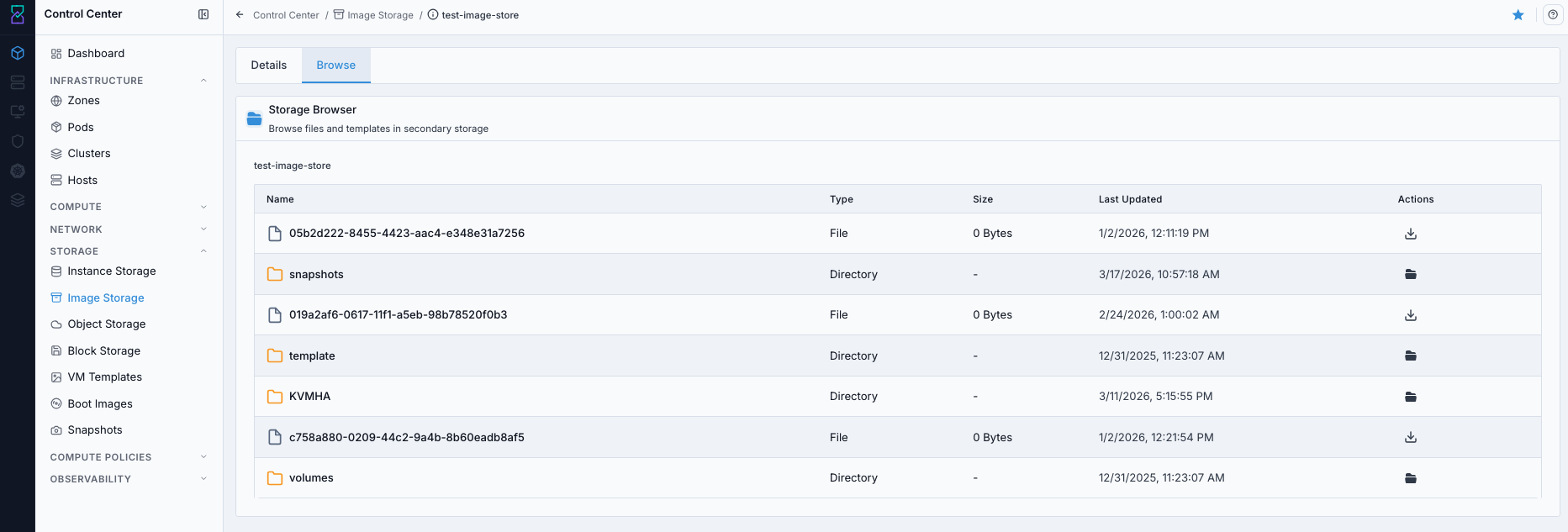
Browse view for image store contents.
Expected Outcome:
Task completes and the related storage view updates as expected.
If this fails:
Verify backend health and available capacity for the target storage resource (pool/store/endpoint and zone scope).
Check blocking dependencies for this action (attachments, snapshots, templates, buckets, object locks, or maintenance state).
Review Observability Events/Alerts for the storage object and retry only after resolving the root cause.
Step: Delete Image Store (When No Longer Needed)
When to Use:
Use this when performing Delete Image Store (When No Longer Needed) in the active storage workflow.
Purpose:
Execute Delete Image Store (When No Longer Needed) and confirm the expected UI/state outcome for this storage resource.
Steps:
Complete Pre-Delete Safety Checklist (Use Before Any Delete).
Open the image store details or dashboard row actions.
Click delete and confirm the prompt.
Verify the store row is removed and dependent workflows are not impacted.
If deleted by mistake, re-add the same store immediately using previous
Storage Name,Provider,URL, andZonevalues.
Expected Outcome:
The image store registration is removed from the current environment.
Dependent VM template/boot image/snapshot workflows are either re-pointed or intentionally retired.
If this fails:
Verify backend health and available capacity for the target storage resource (pool/store/endpoint and zone scope).
Check blocking dependencies for this action (attachments, snapshots, templates, buckets, object locks, or maintenance state).
Review Observability Events/Alerts for the storage object and retry only after resolving the root cause.
Tool Tips
Keep one known-good image store per zone before onboarding new teams.
Use
Browseafter changes to verify expected directories exist.
Warnings
Deleting an image store breaks workflows that rely on that path.
Changing URL/protocol without validation can break VM template and boot-image imports.
If this fails:
If import fails, validate URL syntax and endpoint reachability.
If
Browseshows missing folders, verify backend export-path mapping.If edit/delete actions fail, verify role permissions and dependency constraints.