Services
Path: Left sidebar > Infrastructure > Services
When to Use:
When you need to create, review, or troubleshoot Ceph-managed services.
During feature enablement, convergence failures, or daemon-count mismatches.
Purpose:
This page explains how to create services, validate placement, and inspect daemon and event history.
Steps:
Open
Infrastructure > Services.Review the service list and identify the target service row.
Use
+ Create Serviceor expand a row forDaemonsandEvents.Confirm the running count and status converge after the action.
Expected Outcome:
You can create or validate a service and confirm the orchestrator reached the intended state.
What You See:
Service rows, running counts, placement specs, row expansion tabs, and create/edit/delete actions.
What This Screenshot Shows:
The first reference screenshot on this page shows the Create Service workflow and the service detail tabs used for validation.
Actions in This Screen:
Create a service.
Expand a service row to inspect daemons and events.
Edit or delete a service from the row actions.
If this fails:
Check the
Eventstab for orchestrator errors.Confirm the target hosts and labels are valid for the placement rule.
Retry only after the backend deployment state refreshes.
Service Overview
The Services page shows all daemon types managed by the Ceph orchestrator
(cephadm), their placement rules, and running instance counts.
Purpose:
To verify service health across all Ceph daemon types.
To create, update, or remove service definitions safely.
When to Use:
During initial cluster bring-up.
When enabling new features (NFS, RGW, MDS, monitoring stack).
During running-count mismatch or daemon startup failures.
Services List - Column Reference
Column |
What It Shows |
|---|---|
Service Name |
Type and name of the service (for example |
Running |
running / total - how many instances are up vs the desired count |
Last Refreshed |
When the orchestrator last checked service state |
Placement |
Placement spec controlling where daemons are deployed (hosts, labels, count) |
Status |
Summary status (running, degraded, and related state) |
Actions |
Pencil (Edit) and trash (Delete) |
What healthy looks like:
Status is Running.
Running counts match expected totals.
Tip
Running count mismatch (for example 2/3) means deployment is in progress
or one daemon failed. Check service Events tab for root cause.
Tip
Last Refreshed or Placement showing - can be normal depending on
service type and how placement is defined in your deployment.
Placement Spec Examples
Spec |
Meaning |
|---|---|
|
Deploy exactly 3 instances on any eligible hosts |
|
Deploy on all hosts with the |
|
Deploy only on named hosts |
|
Deploy on all hosts matching the pattern |
Note
Placement spec options visible in UI can vary by service type and orchestrator policy.
How To Create A Service
Path: Infrastructure > Services > + Create Service
Purpose:
To define a new service type and desired placement in the cluster.
When to Use:
During initial infrastructure setup.
When expanding capacity or enabling a new feature.
Steps:
Open
Infrastructure > Services.Click
+ Create Service.Select
Type.Enter
IDif needed for multi-instance service naming (for examplergw.east,rgw.west).Leave
Unmanagedunchecked for normal orchestrator management.Set
Placementand select hosts.Set desired
Count.Click
Create Service.
Expected Outcome:
Service row appears immediately.
Running count starts at
0/Nduring deployment.Running count increments as daemons start.
Status becomes Running when target count is reached.
A new orchestrator-managed service is created with the placement and count you specified.
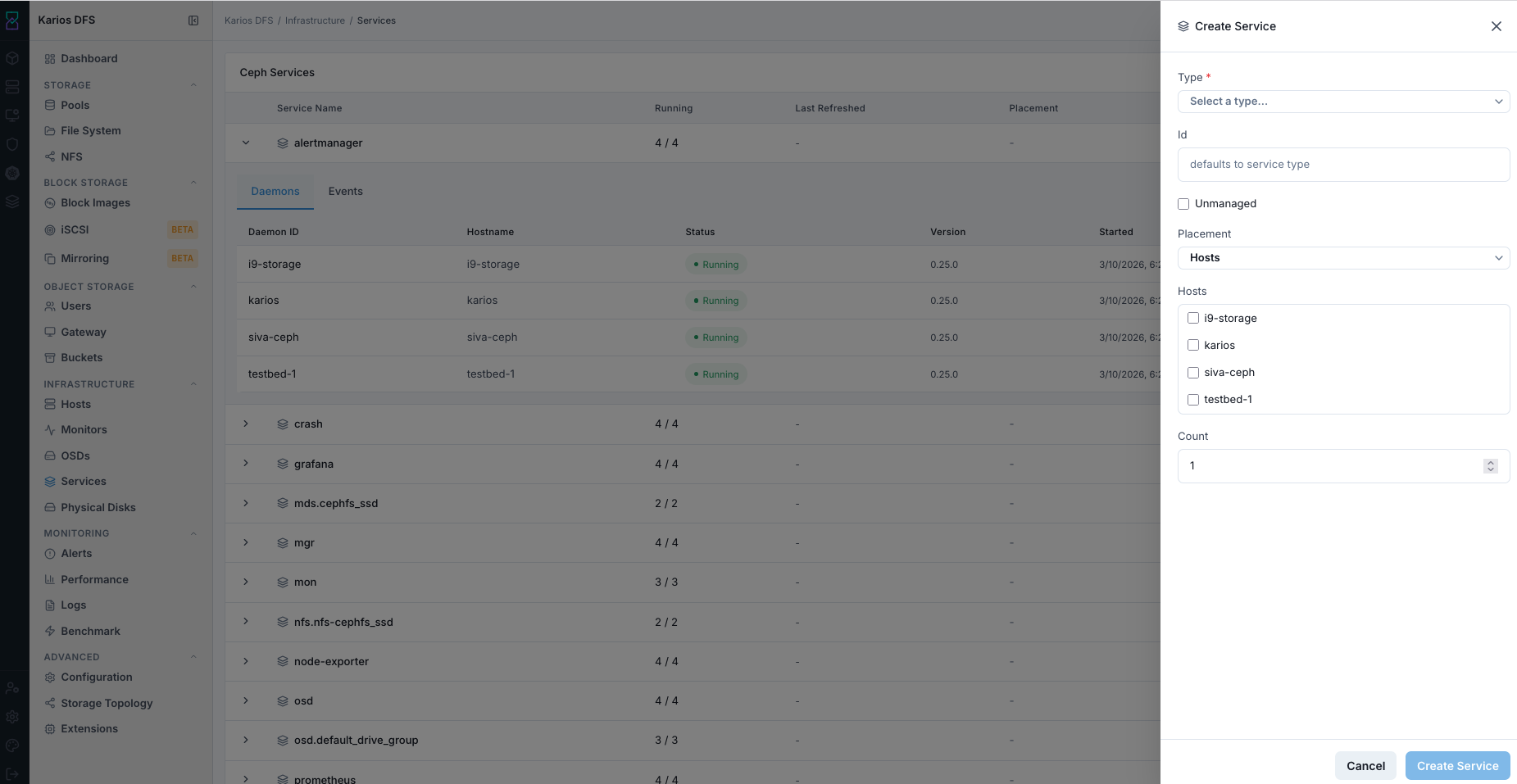
What This Screenshot Shows: Create Service Panel (UI Reference; Values Depend On Your Environment).
Field |
Value / Options |
Description |
|---|---|---|
Type * |
Dropdown |
Required daemon type to deploy |
ID |
Text |
Optional suffix for multi-instance naming |
Unmanaged |
Checkbox |
If enabled, orchestrator does not auto-maintain service |
Placement |
Hosts / other options |
Placement policy for daemon instances |
Hosts |
Host checkboxes |
Explicit target hosts for service placement |
Count |
Number |
Desired daemon instance count |
Tooltips (Create Form)
Type: Select the daemon type you want to deploy. The list shown depends on your environment.
ID: Defaults to service type and can be customized for multi-instance groups.
Unmanaged: If enabled, orchestrator does not auto-heal this service.
Placement: Controls where daemons are allowed to run.
Hosts: Select target hosts when Placement is
Hosts.Count: Sets desired instance count; running count converges toward this value.
Warning
Enabling Unmanaged disables automatic lifecycle handling for that service.
Use only when you intentionally want manual operational control.
Warning
Reducing count for core services (especially mon/mgr) can impact quorum
and management availability. Validate impact before applying.
Service Detail Tabs
Expand service row using chevron >.
Daemons Tab
Lists daemon instances for that service.
Purpose:
To verify every daemon instance is running on expected hosts.
When to Use:
After create or edit service.
During running/total mismatch investigations.
Column |
What It Shows |
|---|---|
Daemon ID |
Unique daemon instance ID |
Hostname |
Host running the daemon |
Status |
Running/failed state |
Version |
Software version |
Started |
Last start timestamp |
Steps:
Open
Daemonstab.Verify each row status is Running.
Confirm row count matches expected service count.
Expected Outcome:
You confirm service-level health at individual daemon instance granularity.
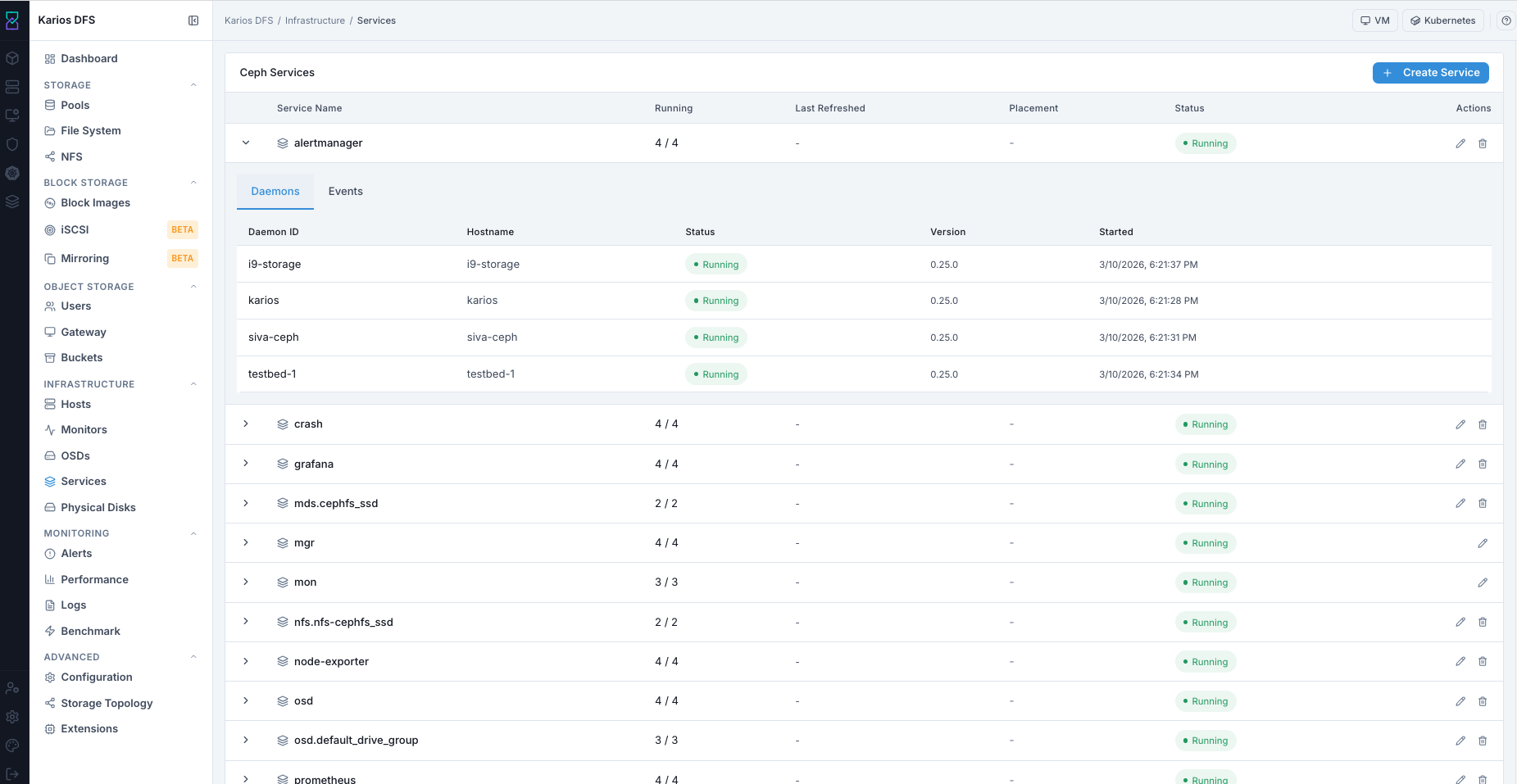
What This Screenshot Shows: Service Expanded Row - Daemons Tab (UI Reference; Values Depend On Your Environment).
Events Tab
Shows timestamped service event log.
Purpose:
To identify why a service deployment, restart, or update did not converge.
When to Use:
When running count is below desired count.
After any create/edit/delete action.
Steps:
Open
Eventstab.Review most recent events first.
Use error events to identify host-level start failures.
Expected Outcome:
You get an action-oriented timeline of orchestrator operations and errors.
Tip
An entry like service was created with no error events indicates
normal service creation flow.
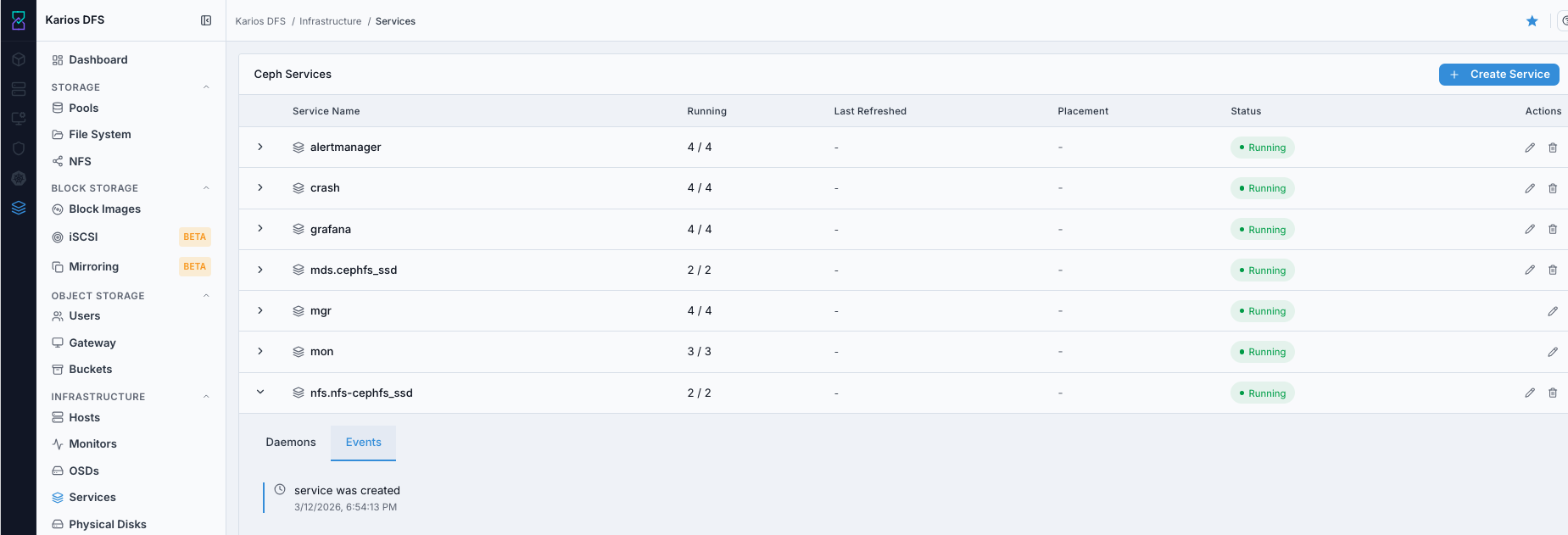
What This Screenshot Shows: Service Expanded Row - Events Tab (UI Reference; Values Depend On Your Environment).
Service Actions
Create Service
Define a new service type (mon, mgr, osd, mds, rgw,
nfs, crash, node-exporter and others), its name, and placement spec.
Purpose:
To add a new daemon service to the cluster.
When to Use:
During initial setup or when enabling a new capability.
How:
Use
+ Create Service.Set type, placement, host targets, and count.
Submit and monitor running-count convergence.
Expected Outcome:
New service definition is created and daemons begin deployment.
Edit Service (Pencil icon)
Opens pre-filled service spec. You can update placement, count, and supported parameters. Orchestrator applies changes incrementally.
Purpose:
To rebalance placement or change desired instance count without full redeploy.
When to Use:
When scaling service capacity or moving daemons to different hosts.
How:
Click pencil icon on the target row.
Update supported fields.
Save and monitor running-count convergence.
Expected Outcome:
Placement count, labels, or host list updates are applied incrementally by the orchestrator.
Delete Service (Trash icon)
Removes service definition and all daemon instances.
Purpose:
To retire an unused service group.
When to Use:
After dependency and impact checks are complete.
How:
Click trash icon on target service row.
Confirm deletion.
Verify daemon instances are removed.
Expected Outcome:
Service definition and its daemons are removed. Protected services like
monandmgrcannot be deleted this way.
Warning
Core services like mon and mgr cannot be deleted if quorum or
management safety would be violated. Reduce count via Edit instead.
Key Concepts
Orchestrator:
cephadmis the built-in orchestrator that deploys and manages daemon containers over SSH to cluster hosts.Running vs. Total: A mismatch (for example
1/3) indicates deployment in progress or daemon start failure. Check theEventstab first.Service Name: For multi-instance service types (
rgw,mds), the name suffix distinguishes service groups (for examplergw.east,rgw.west).
Troubleshooting - Services
Problem You See |
Most Likely Cause |
What To Do |
|---|---|---|
Running mismatch (for example 2/3) |
Deployment failure or unreachable host |
Check Events tab and inspect affected host daemon state |
New service stuck at 0/N |
Host unreachable or placement/label mismatch |
Verify host Online state and placement correctness |
Cannot delete service |
Protected core service or active dependency |
Use Edit to reduce count for core service and clear dependents |
Service Running but one daemon not running |
Host-local daemon crash |
Identify failing host in Daemons tab and inspect host daemons |
Create Service button missing |
Insufficient role permissions |
Request Operator or Administrator role |
Create Service fails at submit |
Invalid placement input or no eligible host selected |
Recheck placement mode, selected hosts, and count |
Events tab shows only creation event but count still mismatched |
Deployment still converging |
Wait briefly, refresh, and re-check Daemons and Events tabs |
Note
If any issue persists, raise a support ticket via Monitoring > Alerts or
Karios Support.