Physical Disks
Path: Left sidebar > Infrastructure > Physical Disks
When to Use:
Before creating or scaling OSD services.
When verifying disk readiness, hardware inventory, or replacement state.
Purpose:
This page shows how to filter disks, read availability state, and map a UI row to the physical drive in the chassis.
Steps:
Open
Infrastructure > Physical Disks.Filter by device type, availability, host, or search term.
Expand the target disk for details or use
Identifywhen supported.Confirm the disk is ready before using it for OSD deployment.
Expected Outcome:
You can identify the correct disk and determine whether it is deployable, in use, or blocked.
What You See:
Disk inventory rows, availability filters, disk metadata, rejected reasons, and identify actions.
What This Screenshot Shows:
The first screenshot on this page shows a reference physical-disk inventory with availability, host, and device details.
Actions in This Screen:
Filter and search disks.
Expand a disk row for detailed health and rejection data.
Trigger
Identifyto locate a supported disk physically.
If this fails:
Read
Rejected Reasonsin the expanded row first.Confirm the disk is not already partitioned, locked, or attached to an OSD.
Re-scan after the hardware or host state is corrected.
Disk Inventory Overview
The Physical Disks page shows every block device visible to the Ceph cluster across all hosts - whether available for OSD deployment or already in use.
Purpose:
To find OSD-candidate disks quickly.
To validate disk inventory across hosts.
To diagnose why a disk is not deployable.
When to Use:
Before creating or scaling OSD services.
During disk replacement and hardware maintenance.
During availability or capacity troubleshooting.
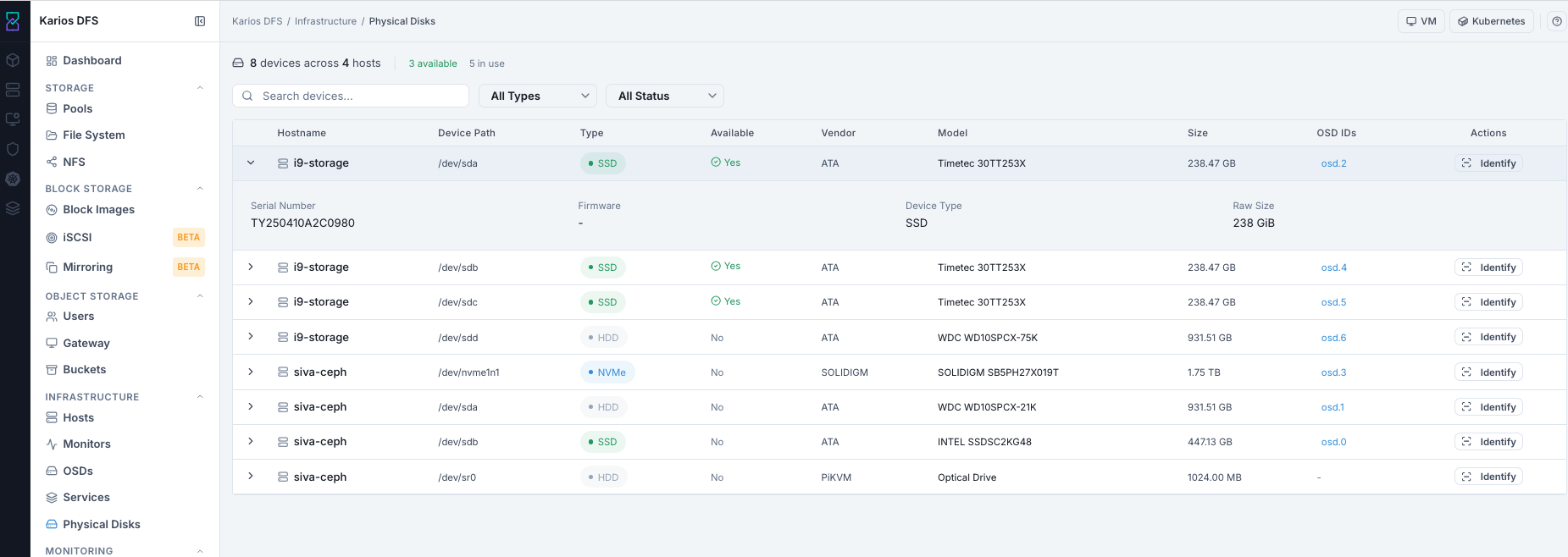
What This Screenshot Shows: Physical Disks Dashboard (UI Reference; Values Depend On Your Environment).
Page Header - Summary Stats
Top summary line shows:
Total device count and host count
Available count (ready for new OSD deployment)
In use count (already deployed as OSDs)
Tip
The header counters are a fast readiness check before OSD planning: confirm Available count matches expected free devices.
Filters
Three filter controls above the list:
Filter |
Use |
|---|---|
Search |
Filter by hostname, device path, vendor, or model |
All Types (Device Type) |
Show only NVMe, SSD, or HDD |
All Status (Availability) |
Show only Available or In-Use disks |
Steps:
Set
Device Typeif you want to isolate NVMe/SSD/HDD media.Set
Availability(shown asAll Status) based on your task.Use
Searchto narrow to specific host/path/model.
Expected Outcome:
You reduce the list to the exact disks needed for action.
Physical Disks List - Column Reference
Column |
What It Shows |
|---|---|
Hostname |
Host that owns this device |
Device Path |
Kernel path such as |
Type |
Device media type |
Available |
|
Vendor |
Hardware vendor identifier |
Model |
Drive model string |
Size |
Raw disk capacity |
OSD IDs |
OSD(s) using this disk. |
Actions |
|
Tip
Available = No with blank OSD ID often means partitions/filesystems or
lock state prevents OSD use.
Tip
Identify requests drive LED blink. Hardware support varies by controller.
Warning
Do not assume Available = Yes is permanent. A disk can become unavailable
after partitioning, filesystem creation, lock acquisition, or OSD assignment.
How To View Disk Details
Click chevron > to expand a disk row.
Field |
What It Shows |
|---|---|
Serial Number |
Drive serial identifier |
Firmware |
Drive firmware version |
Device Type |
Block device type (disk, partition, lvm) |
Raw Size |
Unformatted disk capacity |
Wear Level |
NVMe/SSD endurance indicator. Values near 100% indicate end of life. |
Partitions |
Existing partition table. Partitioned disks are not automatically available. |
Rejected Reasons |
Why disk is unavailable (has partitions, existing filesystem, locked, and related causes) |
LSM Data |
libStorageMgmt health data if available |
Note
Expanded detail fields vary by disk type and telemetry availability.
In the provided screenshot, visible fields include Serial Number,
Firmware, Device Type, and Raw Size. Additional fields such as
Wear Level, Partitions, Rejected Reasons, and LSM Data appear
when reported by the device and platform.
Tip
Expand a row and read Rejected Reasons first when Available = No.
It is the fastest path to root cause.
Common Tasks
Find Available Disks For OSD Deployment
Purpose:
To prepare valid devices for new OSD service deployment.
When to Use:
Before creating/updating an OSD service spec.
Open
Infrastructure > Physical Disks.Set
Availabilityfilter toAvailable.Record host and device path for deployment planning.
Expected Outcome:
You identify disks ready for orchestrator OSD consumption.
Identify A Specific Disk Physically
Purpose:
To map a UI row to the exact physical drive in chassis.
When to Use:
During disk replacement, RMA, or hardware inspection.
Find target disk using search/filter.
Click
Identifyon that row.Locate blinking drive in chassis.
Expected Outcome:
You map UI row to physical disk location.
Understand Why A Disk Is Not Available
Purpose:
To resolve blockers preventing OSD deployment.
When to Use:
When
Available = Nobut disk is expected to be deployable.
Find row with
Available = No.Expand row and inspect details.
Check
OSD IDsandRejected Reasons.
Expected Outcome:
You determine whether disk is already in use or blocked by format/partition state.
Key Concepts
Available: A disk is available when it has no partitions, no filesystem, is not locked by LVM/other process, and is not already an OSD. Wiping can make a disk available again.
Wear Level: NVMe/SSD endurance counters trend toward end-of-life as write endurance is consumed. In this guide’s reference terminology, values near 100% indicate end-of-life. Some vendors/controllers expose wear semantics differently. Validate against the same panel’s health indicators and your platform policy before acting.
Identify: Sends an LED blink request to drive firmware (SES/SCSI IDENTIFY). Not all controllers support this.
Troubleshooting - Physical Disks
Problem You See |
Most Likely Cause |
What To Do |
|---|---|---|
Available = No but OSD ID blank |
Existing partitions/filesystem |
Wipe disk safely before OSD use |
Expected disk not listed |
Host not registered or disk not visible to OS |
Verify host registration and OS-level disk visibility |
Identify does not blink LED |
Controller does not support identify |
Use device path + serial for physical mapping |
Disk in use but OSD down |
OSD crash or disk failure |
Check OSD Device Health and host daemon state |
Available count is 0 unexpectedly |
All disks in use or blocked |
Filter Available and inspect individual rejection reasons |
Wear Level indicates near end-of-life |
SSD/NVMe endurance exhaustion |
Plan proactive replacement before disk failure impacts OSD health |
Rejected Reasons shows locked/LVM state |
Device is locked by existing volume manager/process |
Clear lock safely per operational policy, then re-check availability |
Expanded row does not show wear/rejected/LSM fields |
Device or platform telemetry is not available for that disk |
Use visible fields plus Hosts > Device Health and vendor tools as needed |
Note
If any issue persists, raise a support ticket via Monitoring > Alerts or
Karios Support.