Object Storage
Use this page to register S3-compatible endpoints and manage bucket workflows.
Object Storage
UI path: Control Center -> Storage -> Object Storage
Purpose
S3-compatible storage for unstructured data: backups, media, logs, and application data. Backed by Ceph RGW or cloud providers.
When to Use Object Storage
Use this module when you need to:
Register an S3-compatible endpoint for bucket-based data access.
Store and retrieve unstructured data over HTTP(S) APIs.
Manage provider connection settings and bucket operations from one place.
Overview
Object storage provides an S3-compatible API for storing and retrieving unstructured data. Unlike instance and image storage, object storage is accessed through HTTP(S) endpoints and uses bucket-based organization with access control policies.
List View
Field |
Description |
|---|---|
|
Identifier for this object store. |
|
Backend type: |
|
Endpoint URL for S3-compatible API access. |
|
Total capacity allocated to this store. |
Actions
Action |
Description |
|---|---|
|
Update credentials, endpoint URL, or allocated capacity. |
|
Remove store. Allowed only when no active buckets exist. |
Warning
Deleting an object store does not delete backend data. It removes only the registration from the platform.
Supported Providers
Provider |
Protocol |
Use case |
|---|---|---|
MinIO |
S3-compatible |
On-prem, lightweight alternative. |
Ceph RGW |
S3-compatible |
On-prem, integrated with Ceph cluster (use MinIO provider). |
AWS S3 |
S3 |
Public cloud and offsite backups. |
Azure Blob |
Azure Blob API |
Public cloud, Azure-integrated workloads. |
Google Cloud Storage |
GCS / S3-compatible |
Public cloud, GCP-integrated workloads. |
Filtering & Search
Filter by
Provider.Search by
NameorURL.
Step: Understand Object Storage Controls (What Each Click Does)
When to Use:
Use this when performing Understand Object Storage Controls (What Each Click Does) in the active storage workflow.
Purpose:
Execute Understand Object Storage Controls (What Each Click Does) and confirm the expected UI/state outcome for this storage resource.
Steps:
Use this reference before editing endpoint settings or bucket policy:
Control |
What it is |
What happens when clicked |
|---|---|---|
Storage name |
Entry point for one object endpoint |
Opens details with |
Row |
Endpoint administration menu |
|
|
New bucket creation action |
Opens form to define name, quota, policy, and optional security toggles. |
|
Bucket access scope |
Applies access mode (for example private/public-read) to the new bucket. |
|
Multi-version object retention |
Stores older object versions for recovery and audit. |
|
At-rest protection setting |
Requires encryption for objects written to that bucket. |
|
Retention/immutability control |
Prevents overwrite/delete during retention period based on endpoint support. |
Warning
Object Locking can block deletes by design; enable it only when retention requirements are defined.
Expected Outcome:
Task completes and the related storage view updates as expected.
If this fails:
Verify backend health and available capacity for the target storage resource (pool/store/endpoint and zone scope).
Check blocking dependencies for this action (attachments, snapshots, templates, buckets, object locks, or maintenance state).
Review Observability Events/Alerts for the storage object and retry only after resolving the root cause.
Step: Review Object Storage Dashboard
When to Use:
Use this when performing Review Object Storage Dashboard in the active storage workflow.
Purpose:
Execute Review Object Storage Dashboard and confirm the expected UI/state outcome for this storage resource.
Steps:
Open
Control Center -> Storage -> Object Storage.Confirm endpoint rows are visible.
Verify
Provider,Allocated, andURLvalues.Confirm
Actionsis available.
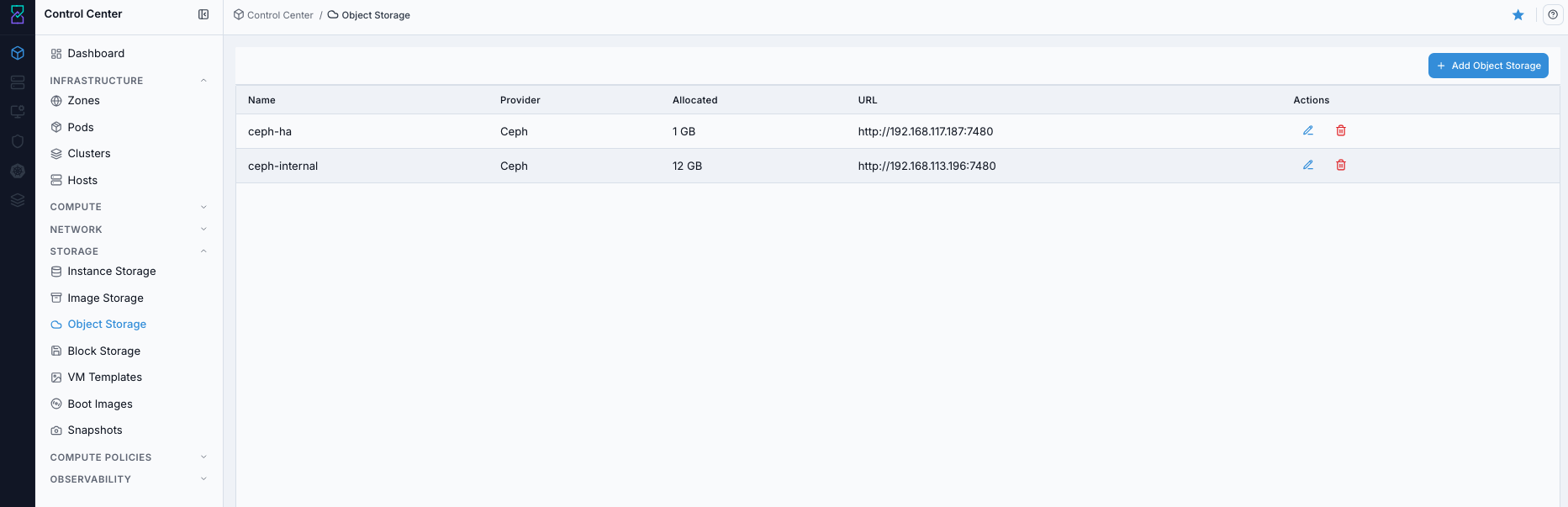
Object Storage dashboard.
Expected Outcome:
Object Storage dashboard loads with endpoint rows and actions visible.
You can identify the target endpoint for edit, details, or bucket workflows.
If this fails:
Verify backend health and available capacity for the target storage resource (pool/store/endpoint and zone scope).
Check blocking dependencies for this action (attachments, snapshots, templates, buckets, object locks, or maintenance state).
Review Observability Events/Alerts for the storage object and retry only after resolving the root cause.
Step: Open Object Storage Help Panel
When to Use: Use this after opening the dashboard when you need field definitions and guidance for Object Storage workflows.
Purpose: Open contextual help separately from dashboard review and action execution.
Steps:
Open
Control Center -> Storage -> Object Storage.Click the help icon in the top-right corner.
Review definitions for endpoint fields and available controls.
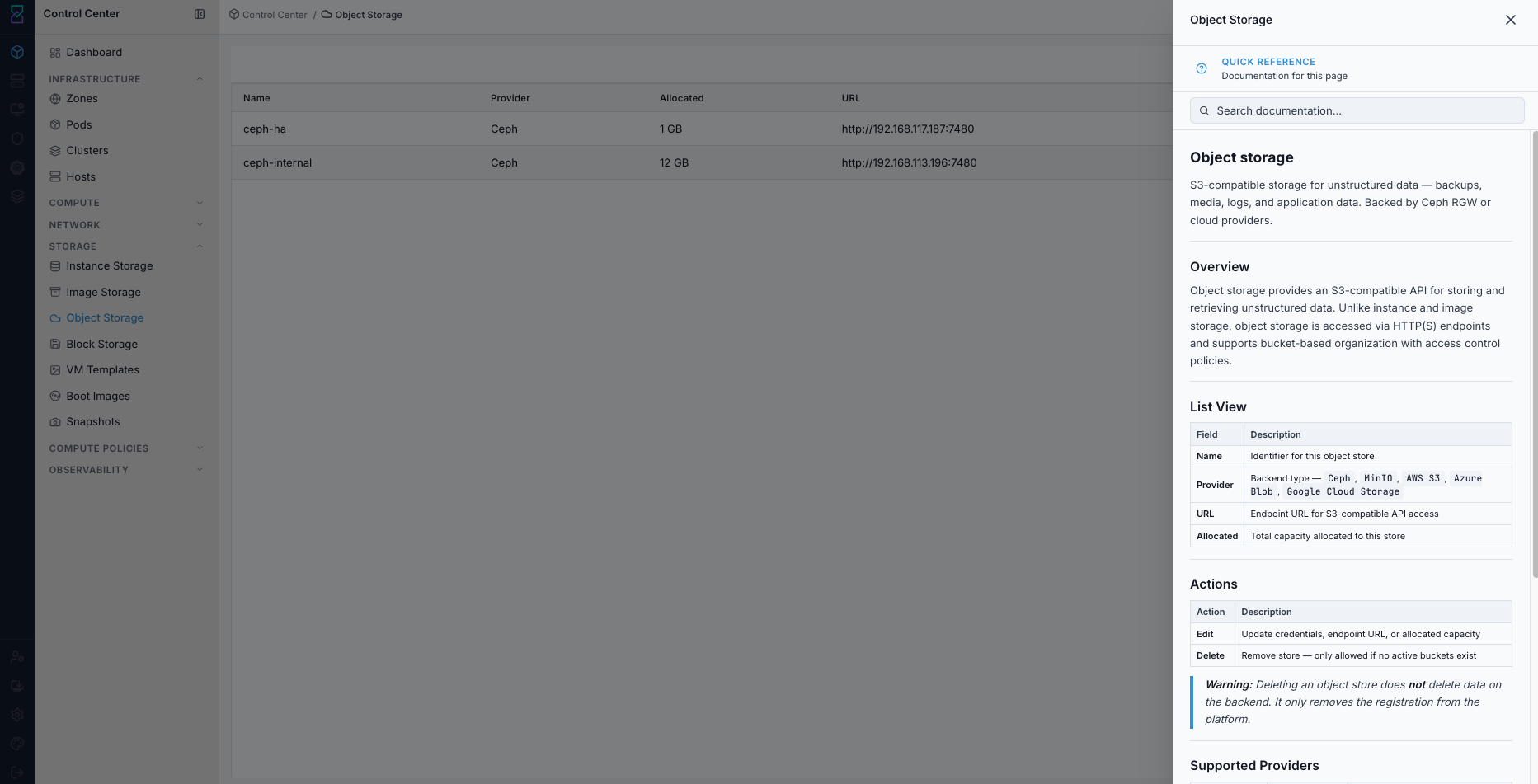
Object Storage help panel.
Expected Outcome:
The Object Storage help panel opens with page-specific guidance.
If this fails:
Verify backend health and available capacity for the target storage resource (pool/store/endpoint and zone scope).
Check blocking dependencies for this action (attachments, snapshots, templates, buckets, object locks, or maintenance state).
Review Observability Events/Alerts for the storage object and retry only after resolving the root cause.
Step: Add New Object Storage
When to Use:
Use this when performing Add New Object Storage in the active storage workflow.
Purpose:
Execute Add New Object Storage and confirm the expected UI/state outcome for this storage resource.
Steps:
Click
+ Add Object Storage.Fill required fields:
Storage Name
Provider
URL
Zone
Access Key
Secret Key
Example values:
Storage Name:ceph-internalProvider:MinIO(or your S3-compatible provider)URL:http://192.168.113.196:7480Zone:us-va-Sterling-karios-staging-01Access Key:<access-key>Secret Key:<secret-key>
Warning
Use environment-specific credentials stored and rotated per policy.
Click
Add Object Storage.Confirm the new object store appears in the dashboard.
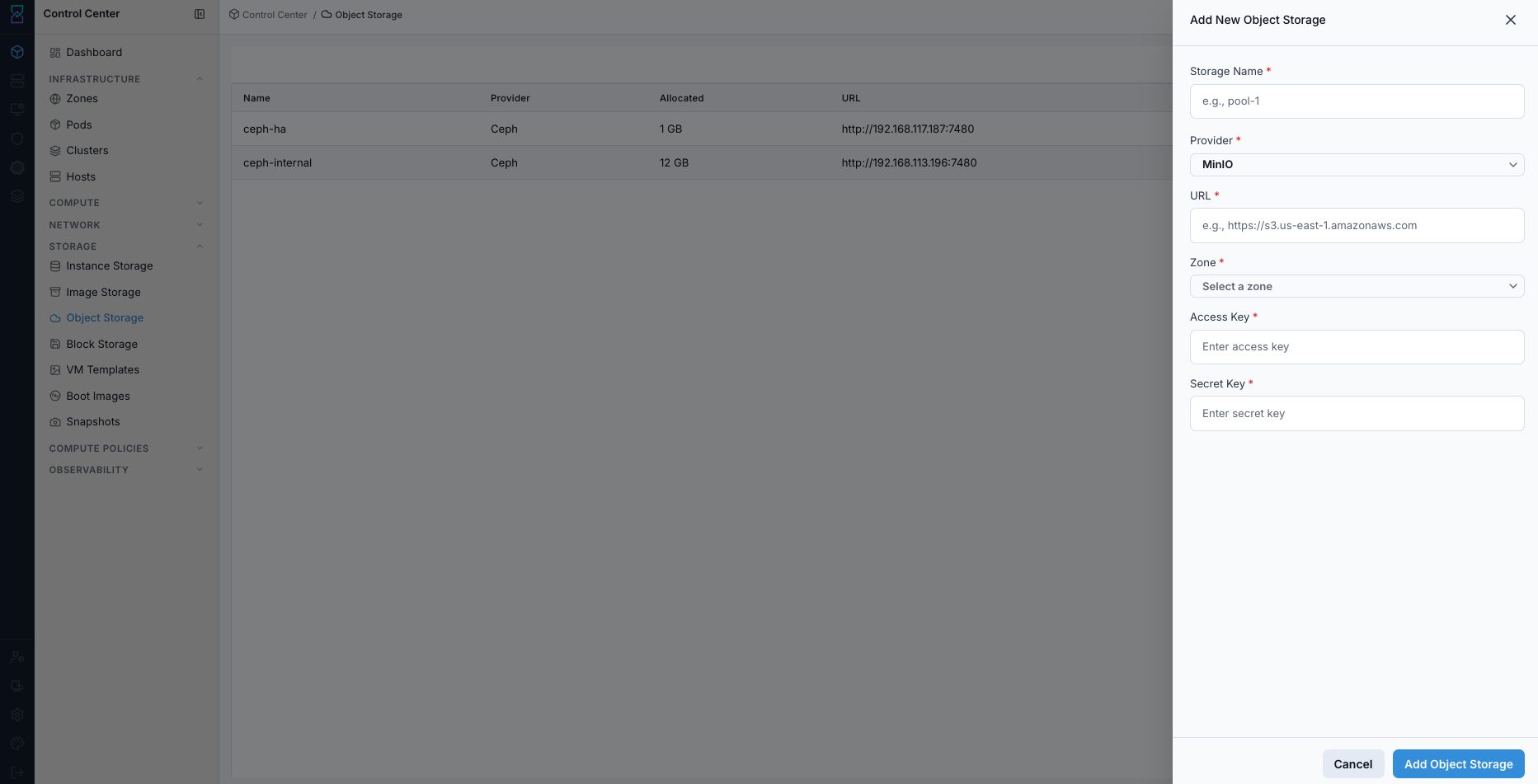
Add New Object Storage form.
Expected Outcome:
A new endpoint registration appears with provider and URL values.
The endpoint can be opened in details view for bucket management.
If this fails:
Verify backend health and available capacity for the target storage resource (pool/store/endpoint and zone scope).
Check blocking dependencies for this action (attachments, snapshots, templates, buckets, object locks, or maintenance state).
Review Observability Events/Alerts for the storage object and retry only after resolving the root cause.
Step: Edit or Delete Object Storage Registration
When to Use:
Use this when performing Edit or Delete Object Storage Registration in the active storage workflow.
Purpose:
Execute Edit or Delete Object Storage Registration and confirm the expected UI/state outcome for this storage resource.
Steps:
In a dashboard row, click the row
Actionsmenu.Choose
EditorDelete.If deleting, complete Pre-Delete Safety Checklist (Use Before Any Delete) before confirmation.
Complete and confirm the selected action.
If a wrong edit/delete was applied, restore original endpoint values (or re-register endpoint) and verify bucket access.
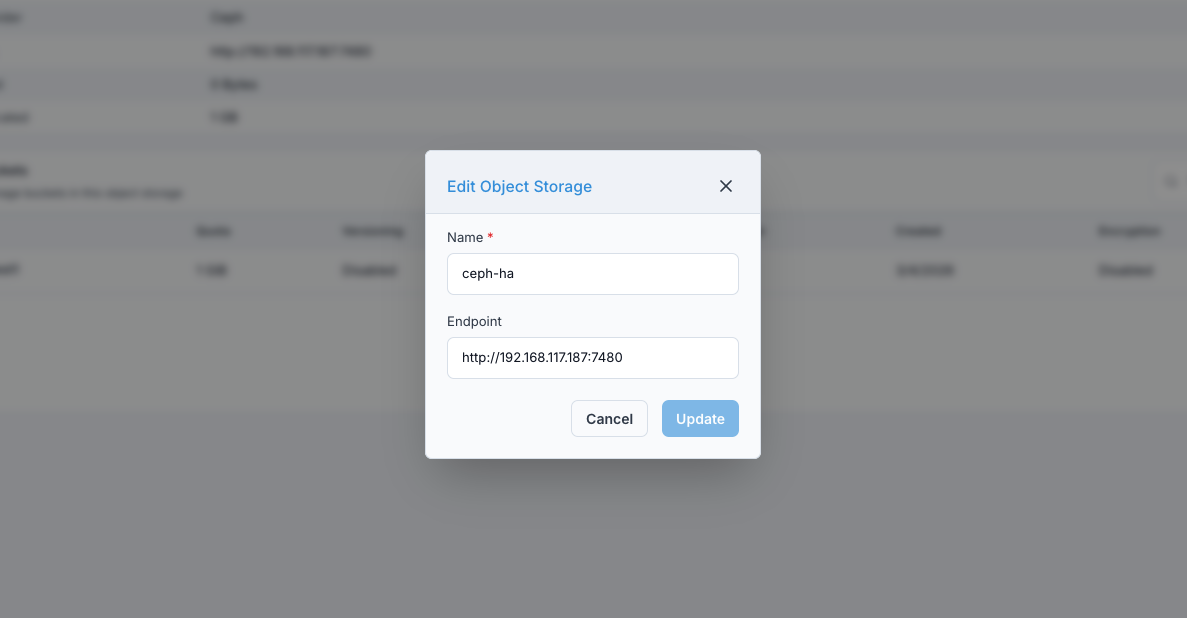
Edit Object Storage action (example dialog).
Expected Outcome:
Task completes and the related storage view updates as expected.
If this fails:
Verify backend health and available capacity for the target storage resource (pool/store/endpoint and zone scope).
Check blocking dependencies for this action (attachments, snapshots, templates, buckets, object locks, or maintenance state).
Review Observability Events/Alerts for the storage object and retry only after resolving the root cause.
Step: Review Object Storage Details
When to Use: Use this when you need to validate endpoint identity and configuration before bucket operations.
Purpose: Confirm you are working in the correct object-store details page.
Steps:
In Object Storage dashboard, click the target store name.
Review the
General Informationsection.Confirm key endpoint values (name, provider, URL, and zone context).
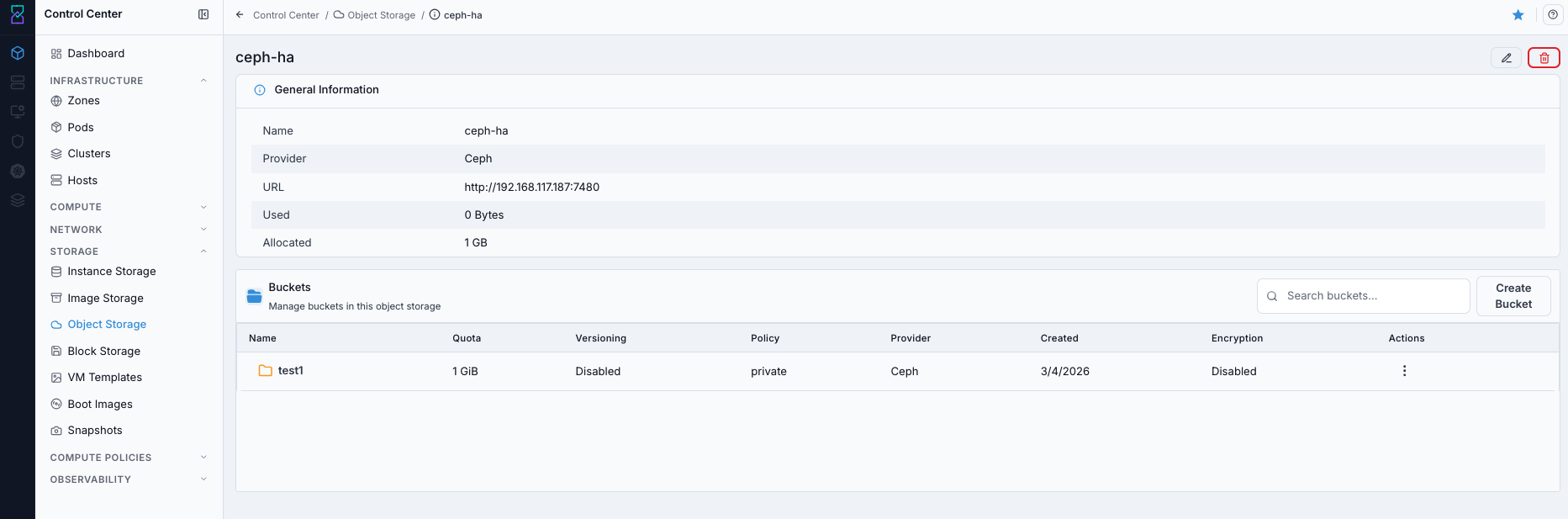
Object Storage details with bucket table.
Expected Outcome:
The details page opens for the selected object store.
Endpoint context is validated before bucket actions.
If this fails:
Verify backend health and available capacity for the target storage resource (pool/store/endpoint and zone scope).
Check blocking dependencies for this action (attachments, snapshots, templates, buckets, object locks, or maintenance state).
Review Observability Events/Alerts for the storage object and retry only after resolving the root cause.
Step: Review Bucket Actions in Details
When to Use: Use this when you need to inspect or execute row-level bucket actions from the details page.
Purpose: Validate available bucket action controls before changing bucket state.
Steps:
Open object-store details page.
In the
Bucketssection, review row action controls.Confirm the required bucket action is available for the selected row.
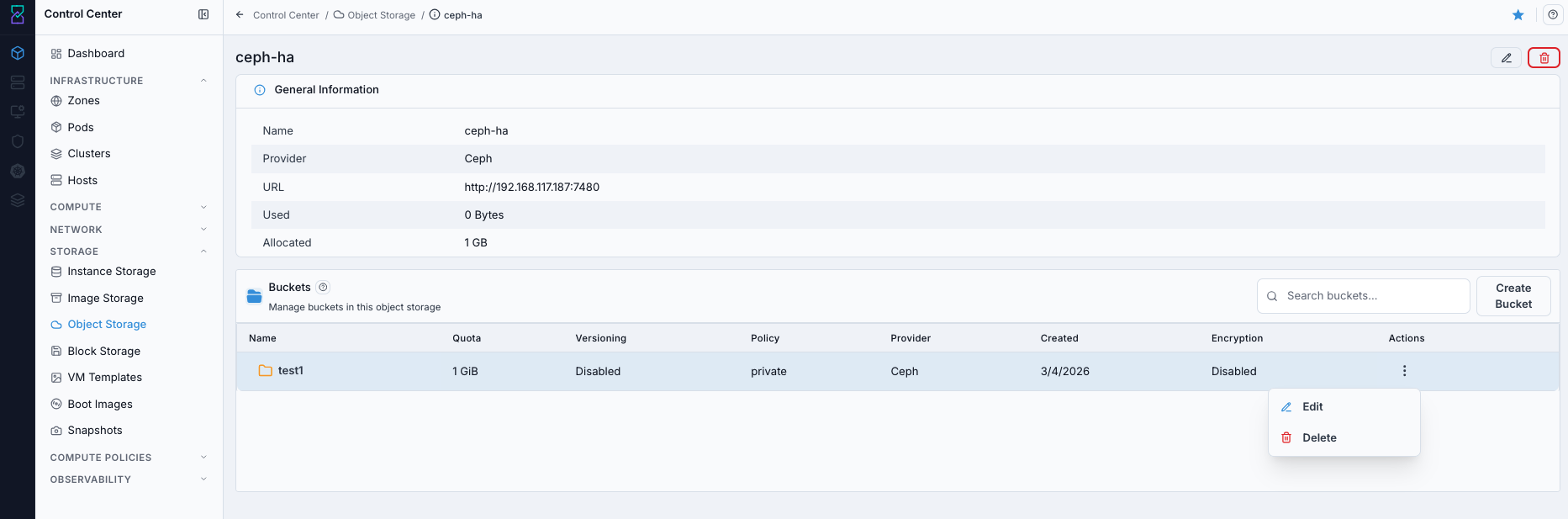
Bucket actions in Object Storage details.
Expected Outcome:
Bucket row actions are visible and ready for use.
If this fails:
Verify backend health and available capacity for the target storage resource (pool/store/endpoint and zone scope).
Check blocking dependencies for this action (attachments, snapshots, templates, buckets, object locks, or maintenance state).
Review Observability Events/Alerts for the storage object and retry only after resolving the root cause.
Step: Create Bucket from Object Store Details
When to Use: Use this when you need to create a new bucket under an existing object-store registration.
Purpose: Create a bucket with explicit quota, access policy, and optional security controls.
Steps:
In object-store details, go to
Buckets.Click
Create Bucket.Fill the form fields:
Bucket Name
Quota (GiB)
PolicyOptional toggles:
Versioning,Encryption,Object Locking
Click
Create.Verify the new bucket appears in the bucket list.
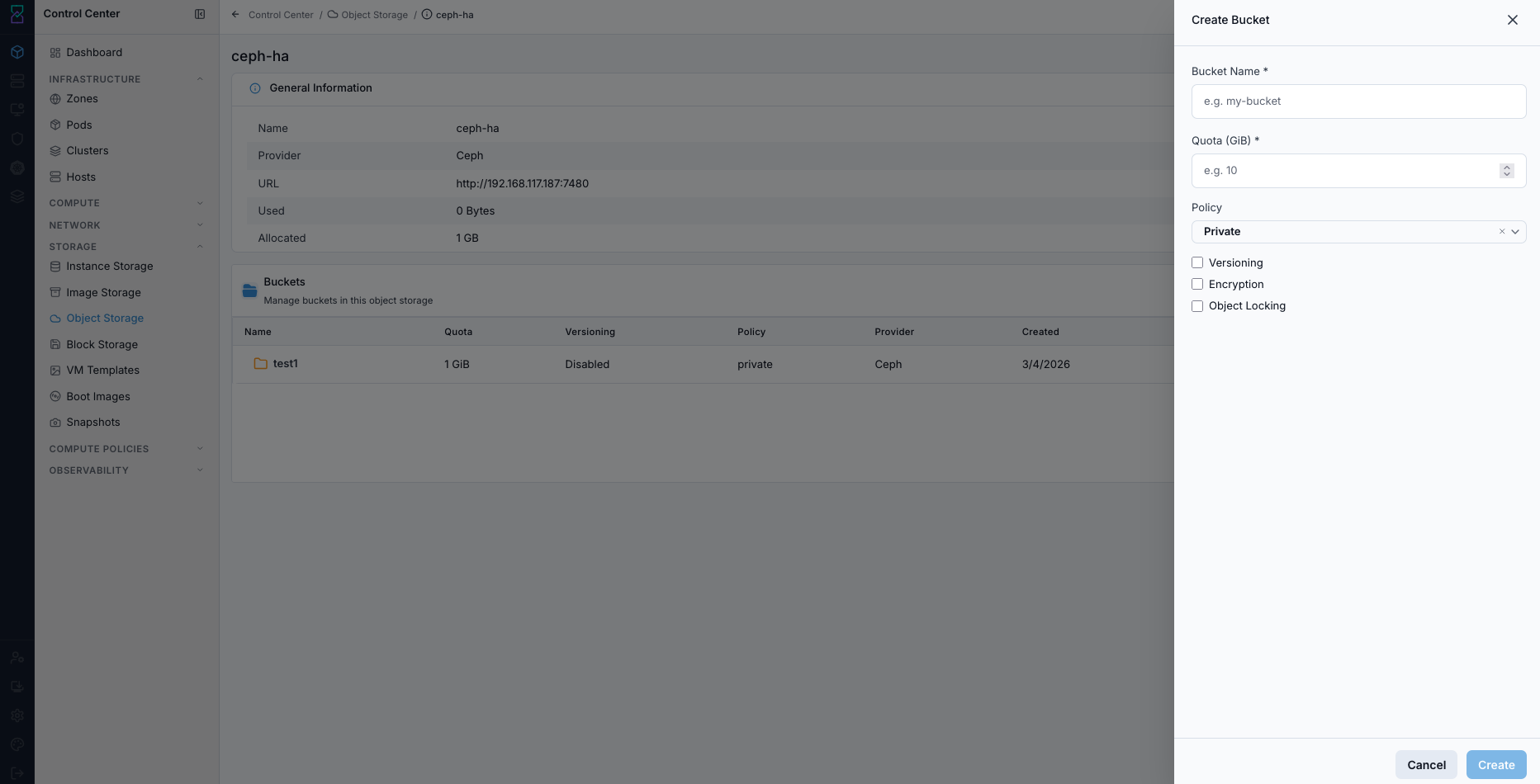
Create Bucket form.
Expected Outcome:
A new bucket row appears under the selected object store.
Quota, policy, and selected security settings are applied.
If this fails:
Verify backend health and available capacity for the target storage resource (pool/store/endpoint and zone scope).
Check blocking dependencies for this action (attachments, snapshots, templates, buckets, object locks, or maintenance state).
Review Observability Events/Alerts for the storage object and retry only after resolving the root cause.
Tool Tips
Use HTTPS endpoints and least-privilege keys for production stores.
Start with
Privatepolicy and open access only when required.
Warnings
Deleting object store registration removes platform access to that endpoint.
Exposed keys or open policies can leak sensitive data.
If this fails:
If endpoint registration fails, verify URL, DNS, and firewall path.
If authentication fails, rotate and re-enter
Access KeyandSecret Key.If bucket creation fails, check endpoint permissions, quota, and policy constraints.