Kubernetes on Karios

Where This Fits in Karios

Karios is the unified infrastructure platform described in Getting Started. This section covers the managed Kubernetes workflows exposed through Control Center after the underlying Karios infrastructure, networking, and VM prerequisites are ready.

If you landed here directly, use Glossary for shared terms and keep Getting Started as the platform-level reference.

What Kubernetes on Karios Is

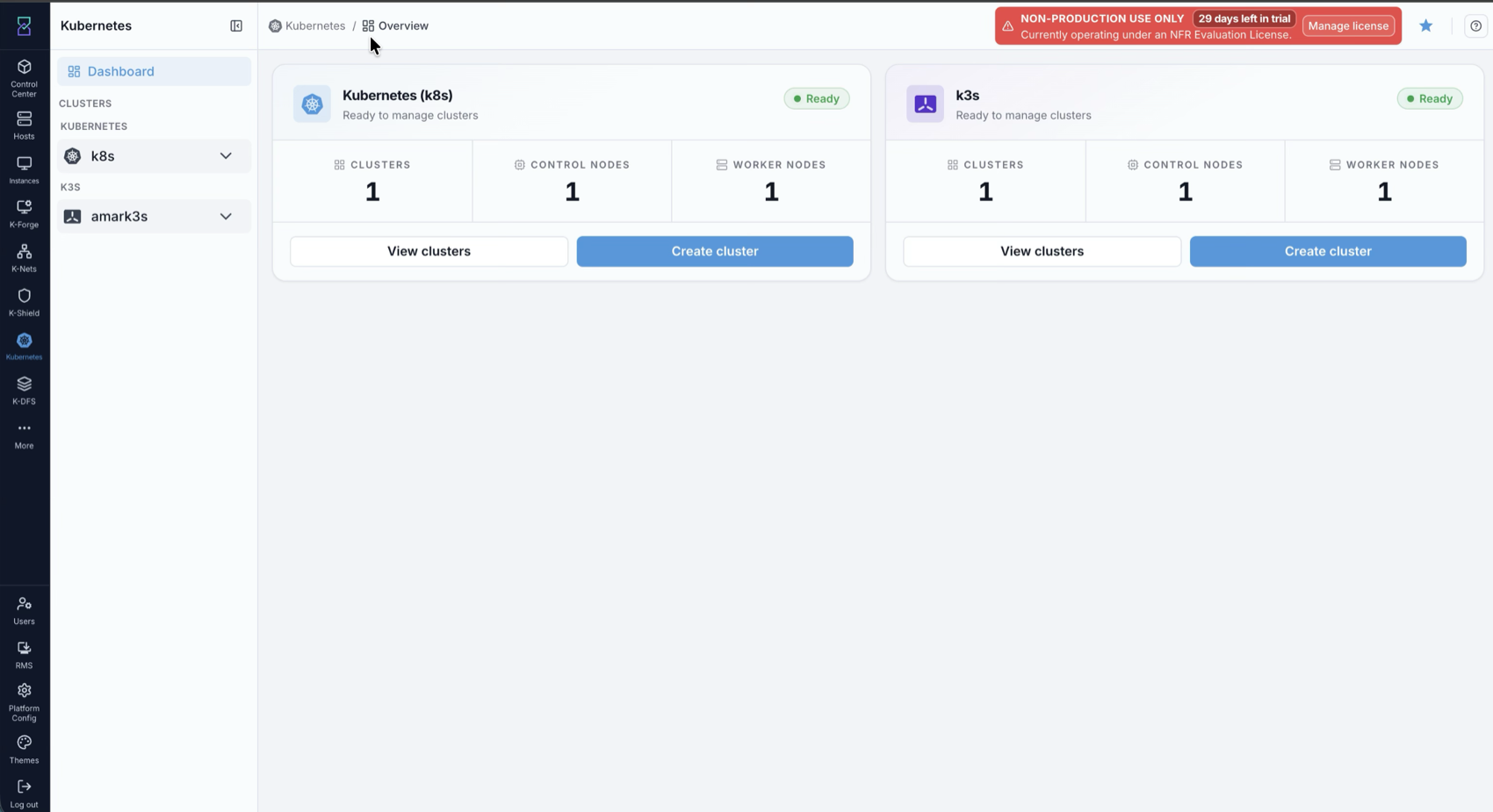
This section documents the managed Kubernetes workflow in Control Center, including zone initialization, cluster lifecycle operations, scaling, and kubeconfig-based access.

See also

Before creating clusters:

Introduction

The Karios Managed Kubernetes Service streamlines deployment and management of Kubernetes clusters. Through the web interface, you can create production-ready clusters without manual control-plane setup.

Key Benefits:

  • Simple Deployment: Create clusters through the dashboard

  • Auto-Scaling: Automatically adjust resources based on workload demand

  • Full Control: Manage worker nodes, control planes, and network configurations from one place

  • Flexible Sizing: Choose from small development clusters to large production deployments

  • Quick Access: Download kubeconfig and connect via kubectl immediately

Whether you’re running development workloads, production applications, or edge deployments, the Karios Managed Kubernetes Service provides enterprise-grade infrastructure management without the operational complexity.

Note

Before creating clusters, verify infrastructure network prerequisites:

  • DHCP can assign node IPs on the selected cluster network.

  • DNS can resolve internal service names and required external package/registry endpoints.

  • Network should have egress enabled.

If this is not already validated, complete the networking readiness checks in Networking first.

Quick Navigation

Overview & Setup:

Cluster Management:

Virtual Machines:

Support:

Tip

Having issues? Jump directly to the Troubleshooting section for step-by-step solutions to common problems.

Prerequisites

Before you can use the Kubernetes service, you need:

1. Process Access

Your administrator must enable Kubernetes process access for your account. If you do not see the Kubernetes icon in the sidebar, ask an admin to update your user access in User Management.

Admin handoff checklist (what to request):

  • Open User Management and find your user.

  • Open role assignment (shield icon) and grant the required role scope.

  • Ensure Kubernetes process access is included in the assigned permission set.

2. User Role

You must have one of these roles:

  • DevOps role - Full access to create and manage clusters

  • Admin role - Complete administrative access

Important

If you don’t have these permissions, the Kubernetes icon will not appear in the left sidebar. Contact your administrator to request access.

Getting Started

Accessing the Kubernetes Dashboard

  1. Log into your account

  2. Find the Kubernetes icon in the left sidebar

  3. Click on the Kubernetes icon

  4. The Initialize Kubernetes dashboard will appear

Kubernetes initialize dashboard

Dashboard Overview

On first visit, the Kubernetes page is an initialization dashboard (not the cluster list view yet). This is expected until Kubernetes is initialized in at least one zone.

Initialize Dashboard (First Visit)

The page shows readiness and initialization controls before cluster creation:

  • Left panel with Dashboard and initial No clusters found state

  • Capability cards: Cluster Management, Network Control, Auto-scaling

  • Select Zone for Initialization selector

  • Initialize Kubernetes button to set up base components in the selected zone

Initialization controls reference:

Control

What it is used for

Zone

Select where Kubernetes control components will be initialized.

Initialize Kubernetes

Starts one-time initialization for the selected zone.

Cluster Management card

Indicates this section is used to deploy/manage clusters after initialization.

Network Control card

Indicates advanced networking support for clusters.

Auto-scaling card

Indicates cluster scale-on-demand capability.

Key concepts:

  • Cluster: A Kubernetes environment containing control-plane and worker nodes.

  • Control Nodes: Nodes running core Kubernetes control-plane components.

  • Worker Nodes: Nodes where application workloads are scheduled.

  • Kubernetes Version: Determines API/features available to the cluster.

  • Zone: Infrastructure location where the cluster is deployed.

Understanding the Dashboard Features

Cluster Management

  • Manage worker nodes and control nodes

  • Full control over cluster infrastructure

Network Control

  • Configure network settings when creating clusters

  • Each cluster can have custom network configuration

Auto Scaling

  • Automatically adjusts resources based on workload

  • Provisions additional workers when demand increases

  • Reduces costs by scaling down during low usage

Initializing Kubernetes

Before creating your first cluster, you must initialize Kubernetes once in your chosen zone.

Tip

What is a zone? A zone is a physical location or data center where your clusters will run. Choose a zone close to your users for better performance.

Initialization Steps

  1. Select Your Zone: Choose the zone from the dropdown menu (for example, your configured Karios zone name such as smc-r2-z1east)

  2. Review Your Selection: Verify the zone is correct

  3. Click “Initialize Kubernetes”: Press the button to start initialization

  4. Wait for Confirmation: The system will set up Kubernetes infrastructure (takes 1-2 minutes)

Important

You only need to initialize Kubernetes once per zone. After initialization, you can create multiple clusters in that zone.

Note

Initialization guidance:

  • If initialization is blocked or fails, see Initialize Button Disabled and Initialization Fails with Error in Troubleshooting.

  • If Kubernetes versions are currently being destroyed, wait for that process to complete before re-initializing.

  • Initialization is quick (about 1-2 minutes); full cluster provisioning after creation is longer (often 5-15 minutes depending on size and environment load).

Once complete, you can create and manage clusters.

Managing Clusters

Understanding the Cluster Dashboard

After initialization, you’ll see the Kubernetes Cluster Dashboard displaying:

Kubernetes cluster dashboard with summary cards, cluster table, and expanded VM rows.

What you’ll see in the screenshot above:

The cluster dashboard shows summary cards (Total Clusters, Running, Stopped, and Total Nodes), a + K8s Cluster create button, and the cluster list table. Expanding a cluster row reveals VM entries for control-plane and worker nodes directly under that cluster.

Dashboard quick reference:

Area

What it tells you

Typical next action

Summary cards

Fleet totals (clusters by state, total nodes).

Spot capacity pressure quickly before changing workloads.

Cluster table

Per-cluster identity, state, zone, version, and created time.

Open View first, then decide start/stop/delete.

State column

Running, Stopped, Starting, Stopping, Destroying, or Error.

Avoid lifecycle changes during transitional states.

Actions column

Context actions (view, start/stop, delete) based on current state and RBAC.

Use View to validate impact before destructive actions.

Expanded row

VM-level rows for control-plane and worker nodes.

Open VM View when troubleshooting node-level issues.

Cluster and VM action icons shown in the dashboard table.

Cluster table actions include View (eye), lifecycle power action, and Delete. Expanded VM rows provide View actions for direct VM details access.

Action icon meaning:

  • Eye: open cluster or VM details.

  • Power: start/stop cluster based on current state.

  • Trash: delete cluster permanently after confirmation.

Note

Initial View: The list will be empty until you create your first cluster.

Expanding a row:

  • Click a cluster row (or expand icon) to view associated cluster VMs.

  • Expanded section shows VM names, state, and runtime context.

Creating a New Cluster

Tip

What is a cluster? A cluster is a group of machines (nodes) that work together to run your applications. Think of it as your own mini data center.

Step 1: Open Create Form

  • Click + K8s Cluster in the top-right corner of the dashboard

  • The Create Kubernetes Cluster drawer will open on the right side

Note

The + create action can be hidden/disabled while Kubernetes versions are being destroyed.

Step 2: Fill in Required Fields

Cluster Name* (Required)

  • Unique name to identify your cluster

  • Rules: Use lowercase letters, numbers, and hyphens only; must start with a letter

  • Examples: production-web-app or dev-environment-01

Description (Recommended)

  • Brief explanation of what this cluster is for

  • Example: “Production cluster for web application”

Note

This field can be optional in some environments. Provide it whenever possible for operational clarity.

Zone* (Required)

  • Select where the cluster will run (must be initialized first)

  • Tip: Choose based on proximity to your users for better performance

Kubernetes Version* (Required)

  • Select the Kubernetes version

  • Recommendation: Use the latest stable version for new projects

Instance Profile* (Required)

This determines the resources (CPU, RAM, storage) for each node in your cluster:

  • The exact instance profile names and specs are environment-specific.

  • Review the CPU/RAM values shown in your dropdown before selecting.

  • If profile choices are unclear, confirm the approved baseline with your platform administrator.

Tip

If you are unsure, start with the default or recommended profile shown in your environment and validate actual CPU/memory usage after deployment.

Network* (Required)

Choose how your cluster connects:

  • Default Network: Standard setup - recommended for most users

  • Isolated Network: Enhanced security with network isolation - for sensitive workloads

Cluster Size (Number of Nodes)* (Required)

How many worker nodes (machines) to create:

  • 1 node: Development and testing only

  • 3 nodes: Production with high availability (recommended minimum)

  • 5+ nodes: Large production workloads

Note

What are nodes? Nodes are the machines that run your applications. More nodes = more capacity and reliability.

Advanced Settings (Optional)

The drawer also exposes advanced cluster controls:

  • HA Enabled toggle for multi-control-plane availability

  • Number of etcd Nodes input (odd-number guidance shown in UI)

Practical guidance:

  • Enable HA Enabled for production clusters where availability matters.

  • For development/test clusters, leaving HA disabled is acceptable to reduce cost/complexity.

  • Keep etcd node count odd (3 for HA) to maintain quorum.

Create Kubernetes Cluster drawer

What you’ll see in the screenshot above:

The Create Kubernetes Cluster UI is a right-side drawer. It includes required fields for cluster name, description, zone, Kubernetes version, instance profile, network, and worker node count, plus optional advanced settings (HA and etcd nodes). At the bottom, use Create Cluster or Cancel.

Step 3: Create the Cluster

  • Review all fields for accuracy

  • Click “Create Cluster” button to start creation

  • Or click “Cancel” to go back

What happens next:

  1. The cluster will appear in your dashboard with a “Creating” or “Starting” state

  2. Karios will provision the virtual machines and install Kubernetes

  3. Wait for the state to change to “Running” - this takes 5-15 minutes

  4. Once “Running”, your cluster is ready to use!

Note

The cluster creation time depends on the size. Larger clusters take longer to provision.

Expected Behavior

Typical timeline for a new cluster:

  • 0:00-1:00: Entry appears in dashboard with Creating/Starting state

  • 2:00-8:00: Node VMs are provisioned and initialized

  • 5:00-15:00: Cluster reaches Running (size and infra dependent)

If creation remains stuck for more than 20 minutes, open Troubleshooting and collect logs.

Tip

Cluster creation failed? If your cluster shows an “Error” state or fails to create, see the Cluster Creation Fails section in Troubleshooting for solutions.

Viewing Cluster Details

Click the eye icon (👁️) next to your cluster name to see detailed information about your cluster.

First 2-minute cluster check (new user)

  1. Open Details and confirm State is stable (not Starting/Stopping).

  2. Confirm version, instance profile, and node count match your intended environment.

  3. Expand the cluster row on the dashboard and verify control-plane + worker VMs are present.

  4. Open Access and confirm kubeconfig download/copy controls are available.

  5. If you plan lifecycle changes, confirm the cluster is not in a transition state.

Kubernetes Cluster Detail

The Cluster Detail page is your main operational view. Use it to inspect configuration, check health, retrieve access credentials, and perform lifecycle actions.

Page Actions

Header buttons depend on current cluster state:

Button

Visible when

Operational impact

Stop

Cluster is Running

Powers down cluster node VMs. API and workloads become unavailable until restarted.

Start

Cluster is Stopped

Powers up node VMs and restores API/workload availability after control plane and nodes recover.

Delete

Available when not transitioning

Permanently removes cluster resources after confirmation.

Note

Buttons are disabled while state is transitional (for example Starting, Stopping, or Destroying).

Workload Behavior on Stop/Start

Stopping a cluster does not delete cluster definitions, but it does interrupt runtime services:

  • Kubernetes objects (deployments/services/config) remain in cluster state.

  • Running pods become unavailable while node VMs are stopped.

  • After Start, workloads are rescheduled and become available as nodes return healthy.

  • Persistent volume data survives if backed by durable storage; ephemeral pod-local data does not.

  • Time-sensitive jobs can miss schedules while stopped and can need manual rerun.

Warning

Do not stop production clusters without an approved maintenance window and rollback plan.

Cluster Detail Tabs

Details tab:

  • Cluster identity and lifecycle state

  • Kubernetes configuration (version, CNI/CSI fields, node roles)

  • Capacity fields (instance profile, cluster size, autoscaling/min/max where applicable)

  • Network and account metadata, including Keypair if configured

Access tab:

  • Download/copy kubeconfig for kubectl

  • CLI connection snippets and Kubernetes Dashboard access instructions

Details Fields Quick Reference

Use this as a glossary when reading the Details tab values:

Field

Meaning

Why it matters

Cluster Type

Managed mode for this cluster (for example CloudManaged/SelfManaged).

Confirms who owns control-plane lifecycle and operations.

Kubernetes Version

API/runtime version currently running on the cluster.

Determines feature compatibility and upgrade planning.

CNI Config

Container Network Interface settings used for pod networking.

Impacts pod-to-pod/service communication behavior.

CSI Enabled

Whether Container Storage Interface integration is active.

Required for dynamic persistent volume provisioning workflows.

Cluster Size

Current node count tracked for the cluster.

Primary capacity indicator for scheduling workloads.

Control Nodes / Master Nodes

Nodes serving control-plane functions.

Impacts cluster resilience and control-plane availability.

Etcd Nodes

Nodes backing Kubernetes state store quorum.

Must remain healthy/odd-count for stable cluster state.

Autoscaling / Min Size / Max Size

Automatic worker scaling status and limits.

Defines how far the cluster can shrink/grow automatically.

Instance Profile, CPU, Memory

Per-node compute profile.

Determines workload density and performance headroom.

Network Name / Network ID / IP Address

Network attachment and reachable address context.

Needed for connectivity checks and policy troubleshooting.

Keypair

SSH key association for node access.

Indicates whether key-based SSH login is expected.

Warning

Kubeconfig contains cluster access credentials. Store it securely, restrict file permissions, and rotate/reissue access if exposure is suspected.

Delete Confirmation Flow

When Delete is selected, confirmation includes cluster identity and impact context before final removal.

Pre-delete checklist:

  1. Confirm target cluster name/ID exactly matches intended cluster.

  2. Verify active workload impact and migrate/stop workloads if required.

  3. Verify current VM/node count shown in dialog is expected.

  4. Confirm backup/snapshot/DR requirements are satisfied.

  5. Confirm operators understand this action is irreversible.

Warning

Cluster deletion is permanent and cannot be undone.

Operator Tips

  • Verify cluster state before actions; transition states block updates.

  • Use the Access tab first when handing off kubectl access to operators.

  • Stop idle non-production clusters to free resources; delete only when decommissioning.

Cluster VM List

Cluster VMs are visible by expanding a cluster row on the dashboard. This gives a quick VM list without leaving the cluster table.

Virtual Machines Overview

  • Control and worker VMs appear under the selected cluster row

  • Each VM row includes name, hostname, zone, state, IP address, OS, and actions

  • Use the VM View action (eye icon) to open full VM tabs (Details, Console, Snapshot, Volumes, Metrics, Karios Shield)

VM List Columns:

  • Name: VM identifier (control VMs manage the cluster, worker nodes run applications)

  • Hostname: Domain name (N/A if not configured)

  • Zone: VM location

  • State: Running (green) or Stopped (red)

  • IP Address: Internal IP

  • Network: Network configuration

  • OS: Operating system

  • Actions: Eye icon to open VM details

Scaling Worker Node Count

Use this when your workloads need more or fewer Kubernetes nodes (not just bigger VM size).

When to use:

  • More pending pods, CPU pressure, or memory pressure across workers.

  • Planned traffic growth (release, campaign, seasonal peak).

  • Cost optimization during sustained low load.

How to scale worker count:

  1. Open cluster View from the dashboard.

  2. Look for cluster-level size controls (for example Scale, Edit, or worker-count fields).

  3. If those controls are available, update worker node count and apply the change.

  4. If controls are not available, your environment likely restricts in-place node-count changes (RBAC, platform policy, or release capability). Confirm enablement path with your administrator.

  5. Use blue/green migration only when in-place scaling is unavailable and capacity must change now.

Done criteria:

  • Dashboard shows expected worker-node count.

  • kubectl get nodes shows new nodes Ready (or removed nodes drained/deleted).

  • Workloads remain healthy after scaling.

Warning

Scaling worker count and scaling VM size are different actions. Use worker scaling to change node quantity, and VM scaling to change per-node CPU/RAM.

Autoscaling Behavior (Min/Max Size)

Autoscaling settings define boundaries for automatic worker-node changes.

What the fields mean:

  • Autoscaling: whether automatic worker scaling is enabled.

  • Min Size: minimum worker nodes the system keeps available.

  • Max Size: maximum worker nodes the system can scale up to.

How to configure (when editable in your UI):

  1. Open cluster View.

  2. Enable Autoscaling and set Min Size / Max Size.

  3. Save changes and wait for reconciliation.

  4. Verify node count behavior during load change.

Typical trigger behavior:

  • Scale-up occurs when schedulable capacity is insufficient for pending workloads.

  • Scale-down occurs when sustained excess capacity is detected.

  • Exact thresholds/cooldowns depend on platform policy and controller configuration.

Practical guidance:

  • Set Min Size high enough for baseline traffic.

  • Set Max Size high enough for peak traffic but within budget/quotas.

  • Validate autoscaling events in Observability after enabling changes.

Scaling VM Instance (Instance Profile)

Use the scale icon from the VM action toolbar to change the instance profile. This adjusts VM compute sizing; it does not change worker-node count directly.

Steps:

  1. Open the target VM from the expanded cluster row.

  2. Click the Scale Instance icon in the top-right action toolbar.

  3. Select the target instance profile from the list.

  4. Click OK to apply, or Cancel to abort.

Scale Instance dialog with instance profile options.

Scale Instance dialog showing available instance profiles with CPU and memory values.

Important

Changing the instance profile can cause temporary workload disruption while resources are adjusted. Schedule scaling changes during a maintenance window for production workloads.

Access Tab - Connecting to Your Cluster

Once your cluster is running, you can connect to it using the Access tab.

Access Tab

What you’ll see in the screenshot above:

The Access tab shows the kubeconfig file management interface. At the top, you’ll see a “Download Kubeconfig” button and a “Copy” button (clipboard icon) that lets you quickly copy the config to your clipboard. Below that are expandable sections: “Using CLI” with instructions for downloading kubectl and common commands, and “Kubernetes Dashboard UI” with instructions for accessing the Kubernetes dashboard through a web browser.

Tip

What is kubeconfig? It’s a configuration file that contains credentials and connection information for your cluster. Think of it as your “key” to access the cluster.

Download Kubeconfig

Actions:

  • Download Kubeconfig button: Downloads the config file to your computer

  • Copy button: Copies the config content to your clipboard

How to use:

  1. Click “Download Kubeconfig” or “Copy” button

  2. Save the file to ~/.kube/config on your computer (or any custom location)

  3. Run kubectl get nodes in your terminal to verify the connection works

Secure local kubeconfig permissions (recommended):

chmod 600 ~/.kube/config

Note

You need kubectl installed on your computer to connect. See the “Using CLI” section below for download instructions.

Tip

Connection issues? If you’re having trouble connecting to your cluster or kubectl commands aren’t working, see the General Troubleshooting Tips section for help.

Using CLI

Common Commands:

# Access cluster
kubectl --kubeconfig /path/to/kube.conf {COMMAND}

# List pods
kubectl --kubeconfig /path/to/kube.conf get pods --all-namespaces

# List nodes
kubectl --kubeconfig /path/to/kube.conf get nodes

# List services
kubectl --kubeconfig /path/to/kube.conf get services --all-namespaces

Kubernetes Dashboard UI

Run proxy locally:

kubectl --kubeconfig /path/to/kube.conf proxy

Open in browser:

http://localhost:8001/api/v1/namespaces/kubernetes-dashboard/services/https:kubernetes-dashboard:/proxy/

Create token (for Kubernetes v1.24.0+):

kubectl --kubeconfig /path/to/kube.conf apply -f - <<EOF
apiVersion: v1
kind: ServiceAccount
metadata:
name: kubernetes-dashboard-admin-user
namespace: kubernetes-dashboard
---
apiVersion: rbac.authorization.k8s.io/v1
kind: ClusterRoleBinding
metadata:
name: kubernetes-dashboard-admin-user
roleRef:
apiGroup: rbac.authorization.k8s.io
kind: ClusterRole
name: cluster-admin
subjects:
- kind: ServiceAccount
name: kubernetes-dashboard-admin-user
namespace: kubernetes-dashboard
EOF

Retrieve token:

kubectl --kubeconfig /path/to/kube.conf -n kubernetes-dashboard create token kubernetes-dashboard-admin-user

Copy the token and use it to log into the Kubernetes Dashboard.

Warning

cluster-admin is intentionally broad for first-login testing. For production, replace with a least-privilege role after validation.

Deleting a Cluster

Steps:

  1. Open cluster details page

  2. Click the red trash/bin icon (top-right corner)

  3. Confirm deletion in the dialog

Warning

This action is permanent and cannot be undone. All data, applications, and configurations will be lost.

Viewing Individual VM Details

Accessing VM Details:

  • Expand a cluster row on the dashboard

  • Click the VM View icon (eye) in the VM row

VM details page with tabs and resource summary.

VM details page. This page includes tabs for Details, Console, Snapshot, Volumes, Metrics, and Karios Shield.

Details tab content

  • Resource summary cards: CPU, memory, disk I/O, and network throughput

  • Basic information: VM name, ID, host, created/updated timestamps

  • Operating system and hardware specs

  • Network interfaces and network configuration

  • Security and protection flags

  • Resource allocation and storage information

VM Action Toolbar

VM action toolbar icons in the Kubernetes VM details page.

VM action toolbar shown on the top-right of the VM details page.

Toolbar actions in this UI:

  • Details/List icon: returns to VM details/list context

  • Rules Engine icon: opens port forwarding/firewall dialog

  • Play: start VM

  • Stop: stop VM

  • Restart: restart VM

  • Delete: delete VM (permanent after confirmation)

Note

Some actions are disabled based on VM state and permissions.

VM toolbar tooltip reference:

Icon

Typical Tooltip

Practical use

Rules Engine

Rules Engine

Manage port forwarding/firewall (requires public IP).

Play

Start

Start a stopped VM.

Stop

Stop

Gracefully stop a running VM.

Restart

Reboot / Restart

Restart VM after updates or recovery actions.

Trash

Delete

Permanently remove VM after confirmation.

Rules Engine (Port Forwarding and Firewall)

Rules Engine dialog showing Port Forwarding tab unavailable without public IP.
Rules Engine dialog showing Firewall tab unavailable without public IP.

What these screenshots show:

  • Rules Engine has two tabs: Port Forwarding and Firewall

  • If no public IP is attached to the VM, both tabs show unavailable messages

  • To use these features, attach/assign a public IP first (subject to network policy)

VM Tab Walkthrough

Console tab:

VM console tab view.
  • Use for direct interactive VM access when SSH is unavailable or for break-glass checks.

Snapshot tab:

VM snapshot tab showing creation restrictions while VM is running.
  • Snapshot creation is blocked while VM is running in this screenshot state.

  • Stop the VM first, then create the snapshot.

Volumes tab:

VM volumes tab with add disk and resize/detach actions.
  • Shows attached block devices and storage tier.

  • Available actions include Add Disk, Resize, and Detach (state dependent).

Metrics tab:

VM metrics tab with CPU and memory charts.
  • Provides time-series CPU and memory visibility for VM-level troubleshooting.

Karios Shield tab:

VM Karios Shield tab with metrics/history and start security scan action.
  • Starts VM-level security scans for vulnerability and posture checks.

  • Metrics summarizes current findings by severity/trend.

  • History shows prior scan runs so you can confirm remediation progress.

  • Use this tab after patching, template changes, or before production cutover.

When a scan reports findings:

  1. Prioritize Critical/High items first.

  2. Capture impacted package/configuration details.

  3. Apply remediation, then rerun scan to verify closure.

For full scan workflow and remediation guidance, continue to K-Shield (Security).

Troubleshooting

Cannot See the Kubernetes Icon

Problem: Kubernetes icon not visible in left sidebar

Solutions:

  • Verify Kubernetes process access is enabled in your assigned roles

  • Ensure you have DevOps or Admin role assigned

  • Log out, clear browser cache, and log back in

  • Ask your administrator to verify role assignment in User Management

Initialize Button Disabled

Problem: Cannot click “Initialize Kubernetes” button

Solutions:

  • Select a zone from the dropdown first

  • Verify the zone is active and available

  • Contact your administrator

Initialization Fails with Error

Problem: Error message appears during initialization

Solutions:

  • Read the error message for specific instructions

  • Verify zone has necessary infrastructure configured

  • Check if Kubernetes is already initialized (refresh page)

  • Wait a few minutes and retry

  • Check logs (see Section: How to Check Kubernetes Logs)

  • Contact support with error details

Cannot Create Cluster

Problem: + K8s Cluster button is not visible or create form does not open

Solutions:

  • Ensure Kubernetes is successfully initialized

  • Verify you have proper permissions

  • Refresh the dashboard

  • Contact your administrator

Cluster Creation Fails

Problem: Cluster shows “Error” state after creation

Solutions:

  • Verify all required fields were filled correctly

  • Check if zone has enough resources available

  • Try a different instance profile or zone

  • Reduce cluster size and try again

  • Check logs (see Section: How to Check Kubernetes Logs)

  • Contact support

Rules Engine Shows “No Public IP”

Problem: Rules Engine tabs show messages like “Port forwarding is not available” or “Firewall rules are not available”

Why this happens:

  • The selected VM has no public IP attached

Solutions:

  • Attach/assign a public IP to the VM or network (subject to policy)

  • Re-open Rules Engine after IP assignment

  • If public IP is intentionally disabled by policy, skip Rules Engine for this VM

Snapshot Creation Disabled While VM is Running

Problem: Snapshot tab shows snapshot creation/rollback disabled while VM is running

Why this happens:

  • Snapshot operations in this flow require the VM to be stopped first

Solutions:

  • Stop the VM from the action toolbar

  • Return to the Snapshot tab and create the snapshot

  • Start the VM again after snapshot completion

Scale Instance Action Unavailable

Problem: Scale Instance action is disabled or not visible

Likely causes:

  • VM is in a transition state (Starting/Stopping)

  • Role does not include required manage permissions

  • Policy restrictions for that profile/zone

Solutions:

  • Wait for VM to reach stable Running or Stopped state

  • Verify your role/permissions with an administrator

  • Retry during a maintenance window and check platform limits

Bootstrap/Provisioning Recovery Pattern

If initialization or cluster provisioning fails repeatedly:

  1. Do not spam retries without capturing logs.

  2. Capture error output and timestamp.

  3. Validate dependencies (zone readiness, network, instance profile capacity).

  4. Retry once after dependency correction.

  5. Escalate with logs if failure persists.

Log capture example:

ssh <username>@<management-node-ip>
tail -n 200 /var/log/karios_k8s/karios_k8s.log > /tmp/k8s-provisioning-error.log

How to Check Kubernetes Logs

If experiencing issues, check system logs to identify the problem.

Step 1: SSH into Management Node

ssh <username>@<management-node-ip>

Step 2: View Logs

View entire log:

cat /var/log/karios_k8s/karios_k8s.log

Real-time tracking:

tail -f /var/log/karios_k8s/karios_k8s.log

Press Ctrl + C to stop.

View last 50 lines:

tail -n 50 /var/log/karios_k8s/karios_k8s.log

Search for errors:

grep "ERROR" /var/log/karios_k8s/karios_k8s.log

Step 3: Identify the Error

Look for:

  • ERROR: Critical errors

  • WARN: Warnings

  • Timestamps matching your action

Step 4: Document the Error

When you find errors:

  1. Copy the error message

  2. Note the timestamp

  3. Take screenshots

  4. Record error codes

Step 5: Report to Support

Email: support@karios.com

Subject: “Kubernetes [Issue Type] - [Your Company Name]”

Include:

  • Username and account details

  • Zone used

  • Date and time of error

  • What you were trying to do

  • Error messages from logs

  • Screenshots

  • Cluster configuration (if creating cluster)

Example Email for Initialization Failure:

Subject: Kubernetes Initialization Failure - ABC Company

Dear Karios Support Team,

I am unable to initialize Kubernetes in my account.

Username: john.doe@abccompany.com
Zone: Zone-01
Date/Time: February 6, 2026 at 3:45 PM
Error from logs: [Paste error message here]

Please assist in resolving this issue.

Thank you,
John Doe

Example Email for Cluster Creation Failure:

Subject: Kubernetes Cluster Creation Failure - ABC Company

Dear Karios Support Team,

I am unable to create a Kubernetes cluster.

Username: john.doe@abccompany.com
Cluster Name: production-web-app
Zone: Zone-01
Kubernetes Version: 1.31
Instance Profile: Medium
Network: Default Network
Cluster Size: 3 nodes
Date/Time: February 6, 2026 at 4:15 PM
Error State: Cluster shows "Error" state after creation
Error from logs: [Paste error message here]

Please assist in resolving this issue.

Thank you,
John Doe

General Troubleshooting Tips

If issues persist:

Document Everything:

  • Screenshots of errors

  • Exact steps taken

  • Date and time

  • Log excerpts

Contact Your Administrator:

  • Provide all documented information

  • Include username and roles

  • Specify zone used

  • Share log excerpts

Contact Karios Support:

  • Email: support@karios.com

  • Include all documentation

  • List troubleshooting steps already attempted

Check System Status:

  • Ask about known system issues

  • Verify if maintenance is scheduled

Quick Reference

Common Tasks

Initialize Kubernetes:

Click Kubernetes icon → Select zone → Click “Initialize Kubernetes”

Create Cluster:

Click + K8s Cluster → Fill form → Click Create Cluster

View Cluster Details:

Click eye icon next to cluster name

Scale VM Instance:

Open VM details → Click scale icon in toolbar → Select instance profile → Click OK

Scale Worker Nodes:

Open cluster View → Edit worker count/autoscaling bounds (if available) → Validate with kubectl get nodes

Access Cluster:

Go to Access tab → Download kubeconfig → Use with kubectl

Delete Cluster:

Open cluster details → Click red trash icon → Confirm

View VM Details:

Expand cluster row in dashboard → click VM eye icon

For additional support, contact: support@karios.com

Next Steps

Complete these follow-on guides after cluster onboarding:

  • K-Shield (Security) for Karios Shield scan execution and remediation workflow.

  • Diagnostics for operational checks and issue triage.

  • Observability for monitoring operational events and failures.

  • Storage for persistent storage, volume lifecycle, and snapshots.

Success Checkpoint

After this section, you should be able to:

  • initialize Kubernetes in the target zone

  • create and manage cluster lifecycle actions

  • access clusters using kubeconfig and kubectl

  • scale worker count or VM size based on demand

  • troubleshoot common access, provisioning, and runtime issues


→ Next: Karios DFS