Affinity Rules
What Is an Affinity Rule?
An affinity rule is a VM placement policy that controls whether selected virtual machines run together or on separate hosts. It helps enforce availability, performance, and policy requirements.
Start Here
Open
Control Center -> Compute Policies -> Affinity Rules.Continue to the detailed steps below.
Quick and Important Information
Key Concepts
Host Anti-Affinity: Spread VMs across different hosts.Host Affinity: Keep VMs on selected hosts.VM Placement: Policy-driven host selection behavior.Scope: Zone/cluster context where the rule applies.
Actions
Create: Click
+ Create Affinity Ruleand choose rule type/scope.Manage membership: Open rule details and update VM membership.
Edit/Delete: Use row or details actions as permitted.
Tip
Use anti-affinity for critical multi-node services so a single host failure does not impact all nodes.
Tip
Use descriptive rule names that encode intent (for example ha-web-anti-affinity).
Warning
Adding or removing VMs from a rule can trigger live migrations depending on current affinity state.
Warning
Apply affinity rules during VM launch for simplest placement; changing affinity on running VMs requires live migration.
Step: Review Affinity Rules Dashboard
When to Use: Use this first when validating existing placement-policy rules.
Purpose: Understand current affinity-rule inventory and intent.
Steps:
Open
Control Center -> Compute Policies -> Affinity Rules.Review table columns such as
Name,Type,Member VMs,State,Zone,Description, andActions.In
Actions, review available row operations, including edit and remove.Select one rule for detailed review.
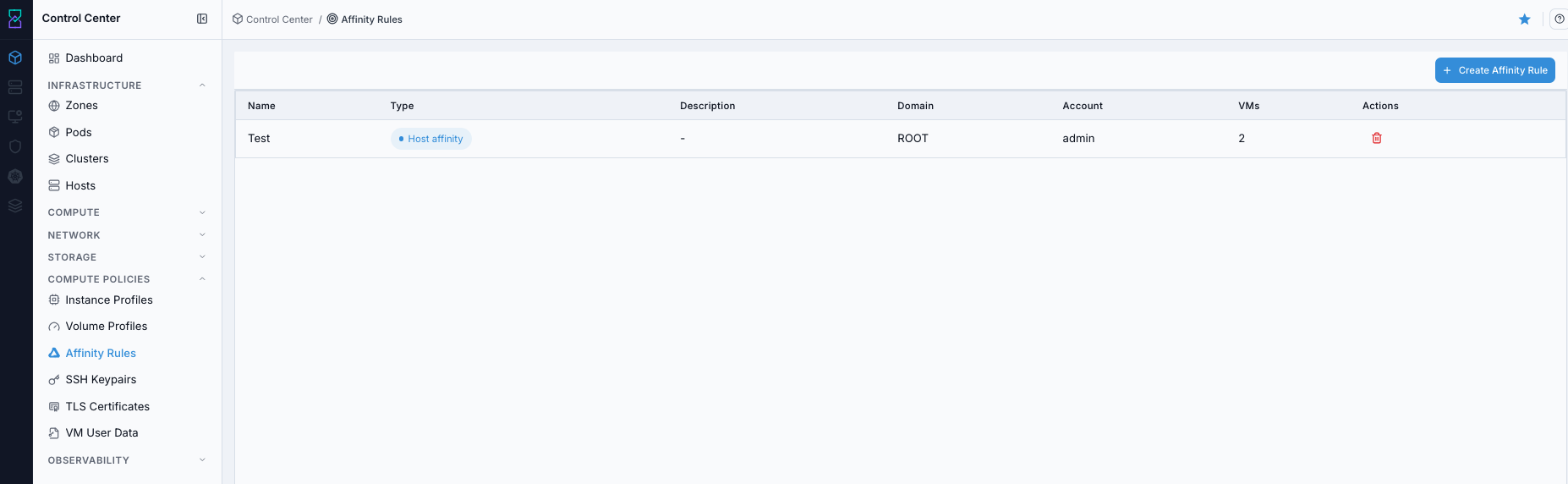
Affinity Rules dashboard.
Screen Overview and Actions
This screenshot shows the Affinity Rules dashboard table.
From this screen, you can review existing rules, open a rule details page, start creating a new rule, and use row actions including edit/remove.
Expected Outcome:
You can identify which rules enforce co-location vs separation.
You can locate row actions for affinity-rule lifecycle operations, including remove.
If this fails:
Refresh and retry.
Confirm required fields and actions are visible on the page.
Review the on-screen error message and retry.
Step: Open Affinity Rules Help Panel
When to Use: Use this when rule fields or controls are unclear.
Purpose: Open contextual guidance for affinity-rule operations.
Steps:
Open
Control Center -> Compute Policies -> Affinity Rules.Click the help icon in the top-right corner.
Review field and action guidance.
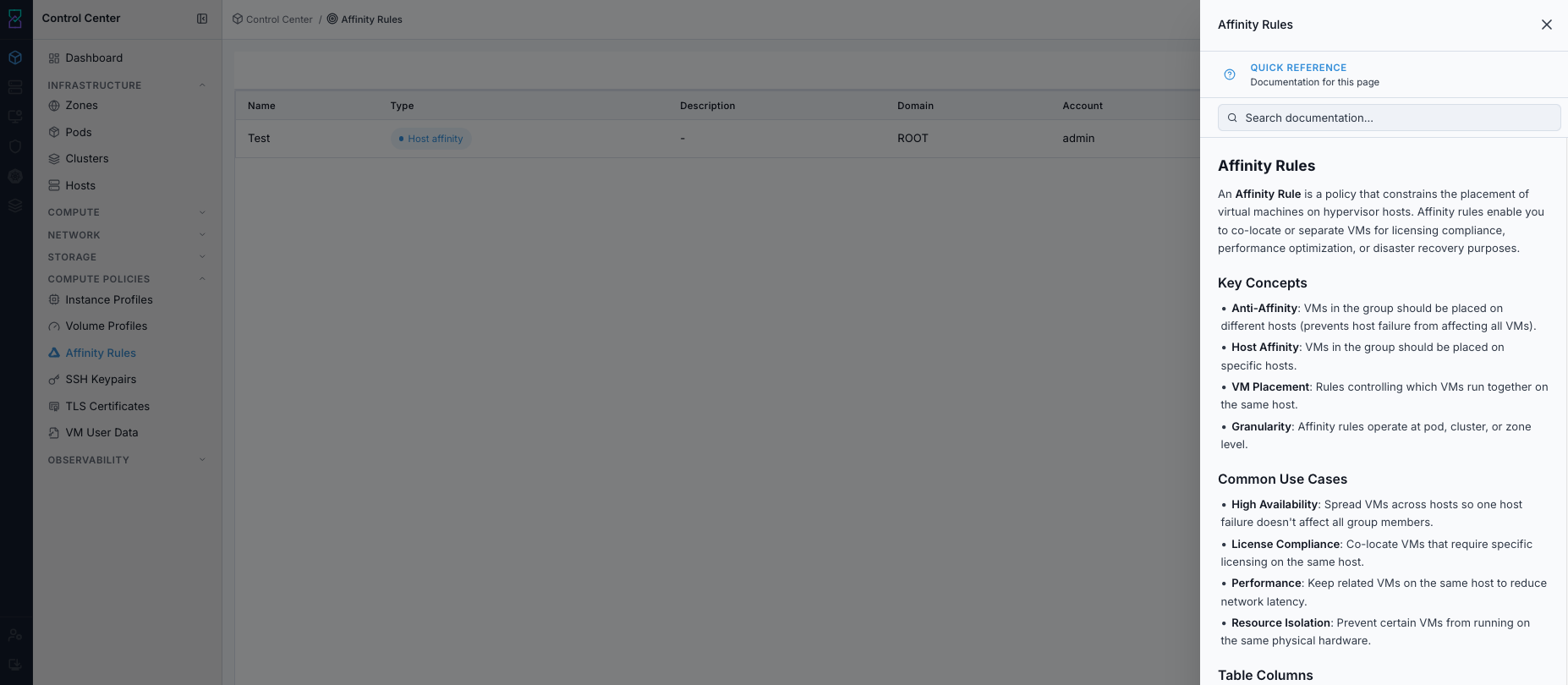
Affinity Rules help panel.
Screen Overview and Actions
This screenshot shows the Affinity Rules help panel.
From this screen, you can confirm rule-type definitions and action behavior before creating or editing rules.
Expected Outcome:
Help panel opens with page-specific guidance.
If this fails:
Refresh and retry.
Verify browser/script restrictions.
Review the on-screen error message and retry.
Step: Create Affinity Rule
When to Use: Use this when a workload needs explicit host placement policy.
Purpose: Create a rule for co-location or separation behavior.
Steps:
Click
+ Create Affinity Rule.Enter required fields and select rule type.
Save the rule.
Confirm it appears in the dashboard.
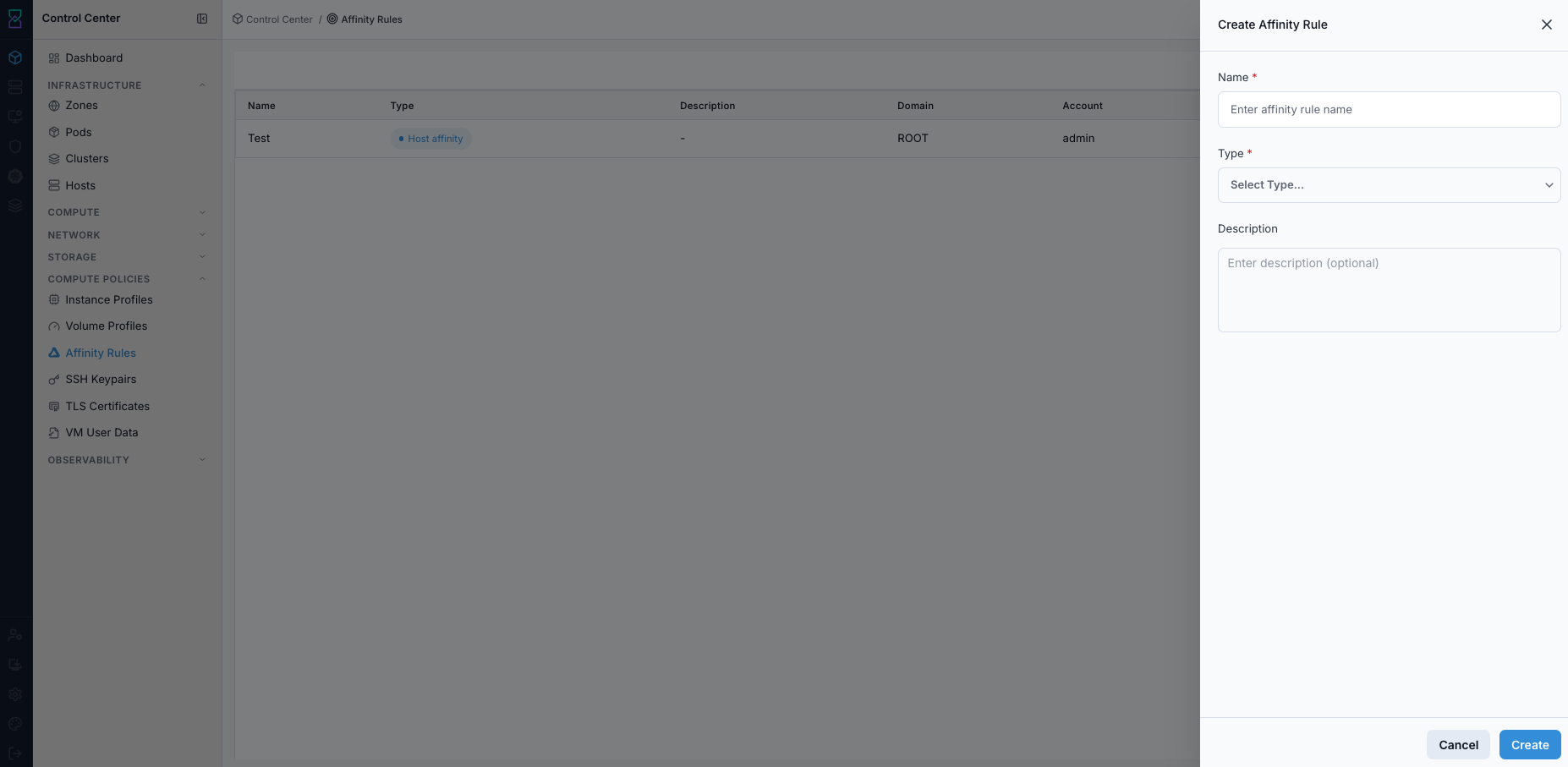
Create Affinity Rule form.
Screen Overview and Actions
This screenshot shows the create form for a new affinity rule.
From this screen, you can set rule identity and type, then save the rule for VM placement control.
Expected Outcome:
New affinity rule is created and available for VM assignment.
If this fails:
Validate required fields and unique naming.
Verify chosen policy type is valid in scope.
Review the on-screen error message and retry.
Step: Review Affinity Rule Details
When to Use: Use this after create or before membership changes.
Purpose: Verify rule intent and current associated VM list.
Steps:
Click a rule name from dashboard.
Review details and associated VM membership.
Confirm this rule is the correct target for change.
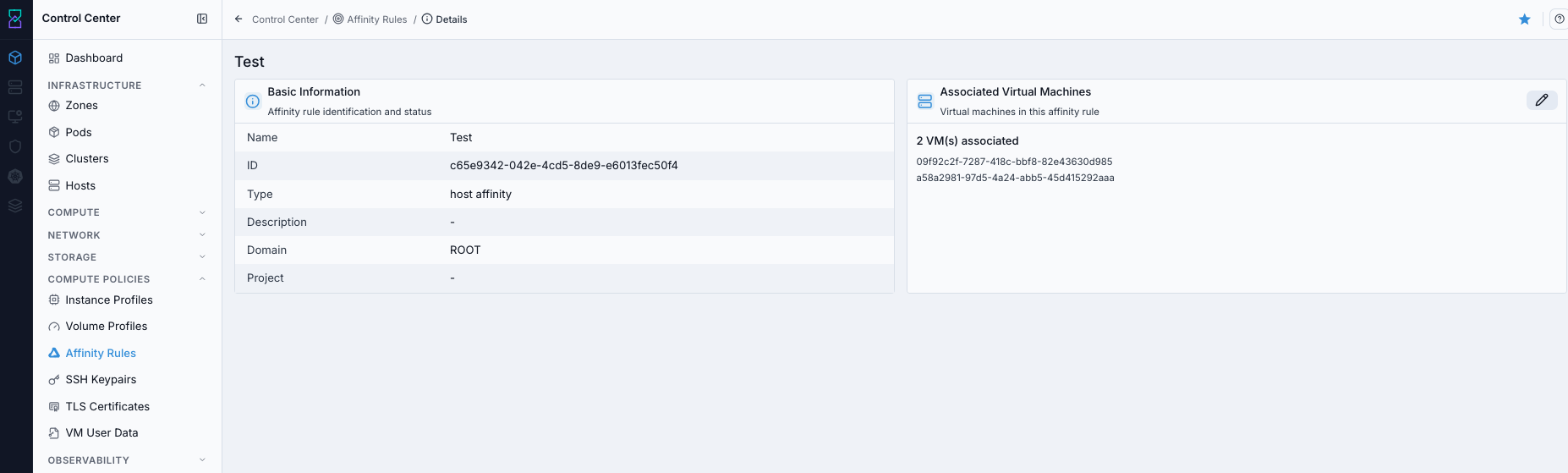
Affinity Rule details.
Screen Overview and Actions
This screenshot shows the details page for one affinity rule.
From this screen, you can review current rule scope and membership before making changes.
Expected Outcome:
Rule details are reviewed before changing VM membership.
If this fails:
Refresh and reopen details.
Verify rule visibility in current scope.
Review the on-screen error message and retry.
Step: Manage Virtual Machines in Affinity Rule
When to Use: Use this when adding or removing VMs from an existing rule.
Purpose: Apply placement policy to the intended VM set.
Steps:
Open a rule details page.
Click
Manage Virtual Machines.Add/remove VM membership and save.
Recheck membership in details.
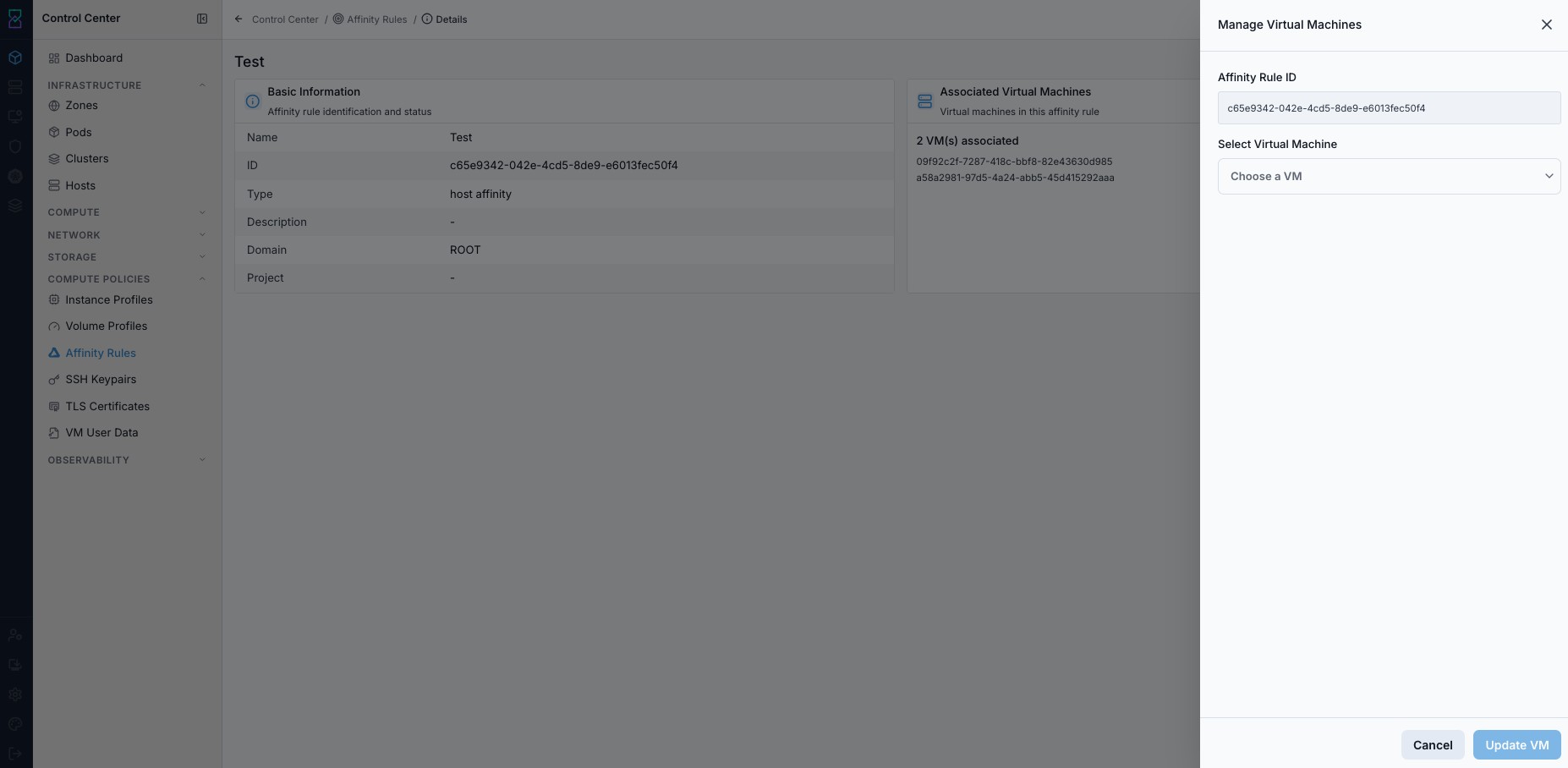
Manage Virtual Machines in Affinity Rule.
Screen Overview and Actions
This screenshot shows the VM membership management flow for an affinity rule.
From this screen, you can add or remove VMs in the rule and save membership updates.
Expected Outcome:
Membership updates are saved and reflected in the rule details view.
If this fails:
Verify selected VMs appear in the membership list for this rule.
Verify membership changes are accepted by the form.
Review the on-screen error message and retry.