Snapshots
Use this page to monitor snapshot health and triage protection gaps.
Snapshots
UI path: Control Center -> Storage -> Snapshots
Purpose
The Snapshots Dashboard provides a centralized view of all volume snapshots in Control Center. Snapshots are point-in-time copies of volume data used for backup, recovery, and cloning workflows.
When to Use Snapshots
Use this module when you need to:
Confirm backup coverage before risky changes.
Validate restore points after incidents or data corruption events.
Find snapshots that can be used for cloning new volumes or templates.
Overview
The dashboard helps you track snapshot health, freshness, and scope across zones. Use state and filter controls to quickly identify healthy or failed protection records.
Snapshots Table
The main table displays all snapshots with the following columns:
Column |
Description |
|---|---|
|
Snapshot name. |
|
Source volume from which the snapshot was taken. |
|
Current snapshot state (for example |
|
Snapshot creation method (manual or recurring). |
|
Physical storage consumed by the snapshot. |
|
Date and time when the snapshot was taken. |
|
Availability zone where the snapshot resides. |
Snapshot States
State |
Meaning |
|---|---|
|
Snapshot is complete and stored successfully. |
|
Snapshot operation is in progress. |
|
Snapshot failed or entered an error state. |
Filtering & Search
Search: Filter by snapshot name, volume name, volume ID, or zone.Storagefilter: Narrow results by Image Storage location.
Tips
Recovery: Use snapshots to restore volumes to previous known-good states.
Cloning: Use snapshots as source points for new volumes or template workflows.
Storage usage: Delete snapshots no longer required to reclaim capacity.
Scheduling: Configure recurring snapshot policies for regular protection.
Expected Outcome:
Snapshot rows can be triaged quickly by state, volume, zone, and storage location.
Step: Review Snapshots Dashboard
When to Use:
Use this when performing Review Snapshots Dashboard in the active storage workflow.
Purpose:
Execute Review Snapshots Dashboard and confirm the expected UI/state outcome for this storage resource.
Steps:
Open
Control Center -> Storage -> Snapshots.Review rows for snapshot name, source volume, state, size, and creation time.
Use search and
Storagefilter to narrow results.
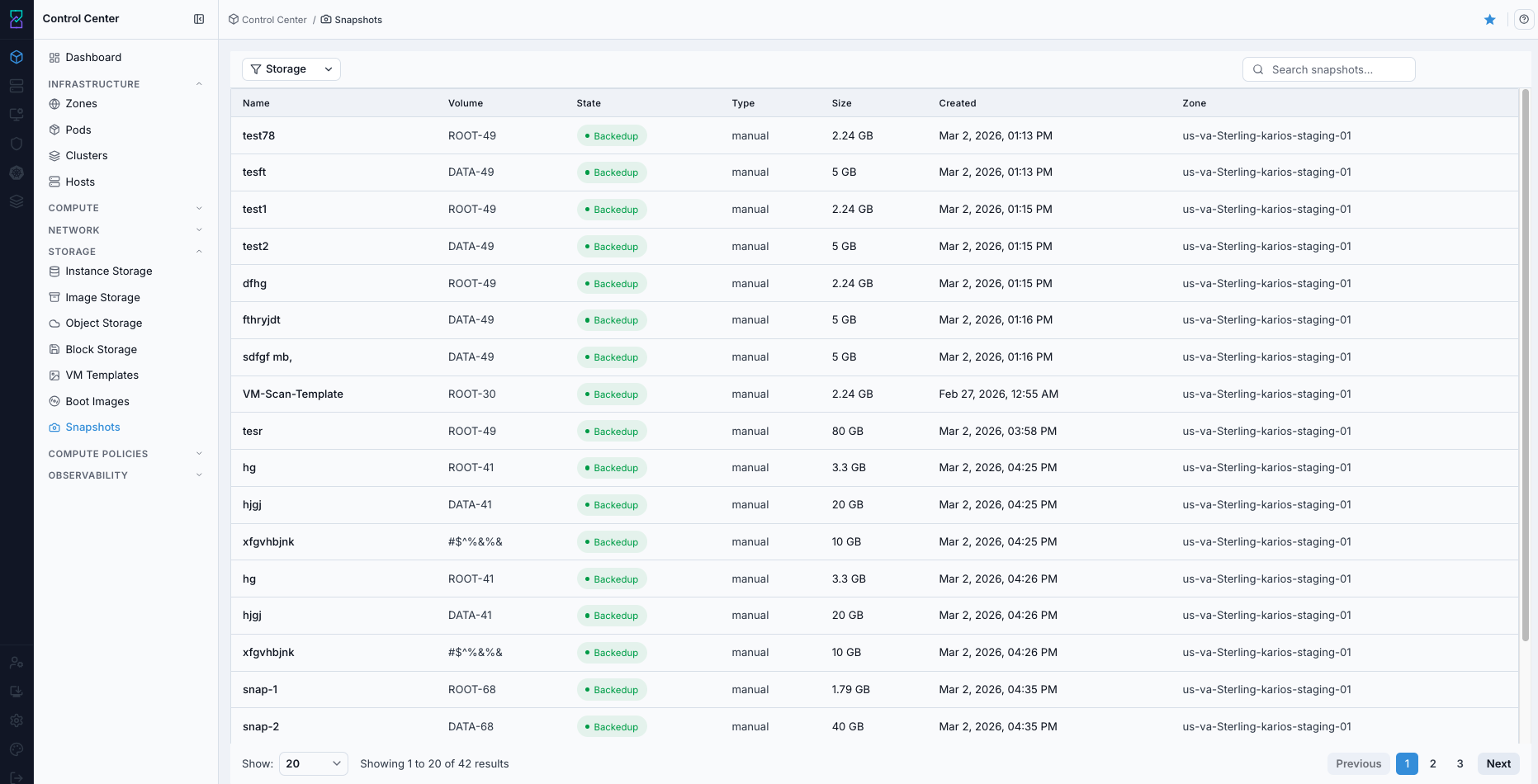
Snapshots dashboard.
Expected Outcome:
Snapshot rows are visible and can be filtered by name, volume, zone, and storage location.
If this fails:
Verify backend health and available capacity for the target storage resource (pool/store/endpoint and zone scope).
Check blocking dependencies for this action (attachments, snapshots, templates, buckets, object locks, or maintenance state).
Review Observability Events/Alerts for the storage object and retry only after resolving the root cause.
Step: Open Snapshots Help Panel
When to Use: Use this after opening the Snapshots dashboard when you need field definitions and workflow guidance.
Purpose: Open contextual help separately from snapshot triage and filtering tasks.
Steps:
Open
Control Center -> Storage -> Snapshots.Click the help icon in the top-right corner.
Review help guidance for snapshot columns and controls.
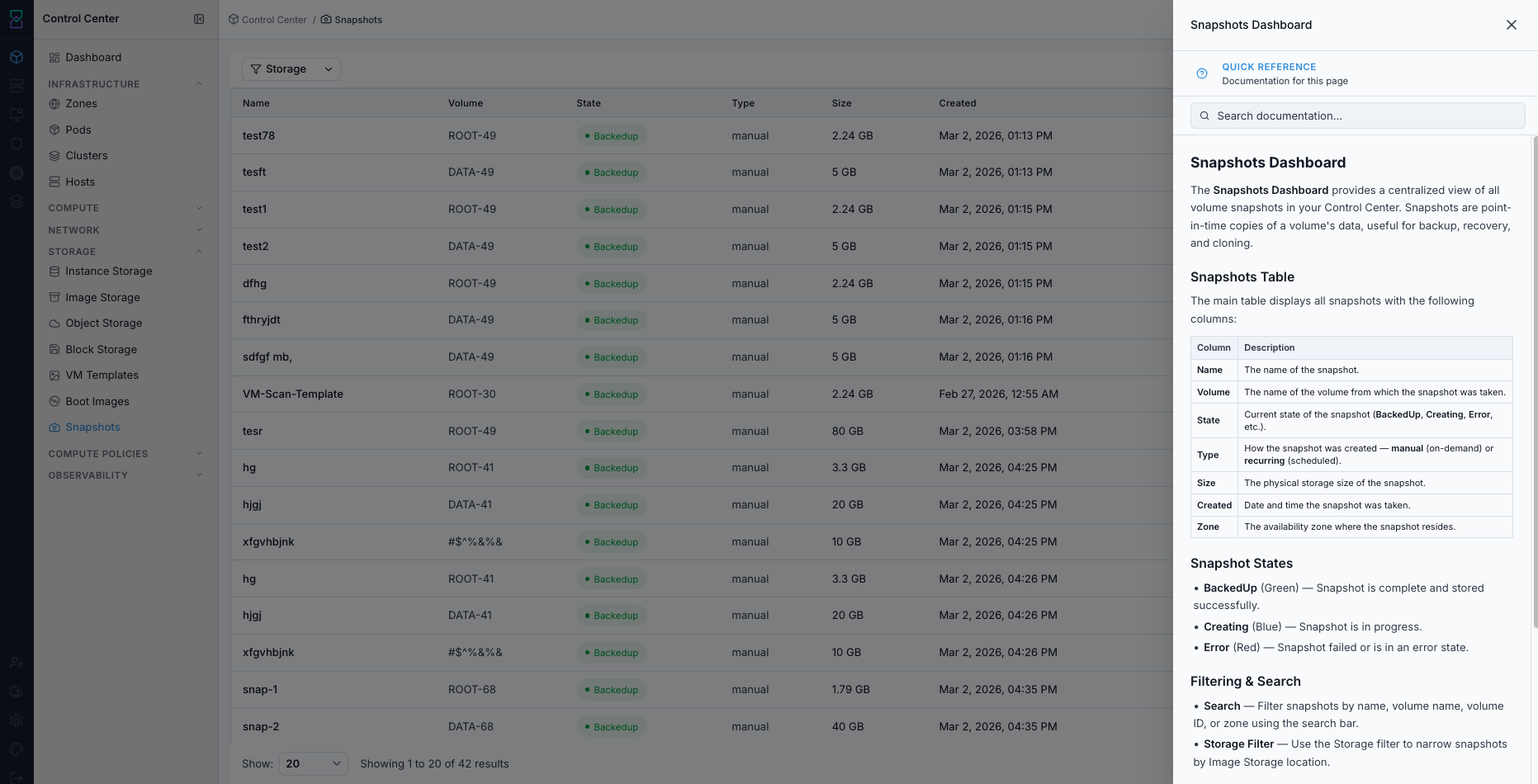
Snapshots help panel.
Expected Outcome:
The Snapshots help panel opens with page-specific guidance.
If this fails:
Verify backend health and available capacity for the target storage resource (pool/store/endpoint and zone scope).
Check blocking dependencies for this action (attachments, snapshots, templates, buckets, object locks, or maintenance state).
Review Observability Events/Alerts for the storage object and retry only after resolving the root cause.
Step: Identify and Triage Failed Snapshots
When to Use:
Use this when performing Identify and Triage Failed Snapshots in the active storage workflow.
Purpose:
Execute Identify and Triage Failed Snapshots and confirm the expected UI/state outcome for this storage resource.
Steps:
Filter/search to find rows where
StateisError.Compare with healthy rows in
BackedUpstate.Note affected volume name and timestamp for follow-up.
Expected Outcome:
Failed snapshots are identified with impacted volumes and timestamps for escalation.
If this fails:
Verify backend health and available capacity for the target storage resource (pool/store/endpoint and zone scope).
Check blocking dependencies for this action (attachments, snapshots, templates, buckets, object locks, or maintenance state).
Review Observability Events/Alerts for the storage object and retry only after resolving the root cause.
Tool Tips
Review snapshots by zone during incident checks.
Use pagination controls to review all results, not just the first page.
Warnings
Error-state snapshots indicate incomplete protection for associated volumes.
Do not perform risky disk operations until snapshot health is understood.
If this fails:
If snapshot errors increase, verify image/object storage path health first.
If recent snapshots are missing, review scheduler/job execution in platform operations.
If errors repeat on the same volume, inspect volume state and backend capacity.