Karios Installation Guide
Note
This guide covers first-time installation of the initial Karios node using the
install wizard, delivery of the Karios platform image, and first verification in
Control Center.
Overview
Installation is performed in four stages:
Install wizard(Steps 1-9): accept the license, select target disks, configure networking, set administrator credentials, record the site location and time sources, verify hardware, start the install, and reboot.Platform image delivery: partway through Step 8 the install pauses at96%and waits for the Karios platform image to be delivered from a second machine over a web browser. Step 9, the reboot, follows once it is deployed.First boot: the node bootstraps itself and brings up its management address.Verification: sign in toControl Centerand confirm the system virtual machines reachRunning.
Important
Stage 2 cannot be completed on the node itself. You need a second machine with a web browser on the same management network, and a copy of the Karios platform image. Have both ready before you start.
The platform image - also called the template - is not a separate
download. It is bundled with the ISO inside the same .zip you download
from Karios, so one download gives you both files. See Obtaining The Installer
Bundle below, and extract the bundle before you boot the installer.
How To Use This Guide
Follow the sections in order. Each wizard screen is identified by its title and its position in the step progress indicator shown at the bottom of every page.
For each screen:
Match the screen title and step number to the screenshot.
Enter approved site values, not the example values shown in the screenshots.
Use
Continueto move forward andBackto correct earlier values.Backpreserves everything you have entered, including the network roles table.Stop before
Continueon theSummaryscreen if any disk, network, hostname, DNS, or credential value is uncertain, and useBackto return to the relevant screen and correct it.
The wizard footer is the same on every page: Back, Drop to Shell, the
step progress indicator, and Continue. Drop to Shell opens a
diagnostic shell and is intended for support-directed troubleshooting only.
New-user checkpoints:
Before booting: confirm firmware settings, boot media, console access, network design, and credentials are ready.
Before
ContinueonSummary: confirm the target disks and topology are correct. The summary does not show network role values, so re-check those withBackif there is any doubt. This is the last reversible point.Before starting: confirm the platform image and a second machine with a browser are available.
After completion: record the Karios UI address and management IP address.
Requirements
Hardware Minimums
The server must be 64-bit (x86-64) server-class hardware booting in UEFI
mode, not legacy BIOS.
Required firmware settings:
Secure Bootturned off. The installer refuses to proceed while it is on. Alternatively, enroll the Karios key when the installer prompts you - this must be done from the local console, either an attached monitor or the BMC remote console.CPU virtualization enabled -
VT-xon Intel,AMD-Von AMD. Karios runs virtual machines; without it, workloads will not start. On bare metal this is required; on a nested virtual machine the installer only warns.
The installer enforces the following:
Component |
Requirement |
|---|---|
Architecture |
|
Firmware |
|
RAM |
|
EFI bootloader |
Required |
Those are install-time floors, not a working configuration. For a real Karios host, size the node to the deployment specification instead:
Component |
Minimum / Recommended |
|---|---|
CPU (logical processors) |
AIO: |
RAM |
AIO: |
BMC (IPMI / iDRAC / iLO) |
The platform uses it to onboard nodes. Configure it in Step 6 |
Size CPU and memory for the intended workload above these figures. For the full deployment specification, including compute-node requirements, see Getting Started.
Karios is validated on Supermicro, Dell, and HP server hardware. Server-class hardware from other manufacturers that meets the requirements above can also be used.
Disk Requirements
The minimum disk count depends on the Deploy role chosen in Step 2.
Deploy role |
Minimum |
Rule |
|---|---|---|
|
2 |
One or more for the operating system, and at least one left empty for the data pool. The install refuses if no free disk is available. |
|
1 |
A single disk is sufficient. |
Important
Two disks is the floor, not a working default. The default ZFS topology,
mirror, uses two disks for the operating system - which on a two-disk
AIO node leaves nothing free for the data pool, and the install refuses.
Either provide three disks (two mirrored for the OS, one left empty), or
accept single topology on one disk and no OS redundancy.
Each usable disk must be at least 32 GiB and internal.
The following cannot be selected and do not count towards the requirement: USB and removable media, SAN / iSCSI / FC / FCoE storage, and the installer medium itself.
Warning
Every internal disk in this machine is wiped to bare metal - whether or not you select it. Partition tables and filesystem signatures are removed and existing data is discarded. This is not a secure erase. Selecting fewer disks does not protect the rest. USB, removable, and SAN/external storage are not touched.
Important
The disk controller must be in HBA / JBOD / pass-through mode.
Hardware-RAID volumes are refused. On controllers such as PERC, Smart Array, or
MegaRAID, switch to pass-through in the controller firmware before installing.
See 5.2.2. Disk Controller Mode in Getting Started for the Dell PERC and Cisco
walkthroughs.
Important
Before you start, confirm there is nothing you need to keep on any internal disk in this machine - not just the ones you intend to select. The disk you leave free for the data pool is wiped as well, and Ceph then claims it.
Obtaining The Installer Bundle
Karios ships the installer as a single .zip bundle. Download it from:
https://download.karios.com/installer/karios-installer.zip
This one download contains both files you need. The template is bundled with the ISO - you do not request or download it separately:
File in the bundle |
What you do with it |
|---|---|
Karios ISO |
Write it to boot media, or mount it through BMC virtual media, and boot the server from it. Used in Part A. |
Karios platform image ( |
Deliver it to the node from a second machine when the install pauses. Used in Part B. |
Important
The ISO and the template are two halves of one install and must come from the
same bundle. Extract both files before you boot the installer - the node
pauses at 96% and cannot finish until the template reaches it from a
second machine.
If you cannot reach download.karios.com from your network, contact
support@karios.com.
Information To Gather
Have the following ready before you begin:
The Karios installer
.zipbundle, downloaded and extracted - see Obtaining The Installer Bundle above. The one download contains both the ISO you boot from and the platform image (the template) you deliver in Part BThe ISO written to USB media, or mounted through BMC virtual media
Local console access, or remote console access through BMC/IPMI/iDRAC/iLO
A second machine with a web browser, on the same management network as the node, holding the platform image and able to reach the node on port
8443Deploy rolefor this node -AIO (all-in-one)orManagement only. This sets the minimum disk count, so settle it before the machine is rackedZFS pool topology. It is fixed when the pool is created and determines how many disks you needHostname for the node
Management IP address, default gateway, and DNS resolvers. Karios uses static addressing and does not assign node addresses by DHCP.
NTP server addresses for the cluster to synchronise against
For each network role you will enable -
Management,Storage,Public, andGuest- the uplink interface, tagging mode, VLAN ID, subnet CIDR, IPAM pool start and end, and gateway. See Getting Started for the network planning rules: VLANs must be unique, no CIDR overlaps are permitted, and every address must fall within its declared CIDR.Administrator password - at least 12 characters, including uppercase, lowercase, a digit, and a symbol
BMC address, username, and password. A BMC is required - the platform uses it to onboard nodes.
Site details for Step 5 - country, state, city, time zone, the datacenter’s physical address, and the facility name, description and environment
Rack location details, if you want them recorded
Creating Bootable Media
Extract the installer bundle first and use the ISO from it - see Obtaining The Installer Bundle above. Keep the platform image from the same bundle on the machine you will use for Part B; do not write it to the installer USB drive, which is overwritten by the steps below.
Use one of the following methods:
Etcheron Windows, macOS, or LinuxRufuson Windowsddon Linux or macOSBMC virtual media for remote installation
Tip
For remote deployments, BMC virtual media is the recommended method because it preserves direct console access throughout the install.
Minimum USB Flash Drive Requirements
Requirement |
Minimum Baseline |
|---|---|
Capacity |
At least |
Interface |
|
Read speed |
At least |
Write speed |
At least |
Boot support |
Must support creation of standard bootable USB media |
For better flashing speed and more reliable media creation, prefer USB 3.0 or
USB 3.1 with read speeds of roughly 80-150 MB/s and write speeds of
roughly 20-50 MB/s.
Warning
Avoid very old or low-quality COB-based USB drives. Slow or poor-quality media can fail during ISO flashing, and can also cause boot failures or unstable installer startup.
Rufus (Windows)
Open
Rufus.Select the target USB drive.
Select
SELECTand choose the Karios ISO.Keep the recommended partition settings for your platform.
Select
STARTand confirm the data-erasure prompt.
Etcher (Windows, macOS, Linux)
Open
Etcher.Select
Flash from fileand choose the Karios ISO.Select the target USB drive.
Select
Flashand wait for completion.
dd (Linux or macOS)
sudo dd if=/path/to/karios.iso of=/dev/<usb-device> bs=4m status=progress
sync
Important dd safety checks:
Replace
/dev/<usb-device>with the whole USB device, not a mounted partition such as/dev/sdb1.On Linux, use
lsblkbefore and after inserting the USB drive to identify the correct device path.On macOS, use
diskutil listbefore and after inserting the USB drive to identify the correct disk.Confirm the target device path before running
dd. Writing to the wrong disk will erase that disk.Unmount the USB device first if your operating system mounted it automatically.
Before You Boot The Installer
Pre-flight actions:
Confirm no data you need to keep is on any internal disk in this machine. Every internal disk is wiped, not only the ones you select.
Confirm the server boots in
UEFImode.Disable
Secure Bootin the firmware (BIOS/UEFI) setup.Enable CPU virtualization (
VT-x/AMD-V) in the firmware setup.Set the disk controller to
HBA/JBOD/ pass-through mode. Reboot if you changed it.Connect the network cables for every uplink you plan to use, and confirm the VLANs for each role are configured and trunked to those switch ports.
Write the Karios ISO to a bootable USB drive, or prepare BMC virtual media.
Insert the USB drive into the target server, or mount the ISO through BMC virtual media.
Open the server boot menu or BIOS boot selector.
Select the UEFI entry for the Karios installer media as the boot source.
Boot the server from that installer media.
Note
The graphical wizard this guide documents appears on an attached monitor or a BMC remote console. On a serial or SOL console you get a text installer instead, which covers the same steps in the same order.
Important
If you install through the server’s remote management console (BMC - for example iDRAC or iLO), keep the console and its virtual media connected until installation finishes. A dropped virtual-media connection is the most common cause of an install stopping partway through. A wired or local USB install medium is the most reliable option.
Part A - The Install Wizard
Step 1 - License
When to Use:
The first screen after the installer loads.
Purpose:
Record acceptance of the Karios End-User License Agreement. The install cannot proceed without it.
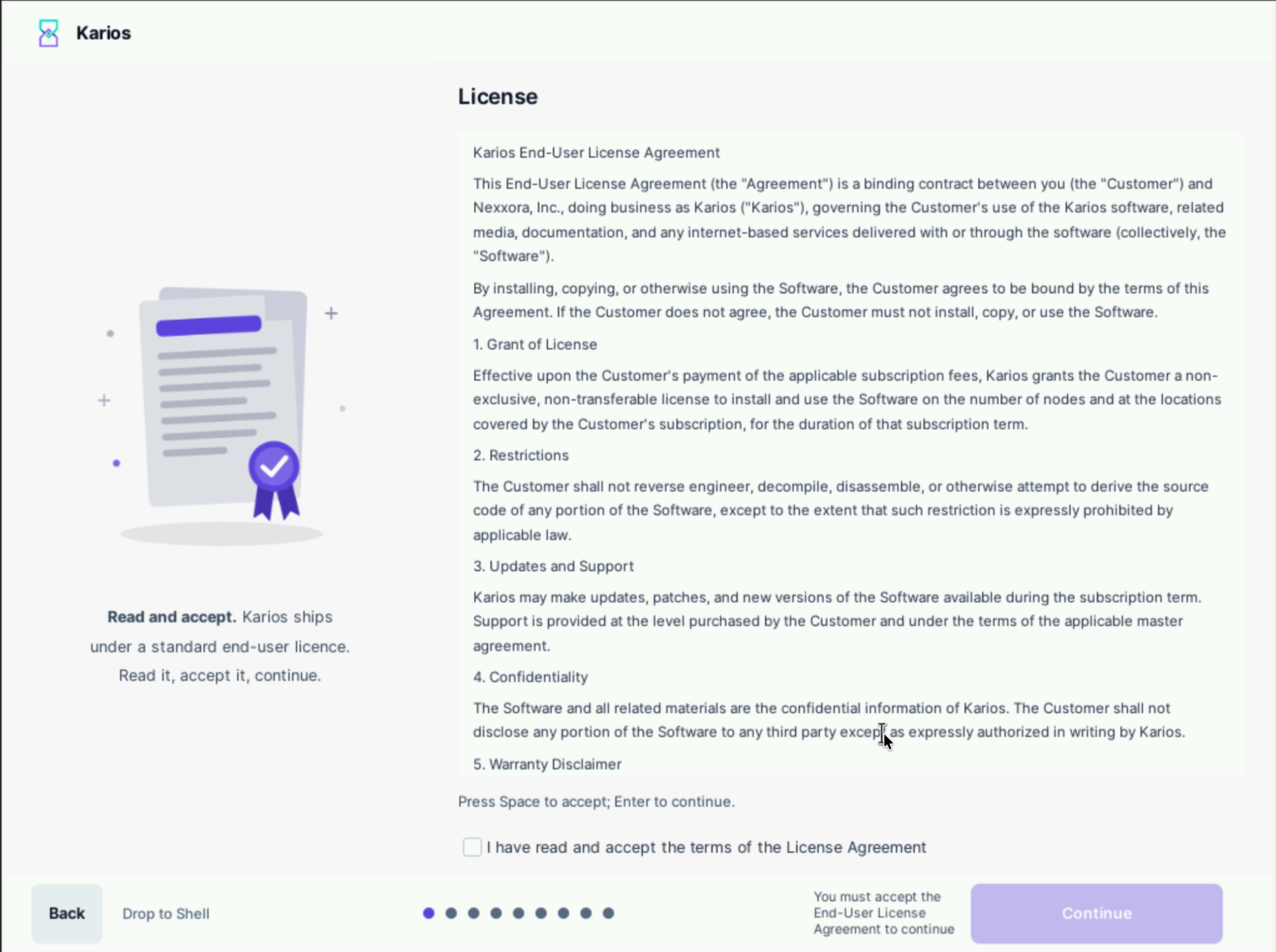
Step 1 of 9: the End-User License Agreement before acceptance.
Steps:
Read the agreement. Scroll to
- End of Agreement -.Select
I have read and accept the terms of the License Agreement.Select
Continue.
What the UI means:
Continuestays disabled until the checkbox is selected. Until then the wizard displaysYou must accept the End-User License Agreement to continue.Press Space to accept; Enter to continue- the screen can be driven from the keyboard, which is useful over a slow remote console.
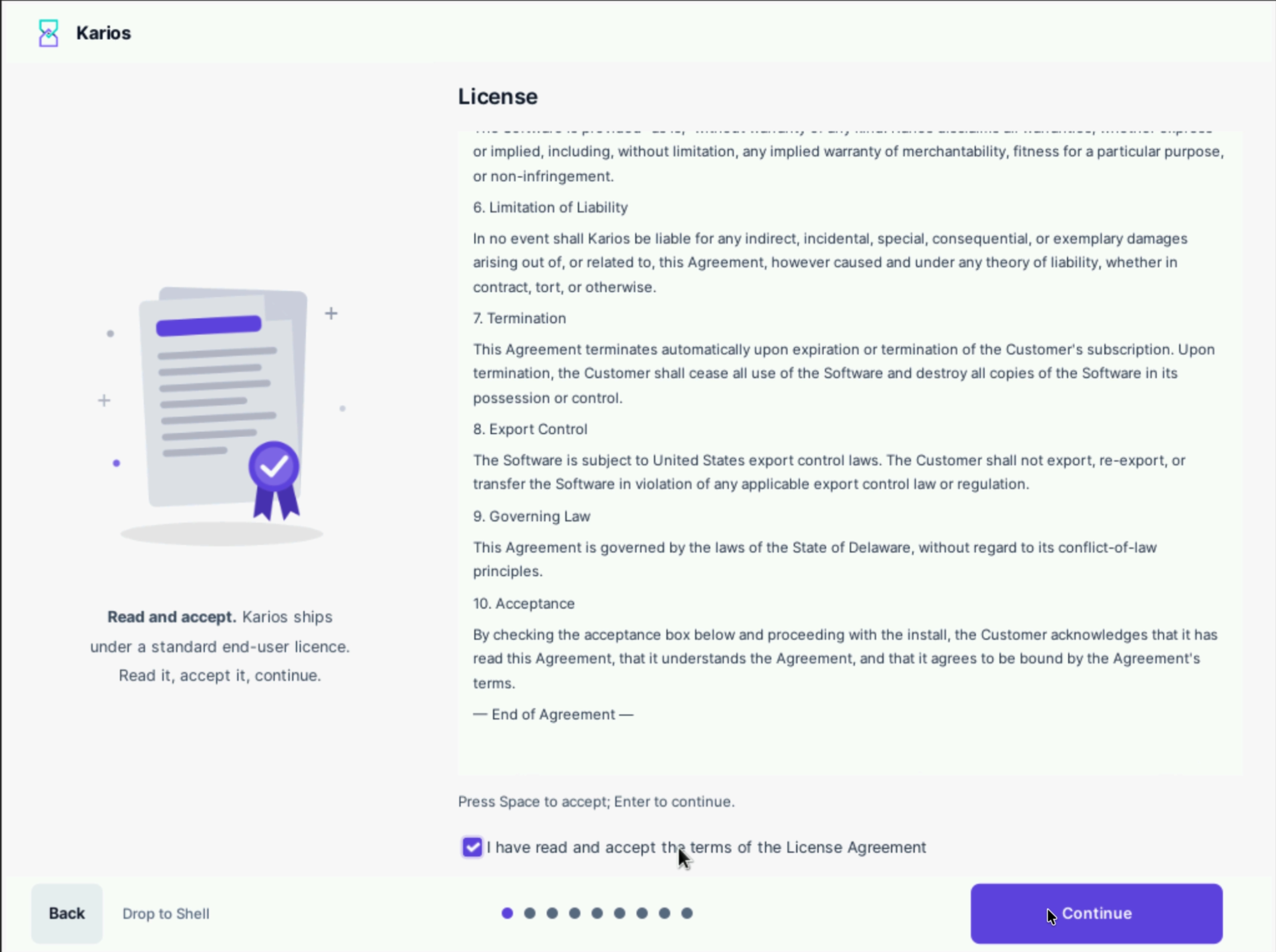
Step 1 of 9: acceptance recorded and Continue enabled.
Expected Outcome:
The checkbox is ticked, the blocking message is gone, and
Continue is enabled.
If this fails:
If the screen reports Secure Boot is ENABLED, turn Secure Boot off in the
firmware setup and reboot, or enroll the Karios key when prompted - key
enrollment must be done from the local console, either an attached monitor or the
BMC remote console.
If it reports the machine is not booted in UEFI mode, switch the firmware
from Legacy/CSM to UEFI.
Step 2 - Target Disk
When to Use:
After accepting the license.
Purpose:
Choose which disks hold the Karios operating system, and how the ZFS pool is laid out. Disks you leave unselected become the data storage pool.
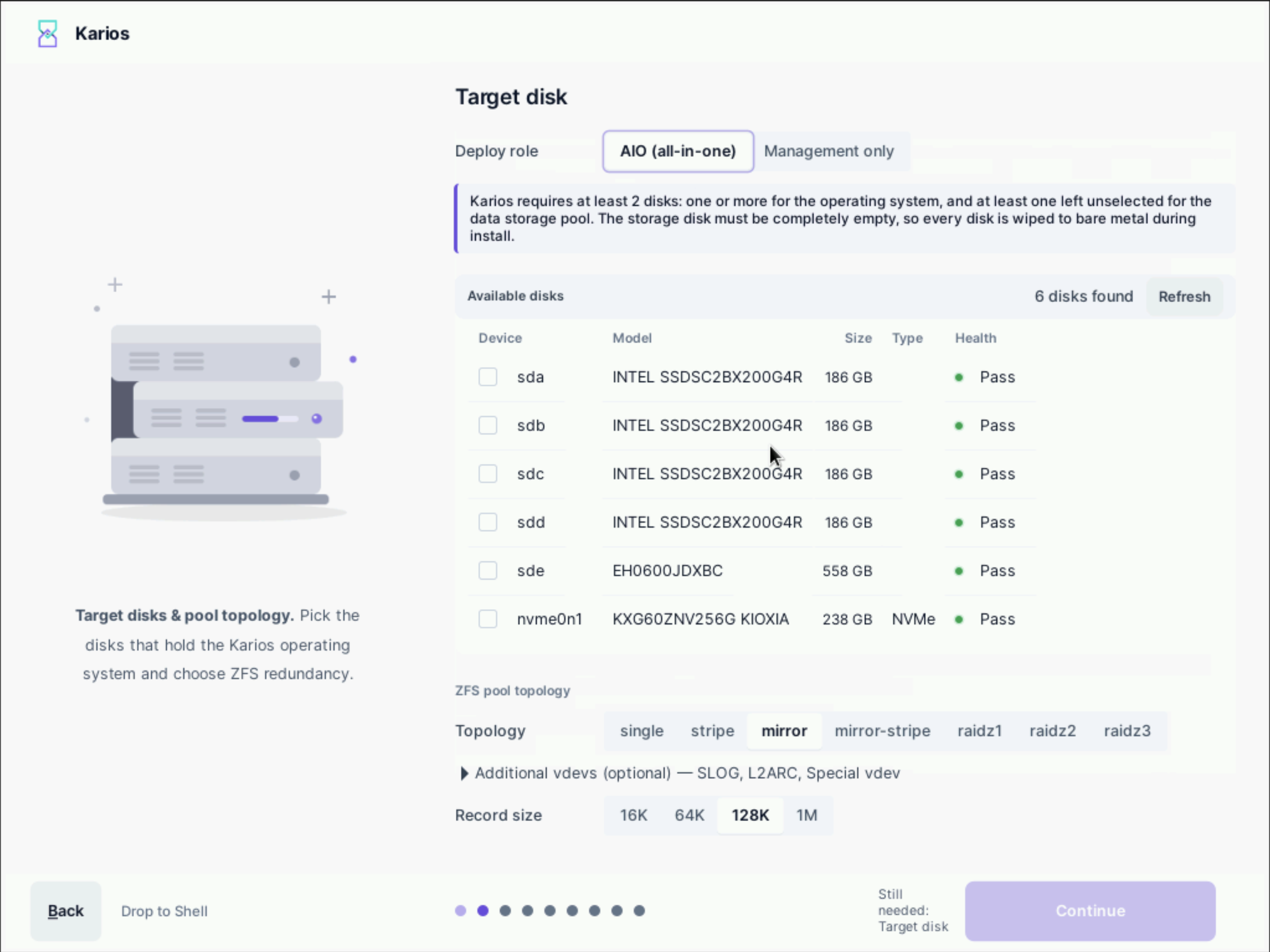
Step 2 of 9: deploy role, available disks, and ZFS pool topology.
Steps:
Choose the
Deploy rolefor this node -AIO (all-in-one)orManagement only.Review the detected disks. Each row shows device name, model, size, type, and health.
Important
Every internal disk in this machine is wiped to bare metal, not only the disks you select here. Partition tables and filesystem signatures are removed and existing data is discarded. Leaving a disk unselected does not protect it.
Select the disk or disks that will hold the Karios operating system.
On an
AIOnode, leave at least one disk empty and unselected - Ceph claims it for the data storage pool, and the install refuses if no free disk is available. On aManagement onlynode a single disk is sufficient; a spare is used for storage if present but is not required.Choose a
ZFS pool topology.Leave
Record sizeat the preselected128Kunless directed otherwise.Select
Continue.
Deploy Role
Deploy role determines what this node runs.
Role |
What it runs |
|---|---|
|
Every role on one chassis: control plane, storage (Ceph), and compute (KVM). Needs two or more disks. Works as a single node, and you grow the platform by adding more nodes. Suits small sites, edge, and labs. |
|
Control-plane services and databases only - no local virtual machines and no storage workload on this box. A single disk is enough. Used to build a dedicated control plane, typically three management nodes, with compute and storage on separate nodes. |
You choose the role per node, and there is no fixed order - any node can be
either. On an AIO node the control plane, storage and compute share the
chassis, so it is a single point of failure for what it hosts; fault-tolerant HA
needs three or more nodes.
Note
You grow a cluster by adding a node in the role you want and enrolling it. You do not convert a running node in place.
Common deployment shapes:
Deployment |
Shape |
|---|---|
Single box, lab, or edge |
One |
Small production |
Start with one |
Highly-available control plane |
Three |
What the UI means:
Topologies that need more disks than you have selected remain unavailable, and the wizard states
Add more disks to unlock mirror and raidz topologies.A collapsed
Additional vdevs (optional) - SLOG, L2ARC, Special vdevrow is available if your design calls for them.Until a valid combination of disks and topology is chosen, the footer reads
Still needed: Target diskandContinuestays disabled.Once the selection is valid the wizard shows a
Usablerow giving the resulting capacity, disk count, and topology - for example372 GB 2 disks · stripe (no redundancy).
Choosing A Topology
The topology is fixed when the pool is created. Choose it before you rack the machine, because it determines how many disks you need.
Topology |
Min disks |
What it gives you |
|---|---|---|
|
1 |
No redundancy. Losing the disk loses the pool. |
|
2 |
No redundancy, fastest. Losing any disk loses the pool. |
|
2 |
Full copies. Survives one disk failure. Default. |
|
4 (even) |
Striped mirrors. Survives one disk per mirror. |
|
3 |
Single parity. Survives one disk failure, more usable space than mirror. |
|
4 |
Double parity. Survives two disk failures. |
|
5 |
Triple parity. Survives three disk failures. |
Tip
For a first single-node install, mirror across two OS disks plus one disk
left empty for Ceph - three disks in total - is a sound starting point.
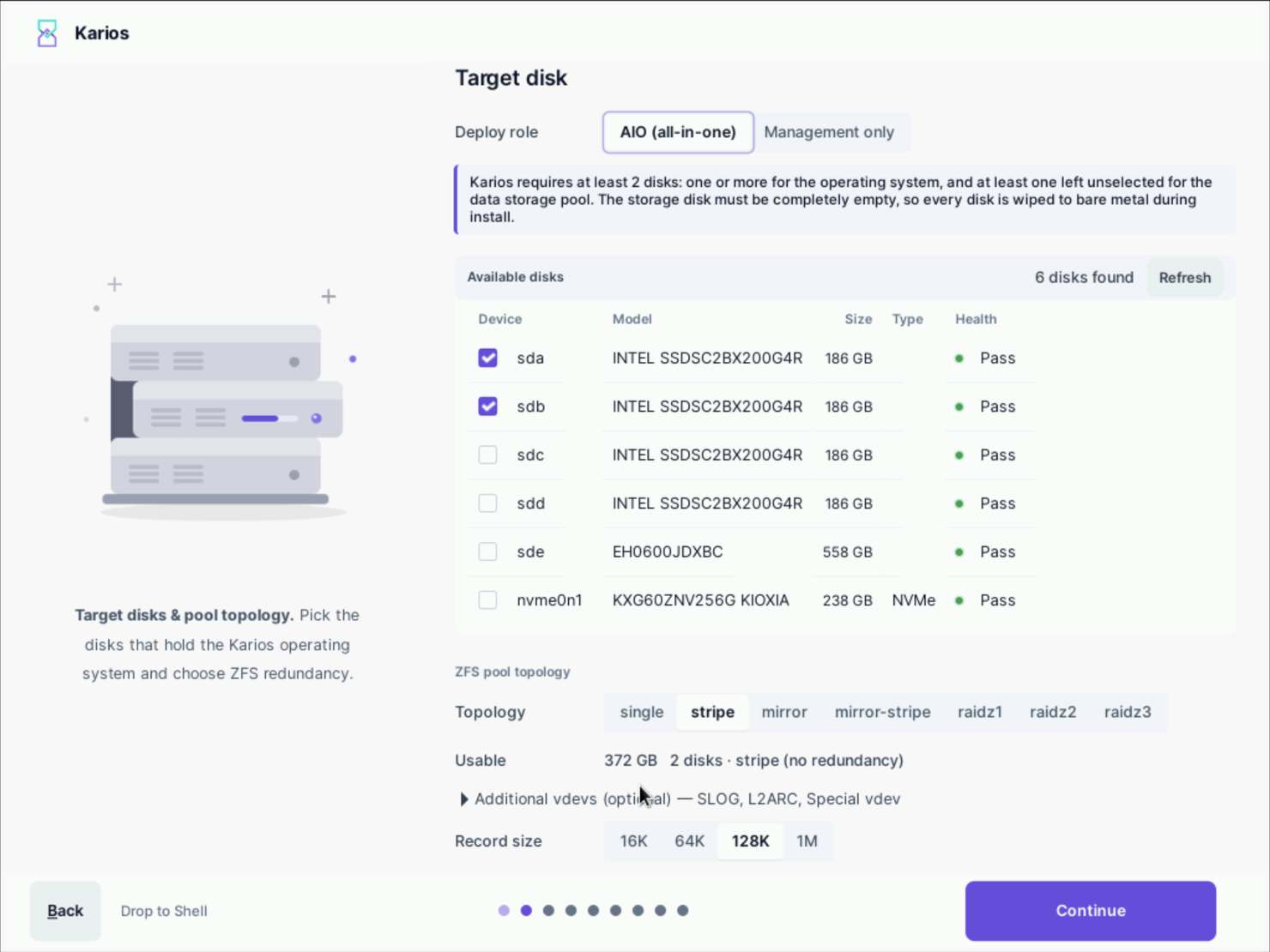
Step 2 of 9: two disks selected, showing the resulting usable capacity.
Warning
If you combine rotational and solid-state disks in one pool the wizard warns
MIXED MEDIA (hdd + ssd). A ZFS vdev runs at the speed of its slowest
member, so mixing media types reduces the whole pool to the slowest disk’s
performance. Use a single media type for full performance.
Expected Outcome:
The Usable row shows the capacity and topology you
intended, Still needed: Target disk is gone, and Continue is enabled.
If this fails:
What you see |
What to do |
|---|---|
No disks available, or the installer will not continue |
The disk controller is likely presenting hardware-RAID volumes. Change it
to |
A disk “does not resolve”, or “refusing to continue” |
The disk’s identity changed since it was selected. Reboot and try again. If it persists, set the controller to pass-through so disks keep a stable identity. |
A disk is reported as failed or unhealthy |
Replace that drive and run the installer again. |
“Need at least two disks”, or “needs at least 2 eligible disks” |
Attach a second disk of at least |
Step 3 - Network And NIC Configuration
When to Use:
After selecting target disks.
Purpose:
On this screen you choose the install type for the node, provide the network
addressing for the control plane, and (on Management installs) the pod
fabric. Each enabled network role must pass its Test before the wizard
lets you continue, so expect to resolve any cabling, VLAN, or addressing
problem here rather than later.
Choosing An Install Type
Karios has two install types. Pick based on scale and availability needs.
|
|
|
|---|---|---|
What it is |
Control plane and compute on one node |
Dedicated control plane; agents run in pods |
Onboard agent hosts |
Yes |
Yes (into pods) |
High availability (HA) |
No |
Yes (3-node control cluster) |
Multi-pod |
No (single pod) |
Yes |
Network modes |
Single fabric |
Shared or Dedicated |
Best for |
POC / single-pod / small |
Production / multi-pod / scale |
Tip
Rule of thumb: evaluating Karios or running a single small environment, use
AIO. Production, multiple pods, or you need HA, use Management.
AIO (All-in-One) Install
A single node that runs the Karios control services and acts as a hypervisor.
You can onboard additional agent hosts to it, but an AIO deployment is one
pod and has no high availability.
Use AIO for: proof-of-concept, labs, and small single-pod environments.
Not available on AIO:
High availability. An
AIOdeployment runs on a single control node.Multi-pod. The control plane lives inside the pod, so a second pod is not supported. To grow beyond one pod or add HA, use a
Managementinstall.
Hardware (AIO node):
Minimum
16logical processors and32 GBRAM (24and64 GBrecommended), enterprise SSD/NVMe, BMC/out-of-band reachable. See Getting Started section 5.3.1.
Addressing:
Management: IP, prefix, gateway, on an untagged network.
Storage: the node’s storage address (single fabric).
Additional agent hosts you onboard take addresses from the pod’s management and storage ranges.
Install flow:
Prepare the node and confirm BMC access.
Boot the Karios installer and choose
AIO.Enter the management and storage addressing.
Complete the install and let the node converge.
(Optional) onboard agent hosts into the pod.
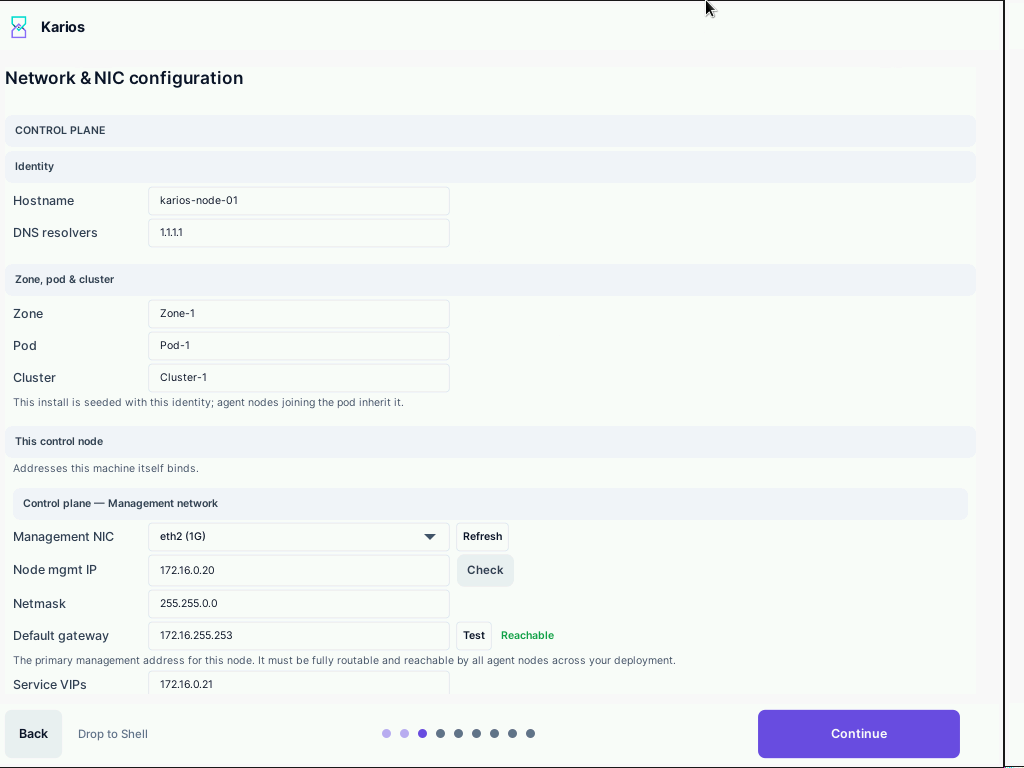
Step 3 of 9: node identity (hostname, DNS, zone/pod/cluster) and the start of control-node addressing.
Management Install
A dedicated control plane. Agent hosts run in one or more pods that attach to
it. Management installs support HA and multi-pod, and come in two network
modes.
Use Management for: production, multiple pods, and any deployment that
needs high availability.
Deployment size:
Single control node: a working control plane with no redundancy (fine for smaller production or staging).
HA control cluster: three control nodes fronted by virtual IPs (
VIPs) so a node can fail without losing the control plane. Size roughly one control cluster per every~500agent hosts.
Hardware (per control node):
Minimum:
12logical processors,32 GBRAM,1 GbE.Recommended (production / HA):
16logical processors,64 GBRAM,10 GbE, redundant NICs, enterprise NVMe. See Getting Started section 5.3.1.
Important
Licensing: control nodes are always free. Karios is licensed per agent socket only. Control nodes are dedicated, additional hosts; never carve one from hardware meant to run as a licensed agent.
Network Mode: Shared vs Dedicated
Shared
One NIC. Management and storage share the same interface and subnet (single bridge).
The storage
VIPsits on the management subnet.Simplest cabling; for sites without a separate storage fabric.
Requires: one management subnet, untagged. No separate storage subnet.
Dedicated
Two NICs. Management on one interface/subnet; storage on a separate, dedicated interface and subnet (two bridges).
Storage traffic is isolated with its own storage
VIP.Recommended for production: isolates storage replication from management.
Requires: a management subnet and a separate storage subnet. They must be different subnets; the installer rejects the same subnet (or same address) for both.
|
|
|
|---|---|---|
NICs on the control node |
1 |
2 |
Networks |
management only |
management + separate storage |
Storage VIP sits on |
management subnet |
storage subnet |
Best for |
single-fabric sites |
production, isolation/performance |
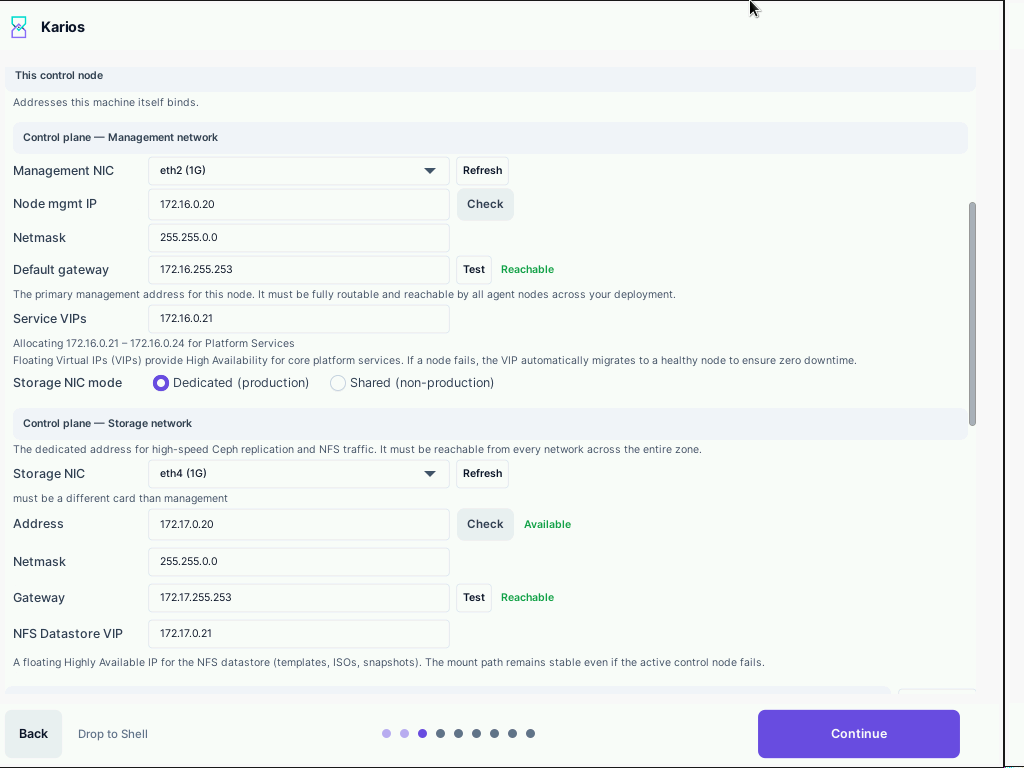
Step 3 of 9: control-plane management and storage NIC addressing with the
Shared vs Dedicated storage NIC-mode toggle.
Addressing You Will Provide
Control node:
Management: IP, prefix, gateway, untagged.
Storage (
Dedicatedonly): IP, prefix, gateway, on the separate storage subnet.Service VIPs: four VIPs for the clustered control services (two database, the Karios API, and the management endpoint).
Storage VIP: one VIP, on the storage subnet (
Dedicated) or the management subnet (Shared).
Pod fabric (for agent hosts):
Agent management network:
CIDR+ gateway.Agent storage network:
CIDR+ gateway.Address ranges for the pod.
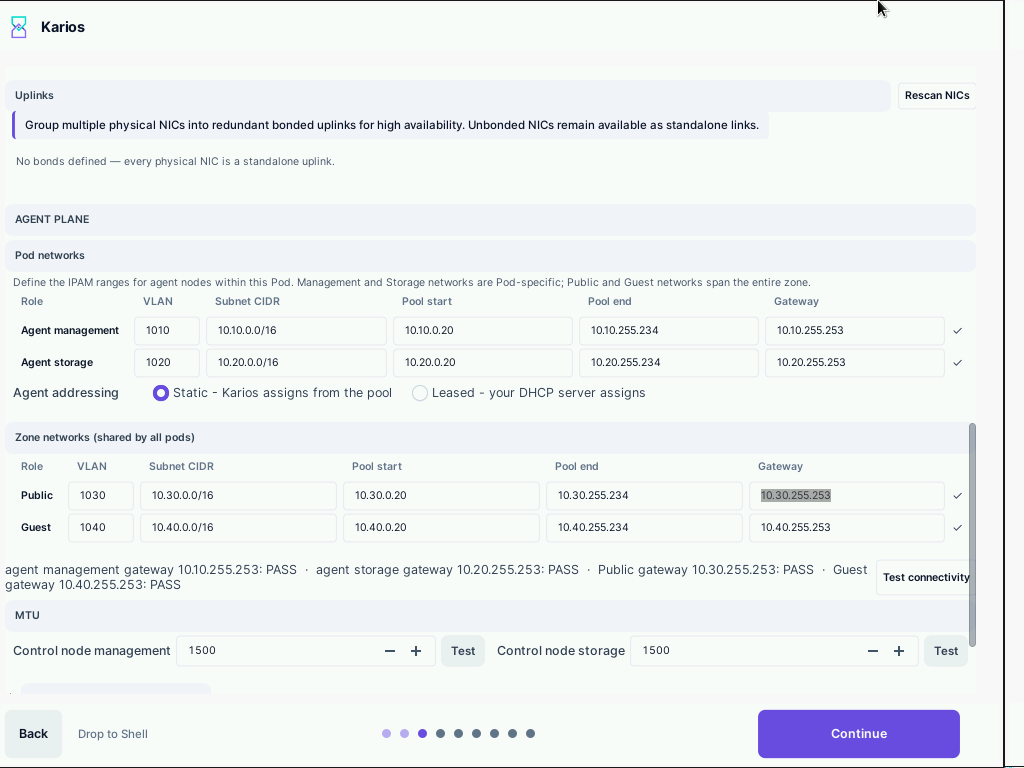
Step 3 of 9: agent plane with pod and zone networks, connectivity-test results, and MTU values.
Install Flow
Prepare the control-node hardware and confirm BMC access.
Boot the installer and choose
Management.Select the network mode:
SharedorDedicated.Enter the control-node addressing (management, storage if
Dedicated, service VIPs, storage VIP) and the pod fabric.Complete the install and let the control node converge.
HA: add the second and third control nodes to form the cluster.
Add pods and onboard agent hosts.
MTU
Set the frame size for each network, and expose advanced interface options.
Steps:
Set the MTU for
Underlay,Storage,Management, andPublic. All four are1500unless changed. Valid values are1280(the IPv6 minimum) or1500to9216;9000is the usual jumbo-frame value. Values between1281and1499are not permitted.Use each row’s
Testto validate the value.
What the UI means:
The overlay MTU is derived, not entered:
VXLAN MTU = underlay - 50, derived by the platform.The
50is theVXLAN overheadvalue underAdvanced interface configurationand can be changed there.Advanced interface configurationalso exposes four offload controls:TCP Segmentation Offload (TSO),Generic Receive Offload (GRO),Large Receive Offload (LRO), andDisable pause frames.
Expected Outcome:
Before leaving this screen, confirm every enabled role reads Pass and the
MTU values match the deployment design. Then select Continue.
Common Prerequisites (both types)
Management network is untagged: the management plane and host discovery must not run on a tagged VLAN.
Static addressing: Karios ships no DHCP service; all control-plane addresses (node IPs, gateways, VIPs) are set statically.
BMC / out-of-band reachable for host discovery and lifecycle.
Dedicated control hardware: do not co-locate the control plane on hardware meant to run as a licensed agent.
Step 4 - Administration
When to Use:
After the network step.
Purpose:
Set the administrator password used to manage this node.
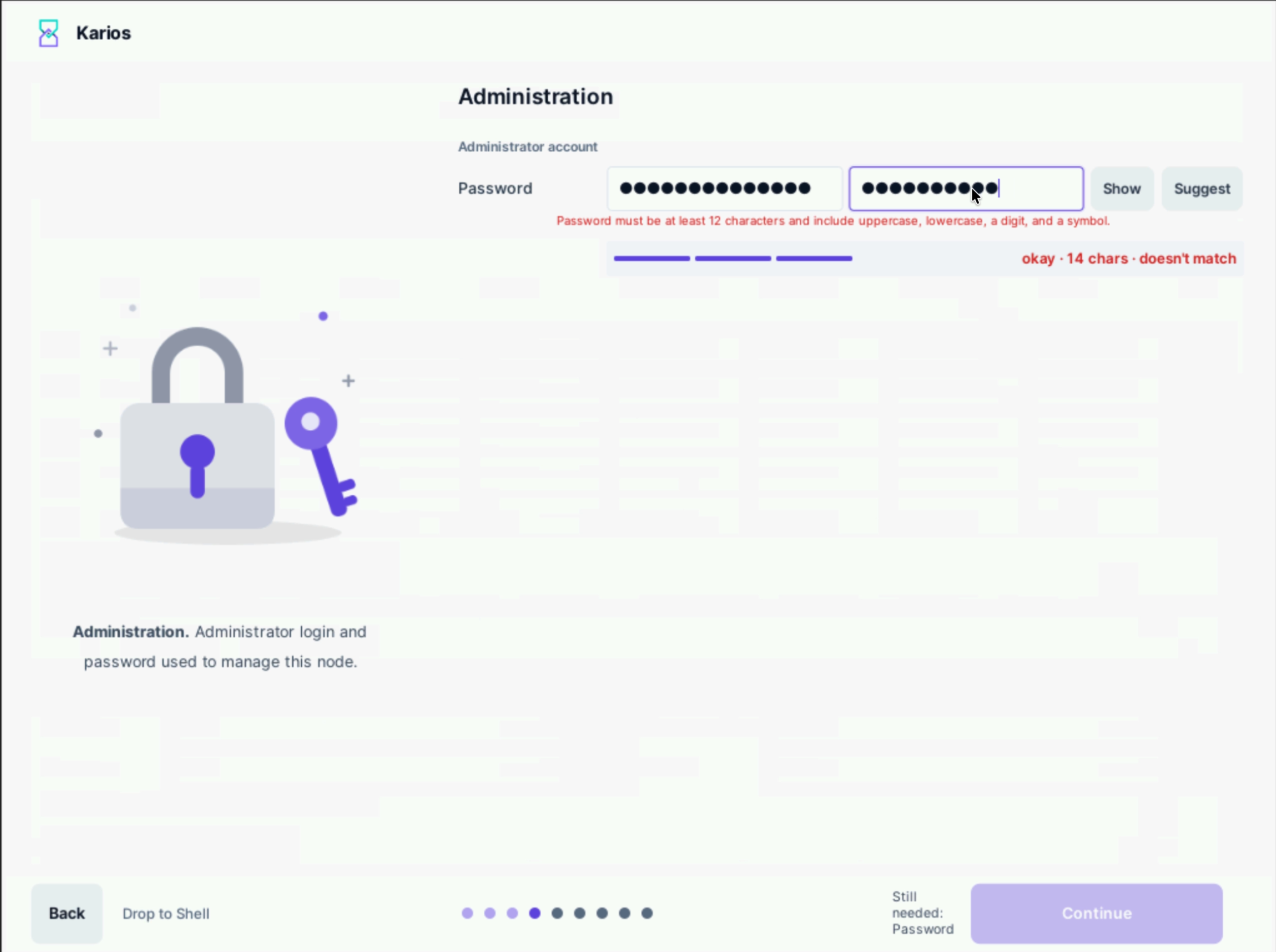
Step 4 of 9: administrator credentials with validation feedback.
Steps:
Enter the password.
Re-enter it in the confirmation field.
Select
Continue.
Important
The password must be at least 12 characters and include uppercase, lowercase, a digit, and a symbol.
What the UI means:
There is no username to choose. The administrator account is
kariosby default; this step sets only its password.Showreveals the entered value;Suggestgenerates a compliant password.A strength meter reports a strength rating, the character count, and whether the two fields match - for example
okay · 14 chars · doesn't match.The footer reads
Still needed: PasswordandContinuestays disabled until the password is both valid and matching.
Expected Outcome:
Still needed: Password clears and Continue is
enabled.
If this fails:
Two checks are reported separately. The rule line above the
fields flags a password that fails the complexity rule. The meter reports
doesn't match when the confirmation field differs. Both can appear at once.
Step 5 - Location
When to Use:
After the administrator password is set.
Purpose:
Record where this datacenter is, what it is called, and the time sources the cluster uses.
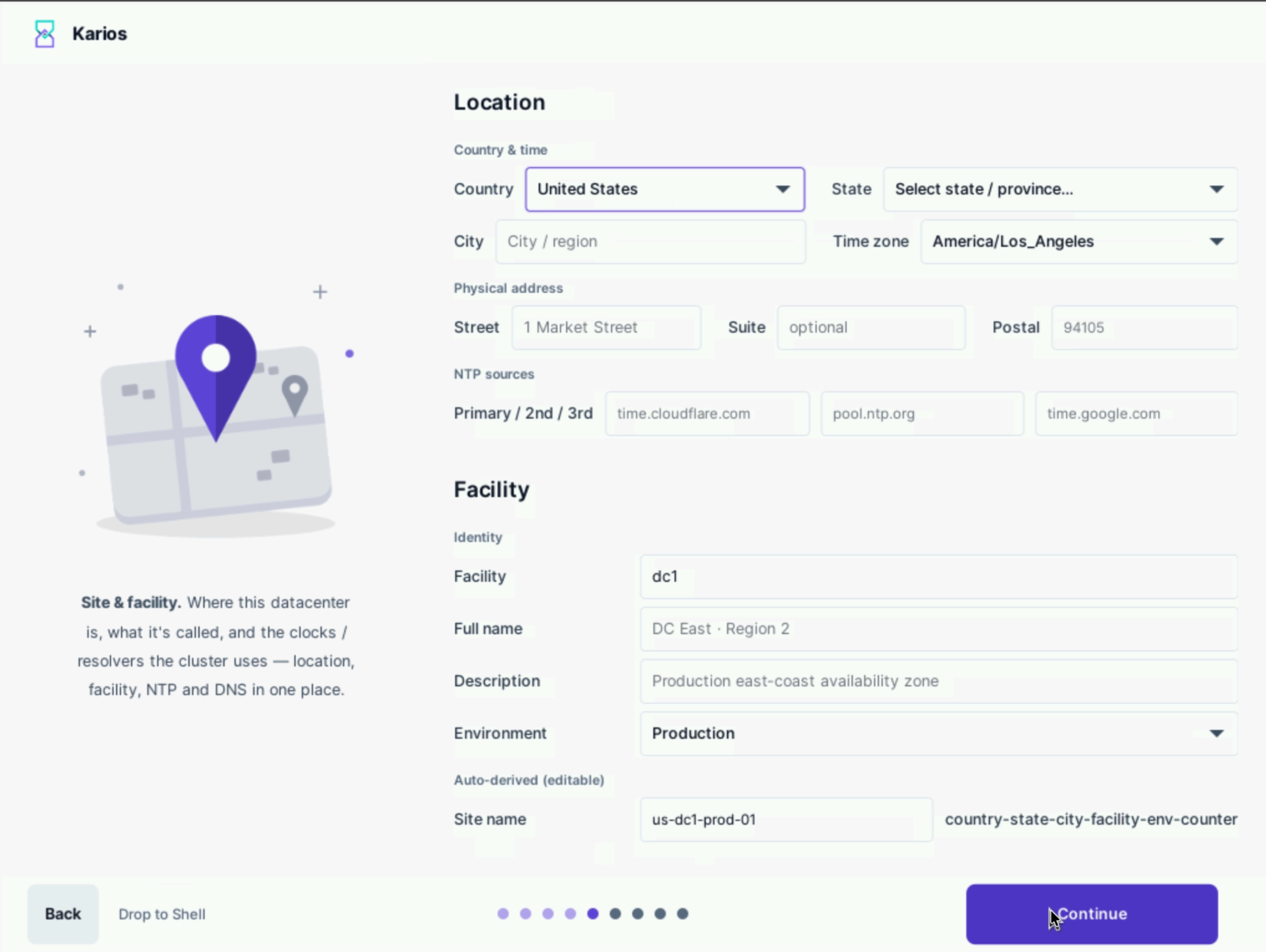
Step 5 of 9: site location, NTP sources, and facility identity.
Steps:
Under
Country & time, setCountry,State,City, andTime zone.Under
Physical address, enterStreetandPostal.Suiteis optional.Under
NTP sources, enter the time servers this cluster should use in thePrimary,2nd, and3rdfields.Under
Facility, setFacility,Full name,Description, andEnvironment.Check
Site name. It is derived from the values above ascountry-state-city-facility-env-counter, and can be edited.Select
Continue.
Expected Outcome:
The site and facility are recorded, and the cluster has time sources to synchronise against.
Step 6 - Hardware
When to Use:
After the site location is recorded.
Purpose:
Confirm the detected hardware inventory matches the physical machine, and configure baseboard management so the control plane can manage power.
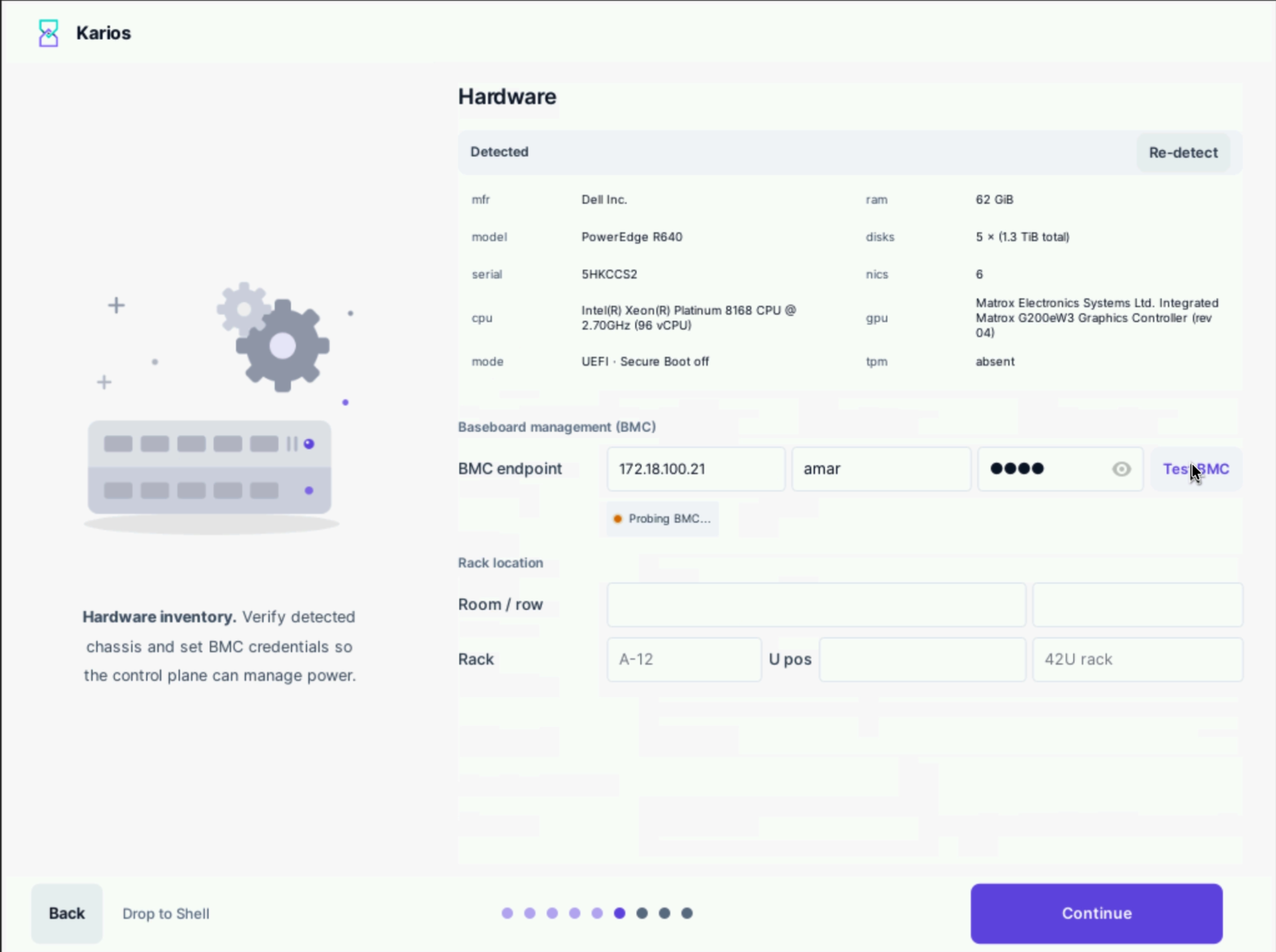
Step 6 of 9: detected hardware inventory and BMC validation.
Steps:
Review the
Detectedpanel and confirm it matches the physical machine. SelectRe-detectto run detection again.Enter the
BMC endpointas a bare IP address - not a hostname, URL, or Redfish path - together with the username and password.Select
Test BMC.Optionally record
Rack location:Room / row(two fields),Rack,U pos, and a fourth field with the placeholder42U rack.Select
Continue.
What the UI means:
Detectedreports manufacturer, model, serial, CPU, firmware mode, memory, disks, NICs, GPU, and TPM presence.While the probe runs the wizard shows
Probing BMC....A successful probe reports the BMC vendor and current power state.
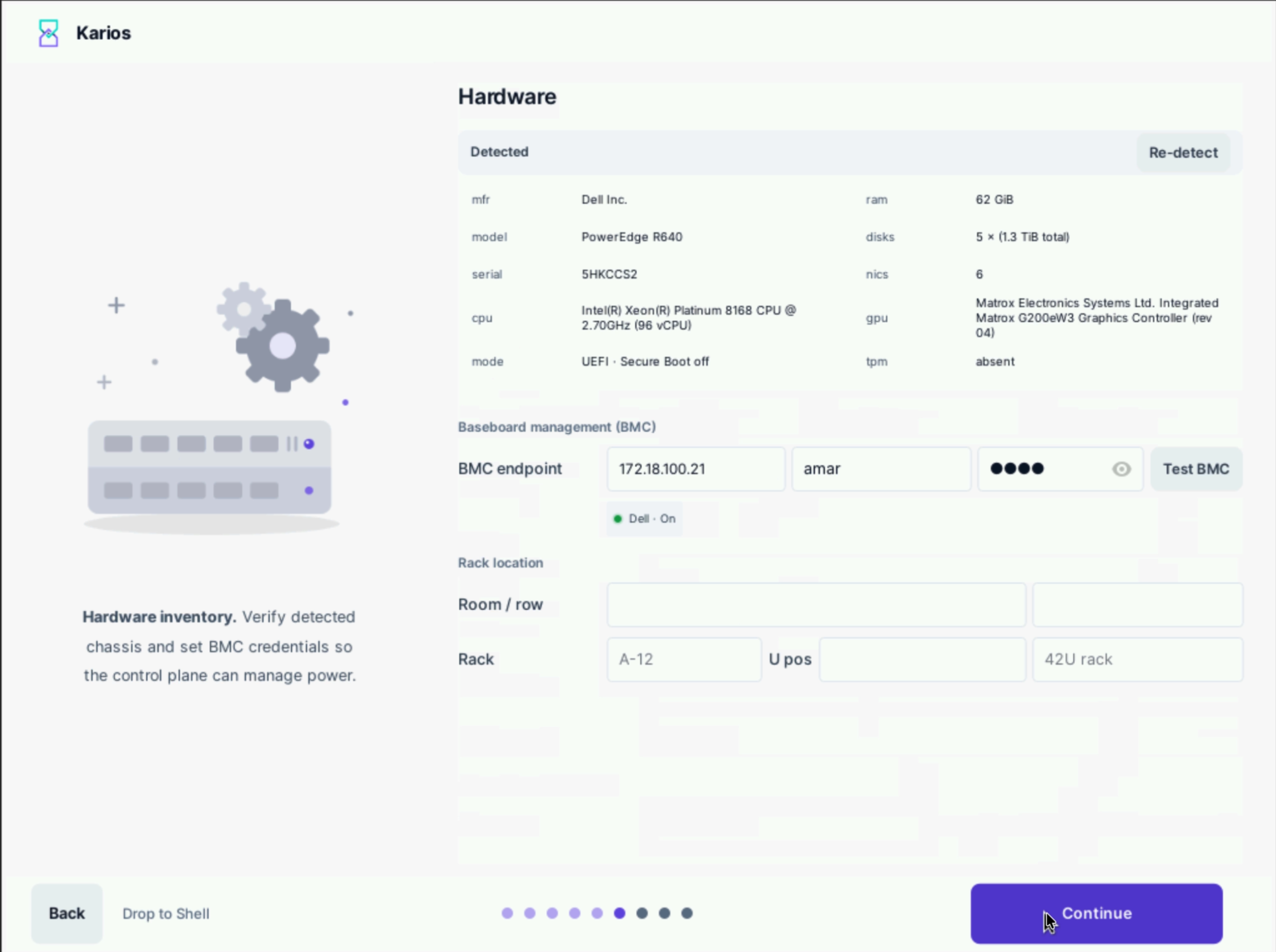
Step 6 of 9: BMC reachable, reporting vendor and power state.
Expected Outcome:
The detected inventory matches the machine, and the BMC status reports the vendor and power state.
Important
Karios requires a BMC. The installer does not force you to enter one - a blank
field lets you continue - but the platform uses the BMC to onboard nodes. On an
AIO install the agent node is onboarded directly, and on a
Management only install you need it to onboard agent nodes afterwards.
Configure it here.
Note
A malformed BMC address blocks Continue. A failed BMC connectivity Test
does not, so an unresolved BMC problem is carried into the install.
If this fails:
If Test BMC does not succeed, check the following before continuing. Unlike
the network role tests, this one does not block Continue, so an unresolved
failure will not surface until you try to onboard nodes.
The
BMC endpointis a bare IP address, not a hostname, URL, or Redfish path.The username and password are correct.
Step 7 - Summary
When to Use:
The last screen before the install begins.
Purpose:
Confirm the plan. This is the final reversible point.
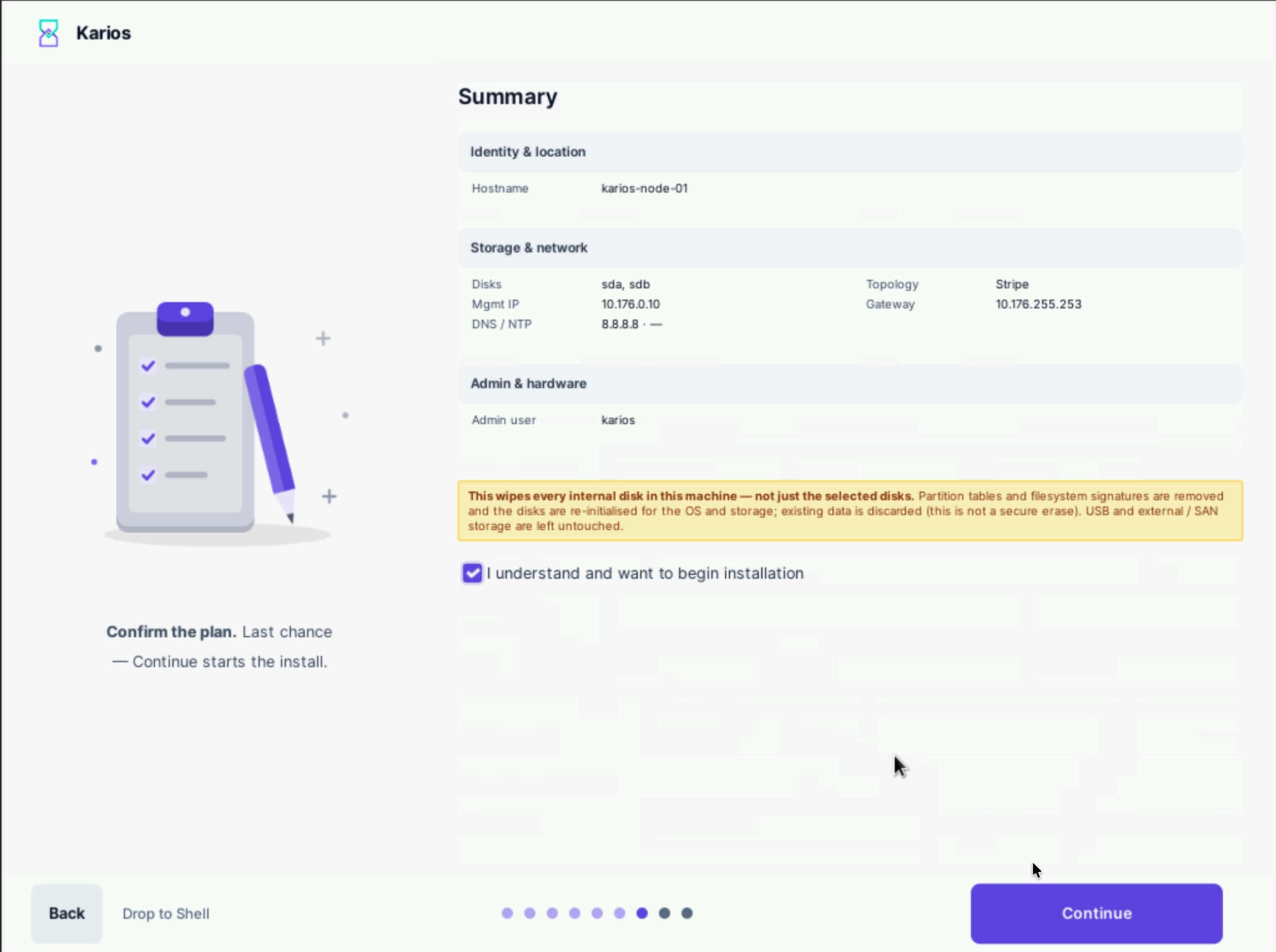
Step 7 of 9: review the plan before the install begins.
Steps:
Review the values shown. Use
Backto correct anything that is wrong, and to re-check any value the summary does not display.Select
I understand and want to begin installation.Select
Continue.
What the UI means:
The screen shows a condensed plan under Identity & location, Storage &
network, and Admin & hardware: hostname, selected disks, pool topology,
management IP, gateway, DNS/NTP, and the administrator user.
Important
Summary does not re-list every value you entered. The deploy role, network
role, VLAN, subnet, IPAM pool, MTU, BMC, and rack-location values are not shown
here, and neither are the unselected disks that will also be wiped. If you need
to re-check any of those, use Back to return to the relevant screen before
continuing.
Warning
This is the last reversible point. Selecting Continue starts the install
and wipes every internal disk in the machine to bare metal - not only the disks
you selected.
Expected Outcome:
The confirmation checkbox is ticked and Continue starts
the install.
Step 8 - Install
When to Use:
Immediately after confirming the summary.
Purpose:
The installer wipes the disks and installs the operating system, then pauses to wait for the platform image.
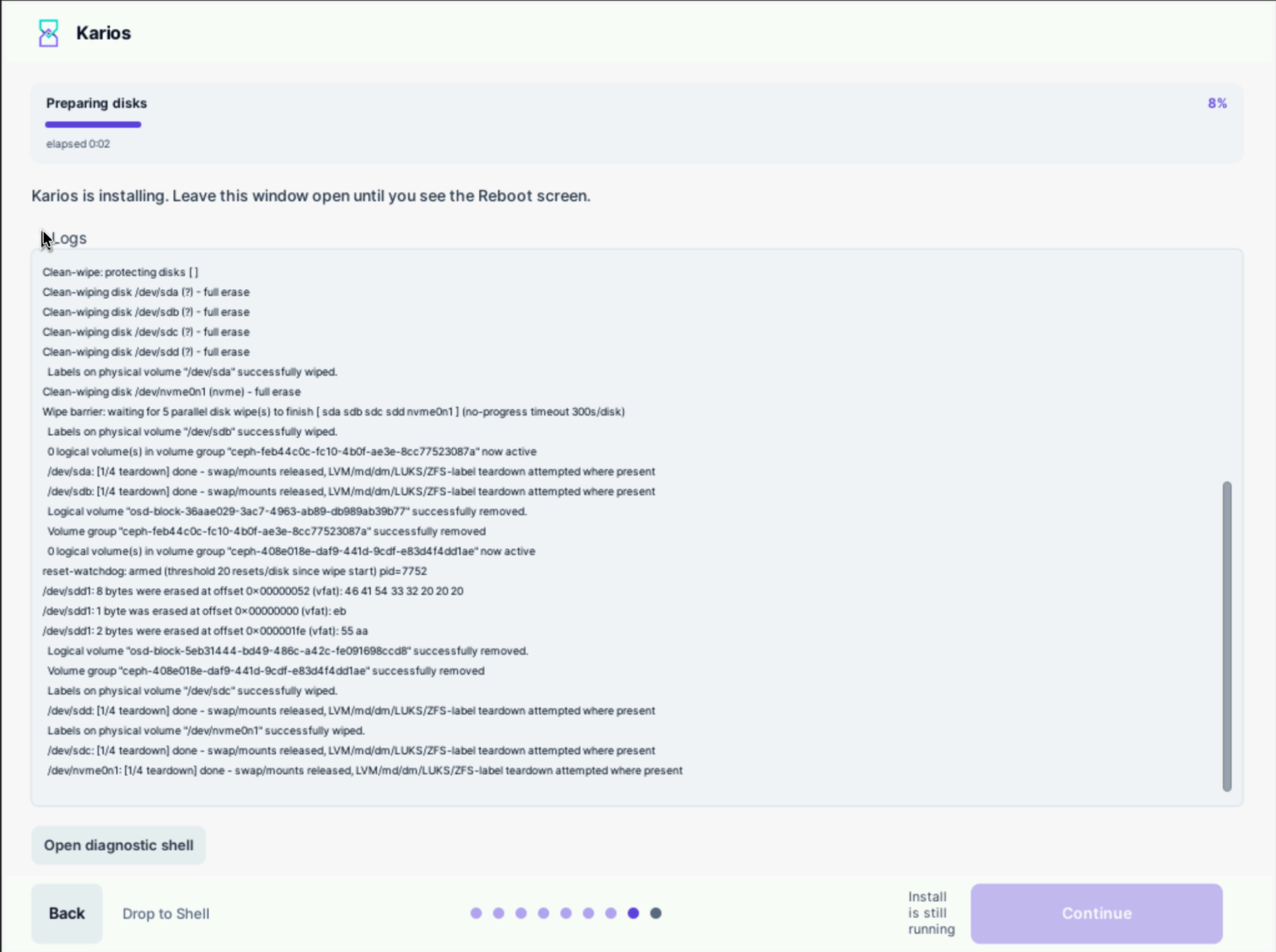
Step 8 of 9: disk preparation in progress.
Note
Unlike the earlier steps, this screen has no title. It is identified by the current task name in the progress bar and by the eighth step indicator.
Steps:
Leave the window open.
Expand
Logsto follow progress in detail, if needed.Wait for the install to reach
96%.
What the UI means:
The wizard reports the current task, a percentage, and elapsed time.
Open diagnostic shellis available if Karios Support asks you to inspect the system.Continuestays disabled whileInstall is still runningis displayed.The install proceeds through disk preparation, operating system installation, bootloader installation (
80%), configuration recording (88%), and verification (92%), then pauses at96%.
Expected Outcome:
The install reaches 96% and displays the platform image
delivery instructions. Continue with Part B.
If this fails:
If the install stops partway through on a remote install, the management console’s virtual-media connection has most likely dropped. Reset the BMC, reconnect the media, and try again. Installing from a local USB stick avoids this entirely.
Part B - Deliver The Karios Platform Image
When to Use:
When the install reaches 96% and reports that the platform
image is needed.
Purpose:
Deliver the Karios platform image to the node. The operating system is installed at this point, but the platform itself is not - the install cannot finish without it.
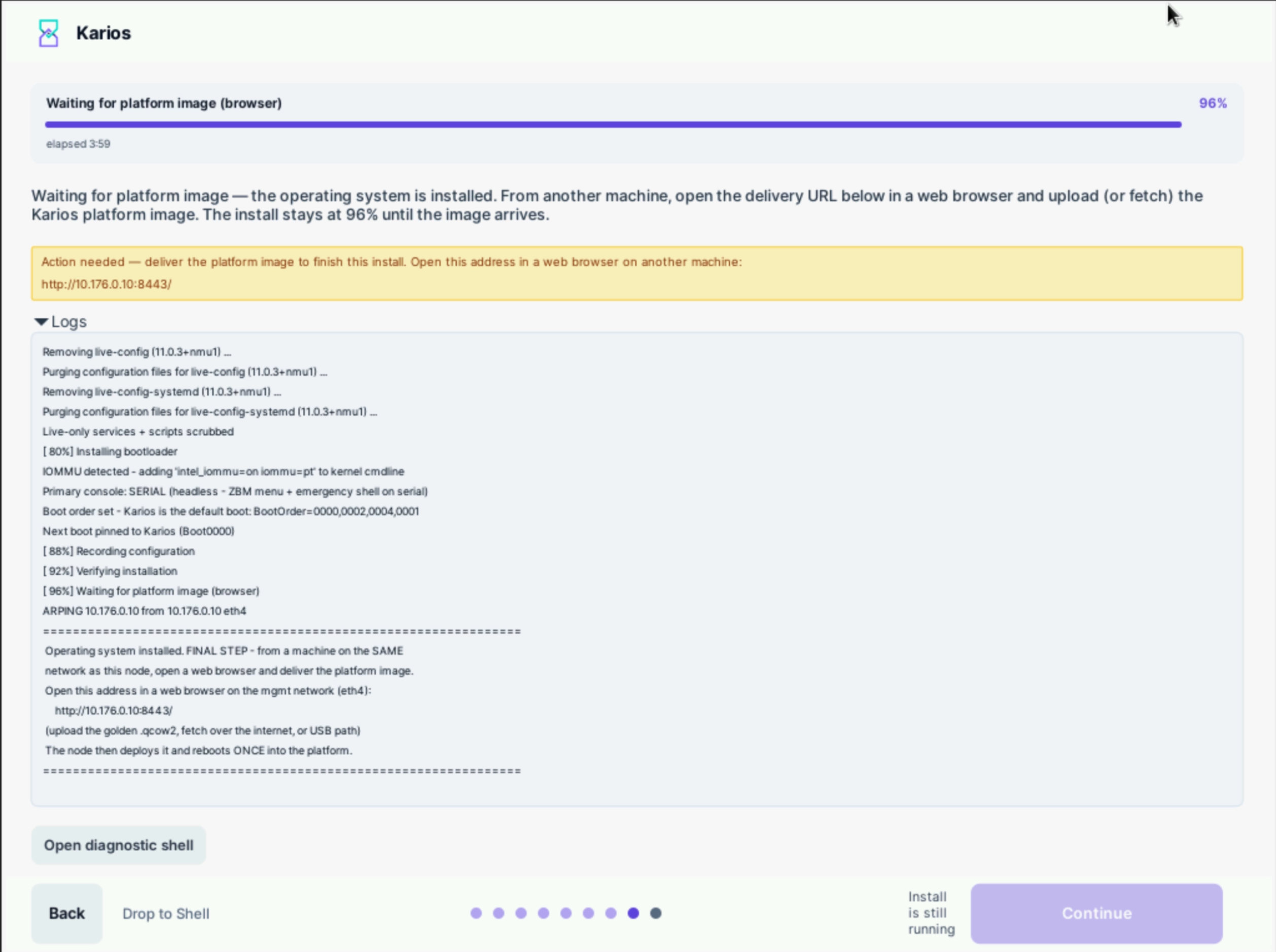
Step 8 of 9: the install pauses at 96% until the platform image arrives.
When the operating system is installed the wizard displays Action needed -
deliver the platform image to finish this install. Open this address in a web
browser on another machine:, followed by the delivery address - for example
http://10.176.0.10:8443/.
Note
The delivery address uses http://, not https://, even though port
8443 is conventionally a TLS port. Enter the address exactly as the wizard
displays it.
Important
The install stays at 96% until the image arrives. This is expected, not a
failure. The wait is not time-limited - the node serves the delivery page and
will sit here indefinitely.
While the node waits:
You can close the browser and come back. The node keeps serving the delivery page. Reopen the address and continue.
If an upload fails partway, simply deliver again on the same page. Verification runs on the completed bytes, so a truncated transfer is rejected rather than deployed.
There is no cancel control, and the install cannot be resumed later. There is no way to trigger the bootstrap on demand once you leave this point, so abandoning the install means installing again from the beginning: reboot the node and run the ISO.
Warning
The platform image must match the ISO you installed from. A version-mismatched
image is rejected - and that happens after the disks have been wiped. The
template was bundled with that ISO in the same .zip, so use the pair from
a single download rather than combining files from separate downloads.
Delivering The Image
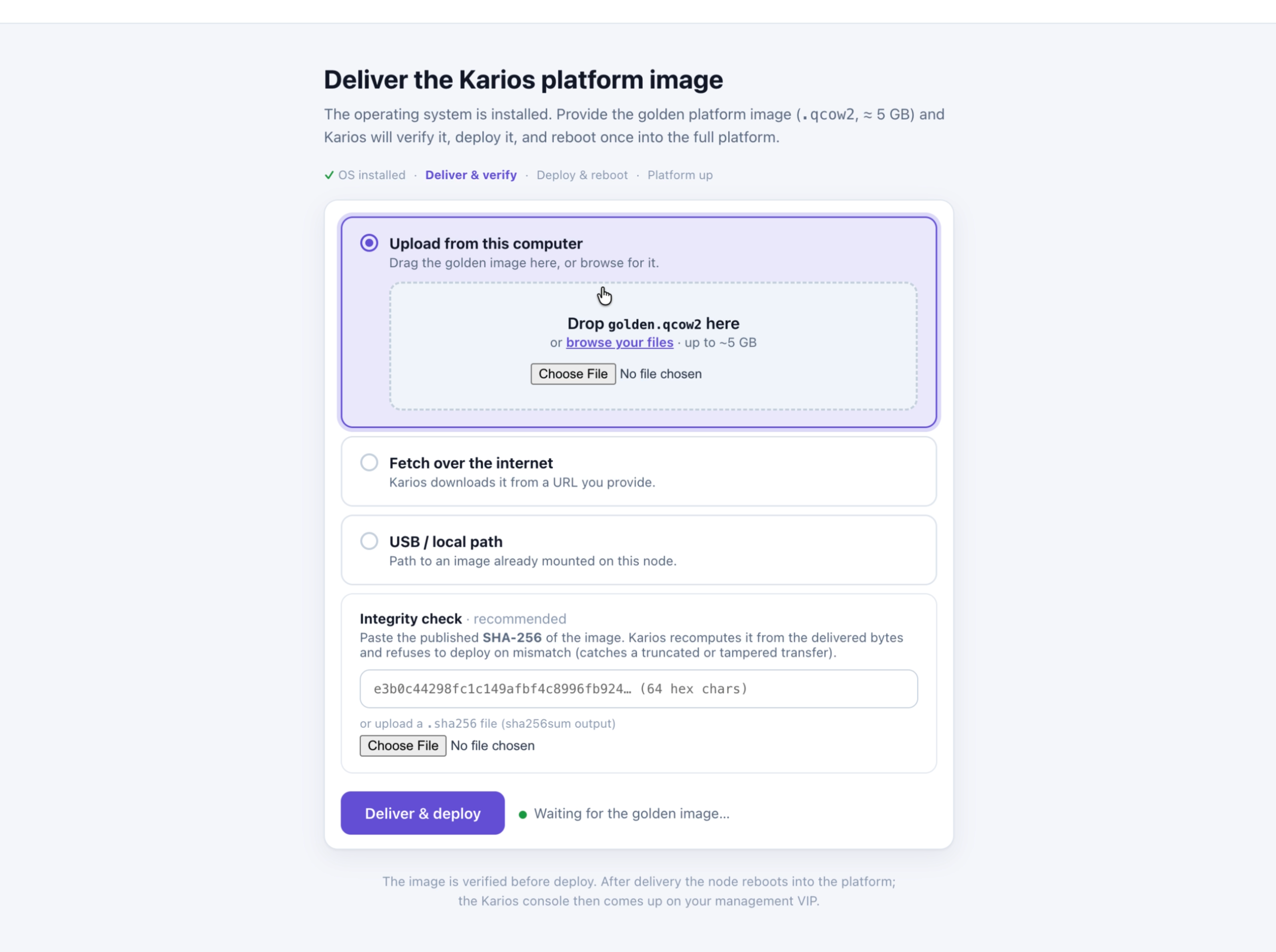
The delivery page, served by the node, before an image is chosen.
Steps:
On a second machine on the same management network, open the delivery address shown by the wizard in a web browser.
Choose a delivery method:
Upload from this computer- select or drop the.qcow2fileFetch over the internet- supply a URL the node can reachUSB / local path- type the absolute path of an image already mounted on the node, for example/mnt/usb/karios-platform.qcow2. The installer does not mount the device for you: switch to the recovery shell withCtrl+Alt+F2, mount it there, then return and enter the path.
Under
Integrity check, supply the image’sSHA-256value, or upload a matching.sha256file, if you have one.Select
Deliver & deploy.
Note
Karios recomputes the checksum from the delivered bytes and refuses to deploy
on mismatch, which catches a truncated or tampered transfer. The integrity
check is marked recommended; provide the checksum unless you have a reason
not to.
What the UI means:
The page tracks progress across four stages -
OS installed, Deliver & verify, Deploy & reboot, and Platform up.
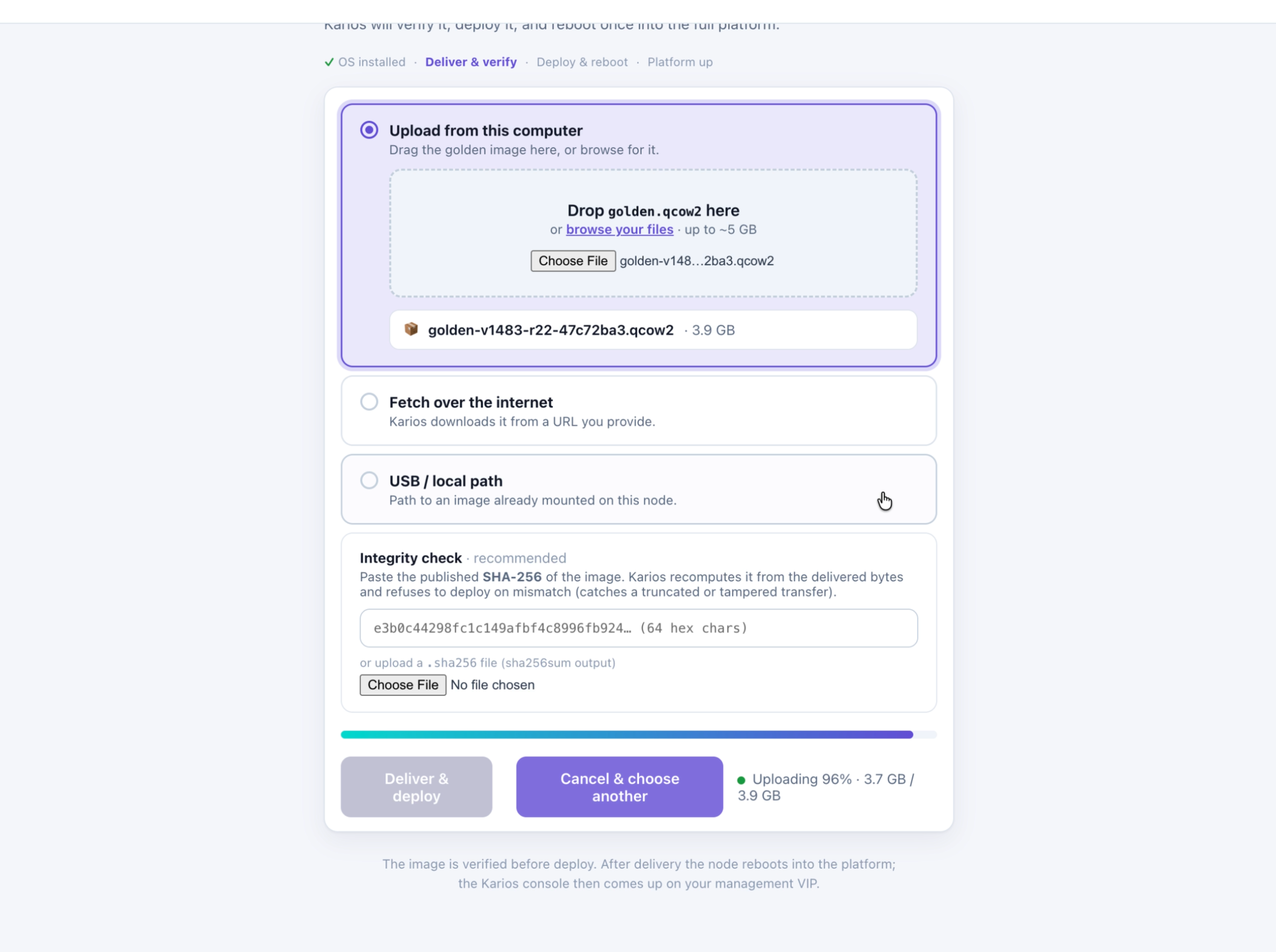
Upload in progress, with transferred and total size displayed.

The image is accepted and deployment begins.
Expected Outcome:
The page confirms Image received and states that the
node is deploying the platform and will reboot once.
Note
The delivery page stops responding when the node reboots. This is expected and is not an error.
Back on the node, the wizard resumes: it verifies the checksum of the image you delivered, confirms it is a genuine Karios platform image, and deploys it. The installer’s own log calls this the golden image - it is the same file.
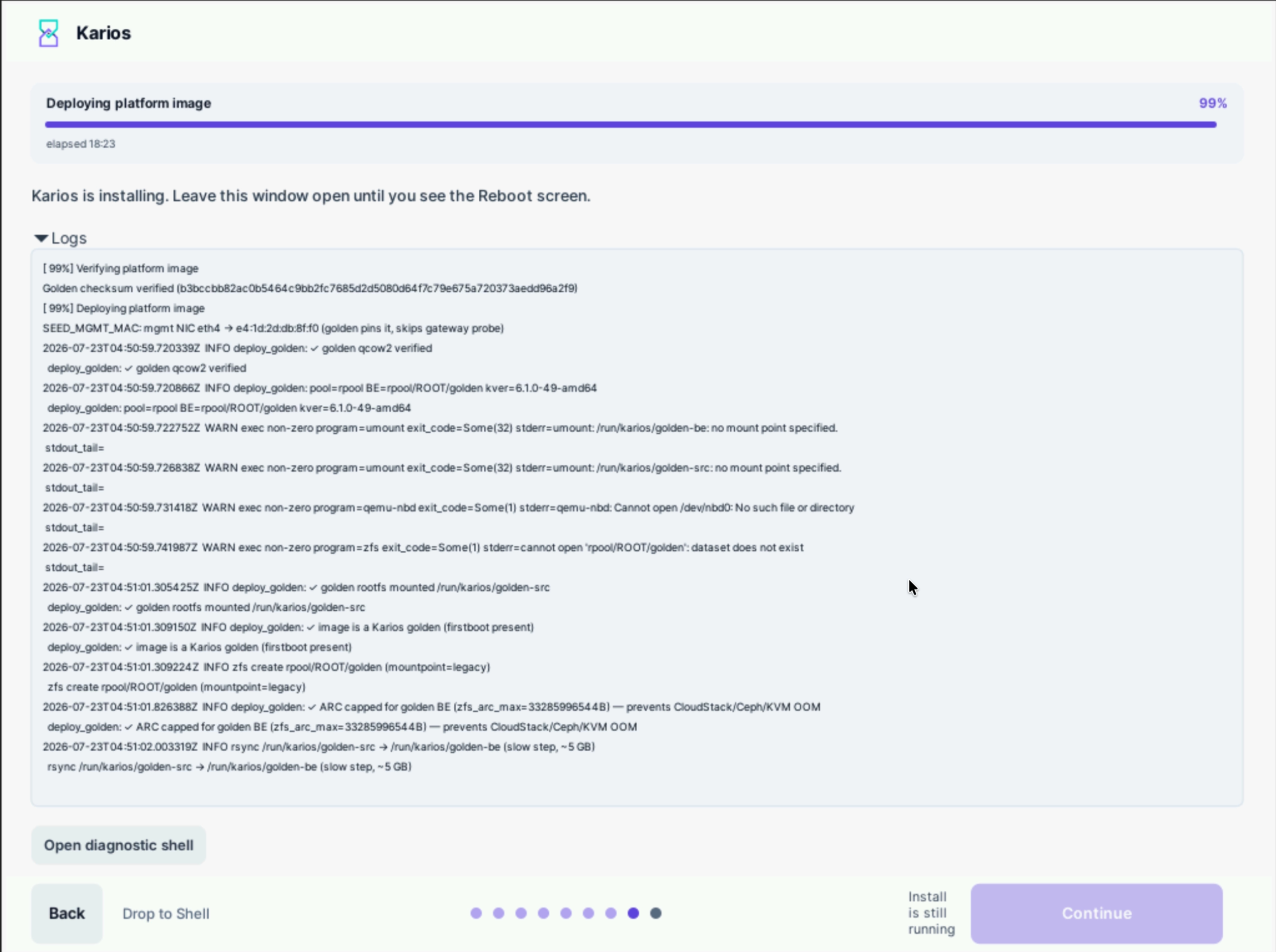
Step 8 of 9: the platform image is verified and deployed.
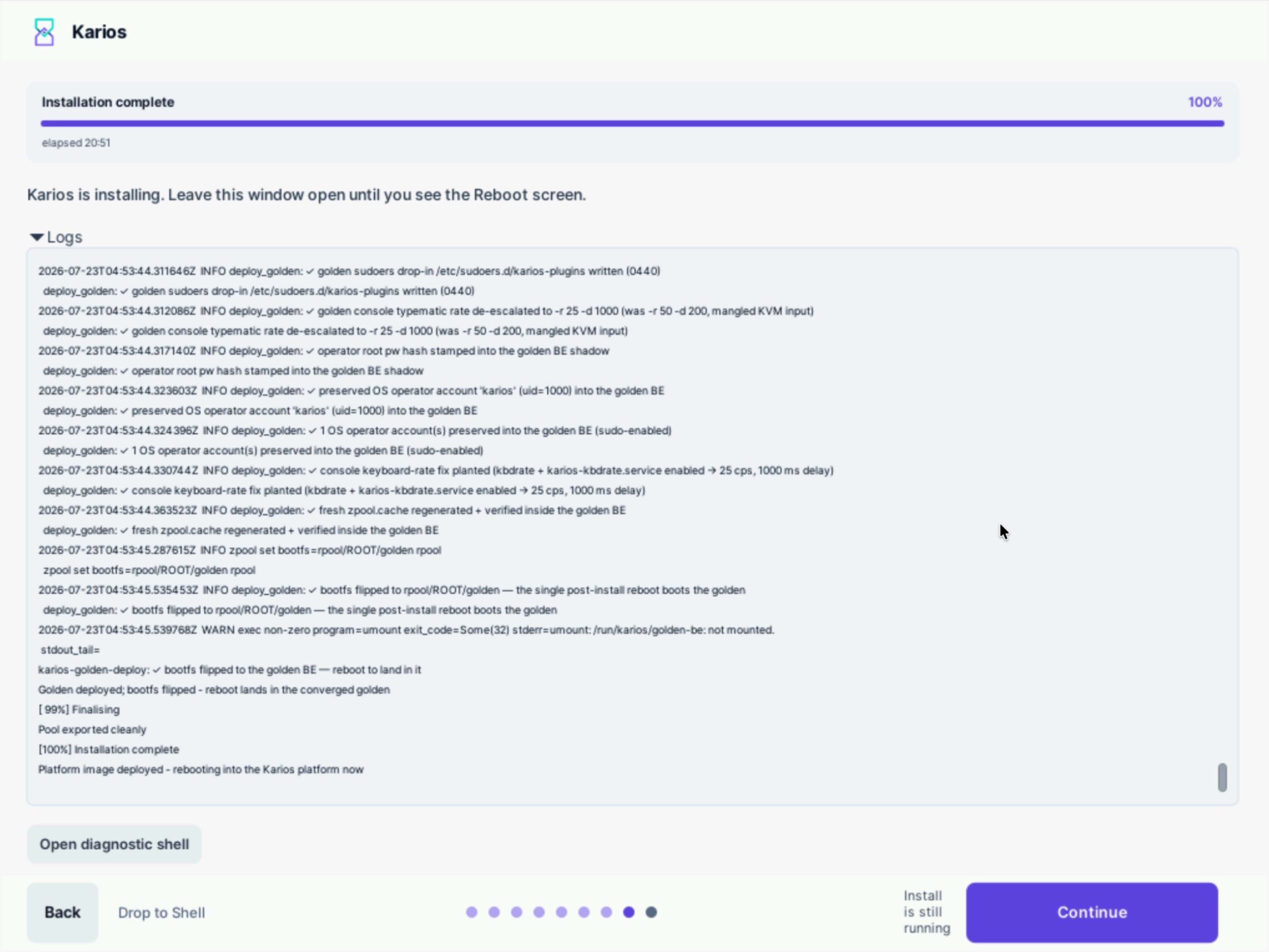
Step 8 of 9: the install reports Installation complete at 100%.
When deployment finishes the progress bar reaches 100% and reports
Installation complete. The log confirms the platform image is deployed and
the node is rebooting:
[100%] Installation complete
Platform image deployed - rebooting into the Karios platform now
Step 9 - Reboot
When to Use:
Automatically, once deployment completes.
Purpose:
Restart the node into the installed platform.
When deployment finishes the node reboots into first boot. No operator action is required, and nothing needs to be confirmed or dismissed.
The installer sets the firmware boot order and pins the next boot to Karios, which the install log records as:
Next boot pinned to Karios (Boot0000)
Note
If you installed through BMC virtual media, keep the media attached and the console connected until the node has rebooted and first boot is under way. A virtual-media connection dropped mid-install is the most common cause of an install failing partway through.
Important
On a virtual machine, detach the installer ISO before or at this final reboot -
in your virtualization platform, set the CD/DVD to no media - or put the
disk first in the boot order. Otherwise the VM boots the installer again
instead of the installed system.
Part C - First Boot
When to Use:
After the node reboots.
Purpose:
The node bootstraps itself, applies its network configuration, and brings up the platform services.
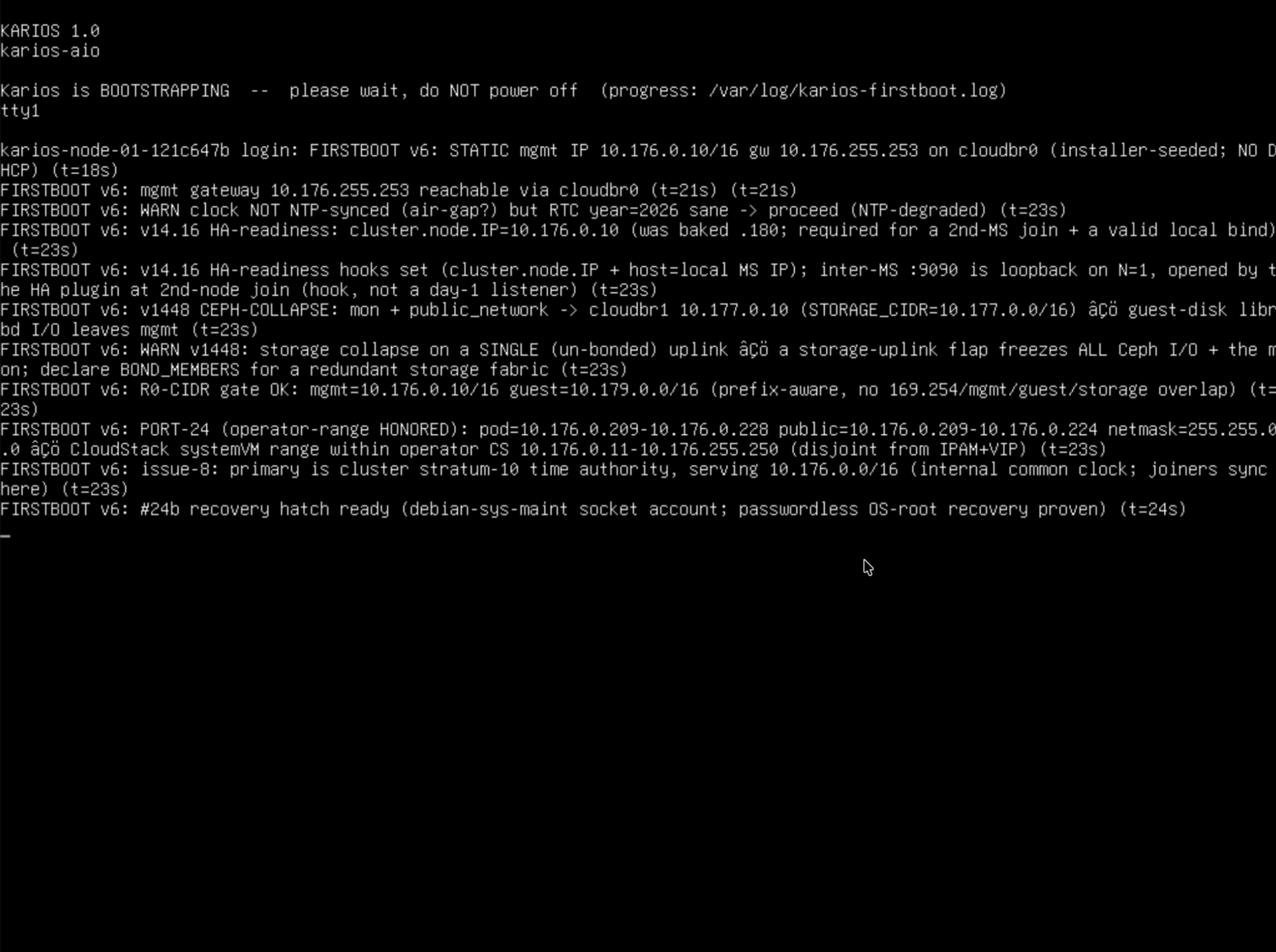
The node bootstraps itself on first boot.
The console reports Karios is BOOTSTRAPPING -- please wait, do NOT power off
and records its progress in the install log.
Warning
Do not power off the node during bootstrap.
What the UI means:
The console reports the static management address it applied, for example
STATIC mgmt IP 10.176.0.10/16 gw 10.176.255.253 (installer-seeded;
NO DHCP)
.
The captured single-node install shows two warnings:
WARN clock NOT NTP-synced (air-gap?) but RTC year=2026 sane -> proceed
(NTP-degraded)
- expected when the node cannot reach the time servers set in Step 5, which is normal on an air-gapped site.A warning that storage is running on a single un-bonded uplink - expected on a single node. It is a design recommendation, not an installation failure. See the bonding note in Step 3.
Expected Outcome:
Karios completes its configuration on its own and needs no operator action. First boot converges the cluster - allow a few minutes before it is ready. When it is, the screen shows the sign-in address.
If this fails:
If the console has not reached the sign-in address well beyond a few minutes, do
not power the node off. Sign in at the login: prompt as karios with the
password you set in Step 4 and read the first-boot log - see Reaching A Shell
below. Collect that output before contacting Karios Support.
Part D - Verify In Control Center
Sign In
When to Use:
Once the node displays the sign-in address.
Purpose:
Confirm the platform is reachable and the administrator account works.
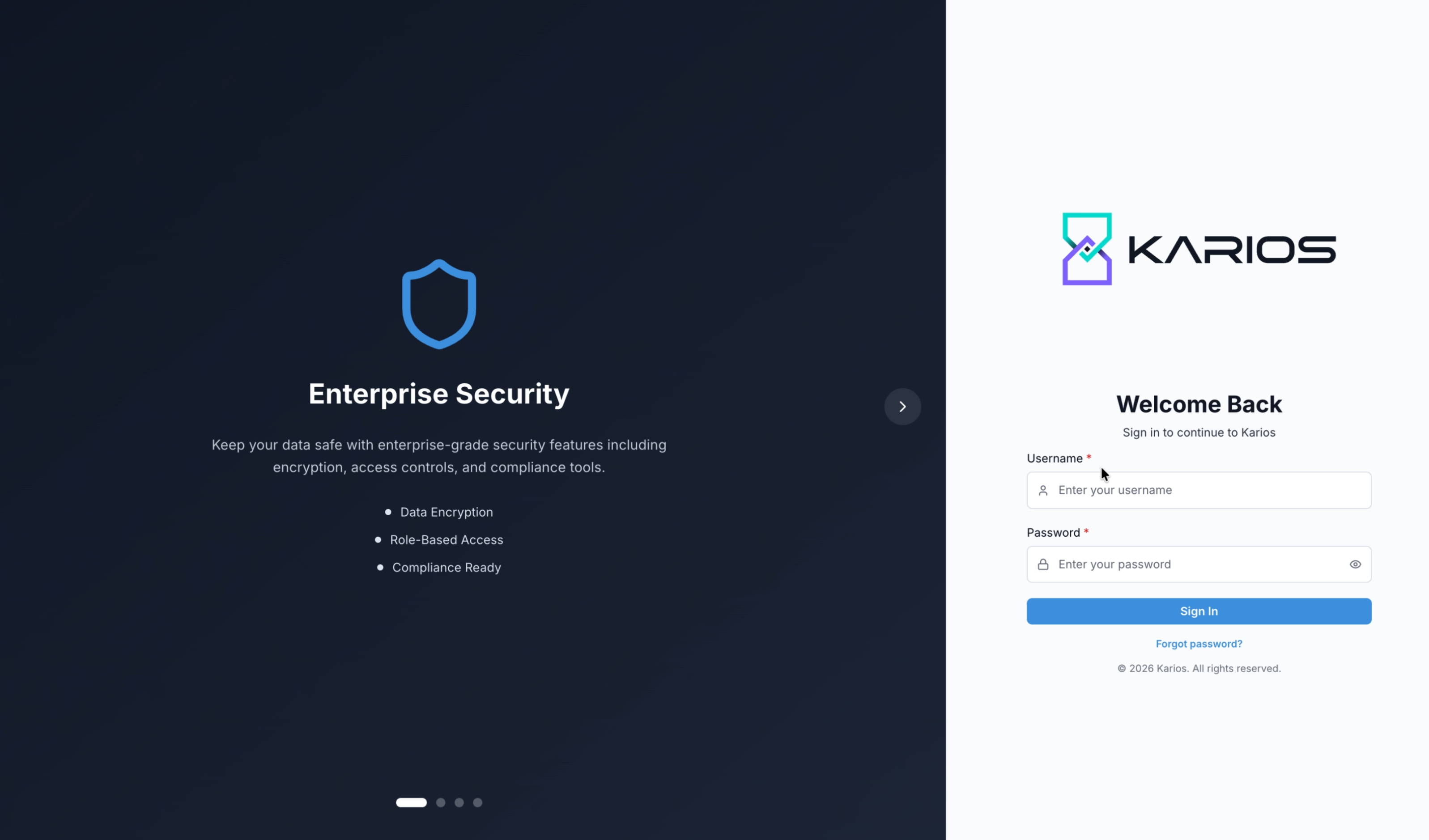
The Karios sign-in page.
Steps:
Open the sign-in address shown on the node’s screen, in a browser on the management network.
Enter the username
karios.Enter the
Passwordset in Step 4.Select
Sign In.
Expected Outcome:
Control Center opens on the dashboard.
If this fails:
Re-check the management network settings (IP, gateway, VLAN) and the switch port.
Dashboard
Purpose:
Confirm the platform came up with the expected inventory.
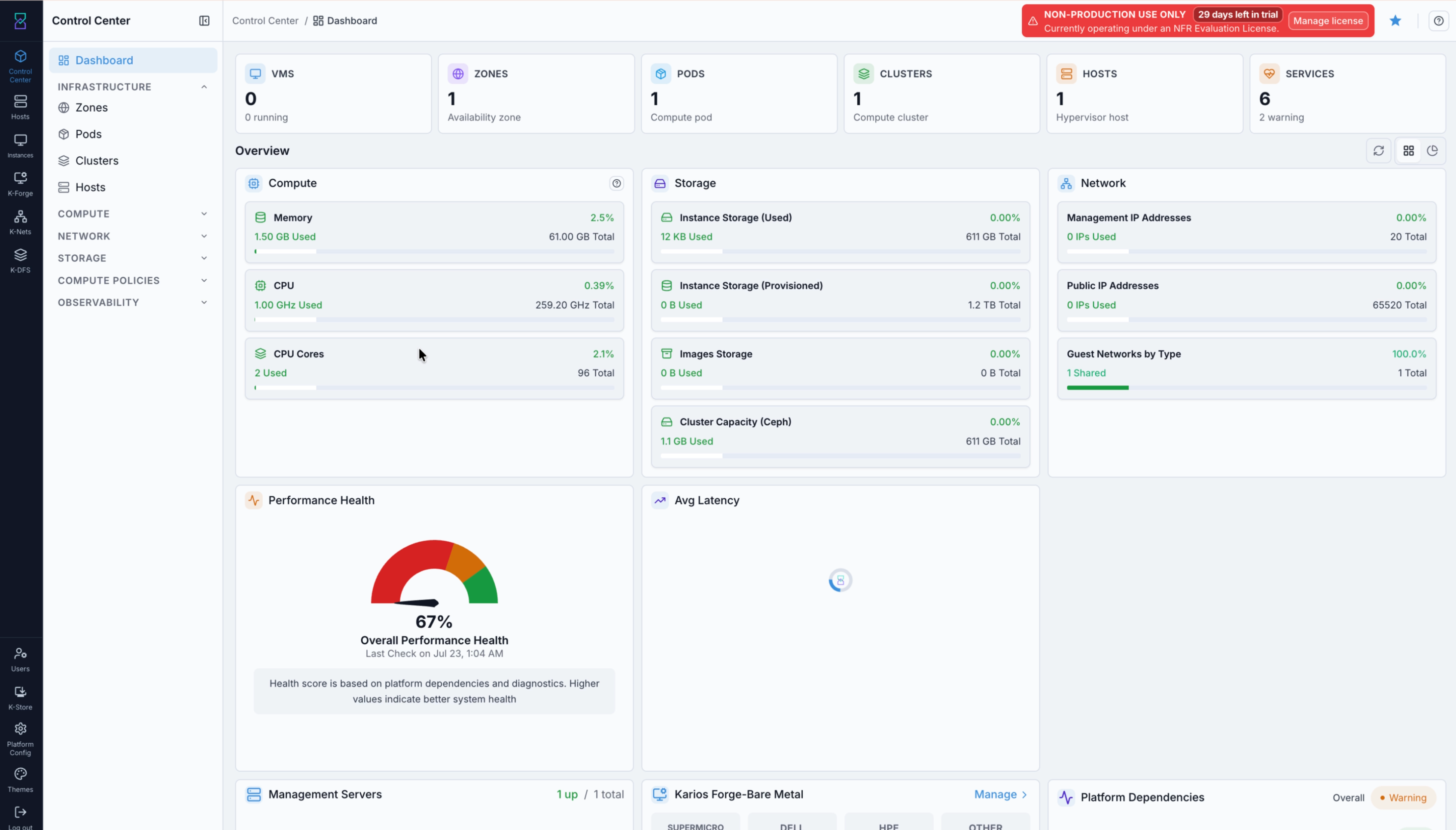
Control Center after a first install.
The dashboard reports counts for VMS, ZONES, PODS, CLUSTERS,
HOSTS, and SERVICES, together with compute, storage, and network
utilization.
A newly installed node shows a license banner across the top:
NON-PRODUCTION USE ONLY, the number of days left in trial, and Currently
operating under an NFR Evaluation License, with a Manage license button.
This is expected on a new install - the node runs on an evaluation license until
it is activated. See Licensing below.
Confirm System Virtual Machines
When to Use:
Immediately after first sign-in.
Purpose:
Confirm the platform’s own service VMs have started. This is the completion criterion for the whole installation.
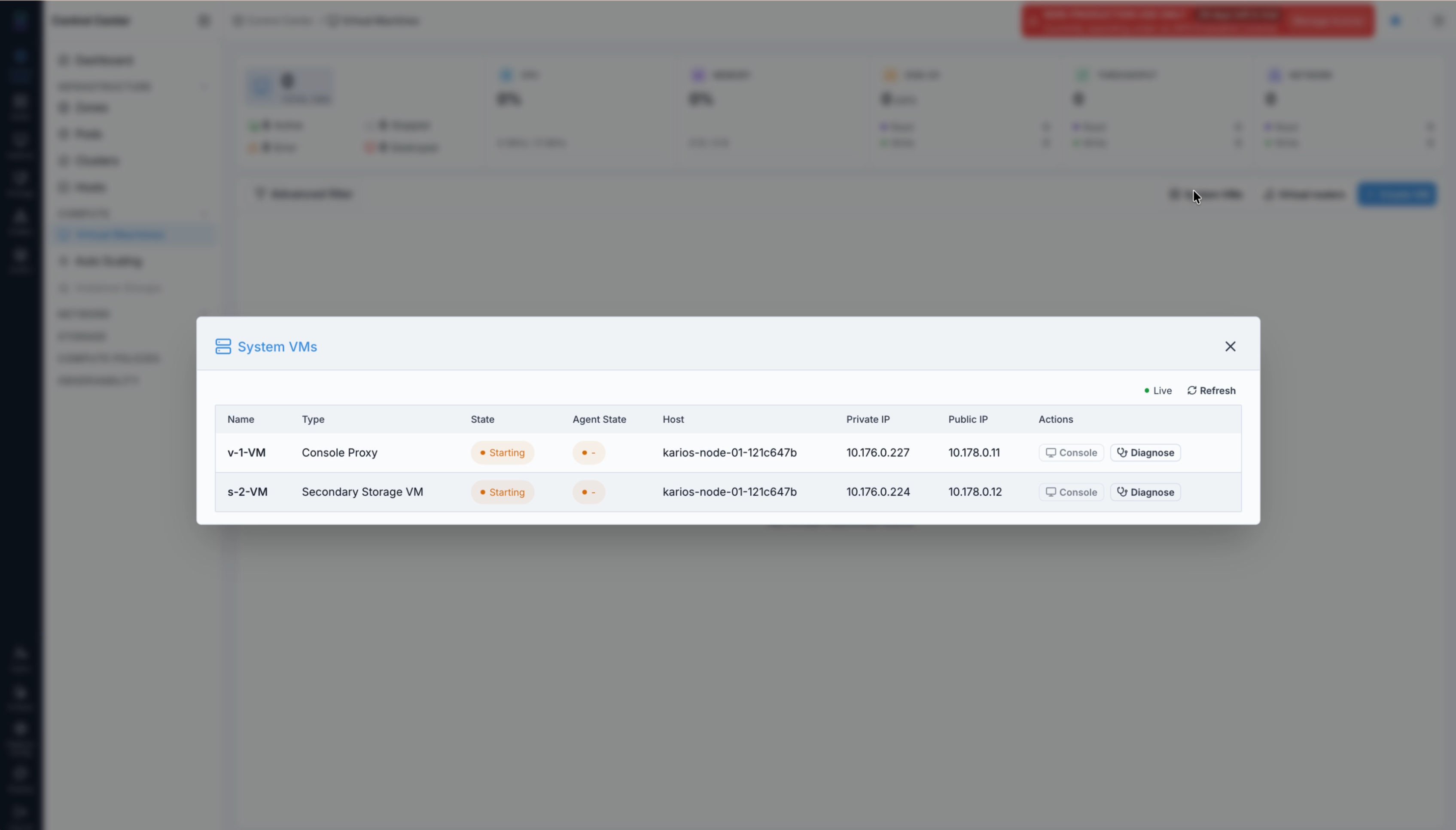
System VMs shortly after first boot, still starting.
Steps:
Open
Compute -> Virtual Machines.Select
System VMsin the page toolbar.Check the
StateandAgent Statecolumns for both VMs.
What the UI means:
Karios starts two system virtual machines automatically: a Console Proxy and
a Secondary Storage VM. Immediately after installation both report
Starting with agent state -.
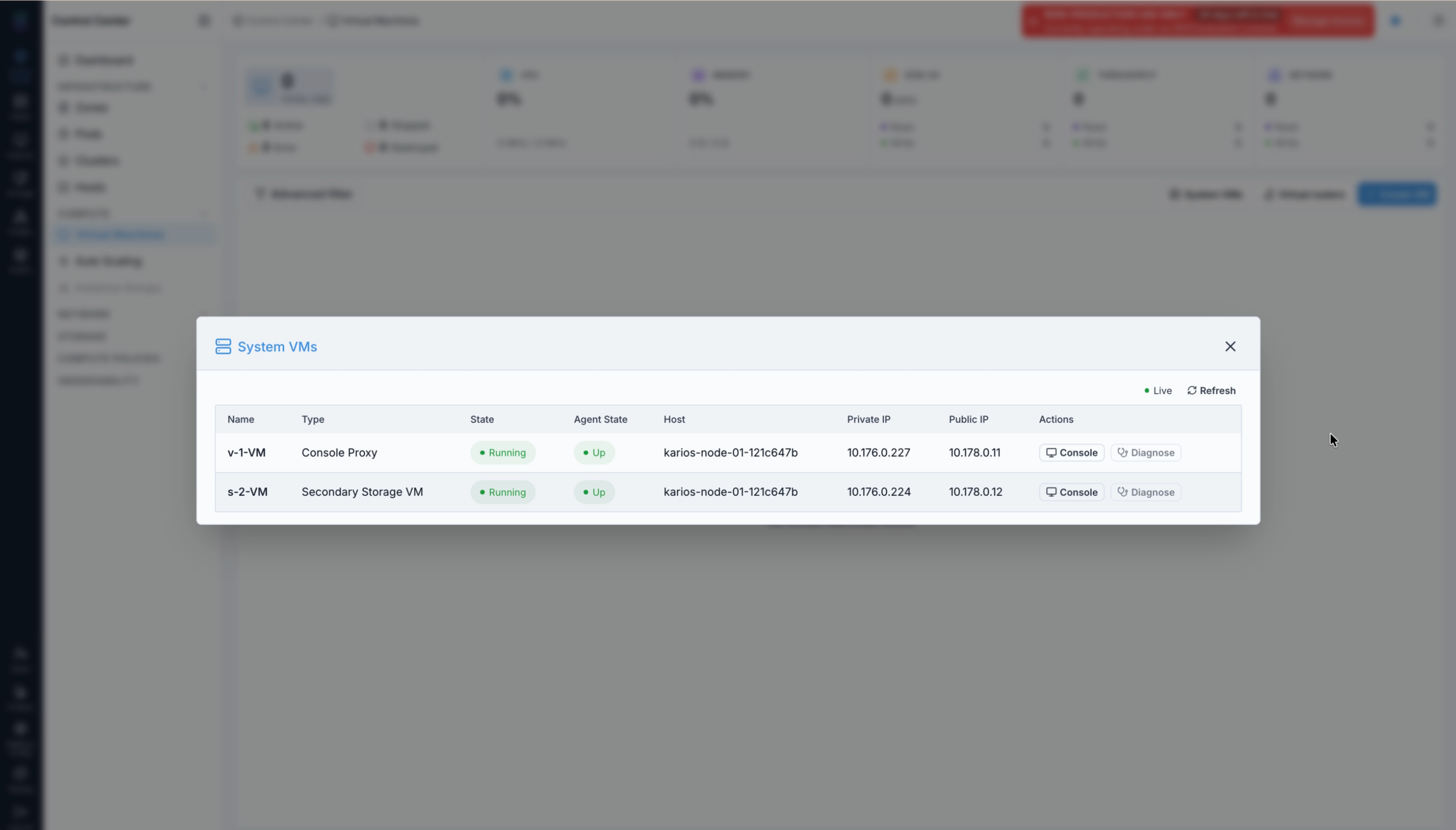
System VMs after both reach Running.
Expected Outcome:
Both system VMs report Running with agent state Up.
Important
Do not treat the install as finished until both system VMs reach Running
and Up.
If this fails: a system VM that stays at Starting with agent state -
for more than a few minutes is stuck. Allow it to retry, then destroy the system
VM - the platform recreates it automatically.
Open K-Store
When to Use:
Once both system VMs are Running. The installation itself is complete at
that point; this section is optional setup you can do now or later.
Purpose:
Add the optional features your deployment needs. Karios ships without them enabled - you turn on only what you use.
Steps:
Select
K-Storein the left rail.Open
Pluginsto see what is available for this installation.Install and enable the plugins you want to use.
Expected Outcome:
Each enabled plugin adds its own section to the console.
See K-Store for the full plugin lifecycle - installing, enabling, air-gapped imports, the update source, and troubleshooting.
Next Steps
With the node installed and verified:
Record the Karios UI address and the management IP address.
Browse
K-Store -> Pluginsfor optional features you can add.Activate the installation from
User -> Licensebefore the evaluation period expires. See Licensing below.If the deployment uses EVPN-VXLAN, configure the fabric from
Control Center. The one-time Fabric Switch setup - underlay, BGP peer, fabric ASN, router-id base, Preflight, and apply - is covered in SDN Fabric. It is no longer part of the installer.To add further nodes, use K-Forge. A node is installed in the role you want and then enrolled - you do not convert a running node in place.
Licensing
A fresh installation runs on a free tier of 10 sockets under a time-limited
NFR (Not For Resale) Evaluation License. To license the installation for
production, activate it from User -> License, using either:
Subscription (online) - a monthly, recurring license activated with a
KAR-license key.Prepaid (Air-Gapped, offline) - a one-time, fixed-seat license issued from a request token, for clusters with no internet access.
For the full activation procedure, see 10. License.
Important
The license is not only a compliance matter. The online update source reports
mTLS + license OK - a valid license is part of what authorizes the node to
reach https://updates.karios.com. Allowing the trial to lapse affects
access to platform updates.
Platform Updates
Platform releases are listed under K-Store -> Updates.
Warning
Applying an update to a single-node cluster puts your data at risk - it may be wiped completely. A node installed by this guide is a single non-HA node, so this applies to it. Treat a single-node update as a destructive operation, not as an outage to schedule around, and do not apply one to a node carrying data you cannot afford to lose.
See K-Store for the procedure.
Troubleshooting
Disks And Storage
What you see |
What to do |
|---|---|
No disks available, or the installer will not continue |
The disk controller is likely presenting hardware-RAID volumes. Change it
to |
A disk “does not resolve”, or “refusing to continue” |
The disk’s identity changed since it was selected. Reboot and try again. If it persists, set the controller to pass-through so disks keep a stable identity. |
A disk is reported as failed or unhealthy |
Replace that drive and run the installer again. |
“Need at least two disks”, or “needs at least 2 eligible disks” |
Attach a second disk of at least |
Installation stops partway through |
Most often this happens on remote installs when the management console’s virtual-media connection drops. Reset the BMC, reconnect the media, and try again. Installing from a local USB stick avoids this entirely. |
The machine boots back into the installer after the final reboot |
The installer medium is still attached and ahead of the disk in the boot
order. On a virtual machine, set the CD/DVD to |
Platform Image Delivery
What you see |
What to do |
|---|---|
You cannot reach the delivery address at port |
Confirm the node’s management IP is the one the wizard displays, and that
the second machine is on the same management network. Enter the address
with |
The image is rejected after it uploads |
The image does not match the ISO you installed from. Use the |
The upload stops partway through |
Deliver it again on the same page. Verification runs on the completed bytes, so a truncated transfer is rejected rather than deployed. |
Firmware
If the installer reports Secure Boot is ENABLED, turn Secure Boot off in
the firmware setup and reboot, or enroll the Karios key when prompted - key
enrollment must be done from the local console, either an attached monitor or the
BMC remote console.
If it reports the machine is not booted in UEFI mode, switch the firmware
from Legacy/CSM to UEFI.
Network
What you see |
What to do |
|---|---|
The system does not come online, or services do not start |
Usually a network mismatch. Check that each network’s gateway is reachable, that the VLANs are configured on the switch, and that the addresses you entered are correct and do not overlap the reserved block at the start of the range. |
Public or guest connectivity is not working |
Confirm the public and guest VLANs are trunked to the server and the correct networks are assigned. |
You cannot reach the management sign-in address |
Re-check the management network settings (IP, gateway, VLAN) and the switch port. |
Server network addresses after a reboot |
Karios keeps each server’s addresses stable across reboots. No action is needed. |
If The Install Fails
When a phase fails, the installer shows a Retry / Shell dialog and
writes the failure context and the last ten log lines to
the install log. Retry resumes from the failed phase rather
than starting over.
What state the machine is in. The disks are wiped and partitioned as far as the failed phase reached. The node stays in the live installer environment - it is not yet bootable into an installed system.
Starting over. Re-running the ISO after a failed install works normally. The installer clears the partial installation from the disks itself - there is nothing to clean up by hand.
The same applies to a node that is still waiting at 96%. There is no way to
re-trigger the bootstrap on its own, so a node you want to start over is
installed again from the ISO rather than resumed.
Note
If the installer detects a complete prior installation it will not wipe the machine automatically. Contact Karios Support if you need to reinstall over a working system.
Reaching A Shell
During the install, a recovery shell is available on tty2 and tty3 -
press Ctrl+Alt+F2 or Ctrl+Alt+F3. The wizard’s Drop to Shell control does the same
thing. Both are intended for support-directed troubleshooting.
After the node reboots into first boot, the console shows a login: prompt.
Sign in as karios with the password you set in Step 4 - the root account
and the operator account share that password. This is how you read the
first-boot log if bootstrap needs investigating.
When To Contact Karios Support
If installation stops, the failure screen offers a diagnostic and recovery option so you can review logs or retry without starting over.
If an issue is not covered here, contact Karios Support at
support@karios.com. Include:
what you saw on screen, and at which step
the task name and percentage shown in the progress bar, if the install was running
the contents of the
Logspanel, expandedthe diagnostic details from the failure screen, if one is shown
the chassis manufacturer, model, and serial from the
Detectedpanel on the Hardware step
On a machine with no operating system installed, photographing the console is usually the only way to capture this.
→ Next: K-Store