Getting Started
Important
Start Here - New to Karios? Use this onboarding order:
Complete Quick Start Checklist first.
Use Getting Started (this page) for context, terminology, and prerequisites.
Continue to ISO Install for the 9-step graphical installer and platform image delivery.
After the installer completes and the node reboots, open Control Center, the Karios web UI, at the final HTTPS URL shown on the console.
Use K-Store to apply platform updates and enable the optional plugins your deployment needs.
This page does not replace the checklist. It explains the terms and platform context used in that first-step readiness check.
For shared term definitions, see Glossary or section 3.2 Key Terminology below.
1. Welcome to Karios
Welcome to Karios. This guide helps new users understand what the platform does and how to begin in the correct order.
2. What is Karios?
Karios is a unified infrastructure operating system that simplifies how organizations build and manage modern IT infrastructure. It brings together compute, virtualization, Kubernetes orchestration, security, security operations, observability, and power intelligence into a single hardware-agnostic platform, enabling teams to provision, operate, and optimize infrastructure across datacenters, edge environments, and hybrid deployments.
        flowchart LR
    Op[Operator] --> CC[Control Center<br/>Web UI]
    CC --> Core[Karios Platform<br/>Control Plane]
    Core --> Compute[Compute &<br/>Virtualization]
    Core --> Storage[Storage<br/>K-Store / DFS]
    Core --> Network[Networking<br/>VPCs / SDN]
    Core --> K8s[Kubernetes<br/>K-Forge]
    Core --> Sec[Security<br/>K-Shield]
    Core --> Obs[Observability<br/>K-Trace]
    Core --> BM[Bare-Metal<br/>Lifecycle / BMO]
2.1. Platform Scope at a Glance
Karios is not only a hypervisor layer. It covers the full infrastructure workflow:
Karios OS + graphical installer for base host provisioning
9-step install wizard (License, Target Disk, Network & NIC, Administration, Location, Hardware, Summary, Install, Reboot) for first-time control plane setup
Control Center UI for day-to-day infrastructure operations after the installer completes and the node reboots
K-Store for platform updates and the optional plugins that expose the sections below - online, air-gapped, or by USB
K-Forge for bare-metal host lifecycle and hardware operations (BMO)
Karios DFS for distributed storage operations (Dashboard, Storage, Block Storage, Object Storage, Infrastructure, Monitoring, Advanced)
Infrastructure, Compute, Network, Storage, Compute Policies, Observability, Kubernetes, Security, and Security Operations modules in one operational plane
3. What You’ll Learn
After this section, you should understand:
The end-to-end onboarding path
Minimum prerequisites before you start
Where to go next in the docs
3.1. Full Documentation End-State
After completing the full documentation flow, a new operator should be able to:
Install Karios on supported hardware and reach Control Center
Configure users, roles, infrastructure, storage, networking, and compute policies
Provision and operate VMs and Kubernetes clusters
Run security scans, interpret diagnostics, and triage operational alerts
Execute support escalation with complete evidence and clear impact context
3.2. Key Terminology
Terms used throughout this guide:
Term |
Technical Meaning |
Plain English |
|---|---|---|
Zone |
Top-level infrastructure boundary |
A datacenter location or site |
Pod |
Network segment inside a zone |
A group of servers on the same network block |
Cluster |
Logical group of hosts |
Multiple physical servers operating together |
Host |
Physical compute node |
An actual machine with CPU/RAM |
BMC |
Baseboard Management Controller |
Remote power/console control interface |
BMO |
Bare Metal Orchestration |
Taking a bare server through to a working Karios node, driven through its BMC |
Instance Profile |
VM compute sizing template |
VM size definition |
VM Template |
Prebuilt virtual machine image |
Ready-to-use operating system image |
Boot Image |
Bootable installation media |
Installer disk image |
CIDR |
IP range notation |
Network block format like |
Virtual Router |
Software router for isolated guest networks |
Auto-created network gateway for VM traffic |
Compute Policy |
Reusable resource policy object |
Predefined profile used when creating or operating resources |
Volume Profile |
VM disk performance/capacity profile |
Storage tier template for VM volumes |
4. Platform Overview
4.1. Key Features
Zero-touch provisioning across virtually any hardware
Unified virtualization and Kubernetes orchestration
Integrated security, observability, and automation
One platform, one operational model
4.2. Beyond Virtualization
Traditional infrastructure stacks are fragmented, expensive, and operationally brittle. Karios is built to remove those constraints and simplify operations across the full infrastructure lifecycle.
Whether you are modernizing legacy infrastructure or deploying at the edge for the first time, Karios reduces complexity, lowers cost, and improves visibility and control.
4.3. Core Philosophy
Karios follows three core principles:
Simplicity: Make complex infrastructure operations predictable.
Integrity: Keep infrastructure behavior consistent and defensible.
Agility: Allow fast, controlled iteration as requirements evolve.
Operational model:
Hardware-agnostic lifecycle workflows reduce vendor lock-in complexity.
Unified operations reduce tool sprawl and handoff friction.
Security and observability are treated as core operations, not add-ons.
Who Karios is built for:
Enterprises modernizing virtualization and Kubernetes
Organizations constrained by power, space, or cost
Edge, telecom, and distributed infrastructure deployments
Government, utilities, finance, healthcare, education, and smart-city environments
Teams that want fewer tools and better outcomes
5. Infrastructure Deployment: Network and Hardware Requirements
Use this section to validate deployment prerequisites before onboarding infrastructure.
Important
For the full onboarding flow in this documentation (the 9-step graphical installer, then Control Center setup),
satisfy the 5.1 Network Requirements and 5.2 Hardware Requirements gates first, then use at least the
5.3 Deployment Profiles and Sizing baseline for the profile you have chosen.
5.1. Network Requirements
5.1.1. VLANs - 4 Required
Network |
Purpose |
Notes |
|---|---|---|
Management |
Platform services, DNS |
Required |
Storage |
Storage traffic |
Required |
Public |
Public network |
Required |
Guest |
VM tenant traffic |
Required |
OOB (network role) |
Out-of-band management network |
Optional. This installer role is not currently used and is left unselected. The BMC itself is still required - see the hardware requirements below. |
5.1.2. VLAN Rules
All VLANs must be unique with no duplicates.
No CIDR overlaps are allowed between any networks.
All IPs must be within their respective declared CIDR range.
Karios uses static addressing. Node addresses are not assigned by DHCP.
A reachable DNS server is required.
5.1.3. Management Network
Usable IP range must be greater than 20 IPs because 20 IPs are reserved for VIPs.
Minimum IP range is enforced at validation time.
5.1.4. Storage Network
Usable IP range must be greater than 20 IPs because 15 VIPs and 5 IPs are reserved.
Storage IP range must be greater than or equal to the management IP range. It can exceed it, but it cannot be smaller.
5.2. Hardware Requirements
5.2.1. Supported Manufacturers
Supermicro
Dell
HPE
Cisco
Lenovo
MegaRAC SP-X (MSI, ASRock Rack and other AMI-based boards)
See 6. Supported OEMs for the BMC licence each one requires and the procedure that puts its storage controller into pass-through.
5.2.2. Disk Controller Mode
The storage controller must present disks individually, in HBA / JBOD /
pass-through mode. The installer refuses hardware-RAID volumes and cannot install
onto a controller-backed RAID set.
Set the controller to HBA/JBOD in firmware before booting the installer. Changing controller mode destroys any existing hardware-RAID volume, so do this before there is anything on the machine worth keeping.
5.2.2.1. ZFS and RAID Controllers
The short version. ZFS is compatible with all major RAID controllers, but only when the controller is placed in Non-RAID (passthrough) mode. This is a settings change, not a hardware change. Do not swap the card.
ZFS must be given the physical disks directly. Any mode where the controller presents a virtual disk instead of the real drives will appear to work at first and will quietly remove the protections ZFS exists to provide. Before installing, put the controller into Non-RAID / HBA / JBOD mode. The exact name varies by vendor. See 6. Supported OEMs for the procedure on each supported manufacturer.
Why ZFS needs the raw disk. ZFS is not only a filesystem. It is a combined volume manager, RAID engine and filesystem, and it is built on one assumption: it owns the disks.
Every block ZFS writes carries a checksum. When it reads a block back and the checksum does not match, ZFS fetches a good copy from another disk, returns the correct data to the application, and rewrites the bad copy. That self-healing is the core of the product, and it only works if ZFS can see each physical disk, knows which one holds which copy, and can write to them independently.
A RAID controller in RAID mode breaks that assumption. It merges the drives into one virtual disk and hands that to the operating system. ZFS sees a single device where several exist.
5.2.2.2. Per-Manufacturer Controller Setup
The pass-through procedure differs on every manufacturer, and so does the BMC licence you must buy before Karios can mount its installer.
See 6. Supported OEMs for the per-manufacturer tabs covering Supermicro, Dell, HPE, Cisco, Lenovo and generic hardware.
5.2.3. Node Specifications
Per-role minimums. For recommended figures and AIO sizing, see 5.3. Deployment Profiles and Sizing.
Component |
Management Server |
Agent / Compute Node |
|---|---|---|
CPU (logical processors) |
12 minimum (Management-only); 16 (AIO) |
12 minimum |
Bare-metal CPU guidance |
≥6C / 12T (Management-only); ≥8C / 16T (AIO) |
≥6C / 12T |
RAM |
32 GB minimum |
32 GB minimum |
Disks (minimum) |
1+ (Management-only) / 2+ (AIO, one left empty for Ceph) |
3+ (excluding OS disk) |
BMC (IPMI/iDRAC/iLO) |
Required |
Required |
EFI Bootloader |
Required |
Required |
CPU Virtualization (VT-x / AMD-V) |
Required |
Required |
5.2.4. Agent / Compute Node Disk Requirements
OS installation disk: Tier 1 or Tier 2, at the user’s choice.
Remaining disks: 3 or more disks, excluding the OS disk.
The remaining disks must include at least one Tier 1 disk, one Tier 2 disk, and one Tier 3 disk.
Every disk the installer can use must be at least 32 GB and internally attached.
USB and other removable devices, SAN/iSCSI/FC/FCoE LUNs, and the installer medium itself are not counted as usable disks.
5.2.5. Disk Tier Classification
Tier |
DWPD Range |
Classification |
|---|---|---|
Tier 1 |
10+ |
High endurance (NVMe/enterprise SSD) |
Tier 2 |
3 - 10 |
Mid endurance |
Tier 3 |
1 - 3 |
Standard endurance |
Choose the profile that matches your environment after the deployment prerequisites above are satisfied.
5.3. Deployment Profiles and Sizing
Karios installs in one of two shapes, and the shape decides the sizing. Choose the profile first, then size from its column in 5.3.1. Everything in this section applies to every manufacturer; nothing here changes by vendor.
AIO (All-in-One) |
Cluster (Management + Agents) |
|
|---|---|---|
Intended use |
Proof of concept, labs, evaluation |
Production |
High availability |
None. Single control node. |
Yes, with three control nodes behind VIPs |
Pods |
One only |
Multiple |
Network fabric |
Single fabric |
|
Licensing |
Licensed per agent socket |
Control nodes are free; licensed per agent socket |
Danger
AIO is a proof-of-concept and laboratory topology. It is not a production topology. It runs the entire control plane on one node, so it has no high availability and cannot grow beyond a single pod. Losing that node loses the deployment.
5.3.1. Sizing by role
Resource |
AIO - Minimum |
AIO - Recommended |
Management - Minimum |
Management - Recommended |
Agent - Minimum |
Agent - Recommended |
|---|---|---|---|---|---|---|
CPU / Logical Processors |
16 |
24 |
12 |
16 |
12 |
16 |
Bare-metal CPU guidance |
≥8C / 16T |
≥12C / 24T |
≥6C / 12T |
≥8C / 16T |
≥6C / 12T |
≥8C / 16T |
RAM |
32 GB |
64 GB |
32 GB |
64 GB |
32 GB |
32-64 GB |
OS / Boot Disk |
≥240 GB SSD/NVMe |
≥480 GB SSD/NVMe |
≥240 GB SSD/NVMe |
≥480 GB SSD/NVMe |
≥240 GB SSD/NVMe |
≥480 GB SSD/NVMe |
K-DFS / OSD disks |
Separate disk(s) required when K-DFS enabled |
Dedicated enterprise SSD/NVMe |
N/A unless hosting storage |
Dedicated if used |
Separate disk(s) required when K-DFS enabled |
Dedicated enterprise SSD/NVMe |
Network |
10 GbE |
10/25 GbE |
1 GbE |
10 GbE |
10 GbE |
10/25 GbE |
Architecture |
x86-64 |
x86-64 |
x86-64 |
x86-64 |
x86-64 |
x86-64 |
Deployment target |
Bare metal / supported VM |
Bare metal preferred |
Bare metal / supported VM |
Bare metal preferred |
Bare metal |
Bare metal preferred |
5.3.2. Prerequisites common to every profile
These apply to AIO and cluster alike, and to every manufacturer:
EFI bootloader required. Legacy and CSM boot are refused by the installer.
Secure Boot disabled in firmware, or plan to enrol the Karios key from the local or BMC console when prompted.
CPU virtualization (VT-x or AMD-V) available and enabled in BIOS.
BMC (IPMI, iDRAC, iLO or equivalent) reachable with validated credentials.
Storage controller in pass-through, HBA or JBOD. This is the one prerequisite whose procedure differs by manufacturer. See 6. Supported OEMs.
Static addressing. Karios does not use DHCP for node addresses, and a reachable DNS server is required.
5.4. Environment Sizing Calculator (Example)
Example workload target: 20 VMs (10 small, 8 medium, 2 large)
VM demand model:
Small VM:
2 vCPU,4 GB RAM,50 GB diskMedium VM:
4 vCPU,8 GB RAM,100 GB diskLarge VM:
8 vCPU,16 GB RAM,200 GB disk
Calculated total VM demand:
CPU (vCPU):
(10x2) + (8x4) + (2x8) = 68 vCPURAM:
(10x4) + (8x8) + (2x16) = 136 GBStorage:
(10x50) + (8x100) + (2x200) = 1700 GB
Add platform/HA overhead:
CPU (vCPU):
68 x 1.3 = 89 vCPURAM:
136 x 1.3 = 177 GBStorage:
1700 x 1.5 = 2550 GB(snapshots/growth buffer)
Example physical allocation (target outcome), using the role figures in 5.3.1:
Option A:
6 agents x 16 logical processors, 32 GB each(96 logical processors, 192 GB)Option B:
8 agents x 12 logical processors, 32 GB each(96 logical processors, 256 GB)Control plane:
1 management node, 12 logical processors, 32 GB, or three for high availabilityStorage: at least 3 K-DFS disks per agent (see 5.2.4). Option A:
18 x 960 GB = 17.3 TB raw(about 5.8 TB usable at 3x replication); Option B:24 x 960 GB = 23 TB raw(about 7.7 TB usable). Keep raw usage below 80% (85% is the critical threshold); each node’s boot disk is separate.
Tip
For HA planning, ensure the environment can tolerate one-host failure while still meeting critical workload demand.
5.5. Hypervisor VM Prep (Lab/Nested Only)
Use this section only for lab or nested testing environments.
Warning
Supported production deployments should run on bare metal. Hypervisor-based deployments are for limited lab experimentation.
Why these settings matter:
They reduce common virtualization compatibility issues during install and first boot.
They avoid known performance bottlenecks from unsupported virtual controllers and NIC models.
They provide a consistent baseline before troubleshooting cluster behavior.
5.5.1. ESXi 7.0 U2 or Greater
Setting |
Value |
|---|---|
Guest Family |
Karios-compatible Linux family |
Guest OS Version |
Linux 6.x / Debian 12 compatible (64-bit) |
Expose Hardware Assisted Virtualization to Guest OS |
Yes |
CPU |
16 cores |
Memory |
Minimum 16 GB |
Hard Disk Provisioning |
Thin Provision |
Disk Mode |
Dependent |
Controller |
VMware Paravirtual SCSI controller. Do not use LSI Logic SAS. |
Network Adapter |
VMXNET3. Do not use E1000e because it is not 10GB capable. |
VM Options |
Firmware EFI and Secure Boot unchecked. |
5.5.2. Proxmox VE 8 and 9
Area |
Setting |
|---|---|
OS |
OS Type: Linux; Version: Linux 6.x compatible |
System |
Machine: Q35; BIOS: OVMF; Add EFI Disk: Checked; Pre-Enroll Keys: Unchecked; QEMU Agent: Checked |
Disks |
Bus/Device: VirtIO Block; Storage: Select the storage pool; Format: RAW (do not use Qcow2); Cache: No Cache; Discard: Checked; Async IO: io_uring or threads |
CPU |
Type: Host (16 cores) |
Network |
Model: VirtIO |
5.5.3. Hyper-V
Area |
Setting |
|---|---|
Generation |
Generation 2 only |
Memory |
Startup Memory: 16 GB; Use Dynamic Memory: Unchecked |
Network |
Connection: Gen 2 synthetic |
Disks |
Format: .vhdx; Type: Fixed |
Post Creation - Security |
Secure Boot: Unchecked |
Post Creation - Network Adapter |
Enable MAC Address Spoofing: Checked |
Post Creation - Integration Services |
Ensure all services are checked |
Processor |
4-16 vCPU (test for minimums) |
5.6. Obtaining Installation Media
Alternative Download Methods
For environments with restricted internet access:
Contact
sales@karios.comfor offline media deliveryRequest access to mirror sites for your region
Creating Bootable Media
USB Boot (Recommended for physical servers)
Use ISO Install Guide as the single step-by-step
source for creating bootable media with Rufus, Etcher, or dd.
The ISO Install guide also contains the canonical USB media baseline, including minimum capacity, interface, speed guidance, and reliability notes.
Note
Keep this page as the onboarding summary and use the ISO Install guide as the canonical execution workflow.
IPMI Virtual Media (Recommended for remote installations)
Access your server’s BMC/IPMI interface
Navigate to Virtual Media or Remote Console
Mount ISO file from local machine or HTTP URL
Set boot order to Virtual CD/DVD
Reboot server
Download Size and Network Requirements
ISO size: ~2-4 GB (version dependent)
Karios platform image (
.qcow2) size: ~5 GB - the template, bundled with the ISO in the same.zipdownload rather than fetched separately. It is delivered to the node from a second machine partway through the installMinimum download speed: 10 Mbps recommended
Estimated download time: 5-30 minutes per artifact (depending on connection)
Version Selection Guidance
Latest stable release: Recommended for new deployments
Version-pinned release from the archive index: use when change-control requires fixed versioning
Tip
Bookmark the installer bundle:
https://download.karios.com/installer/karios-installer.zip
6. Supported OEMs
Karios runs ZFS and Ceph directly on physical disks, so every storage controller must be put into pass-through, HBA or JBOD before the installer runs. The mode has a different name on every manufacturer, and reaching the screen that sets it takes a different key on every manufacturer too.
Two things differ by vendor: the BMC licence you must buy before Karios can mount its installer, and the pass-through procedure. Sizing does not vary by vendor and is covered in section 5 above.
Important
The Karios installer wipes every internal fixed disk in the chassis, whether you select it or not. Clearing a controller configuration also destroys every logical drive on it. Anything that must survive has to be physically removed first.
Note
Always prove pass-through from Linux, never from the BMC inventory page, which reports
a MegaRAID controller as present and enabled in both RAID and JBOD mode. On an SSD the
most reliable single check is lsblk -dD: a RAID virtual disk reports 0B discard
because it hides TRIM, a passed-through drive reports a real value.
6.1 At a glance
Two decisions are made before a server is ordered, and one is made at the console. The table below answers all three for each manufacturer. Full procedures follow in the tabs.
Manufacturer |
BMC licence to order |
Controller to quote |
Mode to set on a RAID card |
Key at power-on |
|---|---|---|---|---|
Supermicro |
|
|
JBOD, controller then each drive |
|
Dell |
iDRAC9 Enterprise (iDRAC10 Enterprise on 17G) |
|
Enhanced HBA, plus Non-RAID per drive |
|
HPE |
iLO Advanced |
|
Controller Mode |
|
Cisco |
none, Cisco IMC is included |
|
JBOD, controller then each drive |
|
Lenovo |
XCC Enterprise / Platinum / Premier by generation |
|
JBOD (Broadcom) or HBA Mode (Microchip) |
|
Tip
Quoting a controller from the middle column removes the entire procedure. Those
parts have no RAID mode to disable, so there is nothing to configure, nothing to get
wrong on site and nothing to verify beyond a single lsblk. Where an existing
fleet already carries a RAID card, the tabs below cover it.
6.2 Per-manufacturer procedures
BMC licence required
SFT-DCMS-SINGLE, one per node, X11 onward
Supermicro gates virtual media, BIOS configuration and BMC firmware update behind a licence key. Without it Karios cannot mount its installer ISO.
Check with the BMC web UI, or POST to /redfish/v1/Managers/1/LicenseManager/QueryLicense. There is no Redfish LicenseService on Supermicro, so licence state cannot be read with a plain GET.
Warning
Keys are bound to the BMC MAC address and are neither transferable nor refundable. Put the part number in the purchase order rather than deciding later.
Getting to the configuration utility
Power on and press DEL repeatedly at the Supermicro splash screen to enter the
BIOS setup utility. F11 gives the one-time boot menu instead, which is not what
you want here.
Onboard SATA: Advanced > PCH SATA Configuration, set SATA Mode to
AHCI. Most X11 and X12 boards also list a separate PCH sSATA Configuration entry driving a second set of ports, and both must be set. Setting only the first is the most common miss on Supermicro.Direct NVMe: Advanced > Chipset Configuration > North Bridge > IIO Configuration > Intel VMD Technology, leave
Disabled. Never create a VROC volume. AMD H12 and H13 have no VMD or VROC.Broadcom RAID card: Advanced > the Broadcom or AVAGO configuration utility.
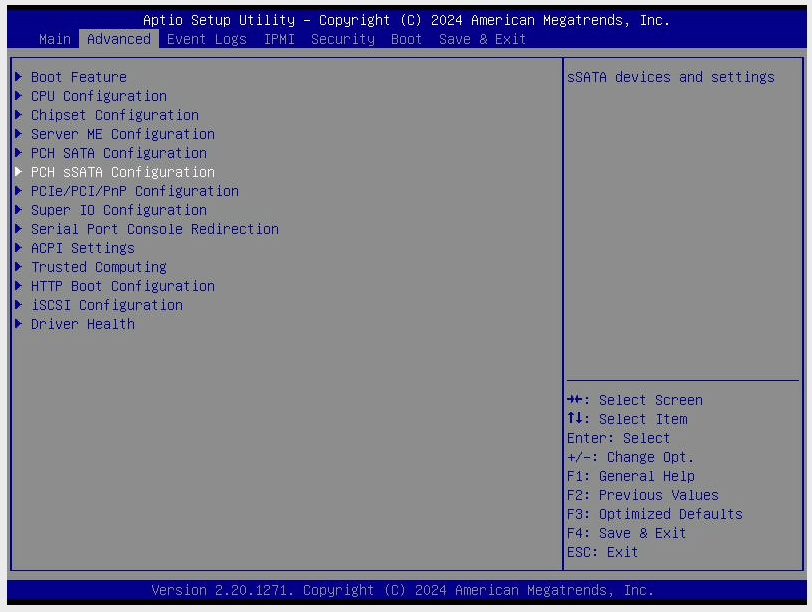
The Advanced tab on an X11 board, Aptio Setup Utility 2.20.1271. Two entries matter here and they are separate menus: PCH SATA Configuration and PCH sSATA Configuration. Each drives its own set of ports and each has its own mode setting, so visiting only the first leaves half the ports unconfigured. Note also what is absent: there is no Broadcom or AVAGO utility in this list, because no such card is installed in this chassis. On a board with onboard SATA only, the list ends at Driver Health and these two menus are the entire job.
Set both SATA controllers to AHCI
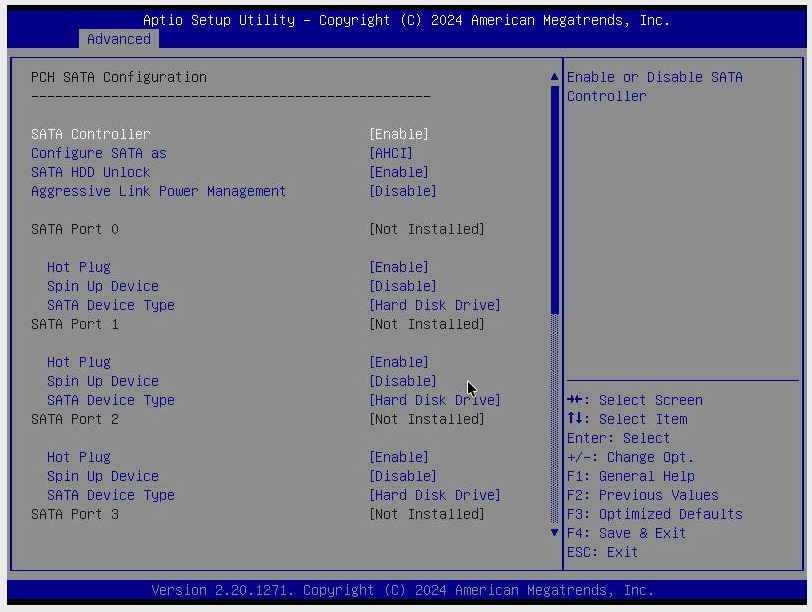
Advanced > PCH SATA Configuration. The field that decides pass-through is
Configure SATA as, which reads [AHCI] here. Required state: AHCI.
Read the port list below it as well: every port on this controller reports
Not Installed, so no drive is attached to it on this machine. That is the
reason the second controller cannot be skipped.
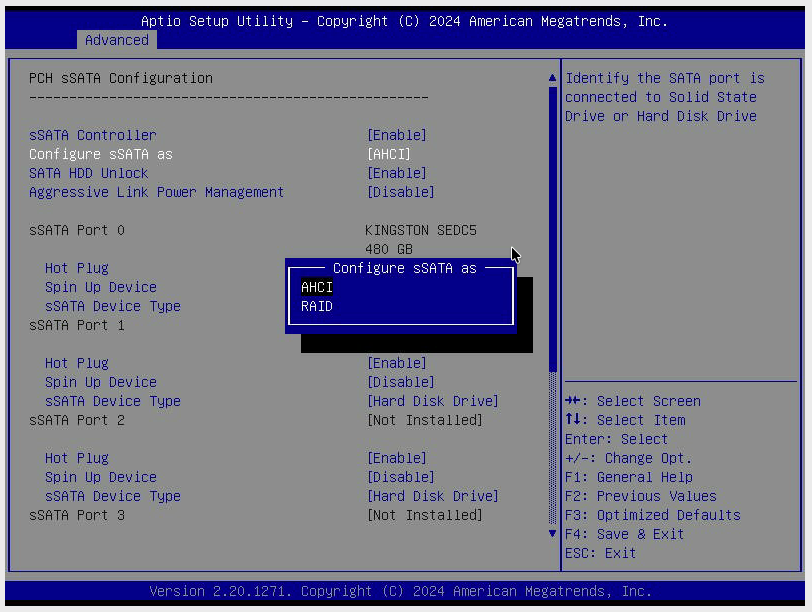
Advanced > PCH sSATA Configuration, with Configure sSATA as opened to
show the full choice. The control offers exactly two values, AHCI and
RAID. Required state: AHCI. Selecting RAID puts this controller in
the data path and ZFS no longer receives raw disks, which is the same outcome the
Broadcom section below exists to prevent. Note that sSATA Port 0 carries the
only drive in this machine, a KINGSTON SEDC5 of 480 GB, while the PCH SATA
screen above showed no drives at all. An operator who set only the first
controller would have configured the empty one and left the populated one on
whatever it shipped with.
Tip
Both SATA modes can be read, and set, over the network with no reboot. The BMC exposes them as BIOS attributes:
GET /redfish/v1/Systems/1/Bios
Read ConfigureSATAas (the PCH SATA controller) and ConfiguresSATAas (the
PCH sSATA controller). Each is an enumeration with exactly two values, AHCI and
RAID. Both must read AHCI. RAID on either one means that controller
builds a RAID layer and ZFS does not receive raw disks, which is the same failure
the Broadcom section below exists to prevent, on different silicon.
Confirm the allowed values for a given board from
/redfish/v1/Registries/BiosAttributeRegistry.v1_0_0. Ignore the HelpText
field there: Supermicro’s registry misattributes it, and for these two attributes
it shows the help belonging to SATADeviceType.
While reading the same response, check every
Intel VMD for Volume Management Device attribute is Disable.
Note
The Broadcom entry appears in the Advanced menu only when a Broadcom card is
physically installed. On a node with onboard SATA only, the Advanced list ends
at Driver Health with no controller utility, and that is the expected, correct
state: there is no RAID layer to disable. Confirm it rather than hunting for a
hidden menu, either from the BMC at
GET /redfish/v1/Chassis/1/PCIeDevices (a storage card appears as its own member
alongside the NICs) or from a running OS with
lspci | grep -iE 'lsi|broadcom|sas'. Where neither reports a card, the only
BIOS work is the two SATA mode settings above.
Supermicro does not ship its own RAID firmware. The card in the chassis is a Broadcom part with Supermicro’s OEM sticker, and the passthrough procedure depends on which Broadcom silicon is present.
First check: what is actually in the box.
From a running Linux host:
lspci | grep -iE 'lsi|broadcom|sas'
Three outcomes. Each maps to a different section of this walk-through:
What |
What to do |
|---|---|
Only onboard Intel C6xx SATA / sSATA |
Nothing to configure. The onboard chipset is already in AHCI passthrough for ZFS. |
Broadcom |
True IT-mode firmware is available for this silicon. That is the cleanest state for ZFS. |
Broadcom |
No IT-mode firmware exists for this silicon. JBOD on a per-drive basis is the best available, and cache settings become load-bearing. |
Supermicro card naming. The suffix on Supermicro’s part number tells you what class the card is:
-L8e= IT / HBA class. This is the IT-mode SKU.-L8i= IR (integrated RAID). Broadcom SAS3008 underneath, can be flashed to IT firmware.-H8iR= SAS3108 hardware RAID. JBOD only. Cannot be flashed to IT.
Confirm the suffix on the purchase order. -H8iR and -L8e are the same
form factor and the difference is not visible once the card is installed.
Path A: SAS3008 (``-L8e`` or ``-L8i`` flashed to IT).
IT-mode firmware removes the RAID stack entirely. The card behaves like a plain HBA: no cache in the data path, no controller metadata on the drives, full SMART, and the drives stay portable to any other HBA. This is the cleanest configuration for ZFS.
Confirm from Linux:
lsblk -d -o NAME,SIZE,MODEL,SERIAL
Every row should carry the drive’s real model and serial. Nothing else is needed on the controller.
Path B: SAS3108 (JBOD, no IT mode available).
Two settings must both be applied - enabling JBOD Mode on the controller does not by itself convert any drive.
Enable JBOD Mode on the controller (Broadcom UEFI HII: Main Menu > Controller Management > Advanced Controller Properties > JBOD Mode > Enabled), then
Apply Changesand reboot.Convert each drive to JBOD state (Broadcom UEFI HII: Main Menu > Drive Management > [drive] > Operations > Make JBOD).
From StorCLI on a running host:
storcli /c0 show
storcli /c0 set jbod=on
storcli /c0/eall/sall set jbod
storcli /c0/eall/sall show
Warning
On some newer Broadcom firmware the toggle is spelled
set autoconfig=jbod instead of set jbod=on. If storcli returns a
syntax error, try the other form.
Warning
If a drive is not in Unconfigured Good state, StorCLI will refuse the
JBOD conversion. Set the drive state first with
storcli /c0/e<enc>/s<slot> set good then retry.
Cache settings on Path B. With the SAS3108 still in the data path, controller cache policy affects ZFS’s write-flush guarantees. Set virtual-disk cache to write-through and read-ahead off:
storcli /c0/vall set wrcache=WT
storcli /c0/vall set rdcache=NoRA
storcli /c0/vall show all | grep -iE 'cache|policy'
Verify from the OS.
On either path:
lsblk -d -o NAME,SIZE,MODEL,SERIAL
If any row’s model shows MegaRAID or LSI ROMB, JBOD has not fully
taken effect. Recheck steps 1 and 2 for Path B or reflash to IT firmware for
Path A.
Note
Supermicro’s BMC (IPMI 2.0 web UI) does not expose a RAID configuration interface. Newer BMC firmware shows storage inventory only, not configuration. Remote-only workflows use StorCLI over SSH into a running OS, or IPMI serial-over-LAN into the pre-boot BIOS.
Verify from Linux
lsblk -d -o NAME,SIZE,MODEL,SERIAL,WWN,TRAN
lsblk -dD -o NAME,DISC-GRAN,DISC-MAX
storcli /c0/vall show     # must report no virtual drives
The driver stays megaraid_sas even in JBOD, so the driver name proves nothing.
Judge on the model string and the discard value.
BMC licence required
iDRAC9 Enterprise or Datacenter
14G, 15G and 16G need iDRAC9 Enterprise. 17G needs iDRAC10 Enterprise, and iDRAC10 Core is not sufficient. 13G needs iDRAC8 Enterprise. iDRAC9 Basic and Express are not sufficient.
Check with GET /redfish/v1/LicenseService/Licenses, or the iDRAC UI under Licenses.
Warning
An under-licensed Dell looks completely healthy. Basic and Express still carry Redfish, power control, boot control, inventory and firmware update, so the node registers and inventories perfectly and fails only at the ISO mount. Licences are locked to a server generation and cost more after point of sale.
Verified on PowerEdge R640 with PERC H740P Mini.
Two screens, told apart by the breadcrumb at the top:
Screen 1 - breadcrumb reads Dashboard View > Main Menu > Manage Controller Mode. Shows
Controller ModeandAuto-Configure Behavior.Screen 2 - breadcrumb reads Dashboard View > Main Menu > Configuration Management. Shows a list:
Create Virtual Disk/Convert to RAID Capable/Clear Configuration/Manage Foreign Configuration.
There is no third screen showing Convert to Non-RAID Disk. When every disk
is already Non-RAID, that menu item does not exist. This is expected.
How to get there.
Power on the server and press
F2at the Dell splash screen. This enters System Setup.Select Device Settings.
Select Integrated RAID Controller 1: Dell PERC H740P Mini Configuration Utility.
Select Main Menu.
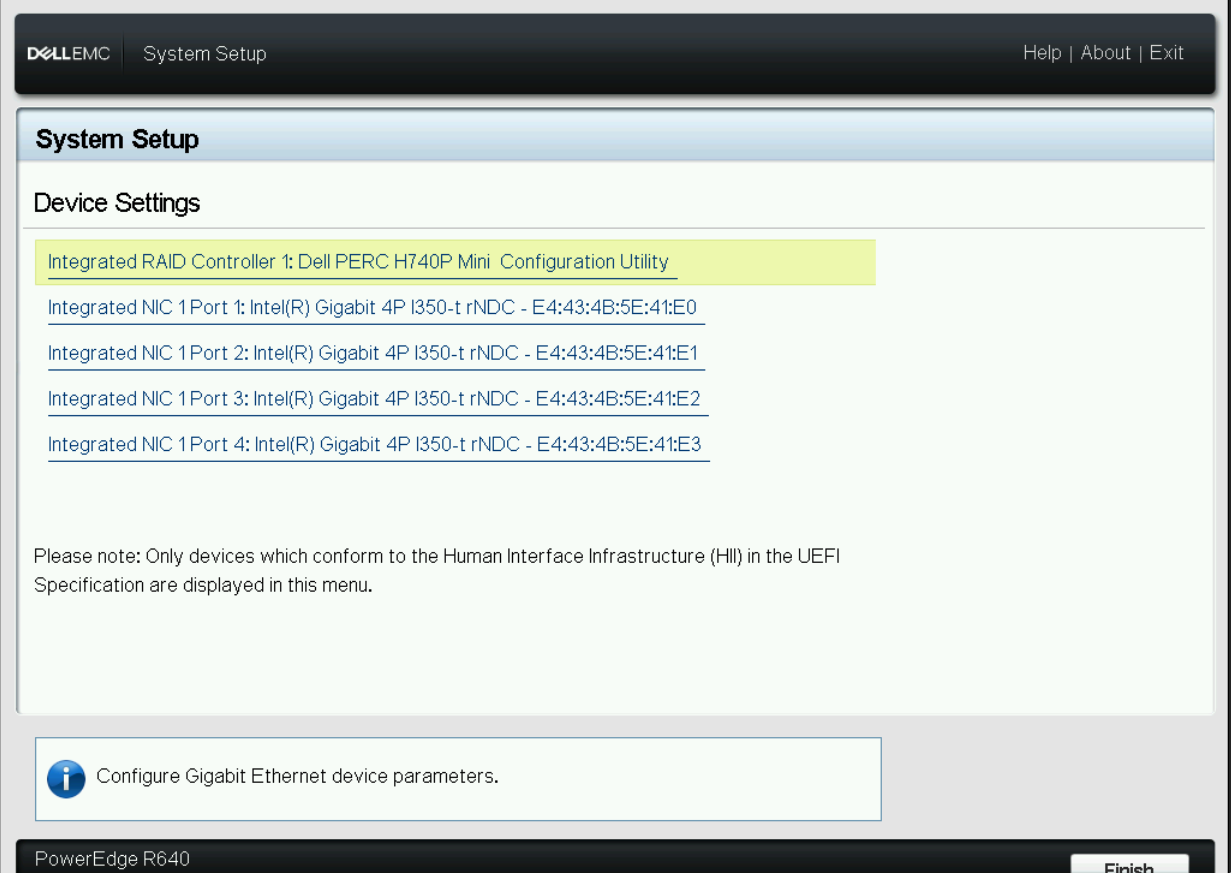
Step 2, System Setup > Device Settings on a PowerEdge R640. The storage controller appears as Integrated RAID Controller 1: Dell PERC H740P Mini Configuration Utility, above the four integrated NIC ports. Select that entry. Only devices conforming to UEFI HII appear in this menu, so a controller missing from this list is either absent or the server is in legacy boot mode.
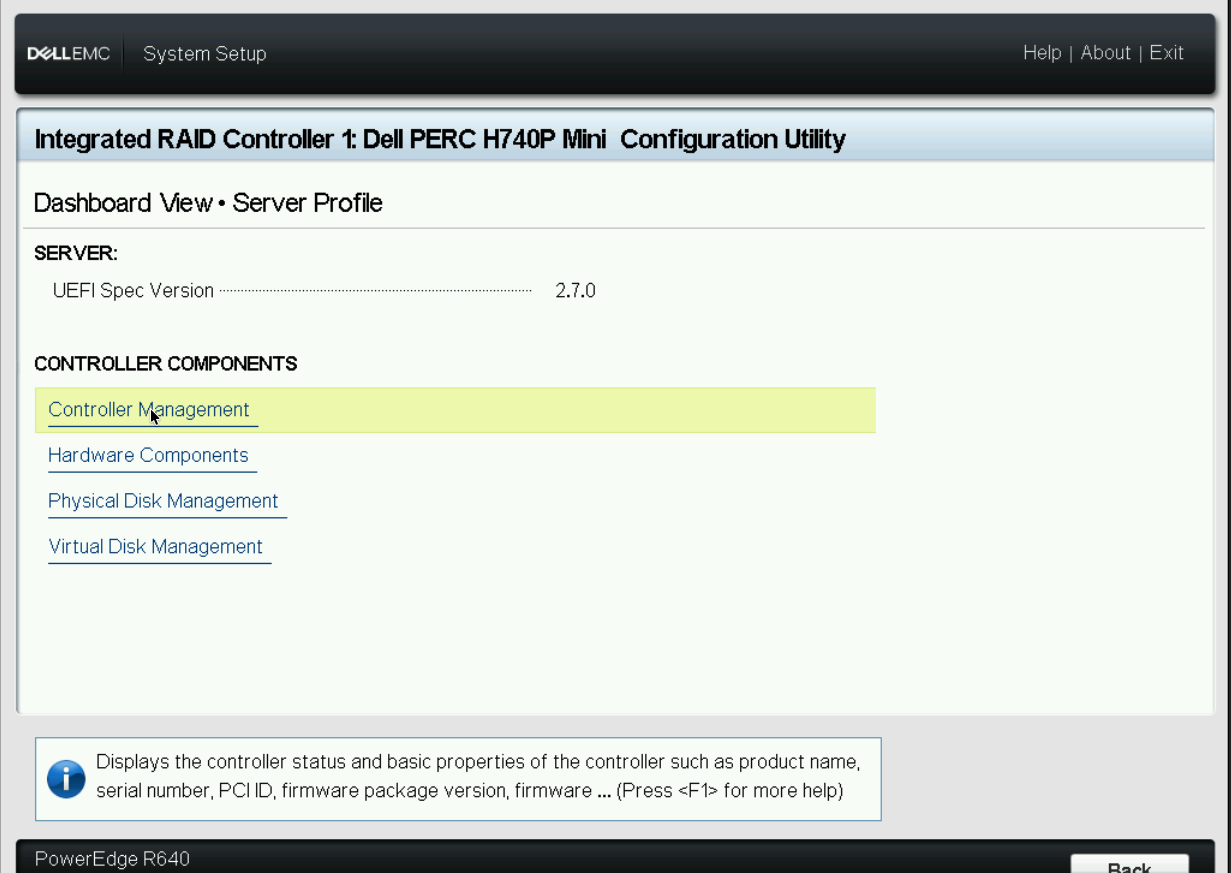
Step 4, the controller utility’s Dashboard View > Server Profile. Four entries appear under CONTROLLER COMPONENTS: Controller Management, Hardware Components, Physical Disk Management and Virtual Disk Management. Mode is read and set under Controller Management; the other three report state only.
Step 1: Check the mode on the Manage Controller Mode screen.
Navigate: Main Menu > Controller Management > Manage Controller Mode. The breadcrumb should read Dashboard View > Main Menu > Manage Controller Mode.
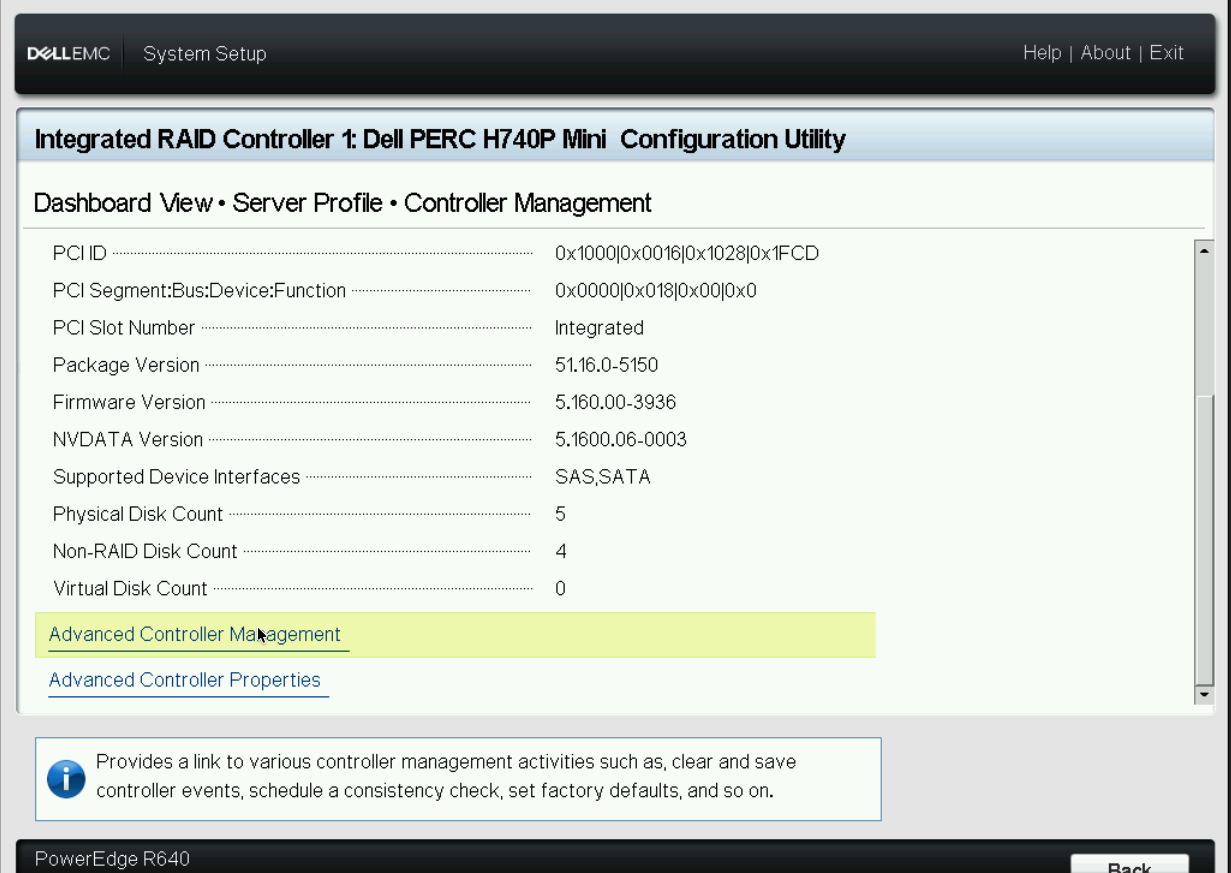
Controller Management, which carries both the firmware level and the fastest
state check on this controller. Read the three disk counts: Physical Disk
Count 5, Non-RAID Disk Count 4, Virtual Disk Count 0. Required state:
Virtual Disk Count is 0 and every data drive is counted as Non-RAID. A
non-zero virtual disk count means an array still exists and must be cleared
before the controller will leave RAID mode. Advanced Controller Management,
at the bottom of this page, is where the mode itself is changed.
Read the two fields:
Controller Modeshould readEnhanced HBA.Auto-Configure Behaviorshould readNon-RAID Disk.
If both read exactly that, the machine is already correct for ZFS. Change nothing and exit.
Warning
Do not click Switch to RAID Controller Mode. That link is on this screen
and it does the opposite of what you want; it turns RAID back on. Its presence
means you are already in the right mode.
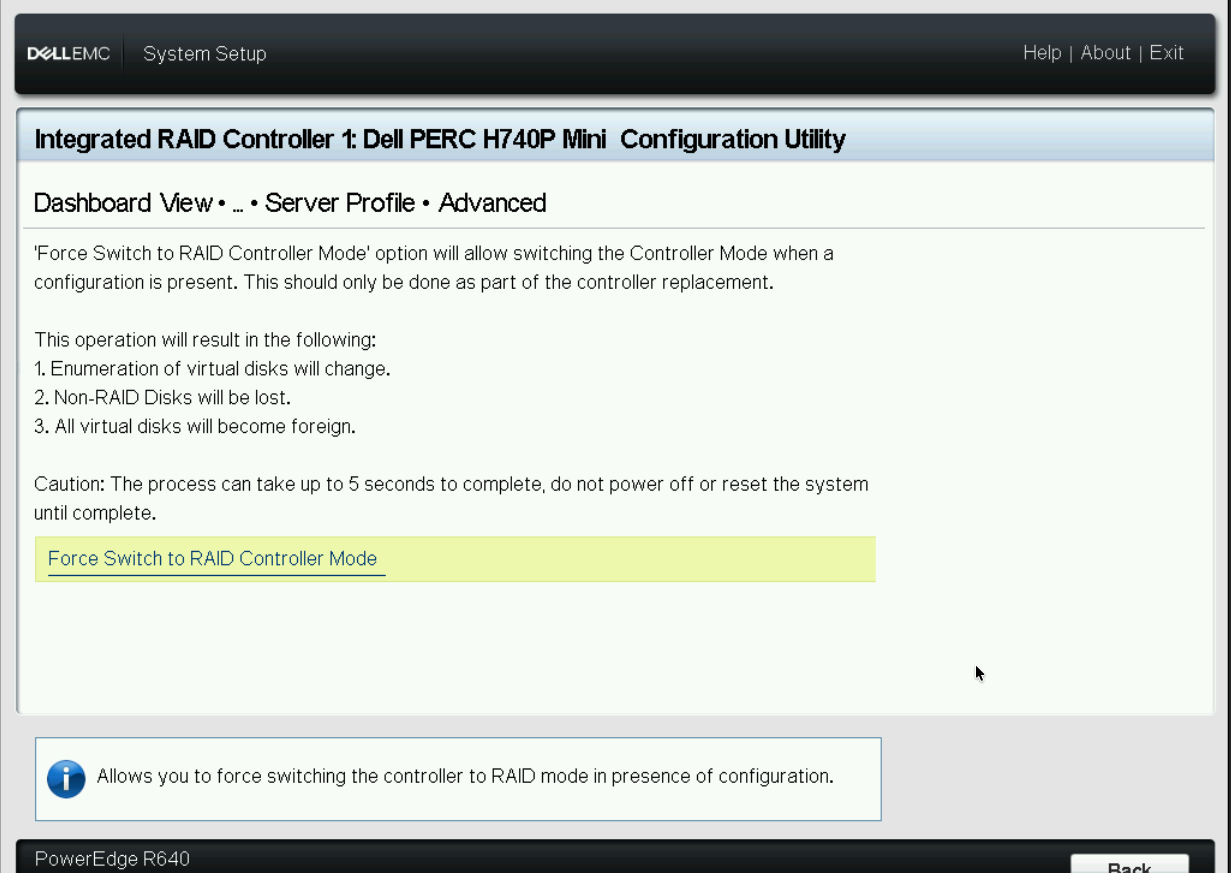
The Advanced page carries a second, more destructive control: Force Switch
to RAID Controller Mode, which switches the controller back to RAID even when
a configuration is present. The on-screen warning is explicit that
Non-RAID Disks will be lost and that all virtual disks become foreign. Dell
states it should only be used as part of a controller replacement. Neither this
control nor the plain Switch to RAID Controller Mode link is ever used when
preparing a node for Karios.
Step 2: Only if Controller Mode reads RAID.
On the same screen the link will read Switch to Enhanced HBA Mode instead.
Select
Switch to Enhanced HBA Modeand confirm.Set
Auto-Configure BehaviortoNon-RAID Disk.Reboot.
If the switch is refused, virtual disks still exist. Delete them first: Main Menu > Configuration Management > Clear Configuration.
Warning
Clear Configuration destroys every virtual disk and all data on them. Back
up first. Then repeat Step 2.
Step 3: Only if some disks are still not Non-RAID.
Navigate: Main Menu > Physical Disk Management. Select a disk, then Operations > Convert to Non-RAID disk > Go > confirm. Repeat per disk.
In Enhanced HBA mode with Auto-Configure Behavior set to Non-RAID Disk,
this is usually unnecessary. New disks come up Non-RAID on their own.
About Screen 2: Configuration Management.
This screen is not where you check or change the mode. It looks nearly identical whether the controller is in RAID mode or Enhanced HBA. Always decide from Screen 1 (Manage Controller Mode), not from here.
The list on Screen 2 shows Create Virtual Disk, Convert to RAID Capable,
Clear Configuration, Manage Foreign Configuration. The absence of
Convert to Non-RAID Disk is intentional: Dell hides conversion options that
have nothing to act on. When every disk is already Non-RAID, only the reverse
direction is offered.
What you see on Screen 2 |
What it means |
|---|---|
|
All disks are already Non-RAID. Nothing to do. |
|
Disks still need converting. Use Step 3. |
Neither present |
Disks belong to a virtual disk. Delete it first with
|
Step 4: Verify from the OS.
After the installer completes and the node reboots, run:
lsblk -d -o NAME,SIZE,MODEL,SERIAL
You should see one row per physical disk, each with its real model and serial
number. If you see a single large device, or a device named PERC H740P Front
or LOGICAL VOLUME, the controller is still presenting a virtual disk. Go
back to Step 1.
Requirements.
PERC firmware
50.5.0-1750or later for Enhanced HBA on the H740P. Check under Controller Management > View Controller Information. Update from iDRAC or Lifecycle Controller if older.Enhanced HBA allows virtual disks alongside Non-RAID disks, so a small RAID-1 boot pair plus passthrough data drives is supported and is usually the right layout.
The PERC H755 has no Enhanced HBA mode at all. Per-disk Non-RAID is the best available there.
Other PERC generations
The walkthrough above covers the PERC 10 H740P. The rest of the family differs:
HBA355i, HBA330, HBA465i |
already pass-through |
nothing to set |
|---|---|---|
PERC 10: H740P, H745, H745P MX |
Enhanced HBA (eHBA) |
yes, as above |
PERC 10: H345 |
Non-RAID per disk |
no eHBA on this card |
PERC 10: H840 |
none exists |
cannot run Karios |
PERC 11: H755, H355, H350 |
Non-RAID per disk |
no controller mode |
PERC 12/13: H965i, H365i, H975 |
Non-RAID per disk |
no controller mode |
PERC 9: H330, H730, H730P |
HBA mode |
yes |
PERC 7/8: H310, H710, H710P |
none |
refuse at sizing |
On PERC 11, 12 and 13 there is no controller mode at all. Use Configuration Management > Convert to Non-RAID Disk, per drive, and set Auto-Configure Behavior so newly inserted drives arrive Non-RAID. Because no single field proves the state, every drive has to be checked.
Warning
PERC 9, 10 and 11 use perccli64. PERC 12 and 13 use perccli2.
A script written for one will not run on the other.
Tip
Put an HBA355i on a new Dell quote and this whole tab becomes unnecessary. Dell states the HBA355i family does not support RAID volumes at all.
BMC licence required
iLO Advanced
The gated feature is named exactly Scripted or URL-Based Virtual Media, and it is iLO Advanced only. iLO Standard does not have it.
Check with GET /redfish/v1/Managers/1 and read Oem.Hpe.License.LicenseString.
Warning
Two ways to buy the wrong thing. iLO Essentials ships bundled with the iLO
network enablement module P13788-B21, exactly the option an integrator adds to
get a dedicated management port, and Essentials carries console virtual media but
not the scripted media Karios uses. Separately, an iLO Advanced licence is
necessary but not sufficient: Virtual Media can still be switched off under
Access Settings.
Verified on an HPE ProLiant Gen10 with a Smart Array P408i-a SR Gen10, controller
firmware 8.23.
Getting to the configuration utility
Two routes at power-on. Either one reaches the setting; you do not need both.
``F10`` > Intelligent Provisioning > Perform Maintenance > HPE Smart Storage Administrator. The graphical route, and the one used throughout this tab.
``F9`` > System Utilities > System Configuration > the controller. The UEFI route, useful when Intelligent Provisioning has been disabled.
The whole procedure in one line:
POST -> F10 -> Intelligent Provisioning -> HPE SSA -> Clear Configuration -> Controller Mode = HBA
Tip
The controller mode can be read over the network, with no reboot. This is the fastest way to survey a fleet before anyone visits a console:
GET /redfish/v1/Systems/1/SmartStorage/ArrayControllers/
Follow each member and read Model, FirmwareVersion.Current.VersionString
and CurrentOperatingMode. CurrentOperatingMode returns RAID, Mixed
or HBA directly, which answers the question this whole tab exists to answer.
Only HBA is correct for Karios.
Step 0: identify the controller tier
Smart Array SR Gen10 splits into three tiers, and the tier decides how much work there is to do. Read the controller name on the SSA device list, or from iLO under System Information > Firmware > Storage Controllers.
Tier |
Example |
What is required |
|---|---|---|
P-series |
|
Has an explicit |
E-series |
|
HBA-class by design, with no write cache and no mode to change. Drives reach the OS directly. Nothing to configure. |
S-series |
|
Onboard software SATA. It has no true pass-through path on Linux. Disable
it in system BIOS and set the onboard SATA ports to |
All three tiers use the smartpqi kernel driver on Gen10 and later. Gen9 and
earlier use hpsa. Neither driver name tells you which mode the controller is
in, so the driver is not a check.
Step 1: clear the existing configuration
A controller cannot leave RAID mode while logical drives exist on it.
In SSA, select HPE Smart Array P408i-a SR Gen10 from the device list on the left.
In the centre action column, select Configure.
Select Clear Configuration, confirm, then select Finish.
Warning
Clear Configuration permanently deletes every logical drive on the controller, along with its metadata and the data it holds. Anything that must survive has to be backed up or physically removed before this step.
Step 2: confirm no logical drive remains
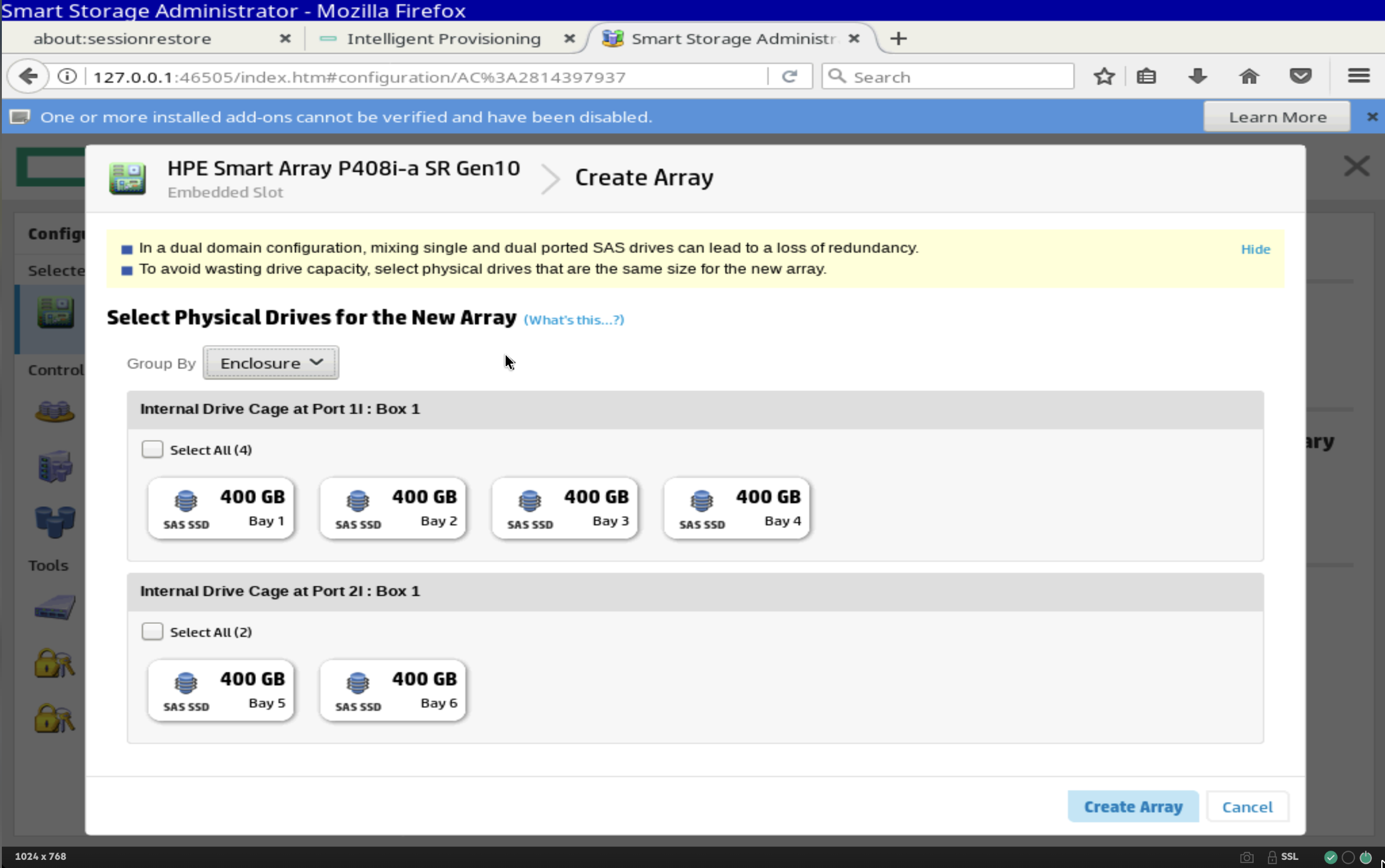
Configure > Create Array on a P408i-a SR Gen10, used here only to read the drive inventory. This screen lists physical drives that do not belong to a logical drive, so every bay appearing here is unassigned. Six 400 GB SAS SSDs are present, four on Internal Drive Cage at Port 1I : Box 1 and two on Port 2I : Box 1. Required state: every drive physically installed in the chassis appears in this list. A populated bay that is missing here still belongs to a logical drive, so repeat Step 1. Select Cancel when the count matches. Creating an array here would undo Step 1.
Step 3: set Controller Mode to HBA
Return to the controller configuration pane, select Configure, then Modify Controller Settings.
Change Controller Mode from
RAIDtoHBA.Select Apply. SSA prompts for a restart.
Exit SSA and reboot the host.
On the UEFI route the same setting is at F9 > System Configuration > the
controller > Configure Controller Settings > Modify Controller Settings >
Controller Mode > HBA, saved with F12.
Mixed Mode is not HBA Mode
A P-series controller can hold logical drives and unassigned drives at the same
time, a global state HPE calls Mixed Mode. The unassigned drives are visible
to the operating system and look passed through, but the controller remains in the
data path for the array it still owns. Karios requires the controller out of the
data path entirely, so the global Controller Mode must read HBA.
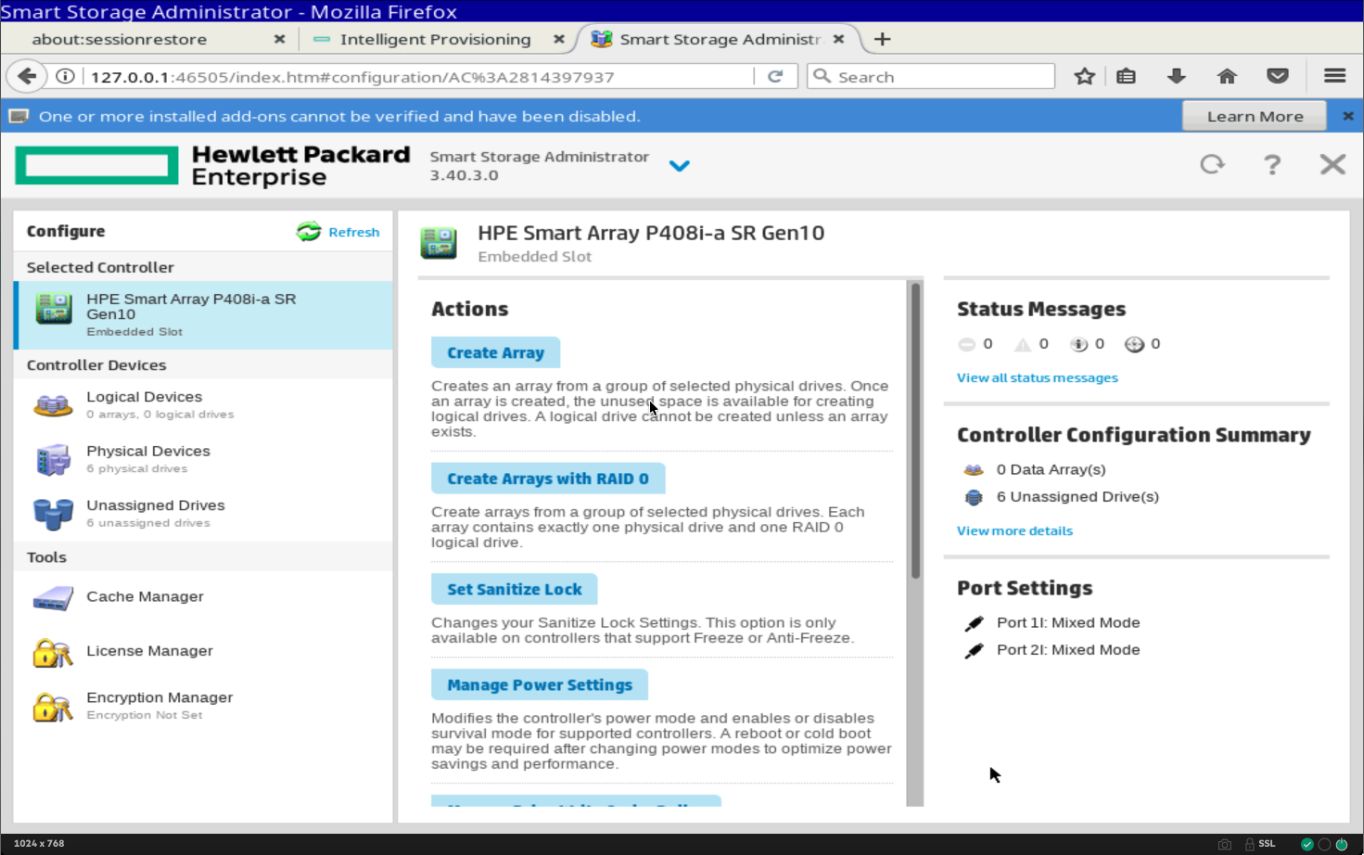
HPE Smart Storage Administrator 3.40.3.0, controller main page for a Smart
Array P408i-a SR Gen10. Everything on this page looks correct for pass-through:
Logical Devices reads 0 arrays, 0 logical drives, Unassigned Drives reads
6 unassigned drives, and the Controller Configuration Summary confirms
0 Data Array(s) and 6 Unassigned Drive(s). It is not sufficient. Under
Port Settings, Port 1I and Port 2I both report Mixed Mode, which is
the global controller state, and the drives are unassigned while the controller
itself is still in RAID. Required state: Controller Mode = HBA, a value
this page never displays. Confirm it on Configure > Modify Controller
Settings, and if it reads RAID there, apply Step 3.
Step 4: verify from the operating system
Once the host has booted, query the block layer:
lsblk -d -o NAME,SIZE,MODEL,SERIAL
Pass-through succeeded. Each row carries a real HPE model string and a distinct drive serial:
NAME   SIZE  MODEL           SERIAL
sda    1.8T  VK001920GWTTE   2XG4Y7R1
sdb    1.8T  VK001920GWTTE   2XG4Y7R8
Pass-through failed. The controller is still presenting a logical volume, and the individual drives are hidden behind it:
NAME   SIZE  MODEL               SERIAL
sda    3.6T  HPE LOGICAL VOLUME  600508b1001c...
A model string of HPE LOGICAL VOLUME means Step 3 has not taken effect. Repeat
it and reboot. The same string appears on Gen9 under hpsa.
Firmware
Target controller firmware v7.43 or v8.00 and later for production. Check it in iLO 5 under System Information > Firmware > Storage Controllers > HPE Smart Array P408i-a SR Gen10, and update from the Service Pack for ProLiant before installing Karios rather than after.
Adding a drive to a running node
In HBA mode the controller presents a newly inserted drive to the backplane immediately, but the Linux kernel does not always rescan on its own. Rather than rebooting a node that is carrying Ceph or ZFS data, force the rescan:
echo "1" > /sys/class/scsi_host/host0/rescan
Replace host0 with the SCSI host that maps to the controller. List the
candidates with ls /sys/class/scsi_host/.
Gen11 and iLO 6
The Intelligent Provisioning workflow above is the same on Gen11 under iLO 6. Gen11 adds the SR932i-p and SR416i-a Gen10 Plus and Gen11 controllers, which use a refreshed interface layout, so the labels move but the sequence does not.
Gen11 also ships MR controllers, covered next, which are a different product family entirely.
Gen11 MR series, which does not pass drives through by default
The section above covers the Gen10 SR family. Gen11 also ships MR controllers, which are Broadcom MegaRAID and behave nothing alike.
HPE states it plainly: “For HPE MR200 controllers, by default it is set to JBOD”, but “For HPE MR400 controllers, by default it is set to None”, and “If Auto-Config is set to None, the new drive status stays in Unconfigured Good”.
A factory MR416i does not pass drives through at all, and there is no HBA mode to click. Set it explicitly:
F9> System Configuration > HPE MR416i Gen11 > Configuration Management > Clear Configuration.Controller Management > Advanced Controller Management > Manage Personality Mode, set Auto-Configure Behavior to
JBOD.Convert each drive to JBOD.
Danger
This is the card that failed in the field: HBA mode did not take, RAID virtual
disks ended up under ZFS, IO stalled and Ceph froze, while an identical node
with true pass-through stayed healthy. Prove it with lsblk -dD.
Warning
Workload profiles LowLatency, HighPerformanceCompute and
GraphicProcessing force ProcVirtualization and IntelProcVtd to
Disabled and read-only, disabling the virtualization Karios requires. Use
GeneralPowerEfficientCompute.
BMC licence required
None
Cisco IMC is included with every UCS C-Series rack server at no additional charge. No licence tier, feature key or add-on gates vKVM, virtual media, Redfish or IPMI.
Nothing to check. Confirm instead that the server is in standalone Cisco IMC mode.
Warning
The mode matters instead. A server in Intersight Managed Mode, or attached to Fabric Interconnects, cannot be driven by Karios. That is decided at order time or at first power-on.
Getting to the configuration utility
Cisco is the only manufacturer here where this can be done entirely out of band, with no reboot and no console trip. Log in to the CIMC web interface and go to Storage > Controllers.
Note
On M7 the menu moved. It is Apps > Storage > Controllers.
If you do want the BIOS instead, press F2 at POST for setup, or F6 for the
one-time boot menu.
Verified on UCSC-C240-M5 with Cisco 12G Modular RAID Controller (4 GB cache,
max 26 drives), firmware 07.23.03.00 / package 51.23.0-5009.
Important
This procedure is different from Dell’s in three ways that matter. Read them before starting; applying the Dell steps here will fail.
Dell PERC H740P |
Cisco 12G Modular |
|---|---|
|
|
One screen holds mode and behaviour together |
Mode display and behaviour setting are on different screens |
Reached by |
Reached by |
How to get there.
Power on and press
F2to enter the Aptio Setup Utility.Press right-arrow to the
Advancedtab.Scroll to the bottom entry:
AVAGO <Cisco 12G Modular Raid Controller with 4GB cache (max 26 drives)> Configuration Utility - 07.23.03.00.Enter, then Dashboard View > Main Menu.
Note
If that entry is absent, the server is in legacy boot mode. Reboot and press
Ctrl+R at the controller banner instead; same controller, older
key-driven interface.
Step 1: Read the current state.
Navigate: Main Menu > Controller Management. Read three fields:
Controller Status(typicallyNeeds Attention).Personality Mode(RAID, read-only).Select Boot Device.
Personality Mode is read-only. Pressing Enter on it does nothing. The help
pane confirms: “Displays the current personality mode”. Compare Dell’s Manage
Controller Mode screen, where the help reads “Selects behavior mode”; that verb
is a reliable test for whether any field in these utilities is editable.
Check Select Boot Device before going further. If it names a virtual drive,
an OS lives on it and the next step destroys it.
Step 2: Clear the configuration.
Navigate: Main Menu > Configuration Management > Clear Configuration. A warning appears:
“Clear Configuration will delete all of the Virtual Drives, Hot Spare Drives, Pinned Cache and JBODs (if applicable) attached to this controller.”
It uses a two-step guard:
Set
Confirmfrom[Disabled]toEnabled.Then select
Yes.
Yes has no effect while Confirm reads Disabled, and the utility gives
no feedback to say why. Set Confirm first.
Step 3: Set the auto-configure behaviour.
Navigate: Main Menu > Controller Management > Advanced Controller Management > Manage Personality Mode.
That page holds three items:
Personality Mode [RAID]- read-only, ignore.Auto-Configure Behavior [None]- this is the one.Apply Changes.
Set Auto-Configure Behavior to JBOD, then select Apply Changes.
Warning
If the options include Auto-configure RAID 0, do not pick it. That is the
single-disk-RAID-0 trap: the controller stays in the data path, writes RAID
metadata to each drive, and hides SMART.
Warning
Set Factory Defaults sits directly above Manage Personality Mode in the
Advanced Controller Management list. Selecting it resets the controller and
discards the work done in the previous steps.
Step 4: Convert any remaining drives.
Navigate: Main Menu > Drive Management. Select a drive, then Operations > Make JBOD > Go.
Auto-Configure only acts on unconfigured drives, so anything left over from
before Step 2 may need this. Every data drive should end at state JBOD.
Drive state |
Meaning |
|---|---|
|
Passed through to the OS. |
|
Released from RAID but not passed through. Still needs |
|
Still in a virtual drive. |
|
Carries another controller’s config. Clear foreign config first. |
Step 5: Save.
Esc back to the BIOS, press F10 and choose Save & Reset System.
Verify.
After reboot, run:
lsblk -d -o NAME,SIZE,MODEL,SERIAL
Count the drives. Real model and serial per row. If any drive is missing, find that now rather than mid-install.
The out-of-band route, step by step
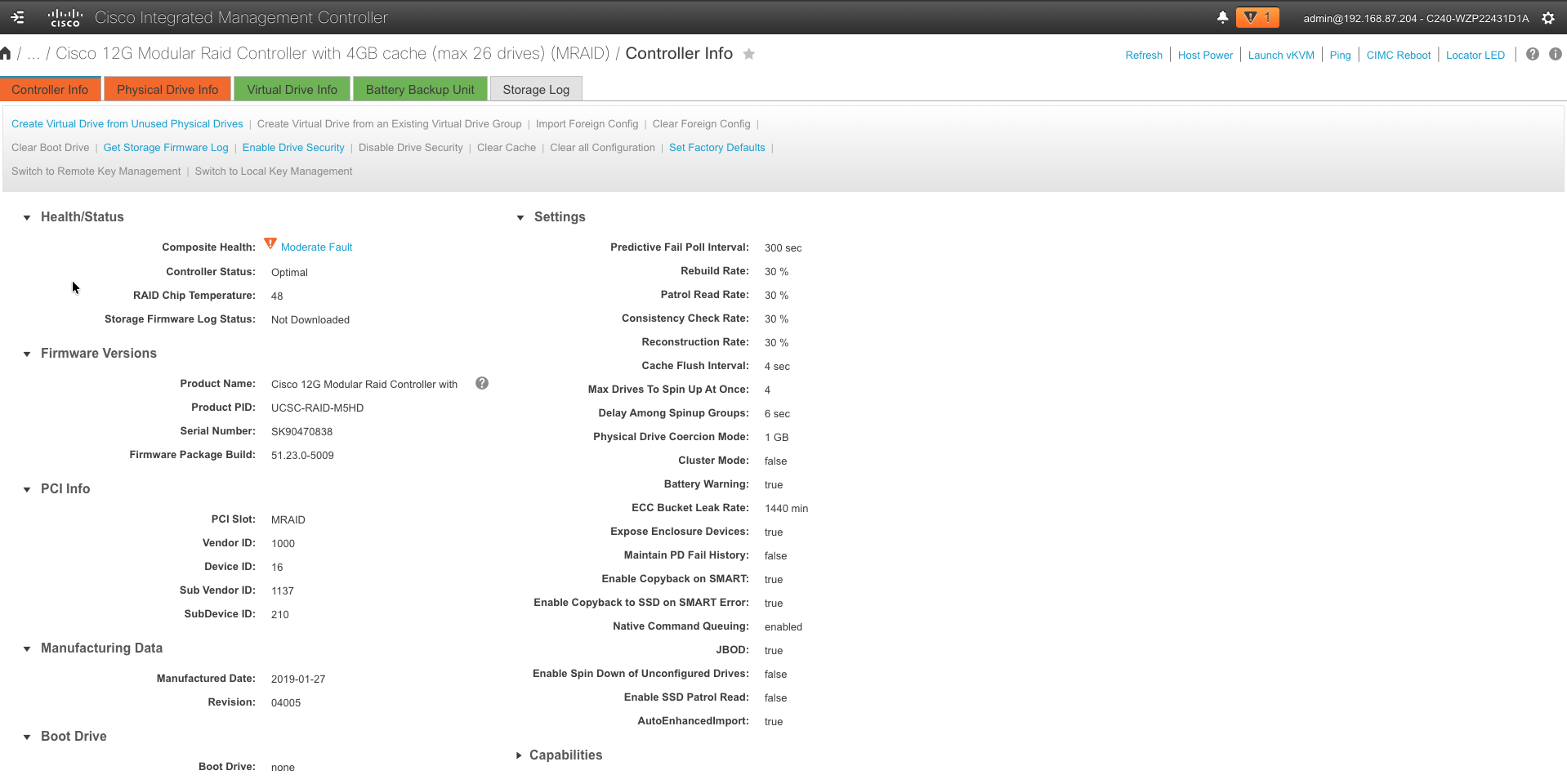
CIMC > Storage > the MRAID controller > Controller Info, reached without
rebooting the server. Product PID identifies the exact part, here
UCSC-RAID-M5HD, which is the string to match against a Cisco quote or
against the generation table further down this tab. Under Settings on the
right, JBOD reports whether the controller will export drives at all; it
reads true on this machine. Required state: JBOD: true. Where it reads
false, apply Actions > Enable JBOD before converting any drive, since
the per-drive action is unavailable until the controller permits it.
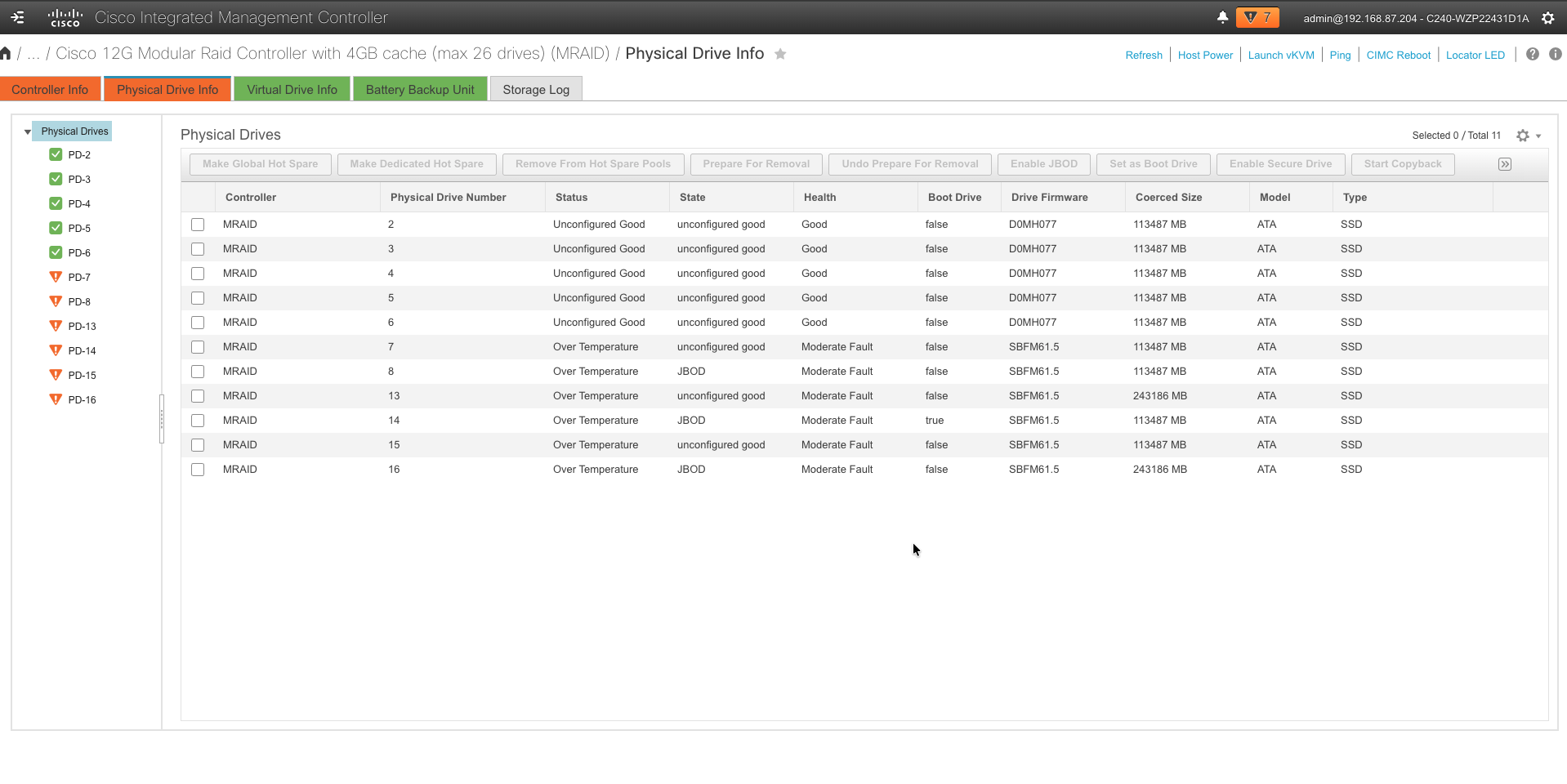
Physical Drive Info on the same controller, listing per-drive state. The
controller already reports JBOD: true, yet the State column is mixed:
some drives read JBOD and others read unconfigured good. Only the drives
in JBOD state are exported to the operating system; unconfigured good
means the drive is free of any virtual drive but is not yet passed through.
Required state: JBOD on every drive. Select the remaining drives and apply
Enable JBOD from the button row above the table.
Select the LSI MegaRAID controller, then the Controller Info tab.
Actions > Enable JBOD, and confirm.
If the drives carry another controller’s configuration, Actions > Clear Foreign Config first.
Go to Physical Drive Info. For each drive, open the three-dot menu, choose Set State as Unconfigured Good if it is Online, then Set State as JBOD.
Other Cisco generations
|
RAID |
JBOD, controller then per drive |
|---|---|---|
|
pure HBA |
nothing to set |
|
RAID |
JBOD |
|
pure HBA |
nothing to set |
|
pure HBA |
nothing to set |
|
boot carrier |
JBOD, also the factory default |
Tip
Specify a UCSC-SAS- part rather than a UCSC-RAID- part in the same
chassis slot and this whole procedure disappears.
Warning
Firmware images are model-exact. A C240 M5L is not a C240 M5, and a C220 HUU will not upgrade a C240.
BMC licence required
XCC Enterprise, XCC2 Platinum, or XCC3 Premier
The tier depends on the controller generation. XCC1 (ThinkSystem Gen1 to Gen3)
needs Enterprise. XCC2 (V3) needs Platinum, FoD part 7S0X000KWW.
XCC3 (V4) needs Premier, 7S0X000XWW.
Check with GET /redfish/v1/Managers/1/Oem/Lenovo/FoD/Keys, the XCC UI under BMC Configuration > License, or keycfg over SSH.
Warning
Standard is never sufficient, and on XCC1 Advanced is not sufficient either. The XCC1 upgrade route also splits between a direct upgrade and a two-step pair depending on machine type, so the wrong route produces an unbuildable order.
Getting to the configuration utility
Power on and press F1 at the Lenovo splash screen to enter UEFI Setup. On
newer machines this opens XClarity Provisioning Manager, from which you choose
UEFI Setup. Then go to System Settings > Storage and select the adapter.
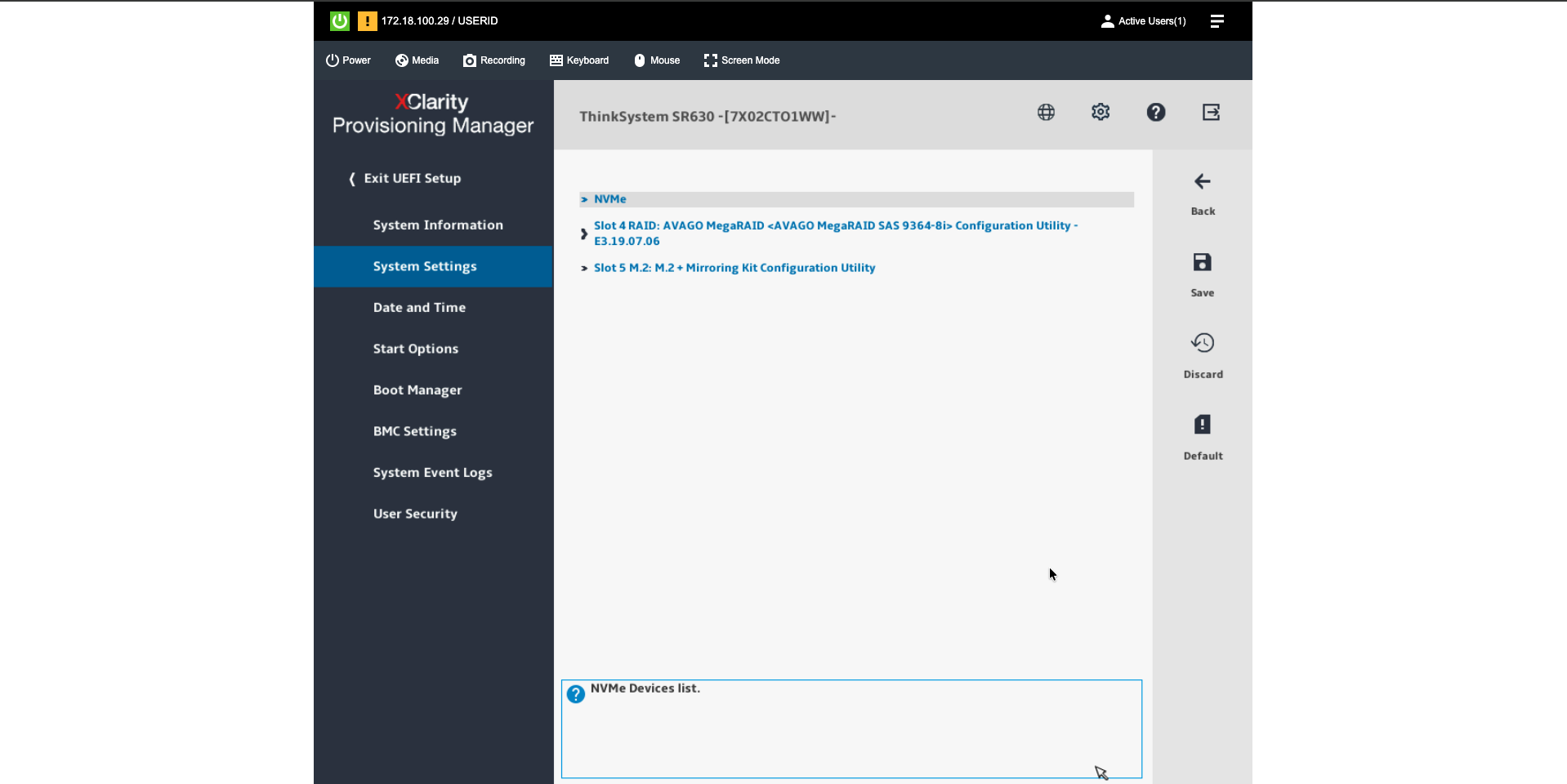
UEFI Setup on a ThinkSystem SR630, System Settings > Storage, which lists every storage adapter the machine can see. This node carries two: an AVAGO MegaRAID SAS 9364-8i in slot 4 and a ThinkSystem M.2 with Mirroring Enablement Kit in slot 5. Each is configured separately, and the two belong to different controller families with different mode names and different tools, so identify both from this screen before opening either utility.
Work out which family the card belongs to
Lenovo is the only manufacturer in this section that ships two controller families with different mode names and different configuration tools. The setting that works on one family does not exist on the other, so identify the family from the adapter name before opening any utility.
Family |
Parts |
Driver |
Mode name |
Tool |
|---|---|---|---|---|
Broadcom MegaRAID |
530, 540, 545, 730, 930, 940, and the AVAGO |
|
JBOD |
|
Microchip Adaptec |
5350, 9350 |
|
HBA mode |
|
Parts with no RAID mode to disable, and therefore nothing to configure:
430-8i, 430-16i, 440-8i, 440-16i, 4350-8i. The 440 series is
the part to quote on a new order.
Broadcom MegaRAID cards, set JBOD
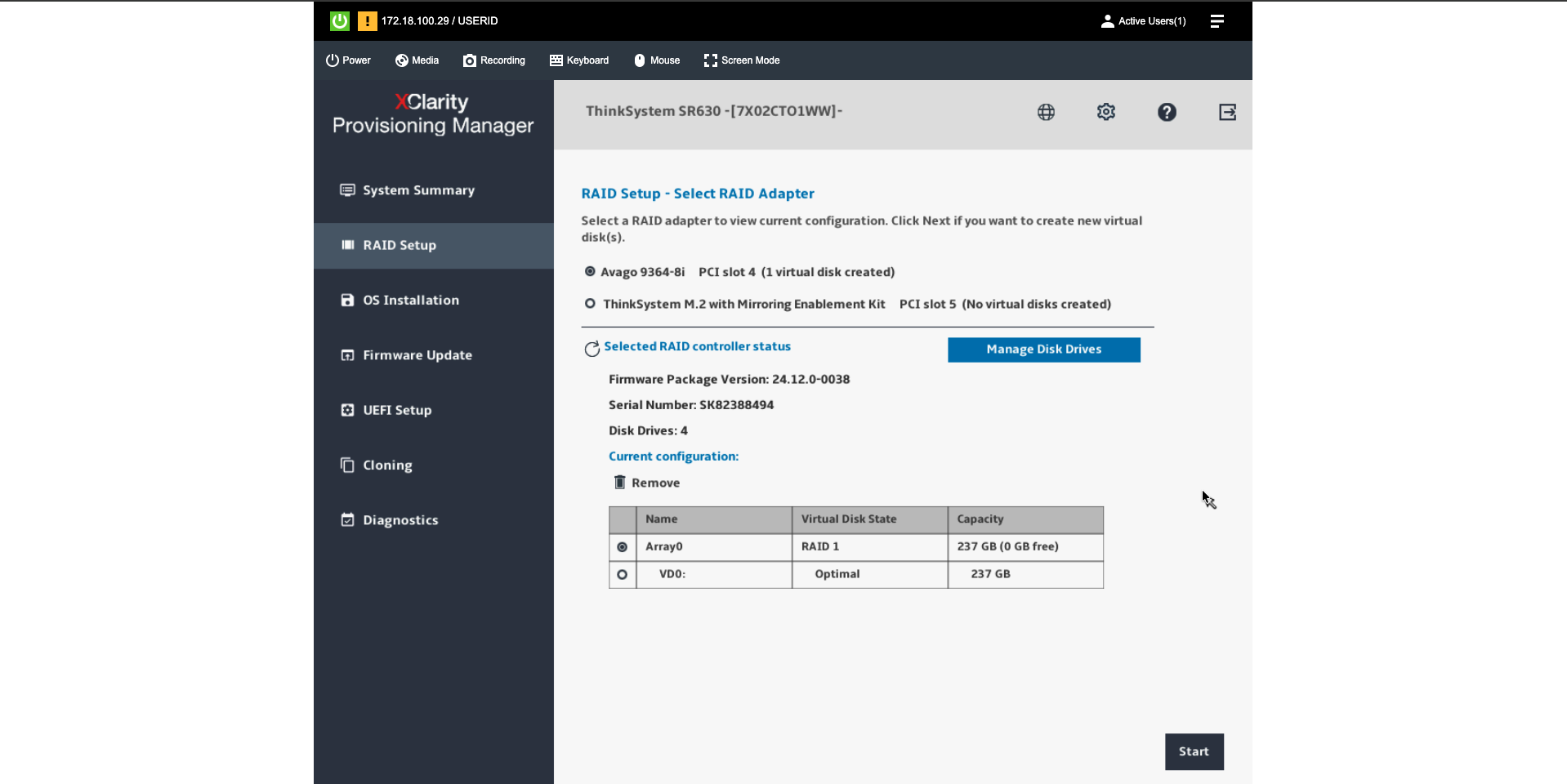
RAID Setup > Select RAID Adapter, which lists every adapter with its current
virtual-disk count. The AVAGO MegaRAID SAS 9364-8i in slot 4 reports 1
virtual disk created, and the configuration table below it resolves that to
Array0, a RAID 1 of 237 GB. The M.2 Mirroring Kit in slot 5 reports
No virtual disks created. Required state: No virtual disks created on
every adapter, because a controller will not release drives that belong to an
array. Where an adapter reports one or more virtual disks, delete them through
Configuration Management > Clear Configuration before continuing.
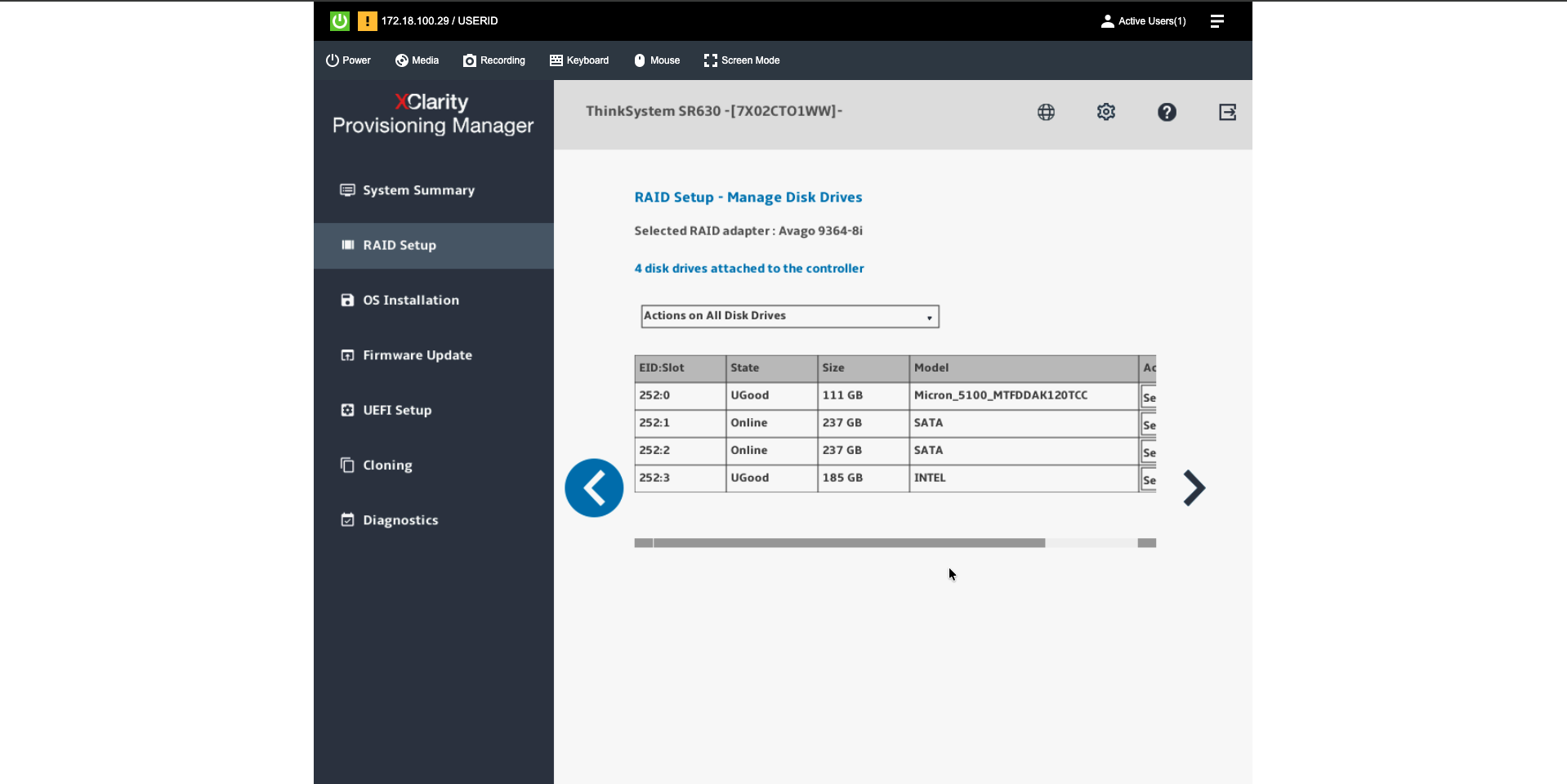
Manage Disk Drives on the same adapter, showing per-drive state. Two drives
read Online, which means they are members of the Array0 RAID 1 above,
and two read UGood (Unconfigured Good), which means they are free of any
array but not yet exported. Required state: JBOD on every drive Karios will
use. Enabling JBOD Mode on the controller changes the controller’s default for
drives inserted afterwards; it does not convert drives already installed, so
each one is converted individually in the steps below.
Controller Management > Advanced Controller Properties > JBOD Mode >
Enabled.Configuration Management > Clear Configuration, which destroys all virtual disks.
Drive Management, each drive, Unconfigured Good then Make JBOD.
storcli64 /c0/v delete
storcli64 /c0 set jbod=on
storcli64 /c0/eall/sall set good
storcli64 /c0/eall/sall set jbod
Microchip Adaptec cards, set HBA mode
Controller Management > Modify Controller Settings > Configure Controller
Mode set to HBA Mode, after deleting any logical drives. The Linux tool here
is arcconf, not storcli.
Warning
Mixed Mode is not HBA mode. On the 9350 series Mixed Mode allows RAID and HBA devices simultaneously, so unassigned drives look passed through while the controller stays in the data path. Same trap as the HPE Smart Array P-series.
Verify from Linux
lsblk -d -o NAME,SIZE,MODEL,SERIAL,WWN
lsblk -dD -o NAME,DISC-MAX
No drive may show a naa.600605b WWN prefix, and none may read MegaRAID,
ServeRAID or LOGICAL VOLUME.
Boot device
Danger
The Karios installer’s boot-mirror exemption is a literal match on BOSS
and NS204 only. Lenovo M.2 RAID parts get no exemption. Set the M.2
adapter to JBOD, not RAID 1, and let ZFS mirror the pair. The M.2 with
Mirroring Enablement Kit ships defaulted to RAID 1, so an untouched kit
arrives in the wrong state.
Tip
The cleanest Lenovo node for Karios is an SR630 V3 or V4 with an M.2 2-Bay kit in JBOD and no SAS or RAID controller at all.
7. Before You Begin
Confirm the following before starting the installation:
Hardware meets baseline requirements
Installation media is ready
The Karios platform image (
.qcow2, approximately 5 GB) is downloaded onto a second machine that can reach the node over the management networkThat second machine has a browser available - the install pauses partway through and waits for the image to be delivered from it
Management network is reachable
You have console access to target hardware
8. Platform User Flow
This is a suggested flow to help you get started. You are free to follow your own order based on your deployment needs. The actual flow will vary depending on your objective.
After installation, review the Control Center Dashboard and Infrastructure to confirm the environment is healthy, then go to User Management to create users and assign roles before proceeding further.
If you have purchased a license, go to User Management → License to review the license overview and complete the activation flow before creating users. See 10. License.
For example, if your immediate objective is to launch a VM, you can go directly to Compute – Virtual Machines after reviewing Infrastructure. The flow is entirely driven by your objective.
ISO Install (9-step wizard)
→ Control Center Dashboard
→ K-Store  (Platform updates → Plugins)
→ Infrastructure  (Zone → Pods → Clusters → Hosts)
→ User Management  (License activation → Create users and assign roles)
→ K-Forge  (Add Host → Reveal → Configure)
→ Network
→ Storage
→ Compute – Virtual Machines  (Create VM → Manage VM)
→ Nodes  (Review / Add Hosts)
→ Compute Policies
→ Observability
→ K-Shield  (Security)
→ K-Trace  (Security Operations)
→ Kubernetes
→ Karios DFS
→ Release Management  |  Settings
7.1. Section Links
Infrastructure (Zone → Pods → Clusters → Hosts)
User Management (Create users and assign roles)
K-Forge (Add Host → Reveal → Configure)
Compute – Virtual Machines (Create VM → Manage VM)
Nodes (Review / Add Hosts)
Release Management | Settings
9. Karios DFS Entry Point
Use the Karios DFS section when you begin storage-cluster operations.
Recommended DFS entry order:
Karios DFS Overview (roles, dependency chain, dashboard health check)
Storage (Pools, File System, NFS Shares)
Block Storage (Block Images; iSCSI and Mirroring are in beta)
Object Storage (Users, Gateway, Buckets)
Infrastructure, Monitoring, and Advanced as needed
Note
In Karios DFS terminology, use NFS Shares for the Storage NFS page and
Manager Modules for Advanced > Extensions.
10. Getting Help & Support
If you are blocked, use one of these paths:
Email:
support@karios.comPortal: Karios Support
Include in every request:
Exact error text
Timestamp
Doc section and step
Current impact
Note
Full support workflow and ticketing details are documented in Karios Support.
11. Success Checkpoint
After completing Getting Started, you should be able to:
Explain the first-time onboarding path
Identify minimum hardware and network prerequisites
Choose the correct support escalation path and required evidence
Proceed directly to ISO installation with clear expectations