Boot Images
Use this page to register or upload boot image media for install workflows.
Quick User Steps
When to Use:
Use this page when you need installation media for VM bootstrap workflows.
Purpose:
Confirm Boot Images are ready and available in the target zone for provisioning.
Steps:
Open
Control Center -> Storage -> Boot Images.Register or upload one Boot Image.
Verify state transitions to
Ready.Use the image in
Compute -> Virtual Machinescreate flow.
Expected Outcome:
At least one boot image is
Readyand selectable for VM install workflows.
If this fails:
Confirm Boot Image source URL or uploaded file is valid and reachable.
Verify architecture, OS type, and zone values match the target VM plan.
Review related events in Observability.
Boot Images
UI path: Control Center -> Storage -> Boot Images
Purpose
The Boot Images Dashboard provides a centralized view of all Boot Images available in Control Center. Use it to browse bootable installation media, manage Boot Image availability, and provision new virtual machines.
When to Use Boot Images
Use this module when you need to:
Publish or validate OS installation media.
Confirm architecture and zone compatibility before VM provisioning.
Manage visibility and bootable flags for shared media catalogs.
Overview
Boot Images are installation or utility media used during VM bootstrap and recovery workflows. The dashboard tracks readiness, visibility, architecture compatibility, and zone availability.
Boot Images Table
Column |
Description |
|---|---|
|
Unique identifier or name of the Boot Image. Click to view details. |
|
Processor architecture (for example |
|
Operating system type associated with the Boot Image. |
|
Current state (for example |
|
Access level ( |
|
Whether the Boot Image can boot/install an OS ( |
|
Boot Image file size. |
|
Zone where the Boot Image is available. Can show |
|
Delete action for removing Boot Images. |
Boot Image Status Indicators
Status Badges
Status |
Meaning |
|---|---|
|
Fully downloaded and available for use. |
|
Boot Image is currently being downloaded from source. |
|
Download or preparation failed; image cannot be used. |
|
Boot Image has been allocated but is not yet ready. |
Visibility Badges
Visibility |
Meaning |
|---|---|
|
Accessible to all users in Control Center. |
|
Restricted to owner/account scope. |
Bootable Badges
Bootable |
Meaning |
|---|---|
|
Bootable media for OS install/boot workflows. |
|
Not intended for VM boot; used for data/tools payloads. |
Boot Image Types
Operating System Boot Images
Pre-built bootable images for OS installation:
Windows Server installation media.
Linux distribution installation media.
Virtio/tools media for guest integration and driver support.
Use cases:
Install Windows Server variants on new VMs.
Bootstrap Linux VMs with selected distribution media.
Install guest integration tools for better VM performance and management.
Tool and Utility Boot Images
Specialized utility images for operations and platform tooling:
vmware-tools.isoxs-tools.isoKubernetes/CaaS utility images
Use cases:
Install guest tools and utilities.
Distribute system diagnostics/support media.
Support platform tooling and VM bootstrap workflows.
Quick Actions
Use the trash icon in Actions to delete a Boot Image.
Warning
Deleting a Public Boot Image can impact all users that depend on it. Verify dependencies before confirming deletion.
Creating and Uploading Boot Images
Use + Add Boot Image (top-right) to publish new Boot Images.
Typical fields include:
Boot Image name
File selection (upload)
OS type
Architecture
Visibility
Zone
Bootable flag
Size and Performance Considerations
Size range |
Typical use |
Transfer profile |
Characteristics |
|---|---|---|---|
|
Minimal/live images |
Quick |
Minimal OS footprint and limited functionality. |
|
Standard OS images |
Moderate |
Full OS with common tools. |
|
Feature-rich OS images |
Slow |
OS with broader package/tool coverage. |
|
Specialized images |
Very slow |
Complex stacks and large preloaded payloads. |
Boot Image Management Tips
Ensure Boot Images exist in the zone where VMs will be provisioned.
Use descriptive naming with OS, version, and architecture.
Keep sensitive/internal media
Private; publish only approved standard media.Set
Bootable = Yesonly for valid boot/install media.Remove unused large Boot Images to reclaim storage.
Track versioned media explicitly in naming for clarity.
Check visibility settings regularly to maintain access control alignment.
Step: Review Boot Images Dashboard
When to Use:
Use this when performing Review Boot Images Dashboard in the active storage workflow.
Purpose:
Execute Review Boot Images Dashboard and confirm the expected UI/state outcome for this storage resource.
Steps:
Open
Control Center -> Storage -> Boot Images.Use search and filters for status/visibility/storage.
Review table rows and verify
StatusandBootablevalues.
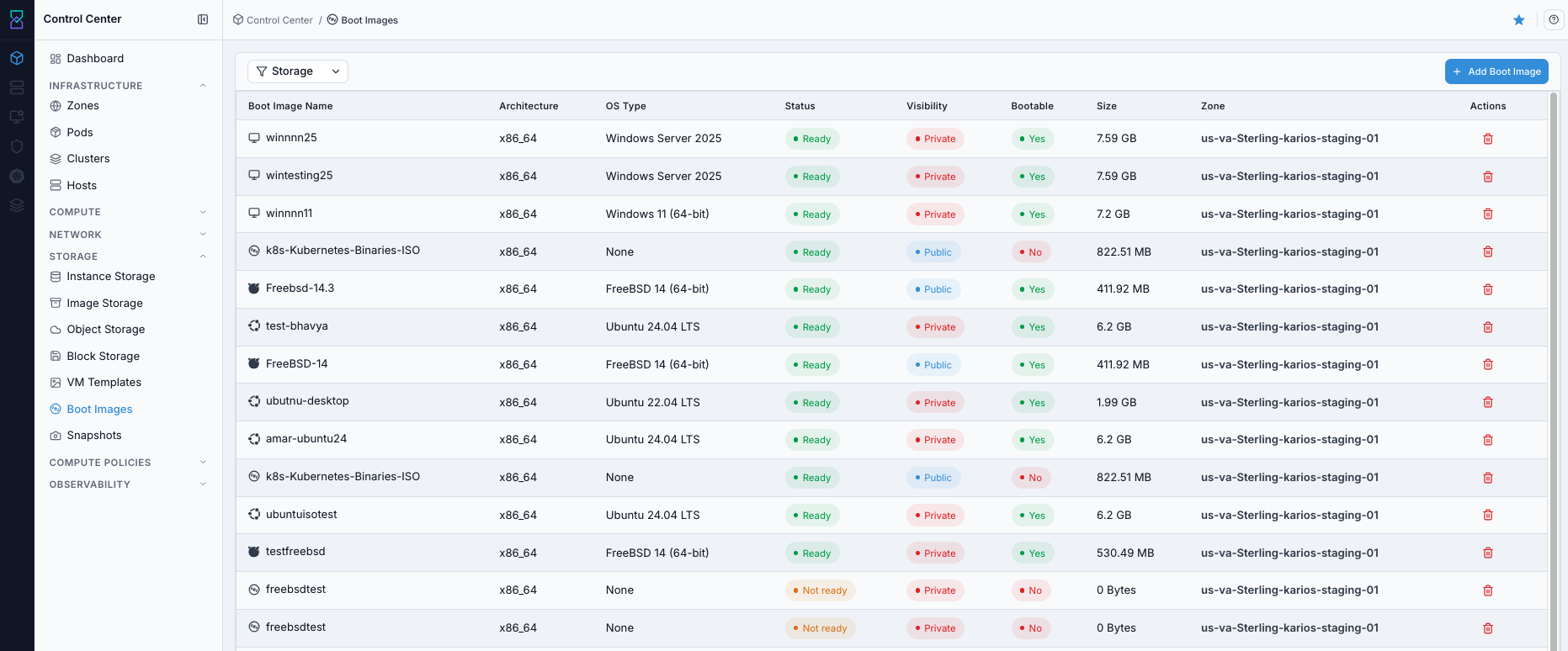
Boot Images dashboard.
Expected Outcome:
Boot Images dashboard loads with rows, status, and bootable metadata visible.
If this fails:
Verify backend health and available capacity for the target storage resource (pool/store/endpoint and zone scope).
Check blocking dependencies for this action (attachments, snapshots, templates, buckets, object locks, or maintenance state).
Review Observability Events/Alerts for the storage object and retry only after resolving the root cause.
Step: Open Boot Images Help Panel
When to Use: Use this after opening Boot Images when you need definitions for page fields and actions.
Purpose: Open contextual help separately from dashboard review and media operations.
Steps:
Open
Control Center -> Storage -> Boot Images.Click the help icon in the top-right corner.
Review help guidance for Boot Images fields and controls.
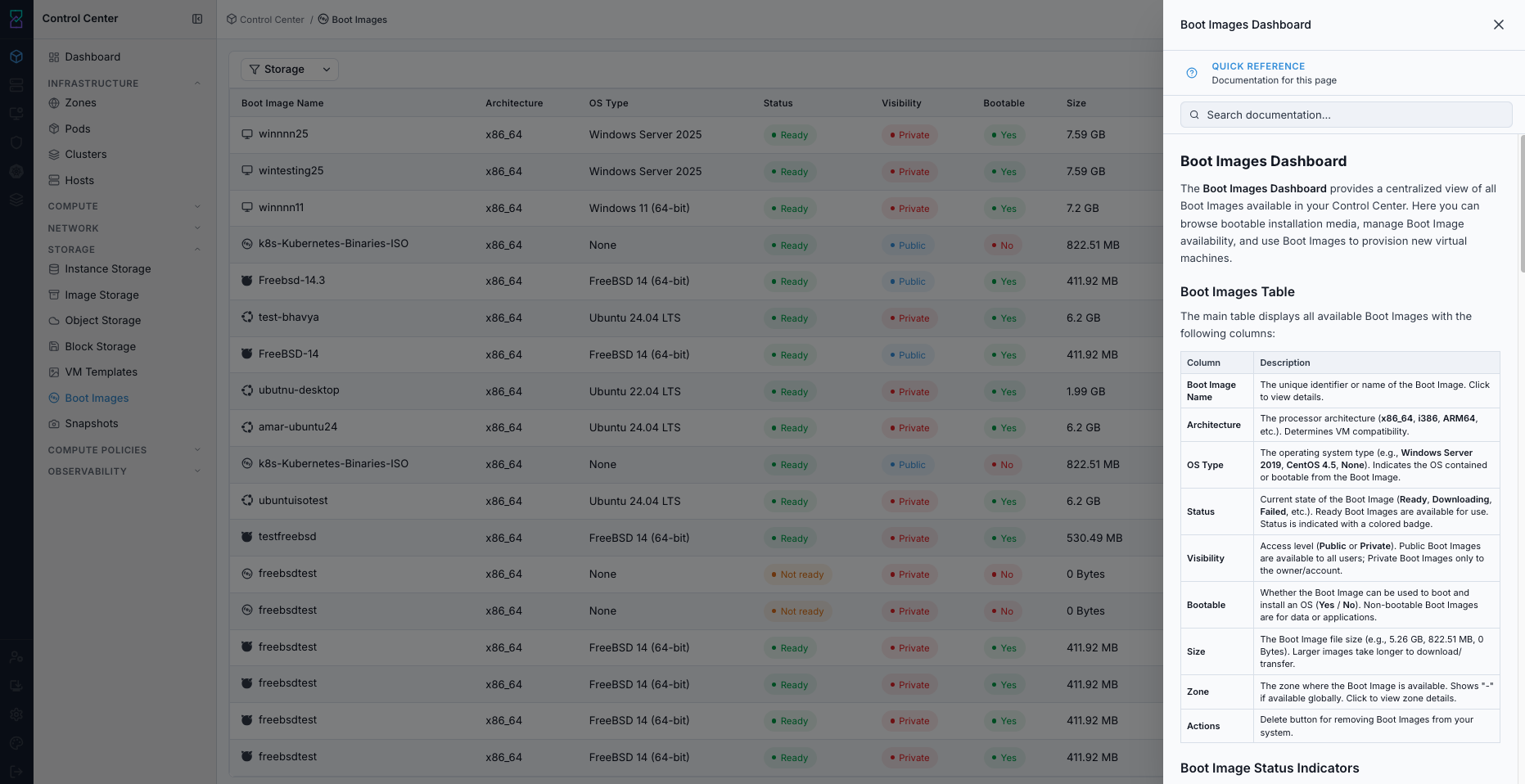
Boot Images help panel.
Expected Outcome:
The Boot Images help panel opens with page-specific guidance.
If this fails:
Verify backend health and available capacity for the target storage resource (pool/store/endpoint and zone scope).
Check blocking dependencies for this action (attachments, snapshots, templates, buckets, object locks, or maintenance state).
Review Observability Events/Alerts for the storage object and retry only after resolving the root cause.
Step: Register Boot Image from URL
When to Use:
Use this when performing Register Boot Image from URL in the active storage workflow.
Purpose:
Execute Register Boot Image from URL and confirm the expected UI/state outcome for this storage resource.
Steps:
Click
+ Add Boot Image.In
Register Boot Imagetab, fill required fields:
Name
URL
Zone
OS Type
Configure toggles as needed:
Bootable
Public
Featured
Click
Register.
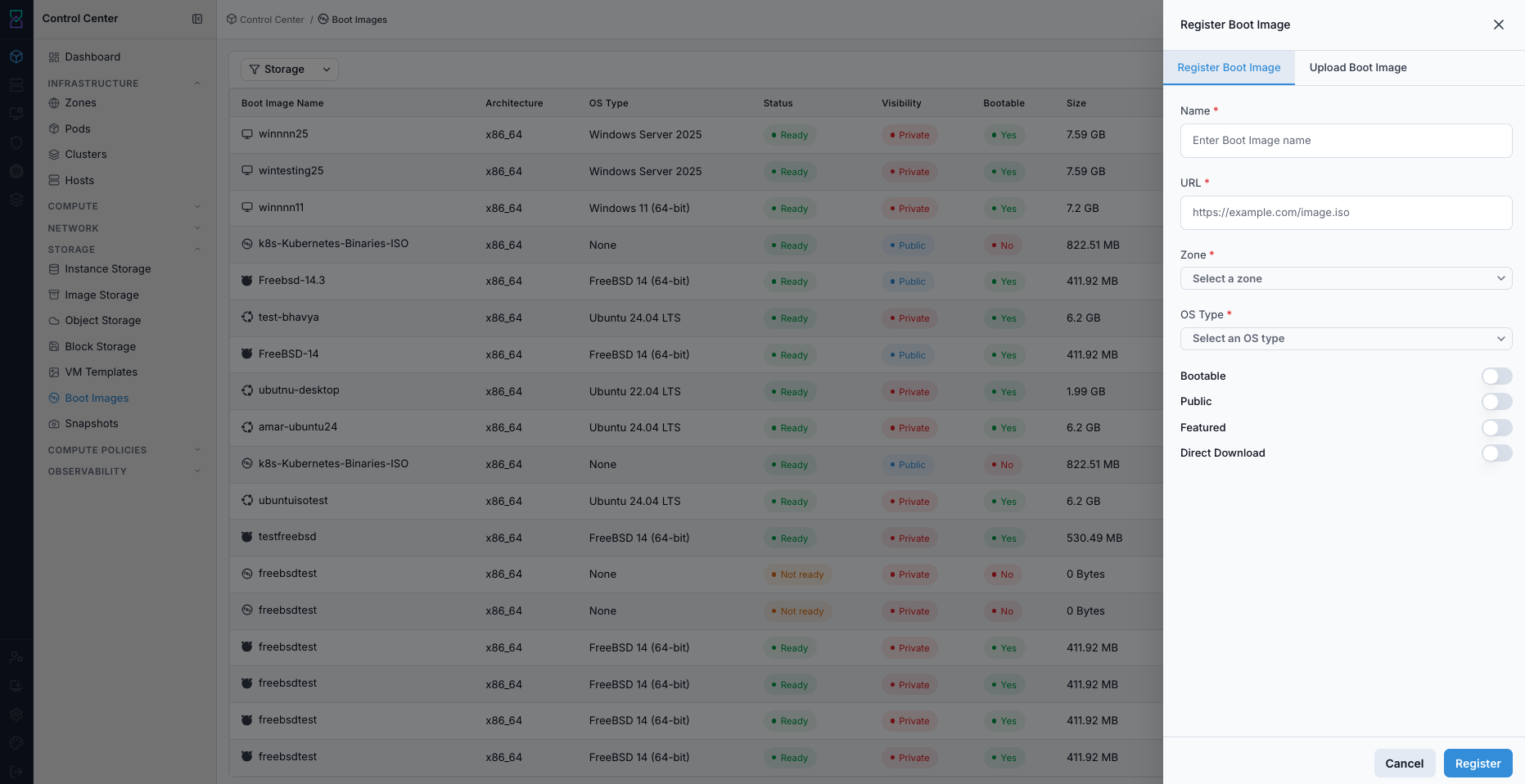
Register Boot Image form.
Expected Outcome:
Boot-image row is created with selected zone/OS metadata.
Boot image transitions to a usable state after fetch/import processing.
If this fails:
Verify backend health and available capacity for the target storage resource (pool/store/endpoint and zone scope).
Check blocking dependencies for this action (attachments, snapshots, templates, buckets, object locks, or maintenance state).
Review Observability Events/Alerts for the storage object and retry only after resolving the root cause.
Step: Upload Boot Image File
When to Use:
Use this when performing Upload Boot Image File in the active storage workflow.
Purpose:
Execute Upload Boot Image File and confirm the expected UI/state outcome for this storage resource.
Steps:
In the same panel, switch to
Upload Boot Imagetab.Select the boot-image file.
Fill required fields:
Name
Architecture
Zone
OS Type
Optional: set
Bootabletoggle.Click
Upload.
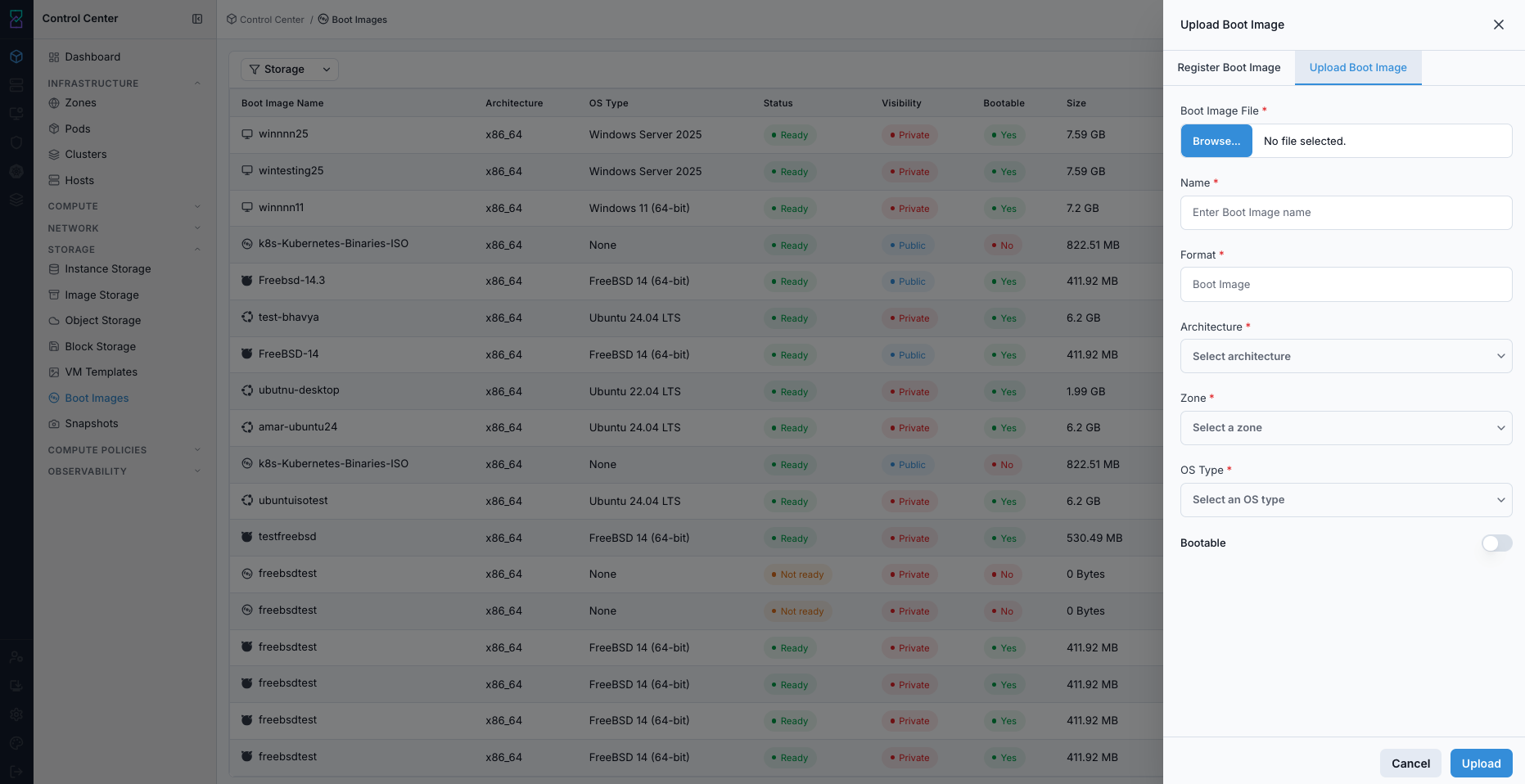
Upload Boot Image form.
Expected Outcome:
Uploaded boot image is cataloged in the list with provided metadata.
Boot image becomes usable when status indicates readiness.
If this fails:
Verify backend health and available capacity for the target storage resource (pool/store/endpoint and zone scope).
Check blocking dependencies for this action (attachments, snapshots, templates, buckets, object locks, or maintenance state).
Review Observability Events/Alerts for the storage object and retry only after resolving the root cause.
Step: Delete Boot Image
When to Use:
Use this when performing Delete Boot Image in the active storage workflow.
Purpose:
Execute Delete Boot Image and confirm the expected UI/state outcome for this storage resource.
Steps:
In the Boot Images dashboard, locate the target row.
Complete Pre-Delete Safety Checklist (Use Before Any Delete).
Click the trash icon in
Actions.Confirm deletion and verify row removal.
If deleted by mistake, re-register/upload the same boot image and wait for
Ready.
Expected Outcome:
Task completes and the related storage view updates as expected.
If this fails:
Verify backend health and available capacity for the target storage resource (pool/store/endpoint and zone scope).
Check blocking dependencies for this action (attachments, snapshots, templates, buckets, object locks, or maintenance state).
Review Observability Events/Alerts for the storage object and retry only after resolving the root cause.
Tool Tips
Keep boot images private unless broad access is explicitly required.
Use consistent naming (OS, version, architecture).
Warnings
Deleting a boot image in active use is blocked until workloads use a different boot source.
Deleting a
PublicBoot Image can impact all users; coordinate before removal.Deleting a
PrivateBoot Image removes it from owner/account scope.Deleted Boot Images are not recoverable from Control Center; confirm before deletion.
Publicvisibility should be used only with approved media.
If this fails:
If a boot image remains
Not Ready, validate storage path and upload/URL source.If register action fails, verify source URL and zone mapping.
If upload action fails, re-check file integrity and selected architecture.