Instance Storage
Use this page to configure and validate runtime storage pools for VM disks.
Instance Storage
UI path: Control Center -> Storage -> Instance Storage
Purpose
Manage block storage pools used by virtual machines for disk I/O.
When to Use Instance Storage
Use this module when you need to:
Check pool capacity and health before provisioning VMs.
Register Ceph RBD or NFS pools for workload placement.
Review scope assignment (zone-wide or cluster-specific) for pool usage.
Diagnose placement or I/O issues related to pool state.
Overview
Instance storage provides the disk volumes that back every running VM. Each pool is either Ceph RBD (block) or NFS (file-based) and can be scoped to an entire zone or a single cluster.
Common pool types:
RBD: Ceph block storage.NFS: File-based storage export.
Common scope behavior:
ZONE: Pool can serve clusters across the full zone.CLUSTER: Pool is limited to one target cluster.
List View
The instance storage list shows each pool and its allocation state:
Field |
Description |
|---|---|
|
Unique identifier for the storage pool. |
|
Protocol used: |
|
Coverage level: |
|
Target cluster if scope is cluster-level. |
|
Backend endpoint address for this pool (for example the Ceph monitor host). |
|
|
|
Labels used to match storage to VM offerings (for example |
|
Current health status of the pool. |
Note
In the storage pool details page, ID is the unique identifier for that pool.
State Reference
State |
Meaning |
|---|---|
|
Healthy and available for new allocations. |
|
Unreachable; VMs can experience I/O errors. |
|
Draining in progress; no new allocations. |
Step: Review Instance Storage Dashboard
When to Use: Use this first when validating pool health and capacity before any storage action.
Purpose: Establish a baseline view of pool state, scope, protocol, and capacity.
Steps:
Open
Control Center -> Storage -> Instance Storage.Review pool rows and confirm the
Statecolumn.Check protocol, scope, cluster, IP address, and storage usage for each pool.
Confirm actions menu is available for each row.
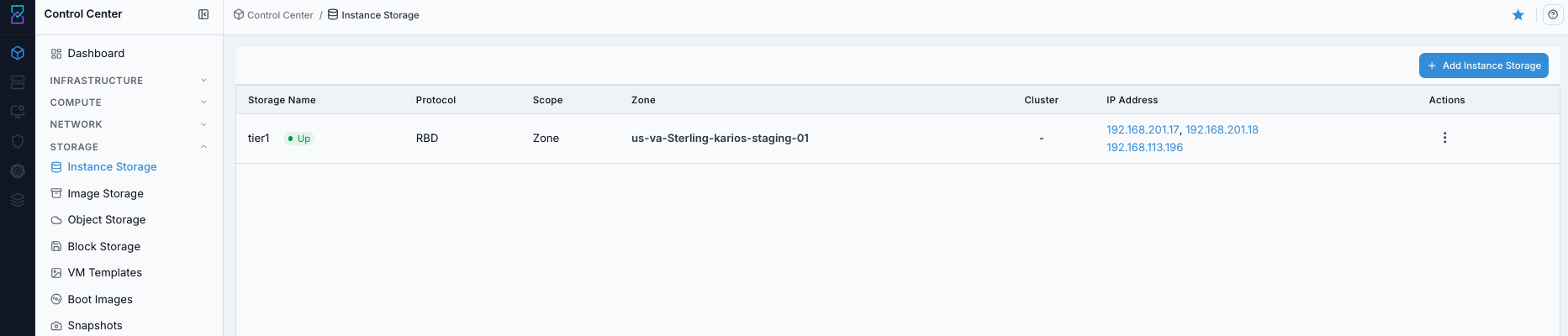
Instance Storage dashboard.
Expected Outcome:
Instance Storage dashboard opens with pool rows and actions visible.
You can identify the target pool and current health state before proceeding.
If this fails:
Verify backend health and available capacity for the target storage resource (pool/store/endpoint and zone scope).
Check blocking dependencies for this action (attachments, snapshots, templates, buckets, object locks, or maintenance state).
Review Observability Events/Alerts for the storage object and retry only after resolving the root cause.
Step: Open Instance Storage Help Panel
When to Use: Use this after opening the dashboard when you need field definitions and page guidance.
Purpose: Open contextual help without mixing help flow into the main dashboard review steps.
Steps:
Open
Control Center -> Storage -> Instance Storage.Click the help icon in the top-right corner.
Review the help panel content for dashboard fields and actions.
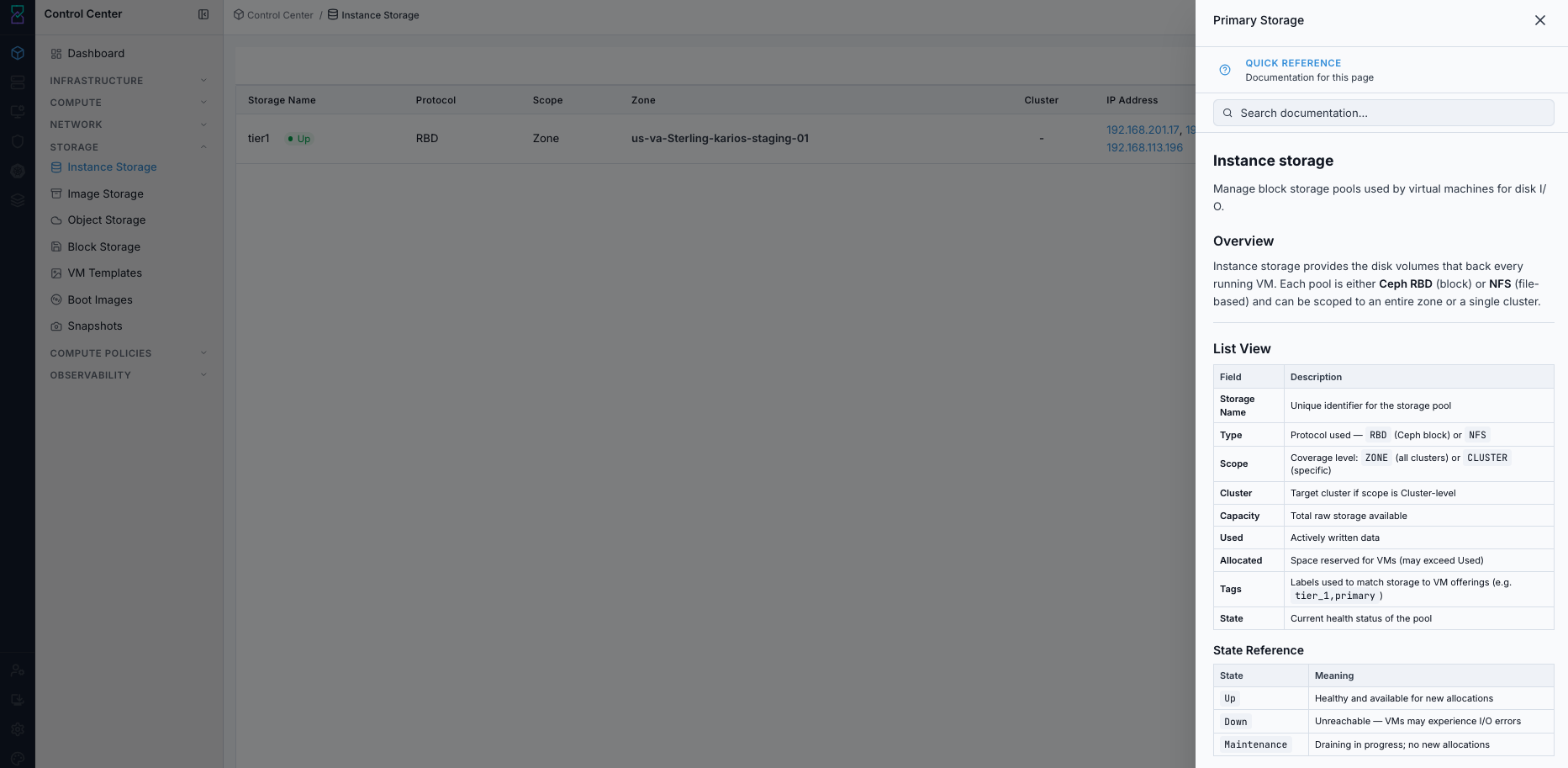
Instance Storage help panel.
Expected Outcome:
Instance Storage help panel opens with relevant page guidance.
If this fails:
Verify backend health and available capacity for the target storage resource (pool/store/endpoint and zone scope).
Check blocking dependencies for this action (attachments, snapshots, templates, buckets, object locks, or maintenance state).
Review Observability Events/Alerts for the storage object and retry only after resolving the root cause.
Step: Review Instance Storage Actions
When to Use:
Use this when performing Review Instance Storage Actions in the active storage workflow.
Purpose:
Execute Review Instance Storage Actions and confirm the expected UI/state outcome for this storage resource.
Steps:
In the dashboard row, open the
Actionsmenu.Review available operations:
Disable pool
Enable maintenance
View Volumes
View VM Templates
View Boot Images
Edit tags
If needed, click the pool name to open its details page and continue with the next task.
Decision guidance:
Use Disable pool to stop new placements while keeping existing workloads running.
Use Enable maintenance only during approved backend maintenance windows.
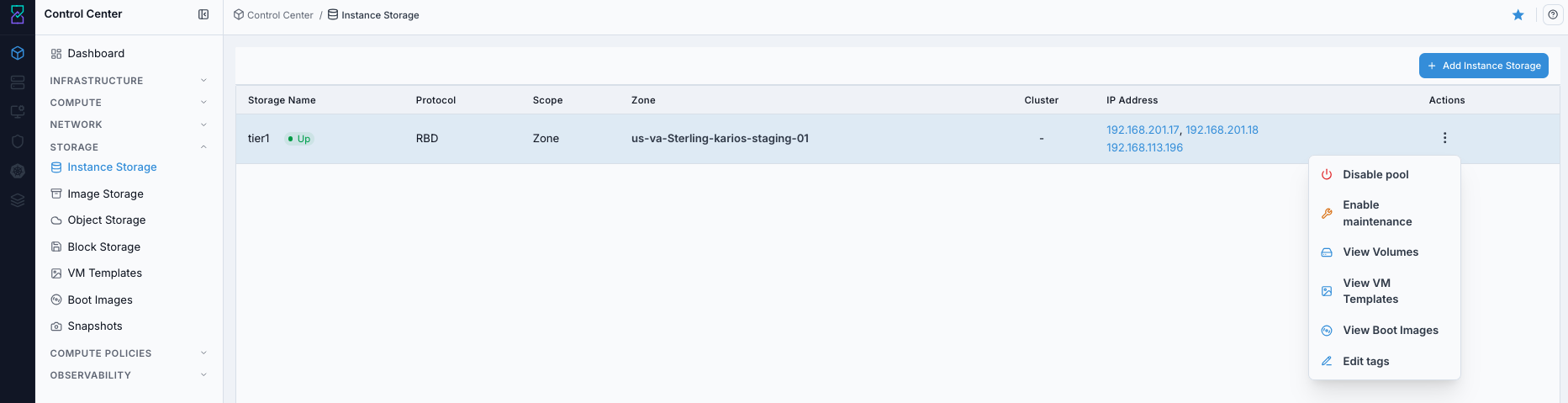
Instance Storage row actions menu.
Expected Outcome:
Action icons and menu options open the correct destination module or apply the selected pool action.
Pool lifecycle actions are available only when your role and current pool state allow them.
If this fails:
Verify backend health and available capacity for the target storage resource (pool/store/endpoint and zone scope).
Check blocking dependencies for this action (attachments, snapshots, templates, buckets, object locks, or maintenance state).
Review Observability Events/Alerts for the storage object and retry only after resolving the root cause.
Step: Understand What Each Instance Storage Action Does
When to Use:
Use this when performing Understand What Each Instance Storage Action Does in the active storage workflow.
Purpose:
Execute Understand What Each Instance Storage Action Does and confirm the expected UI/state outcome for this storage resource.
Steps:
Use this as a first-time operator reference before running lifecycle actions:
Action |
What it represents |
What happens when clicked |
|---|---|---|
|
VM disks associated with this storage context |
Opens the block-disk inventory view so you can inspect disk state, utilization, and attachment. Continue with Block Storage. |
|
Template artifacts available in this storage context |
Opens VM templates inventory so you can verify |
|
Boot-image artifacts available in this storage context |
Opens boot-image inventory so you can verify readiness, visibility, and bootable settings. Continue with Boot Images. |
|
Placement stop control |
Prevents new workload placement on this pool while existing workloads continue to run. |
|
Controlled maintenance state |
Marks the pool for maintenance workflows during approved change windows. |
|
Placement metadata update |
Opens tag edit flow; updated tags affect policy-based storage targeting. |
Tip
Hover icon-only actions to confirm tooltip text before clicking.
Note
If an action is missing or blocked, verify role permissions and current pool state first.
Expected Outcome:
Task completes and the related storage view updates as expected.
If this fails:
Verify backend health and available capacity for the target storage resource (pool/store/endpoint and zone scope).
Check blocking dependencies for this action (attachments, snapshots, templates, buckets, object locks, or maintenance state).
Review Observability Events/Alerts for the storage object and retry only after resolving the root cause.
Step: Add New Storage Pool
When to Use:
Use this when performing Add New Storage Pool in the active storage workflow.
Purpose:
Execute Add New Storage Pool and confirm the expected UI/state outcome for this storage resource.
Steps:
Click
+ Add Storage Pool.In
Add New Storage Pool, fill required fields:
Scope
Zone
Name
Protocol
Server
Path
Provider
Optional fields shown in the form:
NFS mount options
Storage tags
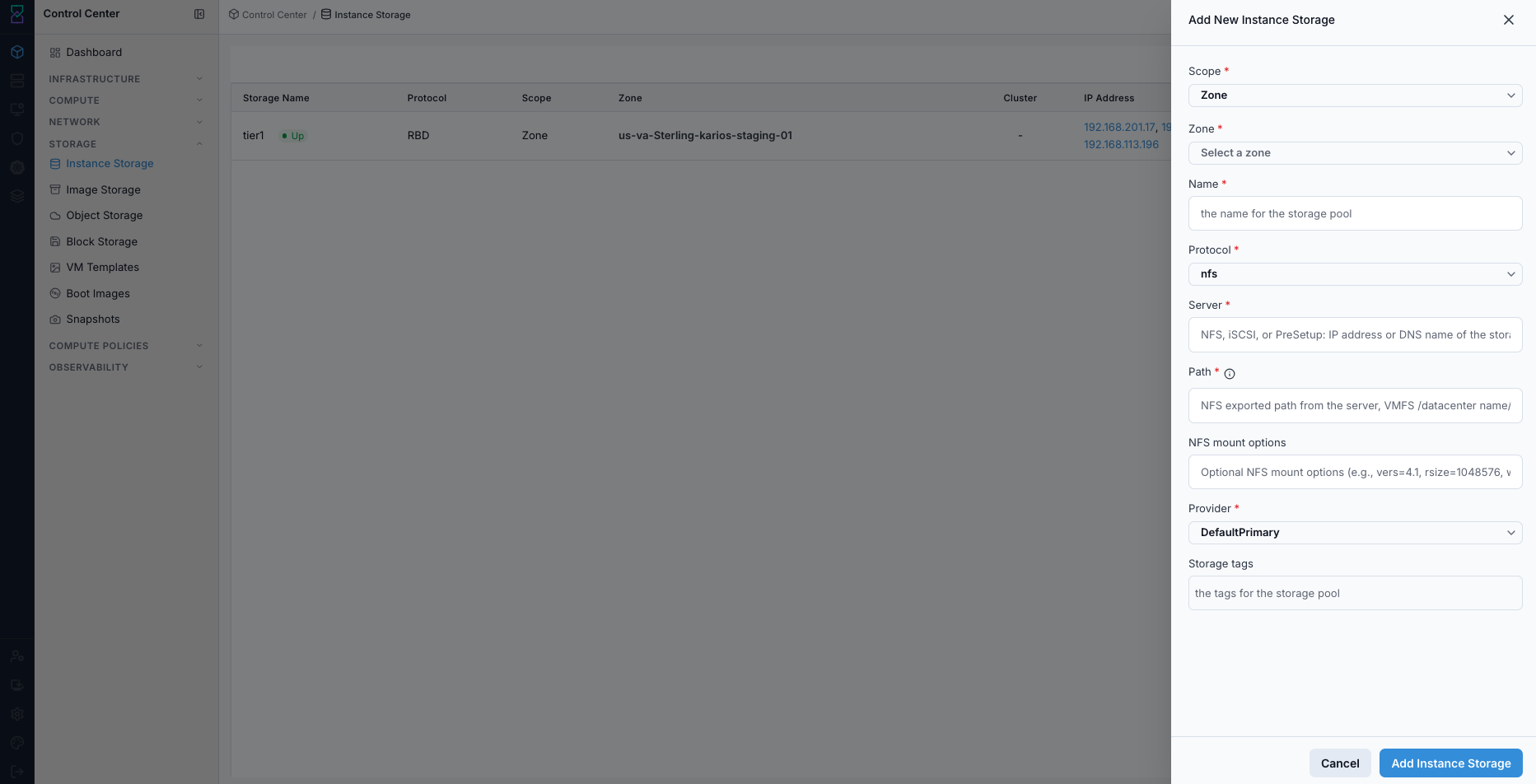
Add New Storage Pool form.
Example values:
Scope:ZoneZone:us-va-Sterling-karios-staging-01Name:tier1-nfsProtocol:nfsServer:192.168.201.18Path:/dataProvider:DefaultPrimary
Click
Add Storage Pool.Verify the new pool appears in the dashboard and reaches
Up.
Expected Outcome:
A new row appears in Instance Storage with the chosen name, zone, and protocol.
Statetransitions toUpafter backend validation completes.
If this fails:
Verify backend health and available capacity for the target storage resource (pool/store/endpoint and zone scope).
Check blocking dependencies for this action (attachments, snapshots, templates, buckets, object locks, or maintenance state).
Review Observability Events/Alerts for the storage object and retry only after resolving the root cause.
Step: Open Instance Storage Details
When to Use: Use this after creating or selecting a pool when you need pool-level metrics, configuration, and detail-page actions.
Purpose: Review pool-specific details and use the top-right action buttons in the details view.
Steps:
Open
Control Center -> Storage -> Instance Storage.In the storage table, click the target
Storage Namerow.Review details for the selected pool:
Storage metrics (used, allocated, unallocated)
General information (name, zone, pod ID, state, scope, created, tags)
Storage configuration (type, provider, hypervisor, IP, path)
In the top-right button bar of the details page, use the action icons:
View Volumes: opens Block Storage volume context.
View VM Templates: opens VM Templates context.
View Boot Images: opens Boot Images context.
Disable pool: blocks new allocations on this pool.
Enable maintenance: places the pool in maintenance flow.
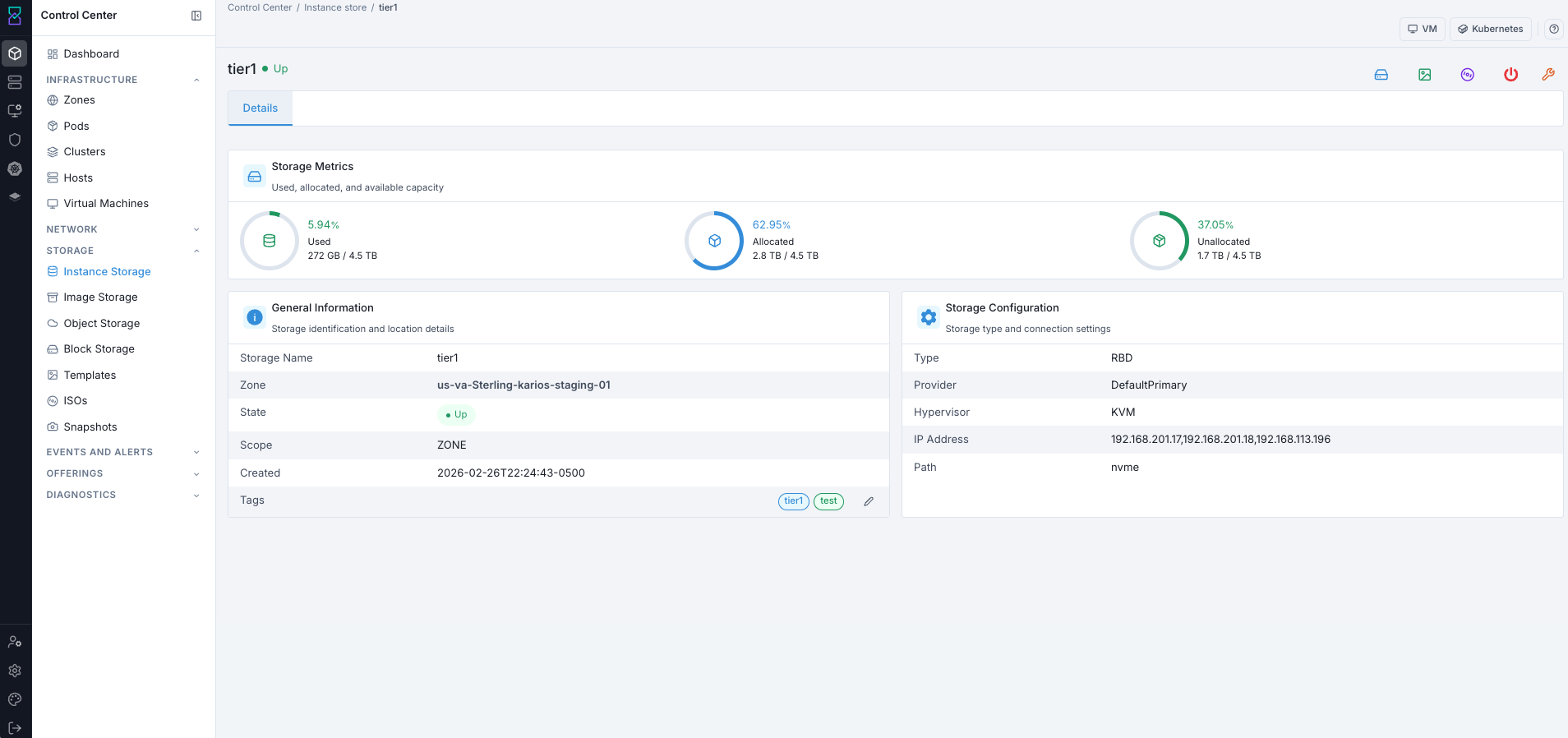
Instance Storage details page.
Expected Outcome:
The details page opens for the selected pool with metrics and configuration visible.
Top-right action buttons execute the expected navigation or pool lifecycle action.
If this fails:
Verify backend health and available capacity for the target storage resource (pool/store/endpoint and zone scope).
Check blocking dependencies for this action (attachments, snapshots, templates, buckets, object locks, or maintenance state).
Review Observability Events/Alerts for the storage object and retry only after resolving the root cause.
Tool Tips
Keep pool names environment-specific (for example:
zone-a-rbd-01).Apply
Storage tagsonly when placement policy needs explicit targeting.
Warnings
Do not click
Disable poolduring active provisioning windows.Enable maintenance only during controlled change windows.
If this fails:
If pool state is not
Up, verify backend reachability and protocol settings.If add-pool action fails, re-check
Server,Path,Zone, andProvidervalues.If pool is visible but unavailable for workloads, validate scope and storage-tag alignment.