Release Management
Where This Fits in Karios
Karios is the unified infrastructure platform described in
Getting Started. Platform release management lives
under K-Store -> Updates (there is no separate Release Management item in the
left navigation) - see K-Store for how to open it, choose an
update source, and read the delivery-mode cards. This page covers the release-specific
mechanics: reviewing and applying a release, the EULA and scheduling step, monitoring
Activity, and how automatic rollback and failure recovery work.
The Updates view has three tabs - Available, Activity, and History - plus
sibling area tabs for Service Health, Compliance, and Maintenance Windows. A
persistent update banner appears across authenticated pages while a job is running or a
scheduled update is pending.
Required Access
Update permissions are enforced by the backend; requests without the required
permission are rejected with 403.
Action |
Required permission |
|---|---|
View releases, Activity, History, job details, logs |
|
Download, Review & Apply, Schedule |
|
Cancel a scheduled update |
|
security_admin can view releases/activity and cancel scheduled updates, but
applying a whole-platform release still requires NODE_MANAGE - the
SECURITY_MANAGE carve-out only covers per-component update endpoints, not
platform releases.
Note
For an online, unregistered appliance, the Available list is replaced by a
registration prompt (see K-Store). Air-gapped and USB
sources are not affected by this.
Scope
Release Management applies whole-platform releases, not individual service
updates. A release may bundle multiple components; a component is skipped only when
every targeted host already reports the exact target version. Downgrades are never
applied - a release that would move a component backwards is blocked at preflight with
DOWNGRADE_BLOCKED.
Important
The apply targets every configured and active node in the cluster automatically. There is no host-selection step in this flow.
Release Install Flow
Use this sequence:
Review Available -> Download -> Review & Apply -> Accept EULA -> Apply Now / Schedule -> Monitor Activity -> Validate Outcome
1. Review and Download a Release
When to Use:
Use this to check whether a newer release is available and confirm compatibility before applying it.
Steps:
Open
K-Store -> Updatesand stay on theAvailabletab.Confirm the selected update source (
Online/Offline upload/USB boot) - see K-Store for the full delivery-mode walkthrough.In
Available updates, reviewVersion,Type,Released,Compatibility, andReboot.Click
Downloadon a✓ Compatiblerelease and wait for✓ Downloaded & verified.
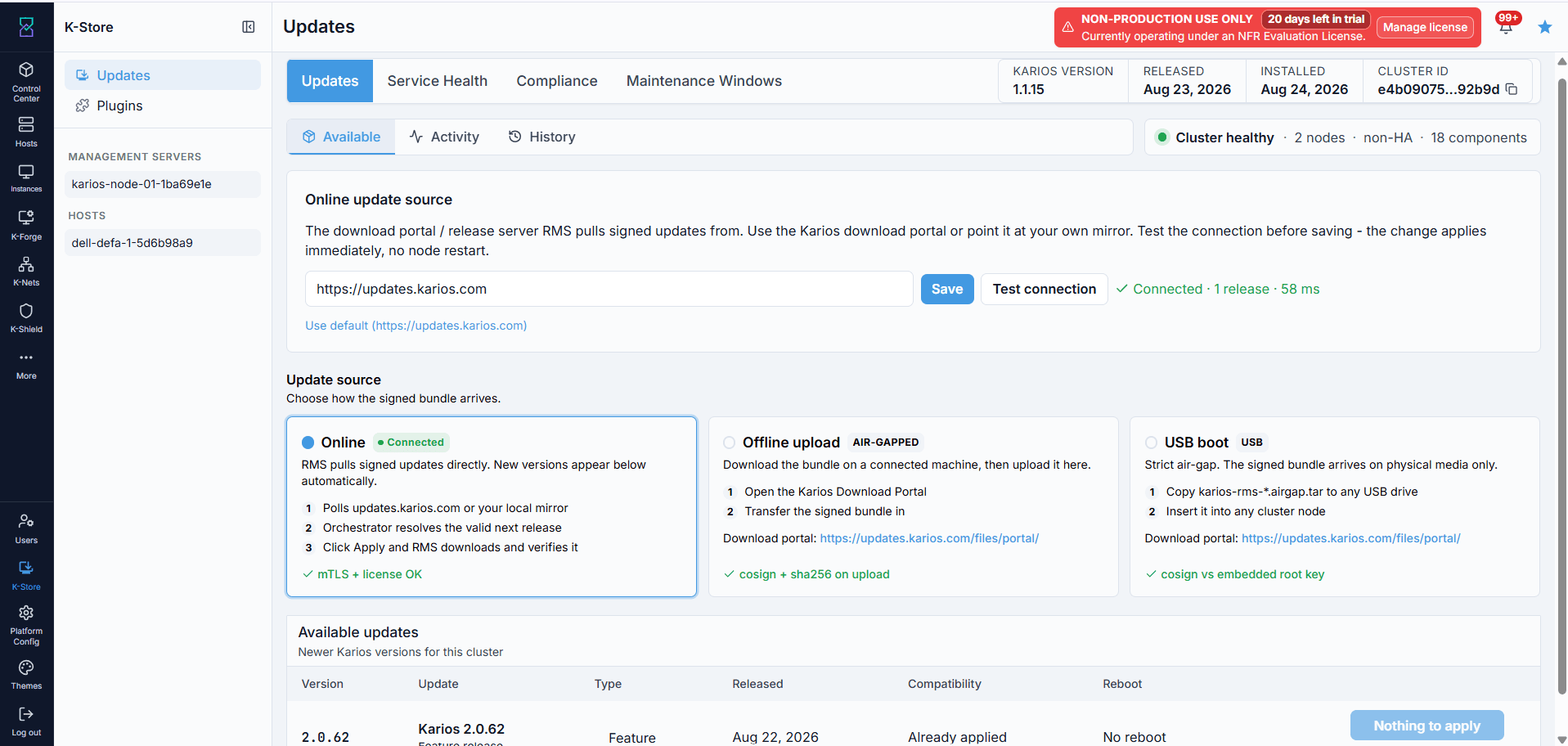
K-Store -> Updates -> Available: update source, delivery mode, and the releases
available to this cluster.
Expected Outcome:
A cluster with nothing newer shows
You are up to date. Otherwise the row action changes fromDownloadtoReview & Applyonce verified.
If this fails:
Empty list: check the update source connection, licensing entitlement, or version window.
Failed to load updates: retry and check the online source.Download error: review the reason shown on the row and retry.
Signature verification failure: do not retry blindly - treat the bundle as unauthenticated and escalate.
2. Review & Apply
When to Use:
Use this after a release shows ✓ Downloaded & verified.
Steps:
Click
Review & Apply. Karios runs platform preflight checks.If preflight passes (or cannot complete), the End-User License Agreement opens. Review the impact summary - node count, HA/single-node behavior, and components that will be skipped as already current.
Scroll to the bottom and accept the agreement.
Choose
Apply noworSchedule for later(at least 10 minutes out), then clickAgree & Apply/Agree & Schedule.
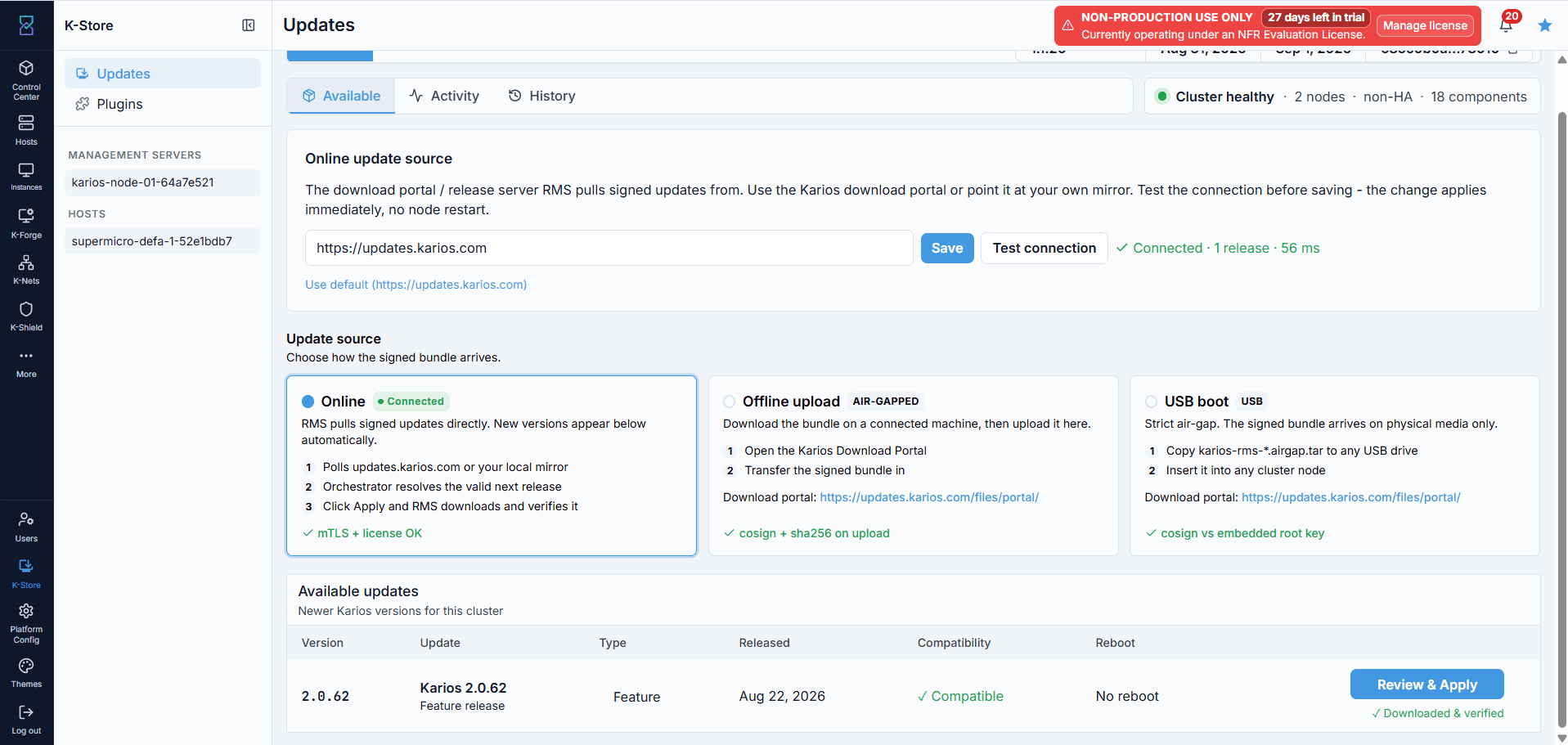
A verified release with Review & Apply enabled.
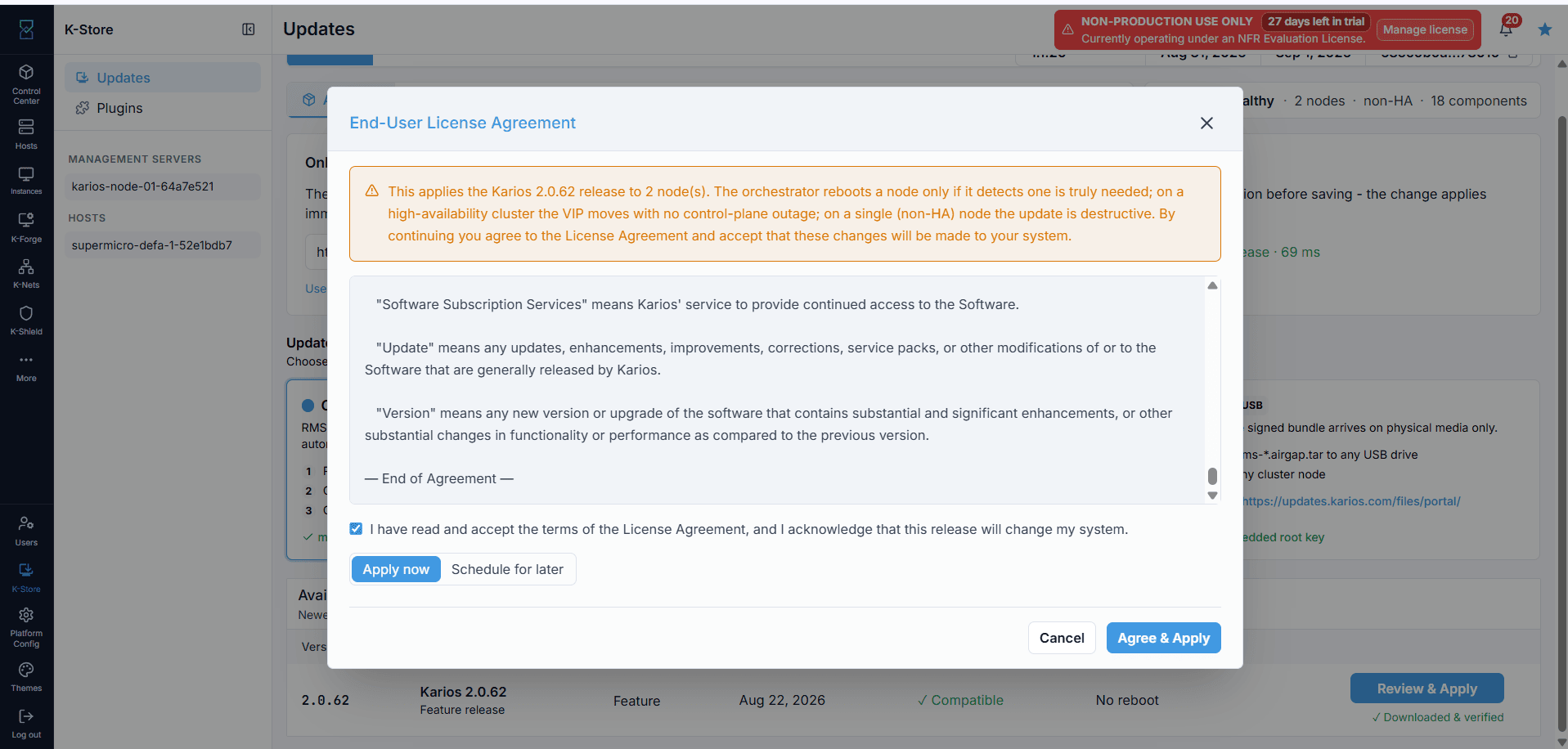
The EULA dialog. On a non-HA node the warning banner states the update is destructive; on HA the VIP moves with no control-plane outage.
Warning
On a cluster that is not highly available, applying a platform update is destructive. Read the warning banner in the EULA dialog before continuing.
What happens next:
The rollout updates nodes in a fixed server-defined order - agents first, then control nodes, with the node holding the active VIP last; the orchestrator’s own node always updates last. Only one platform rollout can run at a time; a conflicting apply is refused, and a scheduled update that becomes due while another is running is deferred and retried rather than failed.
If this fails, preflight/apply can report:
Condition |
Meaning |
|---|---|
|
The release would move a component backwards; not supported. |
|
A component is incompatible with the target release. |
|
The cluster must move to an intermediate release first, or the jump is outside the supported update graph. |
|
A staged component failed signature verification. |
|
A targeted node lacks free disk space. |
|
A hardware operation holds the cluster maintenance lock - schedule the update instead. |
|
All components are already current; shown as |
3. Monitor Installation from Activity
When to Use:
Use this after Agree & Apply/Agree & Schedule.
Steps:
Open the
Activitytab.Review
Total Jobs,Scheduled,Normal,Succeeded,Failed, theJob Outcomeschart,Success Rate, andCurrent State.In the job table, review
Job #,Status,Version,Hosts,Type,Requested By, andCreated At.Open a job for
Live LogsandHost Details; expand a host for its timestamps and apply log.
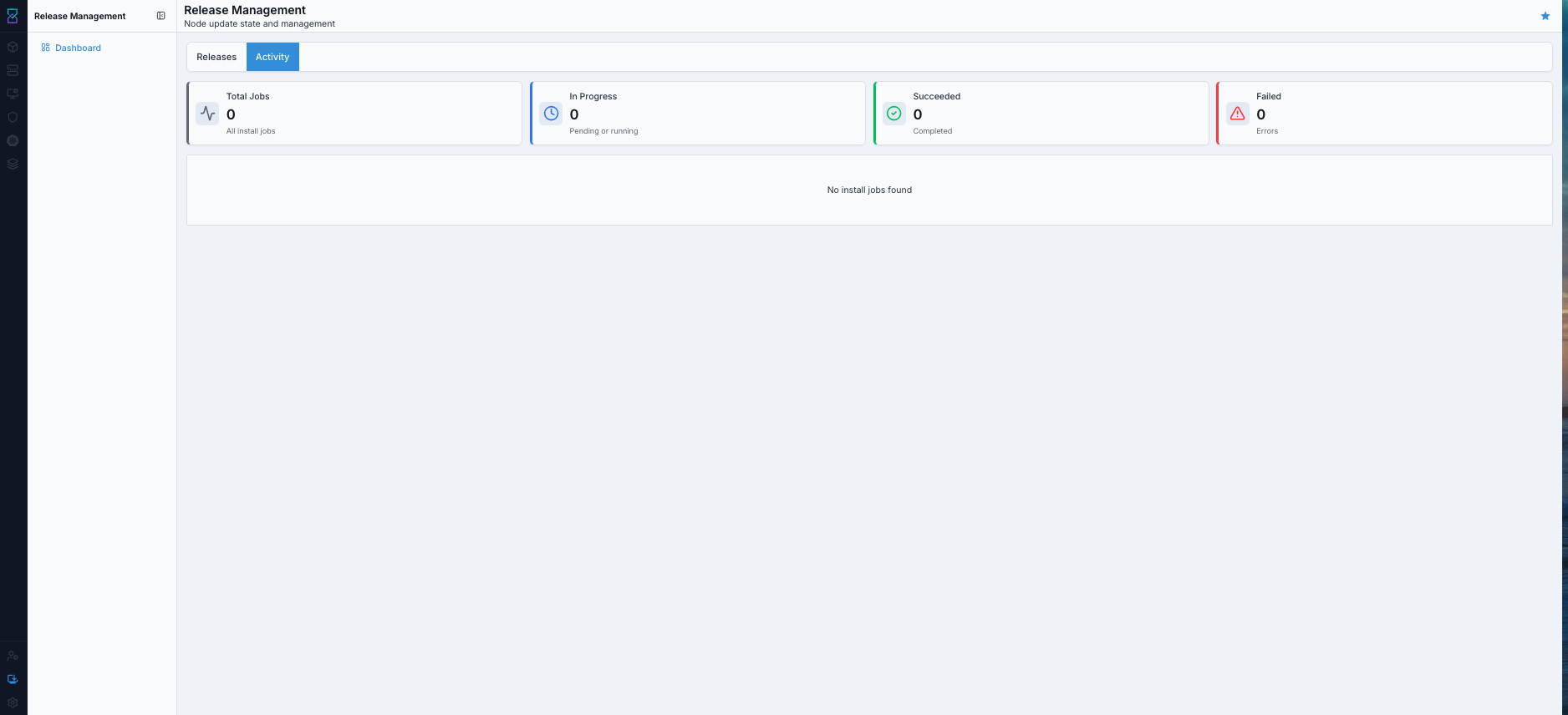
Activity: job summary, outcomes, and the job table.
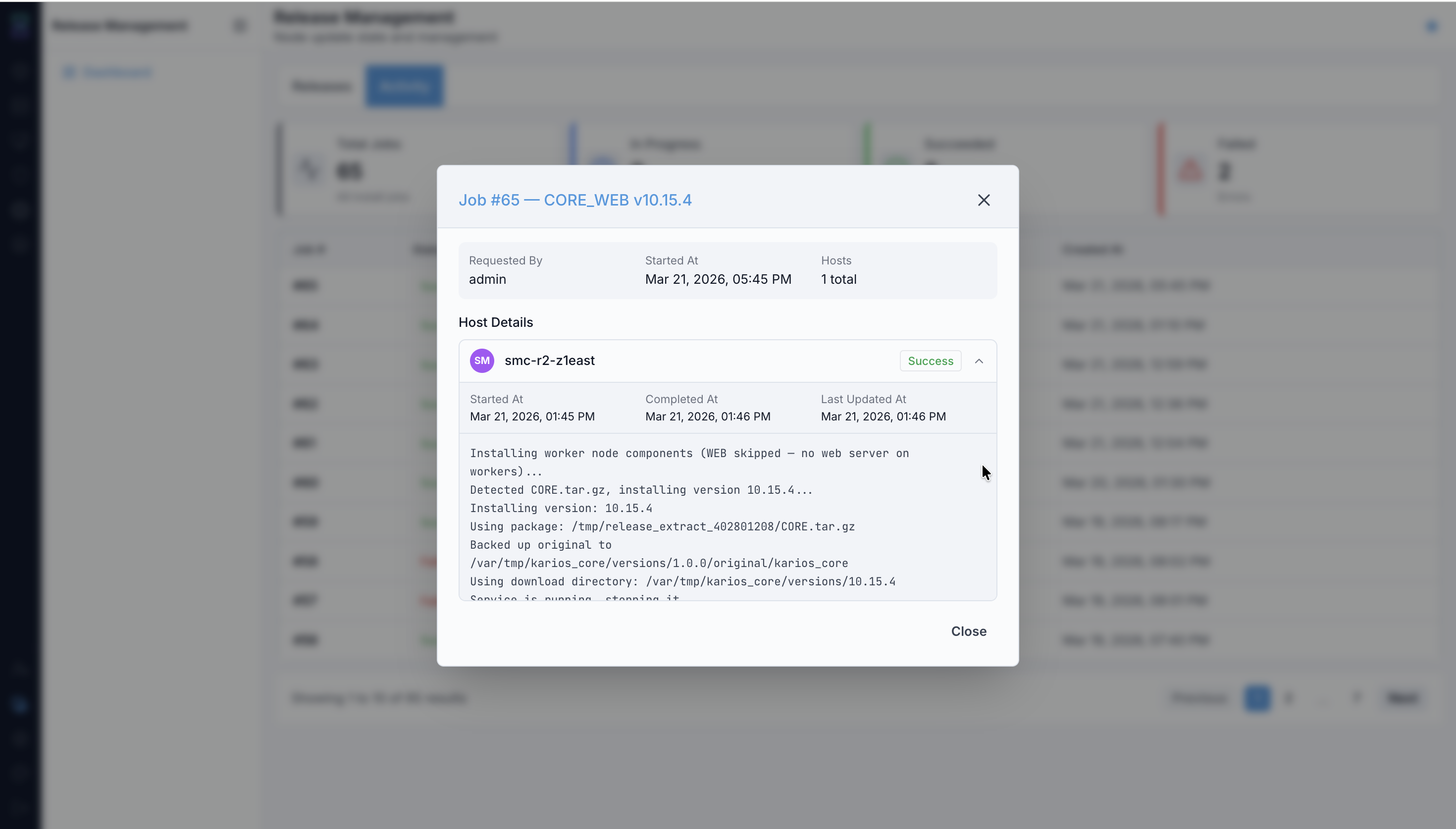
Job details: Live Logs and Host Details for a completed job.
The job list refreshes about every 15 seconds; host status polls about every 2.5
seconds while non-terminal. A job can be PENDING, IN_PROGRESS, RESTARTING,
RECONCILING, SUCCESS, PARTIAL_FAILURE, FAILED, ROLLED_BACK,
PARTIAL_ROLLBACK, BLOCKED, or CANCELLED; each host is one of PENDING,
IN_PROGRESS, SUCCESS, FAILED, ROLLED_BACK.
If this fails:
Job not visible: refresh Activity and confirm the request returned a job ID.
Logs stuck on “Waiting for the update to start”: the live-log stream may have dropped - host polling continues regardless. A drain/snapshot/reboot/health-check phase can legitimately take several minutes with no new log line.
During a karios-core update, expect a brief backend gap and possibly needing to sign in again.
4. Validate Installation Completed
Steps:
Confirm the job’s final status and that every host in
Host DetailsshowsSUCCESS.Review the terminal message in
Live Logs.Confirm the global banner switches to the update-complete message, then let the health probe and auto-reload run (or use
Reload now).Cross-check in
Historyand, if relevant,Service Health.
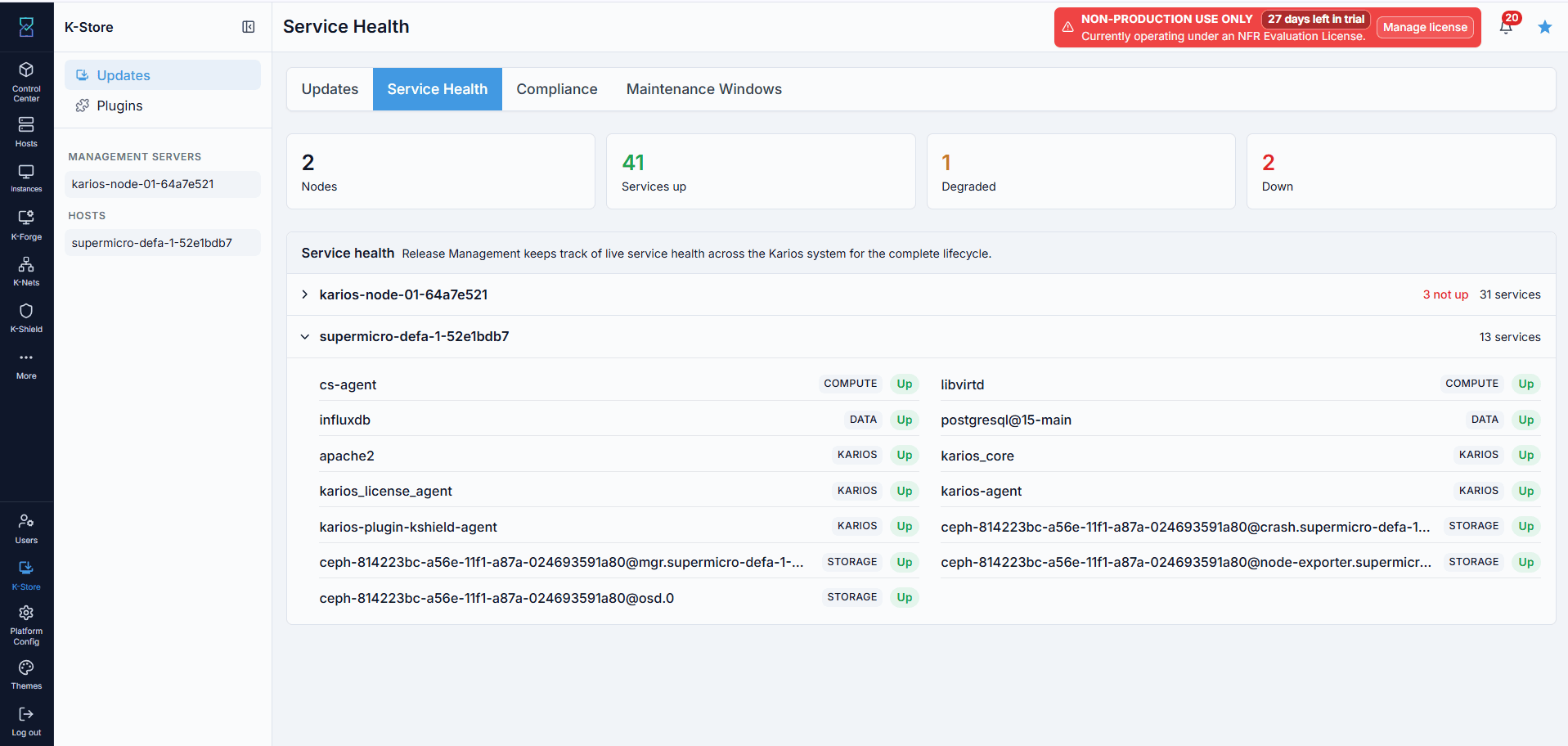
Service Health: per-node service status, useful when a job reports success but a
service looks unhealthy.
An update counts as successful only once every targeted host reaches a terminal state and passes its own version verification (the platform binary’s own version check is logged as a warning rather than failing the host).
If this fails:
Partial failure: expand the failed host’s details and logs; check Service Health.
Success reported but a service is unhealthy: investigate that service and collect a support bundle if needed.
Rollback can’t be confirmed: verify the node directly and escalate with the job ID, timestamps, and host names.
5. Failure Handling and Rollback
There is no manual rollback button and no operator workflow for reinstalling a previous release as a rollback. Rollback is automatic, performed by the orchestrator during a failing rollout.
Before updating each node, the orchestrator prepares a rollback source - a ZFS
boot-environment snapshot on ZFS-on-root nodes, or restored component binaries with a
service restart otherwise. Platform rollouts use the atomic policy: if any node
fails, already-committed nodes are reverted, newest first. A halted rollout commonly
finalizes FAILED at job level with reverted nodes shown ROLLED_BACK per host;
job-level ROLLED_BACK/PARTIAL_ROLLBACK appear when the revert covers all
affected hosts. Rollout state is durable - an orchestrator restart resumes it, skipping
already-successful nodes.
Situation |
What happens |
|---|---|
Node fails to apply |
Automatic rollback as described above. |
Hardware operation running |
|
Job stays |
Drain/snapshot/reboot/health-gate phases can take several minutes; jobs resume after an orchestrator restart. |
Atomic rollback succeeds |
The cluster returns to the previous release - the designed safe state. |
Partial rollback |
The affected node needs direct verification and escalation. |
If this fails:
Open
Activity, identify the affected job and hosts, and review failed-host logs plusService Health.Collect a support bundle if required.
For
PARTIAL_ROLLBACKor a host needing manual checking, verify that node directly.Escalate to Karios Support with the job ID, timestamps, host names, and Activity logs.
Investigate and resolve the failure before attempting another update - do not retry immediately.
6. Scheduled Updates
Steps:
Complete
Review & Applyand pass preflight.Accept the EULA, select
Schedule for later, and pick a time at least 10 minutes out.Click
Agree & Schedule, then monitor fromActivity; details are also underMaintenance Windows.
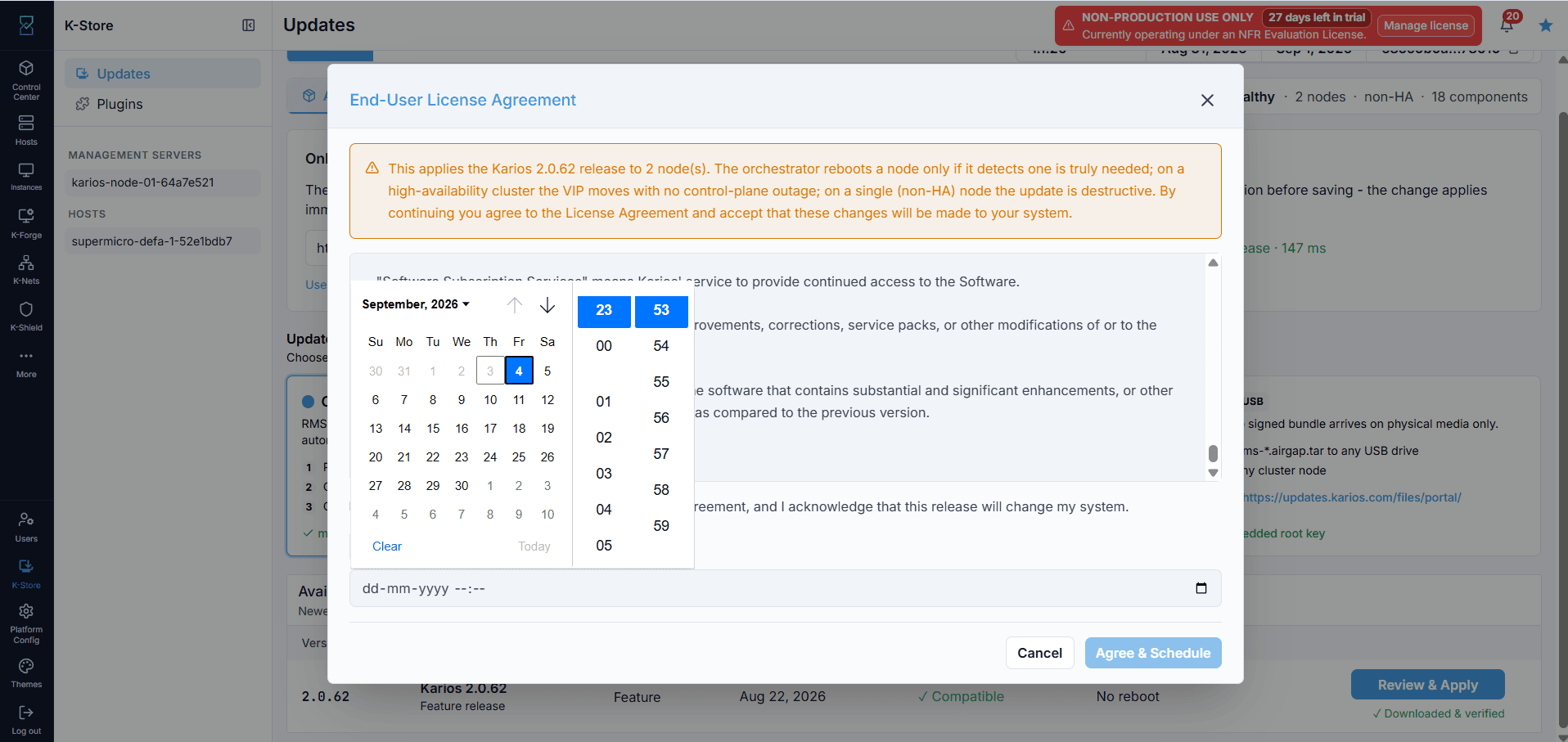
Scheduling a release from the EULA dialog.
The job appears PENDING with a scheduled time; if another rollout is running when
it comes due, it is deferred and retried, not failed. A scheduled update can be
cancelled only before it starts, from Maintenance Windows, and requires
NODE_MANAGE or SECURITY_MANAGE - once running it is a normal job and cannot be
cancelled from the UI.
7. Air-Gapped and USB Sources
Both import a signed release into local staging, then use the same
Review & Apply flow as an online update.
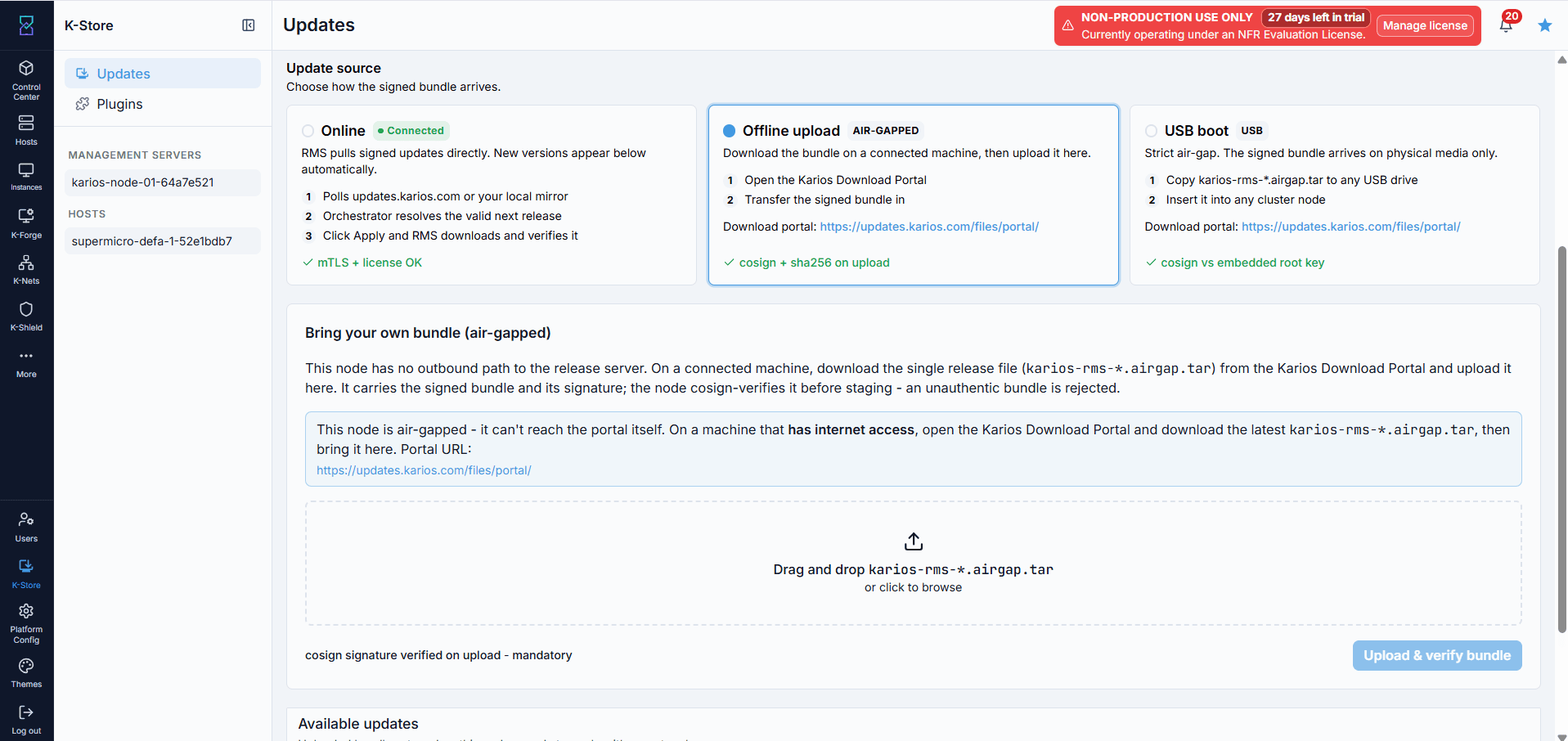
Offline upload: drag in the karios-rms-*.airgap.tar bundle; Cosign
verification is mandatory before staging.
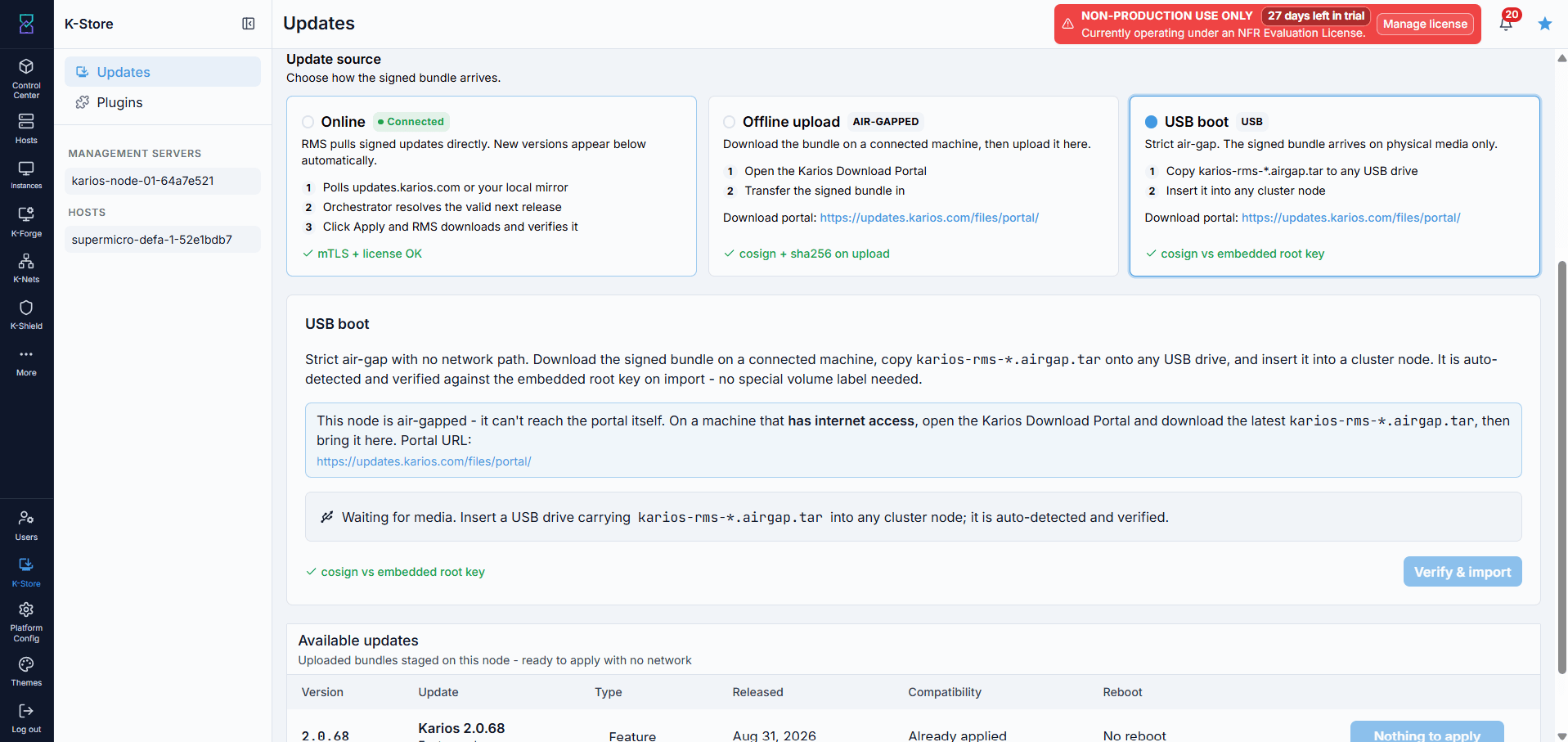
USB boot: insert the bundle on a drive into the management node - other
cluster nodes do not detect it - then Verify & import.
Note
A portal bundle downloaded by a registered cluster is stamped for that cluster and
refused elsewhere; unstamped bundles are accepted anywhere. A bundle whose exact
content is already applied is refused with ALREADY_APPLIED (based on content
hash, not version string); an override exists for support-directed use.
Update States
Karios tracks release, job, and host state separately.
Release: not
Available/Downloaded/Installed- the UI shows✓ Compatible,Already applied, or⚠ Blocked, with download progress tracked separately (Idle/Downloading/Ready/Error).Job: one job per platform release (
update_type = PLATFORM); states listed in 3. Monitor Installation from Activity.Host:
PENDING,IN_PROGRESS,SUCCESS,FAILED,ROLLED_BACK- the job’s final result is derived from these.
→ Next: K-Store