Buckets
Path: Left sidebar > Object Storage > Buckets
Buckets Overview
The Buckets page lists all object-storage buckets in your cluster. A bucket is a named container that holds objects (files). Buckets are owned by a user, and access is controlled through that owner’s S3 credentials.
Buckets are the top-level containers for objects in the RADOS Gateway S3-compatible object store.
Actions in This Screen:
Control |
What Happens When You Click |
|---|---|
|
Opens the bucket creation panel. |
Search field |
Filters the bucket list by bucket name. |
Row chevron |
Expands one bucket row and shows |
Row pencil icon |
Opens the edit form for that bucket. |
Row trash icon |
Opens the delete confirmation flow for that bucket. |
Expanded row |
Opens the same bucket edit form from inside expanded details. |
|
Shows bucket metadata and configuration values. |
|
Shows object entries currently in that bucket. |
Buckets List - Column Reference
Purpose:
To confirm bucket inventory before create, edit, or delete operations.
To validate owner, versioning state, and consumption at a glance.
When to Use:
Before creating a new bucket (to avoid duplicate naming confusion).
Before deleting or reassigning ownership.
During routine capacity and usage checks.
Column |
What It Shows |
|---|---|
Name |
Unique bucket name (must be DNS-compatible for path-style and virtual-hosted-style access) |
Owner |
The RGW user that created and owns this bucket |
Versioning |
Whether versioning is enabled - keeps all versions of each object |
Objects |
Total number of objects stored in this bucket |
Size |
Total storage used by all objects in this bucket |
Actions |
Edit or delete the bucket |
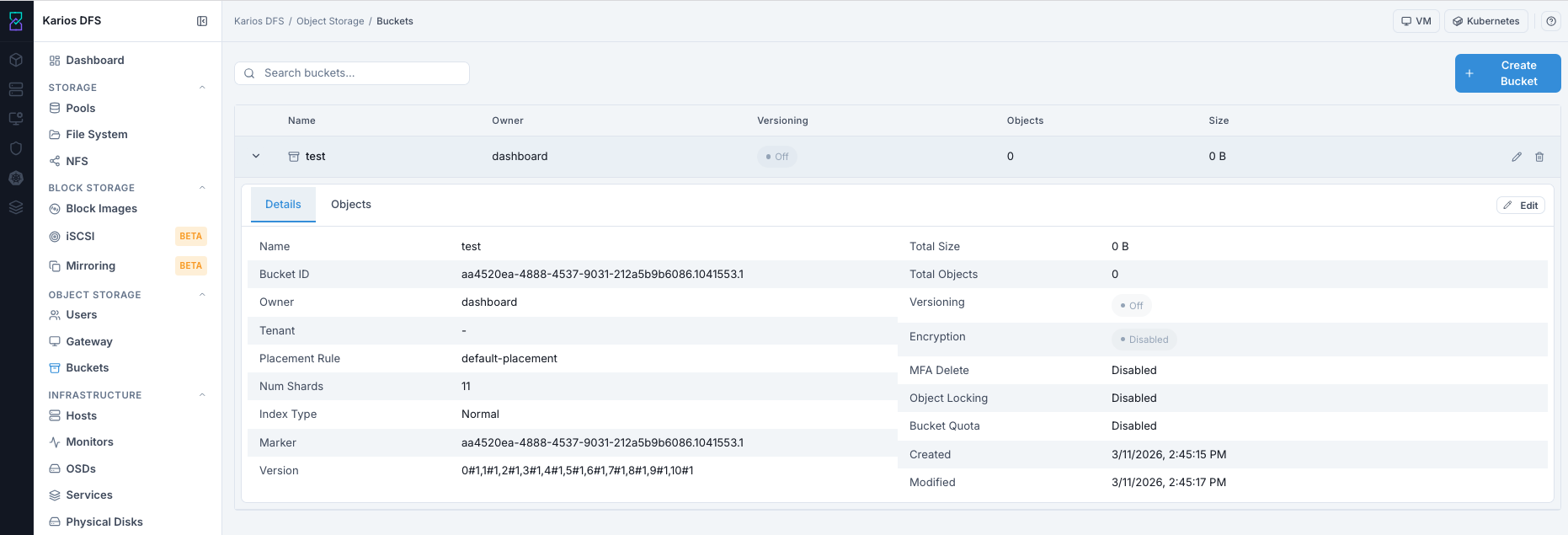
What This Screenshot Shows: Buckets Dashboard With Expanded Details (UI Reference; Values Depend On Your Environment).
Note
In the bucket row, chevron > expands details, pencil edits the bucket,
and trash deletes the bucket.
Clicking pencil opens the bucket edit panel; after Edit Bucket, updated
bucket settings apply immediately.
Steps:
Open
Object Storage > Buckets.Use search if you need a specific bucket.
Read row values (Name, Owner, Versioning, Objects, Size).
Expand a row with chevron
>for full details when needed.
Expected Outcome:
You identify the correct bucket before taking action.
You avoid editing or deleting the wrong bucket.
How To Create A Bucket
Path: Object Storage > Buckets > + Create Bucket
Purpose:
To create a container where applications upload and read objects.
To assign ownership and access control through a selected user.
When to Use:
After creating a user and retrieving credentials.
Before onboarding a new application or workload to object storage.
Open
Object Storage > Buckets.Click
+ Create Bucket.Enter
Bucket Name(lowercase, hyphens, numbers).Select
Owner(must be an existing user).Select the
Placement Targetconfigured for your environment.Leave
Enable Object Lockunchecked unless retention immutability is required.Review values and click
Create.
Note
Bucket creation behavior can vary by deployment. In some environments, owner defaults to the logged-in user and optional versioning/encryption controls can be available directly in the create flow.
Tip
Placement Target controls where bucket data is placed. Use the target mapped to your workload policy (for example environment, tier, or compliance).
Warning
If multiple placement targets are available and the correct one is unclear, confirm with your administrator before creating the bucket. Using the wrong target can place data in an unintended storage class/location.
Expected Outcome:
Bucket appears in list.
Objects = 0andSize = 0 Bfor a new empty bucket.Owner credentials can be used immediately with S3 clients.
Important
Bucket names cannot be changed after creation.
Note
If Owner dropdown is empty, create at least one user first in
Object Storage > Users.
Warning
If Object Lock is enabled at create time, it cannot be disabled later.
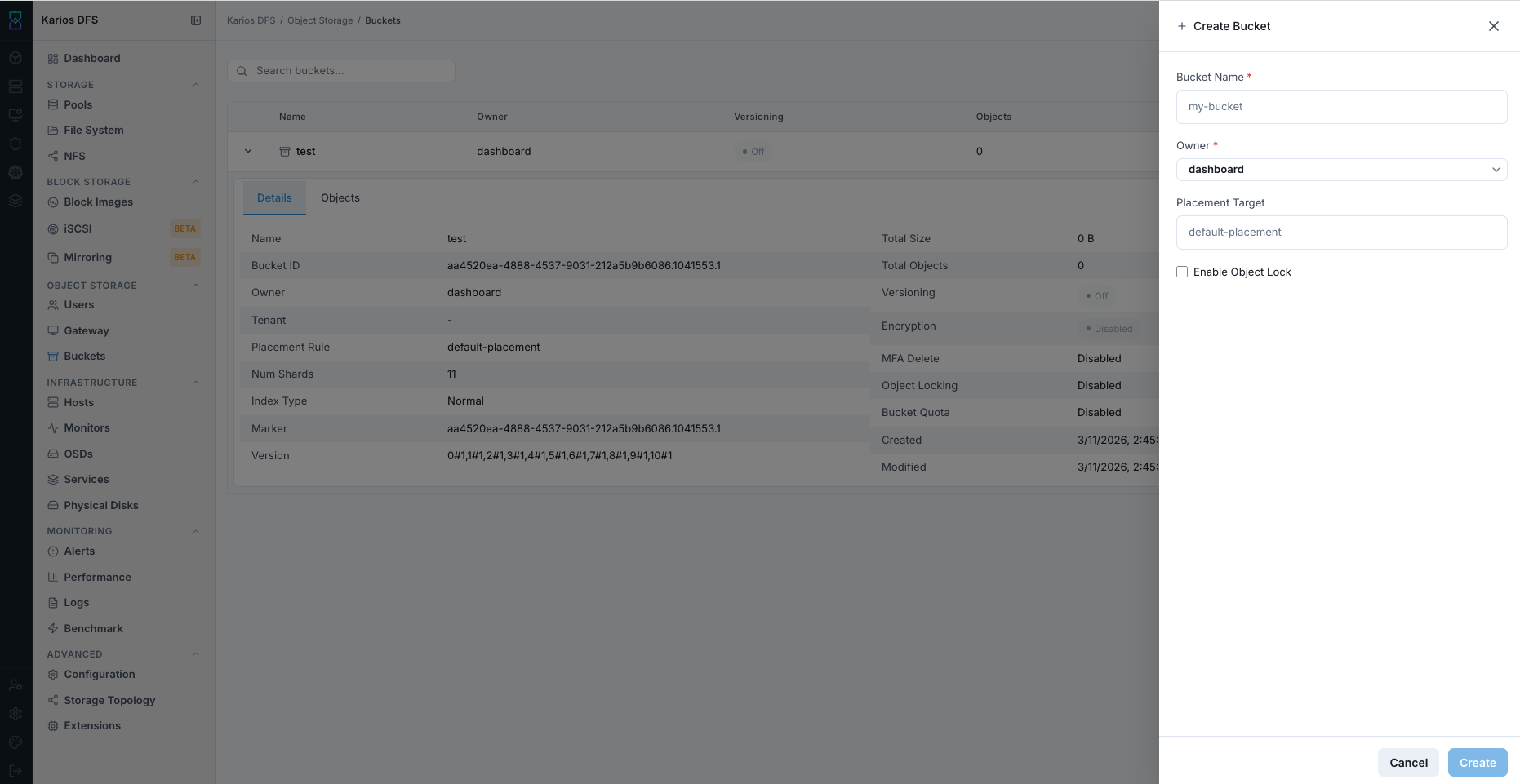
What This Screenshot Shows: Create Bucket Panel (UI Reference; Values Depend On Your Environment).
Note
In the create panel, Create saves the bucket, Cancel closes the
panel without creating it, and X also closes the panel without creating
it.
Create Bucket - Field Reference
Field |
Value / Options |
Description |
|---|---|---|
Bucket Name * |
Text input |
Required. Unique across cluster. Lowercase/hyphen/number format. |
Owner * |
Dropdown of existing users |
Required. Bucket ownership and access identity. |
Placement Target |
Text |
Data placement target configured for your environment. |
Enable Object Lock |
Checkbox |
Enables retention-based immutability. |
Bucket Detail Tabs
Expand a bucket row using chevron >. Two tabs appear:
DetailsObjects
What You See:
Details- Bucket metadata including creation date, placement target, default encryption setting, ACL policy, and quota configuration.Objects- Usage breakdown by object category (RGWX,SHADOW, multi-part upload parts) useful for identifying orphaned multi-part uploads.
Purpose:
To validate exact bucket configuration before changes.
To verify whether object content exists before delete operations.
When to Use:
Before editing owner, versioning, or lock/quota settings.
Before deleting a bucket.
When troubleshooting access or usage mismatches.
Details Tab - Field Reference
Field |
What It Shows |
|---|---|
Name |
Bucket name |
Bucket ID |
Internal unique cluster identifier |
Owner |
User who owns this bucket |
Tenant |
Tenant name; |
Placement Rule |
Placement rule used for this bucket |
Num Shards |
Bucket index shard count |
Index Type |
Bucket index implementation type |
Marker |
Internal marker identifier |
Version |
Internal index version string |
Total Size |
Total bytes consumed by this bucket |
Total Objects |
Total object count in this bucket |
Versioning |
On/Off state |
Encryption |
Enabled/Disabled state |
MFA Delete |
Enabled/Disabled state |
Object Locking |
Enabled/Disabled state |
Bucket Quota |
Enabled/Disabled quota state |
Created |
Creation timestamp |
Modified |
Last config change timestamp |
Note
Details tab is used to validate bucket metadata including creation date, placement target, default encryption setting, ACL policy, and quota configuration. Visible fields vary by deployment.
Objects Tab
Lists objects currently stored in this bucket (name, size, modified time).
Empty state is normal for new buckets.
Usage can also be broken down by object categories such as
RGWX,SHADOW, and multi-part upload parts to help identify orphaned multi-part uploads.
Note
Object upload/download is performed from S3 clients (AWS CLI, s3cmd, rclone, SDKs). The UI Objects tab is for visibility and verification.
Steps:
Expand a bucket row using chevron
>.Open
Detailsto review owner and configuration values.Open
Objectsto confirm whether object entries exist.Return to row actions only after these validations are complete.
Expected Outcome:
You confirm exact bucket state before edits/deletes.
You reduce risk of destructive action on active or non-empty buckets.
Bucket Actions
Bucket Actions:
Create Bucket- Enter a bucket name and optionally set the owner (defaults to the logged-in user in deployments where owner defaulting is enabled). You can enable versioning and encryption at creation time if these controls are exposed.Edit Bucket- Change the owner, toggle versioning, or set/change the default encryption key.Delete Bucket- Bucket must be empty before deletion. If versioning was enabled, all object versions must also be removed.
Edit Bucket (Pencil Icon)
Purpose:
To update ownership or policy settings on an existing bucket.
How to access:
Click pencil icon on bucket row, or expand row and click
Edit.
What you can change:
Owner
Versioning
Default encryption settings or key reference (if exposed in your deployment)
Bucket Quota settings
Object Lock settings
Steps:
Click pencil icon.
Update fields in Edit panel.
Click
Edit Bucket.
Expected Outcome:
Changes apply immediately.
If owner changes, old owner’s credentials no longer control this bucket.
When to edit:
Reassign bucket before deleting a user.
Enable versioning for overwrite protection.
Set or adjust bucket quota.
Set or change bucket encryption behavior.
Delete Bucket (Trash Icon)
Purpose:
To permanently remove a bucket no longer needed.
When to Use:
After confirming the bucket is empty.
After confirming no active application depends on this bucket.
How to access:
Click trash icon on bucket row.
Before delete (mandatory checks):
Confirm bucket is empty (
Objects = 0andSize = 0 B).Confirm no application is actively writing to this bucket.
If versioning is enabled, confirm all object versions and delete markers are removed.
Steps:
Confirm bucket is empty.
Click trash icon.
Confirm in dialog.
Expected Outcome:
Bucket is permanently deleted.
Bucket configuration is removed.
Warning
Bucket delete is permanent. If objects exist, deletion is blocked. Remove objects using S3 client first, then retry.
Warning
If versioning was enabled, deleting only current object versions is insufficient. All historical versions must be removed before bucket deletion succeeds.
Troubleshooting - Buckets
Purpose:
To restore normal bucket access and operations when users face failures.
To isolate whether the issue is permissions, ownership, object state, or quota.
When to Use:
Create/Edit/Delete actions fail.
Applications report
AccessDeniedor upload failures.UI state and expected object state do not match.
Steps:
Verify the action button is visible for your role.
Confirm target bucket owner and object count from bucket row/details.
Validate credentials used by the client match the current bucket owner.
Check quota and multipart-upload conditions when usage looks inconsistent.
Retry the action after correcting the identified cause.
Expected Outcome:
You identify the most likely failure domain quickly.
You apply the correct fix without unnecessary bucket changes.
Problem You See |
Most Likely Cause |
What To Do |
|---|---|---|
|
Viewer role |
Request Operator or Administrator role |
Owner dropdown empty |
No users exist |
Create user first in |
Cannot delete bucket (objects error) |
Bucket still contains objects |
Delete objects via S3 client and retry |
Objects show 0 but size not 0 B |
Incomplete multipart uploads |
List/abort multipart uploads with S3 client tools |
AccessDenied from client |
Wrong credentials or wrong owner identity |
Confirm Access Key/Secret belong to current bucket owner |
Objects not visible in Objects tab |
UI not refreshed |
Collapse and re-expand row to refresh view |
Uploads failing |
Bucket quota reached |
Increase/remove quota or delete objects to free space |
Cannot delete bucket though objects look removed |
Versioned object history still exists |
Remove all object versions and delete markers, then retry delete |
Bucket size remains high with low visible object count |
Incomplete multipart uploads (often shown as |
Abort stale multipart uploads or apply lifecycle cleanup |
Note
If issue persists, raise a support ticket via Monitoring > Alerts or
Karios Support.
Quick Validation Checklist
Use this checklist after creating or updating buckets:
Confirm the bucket appears in list with expected owner.
Expand row and verify
Detailsvalues match intended configuration.Open
Objectstab and confirm expected object state (empty or populated).If ownership changed, validate client credentials for the new owner.
If versioning or lock settings changed, verify those fields reflect updates.
Expected Outcome:
You confirm bucket configuration is correct and operational for intended use.
Key Concepts
Versioning
When enabled, deleting or overwriting an object creates a delete marker or a new version instead of removing data. Previous versions keep consuming space until lifecycle policies or manual cleanup remove them.
Bucket Quota
Bucket quota limits maximum size or object count. Writes are rejected when the quota threshold is reached.
Multi-part Uploads
Large objects are uploaded in parts. Incomplete multipart uploads consume
space and should be cleaned up via lifecycle rules or manual abort operations.
In some deployments, this appears in Objects tab usage as SHADOW entries.
Encryption
Server-side encryption can be cluster-managed key encryption (SSE-S3) or customer-provided key encryption (SSE-C). Encryption mode can be set at bucket level or object level depending on deployment capabilities.