SSH Keypairs
What Is an SSH Keypair?
An SSH keypair is a public/private key credential used for passwordless SSH access to Linux virtual machines. The public key is stored in the platform and the private key is retained securely by the user.
Start Here
Open
Control Center -> Compute Policies -> SSH Keypairs.Continue to the detailed steps below.
Quick and Important Information
Key Concepts
Public Key: Installed on VMs during provisioning.Private Key: Shown once at create time; must be securely stored.Fingerprint: Key identity hash used for verification.Scope: Account/domain ownership for key usage.
Actions
Create: Click
+ Create SSH Keypairand save the private key immediately.Delete: Remove a keypair from future provisioning choices.
Use in VM create: Select the keypair during VM provisioning.
Tip
Use environment-based naming (for example prod-app-admin) so key ownership and purpose are obvious.
Tip
Compare fingerprints when verifying VM SSH key installation.
Warning
Private keys are shown only once at creation time; store them securely immediately.
Warning
Deleting a keypair does not remove it from VMs that already have it installed, but it cannot be used for new VM provisioning.
Step: Review SSH Keypairs Dashboard
When to Use: Use this first when reviewing existing keypair inventory and scope.
Purpose: Confirm keypairs available for VM provisioning.
Steps:
Open
Control Center -> Compute Policies -> SSH Keypairs.Review table columns:
Name,Account,Fingerprint,Domain,ID, andActions.In
Actions, review available keypair operations, includingDelete.Confirm target keypair exists before VM creation.
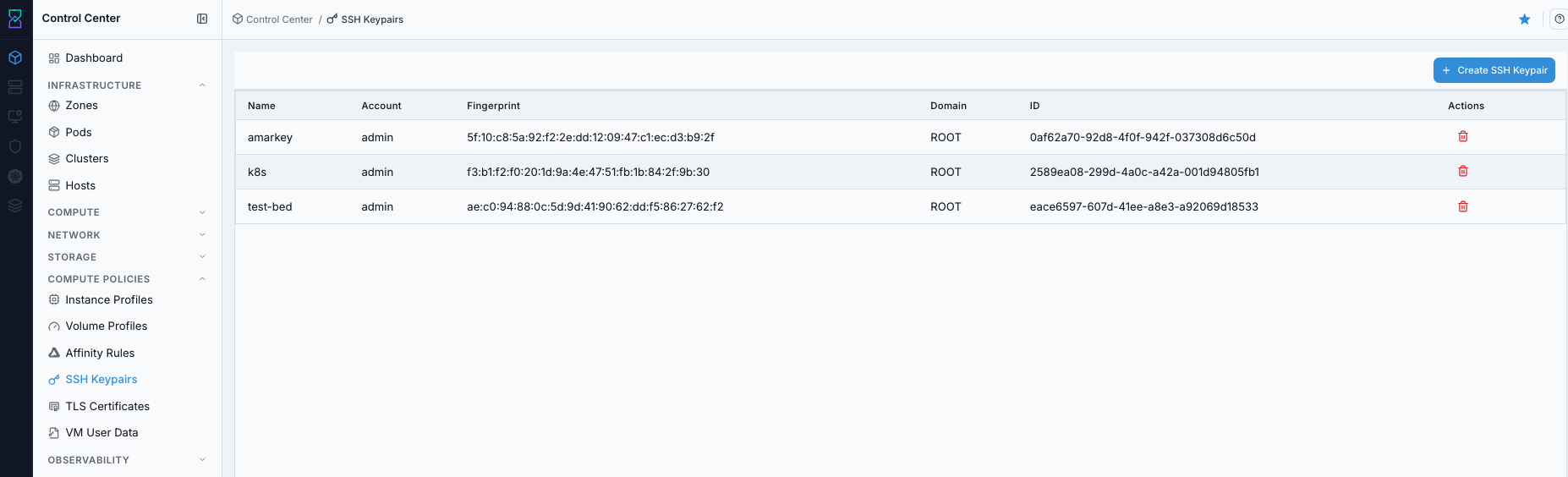
SSH keypairs dashboard.
Screen Overview and Actions
This screenshot shows the SSH Keypairs dashboard table.
From this screen, you can review keypair scope/fingerprint data, create a keypair, and use row actions including
Delete.
Expected Outcome:
You can identify usable keypairs for the target account/domain.
You can locate the row
Deleteaction for keypair lifecycle operations.
If this fails:
Refresh and retry.
Verify permissions and account scope.
Review the on-screen error message and retry.
Step: Open SSH Keypairs Help Panel
When to Use: Use this when field behavior or action semantics are unclear.
Purpose: Open contextual guidance for SSH Keypairs.
Steps:
Open
Control Center -> Compute Policies -> SSH Keypairs.Click the help icon in the top-right corner.
Review field definitions and guidance.
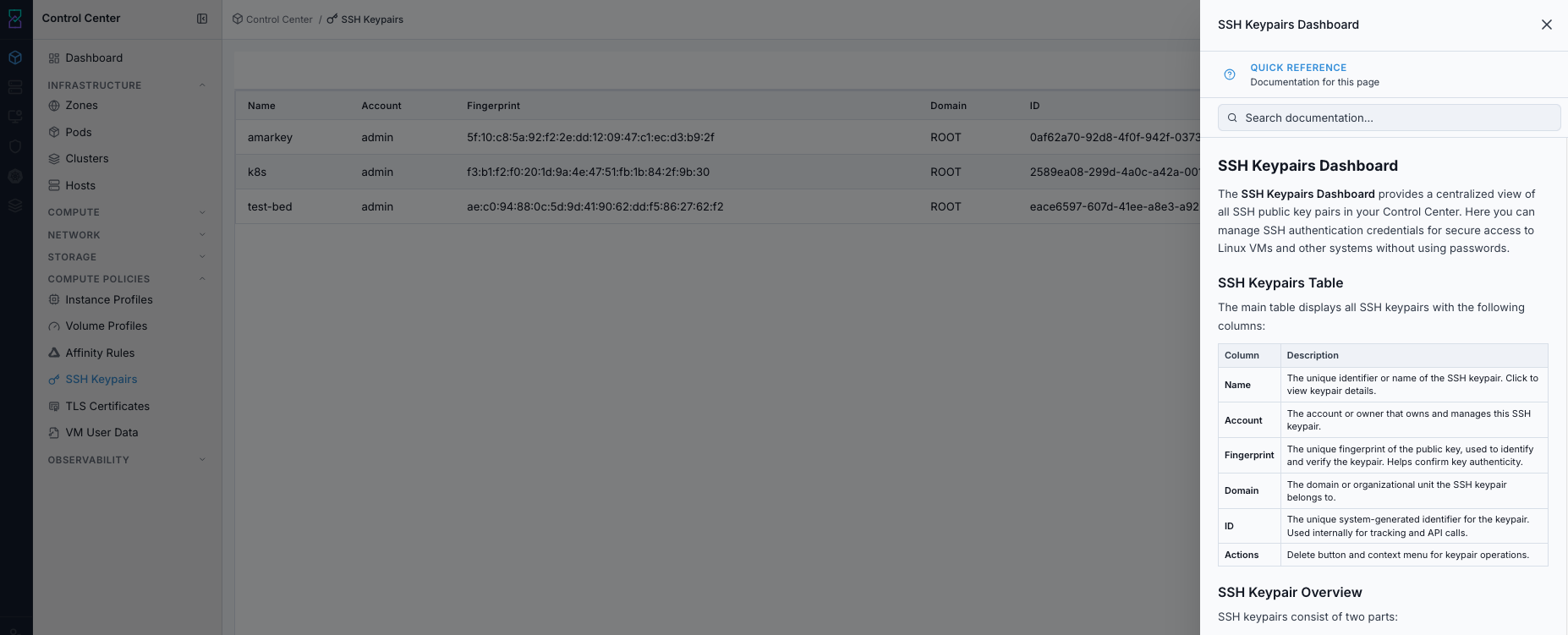
SSH Keypairs help panel.
Screen Overview and Actions
This screenshot shows the SSH Keypairs help panel.
From this screen, you can review field definitions and action guidance before key lifecycle changes.
Expected Outcome:
Help panel opens with page-level guidance.
If this fails:
Refresh and retry.
Verify UI scripts are not blocked.
Review the on-screen error message and retry.
Step: Create SSH Keypair
When to Use: Use this when no valid keypair exists for the target VM access path.
Purpose: Create a new keypair for secure passwordless VM access.
Steps:
Click
+ Create SSH Keypair.Enter keypair name.
Click
Create.Download and store private key securely.
Warning
The private key is displayed only once during creation and cannot be recovered later from the dashboard. If it is lost, create a new keypair and redeploy key access to affected workloads.
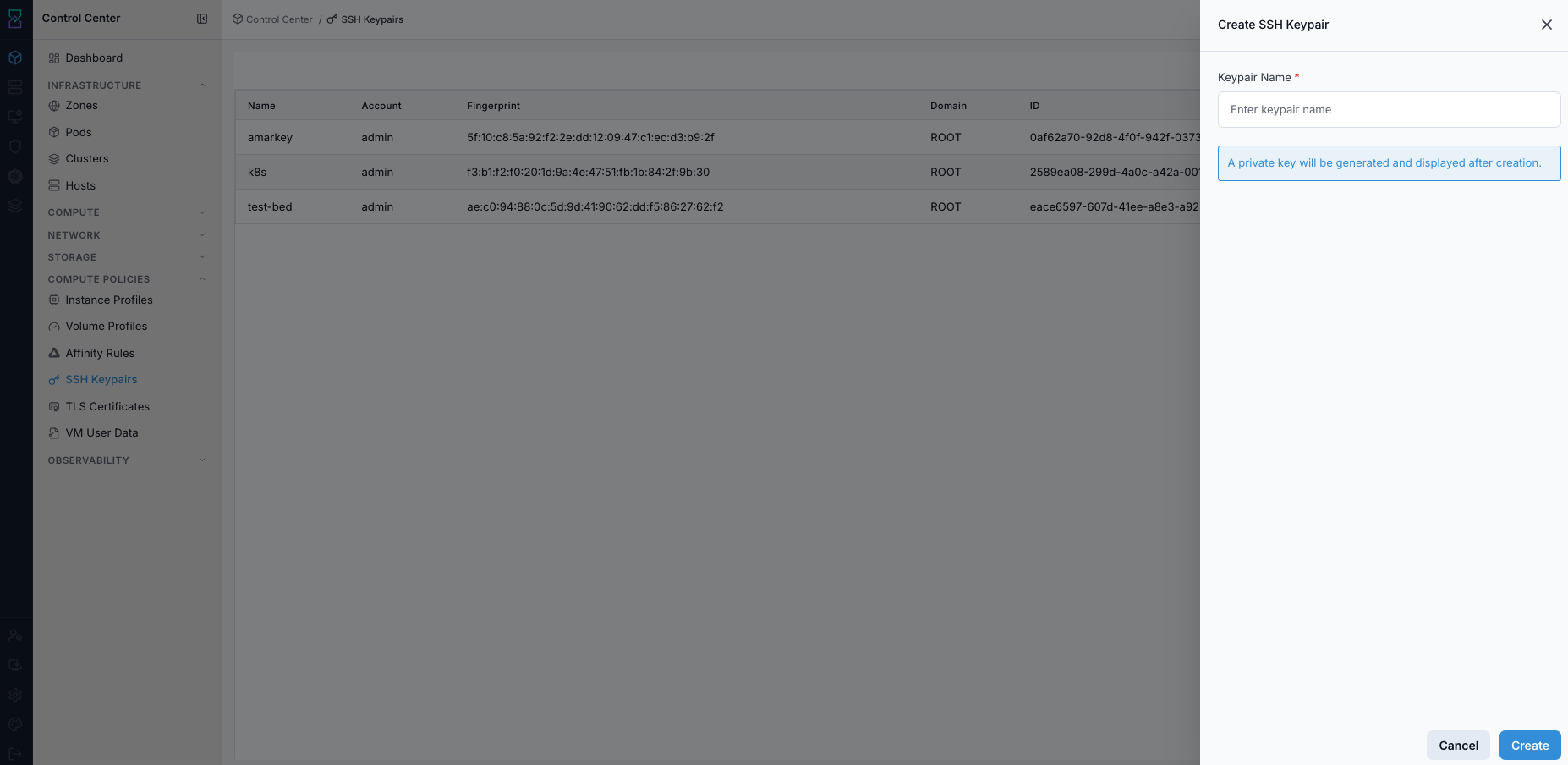
Create SSH keypair form.
Screen Overview and Actions
This screenshot shows the create SSH keypair form.
From this screen, you can create the keypair and capture the private key output for secure storage.
Expected Outcome:
Keypair appears in dashboard and is available during VM provisioning.
Private key is captured securely for operational use.
If this fails:
Verify unique keypair name and scope permissions.
Retry create action and confirm popup/download handling.
Review the on-screen error message and retry.
Step: Verify Keypair Fingerprint and Scope
When to Use: Use this immediately after keypair creation or before assigning to production VMs.
Purpose: Validate key integrity and ownership scope.
Steps:
From dashboard, capture
Fingerprintfor the created keypair.Confirm
AccountandDomaincolumns match intended scope.Use the keypair in VM provisioning flow.
Expected Outcome:
Fingerprint and scope are reviewed before runtime usage.
If this fails:
Refresh dashboard and re-open keypair row.
Verify keypair ownership in the correct account/domain.
Review the on-screen error message and retry.