Configuration
Path: Left sidebar > Advanced > Configuration
The Configuration page exposes the complete Ceph configuration database across all daemon types. Changes made here are written to the monitor config database and then distributed to running daemons without restart in most cases.
Dashboard Overview
Use this page to inspect tunable parameters, validate current overrides, and apply controlled config-database changes for Ceph daemons.
Note
The total option count shown in the header is environment-specific (for
example Configuration Options (1907) in the reference UI).
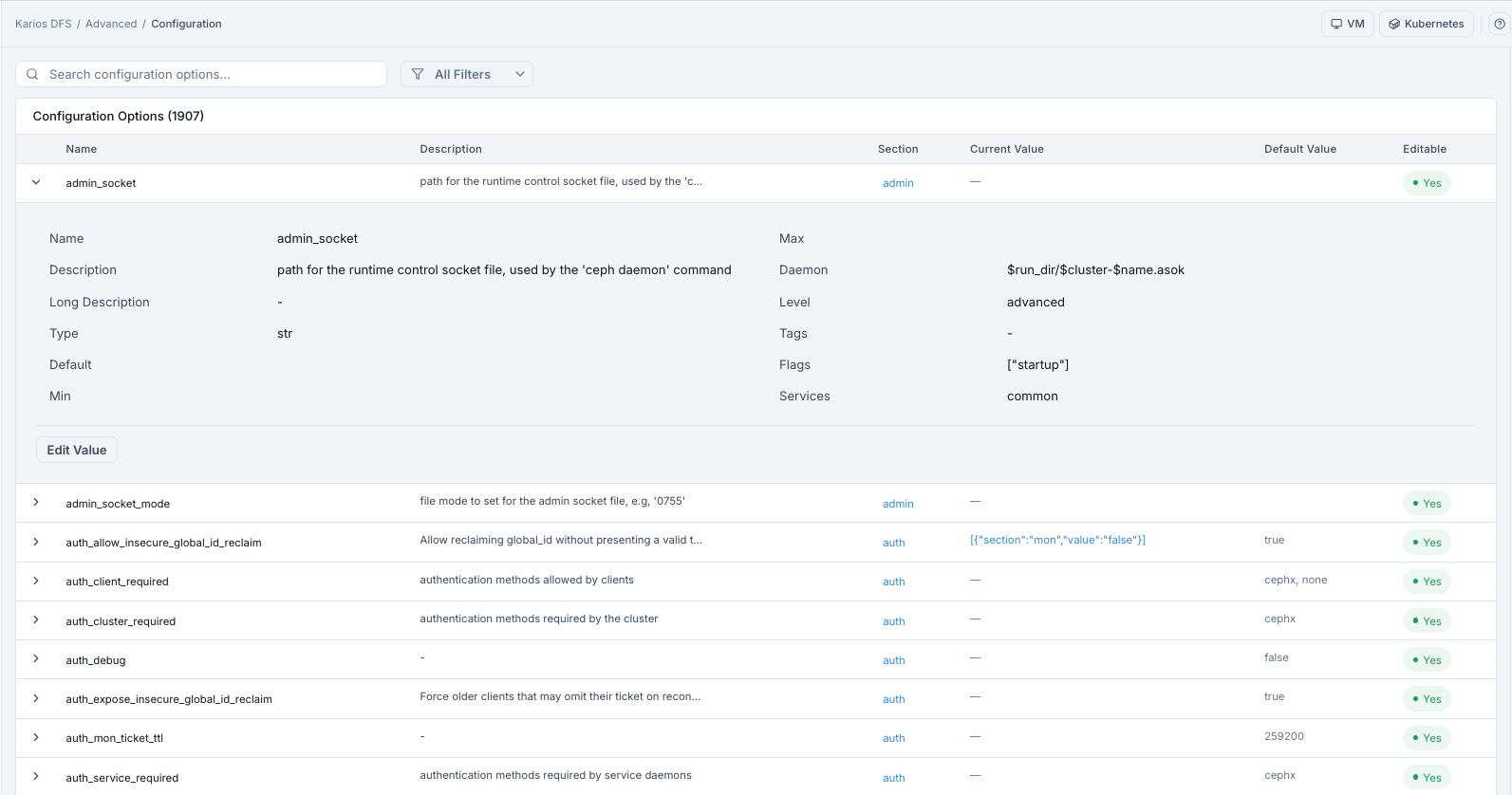
What This Screenshot Shows: Configuration Dashboard (UI Reference; Values Depend On Your Environment).
Actions in This Screen
Header Control |
What It Does |
|---|---|
Search bar ( |
Filters the option list in real time by keyword or parameter name |
|
Opens filters for |
|
Shows total parameters currently available in the config database |
Configuration List - Column Reference
Column |
What It Shows |
|---|---|
Name |
Configuration key (for example |
Description |
Short explanation of the parameter (expand row for full text) |
Section |
Target daemon group (for example |
Current Value |
Current override in the database. |
Default Value |
Compiled default used when no override exists |
Editable |
|
Filters
Filter |
Description |
|---|---|
Section |
Filter by daemon type (for example |
Level |
Show |
Search |
Find settings by key name or keyword |
How To Find A Configuration Parameter
Purpose:
To locate exact settings for tuning, validation, or troubleshooting.
When to Use:
Before editing any parameter.
During root-cause analysis of daemon behavior.
Steps:
Open
Advanced > Configuration.Use
Search configuration options...with a parameter name or keyword.Optionally open
All Filters.Filter by
SectionandLevelto narrow scope.
Expected Outcome:
You get a focused list of relevant parameters.
How To View Full Parameter Details
Find the parameter in the list.
Click chevron
>to expand the row.Review all parameter metadata in the expanded detail panel.
Expanded Row - Field Reference:
Field |
What It Shows |
|---|---|
Name |
Full parameter key name |
Description |
Full short description |
Long Description |
Extended detail (can be |
Type |
Data type (for example |
Default |
Compiled default value |
Min / Max |
Allowed numeric bounds (blank when not defined) |
Daemon |
Daemon-visible value rendering |
Level |
Parameter complexity level ( |
Tags |
Feature tags (or |
Flags |
Internal behavior flags (for example |
Services |
Daemon group scope (for example |
TOOLTIP - Flags = ["startup"]:
Startup-flagged parameters only take effect on daemon restart.
Current Valuecan update immediately while daemon behavior remains old.Restart the affected daemon to apply runtime behavior.
How To Edit A Configuration Value
Purpose:
To tune daemon behavior or apply a targeted operational change.
When to Use:
During controlled maintenance or validated tuning windows.
Steps:
Find the target parameter.
Confirm
Editable = Yes.Click the row edit action (or expand row with chevron
>and clickEdit Value).Enter new value and confirm.
What Happens After Editing:
New value is written to monitor config database immediately.
Current Valueupdates to show active override.Most parameters propagate without restart.
["startup"]parameters still require daemon restart.
Warning
Only edit parameters you understand. advanced and dev level changes
can destabilize cluster behavior.
How To Reset A Value To Default
Expand the parameter row.
Click
Edit Value.Clear the value field completely.
Confirm.
Expected Outcome:
Override is removed.
Current Valuereturns to-.Daemon falls back to the compiled
Default Value.
Common Tasks
Edit and reset tasks are covered in:
Add A Setting:
If your release shows an
Add Settingaction in the page header, use it to enter the key, section, and value for a parameter not currently listed.If no
Add Settingaction is visible, that workflow is not enabled in the current UI build; use the existing parameter list only.
Key Parameters Reference
Parameter |
Section |
What It Controls |
|---|---|---|
|
osd |
Target OSD memory usage and cache behavior |
|
osd |
Recovery I/O priority relative to client I/O |
|
mon |
Time before down OSD is auto-marked out |
|
rgw |
RGW worker thread count for object traffic |
|
mds |
Maximum metadata cache size per MDS daemon |
Cautions
advancedanddevsettings can destabilize the cluster. Change only with documentation-backed guidance.Some changes require daemon restart to take effect even when
Current Valueupdates (for example startup-flagged parameters).Monitor config database overrides
/etc/ceph/ceph.confentries for the same key. The file acts as fallback for bootstrap settings.
If this fails
Problem You See |
Most Likely Cause |
What To Do |
|---|---|---|
Cannot find parameter |
Wrong keyword or unknown exact name |
Use shorter keywords and apply |
|
Read-only from dashboard |
Apply through administrator CLI workflow |
Value changed but behavior did not |
Startup-flagged parameter |
Check |
Cluster became unstable after change |
Unsafe parameter value |
Revert immediately by clearing override to default |
Note
If issues persist, raise a support ticket via Monitoring > Alerts or the
Karios Support.