Karios Support
Karios Support provides a user-facing workflow for portal access, ticket submission, status tracking, follow-up, and closure using Zoho Desk.
Support Channel Decision Guide
First-time portal access requirement:
Before you can raise tickets in Zoho Desk, send a registration request to
support@karios.com.Karios support will register your email and send the portal invitation.
You can raise portal tickets only after invitation acceptance and first login completion.
Zoho Desk portal sign-in entry URL:
https://desk.zoho.comWorkspace access still requires invitation acceptance and approved account registration.
Note
If you are not yet registered, send your name, company, business email, and required access context in your first email to support@karios.com.
Use support@karios.com when:
You are blocked and portal access is not yet active.
You have urgent issues requiring immediate manual escalation.
Use Zoho Desk when:
You need formal ticket tracking and status visibility.
Multiple team members need shared updates and closure history.
Before You Submit a Ticket (Self-Service Check)
Run this short check first to reduce avoidable tickets and speed up real escalations:
Use Appendices section
A. Troubleshooting Prep Checklistand collect required evidence.Confirm issue scope: one resource, one module, or platform-wide.
Retry once only after correcting obvious input/state issues.
Capture screenshot + exact error text + timestamp/timezone.
If impact remains, open support ticket with the collected evidence.
Support Hours and SLA Expectations
Support coverage and SLA commitments are contract-specific.
Before production go-live, confirm and document:
Support window (24x7 vs business-hours).
Timezone used for SLA measurement.
Priority definitions (P1/P2/P3/P4).
Acknowledgment and update frequency targets.
Escalation contacts for critical incidents.
Note
If your contract does not define response targets clearly, request written SLA confirmation from the Karios support/account team.
Documentation fallback targets (non-contractual planning baseline):
Severity |
Example impact |
Planning acknowledgment target |
Planning update cadence |
|---|---|---|---|
P1 |
Production outage |
<= 1 hour |
Every 1-2 hours until stable |
P2 |
Major degradation |
<= 4 hours |
At least daily or per major change |
P3 |
Non-critical issue with workaround |
<= 1 business day |
Every 2-3 business days |
P4 |
Informational/request |
<= 2 business days |
As scheduled/queued |
Emergency Escalation Playbook
For complete production-impact incidents:
Open a Zoho Desk ticket immediately with clear
P1impact statement.Send
support@karios.comwith subject prefix[SEV1]and include the ticket ID.Include: impact scope, start time/timezone, affected modules, and actions already attempted.
Keep all updates in the same ticket/email thread to preserve audit context.
Follow your contract-specific on-call path if one is provided.
1. Quick Access Summary
For first-time users:
Follow the
First-time portal access requirementinSupport Channel Decision Guide.Complete invitation acceptance before using the ticket portal.
For registered users:
Use
https://desk.zoho.com(or your invitation workspace link) for ticket creation and tracking.Use
support@karios.comfor urgent escalation or when portal access is unavailable.
2. Overview
This workflow covers the user-visible support lifecycle:
Portal access activation (invite email)
Ticket submission
Ticket updates from support
Client follow-up
Ticket history visibility
Resolution confirmation and closure
Expected outcome:
External users can raise and track tickets directly.
All support communication stays in a single auditable thread.
Expected Response Pattern
After a ticket is submitted, users should expect this sequence:
Ticket is submitted and visible in your portal list.
Support posts update or clarification request.
You reply with required details in the same thread.
Resolution is shared for validation.
Ticket is marked closed after confirmation.
Note
Actual response timing varies by issue type, environment impact, and investigation complexity.
Typical status journey:
Open->In Progress->Pending Customer(if clarification needed) ->Resolved->ClosedIf customer response is pending, keep updates in the same ticket thread to preserve audit context.
3. Phase 1: Portal Access Activation (User View)
You need an invitation email before first login. If you do not have one, follow the First-time portal access requirement in Support Channel Decision Guide.
Step 1:
Open the invitation email.
Click the acceptance link.
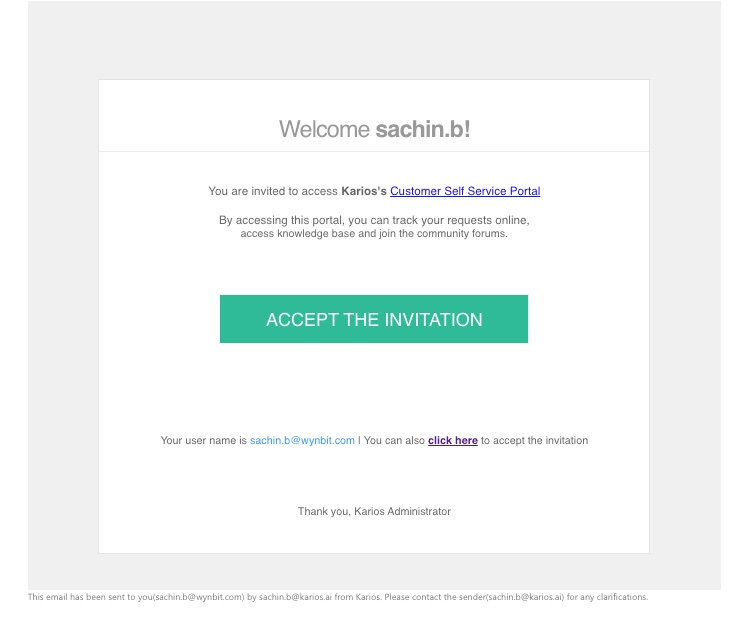
Figure 1: Invitation email. Action: click the acceptance link to activate portal access.
Step 2:
Complete registration.
Sign in using the Zoho Desk portal link from the invitation email.
Tip
If you no longer have the invitation email, request the portal link again via support@karios.com.
Warning
If you cannot find the invite, check spam/junk first, then request a re-invite via support@karios.com.
4. Phase 2: Ticket Submission (External Client)
Step 3:
Client signs in to the Karios support portal.
Open
My Areato view ticket list and status.
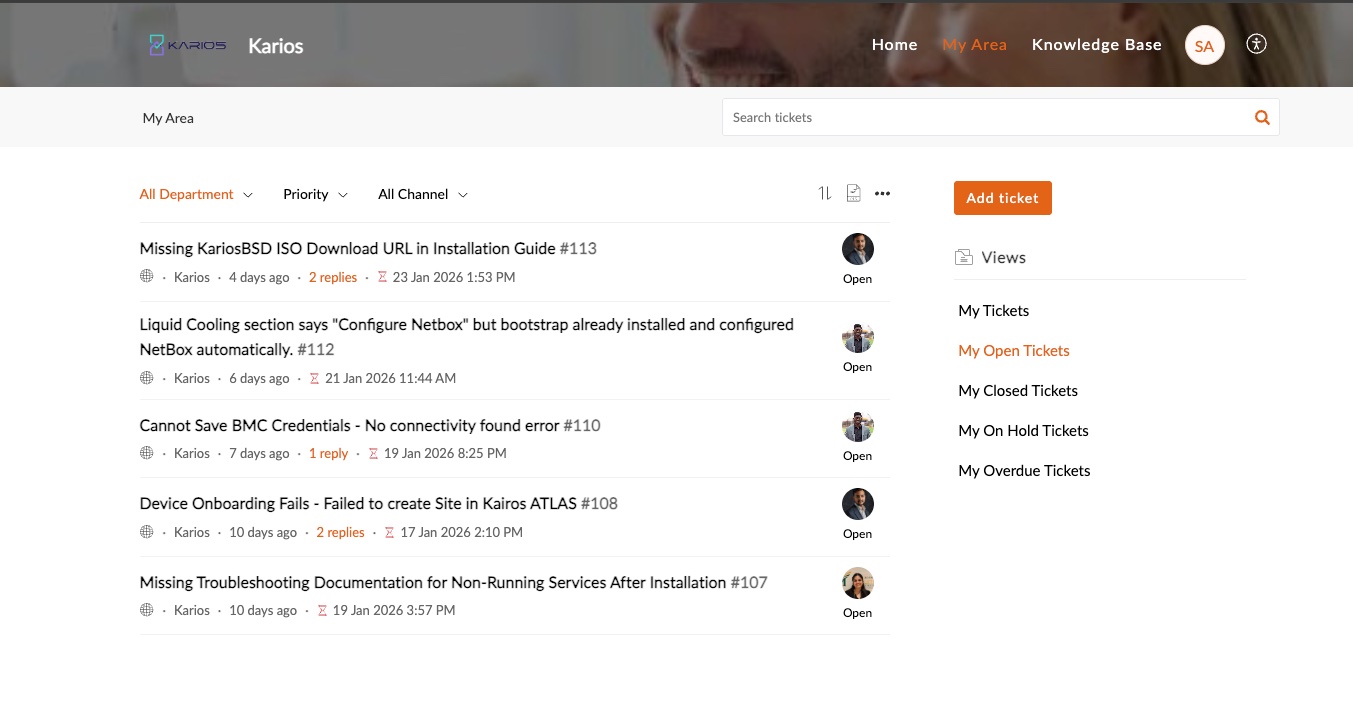
Figure 2: My Area ticket view. Action: review existing tickets or create a new one.
Step 4:
Click
Add ticket.Fill out the ticket form.
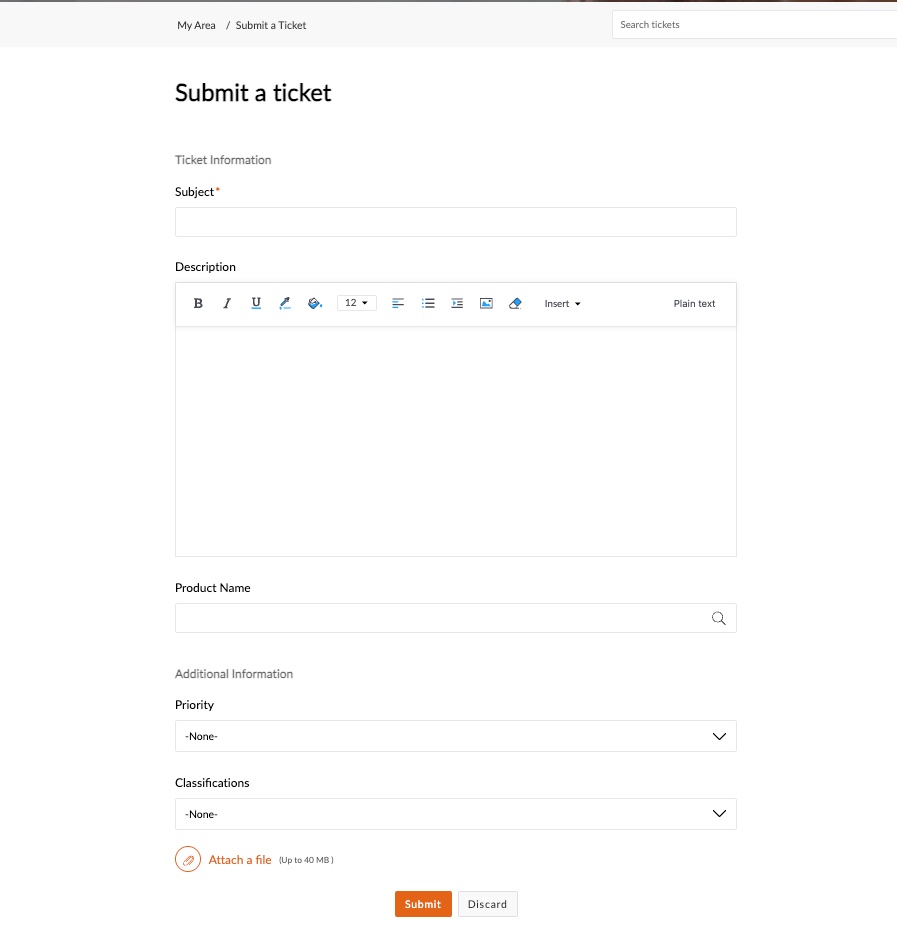
Figure 3: Submit Ticket form. Action: enter complete details before submission.
Required ticket details:
Subject
Description
Product Name
Priority (if applicable)
Classification
Attachments (up to platform limit)
Tip
A strong first ticket includes exact error text, screenshots, impact, and timestamp/timezone.
5. Phase 3: Ticket Submission Confirmation
Step 5:
Ticket is submitted to the Karios support team.
Keep the ticket ID for tracking and follow-up.
6. Phase 4: Client Follow-Up Options
Clients can respond in two ways:
Reply directly to the support email.
Reply in the Zoho Desk portal ticket conversation.
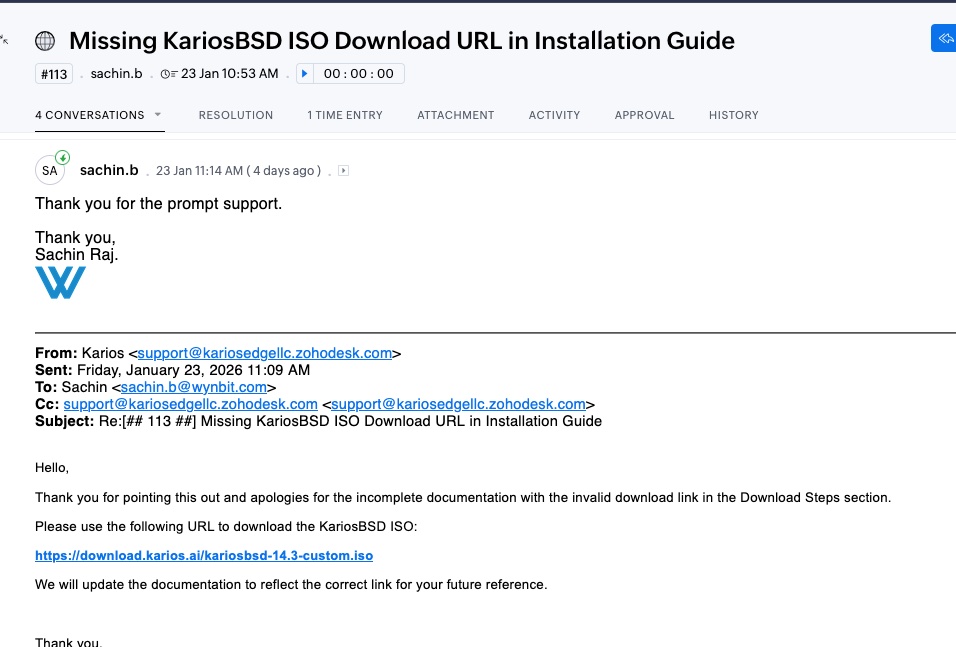
Figure 4: Email reply flow. Outcome: replies are captured in the same ticket conversation.
7. Phase 5: Client Ticket History and Views
Clients can track ticket progress from portal filters.
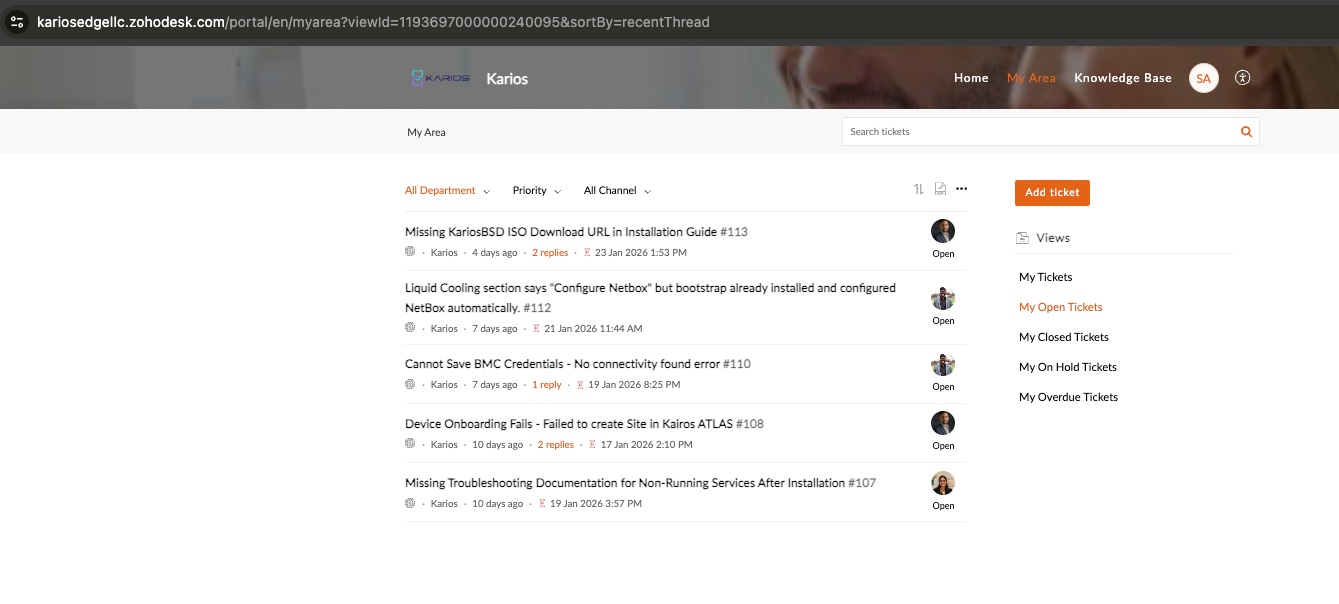
Figure 5: Ticket history views. Action: use Open, Closed, On Hold, and Overdue filters to monitor status.
Common views:
My Tickets
My Open Tickets
My Closed Tickets
My On Hold Tickets
My Overdue Tickets
8. Resolution Confirmation and Closure (User View)
Step 6:
Validate the proposed fix in your environment.
If resolved, confirm in ticket conversation.
After client-side approval is provided in the ticket thread, the Karios support team closes the issue.
Track status until it changes to
Closed.
Expected closure outcome:
Client-side approval is captured in the ticket conversation.
Resolution is recorded.
Ticket moves to the client closed-ticket view.
9. Ticket Tabs Reference
Each ticket includes operational tabs such as:
Conversations
Resolution
Attachment
Activity
History
Figure 6: Ticket detail tabs reference. Action: use tabs for communication and status tracking.
10. Troubleshooting
Invite not received:
Check spam/junk.
Confirm correct email was invited.
Request re-invite via
support@karios.com.
Cannot log in to portal:
Reset password.
Retry in private browser window.
Confirm account activation is complete.
Cannot submit ticket:
Verify required fields are completed.
Re-attach files.
Try alternate browser.
No response or delayed handling:
Confirm ticket was submitted successfully.
Verify ticket status.
Add follow-up comment with business impact and urgency.
11. Quick Reference
Direct support email:
support@karios.comPreferred support workflow: Zoho Desk portal
Operational note: always include exact error message, screenshot, timestamp, and impacted component
Success Checkpoint
After this section, you should be able to:
Create and track tickets through full lifecycle.
Apply the correct escalation path for urgent vs standard support.