Events
Purpose
Events provides the operational timeline for actions across virtual machines, storage, network, and platform services.
When to Use
Use this page when you need to confirm what happened, who triggered it, and when it occurred.
Step: Start Events Workflow
When to Use:
Use this at the start of event-based incident triage.
Purpose:
Capture the minimum evidence needed for accurate escalation.
Steps:
Open
Control Center -> Observability -> Events.Apply filters (level/resource/search) to isolate incident-window rows.
Open one event row and capture
Type,State,Level,Created At, andResource ID.Use captured values to build triage or escalation notes.
Expected Outcome:
You can produce an accurate action timeline with enough context for follow-up.
If this fails:
Refresh the page and re-apply filters.
Continue with detailed steps in the included guide.
When to Use Events
Use Events when you need a comprehensive audit log of platform actions, user activity, and operation outcomes.
Step: Review Events
When to Use:
Use this first when starting incident triage from the Events timeline.
Purpose:
Identify high-risk operation failures quickly and establish timeline context.
Steps:
Open
Control Center -> Observability -> Events.Confirm the events table is loaded with the latest rows.
Start triage with
Level=ERRORandState=Failedto isolate high-risk operations first.Expand to additional filters after initial triage.
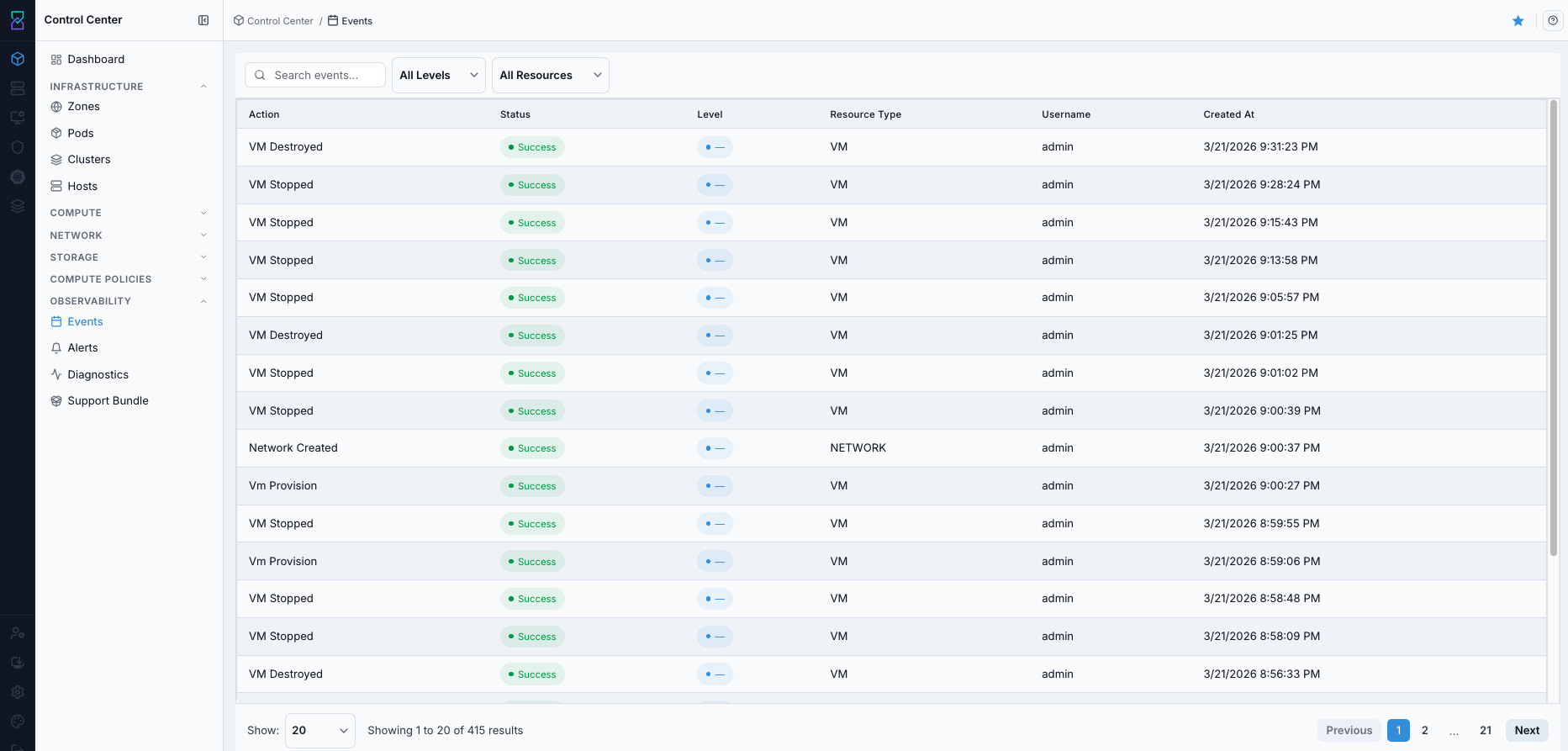
Events dashboard.
Tip
Start with Level=ERROR + State=Failed first, then widen scope to include related WARNING and INFO rows.
Warning
Event history is policy-based and often time-limited. Capture required incident evidence in the same session.
Expected Outcome:
You can identify high-risk rows quickly from state and level.
You can explain what happened, who triggered it, and when.
If this fails:
Refresh the page.
Re-apply
Level=ERRORandState=Failedfilters.
Step: Open Events Help
When to Use:
Use this when column, state, or level meanings are unclear during triage.
Purpose:
Confirm page-specific field definitions before acting on results.
Steps:
On the Events page, click the help icon.
Review definitions for columns, state, and level meanings.
Return to the table and continue triage with the same filters.
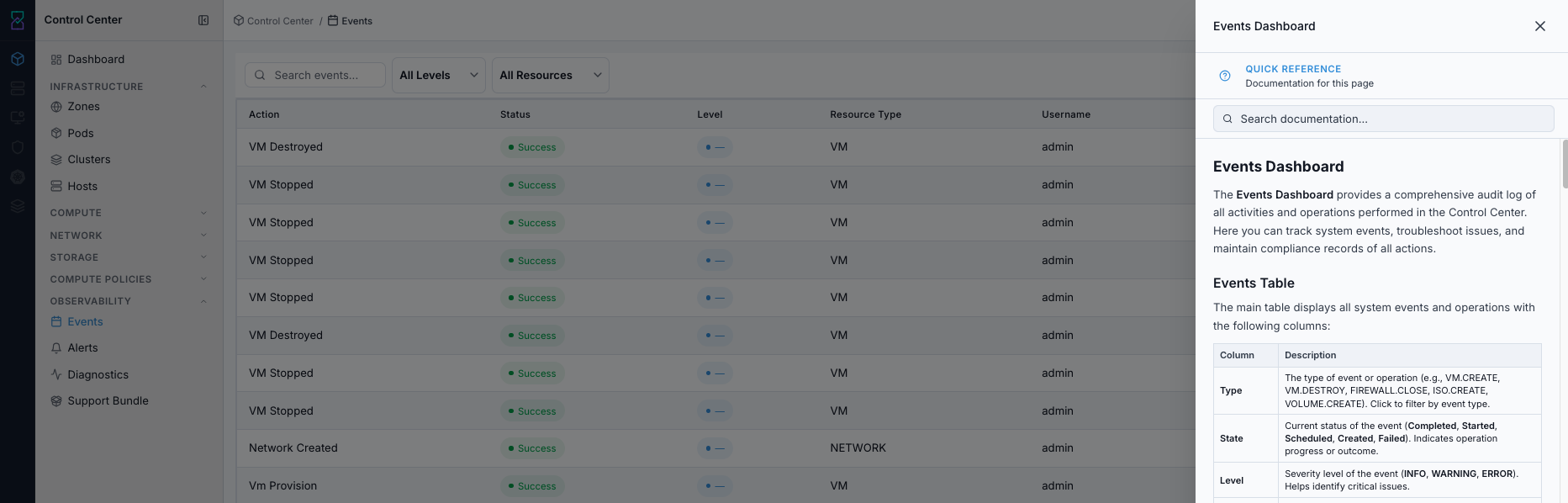
Events help panel.
Expected Outcome:
You can interpret Events fields consistently before filtering or escalation.
If this fails:
Refresh the page and reopen help.
Continue with field definitions from this guide if panel access is unavailable.
What the Events Table Shows
Column |
Description |
|---|---|
|
Event/operation type (for example |
|
Current operation status ( |
|
Severity level ( |
|
Resource impacted by the event (for example |
|
User who initiated the operation. |
|
Account associated with the event. |
|
Domain/organizational scope for the event. |
|
Event timestamp in |
Event Type Reference
Category |
Common types |
What it tracks |
|---|---|---|
VM operations |
|
VM lifecycle and mobility operations. |
Volume operations |
|
Volume provisioning and attachment lifecycle. |
Network operations |
|
Network and firewall changes. |
Storage operations |
|
Boot image and snapshot actions. |
User/security operations |
|
Identity and access-related events. |
Infrastructure operations |
|
Cluster/host lifecycle changes. |
System operations |
|
Platform-level maintenance and failure signals. |
State and Level Reference
State badges:
State |
Meaning |
Operator guidance |
|---|---|---|
|
Operation finished successfully. |
No immediate action unless additional validation is required. |
|
Operation in progress. |
Monitor to completion for long-running tasks. |
|
Operation queued; not started yet. |
Verify prerequisites and resource availability if it remains queued. |
|
Operation/resource created but not fully processed. |
Check for required follow-up steps if it does not advance. |
|
Operation did not complete. |
Investigate and remediate before rerun. |
Level badges:
Level |
Meaning |
Operator guidance |
|---|---|---|
|
Normal informational signal. |
Use for timeline/audit context. |
|
Potential issue; recoverable condition. |
Monitor and investigate if repeated. |
|
Failed operation or critical issue. |
Prioritize investigation and escalate when required. |
Tooltip and UI Cues
Use these in-screen cues during triage:
Typevalues are clickable for quick type filtering.StateandLevelbadge colors provide immediate status/severity context.Created Atgives precise sequencing for correlation with alerts and diagnostics.Pagination controls (page size, page navigation, result count) help navigate larger result sets.
Step: Filter and Search Events
When to Use:
Use this when raw event volume is too large for direct triage.
Purpose:
Narrow results to one action path or one incident window.
Steps:
Filter by
Typeto isolate one operation path (for exampleVM.CREATE).Filter by
Levelto prioritizeERRORandWARNINGrows.Filter by
Stateto focus onFailedor long-running states.Filter by
Resource Typeto isolate VM, volume, network, or image operations.Filter/search by
Usernamefor user-level activity tracking.Apply date/time window filters for incident-window analysis.
Use keyword search for resource names, IDs, or specific strings.
Use pagination controls (page size + navigation) for larger datasets.
Expected Outcome:
Results are narrowed to actionable rows without losing incident context.
If this fails:
Re-apply
Level=ERRORandState=Failed.Narrow the incident time window.
Filter by
Resource TypeorUsernameto isolate one action path.Re-check with one additional correlated filter only (avoid over-filtering).
Step: Open Single Event Details
When to Use:
Use this after identifying a high-risk row that needs escalation context.
Purpose:
Capture event and resource metadata in one place for accurate handoff.
Steps:
From
Events, open a target row (by clicking the event entry).In
Event Information, confirm:
Type
State
Level
Description
Created At
In
Resource Information, capture:
Resource TypeandResource Name
Resource ID
Account/Username/Domain
Use these fields in incident tickets or escalation notes.
Warning
Failed operations can leave resources in partial state. Verify current resource state before retrying any operation.
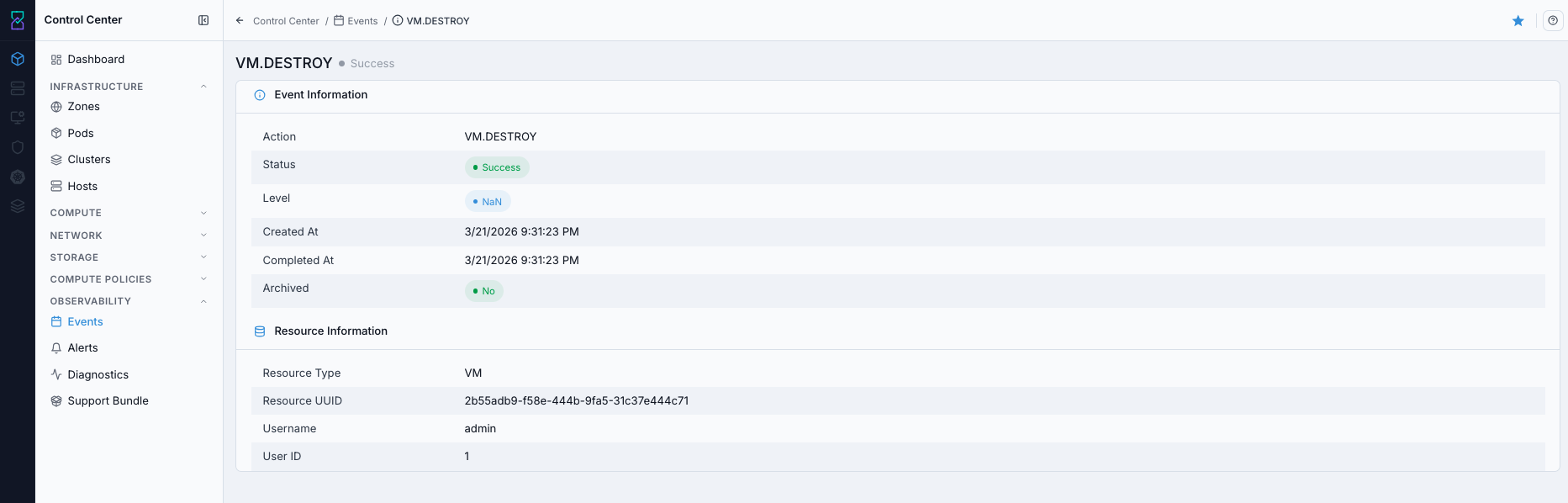
Single event details view.
Expected Outcome:
Type,State,Level, andCreated Atare captured.Resource IDand ownership context (account/user/domain) are captured.One escalation note can be written without returning to the table.
If this fails:
Reopen the event row from the filtered table.
Capture available metadata and continue with correlated alerts if detail data is partial.
Expected Outcome
You can quickly isolate failed operations.
You can produce an auditable timeline of who changed what and when.
You can escalate with complete evidence (event + resource + ownership context).