Full K-Shield Workflow
Use this guide when you need the complete K-Shield workflow shown in the current screenshots: dashboard review, VM-level scanning, managed-node review, monitoring, compliance validation, and report downloads. New users should follow the sections in order: start with Node View Dashboard, review VM View Dashboard, complete any VM scan or schedule review, then open the managed-node tabs - FIPS Compliance, Scan's Overview, History, Monitoring, and Audit stream.
1. Node View Dashboard
When to Use:
Use this first when reviewing the Node View dashboard shown below.
Purpose:
Review the Node View dashboard cards, charts, node table, and top vulnerabilities.
Steps:
Open
K-Shield -> Dashboard.Select
Node View.Review category score cards across the top.
Review fleet summary cards.
Review the trend chart, risk distribution, security nodes table, and top vulnerabilities.
Select a managed node if you need details.
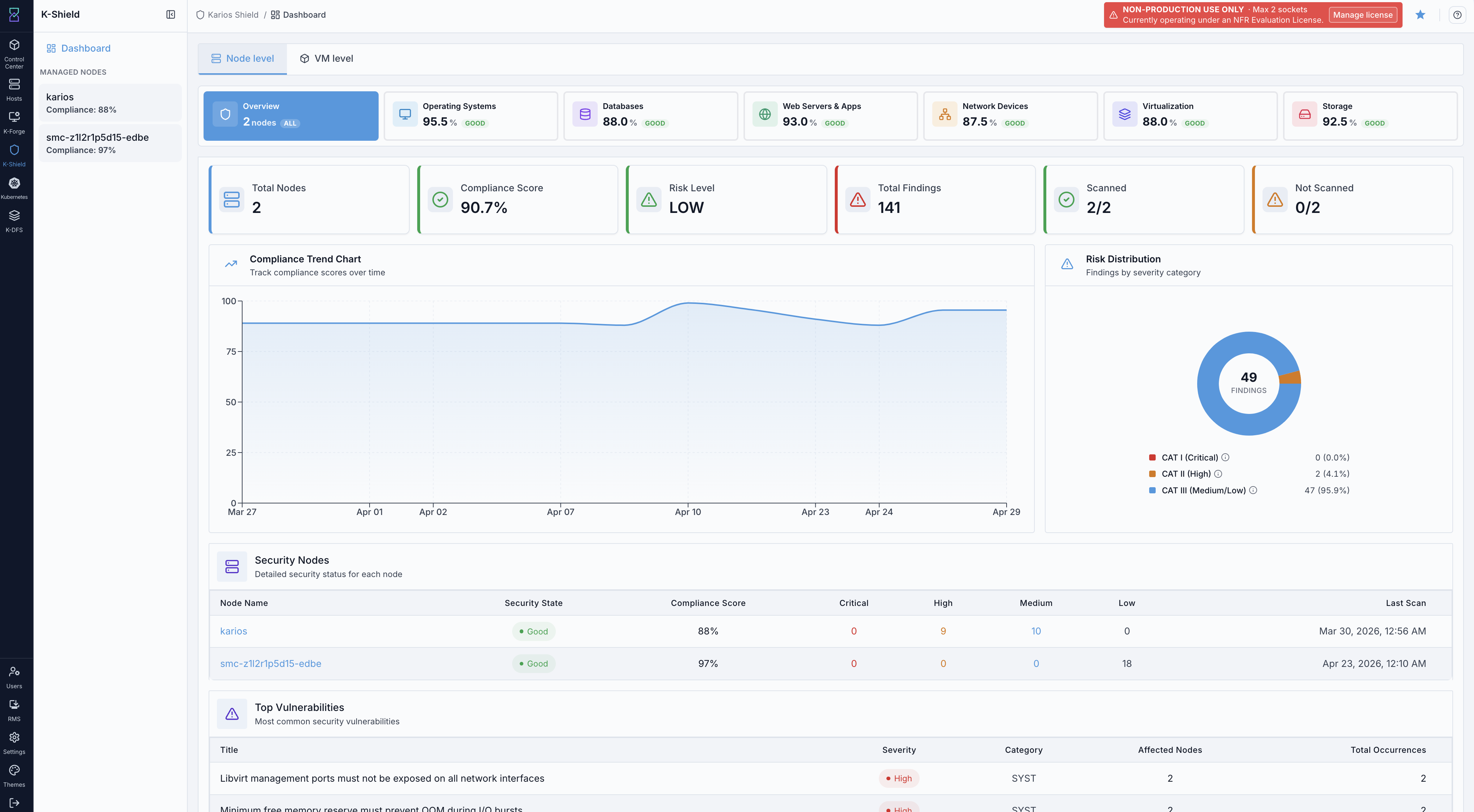
K-Shield Node View dashboard.
What this screenshot shows:
Managed nodes in the left panel.
Node Viewselected on the dashboard.Node ViewandVM Viewtabs at the top of the dashboard.Category cards for operating systems, databases, web servers and apps, network devices, virtualization, and storage.
Fleet cards for
Total Nodes,Compliance Score,Risk Level,Total Findings,Scanned, andNot Scanned.Compliance Trend ChartandRisk Distribution.Security NodesandTop Vulnerabilitiestables.
What you can do from this screen:
Identify scanned and not-scanned node counts.
Compare node compliance scores.
Review CAT I, CAT II, and CAT III distribution.
Open a managed node from the table or left panel.
Use the selected managed-node card in the left panel to confirm which node will open.
Use top vulnerabilities to find repeated issues across nodes.
As a new user, start here before opening managed-node details.
Expected Outcome:
The Node View dashboard information is visible and readable.
Managed nodes are available for selection.
If this fails:
Refresh the dashboard.
Confirm managed nodes appear in the left panel.
Confirm the
Node Viewtab is selected.
2. VM View Dashboard
When to Use:
Use this when reviewing the VM View dashboard shown below.
Purpose:
Review the VM list, VM status, K-Shield responding status, compliance score, and last scan data.
Steps:
Open
K-Shield -> Dashboard.Select
VM View.Open
VM List.Review VM status and K-Shield responding status.
Check compliance score and last scan details.
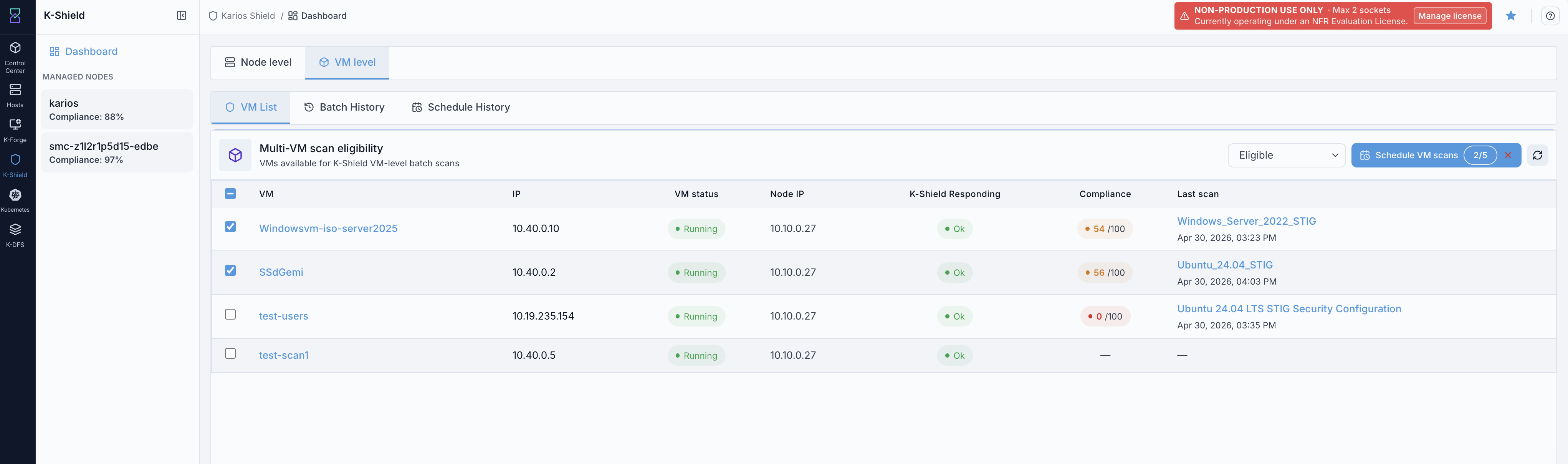
Select one or more eligible VMs when a scan is required.
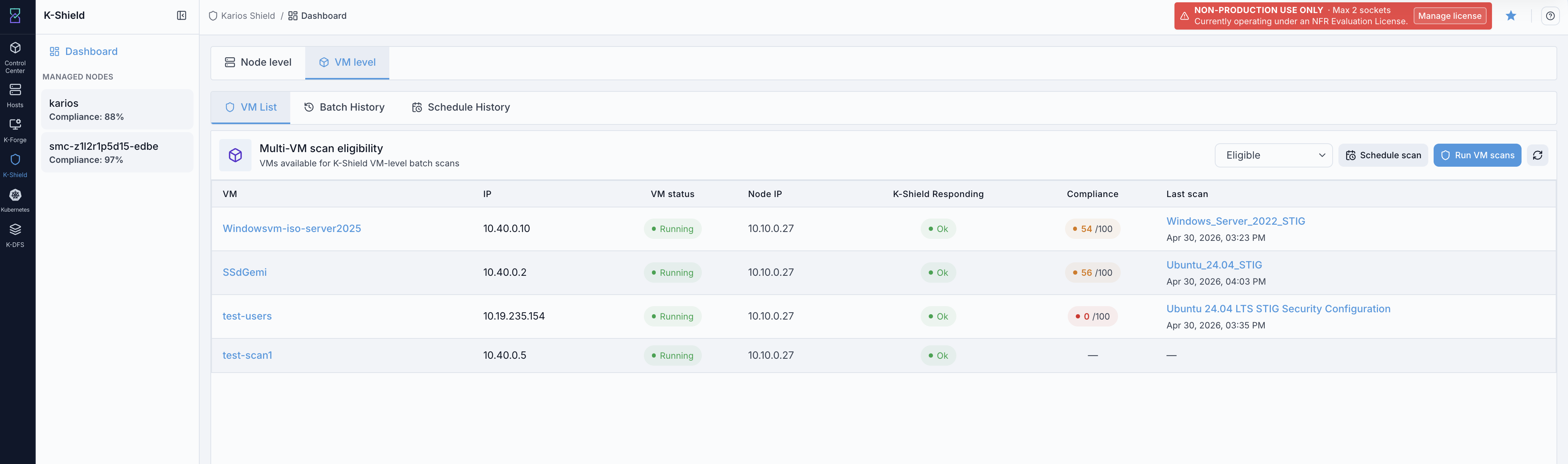
K-Shield VM View dashboard.
What this screenshot shows:
VM Viewselected on the dashboard.VM List,Batch History, andSchedule Historytabs.VM scan eligibility table.
VM name, IP, VM status, node IP, K-Shield responding state, compliance score, and last scan.
Eligibility filter dropdown,
Schedule scanbutton,Run VM scansbutton, and refresh icon.
What you can do from this screen:
Find VMs shown in the eligibility table.
Confirm whether K-Shield is responding for each VM.
Use row checkboxes to select VMs before running or scheduling scans.
Run immediate VM scans.
Schedule VM scans.
Use the refresh icon to reload VM eligibility.
Open batch and schedule history.
As a new user, review this after the Node View dashboard so both dashboard scopes are covered.
Expected Outcome:
VM View dashboard information is visible and readable.
VM scan actions are visible on the page.
If this fails:
Refresh the VM list.
Confirm the
VM Viewtab is selected.Confirm VM rows are visible.
3. Run VM Scans
When to Use:
Use this when selecting VMs from the VM list shown below.
Purpose:
Select VMs and open the scan action shown on the VM View dashboard.
Important
VM scanning has OS-specific prerequisites before the first scan: Ubuntu VMs and Windows VMs must have K-Shield installed and running.
K-Shield Guest Agent Setup
Before installing K-Shield, attach the required QGA ISO to the VM.
In many environments, the VM must be powered off before attaching the ISO. After attaching the ISO, power the VM back on and open the VM console. Complete the steps below inside the guest VM.
Ubuntu / Linux
Required ISO: kshield-ubuntu-qga-tools
Steps:
Power off the VM if required by the platform.
Attach the ISO
kshield-ubuntu-qga-tools.Power on the VM.
Open the VM console and log in with a user that has
sudo.Run:
sudo mkdir -p /mnt/qga-iso
sudo mount -o ro /dev/sr0 /mnt/qga-iso
ls -lah /mnt/qga-iso
sudo sh /mnt/qga-iso/install-ubuntu.sh
systemctl is-active qemu-guest-agent
systemctl status qemu-guest-agent --no-pager
Expected result: systemctl is-active qemu-guest-agent returns active.
Note: If /dev/sr0 is not the attached ISO device, identify the CD-ROM
device with lsblk and mount that device instead.
Windows
Required ISO: kshield-windows-qga-tools
Steps:
Power off the VM if required by the platform.
Attach the ISO
kshield-windows-qga-tools.Power on the VM.
Open the VM console and sign in as an Administrator.
Open PowerShell and run:
$drive = Get-PSDrive -PSProvider FileSystem | Where-Object {
  (Test-Path (Join-Path $_.Root "install-windows.ps1")) -and
  (Test-Path (Join-Path $_.Root "virtio-win-guest-tools.exe"))
} | Select-Object -First 1 -ExpandProperty Root
$drive
powershell -ExecutionPolicy Bypass -File "$drive\install-windows.ps1"
Get-Service qemu-ga
Expected result: Get-Service qemu-ga shows the service, typically Running.
Note: If the ISO is mounted on D:, the installer can also be run directly with:
powershell -ExecutionPolicy Bypass -File D:\install-windows.ps1
Steps:
Open
K-Shield -> Dashboard -> VM View.Open
VM List.Select one or more VMs.
Click
Run VM scans.Select the correct security profile for each VM.
Choose
Run nowwhen immediate validation is required.
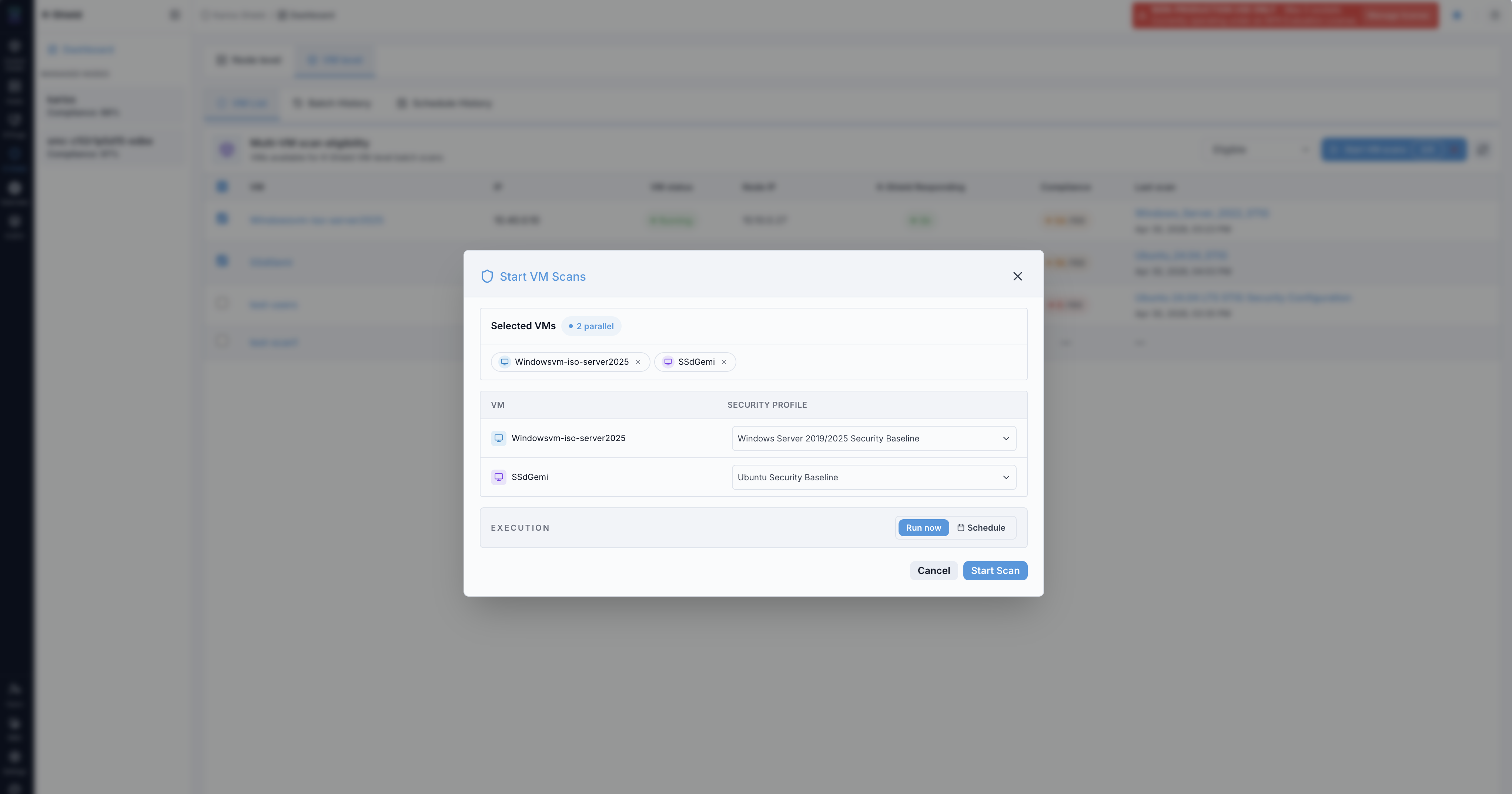
VM scan selection from the VM View dashboard.
What this screenshot shows:
Eligible VM rows selected for scanning.
Row checkboxes showing selected VMs.
VM status and K-Shield responding status.
Run VM scansaction available.Schedule scanaction and refresh icon beside the scan action.Compliance score and last scan information.
What you can do from this screen:
Select VMs for a batch scan.
Filter to eligible VMs.
Open the VM scan dialog.
Use the refresh icon if eligibility or scan state looks stale.
Refresh scan eligibility.
Expected Outcome:
Selected VM rows are clear.
The
Run VM scansaction is available.
If this fails:
Confirm at least one VM row is selected.
Refresh the VM list.
Confirm the
Run VM scansbutton is visible.
4. Start or Schedule VM Scan
When to Use:
Use this after the scan dialog shown below opens.
Purpose:
Review selected VMs, profile selectors, and run or schedule controls.
Steps:
Confirm the selected VMs in the dialog.
Select the correct security profile for each VM.
Choose
Run nowfor immediate execution.Choose
Schedulefor future execution.If scheduling, select the date and time.
Click the visible scan or schedule action.
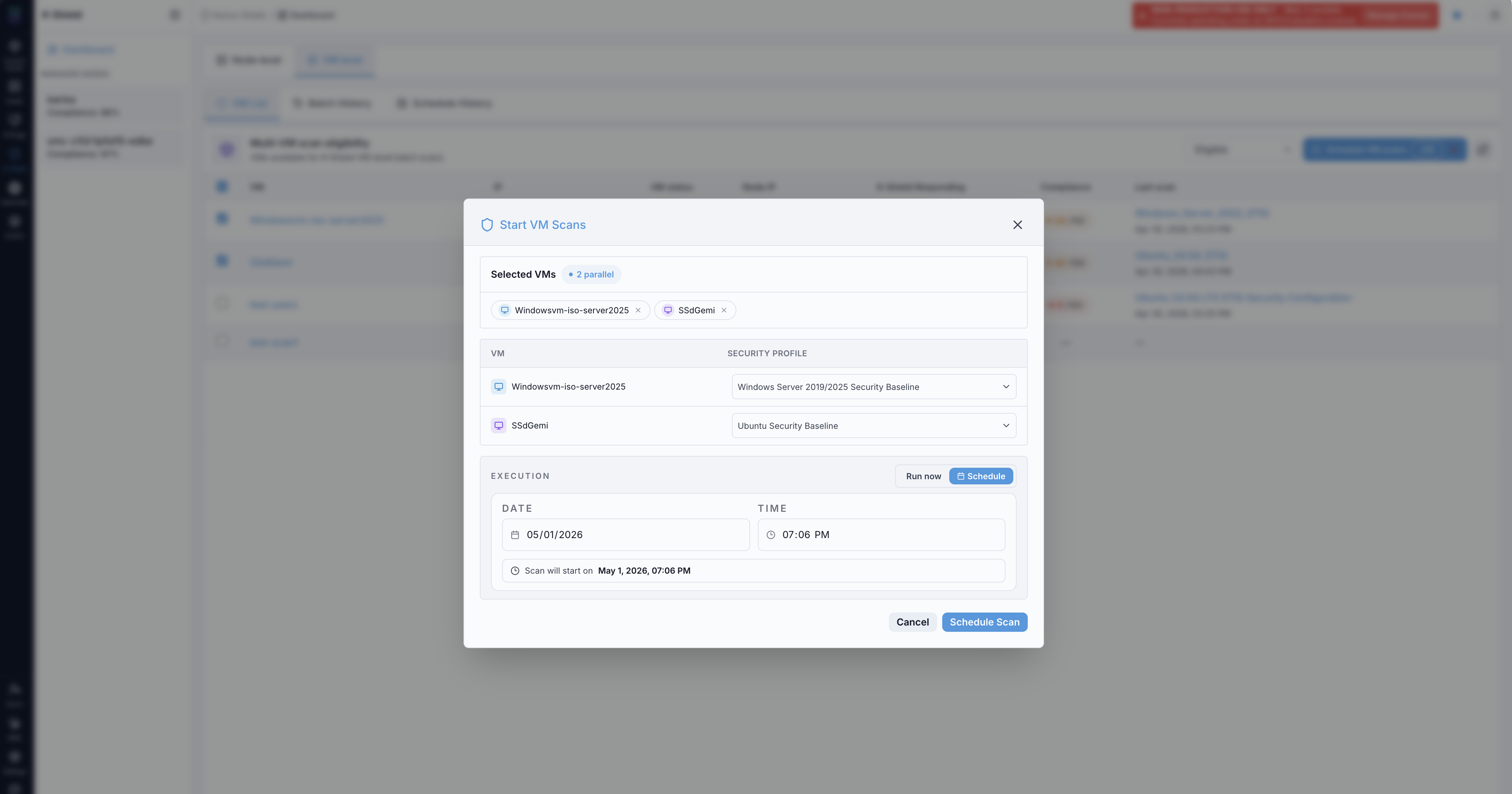
Start VM Scans dialog.
What this screenshot shows:
Selected VMs.
Selected VM chips at the top of the dialog.
Per-VM security profile selectors.
Execution controls for
Run nowandSchedule.Date and time fields for scheduled execution.
Close icon in the upper-right of the dialog.
Final
Schedule Scanaction.
What you can do from this screen:
Assign different profiles to different VMs.
Run the selected scans immediately.
Schedule scans for the selected date and time.
Use the close icon or
Cancelif the selected VMs or profiles are wrong.Cancel if the wrong VMs or profiles were selected.
Expected Outcome:
Selected VMs and profile selectors are visible.
Run and schedule controls are visible.
If this fails:
Reopen the dialog.
Confirm selected VMs are listed.
Confirm profile selectors are visible.
Confirm date and time fields are visible when
Scheduleis selected.
5. Schedule VM Scan Selection
When to Use:
Use this when the schedule selection screen shown below is open.
Purpose:
Review the schedule selection controls for the selected VMs.
Steps:
Select eligible VMs from
VM List.Click
Schedule scan.Confirm selected VMs.
Select profiles.
Select date and time.
Save the schedule.
VM scan schedule selection.
What this screenshot shows:
Selected VM scan schedule flow.
Selected VM chips and security profile selectors.
Security profile selection.
Schedule controls for date and time.
Canceland final schedule action.
What you can do from this screen:
Prepare a scheduled VM scan.
Review schedule controls.
Confirm the selected baseline profile before saving.
Cancel before saving if the selected VM or time is incorrect.
Expected Outcome:
Schedule controls are visible.
Selected VM scan details are visible.
If this fails:
Confirm at least one VM is selected.
Confirm the selected time is valid.
Refresh and retry.
6. VM Batch History
When to Use:
Use this when viewing the VM batch history screen shown below.
Purpose:
Review VM scan batch records.
Steps:
Open
K-Shield -> Dashboard -> VM View.Open
Batch History.Review scan batch status.
Confirm included VMs.
Check start and completion times.
Review rows that need attention.
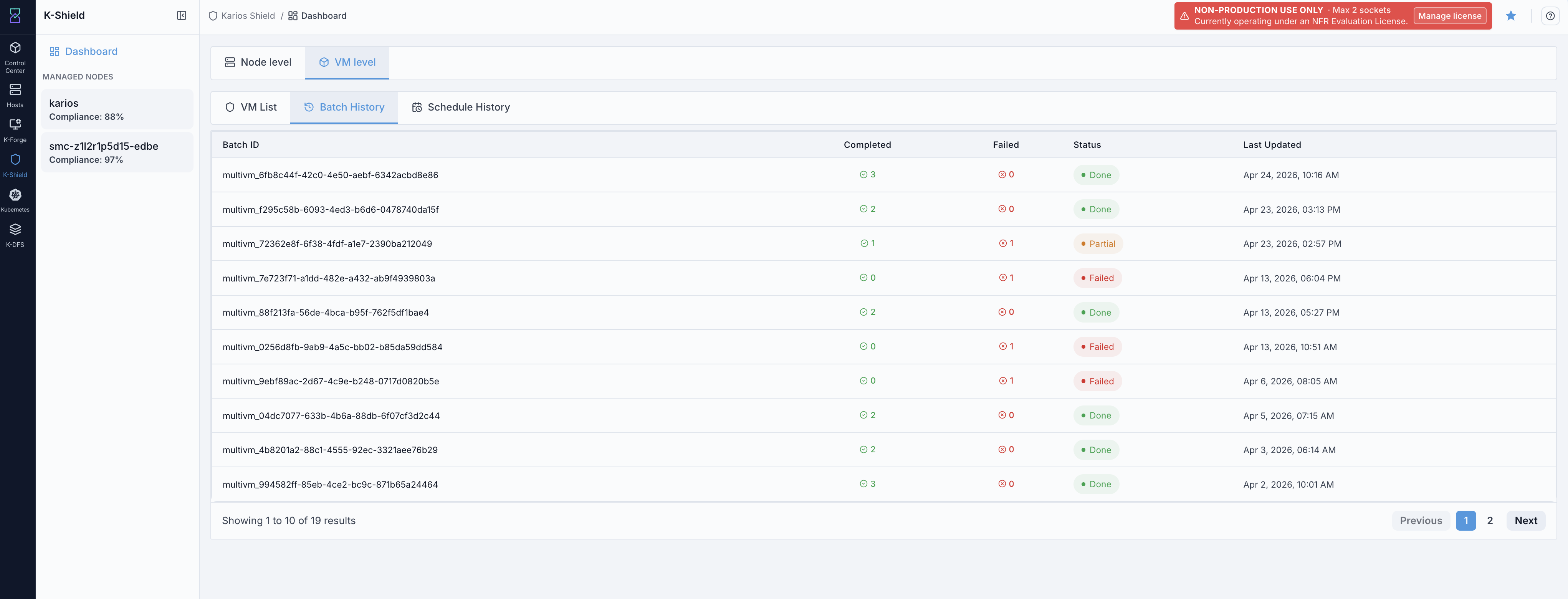
VM batch history.
What this screenshot shows:
VM scan batch history.
Batch execution records.
Status and timing information.
Batch history tab selected in the VM View.
What you can do from this screen:
Confirm that a VM scan batch started.
Review which VMs were included.
Review visible status badges.
Identify rows with incomplete or non-success status.
Review batch status information.
Expected Outcome:
VM batch records are visible.
Batch status and timing information are visible.
If this fails:
Refresh batch history.
Confirm the
Batch Historytab is selected.Confirm batch rows are visible.
7. VM Schedule History
When to Use:
Use this when viewing the VM schedule history screen shown below.
Purpose:
Review scheduled VM scan records.
Steps:
Open
K-Shield -> Dashboard -> VM View.Open
Schedule History.Confirm the scheduled scan appears.
Review schedule time and target VMs.
Check completed scheduled runs after execution time.
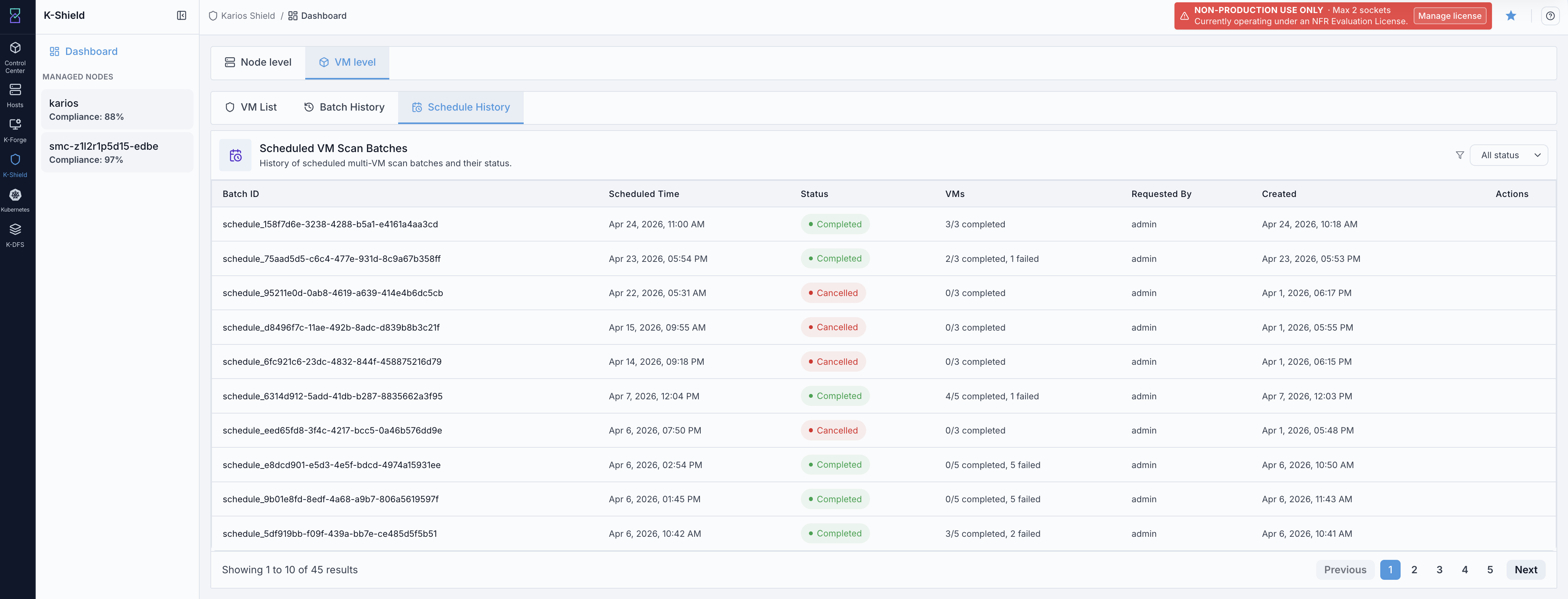
VM schedule history.
What this screenshot shows:
Scheduled VM scan records.
Schedule history tab.
Scheduled or completed execution information.
Schedule history tab selected in the VM View.
What you can do from this screen:
Verify scheduled scans.
Review past scheduled scan runs.
Confirm scheduled scan records.
Use visible status/timing fields to confirm the scheduled entry.
Expected Outcome:
Schedule history records are visible.
Schedule details are readable.
If this fails:
Refresh schedule history.
Confirm the
Schedule Historytab is selected.Confirm schedule rows are visible.
8. Dashboard Help
When to Use:
Use this when a user needs help interpreting K-Shield dashboard fields.
Purpose:
Explain the Node View and VM View dashboard areas without leaving the K-Shield workflow.
Steps:
Open
K-Shield -> Dashboard.Click the help icon.
Review dashboard guidance.
Return to the dashboard.
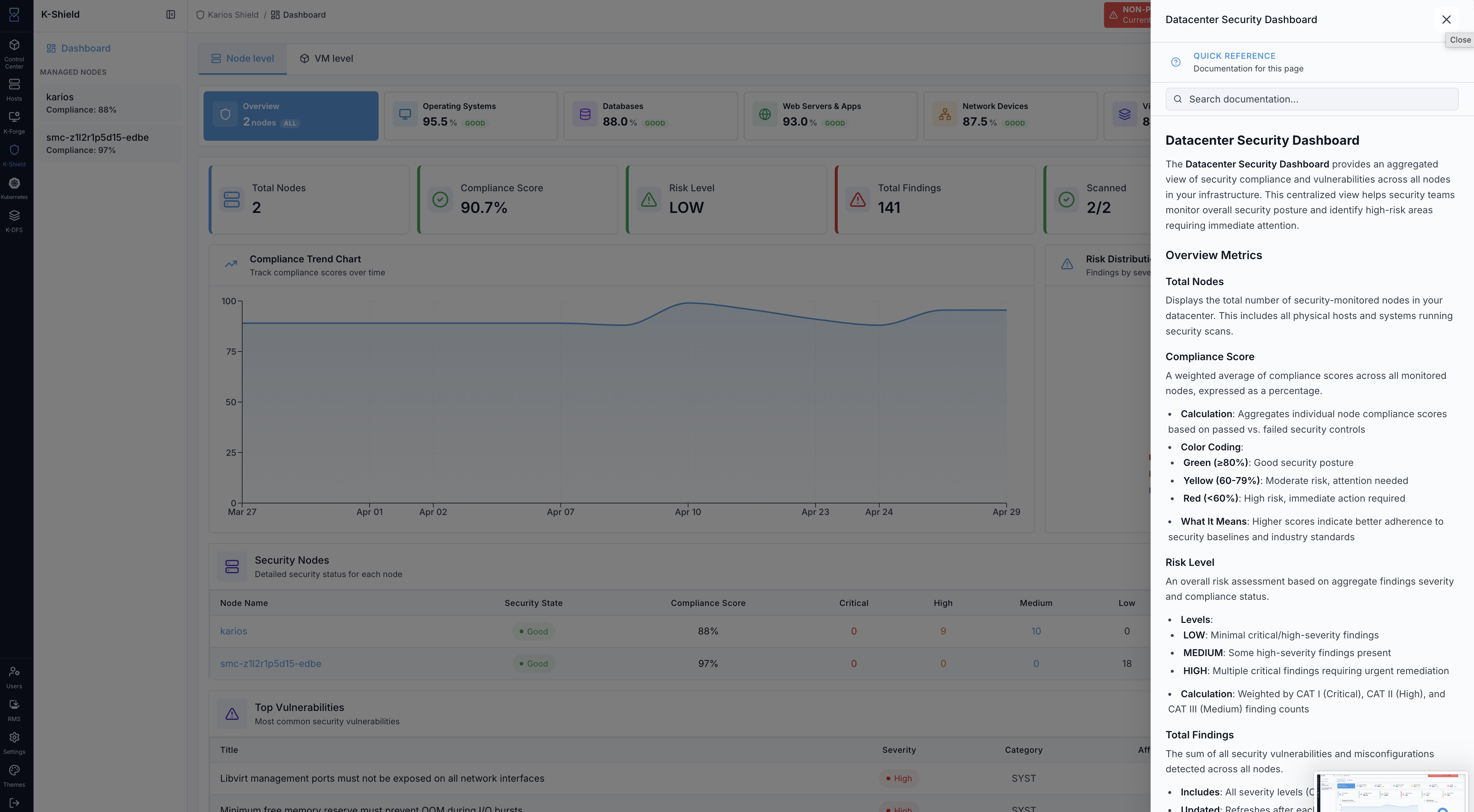
K-Shield dashboard help.
What this screenshot shows:
Dashboard help content.
Guidance for Node View and VM View dashboard review.
Help icon that opens the dashboard guidance.
What you can do from this screen:
Confirm what dashboard fields mean.
Help a new user understand the workflow.
Use the help icon when a dashboard field is unfamiliar.
Return to dashboard review after reading guidance.
Expected Outcome:
Dashboard help content is visible.
If this fails:
Close and reopen the help panel.
Refresh the page.
Confirm the help icon is visible.
Managed Node Tabs
Selecting a managed node from the Node View dashboard opens a tabbed page:
FIPS Compliance, Scan's Overview, History, Monitoring, and Audit stream.
Start Security Scan is available from every tab. The sections below follow the tab
order shown in the UI: FIPS Compliance, Scan's Overview, History,
Monitoring, and Audit stream. The Audit stream tab is optional - use it only
if you forward this node’s audit logs to a SIEM.
Important
A new managed node has no data until a scan runs. Run a security scan first (see
12. Start Security Scan below, or the 5-10 minute path in
K-Shield Quick Tasks); the Scan's Overview, FIPS Compliance,
and History tabs populate from scan results. A healthy node typically shows
System Status = COMPLIANT, CAT I Issues = 0, a FIPS status of PASS, and
Rootkit Hunter CLEAN.
Terms used in this section:
CAT I/CAT II/CAT III: STIG severity categories -CAT Iis the most severe (fix first),CAT IIIthe least.STIG: Security Technical Implementation Guide - the hardening baseline the node is scanned against.FIPS 140-3: cryptographic-module standard; theFIPS Compliancetab scores the node against this profile.XCCDF profile ID: the exact machine-readable ID of the scanned compliance profile.Nmap: the network port scanner behind theMonitoringport results.Rootkit Hunter(rkhunter): the rootkit / local-threat scanner shown underMonitoring.CVSS/CWE ID: the vulnerability severity score and weakness classifier shown per finding.SIEM: Security Information and Event Management system; theAudit streamtab forwards audit logs to it.mTLS: mutual TLS (both sides present certificates) - anAudit streamtransport option.
For shared platform terms, see Glossary.
9. FIPS Compliance
Note
If this tab (and Scan's Overview / History) is empty, no scan has run yet - run
one first (see 12. Start Security Scan).
When to Use:
Use this when validating the node against the FIPS 140-3 security profile on the FIPS Compliance tab.
Purpose:
Review the FIPS score, cryptographic validation, scan outcome, severity breakdown, and findings.
Steps:
Open the
FIPS Compliancetab.Review the score gauge and
STATUS.Review the
PASSED,FAILED,NOT APPLICABLE,COULD NOT EVALUATE, andLAST SCANcards.Review
FIPS 140-3 Cryptographic Validation.Review
Scan OutcomeandSeverity Breakdown.Open
Findingsand filter byPassed/Failed/Not applicableand by severity.Review each rule and its rule ID.
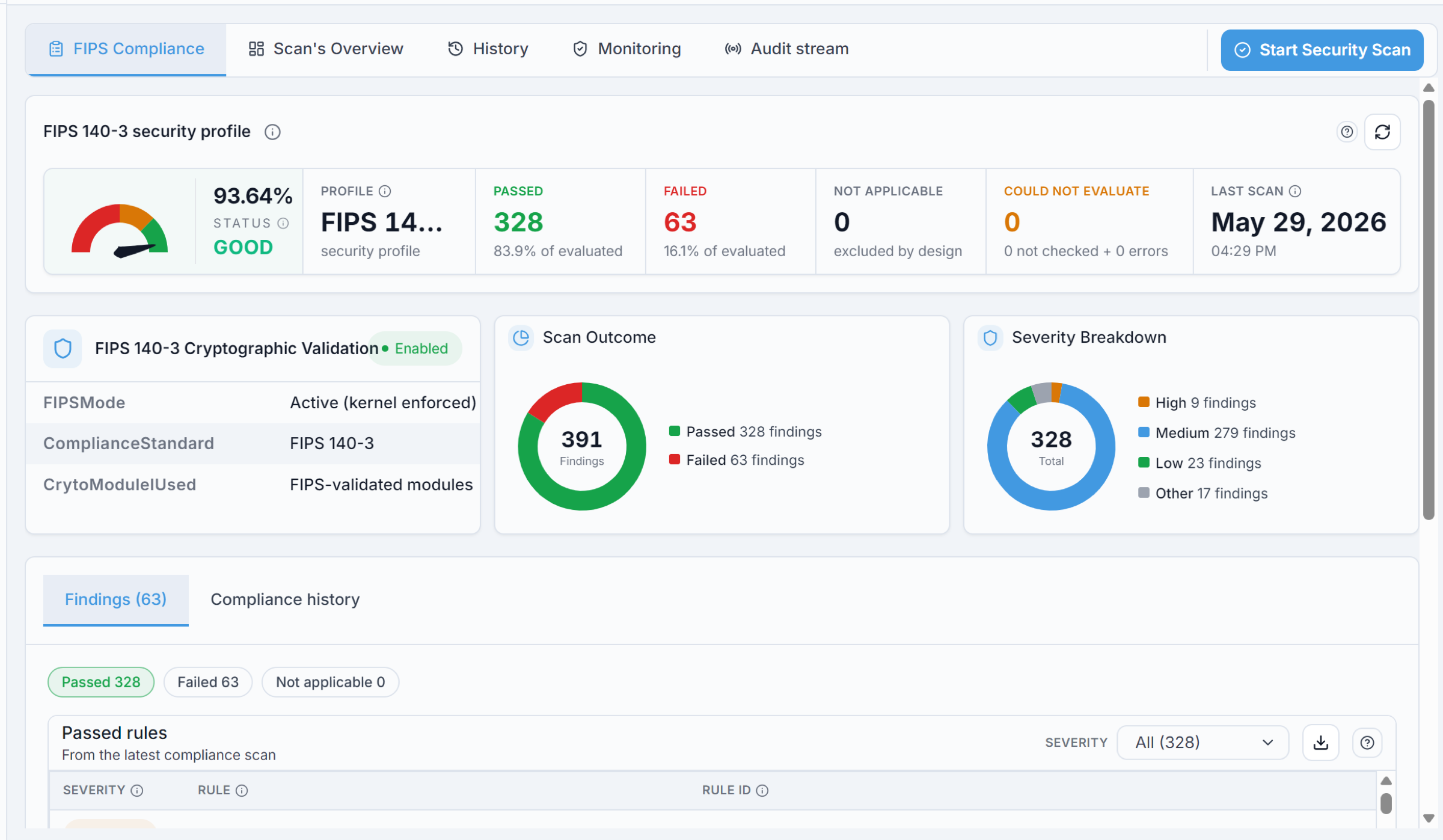
What this screenshot shows:
Score gauge with percentage and
STATUS(for exampleGOOD).Cards:
PROFILE(FIPS 140-3),PASSED,FAILED,NOT APPLICABLE,COULD NOT EVALUATE, andLAST SCAN.FIPS 140-3 Cryptographic Validationcard:FIPSMode(active, kernel enforced),ComplianceStandard(FIPS 140-3), andCrytoModuleUsed(FIPS-validated modules).Scan Outcomedonut (passed vs failed findings) andSeverity Breakdowndonut (high / medium / low / other).FindingsandCompliance historysub-tabs.Findings table with
Severity,Rule, andRule ID, plus passed / failed / not-applicable filters, a severity filter, and an export control.
What you can do from this screen:
Read the FIPS compliance percentage and status at a glance.
Confirm FIPS mode and cryptographic-module validation.
Review passed / failed counts and the severity breakdown.
Filter findings and export the list.
Expected Outcome:
The gauge, cards, donuts, and findings table are visible for the node.
If this fails:
Refresh the compliance tab.
Confirm the
FIPS Compliancetab is selected.Confirm the findings table is visible.
10. Compliance history
When to Use:
Use this when comparing FIPS compliance results across scans.
Purpose:
Review prior FIPS compliance runs for the node.
Steps:
Open the
FIPS Compliancetab.Open the
Compliance historysub-tab.Review the history rows.
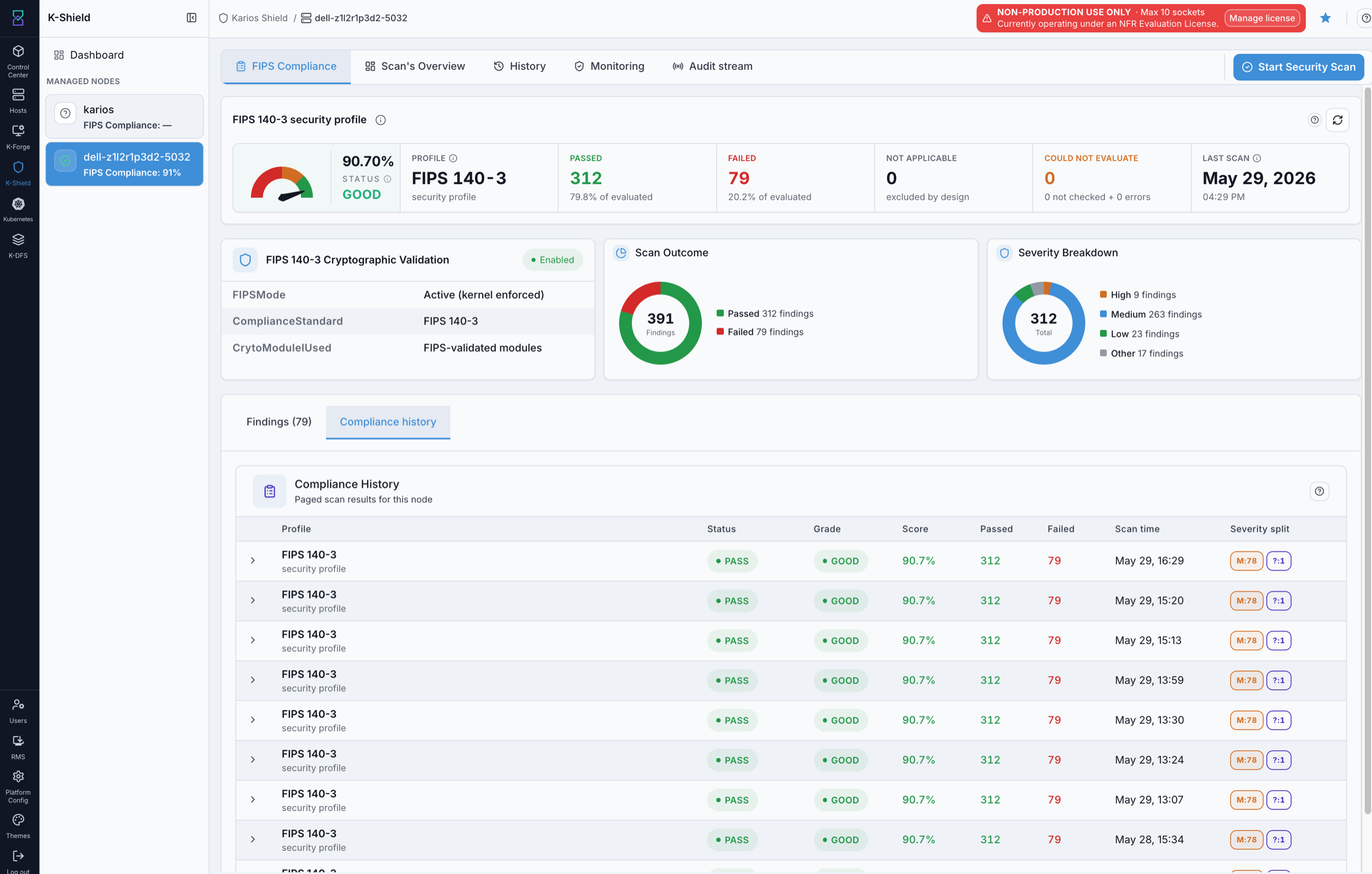
FIPS Compliance history.
What this screenshot shows:
Compliance historytable withProfile,Status,Grade,Score,Passed,Failed,Scan time, and severity split per row.
What you can do from this screen:
Compare prior FIPS compliance results.
Track score and grade trend over time.
Expected Outcome:
Compliance history rows are visible.
If this fails:
Refresh the compliance tab.
Confirm the
Compliance historysub-tab is selected.
11. Scan’s Overview
When to Use:
Use this when reviewing a managed node’s security posture on the Scan's Overview tab shown below.
Purpose:
Review the node’s compliance and CAT issue cards, compliance trend, security score panel, and the vulnerabilities table.
Note
The Vulnerabilities here are detected misconfigurations and CVEs from the scan -
distinct from the FIPS Compliance tab’s Findings, which are pass/fail results of
FIPS 140-3 hardening rules.
Steps:
Open
K-Shield -> Dashboard -> Node View.Select a managed node from the left panel or the
Security Nodestable.Open
Scan's Overview.Review the
Compliance Score,System Status, andCAT I/II/III Issuescards.Review the
Compliance Trendchart and theSecurity Score Panel.Review the
Vulnerabilitiestable and filter by severity when triaging.Click
Recommendon a finding to open its remediation dialog.
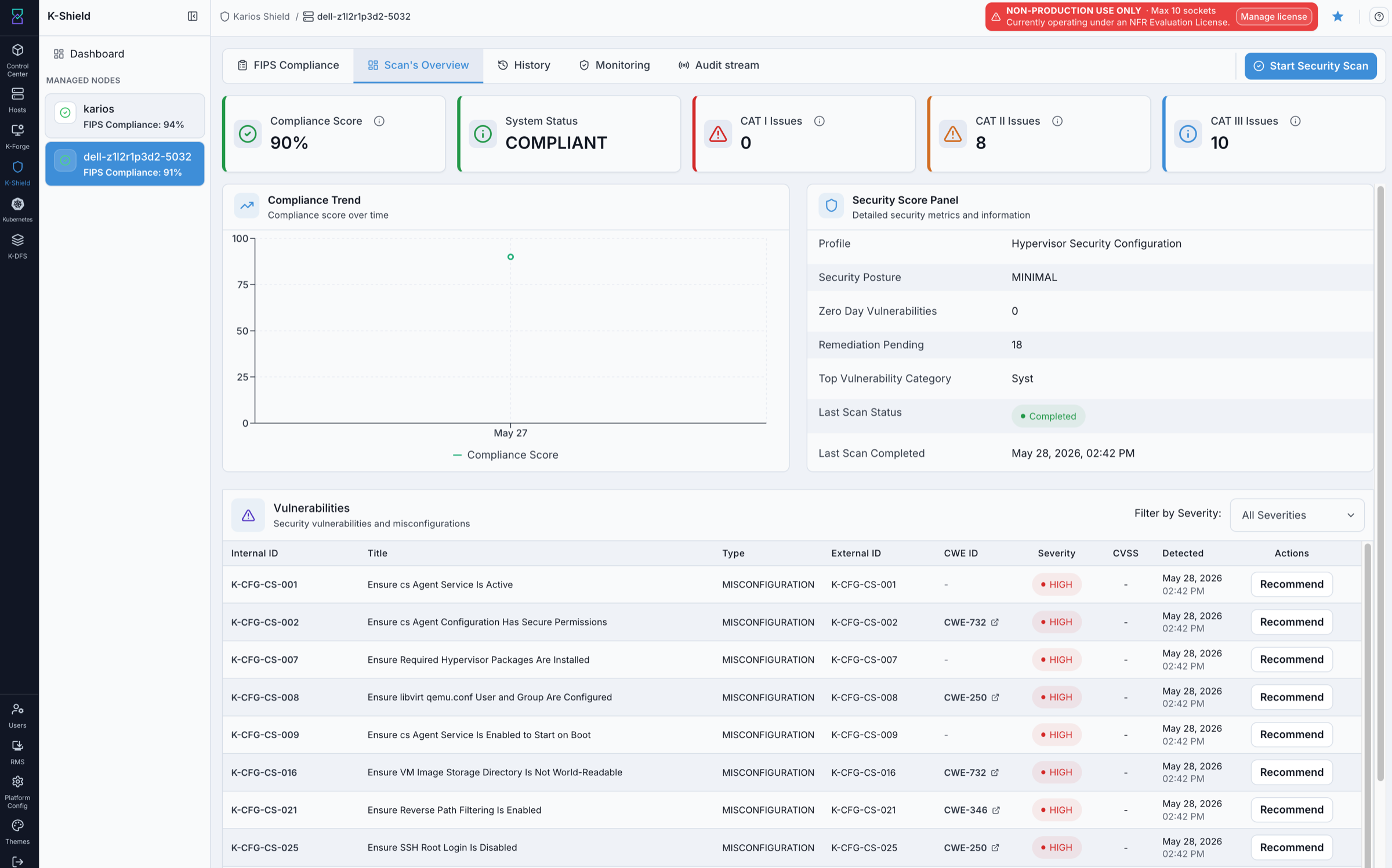
Managed-node Scan’s Overview.
What this screenshot shows:
Managed-node breadcrumb and the left
Managed Nodespanel with per-node FIPS compliance.Tab bar:
FIPS Compliance,Scan's Overview,History,Monitoring, andAudit stream.Start Security Scanaction (available from every node tab).Cards for
Compliance Score,System Status,CAT I Issues,CAT II Issues, andCAT III Issues.Compliance Trendchart for score movement across scan dates.Security Score Panelwith profile, security posture (a qualitative rating such asMINIMAL- read it alongside the compliance score and CAT counts, not as a pass/fail), zero-day vulnerabilities, remediation pending, top vulnerability category, last scan status, and last scan completed.Vulnerabilitiestable with internal ID, title, type, external ID, CWE ID, severity, CVSS, detected-on date, and aRecommendaction per row.Severity filter for the vulnerability rows.
What you can do from this screen:
Confirm the latest compliance score, system status, and CAT issue counts.
Review the security profile and posture in the score panel.
Filter vulnerabilities by severity and open
Recommendfor a finding’s remediation dialog.Start a new security scan.
Move to the FIPS Compliance, History, Monitoring, or Audit stream tabs.
Clicking Recommend on a vulnerability opens its remediation dialog:
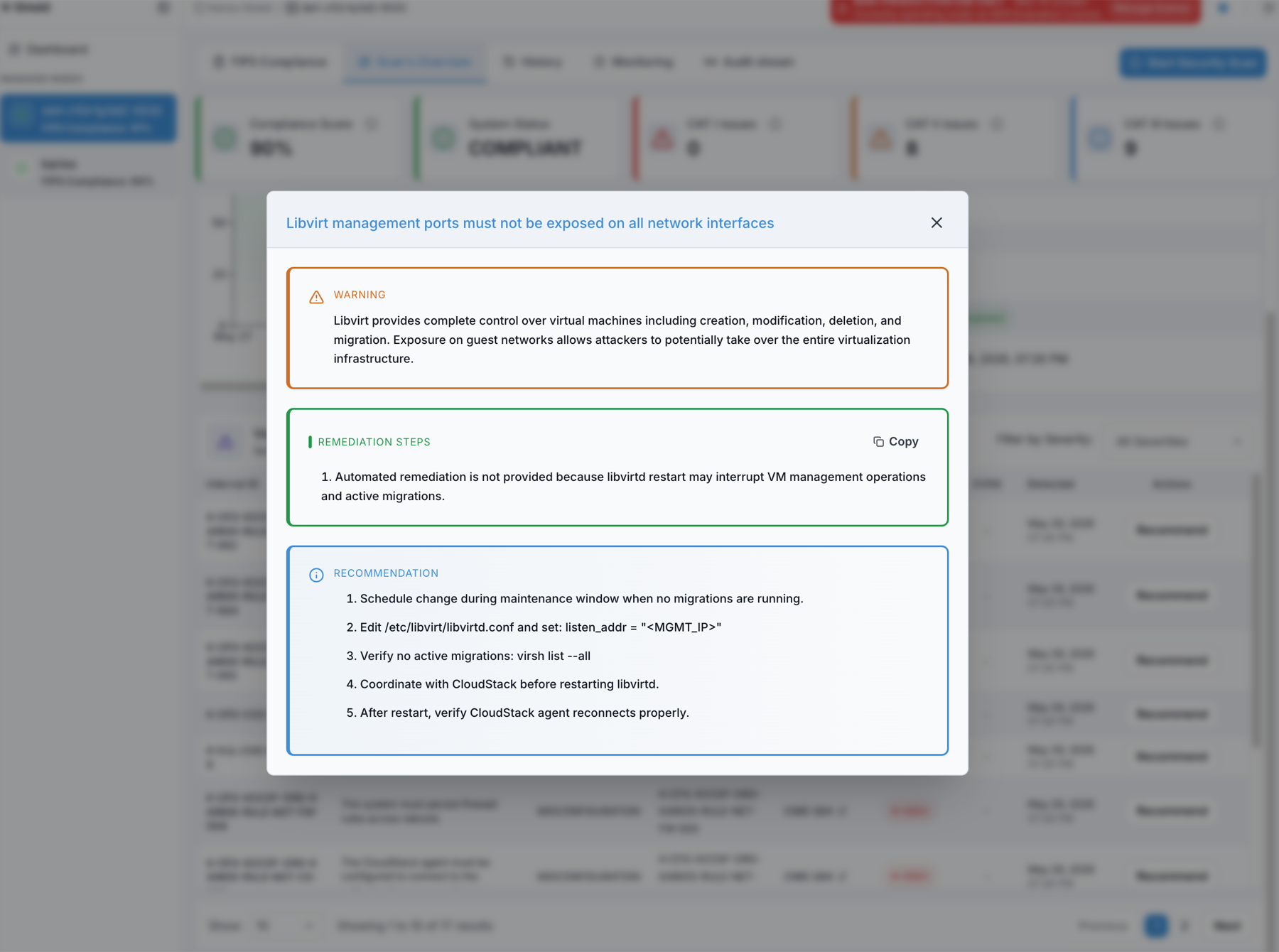
Remediation recommendation for a selected vulnerability.
The recommendation dialog shows:
A
WARNINGdescribing the risk and impact of the finding.REMEDIATION STEPSwith aCopyaction, including a note when automated remediation is not provided.A numbered
RECOMMENDATIONwith the manual steps to remediate the finding safely.
Expected Outcome:
The selected node’s overview cards, trend chart, score panel, and vulnerability rows are visible.
If this fails:
Refresh the managed-node page.
Confirm the selected node appears in the breadcrumb.
Confirm the
Scan's Overviewtab is selected.
12. Start Security Scan
When to Use:
Use this when you need a fresh compliance scan of the selected managed node.
Purpose:
Choose a validated STIG profile and start the scan.
Tip
Pick the profile that matches the node’s role and your security team’s approved baseline.
The profile names indicate their scope - for example, Hypervisor Security Configuration
for hypervisor / compute hosts, Network Security Configuration or Storage Security
Configuration for network or storage roles, and Karios Debian Security Baseline as the
general OS baseline. Use the same profile on re-scans so results stay comparable.
Steps:
Click
Start Security Scan.Choose a validated STIG profile from the list.
Confirm the value shown under
Selected Profile.Click
Start Security Scanin the dialog.Optionally close the window - the scan continues in the background.
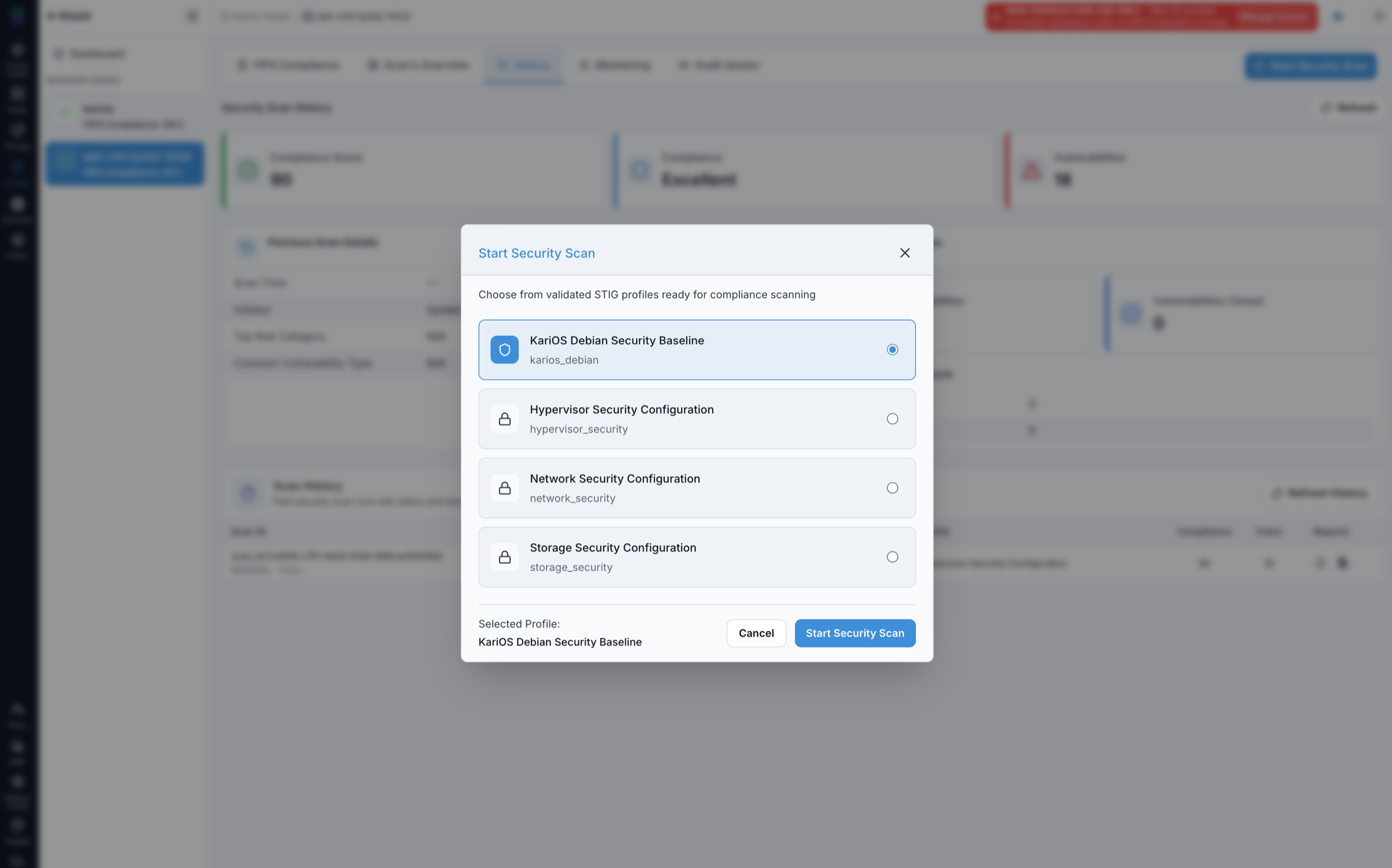
Choose a validated STIG profile for the scan.
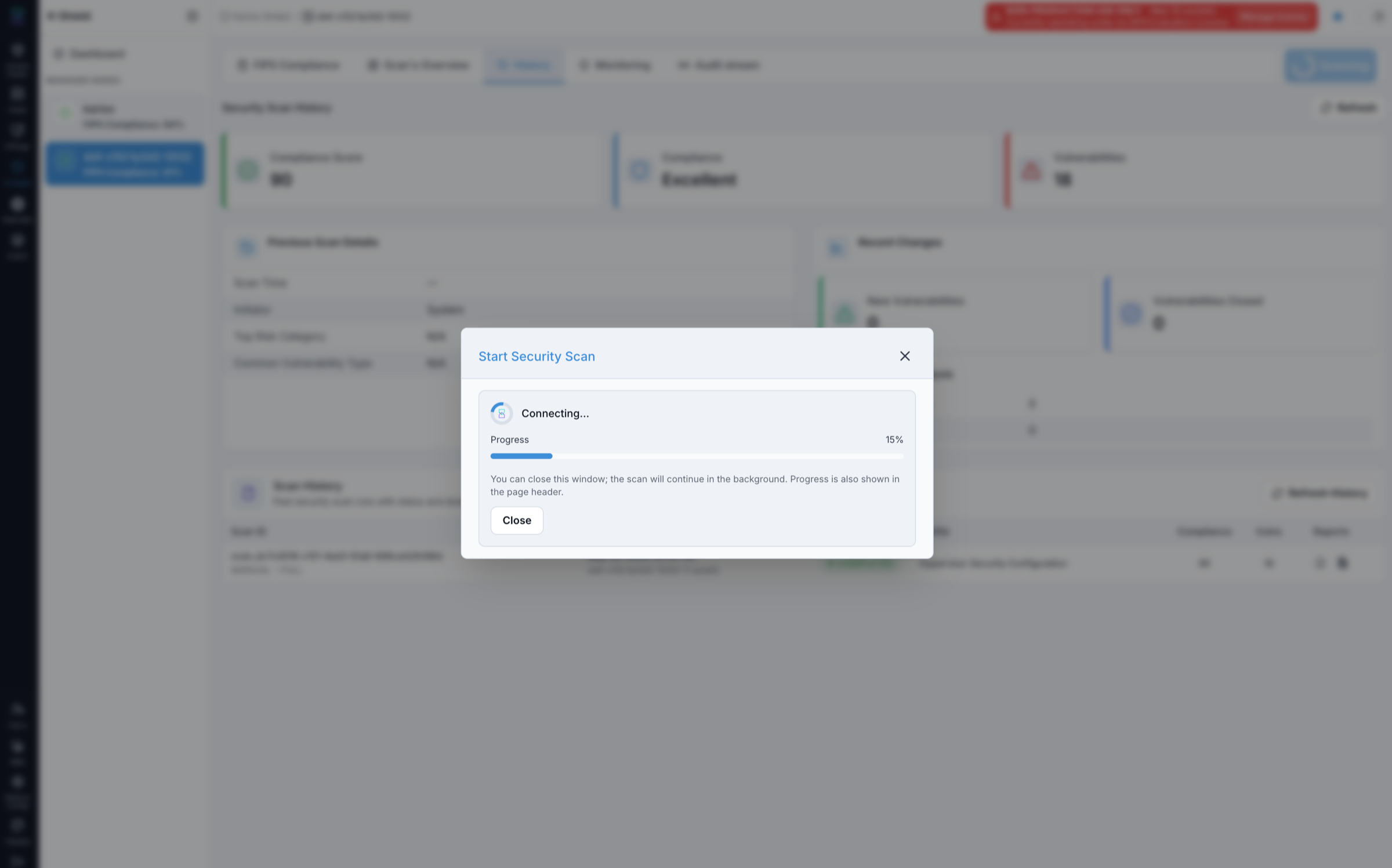
The scan runs in the background after it starts.
What this screenshot shows:
Profile dialog titled
Choose from validated STIG profiles ready for compliance scanning.Selectable profiles:
Karios Debian Security Baseline,Hypervisor Security Configuration,Network Security Configuration, andStorage Security Configuration.Selected Profilesummary and theCancel/Start Security Scanactions.Progress modal with a status (for example
Connecting...), a progress bar and percentage, and the note that you can close the window while the scan continues in the background.
What you can do from this screen:
Select the approved security profile for the node.
Start the scan immediately.
Close the window and let the scan finish in the background.
Expected Outcome:
The scan is submitted and progress is shown.
Results populate
Scan's OverviewandHistoryafter completion.
If this fails:
Reopen the dialog.
Confirm a profile is selected.
Refresh the page and retry.
13. Security Scan History
When to Use:
Use this when reviewing past scans and downloading reports on the History tab.
Purpose:
Review previous scan details, recent changes, and download HTML/PDF reports.
Steps:
Open the
Historytab.Review the
Compliance Score,Compliance, andVulnerabilitiescards.Review
Previous Scan Details,Recent Changes, andCompliance Gap Analysis.In the
Scan Historytable, find the scan row to review.In the
Reportscolumn, click the HTML report icon to download the HTML report.Click the PDF report icon to download the PDF report.
Open the downloaded report from your browser downloads to review it outside K-Shield.
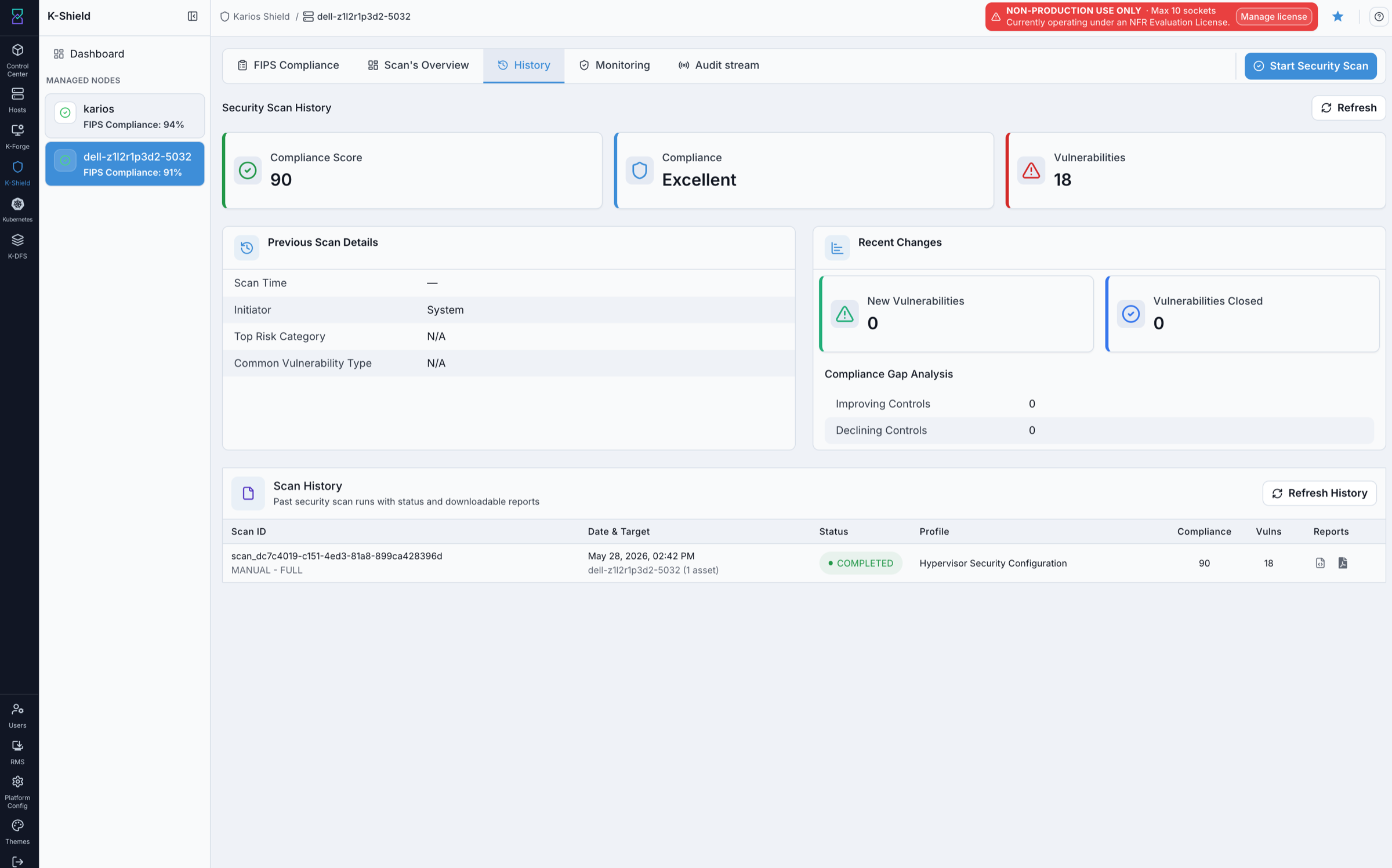
Security scan history with downloadable reports.
What this screenshot shows:
Cards for
Compliance Score,Compliance, andVulnerabilities.Previous Scan Details(scan time, initiator, top risk category, common vulnerability type).Recent Changes(new vulnerabilities, vulnerabilities closed) andCompliance Gap Analysis(improving / declining controls).Scan Historytable with scan ID, date and target, status, profile, compliance score, vulnerabilities count, and aReportscolumn with HTML and PDF download icons.Refresh HistoryandStart Security Scanactions.
What you can do from this screen:
Review the previous scan and what changed since the last run.
Download the HTML and PDF reports for any scan row.
Refresh history after a new scan completes.
Expected Outcome:
History cards, scan rows, and the report icons in the
Reportscolumn are visible.
If this fails:
Refresh history.
Confirm the
Historytab is selected.Confirm the
Reportscolumn contains the report icons.
14. Monitoring
When to Use:
Use this when reviewing node network exposure and rootkit status on the Monitoring tab.
Purpose:
Review the Nmap score, port-scan summary, open ports, and supporting monitoring cards.
Steps:
Open the
Monitoringtab.Review the
NMAP Score,Latest Port Scan Summary,Unexpected Ports,Rkhunter Status, andRkhunter Warningscards.Review
Nmap Scan Detailsand thePort Security Risk Timeline.Open
Open Portsand review each port, protocol, service, and impact.Click
View detailson a port row when you need the full guidance.
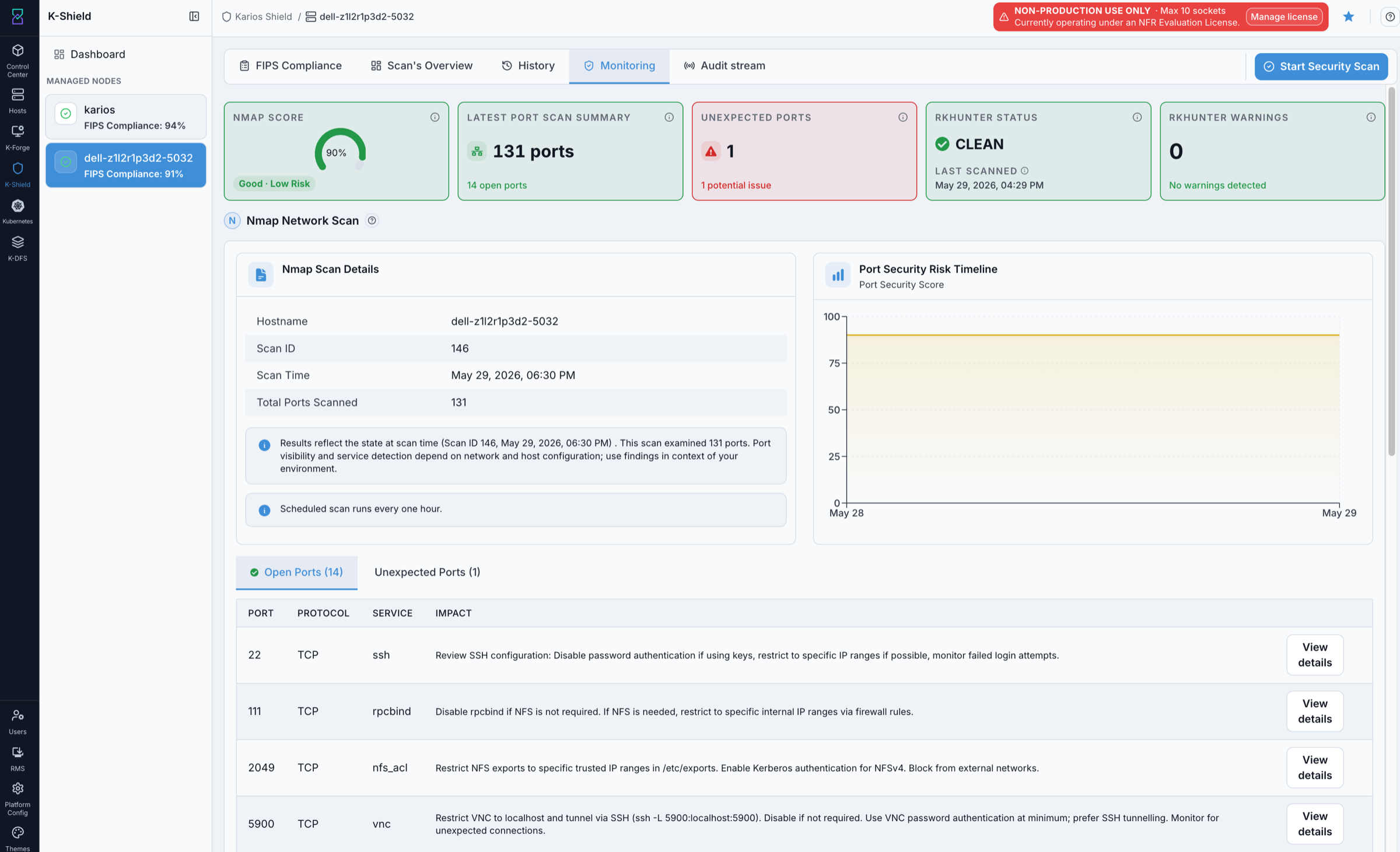
Monitoring overview with Nmap score and port summary.
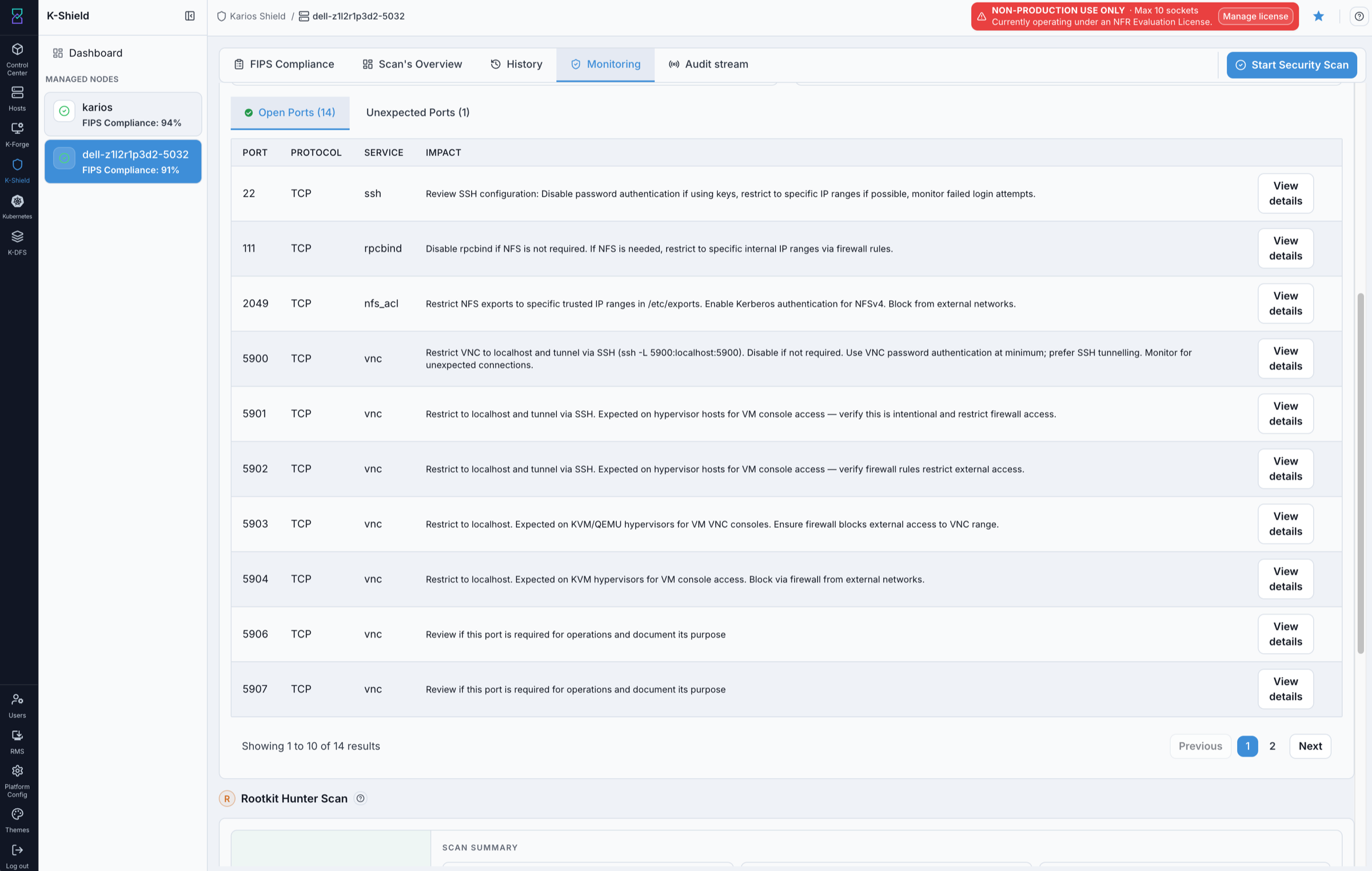
Open Ports table with per-port impact and details.
What this screenshot shows:
Cards:
NMAP Score(with risk band),Latest Port Scan Summary(ports count),Unexpected Ports,Rkhunter Status(for exampleCLEAN), andRkhunter Warnings.Nmap Scan Details(hostname, scan ID, scan time, total ports scanned).Port Security Risk Timelinechart.Open PortsandUnexpected Portssub-tabs.Open Portstable with port, protocol, service, impact text, andView details; rows are paginated.
What you can do from this screen:
Review the node’s network exposure and Nmap score.
Open per-port details and impact guidance.
Switch to
Unexpected Portsfor flagged ports.
Expected Outcome:
Monitoring cards, Nmap details, and the open-ports table are visible.
If this fails:
Refresh the monitoring tab.
Confirm the
Monitoringtab is selected.Confirm the monitoring cards are visible.
15. Unexpected Ports
When to Use:
Use this when triaging unexpected open ports on the Monitoring tab.
Purpose:
Review ports flagged as unexpected and act on them.
Steps:
Open the
Monitoringtab.Select
Unexpected Ports.Review each port, protocol, service, and status.
Click
View detailsfor impact and remediation guidance.
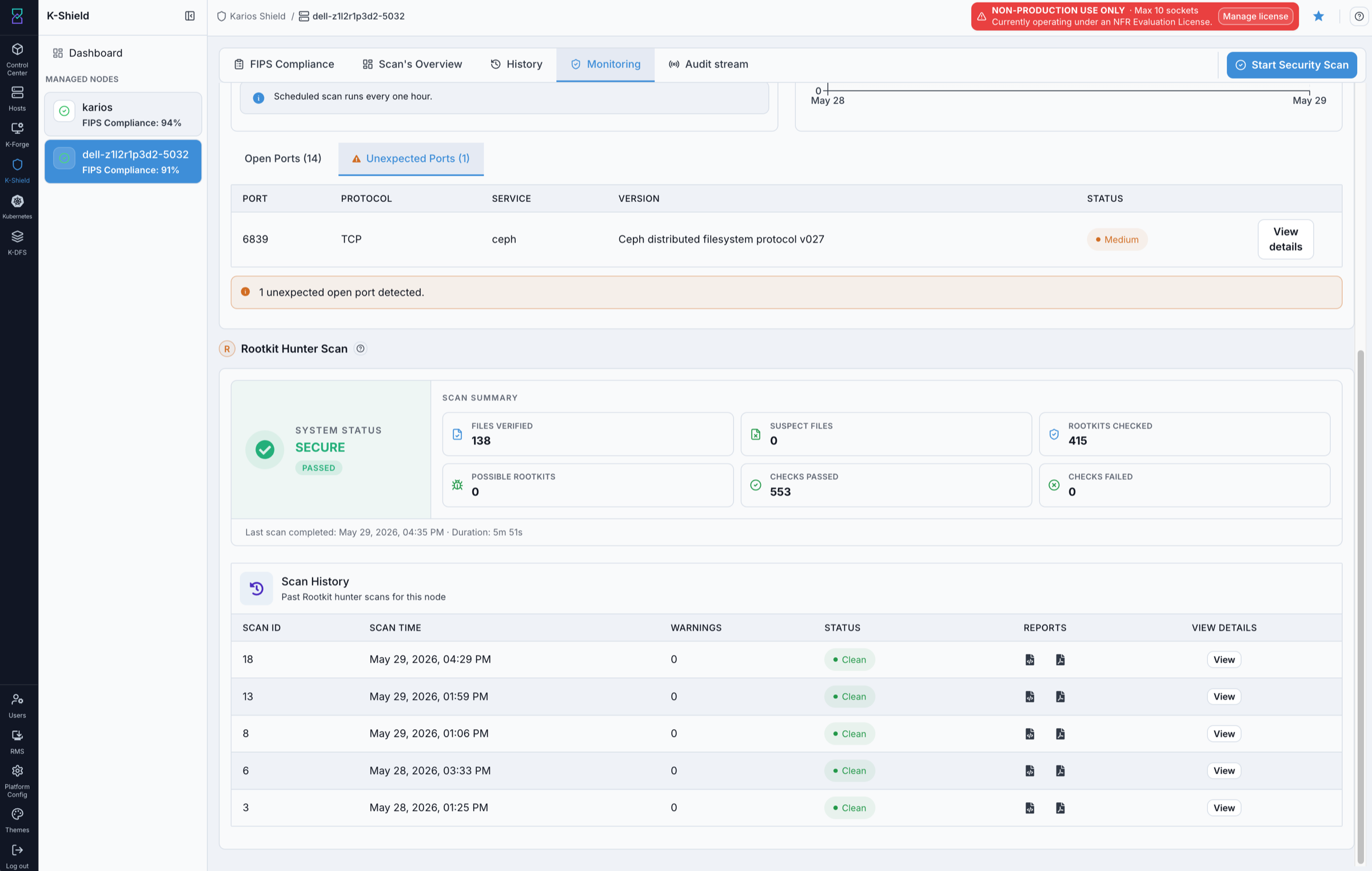
Unexpected open ports flagged for review.
What this screenshot shows:
Unexpected Portssub-tab table with port, protocol, service, version, status (severity), andView details.A banner stating how many unexpected open ports were detected.
What you can do from this screen:
Review unexpected ports and their severity.
Open per-port details and act on flagged ports.
Expected Outcome:
Unexpected-port rows are visible.
If this fails:
Refresh the monitoring tab.
Confirm
Unexpected Portsis selected.Confirm unexpected-port rows are visible.
16. Rootkit Hunter Scan
When to Use:
Use this when reviewing rootkit scan results for the node.
Purpose:
Confirm rootkit status and review the rootkit scan history.
Steps:
Open the
Monitoringtab.Scroll to
Rootkit Hunter Scan.Review
System Statusand the scan summary cards.Review the
Scan Historytable and download reports when needed.
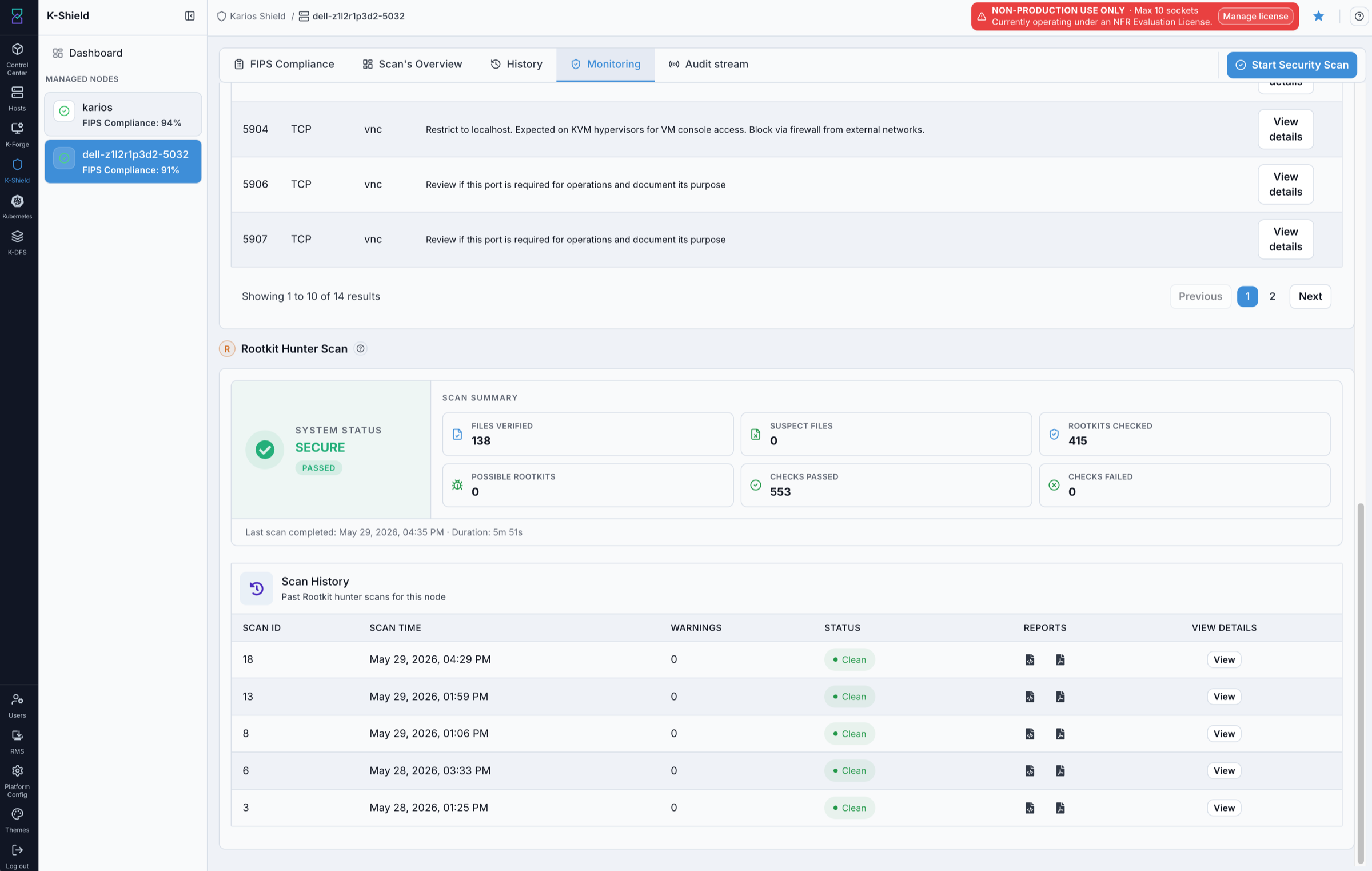
Rootkit Hunter Scan summary and history.
What this screenshot shows:
System Status(for exampleSECURE/PASSED).Summary cards:
Files Verified,Suspect Files,Rootkits Checked,Possible Rootkits,Checks Passed, andChecks Failed.Last scan completed time and duration.
Scan Historytable with scan ID, scan time, warnings, status (for exampleClean), reports, andViewdetails.
What you can do from this screen:
Confirm the node’s rootkit status.
Review the rootkit scan history and download reports.
Expected Outcome:
Rootkit status and scan history are visible.
If this fails:
Refresh the monitoring tab.
Confirm the
Monitoringtab is selected.Confirm the Rootkit Hunter fields are visible.
17. Audit stream
Note
The Audit stream tab is optional. Configure it only when this node’s audit logs must
be forwarded to a SIEM. Scanning, monitoring, and compliance all work without it.
When to Use:
Use the Audit stream tab to forward this node’s audit logs to a SIEM and to monitor that forwarding.
Purpose:
Enable forwarding, set the SIEM endpoint, review the runtime and transport configuration, and watch live delivery status and raw audit lines.
Steps:
Open the
Audit streamtab.Turn on the
Audit streamtoggle, enter theSIEM EndpointURL, and clickSave changes(Resetdiscards unsaved changes;Refreshreloads config and status).Confirm the status chips (for example
HealthyandStream active).Review
Runtime Settings,Transport,Stream Status, andHTTP Metrics.Use the
SIEM Delivery StatusandRaw Audit Linessub-tabs to inspect activity.
Audit Stream Configuration
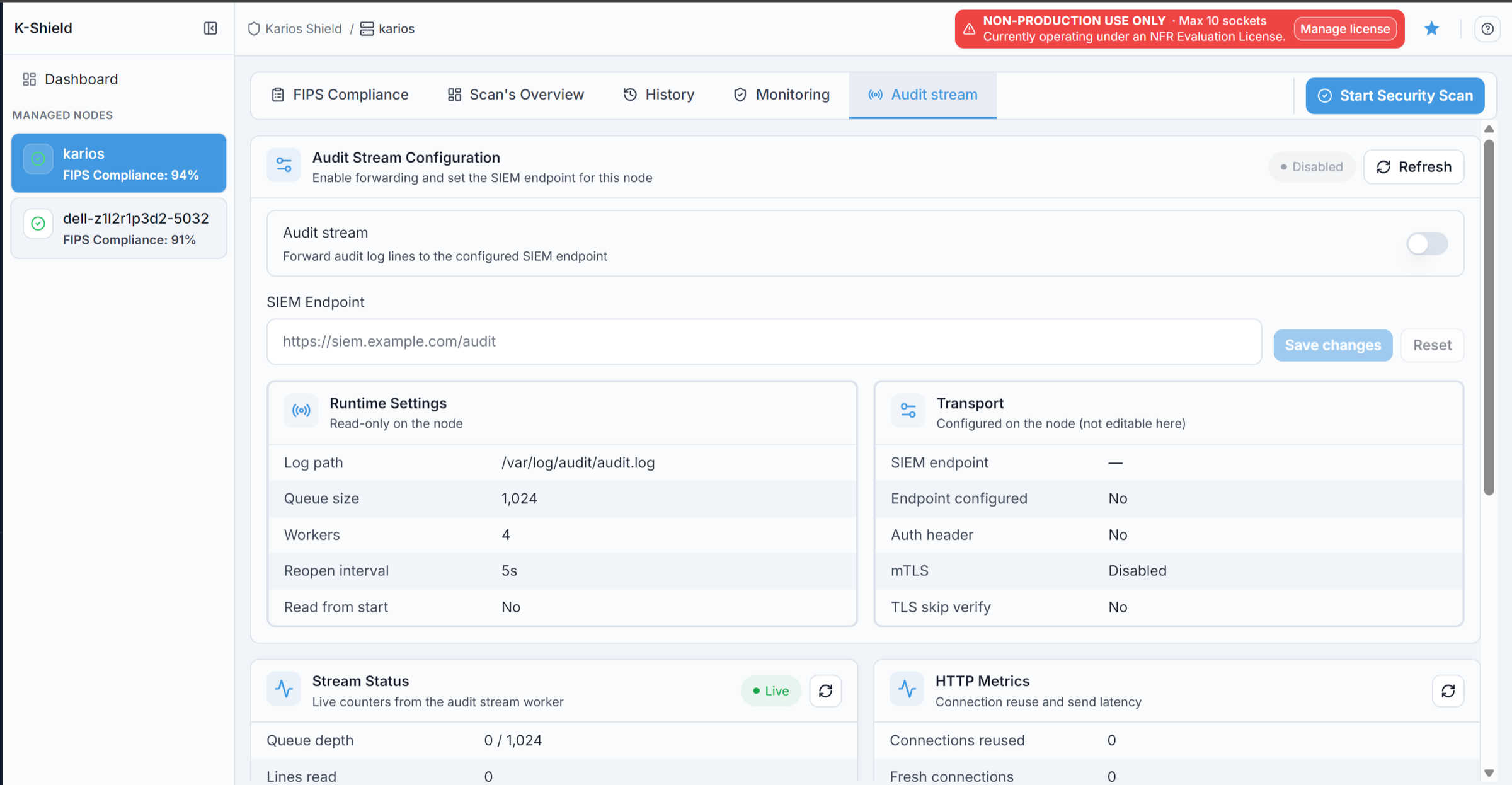
Audit stream disabled, before a SIEM endpoint is set.
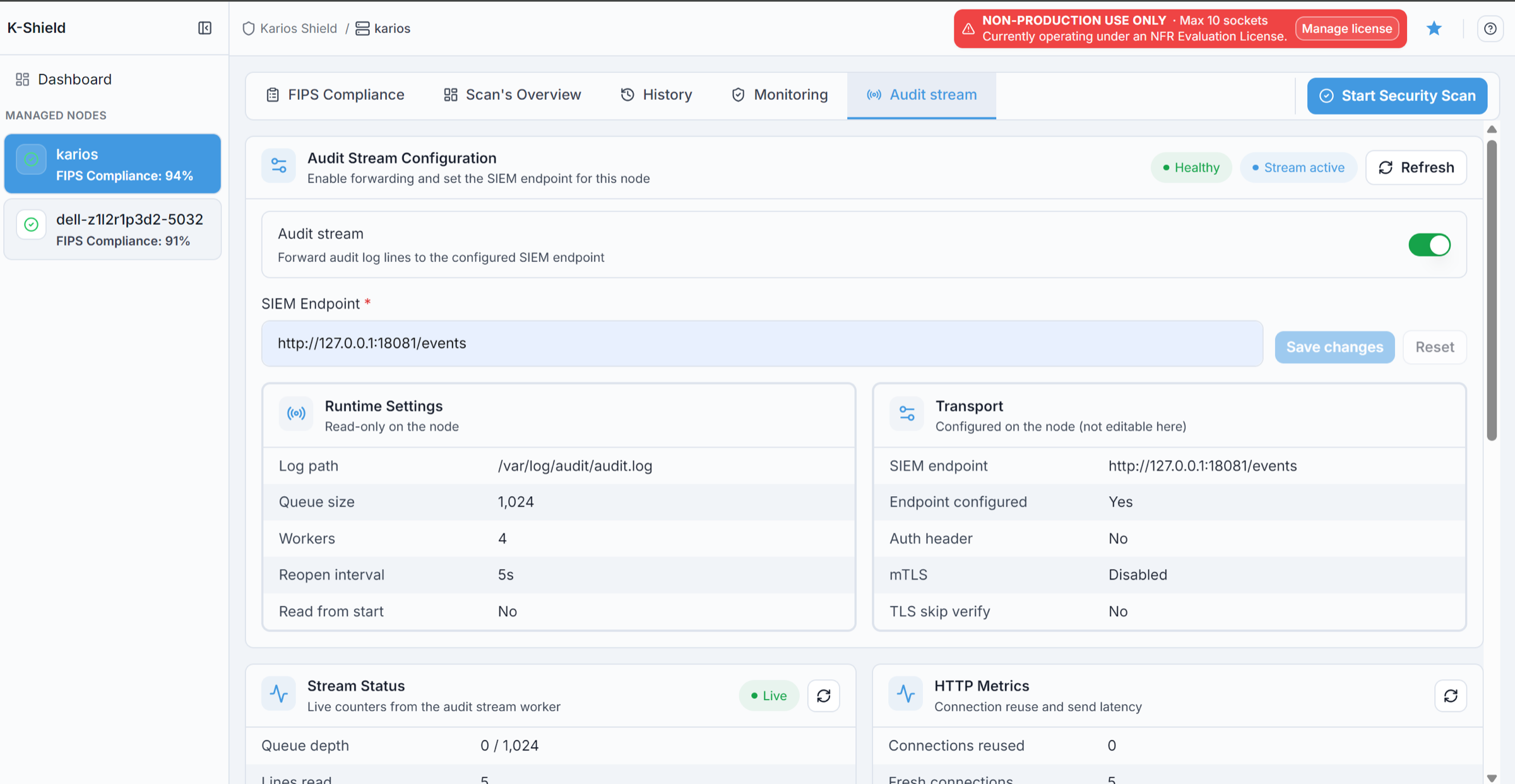
Audit stream enabled and forwarding to the configured SIEM endpoint.
Audit stream: enables or disables forwarding of audit log events from this node to the configured SIEM endpoint.SIEM Endpoint: the destination URL where audit events from this node are sent.Save changes/Reset/Refresh: apply the setting and endpoint; discard unsaved changes; reload the latest config, status, and activity.Runtime Settings- read-only node-side settings:Log path: the audit log file currently being monitored on the node.Queue size: the maximum number of audit events that can be buffered before sending.Workers: how many background workers are forwarding audit events.Reopen interval: how often the service rechecks and reopens the audit log file if needed.Read from start: whether the stream reads the file from the beginning or only new entries.
Transport- current delivery configuration and security settings:SIEM endpoint: the currently active endpoint configured on the node.Endpoint configured: whether a SIEM destination is configured on the node.Auth header: whether a custom authentication header is configured for outbound requests.mTLS: whether mutual TLS is enabled for SIEM delivery.TLS skip verify: whether TLS certificate verification is disabled for the endpoint.
Stream Status and HTTP Metrics
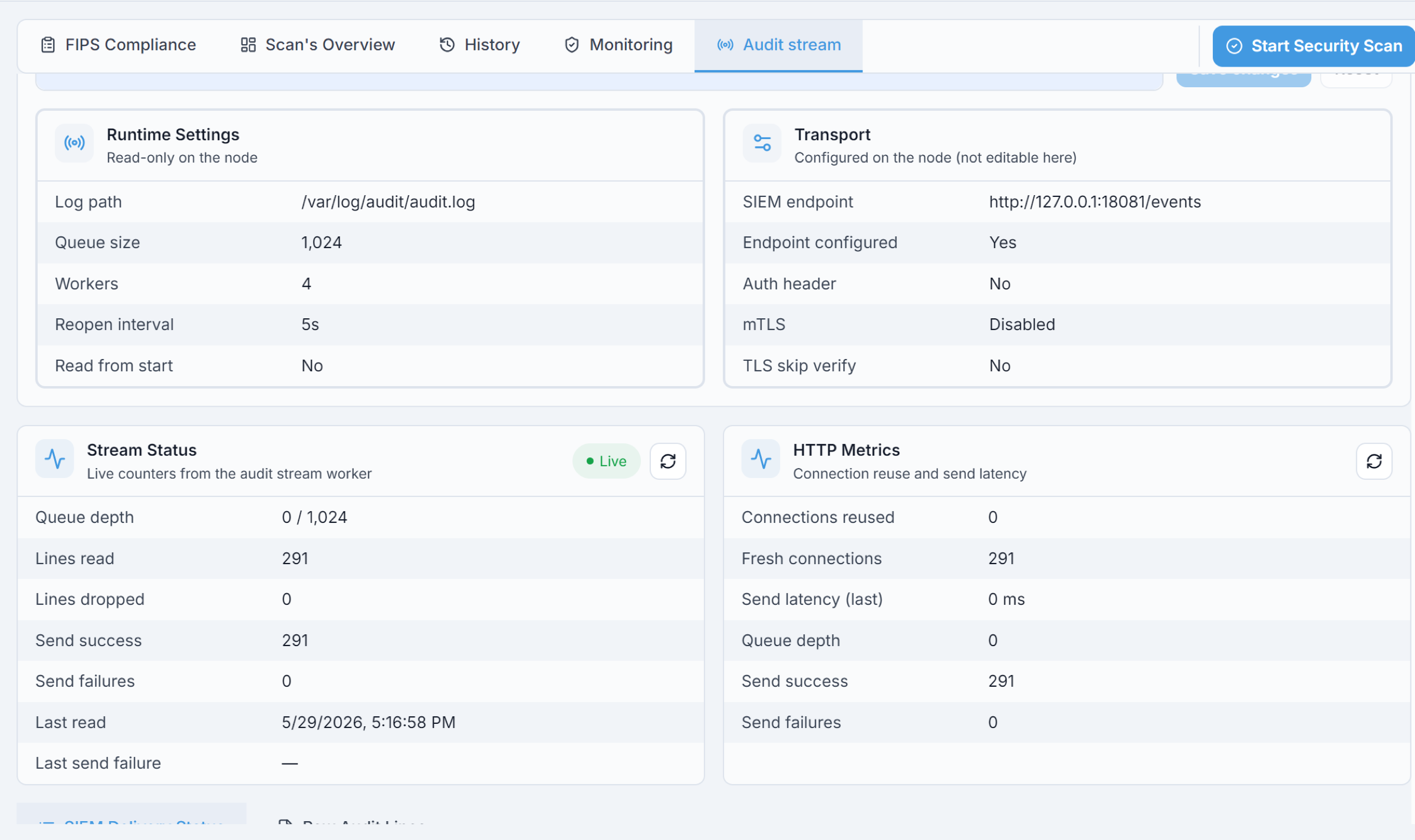
Live stream counters and HTTP delivery metrics.
Stream Status- live counters from the audit stream worker:Queue depth: events currently buffered versus total queue capacity.Lines read: total audit log lines read from the node.Lines dropped: audit lines dropped before delivery, usually due to queue pressure.Send success/Send failures: total events successfully forwarded / failed forwarding attempts.Last read/Last send failure: when the most recent line was read / the most recent failure occurred.
HTTP Metrics- delivery-layer connection usage and latency:Connections reused/Fresh connections: sends that reused an existing HTTP connection / opened a new one.Send latency (last): how long the most recent send took.Queue depth,Send success, andSend failureshere mirrorStream Statusfrom the delivery layer’s perspective.
SIEM Delivery Status
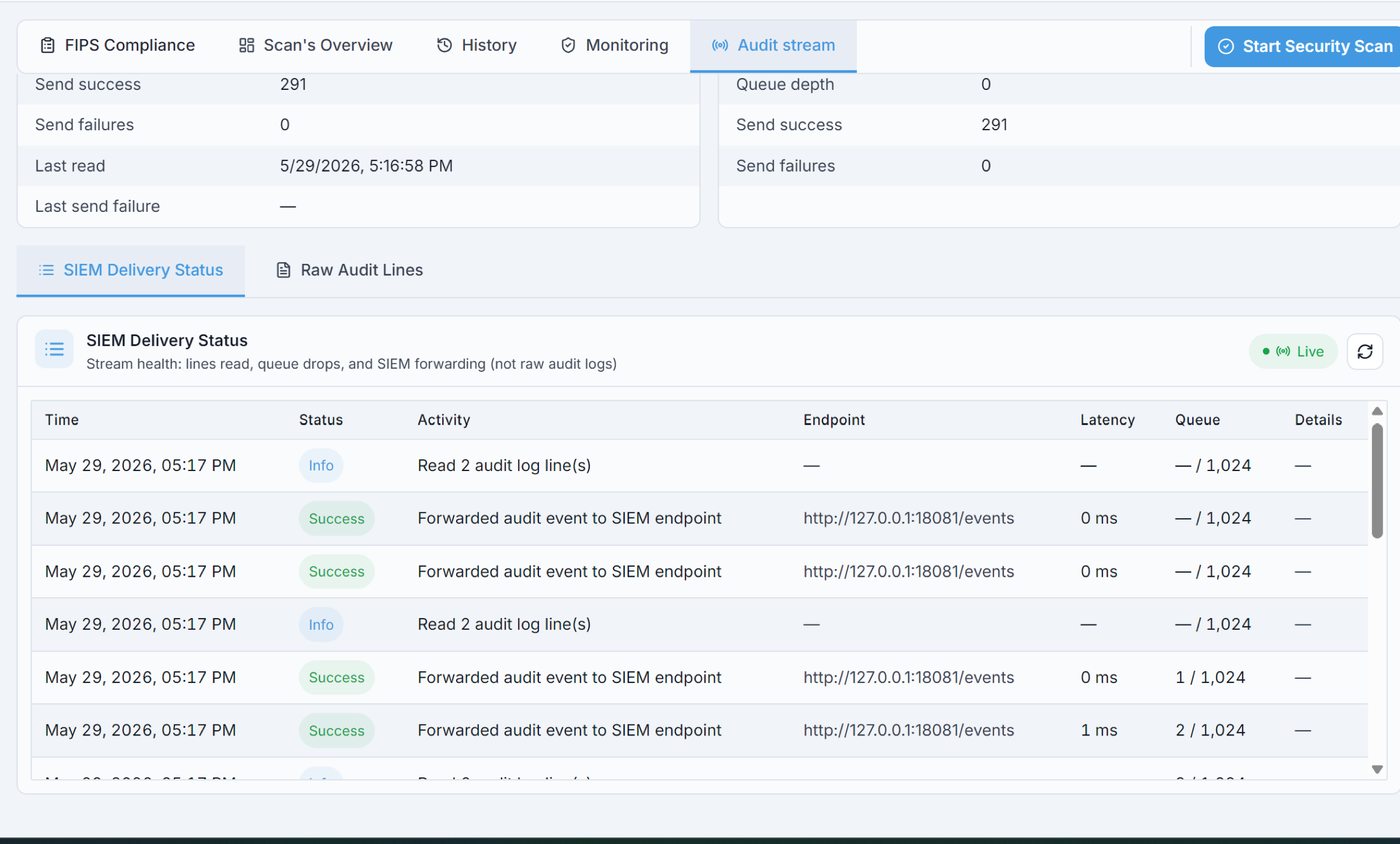
SIEM delivery status (stream health, not raw logs).
The SIEM Delivery Status sub-tab lists recent activity - reads, sends, failures, and
queue events. Columns: Time, Status (informational / successful / warning /
failed), Activity (what the worker did, such as reading lines or forwarding to SIEM),
Endpoint, Latency, Queue, and Details (extra context, including failure
details when present).
Raw Audit Lines
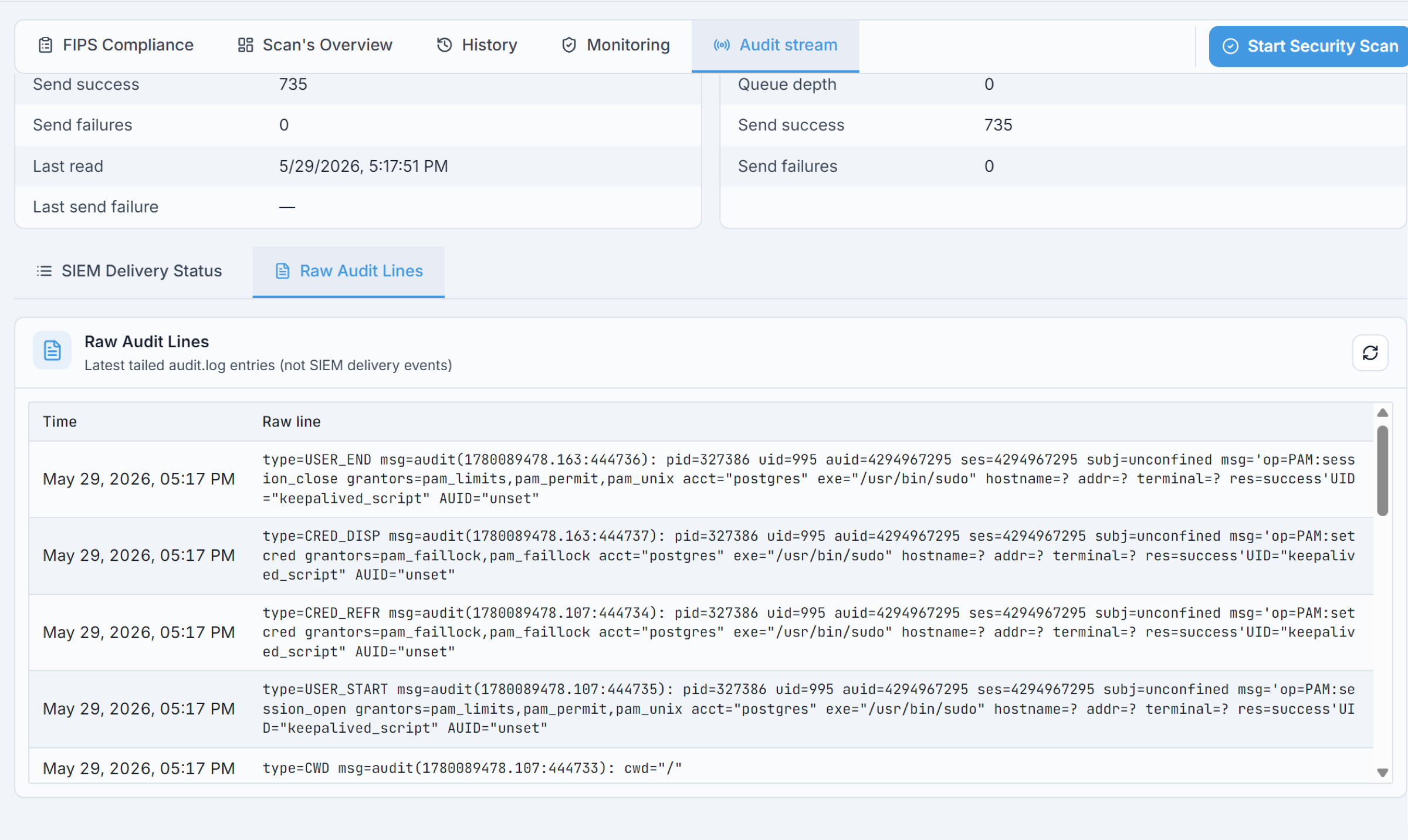
Latest tailed audit.log entries.
The Raw Audit Lines sub-tab shows the latest audit.log entries read from the node
(not SIEM delivery events). Columns: Time and Raw line - the exact audit record,
for example type=USER_END, type=CRED_DISP, or type=USER_START.
Expected Outcome:
Forwarding is enabled, the status shows
Healthy/Stream active, andSIEM Delivery StatusshowsSuccessrows.
If this fails:
Confirm the
SIEM EndpointURL is valid and reachable from the node; clickSave changesandRefresh.Check
Stream Status/HTTP Metricsfor non-zeroLines droppedorSend failures.Confirm there is recent activity in
audit.logand the stream is running.
18. Troubleshooting
Use the per-section If this fails notes first. For cross-cutting issues, start here:
Symptom |
First actions |
|---|---|
A tab is empty / no data |
No scan has run yet - run a scan (see |
Scan does not start or fails |
Confirm your role has scan permission and the node is online in the left panel; |
Node not listed / not managed |
Confirm the node is onboarded and discovered, |
Score or findings not updating |
|
Reports will not download |
Confirm the scan is |
Audit stream not forwarding |
Confirm |
Unexpected ports or rootkit warnings |
Review in |
Escalate when a controlled retry does not resolve the issue. Include the node name, scan ID,
timestamp, severity summary, and impact scope, and contact support@karios.com for Karios
platform escalation.
Note
The sections below (SMTP scan alerts, threat-intel initial sync, AppArmor confinement) document recently-shipped K-Shield surfaces. Details drafted from source + release notes and pending SME sign-off - validate the exact UI labels against the live Control Center before treating any specific button name as authoritative.
Scheduled scans and SMTP alerts
Shipped in K-Shield 1.4.3 (feature feature-node-scan-scheduling).
K-Shield runs recurring compliance scans on a per-node schedule and delivers delivery-graded alerts (start / complete / failure) via SMTP.
Schedule a recurring scan
Open
K-Shield -> Managed nodes -> <node> -> Scans -> Schedule scan.Choose the profile (Datacenter Security, Custom, etc.), the cadence (daily, weekly, custom cron), and the target user or group to notify on completion.
Save. The schedule appears on the
Schedule Historytab; run history for the schedule appears underBatch History.
Configure SMTP relay
Open
K-Shield -> Settings -> Alerting(or the equivalent settings panel for your Karios release).Enter the SMTP relay host, port, and TLS mode.
Provide credentials (username + password). Karios stores these in the plugin’s secret store; the plaintext password never appears in logs or the UI after save.
Set the
From:address and the default recipient list. Individual schedules can override the recipient list.Use the
Send test emailaction to confirm delivery before relying on the pipeline.
Retry and failure behavior
If the relay is unreachable when an alert fires, the alert is queued and retried with exponential back-off for up to one hour, then dropped and logged. A missed alert never blocks scan completion.
Threat intelligence initial sync
Shipped in K-Shield 1.3.x (skip-if-unchanged initial-sync branch).
K-Shield pulls CVE + KEV feeds into a local threat-intel database on first enablement and refreshes them on a scheduler. Prior to 1.3.x, a full 39-min single-transaction re-ingest ran on every scheduler retry; the current build skips ingestion when the upstream feed digest is unchanged, so subsequent syncs finish in seconds.
Expected timing
First enablement: the initial ingest runs once and finishes in minutes. You will see progress lines like
ingest 12345/346402in the K-Shield plugin log while it runs.Subsequent syncs: if the upstream digest is unchanged (the common case), the log records
skipping ingest - upstream digest unchangedand the sync finishes in under a minute.After a scheduler retry: should not re-ingest unless the upstream feed actually changed.
Signals a healthy sync
K-Shield status endpoint reports
SUCCESSwith a non-zeromatchescount (typically 300+ for a Datacenter Security profile scan).The
Threat Intelpanel in the K-Shield dashboard shows the last-sync timestamp within the configured cadence.No repeated
ingest 0/346402lines in the plugin log - that pattern is the pre-1.3 full-reingest behavior and indicates a regression.
AppArmor confinement
Shipped across karios-core, plugins, and golden template - enforce-mode from boot.
K-Shield and every other Karios platform binary (karios_core, license, plugins, kshield mgmt, kshield agent) run under AppArmor profiles in enforce mode from the first boot. Denials surface in the audit log; they do not appear in the K-Shield UI.
What runs confined
karios_core- core control-planekarios_license- license servicekarios-plugin-*- plugin runtimes (K-Shield, K-Trace, NetBox, etc.)Golden template Go binaries - base-bin, immutable-root, edge-control, edge-login, orchestrator, agent
Triage an AppArmor denial
If a service fails to start or an operation returns permission-denied where it did not before an upgrade, check for an AppArmor denial:
SSH to the node and run
sudo aa-statusto confirm the profile is enforced.sudo journalctl -k --grep=DENIED --since='5 minutes ago'- look forapparmor="DENIED"lines naming the profile and the failed operation.The denial line contains the profile (
profile="karios_core"), the operation (operation="open"), and the path or object (name="/etc/some/path"). Together these identify the missing grant.Open a support ticket with the denial line and the operator action that triggered it. Do NOT edit the profile locally - Karios profiles are baked into the golden template and edited profiles are overwritten at update time.
Container plugins are unconfined by the host AppArmor policy; they use the container runtime’s default AppArmor profile.
FIPS compliance and BoringCrypto binaries
Shipped in golden template 1.1.19+ (all Go binaries built with BoringCrypto).
Karios ships FIPS-mode-compatible binaries. When FIPS mode is on, every Go
binary that ships in the golden template - karios_core, karios_license,
plugin runtimes, kshield (both mgmt and agent), edge-control,
edge-login, orchestrator, agent - is built against Google’s
BoringCrypto module (FIPS 140-3 validated) rather than Go’s default
crypto package.
Why it matters
Regulated environments (PCI-DSS, HIPAA, SOC 2, FedRAMP-adjacent) often require FIPS 140-2/3 validated crypto. BoringCrypto is Google’s fork of BoringSSL packaged as a Go module and validated against FIPS 140-3.
Fail-closed gates
The installer runs a fail-closed gate at boot: if any of the shipped Go binaries is NOT BoringCrypto-linked, the installer refuses to complete. This prevents a mixed-crypto install where some services satisfy FIPS and others do not.
Verify BoringCrypto on a running node
for binary in /usr/local/bin/karios_core /usr/local/bin/kshield \
              /usr/local/bin/karios_license /usr/local/bin/edge-control; do
  printf '%-40s ' "$(basename $binary)"
  if nm "$binary" 2>/dev/null | grep -q '_Cfunc__goboringcrypto_'; then
    echo "BoringCrypto ✓"
  else
    echo "NOT BoringCrypto ✗"
  fi
done
Every entry should show BoringCrypto ✓. Any ✗ on a
FIPS-enabled node is a real deviation - do not treat as advisory.
Contact Karios support.
Host firewall - open a port on a specific node
Shipped in karios-core - operator-managed host firewall via
/api/v2/network/host-firewall/* endpoints.
Karios ships an nftables table (karios_fw) on every node with a
denylist / allowlist per port. Operators can add / remove rules through
the API; enforcement uses a dead-man timer to prevent lockout (see
Known Limitations for Automation → H1 for why
this is not declaratively manageable).
Steps to open port 8443/tcp on a specific node
Identify the node by its OS-network IP or FQDN. The host-firewall endpoints take an
X-Destination-Nodeheader to select the target; without it they act on the local node.Preflight: dry-run the change to see what will happen without applying:
curl -X POST "https://<mgmt>/api/v2/network/host-firewall/apply" \
  -H "Authorization: Bearer $TOKEN" \
  -H "X-Destination-Node: 10.65.0.32" \
  -H "Content-Type: application/json" \
  -d '{"mode":"dry-run","rules":[{"port":8443,"proto":"tcp","action":"allow"}]}'
Review the response - it lists rules that would be added, removed, or left alone.
Enforce: apply for real. The response includes a
tokenand attl_seconds(default 60). The kernel change is live immediately; a dead-man timer will REVERT the change afterttl_secondsunless you send/confirmbefore it fires.RESP=$(curl -sX POST "https://<mgmt>/api/v2/network/host-firewall/apply" \ -H "Authorization: Bearer $TOKEN" \ -H "X-Destination-Node: 10.65.0.32" \ -H "Content-Type: application/json" \ -d '{"mode":"enforce","rules":[{"port":8443,"proto":"tcp","action":"allow"}]}') TOKEN_ID=$(echo "$RESP" | jq -r .token) # Verify from ANOTHER host (not through the port you just changed!) # that the port is reachable, then: curl -X POST "https://<mgmt>/api/v2/network/host-firewall/confirm" \ -H "Authorization: Bearer $TOKEN" \ -H "X-Destination-Node: 10.65.0.32" \ -d "{\"token\":\"$TOKEN_ID\"}"
If you don’t confirm within
ttl_seconds, the change auto-reverts. If you close the SSH session before confirming, the change also auto-reverts (session-independent - the timer runs on the node itself, not on your client).
Note
Response codes to expect:
POST /network/host-firewall/applyreturns200on success,400on invalid rules,401if the bearer token is missing or expired,409if a previous unconfirmed change is still holding the dead-man timer for that node, and500on server error.POST /network/host-firewall/confirmreturns200on success,400on an invalid or already-consumed token,401if the bearer token is missing or expired, and500on server error.
Enumerate nodes that accept host-firewall changes
curl -sH "Authorization: Bearer $TOKEN" \
  "https://<mgmt>/api/v2/network/host-firewall/nodes" | jq
Returns the list of nodes and their current firewall state (which default-deny is on, current rule count, last-change timestamp).
Read current rules on a specific node
curl -sH "Authorization: Bearer $TOKEN" \
     -H "X-Destination-Node: 10.65.0.32" \
  "https://<mgmt>/api/v2/network/host-firewall/rules" | jq
Response includes reserved_floor (the ports platform enforcement must
always leave open - ssh, mgmt, agent-scan, cluster-cluster) and
exempt_ifaces (interfaces never denied - future host-wide default-deny
declaration).
HA VIP and management-plane certificate SANs
Shipped in the HA campaign - active-active management plane with shared VIP.
Karios can run the management plane in active-active HA. Two or more management nodes share a virtual IP (VIP) that clients (Control Center, kshield agents, orchestrator) address instead of any specific node’s IP.
Certificate SAN coverage
The management TLS certificate is regenerated during onboarding with a Subject Alternative Name (SAN) list that covers:
Each individual management node’s IP (
10.x.y.z)The shared HA VIP (also
10.x.y.zin the same subnet)localhostand127.0.0.1for on-node loopback checks
If a K-Shield agent, or any other client, connects to the VIP but the
cert only covers the node IPs, TLS verification fails and the agent
does not converge. This class of failure looks like an install stuck
at “waiting for K-Shield ready” indefinitely, with the plugin logs
showing x509: certificate is valid for ..., not <VIP>.
Verify the SAN list on a node
sudo openssl x509 -in /etc/karios/certs/mgmt.crt -noout -text | grep -A1 'Subject Alternative Name'
The output should include every mgmt node IP AND the VIP. If the VIP is
missing, contact Karios support to rerun the certificate mint - the
onboard flow accepts a --san <VIP> option that is normally injected
automatically but can be reapplied if a HA topology change post-onboard
missed it.
Threat Intel
1. Threat Intel Dashboard
When to Use:
Use this when reviewing the Threat Intel dashboard shown below.
Purpose:
Review vendor advisories correlated against managed-node software inventory, including impacted advisories, severity distribution, affected nodes, last update status, and the advisory list.
Steps:
Open
K-Shield -> Dashboard.Select
Threat Intel.Confirm managed nodes are visible in the left panel.
Review the summary cards for
Impacted Advisories,By Severity,Affected Nodes, andLast Updated.Review the advisory table.
Confirm advisory rows are visible.
Review the columns for
CVE,Severity,CVSS,Component,Nodes, andPublished.Expand an advisory row if you need more details.
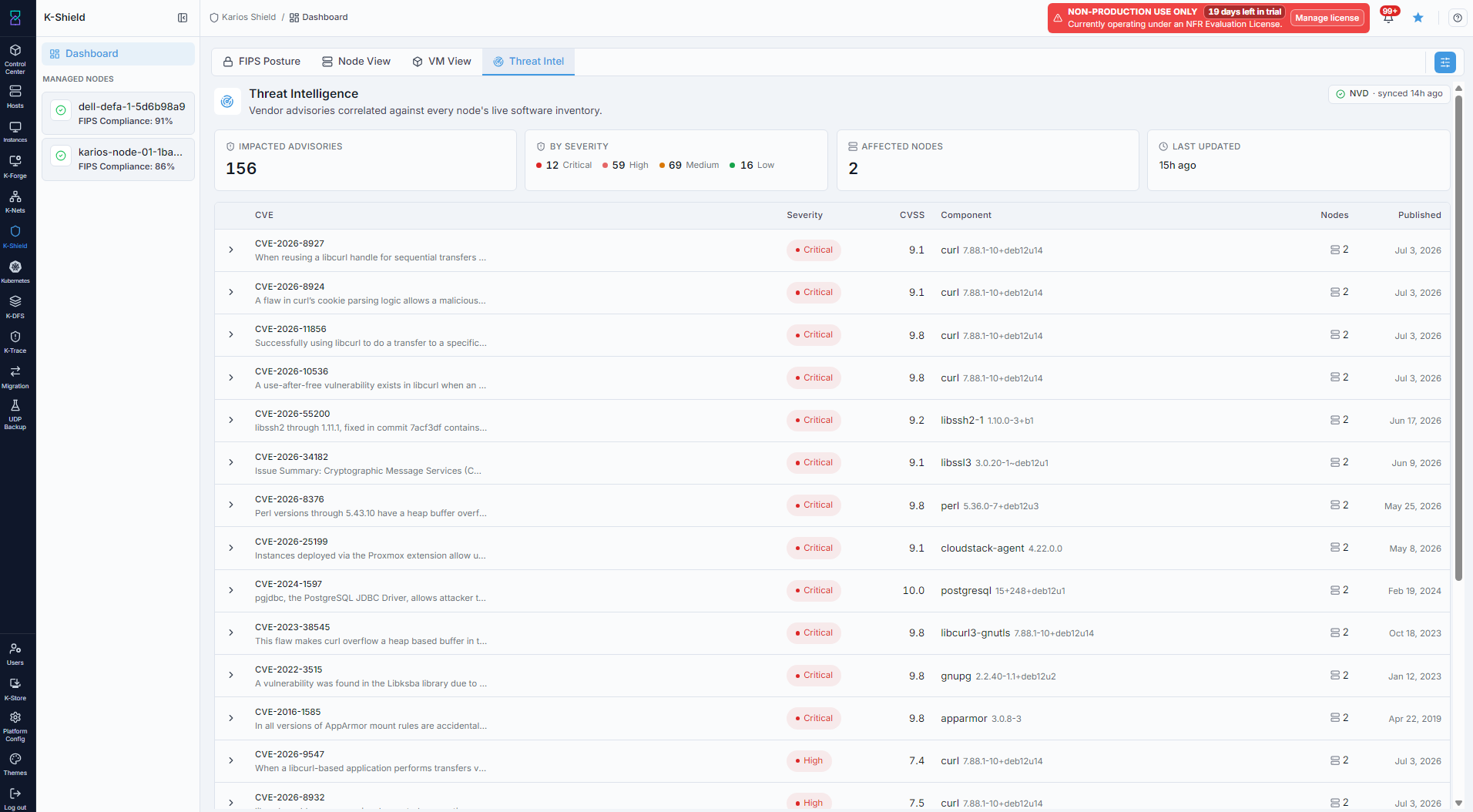
K-Shield Threat Intel dashboard.
What this screenshot shows:
Managed nodes in the left panel.
Threat Intelselected in the dashboard navigation.Summary cards for
Impacted Advisories,By Severity,Affected Nodes, andLast Updated.Threat source sync status shown at the top right.
Advisory table listing detected CVEs across managed nodes.
Severity badges such as
CriticalandHigh.CVSS scores, affected components, affected node counts, and published dates.
What you can do from this screen:
Confirm threat advisory rows are visible.
Review how many advisories are currently impacting the environment.
Compare counts across severity levels.
Identify which components are affected most often.
See how many nodes are impacted by each advisory.
Check when advisories were published and when Threat Intel was last updated.
Expand a row to inspect additional advisory details.
Expected Outcome:
The Threat Intel dashboard information is visible and readable.
Advisory rows are displayed in the table.
Severity, CVSS, component, node count, and published date are available for review.
If this fails:
Refresh the dashboard.
Confirm the
Threat Inteltab is selected.Confirm managed nodes appear in the left panel.
Confirm advisory rows have loaded in the table.
2. Advisory Details
When to Use:
Use this when you need to review the details of a specific Threat Intel advisory.
Purpose:
Review the vulnerability description, severity, CVSS score, source, remediation guidance, affected component, and affected nodes.
Steps:
Open
K-Shield -> Dashboard.Select
Threat Intel.Locate an advisory in the table.
Select the expand arrow beside the CVE.
Review the advisory description and remediation guidance.
Review the severity, CVSS score, source, and published date.
Check affected components and the managed nodes using them.
Select
NVD advisorywhen you need the vendor advisory source.
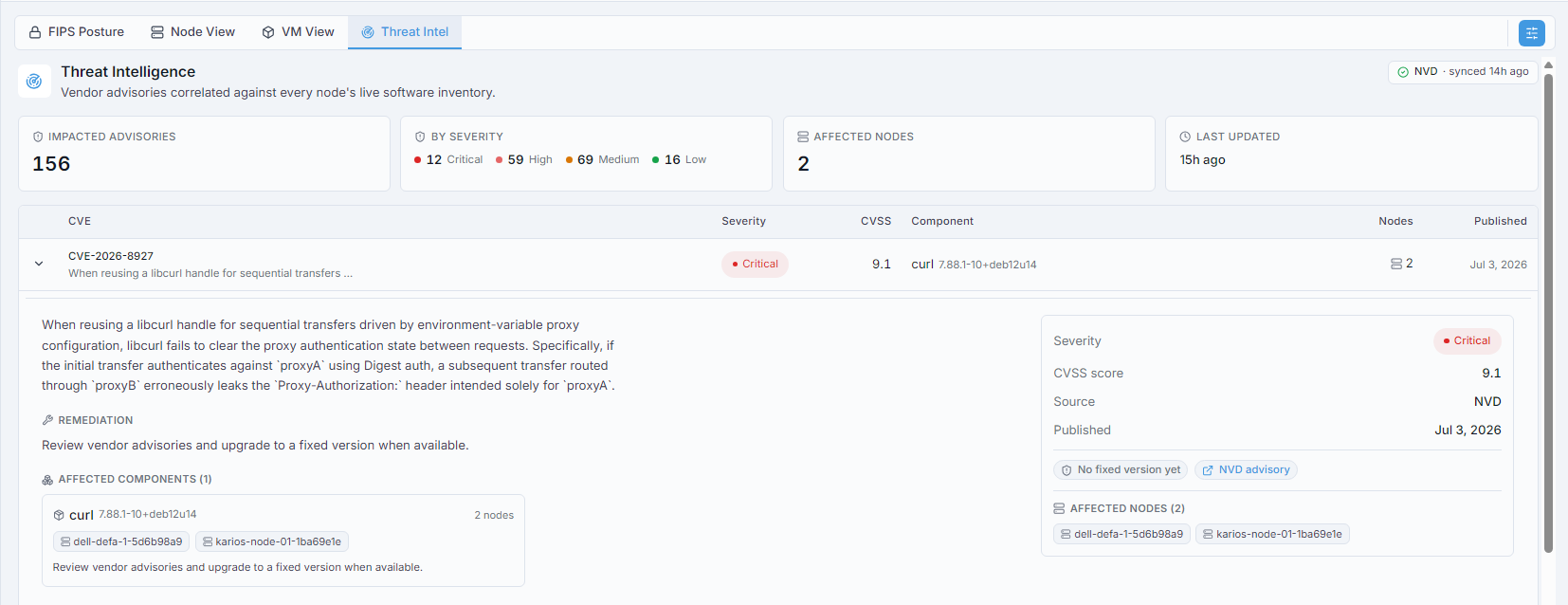
Threat Intel advisory details expanded.
What this screenshot shows:
Advisory
CVE-2026-8927expanded from the Threat Intel table.Vulnerability description explaining the issue.
Remediation guidance to review vendor advisories and upgrade to a fixed version when available.
Advisory metadata: Severity, CVSS score, Source, and Published date.
Fixed-version status.
NVD advisory link.
Affected component and installed version.
Managed nodes affected by the component.
What you can do from this screen:
Understand the vulnerability and its potential impact.
Confirm the severity and CVSS score before prioritizing remediation.
Identify the affected software component and version.
Determine which managed nodes need attention.
Use the
NVD advisorylink for external vulnerability details.Confirm whether a fixed version is available.
Expected Outcome:
The advisory details are visible and readable.
Affected components and affected managed nodes are identified.
If this fails:
Collapse and expand the advisory again.
Refresh the Threat Intel dashboard.
Confirm the advisory row is loaded before selecting its expand arrow.
3. Node Threat Intel
Purpose:
Review advisories that impact one selected managed node.
Steps:
Open a managed node.
Select
Threat Intel.Review the advisory list for the selected node.
Expand an advisory to view its description, remediation, affected component, and source details.
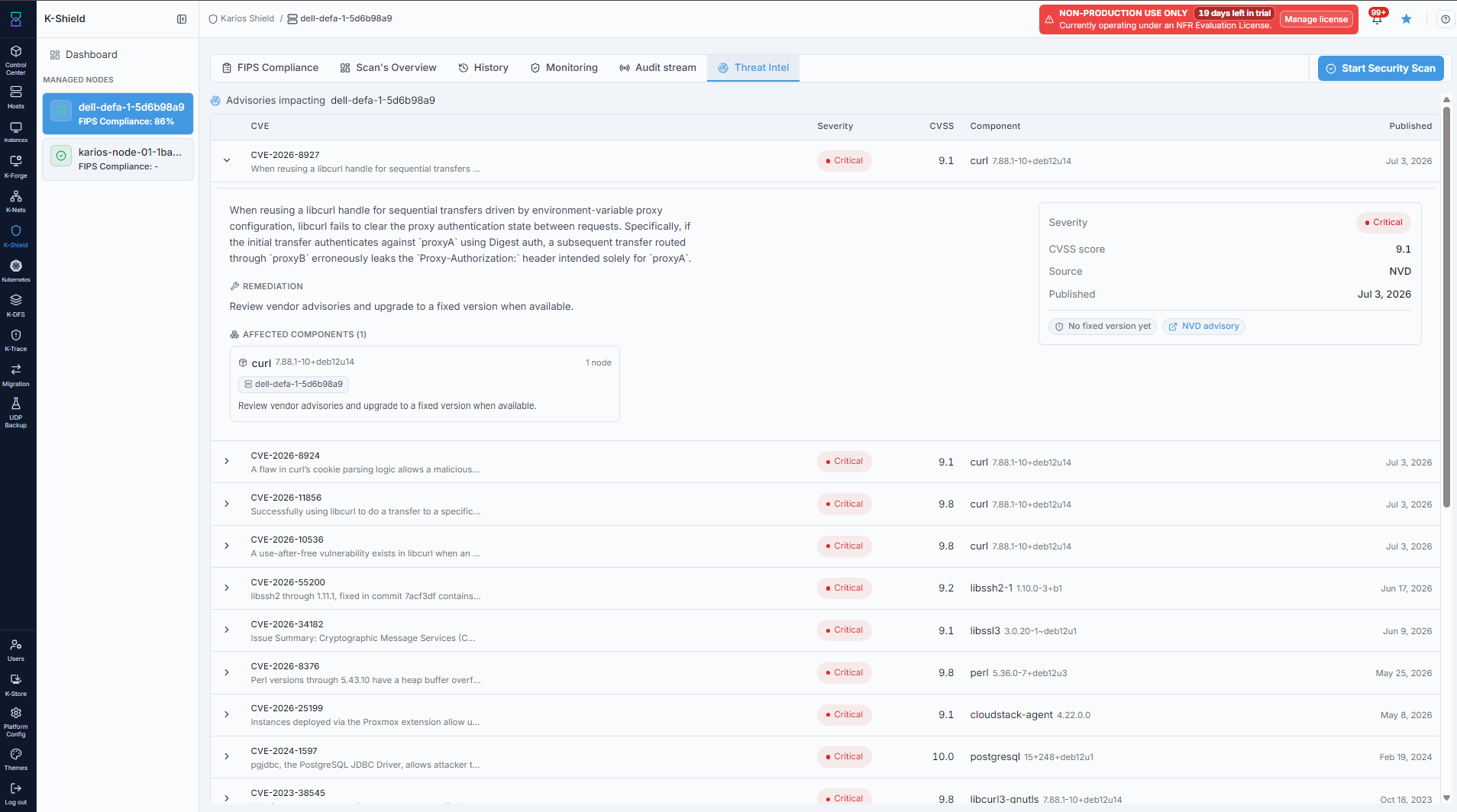
Node Threat Intel view.
Expected Outcome:
Advisories are filtered to the selected managed node.
Each advisory shows its CVE, severity, CVSS score, component, and published date.
→ Next: K-Trace