k3s on Karios
k3s is a lightweight, self-managed Kubernetes distribution. On Karios, a k3s cluster
is built from ordinary Karios virtual machines: Karios provisions them, installs
k3s, wires them into one cluster, and hands you back a kubeconfig to connect
with.
Use k3s when you want a small, fast, self-managed cluster (development, edge, or lightweight production) without operating a full control plane yourself. k3s and the managed K8s on Karios service live side by side on the same Kubernetes dashboard, each as its own card.
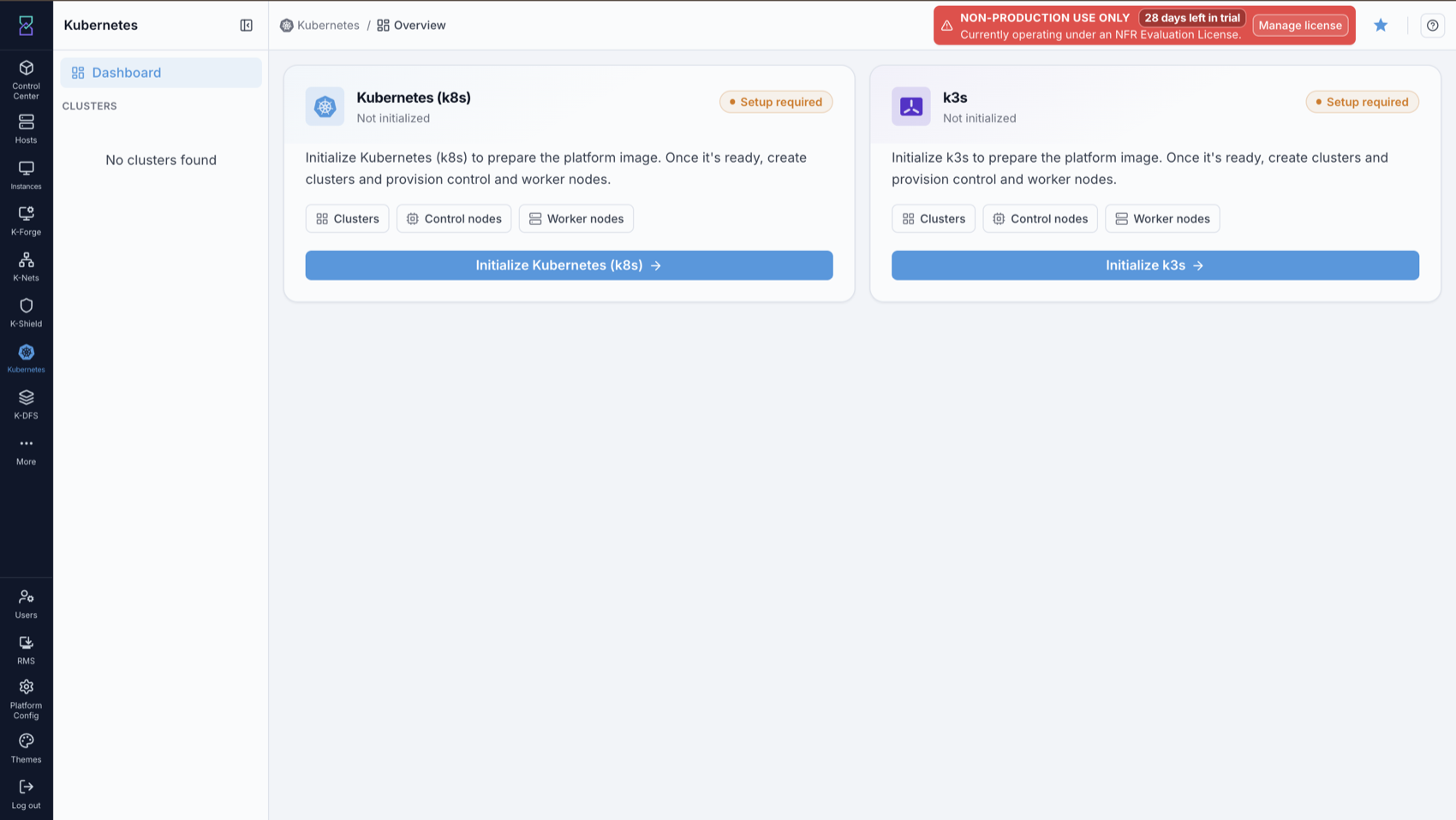
What you’ll see in the screenshot above:
The Kubernetes page in the Karios sidebar. It shows two cards, Kubernetes
(k8s) and k3s, each with a Setup required badge until it is initialized.
Each card carries Clusters, Control nodes, and Worker nodes chips and an
Initialize button (labeled Initialize k3s on the k3s card). This page is where
all k3s work begins.
Prerequisites and Access
Before you can create a k3s cluster, the following must be true.
Permissions
Your role must grant the k3s permissions:
View clusters requires k3s View and Node View.
Create, manage, delete, or scale clusters requires k3s Manage and Node Manage.
These are typically carried by the DevOps and Admin roles. If the k3s card or its actions are missing or greyed out, ask an administrator to enable the k3s permissions on your role.
Zone must be initialized for k3s
k3s must be initialized once per zone before any cluster can be created there;
this registers the k3s VM template. See Initializing k3s (once per zone) for the
one-time procedure. If the zone has not been initialized, creation is blocked with a
K3S_NOT_INITIALIZED message.
Network prerequisite
The guest network you attach the cluster to must be of type Shared. Isolated
and VPC networks are not supported for k3s, because Karios connects directly to each
node’s IP during setup. Selecting a non-shared network fails with
NETWORK_NOT_SHARED.
The Shared network’s VLAN must also be routed to the Karios management
network, and must permit SSH (22/tcp) from the management node to the
cluster nodes. Karios manages k3s clusters over SSH; if the nodes are
unreachable, provisioning fails at Waiting for k3s to be ready even though
the network type is valid. The nodes must also reach each other on 6443/tcp,
8472/udp (Flannel), and - for multi-control-node clusters -
2379-2380/tcp.
Service offering (compute) prerequisite
The service offering you pick for the nodes must provide at least 4 vCPU and 4 GB
RAM (the form shows the minimum as 4 vCPU / 4000 MB RAM). Smaller offerings are
rejected (OFFERING_TOO_SMALL). Custom or variable-size offerings are not
supported (OFFERING_CUSTOM_UNSUPPORTED); choose a fixed-size offering.
Capacity prerequisite
The target zone must have enough free capacity. Karios runs a live capacity check
before creating or scaling a cluster and refuses the operation if placing the new
nodes would push the zone’s CPU, memory, or storage past 75% usage
(INSUFFICIENT_CAPACITY). Storage need is estimated as node count x root disk
size.
Getting Started
The end-to-end flow for a first-time user is:
Initialize k3s in your zone (one-time; see Initializing k3s (once per zone)).
Create a cluster (see Managing Clusters).
Download the kubeconfig and connect with
kubectl(see Managing Clusters).
Initializing k3s (once per zone)
Before the first cluster in a zone can be created, that zone must be initialized. Initialization downloads and registers the k3s VM template (a prebuilt Ubuntu 22.04 image with k3s baked in) into the zone. You only do this once per zone.
Steps
On the Kubernetes dashboard, click Initialize k3s on the k3s card.
Select the zone to initialize and confirm you have read the initialization requirements.
Click Initialize k3s. Karios begins registering and downloading the template.
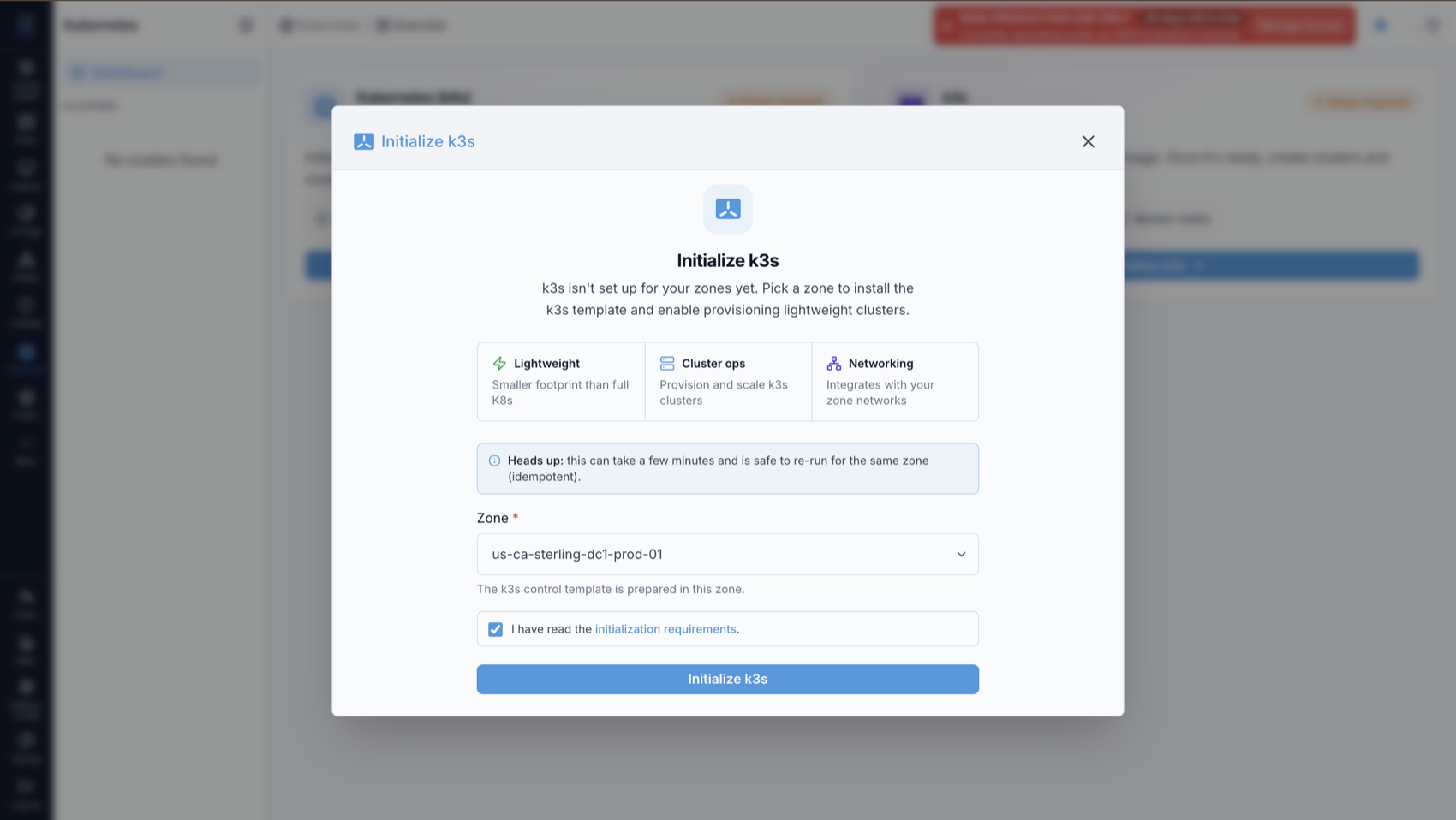
What you’ll see in the screenshot above:
The Initialize k3s dialog. It summarizes what k3s provides (lightweight footprint, cluster ops, zone networking), notes that initialization can take a few minutes and is safe to re-run for the same zone (idempotent), and asks you to pick a Zone and tick I have read the initialization requirements before the Initialize k3s button.
Watching template download
Template registration downloads a multi-GB image, so it takes time. The k3s card shows live download progress and the current state:
not_initialized- never initialized in this zone (card badge:Setup required).initializing- template registering or downloading (card badge:Initializing; the card showsPreparing the k3s template...).download_complete- template ready; you can now create clusters (card badge:Ready).failed- see the error message and retry.
Note
Template download can take a while and times out after 20 minutes if it has not completed. If it times out or fails, retry the initialize step.
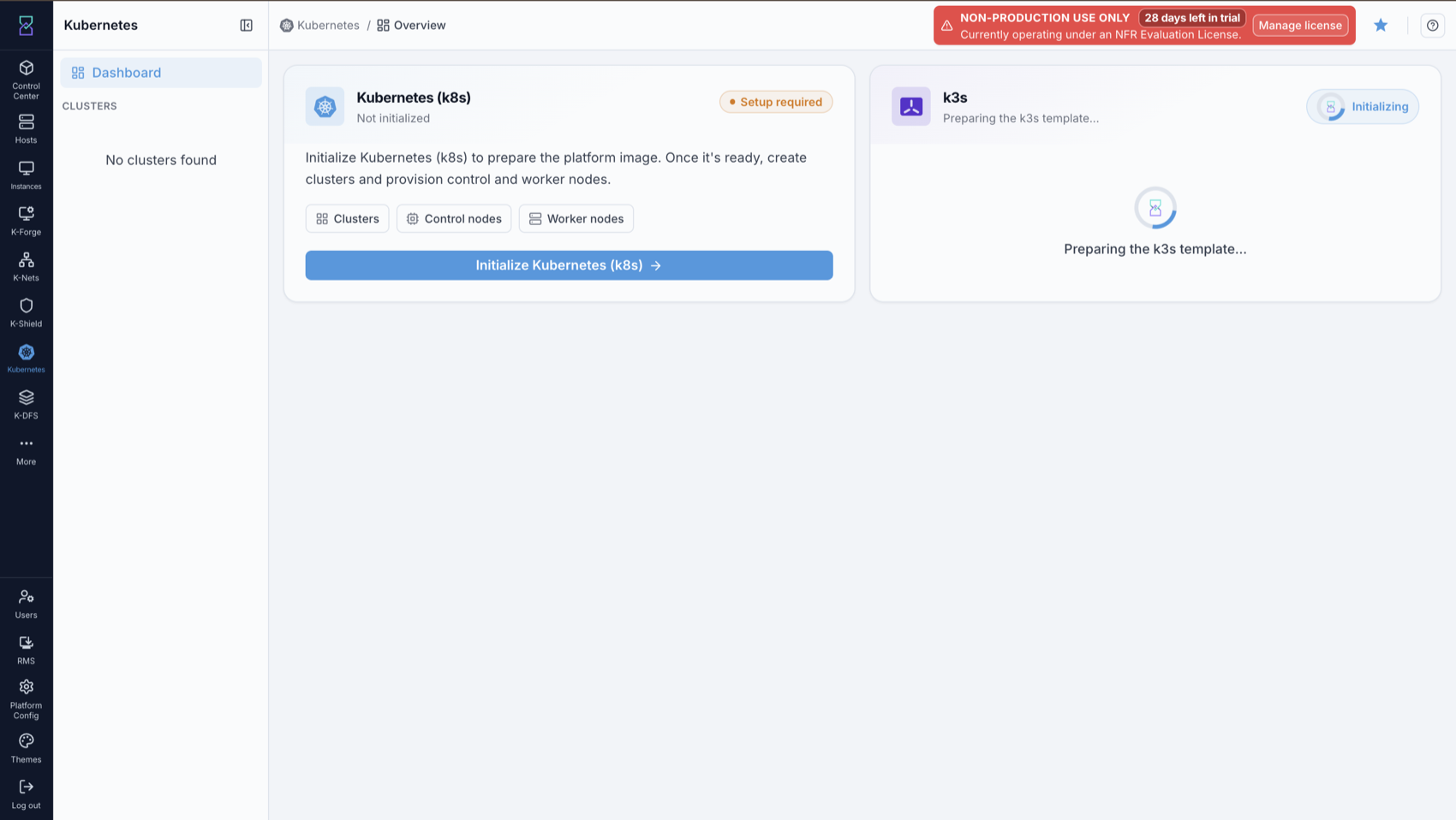
What you’ll see in the screenshot above:
The k3s card mid-download, showing an Initializing badge and Preparing the k3s
template... with a spinner. Creation stays blocked until this finishes.
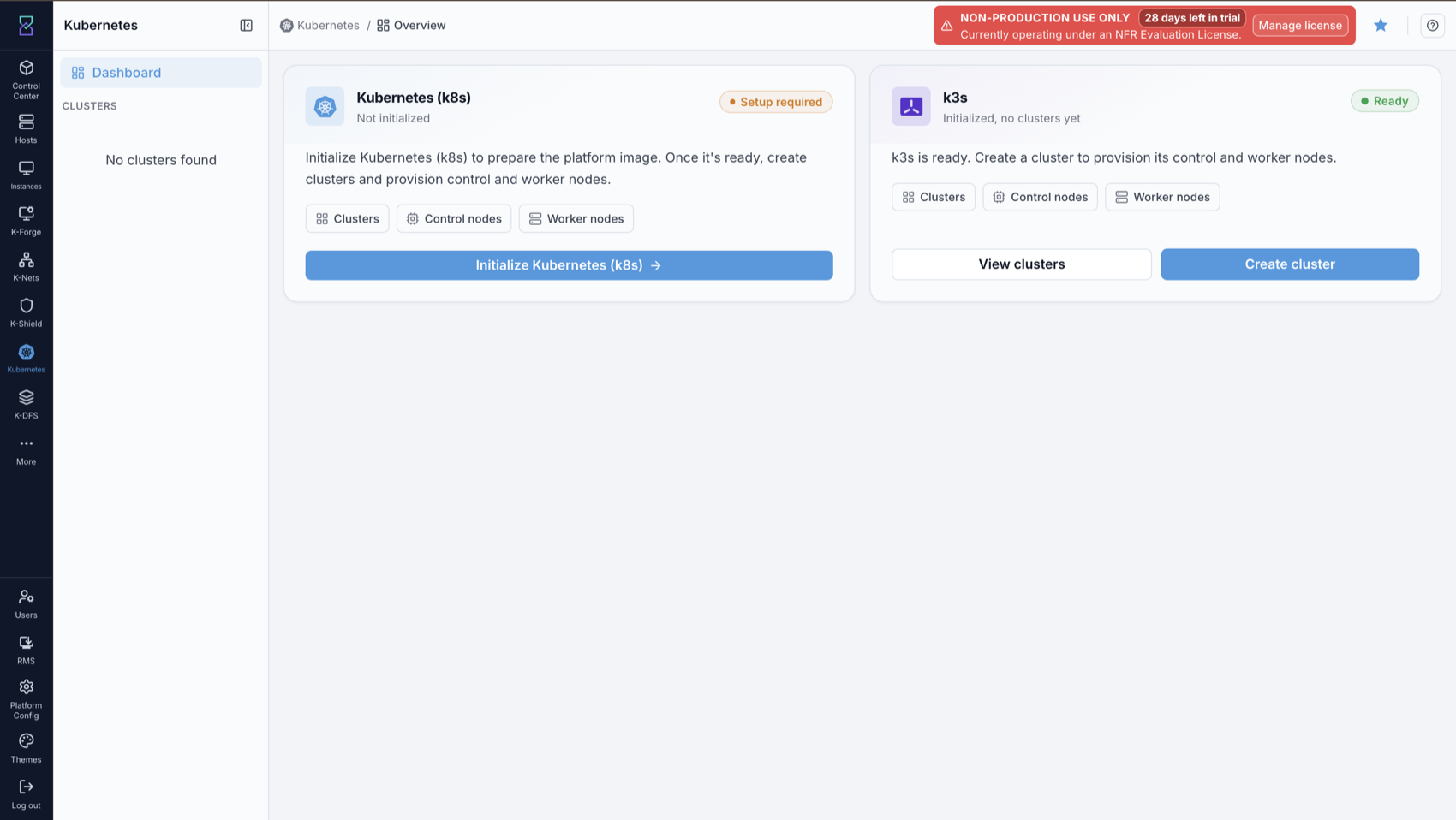
What you’ll see in the screenshot above:
The k3s card once the template is ready: a Ready badge, Initialized, no clusters
yet, and two actions, View clusters and Create cluster. Create is now
unblocked.
Managing Clusters
From the k3s card’s View clusters action (or the + k3s cluster button) you can
create, view, scale, stop, and delete clusters. On first visit the cluster list is
empty (Initialized, no clusters yet) until you create one.
Creating a cluster
From the k3s card (or the + k3s cluster button on the cluster list), choose
Create cluster to open the Provision k3s cluster form. Fill it in and submit;
the form’s submit button is labeled Provision (not “Create”).
Field |
Required |
Notes |
|---|---|---|
Cluster name |
Yes |
Used to name each node VM ( |
Zone |
Yes |
Must be initialized for k3s (see Initializing k3s (once per zone)). |
Guest network |
Yes |
Must be a |
Service offering |
Yes |
Compute size (CPU/RAM) for every node. Minimum 4 vCPU / 4000 MB; no custom offerings. Fixed for the life of the cluster. |
Control nodes |
Yes |
|
Worker nodes |
Yes |
0-10. |
VM username |
Yes |
Console/login user created on every node. 3-32 characters. Cannot be |
VM password |
Yes |
Console/login password for that user. Minimum 8 characters. |
SSH key pair |
No |
Name of a Karios-registered SSH key pair to inject for direct SSH (defaults to |
Node root disk size (GB) |
No |
Root disk for every node. Defaults to 20 GB; minimum 20. Applies to all nodes, including future ones added by scaling. There is no separate data disk; this single root disk is the node’s storage. |
Note
High availability: a single control node is fine for dev/test. For HA, use 3 or more (odd) control nodes; k3s runs an embedded etcd across them. You can grow from 1 to 3 later via scaling.
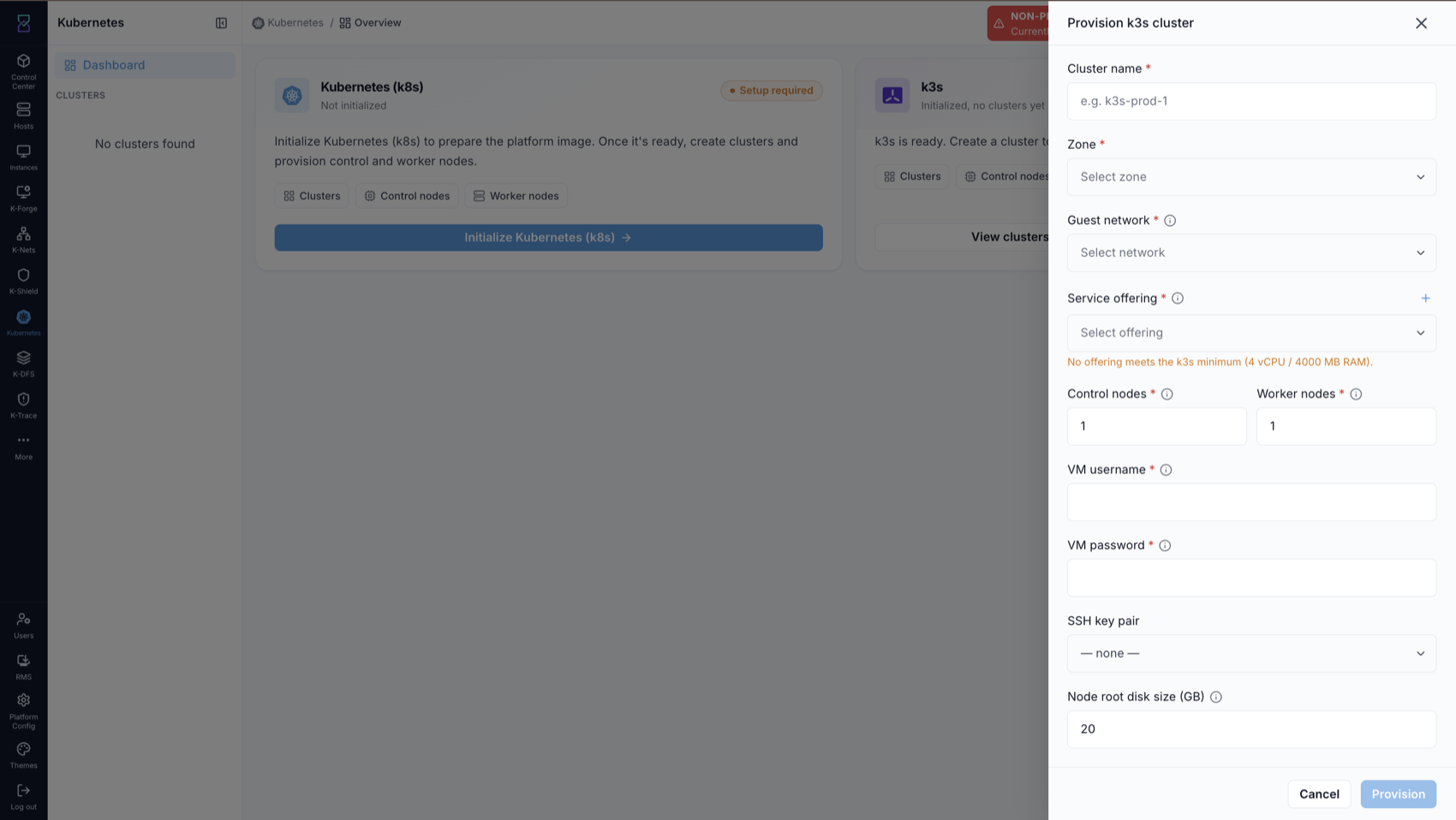
What you’ll see in the screenshot above:
The Provision k3s cluster form is a right-side drawer with the fields above. If no
service offering meets the k3s minimum, the form shows No offering meets the k3s
minimum (4 vCPU / 4000 MB RAM). At the bottom, use Provision or Cancel.
Watching provisioning
After you click Provision, the cluster is created asynchronously. Karios deploys each node in order (first control node, then any additional control nodes, then workers), installs k3s, and fetches the kubeconfig. A Cluster operation panel shows the current step and percentage.
Cluster states you will see: Creating -> Running on success. Other states:
Stopping, Stopped, Starting, Deleting, ScalingDown, and
Error (if something fails). If a cluster lands in Error, see Troubleshooting.
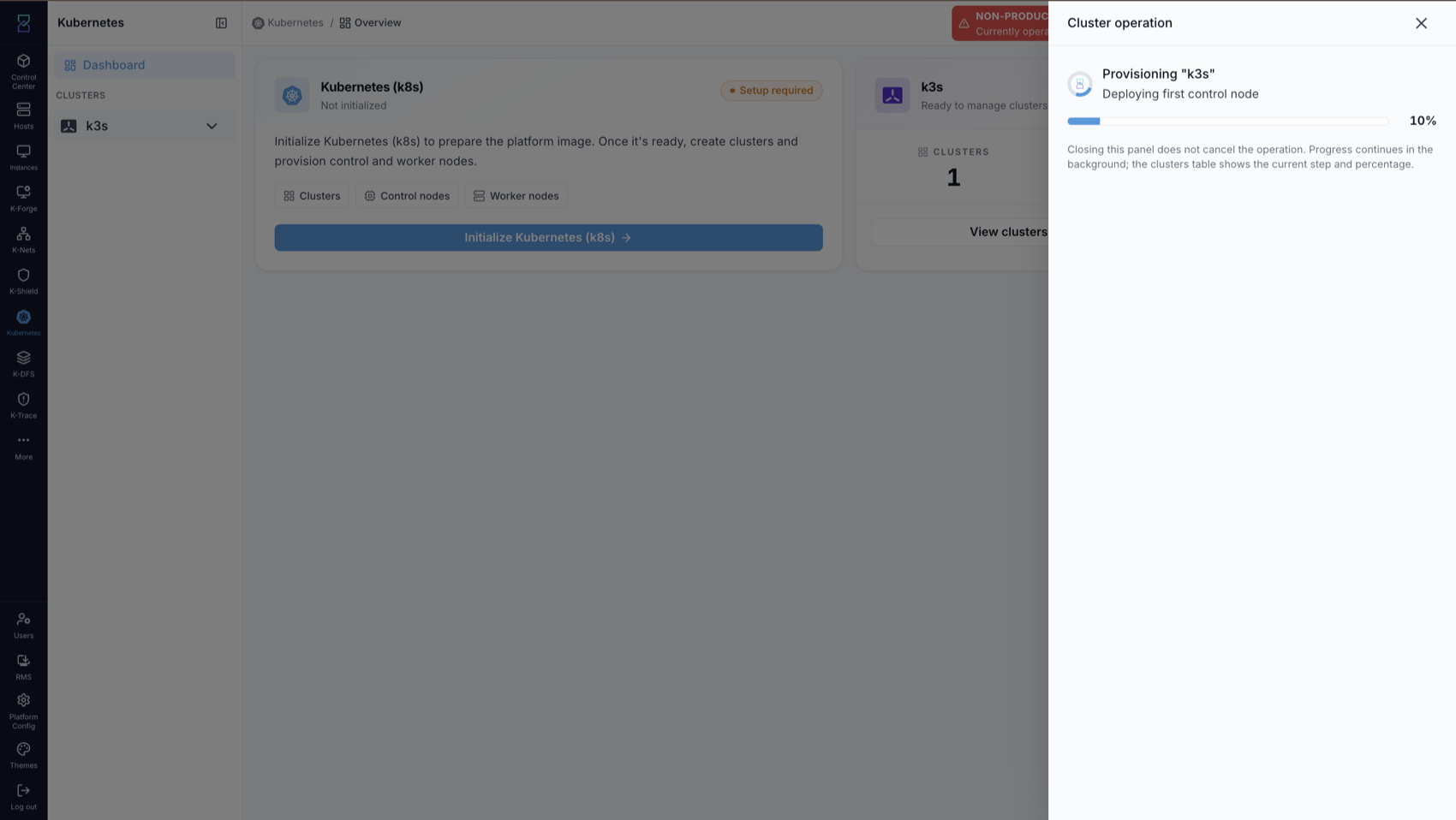
What you’ll see in the screenshot above:
The Cluster operation panel, for example Provisioning "k3s" - Deploying first
control node at 10%. Closing the panel does not cancel the operation; progress
continues in the background and the cluster list shows the current step and percentage.
Once provisioning finishes, your cluster appears in the k3s clusters list, where you can open, scale, stop, or delete it.
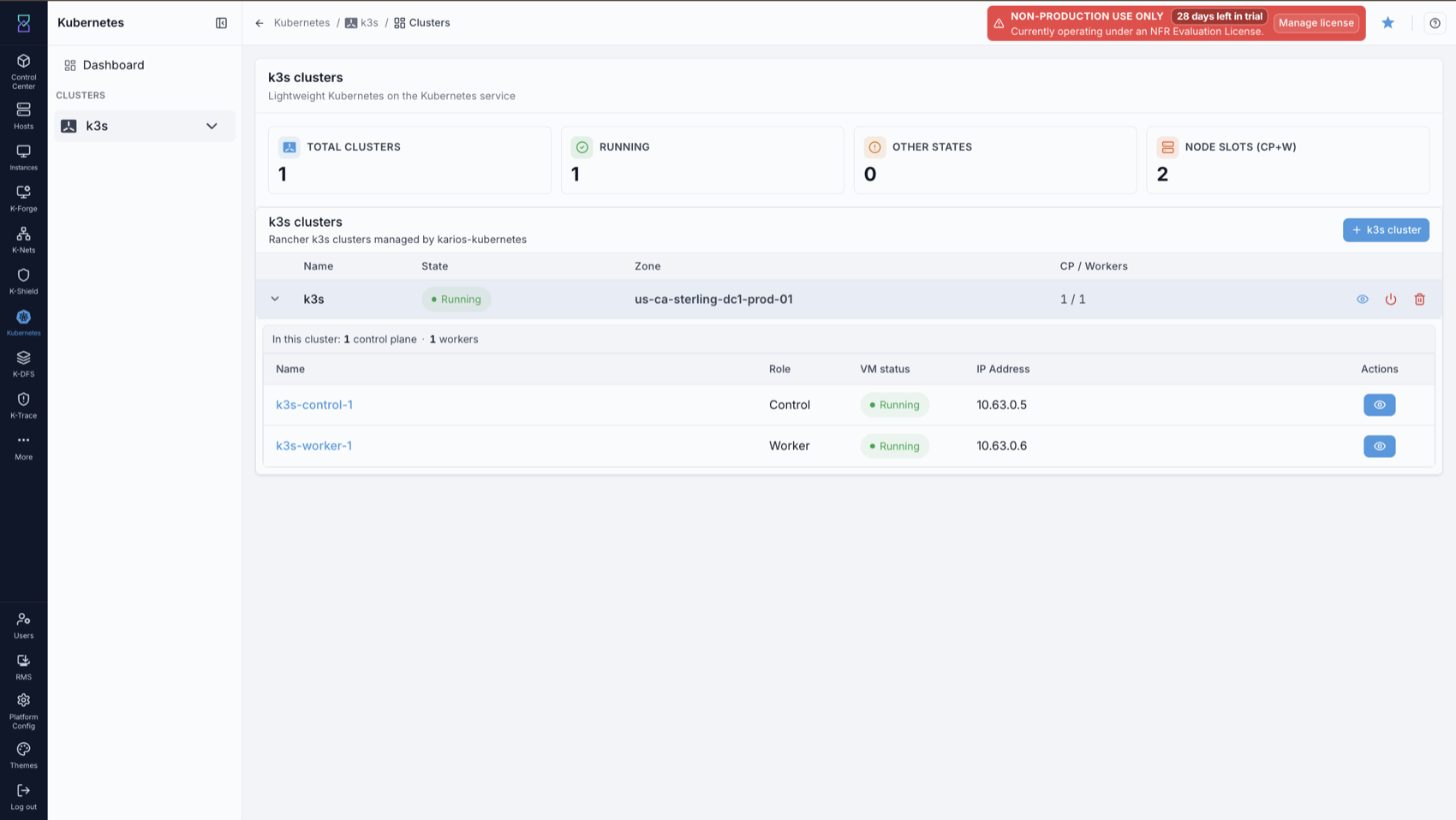
What you’ll see in the screenshot above:
The k3s clusters list. Summary cards show Total Clusters, Running,
Other States, and Node Slots (CP+W) (total control-plane plus worker nodes
across all clusters). The table lists each cluster with its
name, state, zone, and CP / Workers counts, and a + k3s cluster button.
Expanding a row shows the cluster’s nodes (for example k3s-control-1 and
k3s-worker-1) with their role, VM status, and IP address.
Viewing a cluster
Open a cluster to see its detail page, which has three tabs, Details, VMs, and Access, and top-right actions Scale up, Scale down, Stop, and delete.
The Details tab shows two cards:
Cluster overview - name, cluster ID, state, created time, and control/worker node counts.
Infrastructure - zone, network ID, and the running k3s version (for example
v1.31.4+k3s1).
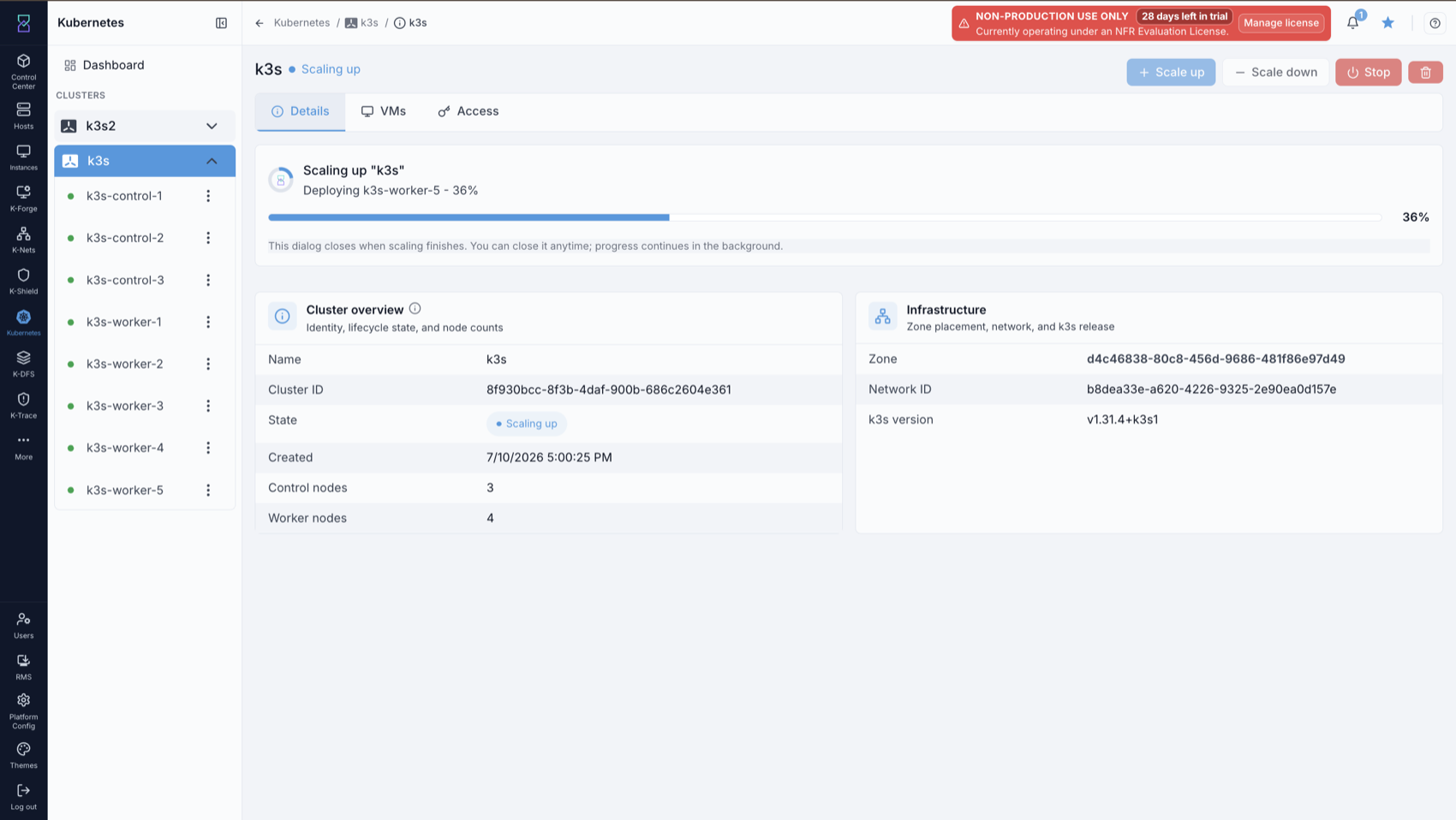
What you’ll see in the screenshot above:
The cluster Details tab with the Cluster overview and Infrastructure cards, and the Scale up / Scale down / Stop / delete actions in the top-right. During a scale operation this tab also shows a progress bar for the running step.
The VMs tab lists the cluster’s node VMs, each with its role, VM status, and IP address, and a view action to open that node’s VM.
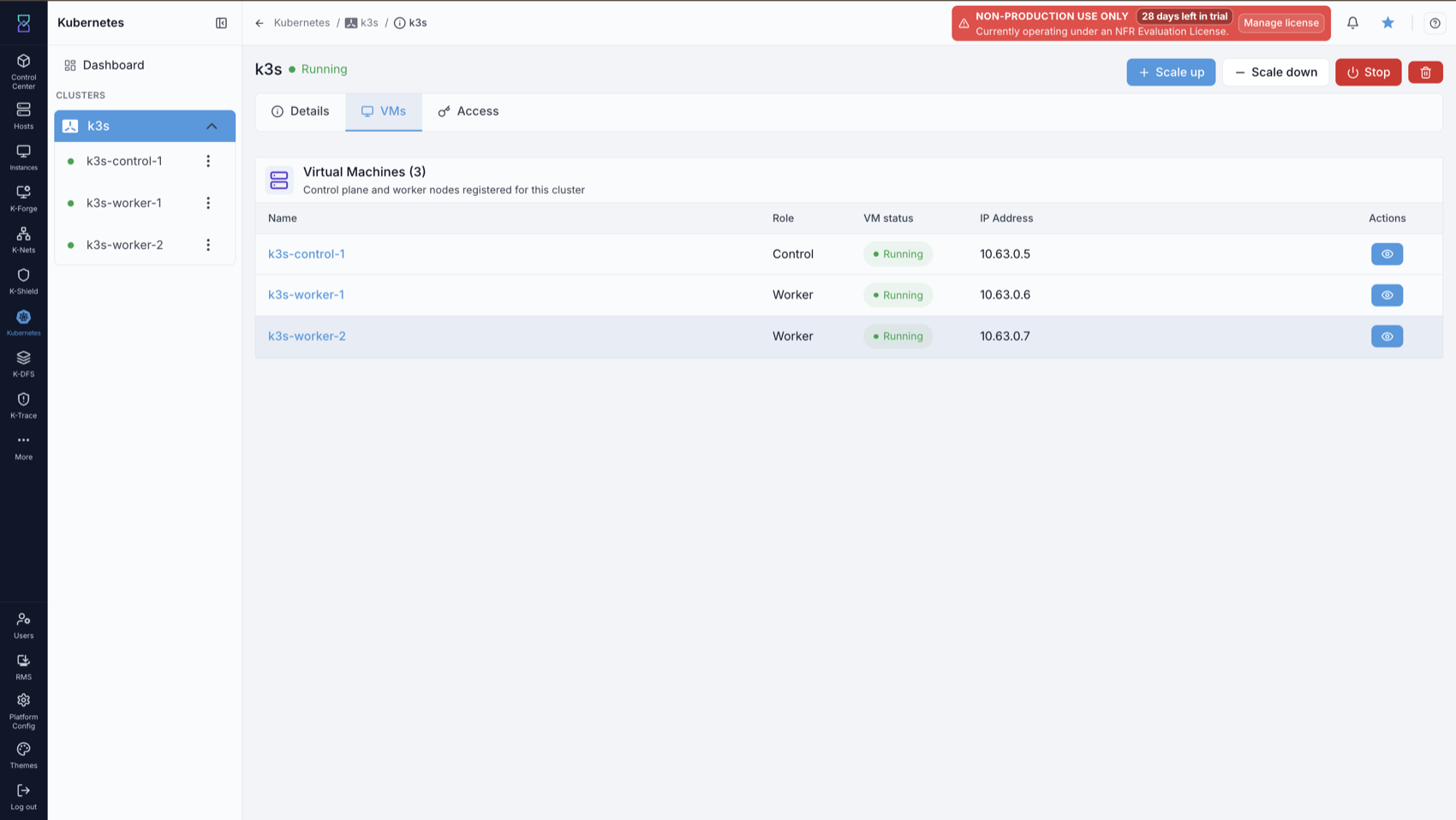
What you’ll see in the screenshot above:
The VMs tab, Virtual Machines for the cluster, listing each control and worker
node (for example k3s-control-1, k3s-worker-1) with role, status, and IP.
Connecting with kubectl (kubeconfig)
Wait until the cluster state reads Running before downloading the kubeconfig; the
Access tab is populated once provisioning completes. Then open the Access tab and
use Download Kubeconfig to get the cluster’s kubeconfig file. The file already
points at the cluster’s public endpoint (https://<control-node-IP>:6443), so you
can use it directly from any machine that has kubectl installed:
# point kubectl at the downloaded file
kubectl --kubeconfig /path/to/kubeconfig-<cluster-id>.yaml get nodes

# or merge it into your default config at ~/.kube/config
Note
kubectl must be installed on the machine you connect from. See the upstream
kubectl install guide if you do not have it.
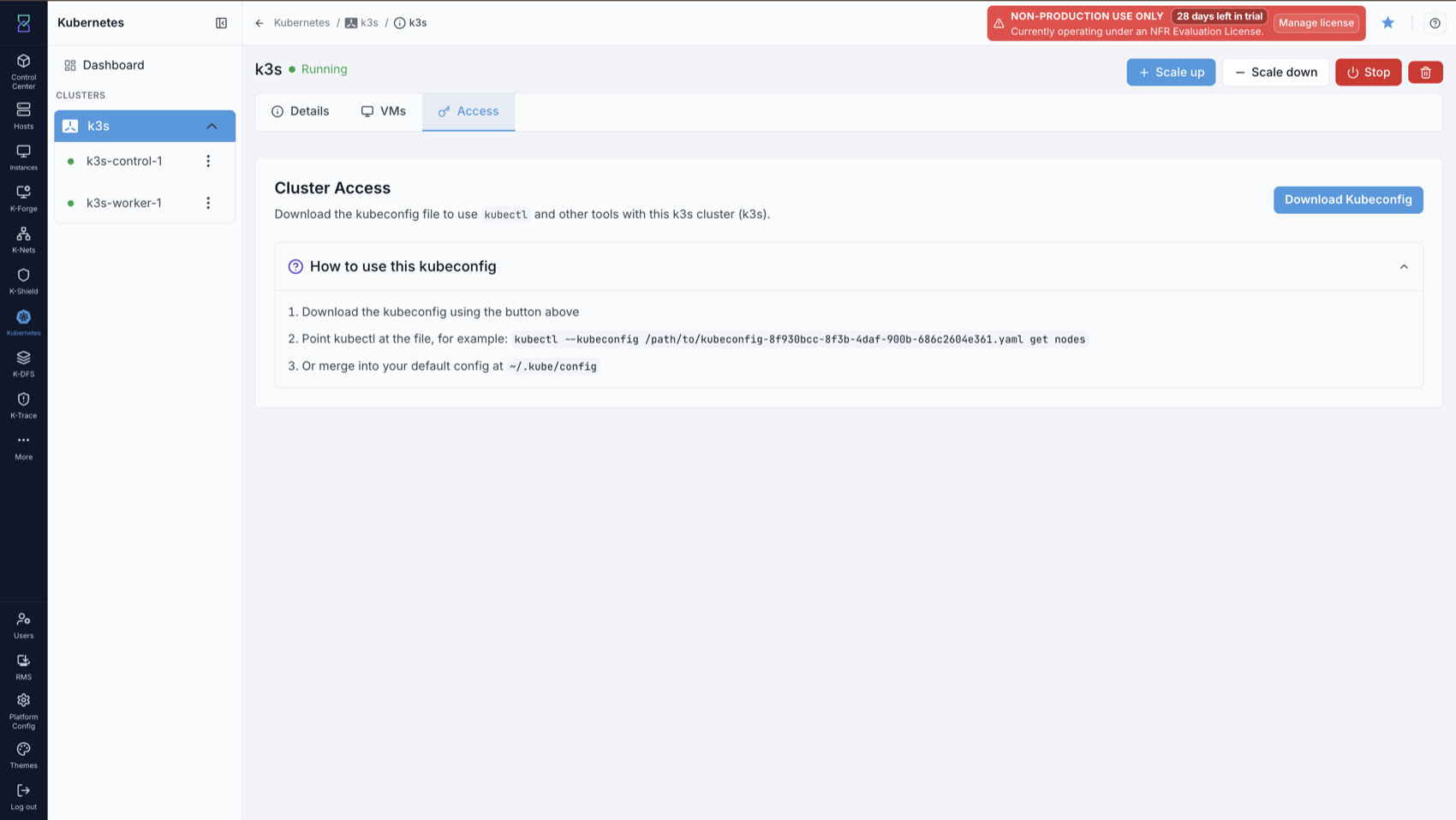
What you’ll see in the screenshot above:
The Access tab, Cluster Access, with a Download Kubeconfig button and a
How to use this kubeconfig panel that shows the kubectl --kubeconfig ... get
nodes example and how to merge it into ~/.kube/config.
Starting and stopping a cluster
You can Stop a Running cluster to power off all its node VMs, and Start it
again later. Stopping is useful to save resources when the cluster is not in use.
Stop - available when the cluster is
Running. Moves throughStopping -> Stopped.Start - available when the cluster is
Stopped. Moves throughStarting -> Running.
The Stop action in the cluster detail’s top-right is replaced by Start once the
cluster is Stopped.
Scaling a cluster (add or remove nodes)
Scaling changes the number of nodes; it does not change the service offering (all
nodes keep the size chosen at creation). Use Scale up to add nodes and Scale
down to remove them. Both take a Role (worker or control) and a Count.
Scale up (cluster Running):
New nodes reuse the cluster’s service offering and root disk size.
Total control nodes must remain odd (1, 3, 5, …) for etcd quorum, so add control nodes two at a time (Count 2: 1 -> 3, 3 -> 5). A count that would make the total even (for example 1 -> 2) is rejected.
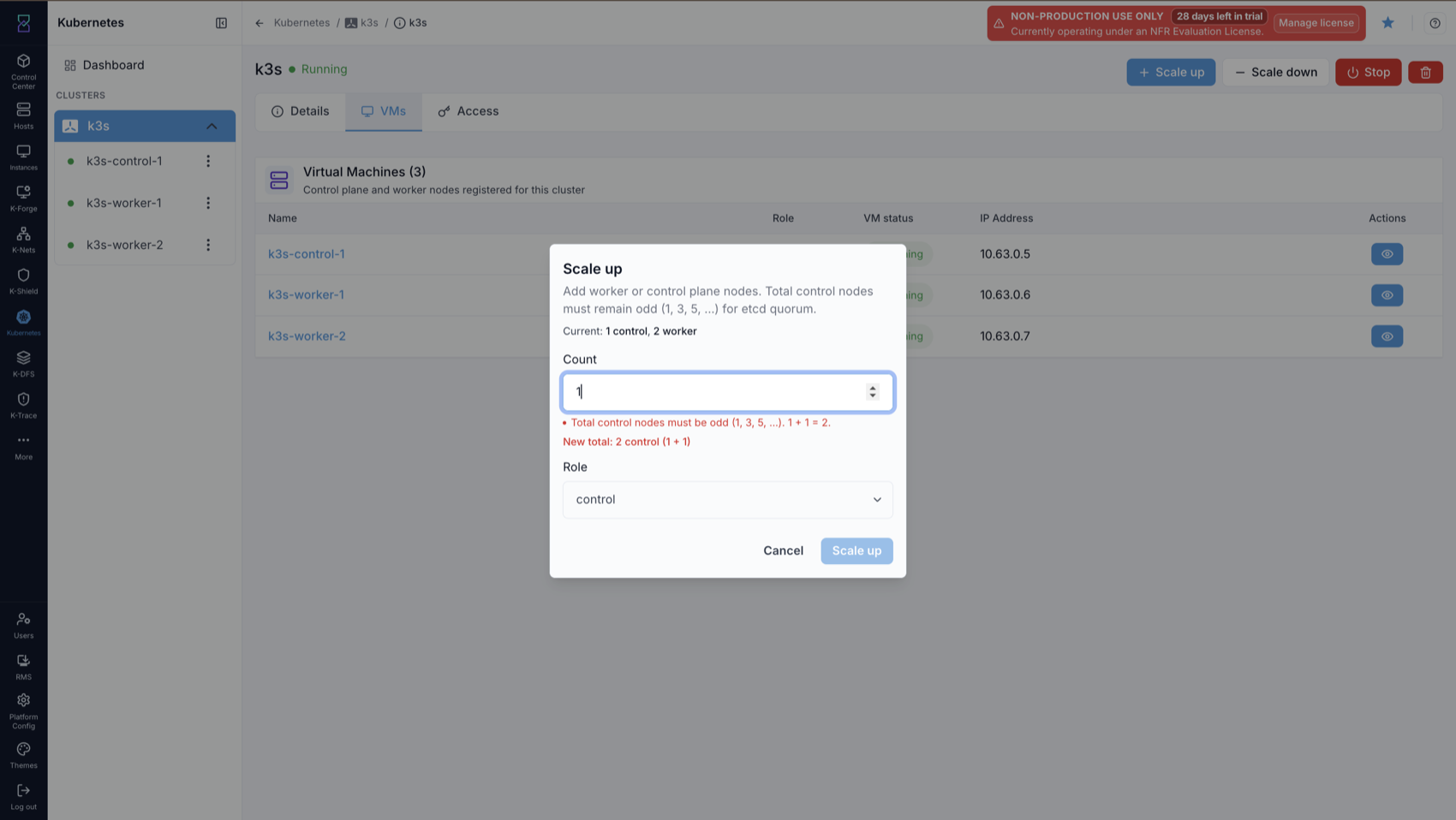
What you’ll see in the screenshot above:
The Scale up dialog. It shows the current control/worker counts, a Count and a Role selector, and validates the total (for example warning that adding one control node to one would make two, which is not allowed).
Scale down (cluster Running or Error):
Karios cordons and drains the node, removes it from the cluster, then destroys the VM. Unhealthy nodes are removed first.
Removal is quorum-safe: the control plane must stay odd and at least 1, and at least one healthy control node always remains.
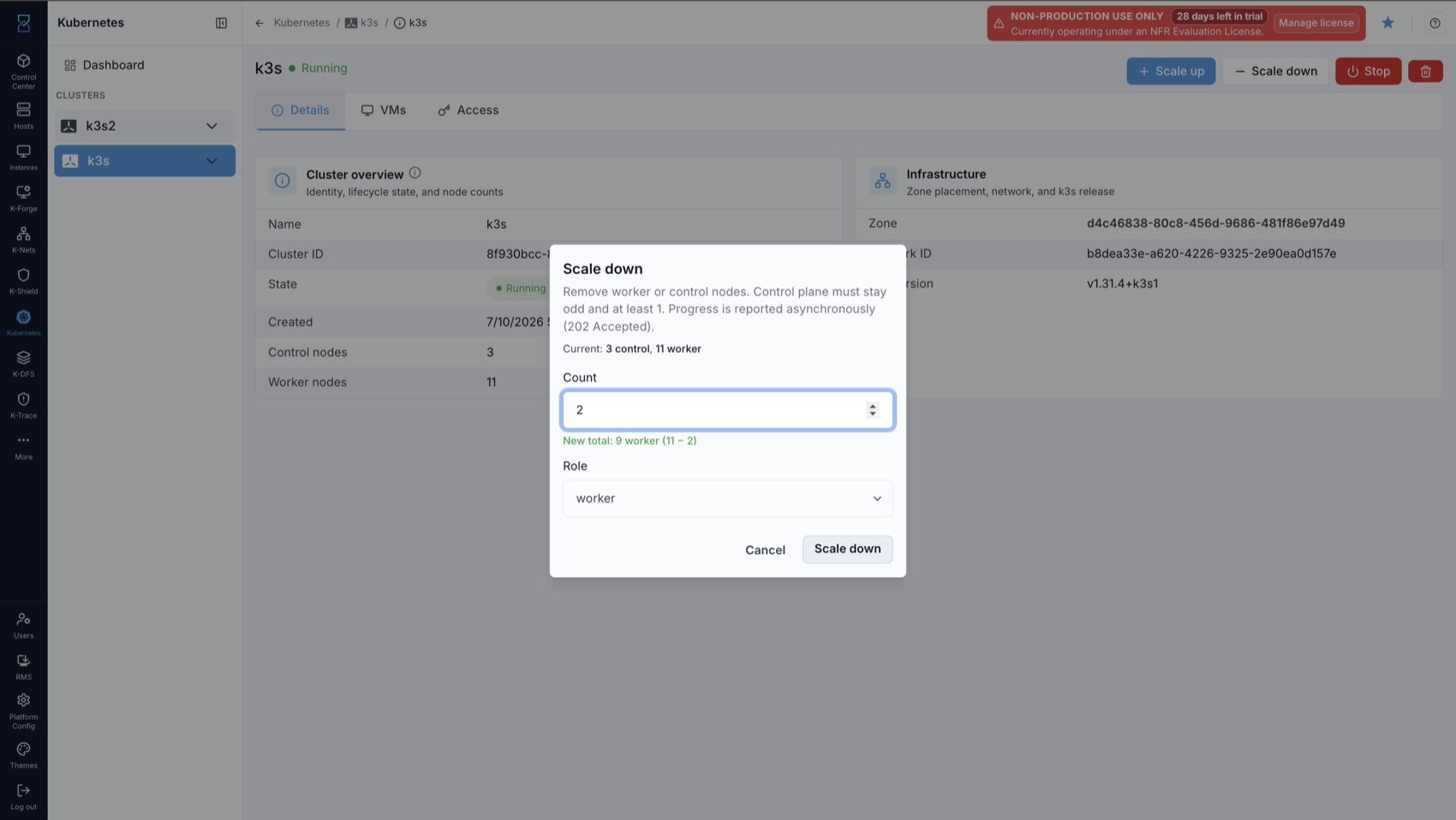
What you’ll see in the screenshot above:
The Scale down dialog with a Role and Count to remove, the current node counts, and the resulting new total. It notes the control plane must stay odd and at least 1.
Autoscaling
Autoscaling adds and removes worker nodes automatically as demand changes, in place of manual Scale up / Scale down. Turn it on from the cluster’s Autoscaling panel and set a Minimum workers / Maximum workers range - the minimum is a floor the cluster never drops below, not a target. While it’s on, Scale up and Scale down are disabled; change the range instead.
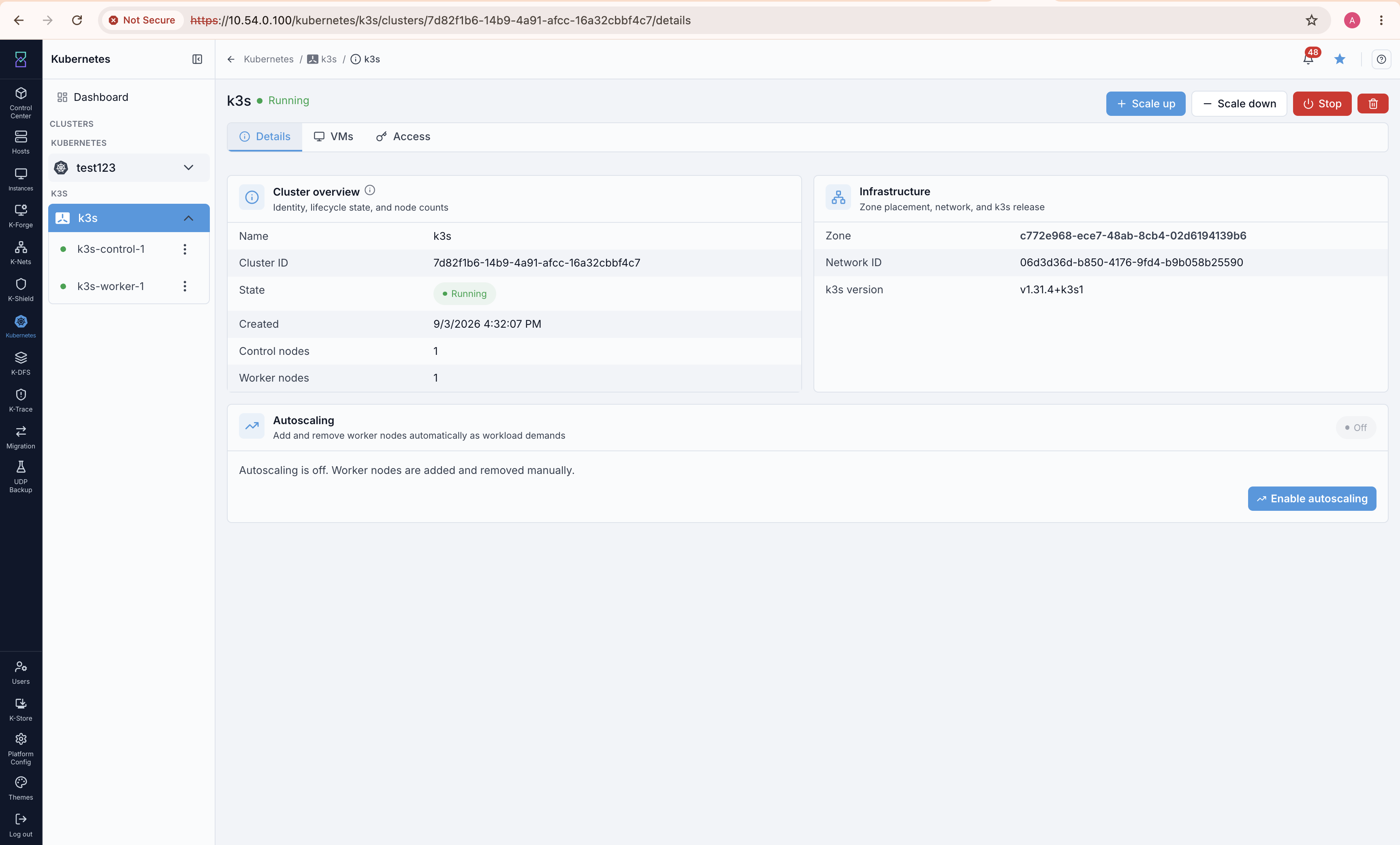
The Autoscaling panel on the cluster’s Details tab, before it’s enabled.
Before enabling, the cluster needs a Shared network, a compute offering of at least 4 vCPU / 4000 MB, and enough free zone capacity for the maximum you set - size that headroom against the maximum, not today’s usage.
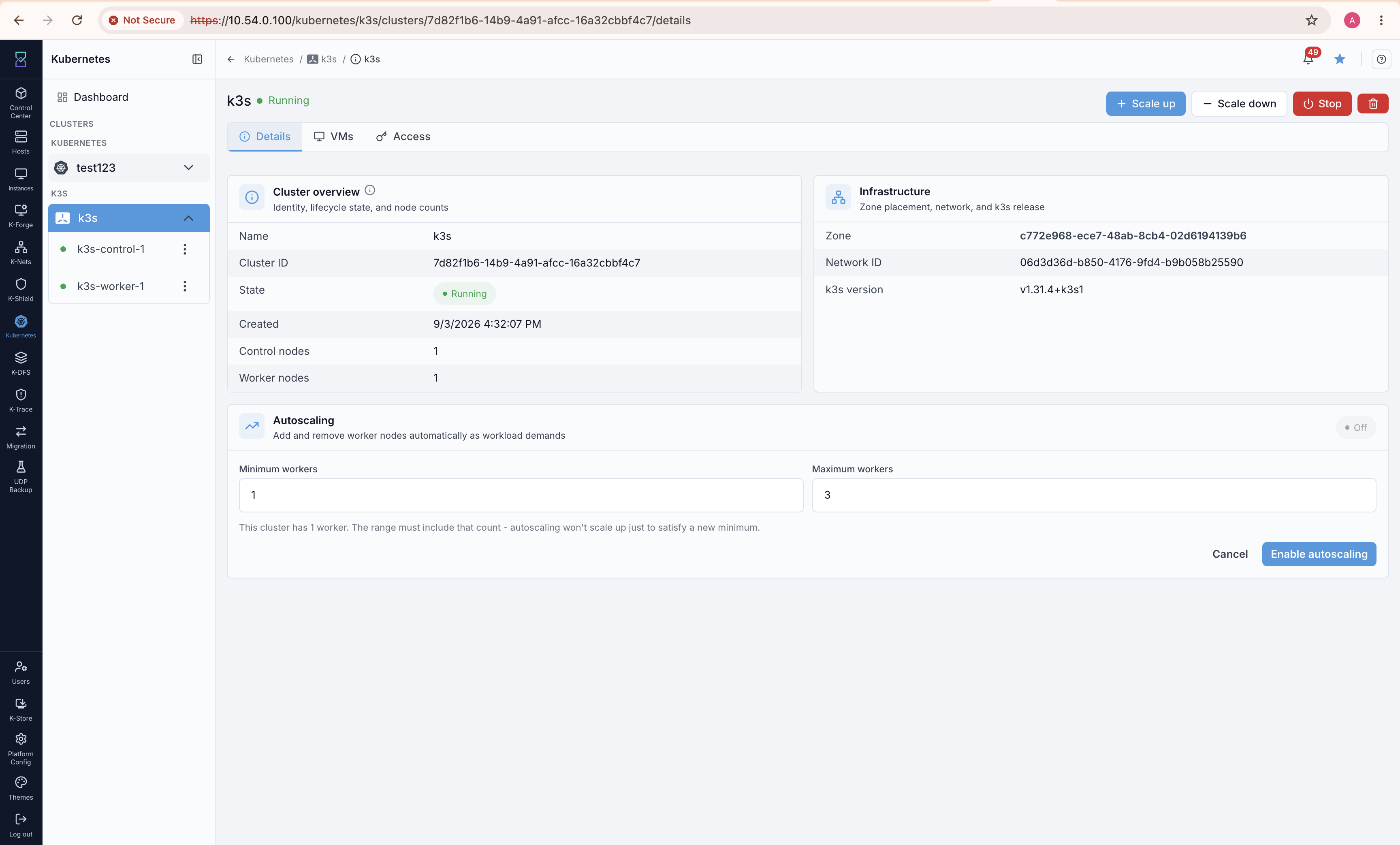
Enabling autoscaling. The range must include the cluster’s current worker count.
Nodes are added based on reserved CPU/memory, not actual usage - a busy workload that reserves little won’t trigger a scale-up, and an idle one that reserves a lot will. Adding a node takes a few minutes; removing one takes considerably longer, since a node must sit idle for about ten minutes before it’s reclaimed, and nodes are removed one at a time. This is deliberate - it stops the cluster thrashing on short-lived spikes. A worker also stays if it’s running cluster services that can’t be moved.
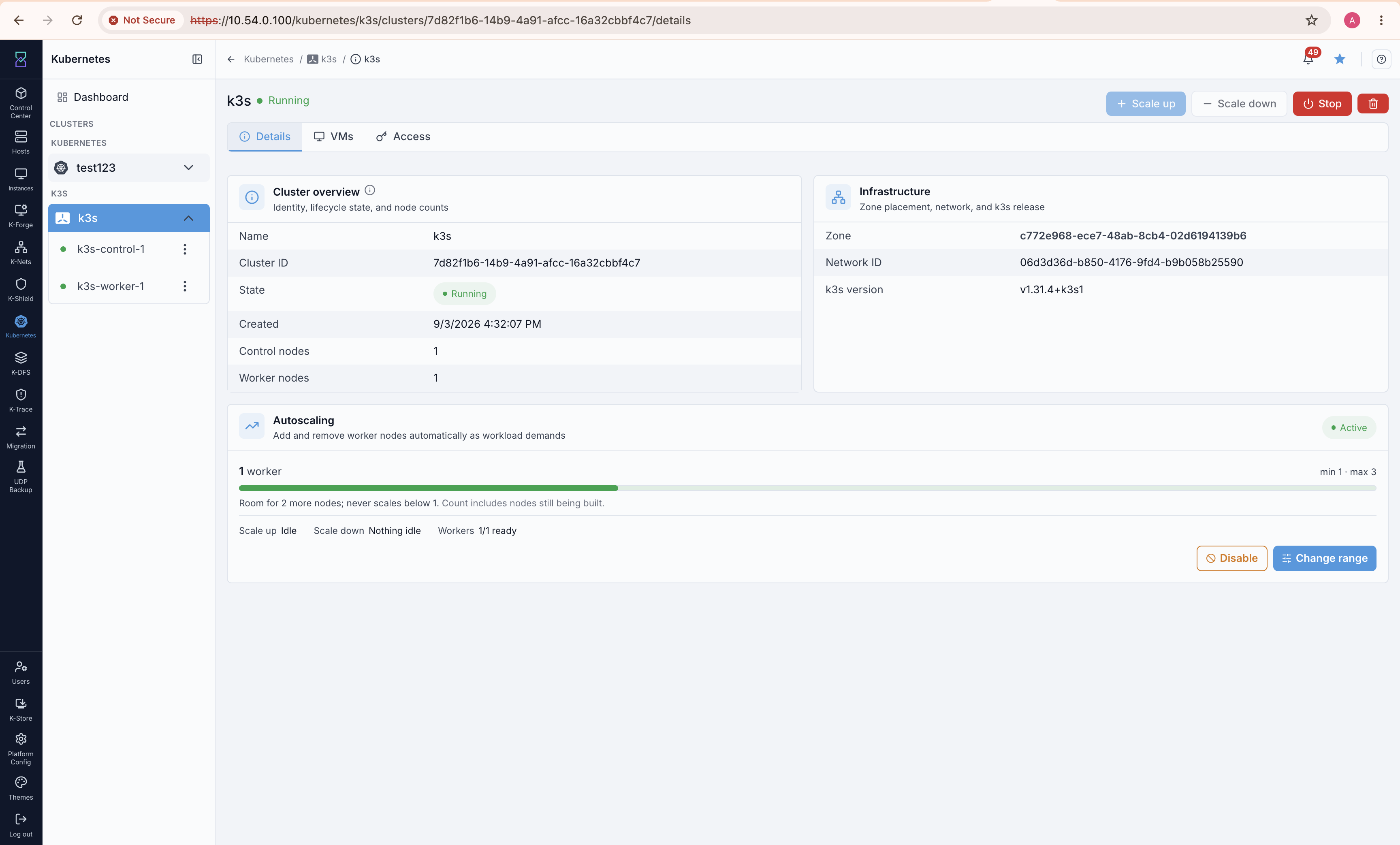
Active, with room to grow: the range and live worker/readiness counts.
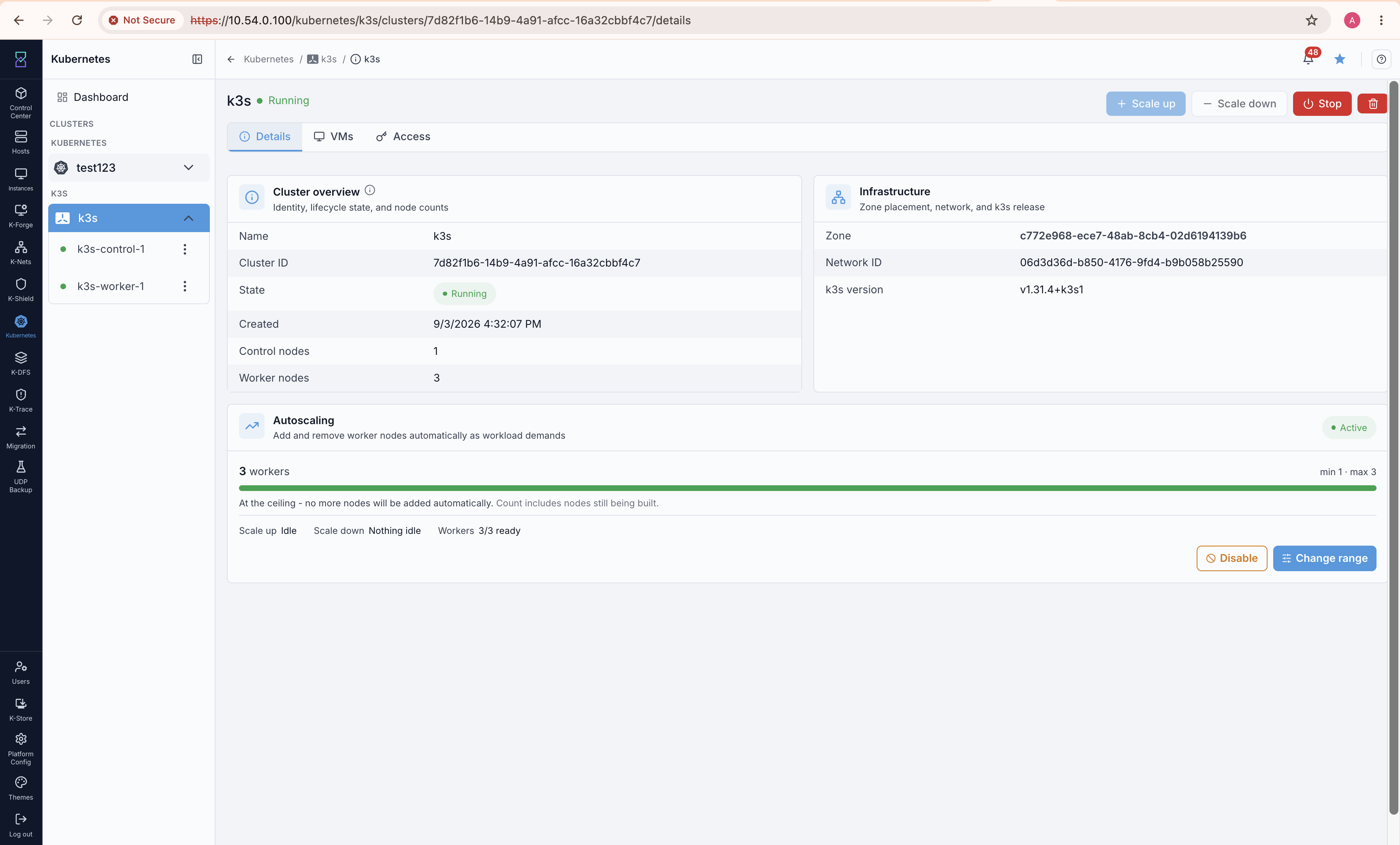
At the ceiling - no more nodes are added automatically until the range changes.
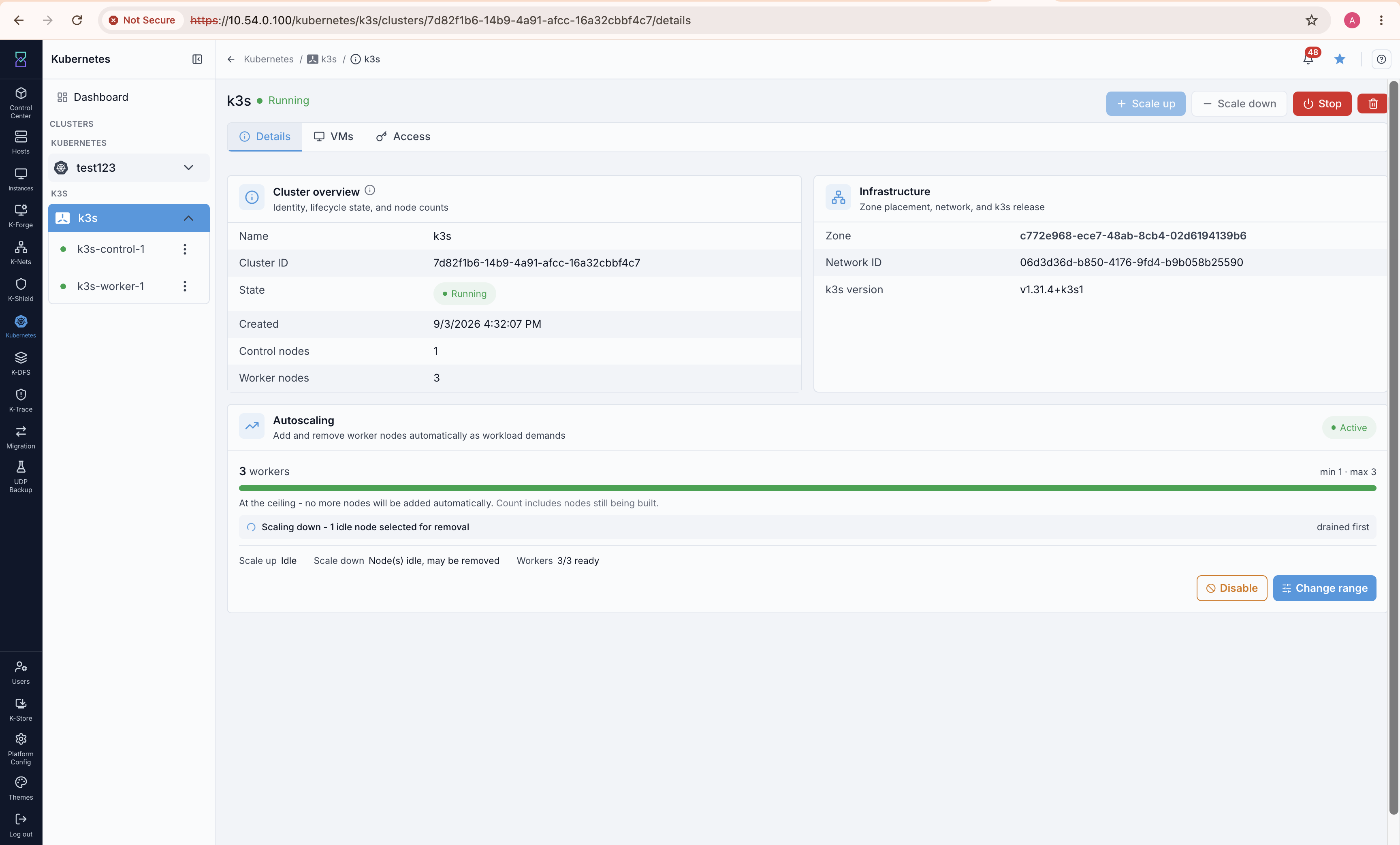
Scaling down: an idle node is drained before removal.
Deleting a cluster
Delete tears the cluster down completely: every node VM is destroyed and expunged, and the cluster record is removed. This cannot be undone.
Warning
Deleting a cluster permanently destroys all of its nodes and their data. Download any kubeconfig or back up anything you need first.
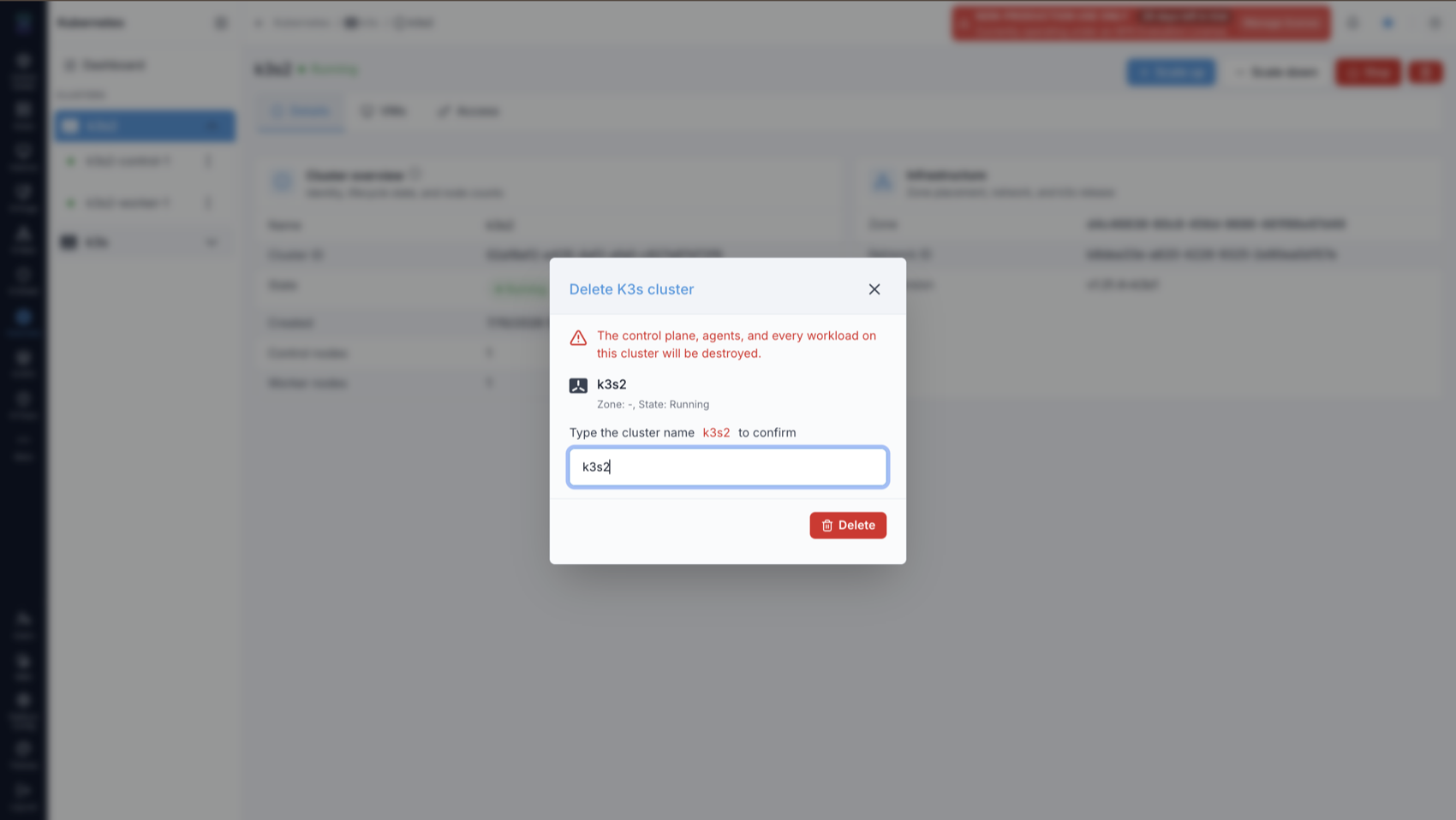
What you’ll see in the screenshot above:
The Delete K3s cluster dialog. It warns that the control plane, agents, and every workload will be destroyed, and requires you to type the cluster name to confirm before the Delete button is enabled.
Node (VM) Management
Each k3s node is a standard Karios instance named <cluster>-control-N or
<cluster>-worker-N. The cluster’s VMs tab lists them and links to each node’s
VM. To manage a node’s console, snapshots, volumes, metrics, or firewall /
port-forwarding rules, use the standard Karios areas:
Compute -> Instances - console access, start/stop/reboot, metrics, snapshots, and volumes.
Network - port forwarding, firewall (ingress/egress) rules, and ACLs.
Tip
Filter the Instances list by your cluster name to find all of its nodes quickly.
See also
The per-node VM tabs (console, metrics, snapshots, volumes, and security scanning) behave the same as for managed Kubernetes nodes; see the node-VM management sections of Kubernetes on Karios for details.
Troubleshooting
Symptom / message |
Cause |
What to do |
|---|---|---|
|
The zone has not been initialized for k3s. |
Initialize the zone first (see Initializing k3s (once per zone)). |
Template download stuck / times out after 20 min |
Slow or failed image download during initialize. |
Retry Initialize k3s. If it keeps failing, contact support. |
|
You selected an Isolated/VPC network. |
Choose a |
|
Service offering has < 4 vCPU or < 4 GB RAM. |
Pick an offering with at least 4 vCPU / 4000 MB. |
|
You picked a custom/variable-size offering. |
Pick a fixed-size service offering. |
|
Zone would exceed 75% CPU/memory/storage. |
Free up capacity, choose another zone, or reduce node count / disk size. |
Create or scale rejected: control nodes even |
Even control counts (other than 1) break etcd quorum. |
Use |
Create rejected: username |
Username is |
Choose a different username within the limits. |
Create rejected: password |
Password shorter than 8 characters. |
Use at least 8 characters. |
Cluster stuck at |
The management node cannot SSH to the control node. |
Confirm the |
Cluster stuck in |
A node failed to provision, scale, or delete. |
Open the cluster to see the error and affected node(s); retry the operation, or remove the failed node via Scaling a cluster (add or remove nodes) (Scale down). |
Quick Reference
Limits and defaults
Setting |
Value |
|---|---|
Control nodes |
1, or odd >= 3 (HA). |
Worker nodes |
0-10. |
Minimum service offering |
4 vCPU / 4000 MB RAM (no custom offerings). |
Node root disk |
Default 20 GB, minimum 20 GB (single root disk; no separate data disk). |
VM username |
3-32 characters; not |
VM password |
Minimum 8 characters. |
Required network type |
|
Capacity ceiling for create/scale |
75% of zone CPU / memory / storage. |
Template download timeout |
20 minutes. |
Cluster API endpoint |
|
k3s version (template) |
Ubuntu 22.04 image; shown on the cluster Details tab (for example |
Common kubectl commands
# point kubectl at your downloaded kubeconfig
export KUBECONFIG=~/Downloads/kubeconfig-<cluster-id>.yaml

kubectl get nodes                 # list cluster nodes
kubectl get pods -A               # all pods across namespaces
kubectl cluster-info              # show API endpoint
→ Next: Karios DFS