K-Store
Note
K-Store is where the platform keeps everything you add after installation.
It has two sections: Updates for platform releases, and Plugins for
optional feature modules.
Where This Fits in Karios
You reach K-Store from the left rail once the install is complete and you
have signed in to Control Center. The ISO Install
guide ends by sending you here to turn on the optional features your deployment
needs.
Prerequisites
ISO Install completed and the node rebooted into first boot
Access to
Control Centerwith an administrator account
Key Concepts
Read these four points before using either section - they apply to both.
Two streams, one delivery model. Updates covers the Karios platform and
its core components - operating system and kernel, Ceph, networking, and the
web console. Plugins covers optional modules you switch on
individually. They are managed separately but arrive the same way, from the same
source.
Everything is signed and verified. Every bundle is checked with a cosign
signature - an artifact-signing standard - and a SHA-256 checksum before it
is installed. A bundle that fails either check is refused and never applied.
Platform releases are handled by the Release Management Service (RMS), the
component that fetches, verifies, and applies them.
Three ways to receive a bundle. Online for connected clusters,
Offline upload for air-gapped sites, and USB boot for strict air-gap.
Every mode is verified.
Updates can be destructive. On a cluster that is not highly available, a platform update may wipe your data. Read the warning under Applying An Update before you apply anything.
The source is configurable. The default is https://updates.karios.com.
You can point it at your own mirror instead. Saving a new source applies
immediately - no node restart.
Platform Updates
Platform releases are listed under K-Store -> Updates.
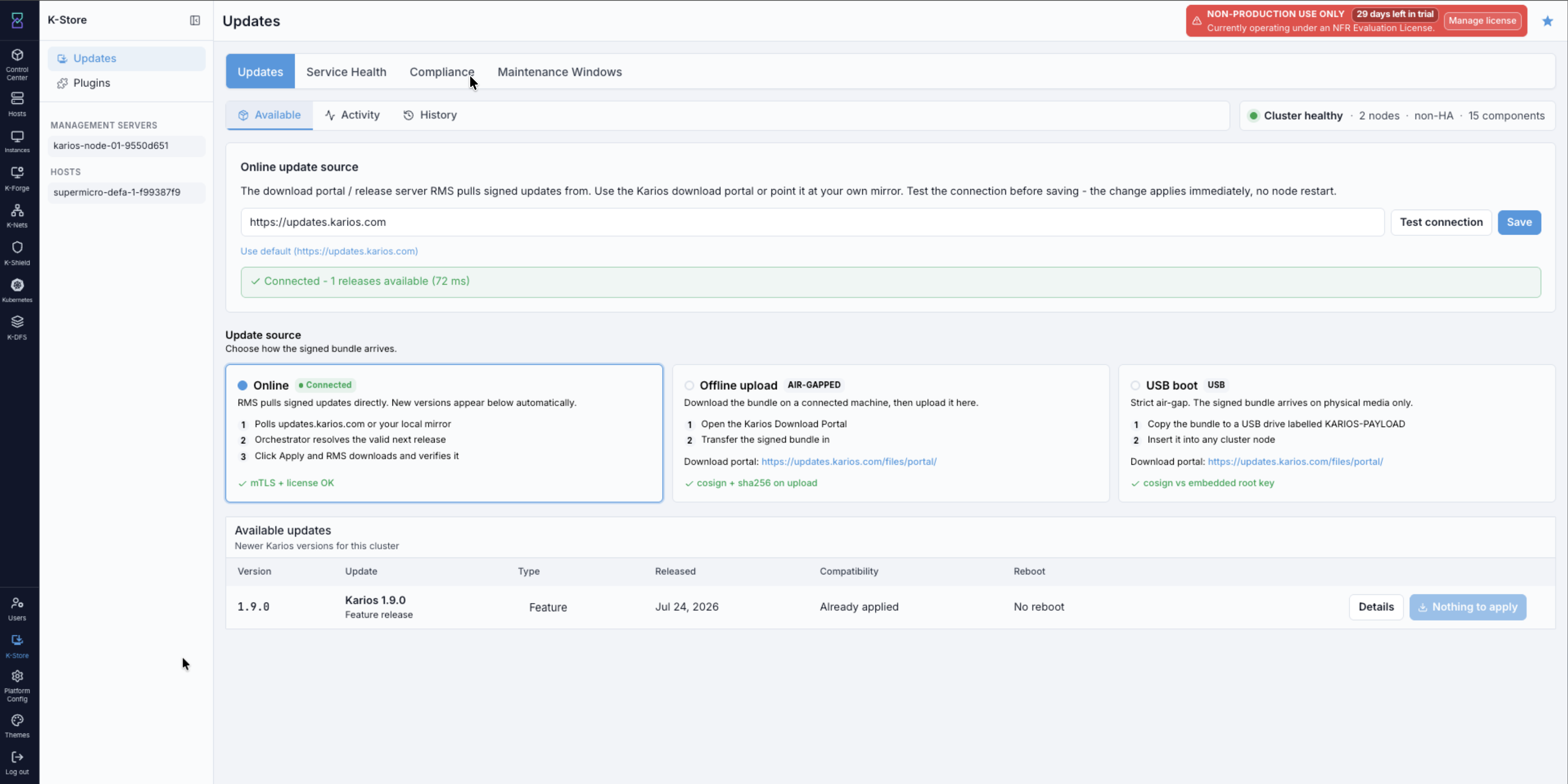
K-Store -> Updates: the configured source, the three delivery modes, and
the releases available to this cluster.
The page header reports Karios version, Released, Installed, and
this cluster’s Cluster ID, followed by the cluster’s current state - for
example Cluster healthy · 2 nodes · non-HA · 0 components. The tabs across
the top separate Available releases from Activity and History.
Note
An unregistered appliance shows This appliance isn't registered with
Karios yet on this page. Select Show my token to copy this cluster’s
installation token, then open the Updates Service Portal at
updates.karios.com and log in using that token together with your email
to register the cluster ID. Once registered, select I have registered -
this is what unlocks the portal’s Plugins and Update Releases pages,
shown under The Download Portal below, for this cluster.
Setting The Update Source
The source is the release server the cluster pulls signed bundles from. It is the same base URL used for plugins.
Steps:
Under
Online update source, enter the base URL - the Karios download portal, or your own internal mirror.Select
Test connection.Select
Save.
Expected Outcome:
The page reports the result - for example Connected - 1 releases available.
The change applies immediately and no node restart is needed.
Use default resets the field to https://updates.karios.com.
Choosing A Delivery Mode
Under Update source, three cards describe how the signed bundle reaches the
cluster. Select the one that matches your environment.
Online - for clusters that can reach the source.
The cluster polls
updates.karios.comor your mirror.It resolves the valid next release for this cluster.
New versions appear under
Available updatesautomatically.
The card reports mTLS + license OK when the cluster is authorised to reach
the source.
Offline upload - for air-gapped sites.
On a machine with internet access, open the Karios download portal at
https://updates.karios.com/files/portal/.Download the signed bundle for the version you want.
Transfer it into the air-gapped environment.
Open
K-Store -> Updatesand upload the bundle on theOffline uploadcard.
The bundle is verified with cosign and SHA-256 on upload, then appears
under Available updates and is applied exactly as an online one.
USB boot - for strict air-gap, where nothing is uploaded through the console.
Download the bundle on a connected machine, from the same portal.
Copy it to a USB drive labelled
KARIOS-PAYLOAD.Insert the drive into any cluster node.
The node mounts the drive read-only and verifies the bundle against the signing key embedded in the node itself.
Applying An Update
Warning
On a cluster that is not highly available, applying a platform update puts your data at risk - it may be wiped completely. This is not just an outage. Treat it as a destructive operation and do not apply an update to a cluster carrying data you cannot afford to lose.
Check your own state before you start: the header of this page reports it, for
example Cluster healthy · 2 nodes · non-HA. Anything reported as
non-HA carries this risk, however many nodes it has - a node installed by
the ISO Install guide is one of them. Only a
high-availability cluster is exempt; there the VIP moves with no control-plane
outage.
Steps:
Open
K-Store -> Updates.Find the release under
Available updates. The table gives its version, type, release date, compatibility, and whether it needs a reboot.Select
Detailsto review what the release contains.Select
Applyon the release’s row. When no newer release is offered this control readsNothing to applyand is disabled.
What the UI means:
The cluster downloads the bundle, verifies it, and applies it component-by-component. Logs stream while it runs.
Most updates need no reboot. Only reboot-class updates - kernel and modules - restart the node, and the
Rebootcolumn tells you in advance.When nothing newer is offered, the action reads
Nothing to apply.
The Download Portal
The portal is the human-facing side of the same release server, and is where
you fetch bundles for the two air-gapped modes. It is gated per cluster - see
the registration note under Platform Updates above if
K-Store -> Updates still reports the appliance as unregistered.
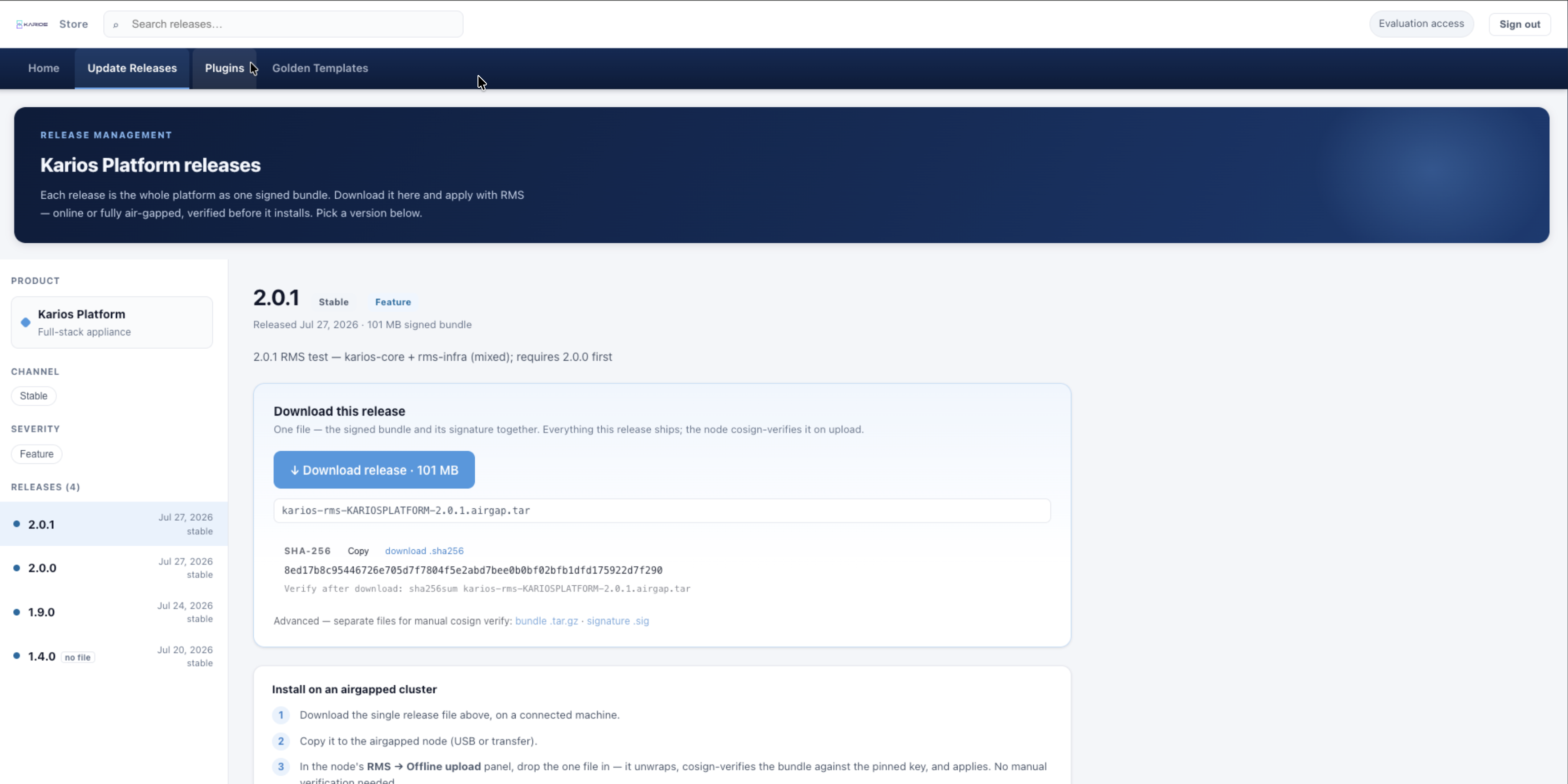
The download portal under Update Releases: each release is the whole
platform as one signed bundle.
Each release page gives the single signed bundle to download, tagged with its
channel and severity (for example Stable / Feature), plus Release
notes and an Air-gap install guide in collapsible panels. Verification is
automatic - the node’s RMS -> Offline upload panel cosign-verifies the
bundle against the pinned key on upload, so no manual step is required. The
bundle’s SHA-256 and detached signature remain available under
Advanced for anyone who wants to verify by hand before transferring it.
Older versions remain listed under Releases, so you can fetch a specific
version rather than only the newest.
Plugins
Plugins are optional modules managed from K-Store -> Plugins. Enabling one
exposes its section and pages across the console; disabling it hides them again.
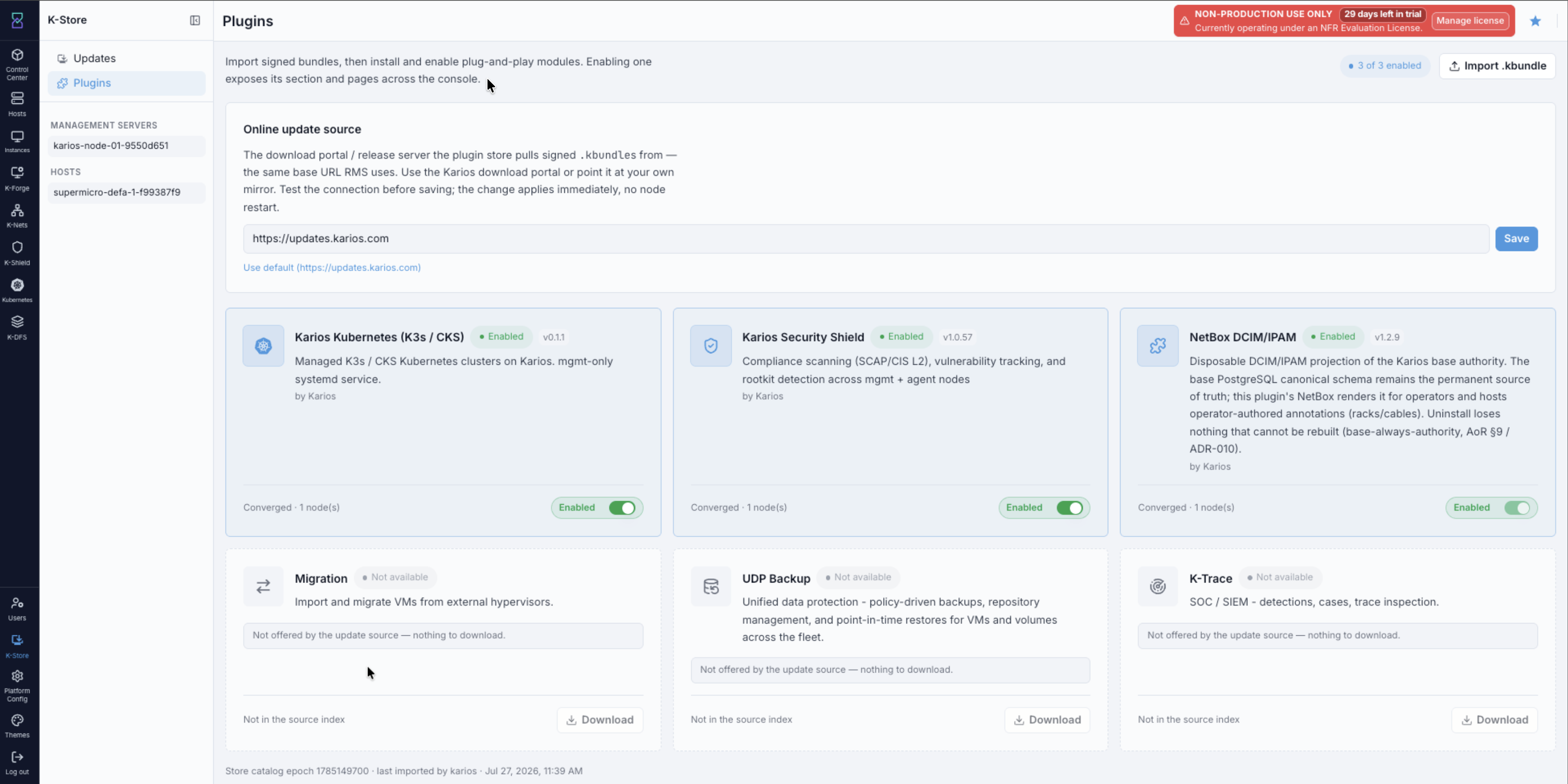
K-Store -> Plugins: enabled modules, their node scope, and plugins the
configured source does not offer.
What The Page Shows
A count in the header - for example
3 of 3 enabled.Import .kbundlefor bringing a bundle in by hand.Online update source, the same base URL used for platform updates.One card per plugin, showing its version, its node scope - for example
Converged · 1 node(s)- and anEnabledtoggle.
A plugin your configured source does not publish shows
Not offered by the update source - nothing to download and cannot be
downloaded until you point the source somewhere that offers it, or import it by
hand.
Getting A Plugin Onto The Cluster
Using a plugin takes two separate actions. First you get its signed bundle onto the cluster, by download or by import. That does not switch it on - the plugin is present but inactive until you enable it, which is the next section. Once the bundle is on the cluster you can enable and disable it freely without fetching it again.
Note
Every bundle is signed. The cluster verifies each .kbundle before adding it
to the catalog and rejects anything unsigned or tampered with. This applies to
both methods below.
If the cluster is connected, the plugin’s card offers Download. Select
it, and the cluster pulls the signed .kbundle from the source and verifies
it.
If the cluster is air-gapped:
On a machine with internet access, open the download portal at
https://updates.karios.com/files/portal/.Download the plugin’s
.kbundle.Transfer it to a machine that can reach
Control Center.Select
Import .kbundleand choose the file.
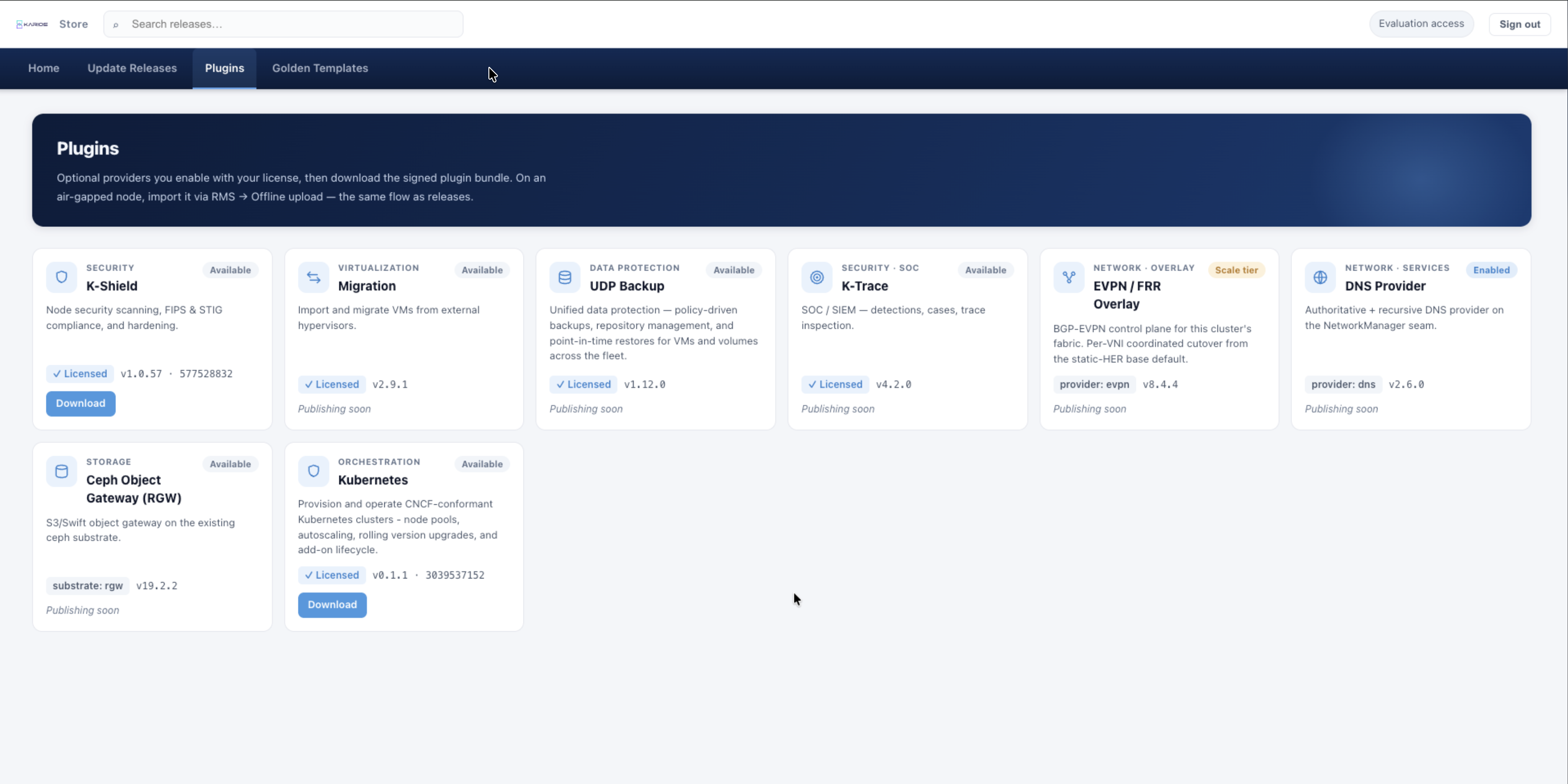
The download portal under Plugins: the module catalogue, with each
module’s licence state and version.
The bundle is verified on import, exactly as a downloaded one is.
Note
A plugin listed on the portal as Publishing soon has no bundle to download
yet, so there is nothing to import until it is released. Check the card’s
licence badge as well - the portal lists modules beyond your current
entitlement.
Note
The portal describes the air-gapped route as RMS -> Offline upload, which
is the path for platform releases. For plugins, use Import .kbundle on the
Plugins page - it is the same verification, on the page that owns plugins.
Enabling And Disabling
Steps:
Open
K-Store -> Plugins.Find the plugin’s card.
Set the
Enabledtoggle.
Expected Outcome:
The plugin’s sidebar section appears and its pages become reachable. Disabling it hides the section again; the installation and its data are kept, so you can re-enable it at any time.
Important
Each toggle records your intent, and the cluster then reconciles its nodes to match. A card may show a transitional state before it settles. On larger clusters this takes a little time - wait for the final state before assuming the change is live.
Note
Kubernetes cannot be disabled while Kubernetes clusters still exist, since
that would orphan them. Delete or migrate the clusters first.
Disabling is not the same as removing. A disabled plugin stays on the cluster
with its data intact, ready to re-enable. Some plugins are projections of data
Karios already holds - NetBox DCIM/IPAM is one - so even removing them loses
nothing that cannot be rebuilt.
Quick Reference
Online |
Offline upload |
USB boot |
|
|---|---|---|---|
Updates arrive from |
The cluster polls |
Download portal, then upload on the |
Download portal, then a USB drive labelled |
Plugins arrive from |
|
|
|
Verified |
|
|
|
Reboot |
Only for reboot-class updates |
Same |
Same |
Source configurable |
Yes - applies live |
Yes - the portal URL |
Yes - the portal URL |
If This Fails
What you see |
What to do |
|---|---|
The update source reports it is not reachable |
The cluster cannot reach it. Use the offline upload path, or allow outbound access and test the connection again. |
|
The plugin is not published by your configured source. Check the portal
first: if it shows the plugin as |
A bundle is rejected on upload or import |
It is unsigned, tampered with, or incomplete. Download it again from the download portal and repeat the upload. |
A plugin card does not settle after being toggled |
A node has not applied the change yet. Open the card to read that node’s status; the cluster retries on its own. |
→ Next: Infrastructure