Decommission
Note
Decommission reverses onboarding. It removes the node’s VMs and
configuration, tears down its place in the control plane, wipes its disks, and
returns it to Discovered - still in inventory, ready to be configured
again without re-adding it.
Where This Fits in Karios
This is the reverse of BMO - Bare-Metal Onboarding. A
decommissioned node is not removed from K-Forge. It goes back to Discovered,
so you can provision it again rather than start from scratch.
Warning
Decommission wipes the node’s disks. The node’s VMs and configuration are removed, its disks are erased, and its addressing and provisioning state are released. Nothing on the machine survives. Depending on the choices you make, the VMs running on it may be destroyed rather than moved.
See also
BMO - Bare-Metal Onboarding - adding, revealing, and configuring a node
Starting A Decommission
When to Use:
To remove a node from the setup, or to reclaim one you intend to rebuild.
Purpose:
Return a configured node to Discovered with its disks wiped.
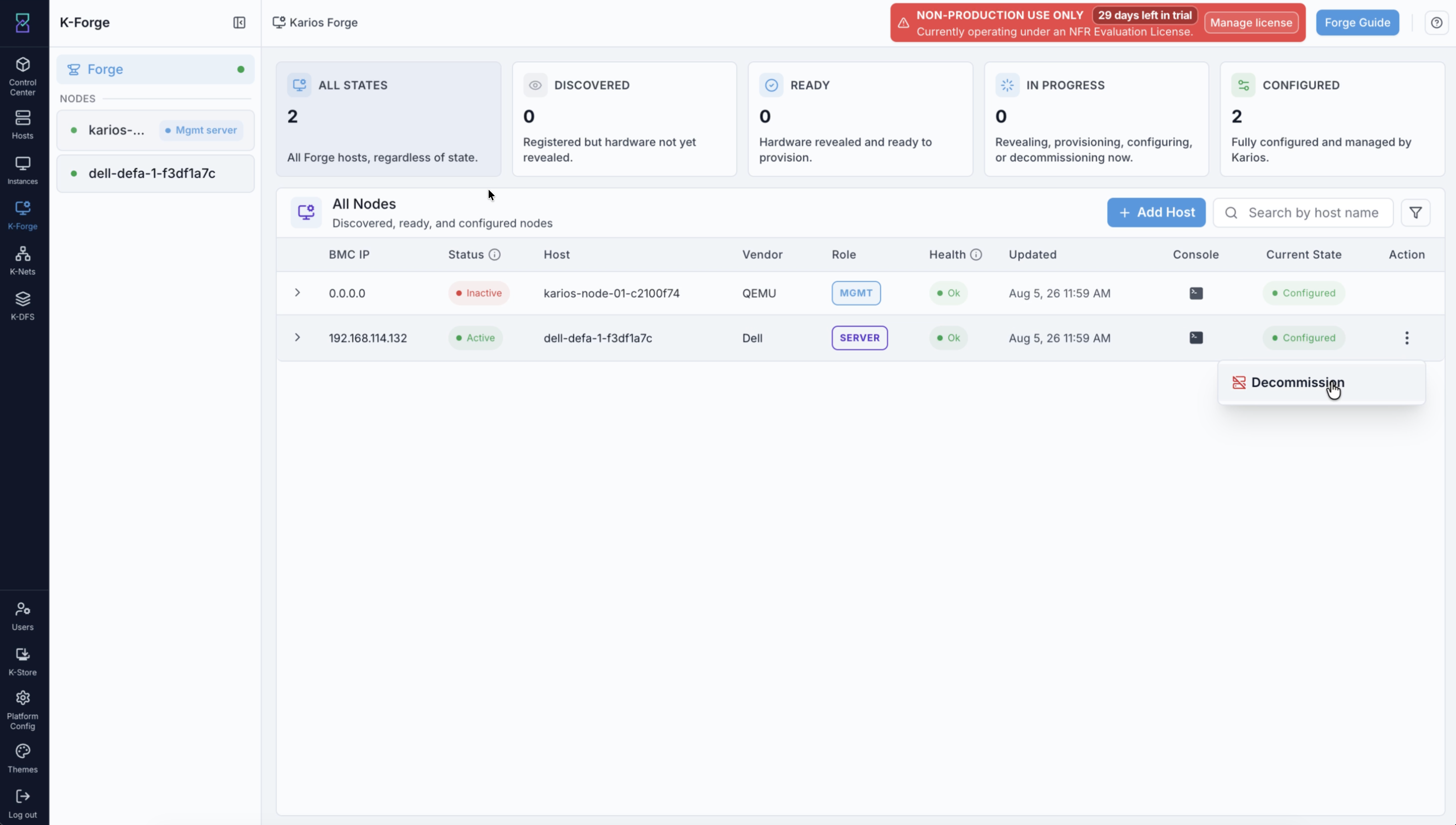
Decommission on the row Action menu of a Configured host.
Steps:
In
All Nodes, open theActionmenu at the end of the host’s row.Select
Decommission.
Important
On a Configured host the Action menu contains Decommission and
nothing else - the onboarding actions are no longer offered. A MGMT row has
no Action menu at all, even when configured.
The First Confirmation
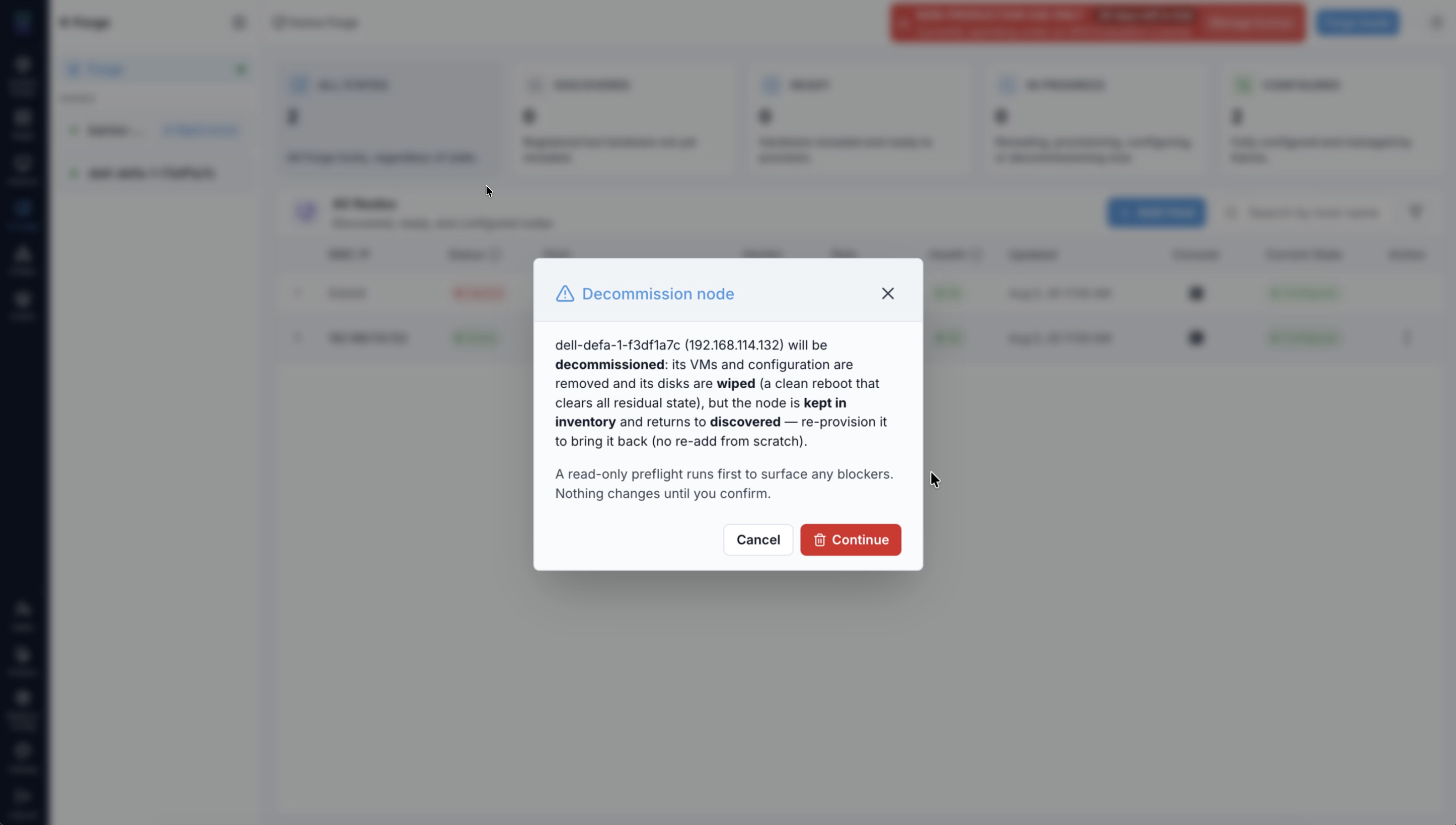
Decommission node: what will happen, before anything runs.
The dialog names the host and its address and states what decommissioning does -
its VMs and configuration are removed and its disks wiped, but the node stays in
inventory and returns to Discovered, so it can be provisioned again without
re-adding it.
It also states that a read-only preflight runs first to surface blockers, and
that nothing changes until you confirm. Select Continue to run it.
Preflight
Preflight: decommission runs every safety check and reports the result
before anything is torn down. It returns the full report in one pass, so you
can see every blocker and warning before fixing or forcing anything.
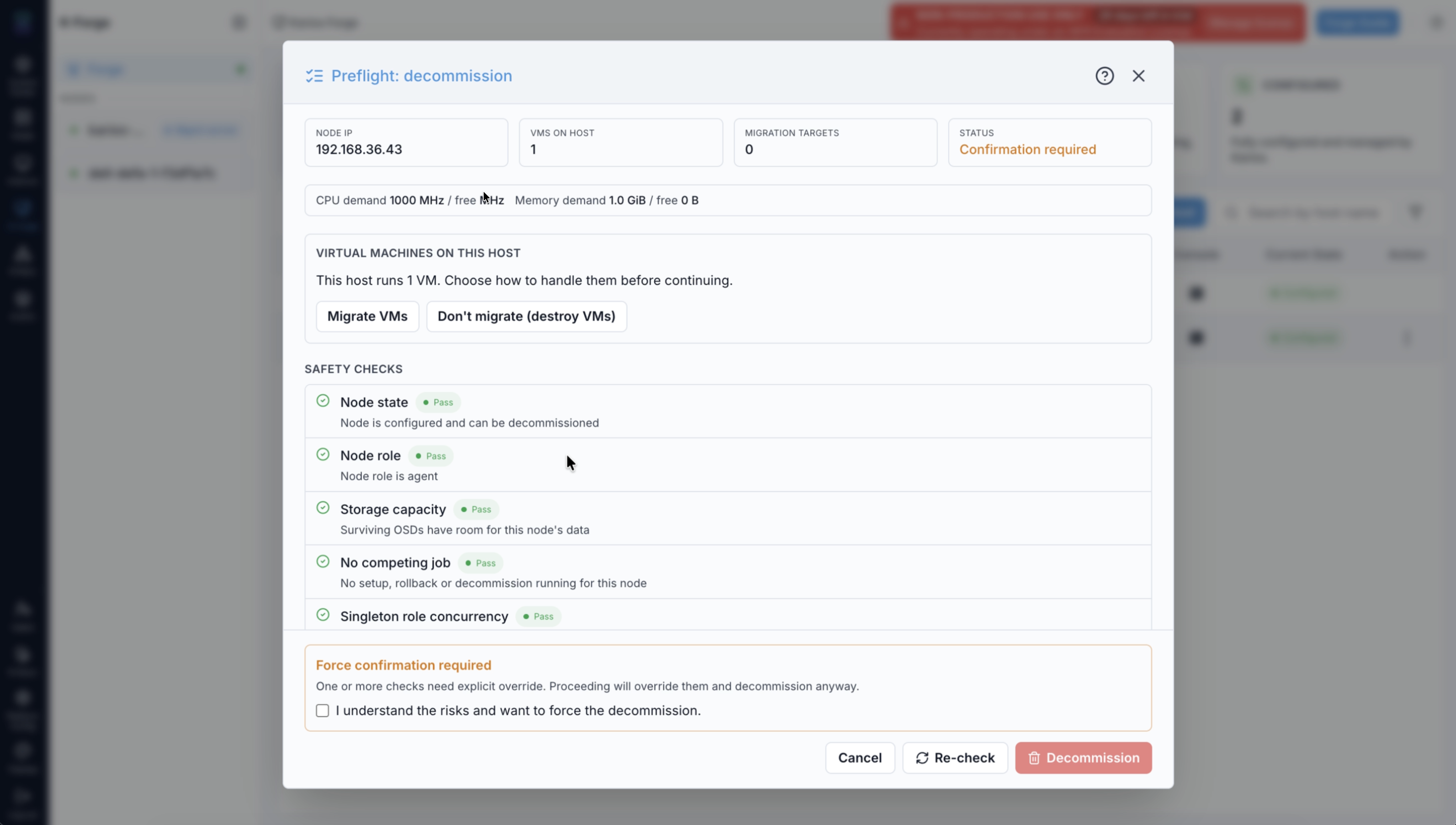
The preflight: node summary, the VM decision, and the safety checks.
Across the top, four tiles summarise the node: NODE IP, VMS ON HOST,
MIGRATION TARGETS, and STATUS. Beneath them is a line reporting the CPU
and memory demand of the VMs on the host against what is free elsewhere. The
migration report can also include VMCount, MigratableVMCount, and
NonMigratableVMCount so you can see the split before deciding whether to
continue.
Choosing How VMs Are Handled
Under VIRTUAL MACHINES ON THIS HOST the dialog reports how many VMs the host
runs and asks you to choose before continuing.
Choice |
What happens |
|---|---|
|
The VMs are live-migrated to another host before teardown begins - provided the ``VM migration`` check passes. If it fails and you force past it, the VMs are destroyed regardless of having chosen this. |
|
No migration is attempted, even if another host has room. Every VM on the host is destroyed when the decommission proceeds. |
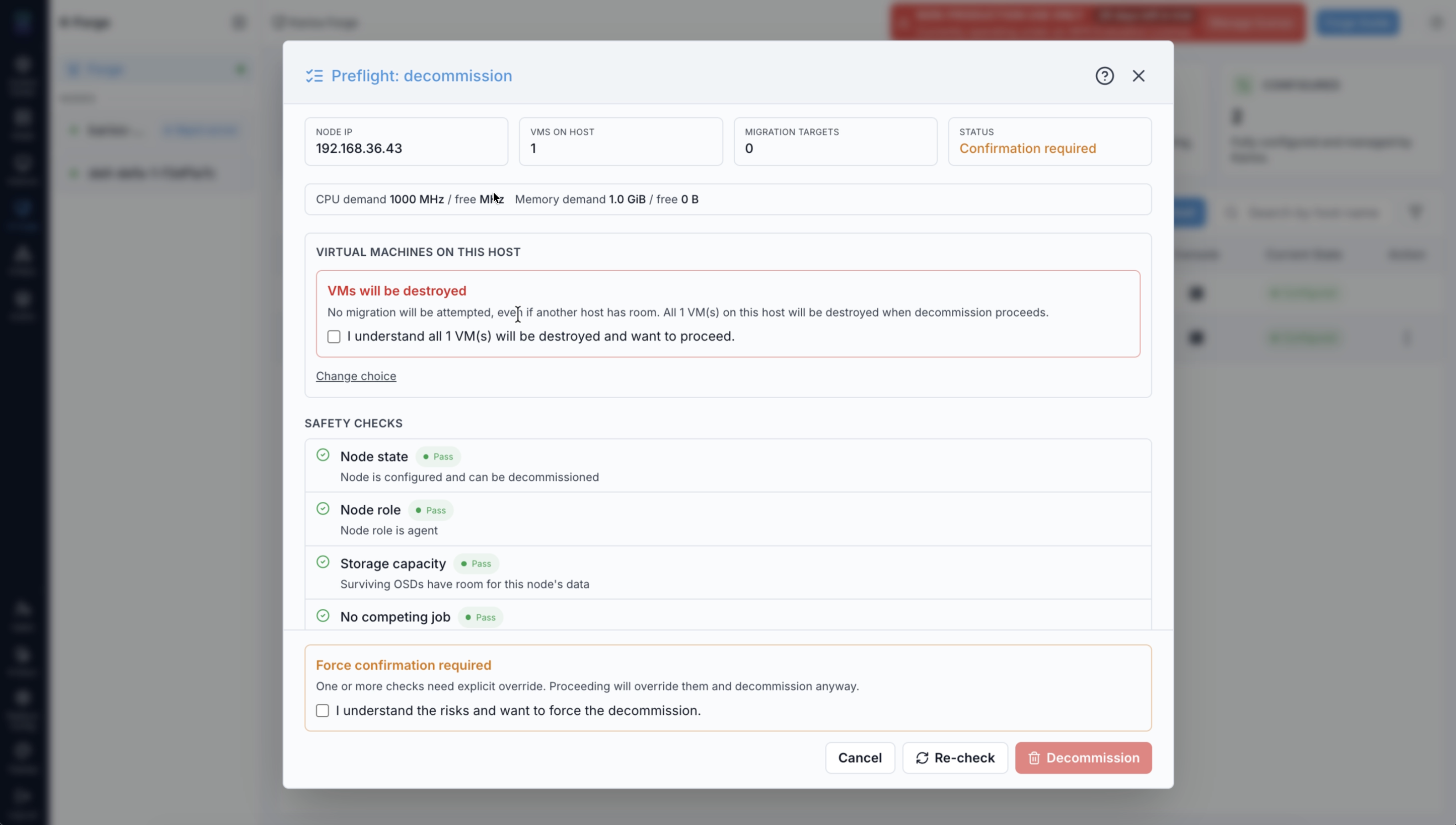
Choosing not to migrate raises its own acknowledgement, naming the VM count.
Warning
Choosing Don't migrate (destroy VMs) raises a separate red panel that names
how many VMs will be destroyed, with its own checkbox - I understand all N
VM(s) will be destroyed and want to proceed. Change choice reverses the
decision.
Safety Checks
SAFETY CHECKS lists every check with its result and a sentence explaining
it. A failing check names the specific reason.
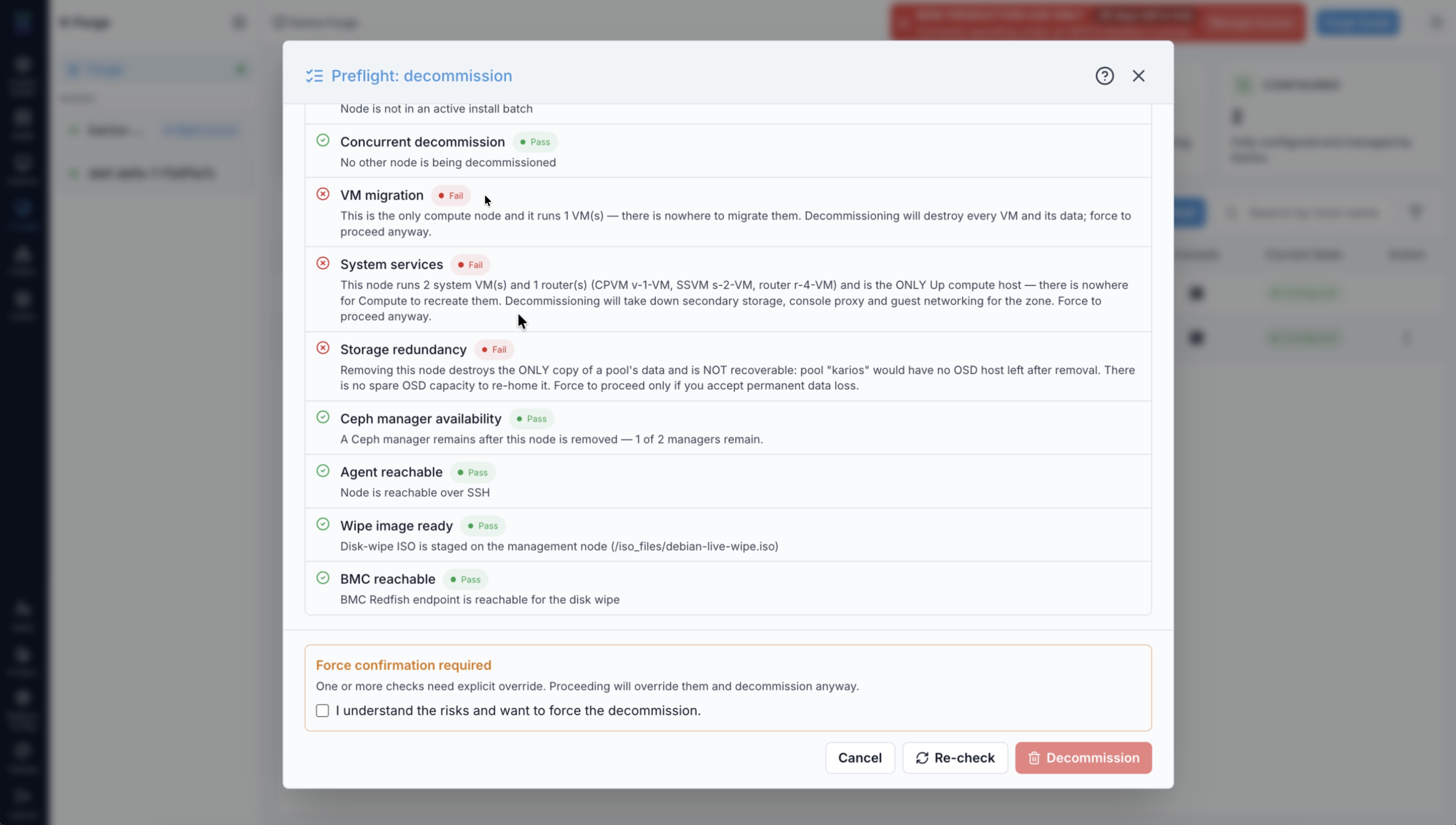
Failing checks explain exactly what is at risk, and what forcing would accept.
Check |
What it confirms |
|---|---|
|
The node is configured and can be decommissioned, or it was left in a
failed, partial, provisioning, provisioned, or decommissioning state from
a prior attempt that can be resumed. |
|
Whether the node is an agent, management, or all-in-one node. This drives which teardown steps run. For management or all-in-one nodes, preflight also checks that another management-capable node can take over, and warns when only one management node would survive. |
|
The surviving Ceph OSDs have room for this node’s data. If Ceph cannot be reached or capacity is insufficient, this hard-blocks the decommission. |
|
No setup, rollback, or decommission is already running for this node. |
|
If this node holds a singleton Ceph role, no provision or configure is running elsewhere in the cluster. |
|
The node is not part of an active install batch. |
|
No other node is being decommissioned at the same time. |
|
The VMs on this host can be migrated somewhere. If this is the only compute node, there is nowhere to move them. |
|
The surviving hosts have enough aggregate CPU and memory for the VMs being moved off this node, including VMs from any in-flight parallel decommissions. This is force-overridable. |
|
Removing this node will not strip the zone of its system VMs and routers.
Naming them, it warns when this is the only |
|
Removing this node does not destroy the only copy of a pool’s data. The
check simulates the surviving Ceph topology across CRUSH rules, pool size,
|
|
A Ceph manager remains after this node is removed. |
|
The node answers over SSH. |
|
The disk-wipe image is staged on the management node. |
|
The node’s BMC answers over Redfish, which is how the wipe is driven. |
Storage redundancy can report different levels of risk: safe needs no
override, min_size_relax or domain_switch require force because
redundancy is reduced, and unrecoverable data loss is a hard block even with
force.
Forcing Past A Failure
Not every failure needs an override - Agent reachable is reported rather
than blocking, because the wipe is driven through the BMC. When a failure does
require one, a Force confirmation required panel appears at the foot of the
dialog: “One or more checks need explicit override. Proceeding will
override them and decommission anyway.” It carries its own checkbox - I
understand the risks and want to force the decommission.
Decommission stays disabled until every required box is ticked. If you chose
not to migrate VMs, that means two separate acknowledgements: the VM
destruction box and the force box.
Warning
One checkbox overrides every failing check at once. There is not a box per
check - ticking I understand the risks and want to force the decommission
accepts all of them together, whether one failed or several.
On a small cluster several fail at the same time, because they are all symptoms
of the same fact: there is nowhere for this node’s work to go. Removing the last
compute node fails VM migration (nothing can be moved), System services
(nowhere to recreate the zone’s system VMs and routers), and
Storage redundancy (no OSD host left to hold a pool’s data). Forcing past
that combination in one action destroys the VMs, takes down secondary storage,
console proxy and guest networking for the zone, and permanently loses the
pool - none of it recoverable.
The count of checkboxes is not the count of consequences. On that cluster,
choosing Migrate VMs leaves a single force box covering three overrides.
VM migration is the one most likely to surprise you: forcing past it
destroys every VM on the host even though you chose to migrate them,
because there is nowhere to migrate to.
Read every failing check before you tick the box, not just the first. Each one names its own consequence, and you are accepting all of them.
Re-check re-runs every check and returns a fresh report without changing
anything. Use it after fixing something that was flagged.
If a server-side hard block is still present, the request is rejected and the message lists every failing check together. Force-overridable checks also require an explicit retry with the matching force flag, so an override is never silent.
Watching The Teardown
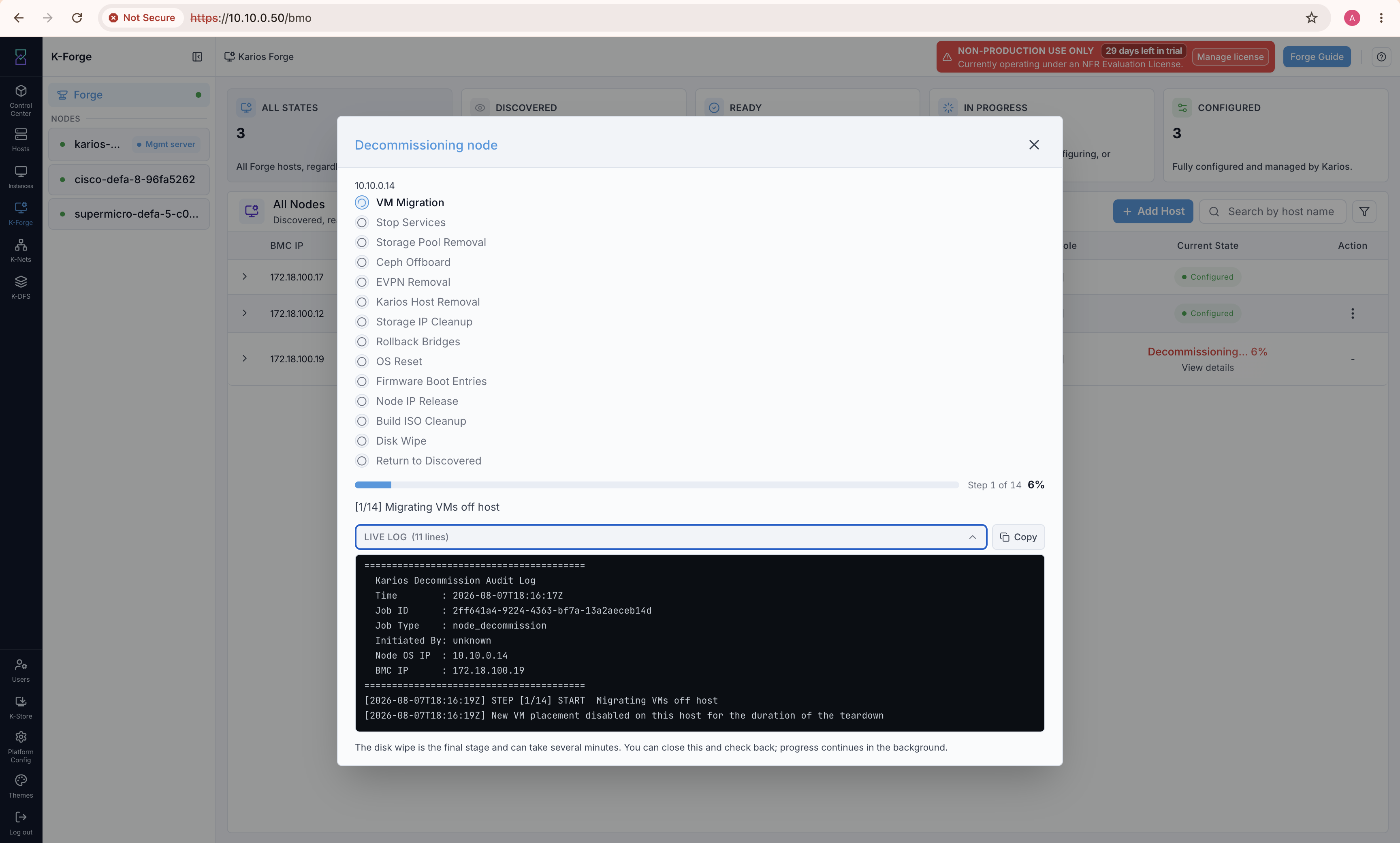
Decommissioning node: the fourteen stages, a step counter, and the live log.
For an agent node, the teardown runs fourteen stages, in order:
VM Migration, EVPN Removal, Stop Services, Storage Pool Removal,
Ceph Offboard, Karios Host Removal, Storage IP Cleanup,
Rollback Bridges, OS Reset, Firmware Boot Entries,
Node IP Release, Build ISO Cleanup, Disk Wipe, and
Return to Discovered.
Management and all-in-one nodes run the role-specific teardown required for their control-plane responsibilities, including management successor and quorum safety checks before the job proceeds.
The current stage is highlighted as it runs, with a Step n of 14 counter and
a percentage beside it. LIVE LOG shows each step as it happens and reports
its line count, with a Copy control for support. The log opens with an audit
header recording the time, job ID, job type, who initiated it, and the node’s OS
and BMC addresses. The dialog warns that the disk wipe can take several minutes,
and that you can close the dialog - progress continues in the background.
Warning
A decommission cannot be stopped once you have confirmed it. There is no cancel control on the teardown, and closing the dialog only hides it - the stages keep running to completion in the background. Make the decision at the confirmation and preflight screens, because there is no way back after them.
Note
If you chose not to migrate, the log records that explicitly at the first step: VM migration is skipped and the VMs on the host are destroyed.
Expected Outcome:
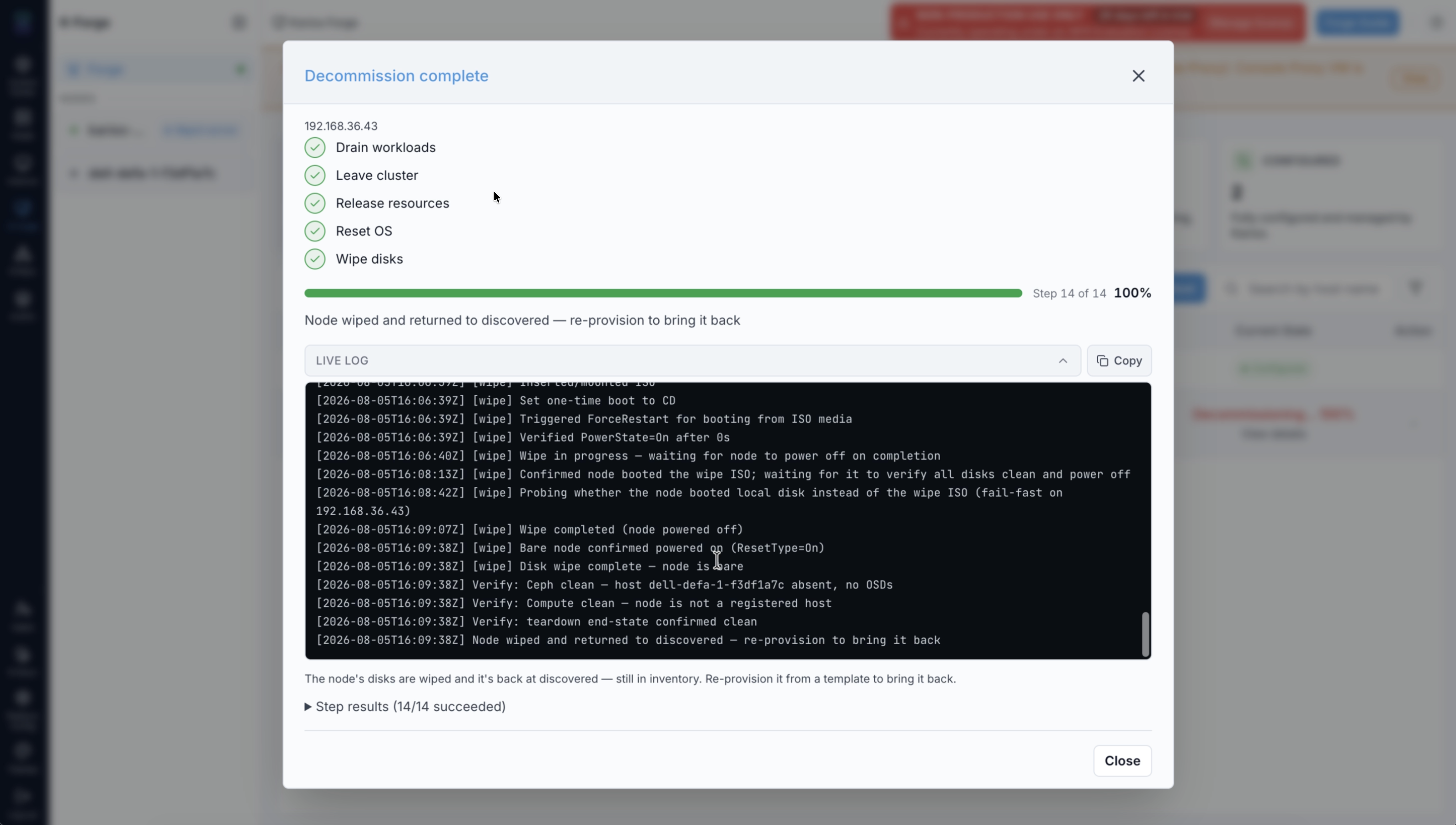
Decommission complete, with a per-step result summary.
The dialog reaches Decommission complete at Step 14 of 14, every stage
ticked, with a Step results summary you can expand. The closing message
states that the node’s disks are wiped and it is back at Discovered - still
in inventory.
The message also refers to re-provisioning “from a template”; the current flow
has no template step, so read it as: reveal the node again, then configure it.
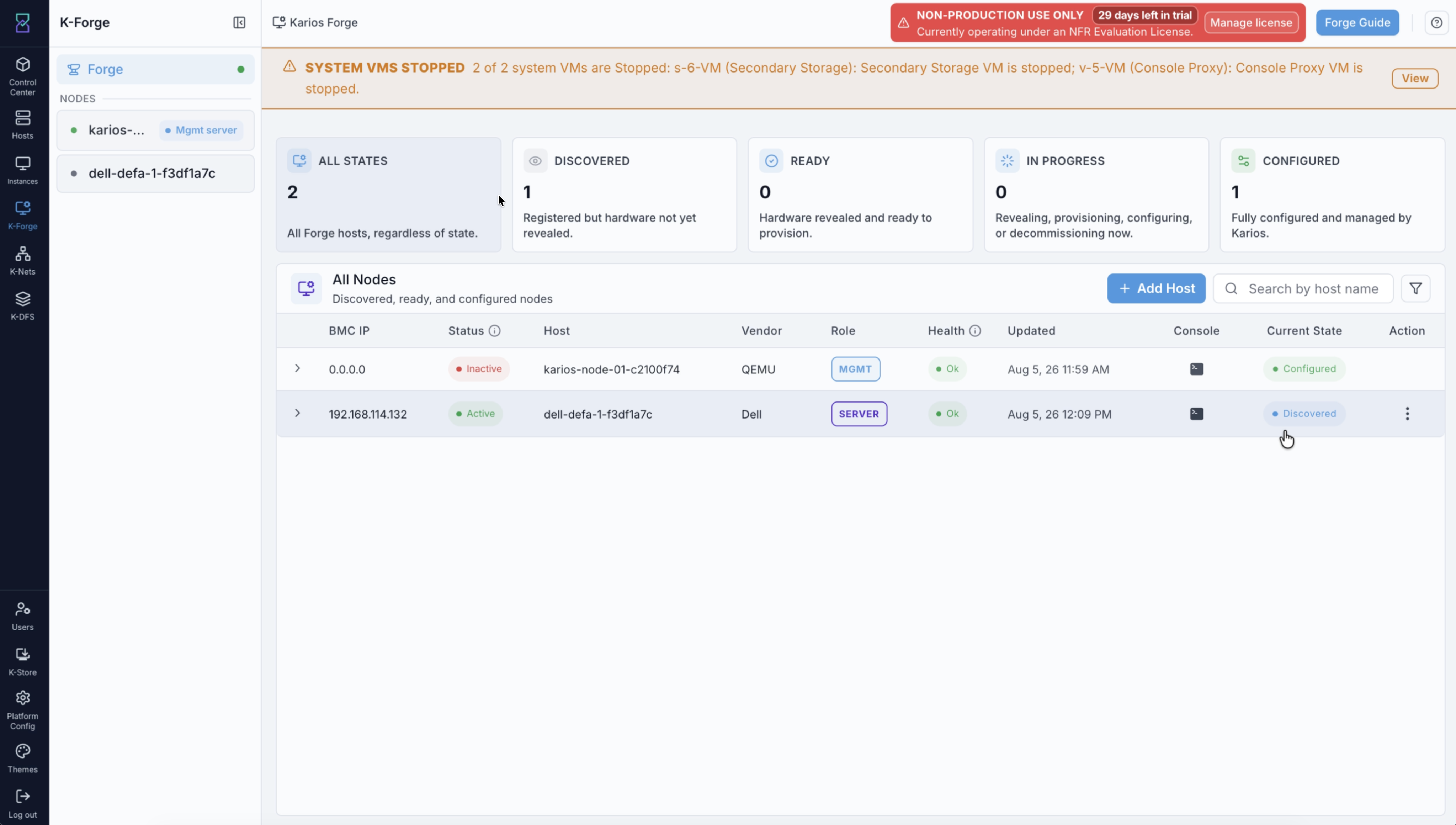
The node returns to Discovered, and the state card counts move with it.
The host’s Current State becomes Discovered and the Discovered and
Configured card counts change accordingly. A SYSTEM VMS STOPPED banner
naming the Secondary Storage and Console Proxy VMs is expected here. The machine is left bare and
powered on - the log’s closing lines confirm the wipe powered it off, then
brought it back up.
Important
Discovered means registered but not yet revealed. The node is back in
inventory, but it is not ready to configure: Configure requires Ready,
so the node’s hardware must be revealed again first. Once it reports Ready,
configure it as you would a newly added host - see
BMO - Bare-Metal Onboarding.
If this fails:
The stages run in order, so where a teardown stops tells you what has already
happened. By Karios Host Removal the node’s workloads are gone and it has
left the cluster and its storage; by Node IP Release its addresses and
network state are released; the disks are erased only at Disk Wipe, the
thirteenth stage, after which Return to Discovered puts it back in
inventory.
Expand
Step resultsand readLIVE LOGfor the step that failed. UseCopyto capture the log for a support case.A node that stopped partway is not back at
Discoveredand is not a working node either. Do not assume it is safe to return to service.Run the decommission again from the row
Actionmenu. Preflight runs afresh, so anything newly blocking is reported before the teardown resumes.If the node is stuck in
decommissioningfrom a failed or stalled attempt, use the retry path. Retry clears any orphaned running job record, re-runs preflight, and resumes the idempotent teardown from the point the prior attempt reached.Force choices are not reused blindly.
VMforce andSkipMigrationcarry forward from the prior attempt only when the retry does not resubmit them.
Important
If you forced past System services or Storage redundancy, the damage
those checks warned about has now happened - the zone may be without secondary
storage, console proxy, and guest networking, and a pool may have lost its only
copy. Onboard a replacement compute node before expecting the zone to recover.
Troubleshooting
What you see |
What to do |
|---|---|
Several checks fail at once |
That is deliberate - preflight reports every failure together rather than
one at a time, so you can fix them in one pass. Work through the list, then
select |
|
A required acknowledgement is unticked. If you chose not to migrate VMs there are two: the VM destruction box and the force box. |
|
There is nowhere to move the VMs - usually because this is the only compute host. Forcing past it destroys every VM on the host and its data, whichever VM handling option you chose. Onboard another compute node first if the VMs matter. |
|
Removing this node means permanent data loss for that pool. Restore redundancy - add OSD capacity elsewhere - before decommissioning, unless you genuinely accept losing the data. |
|
Decommissioning will take down secondary storage, console proxy, and guest networking for the zone. Onboard another compute node first if the zone needs to stay up. |
|
The node is not answering over SSH. The disk wipe itself is driven through the BMC, so this is reported rather than blocking, but the reset of the node’s OS state depends on it. |
|
The wipe is driven entirely through the BMC over Redfish. Restore BMC access before decommissioning. |
|
The wipe image is built and staged on demand if missing, which needs connectivity. On an air-gapped deployment, stage it on the management node first. |
→ Next: K-Forge - User Guide