SDN Fabric
The SDN Fabric is the Karios EVPN-VXLAN control plane. It lets operators offer self-service, isolated tenant networks across compute hosts without raising a switch-team ticket for every new network.
What you get:
Self-service isolation. Create a fully isolated tenant network on demand. Its traffic rides a private overlay tunnel across your hosts; nobody outside the network sees it.
Visibility instead of guesswork. The dashboard shows, per node, whether the fabric is healthy - BGP up, OSPF formed, routes flowing - so you are never blindly debugging.
A safety net. If the fabric is unhealthy, Karios refuses to create a network or VM that would silently break, and tells you which node is at fault. You find out at click-time, not after a tenant reports broken connectivity.
After a one-time Fabric Switch setup (underlay, BGP peer, fabric ASN, router-id base, a Preflight check, and apply), day-to-day you simply create networks - the fabric is already there.
Already running on a fabric that someone else set up? You only need 4.2 when configuring the fabric for the first time - skip to the Dashboard (4.3) to check health and the Troubleshooting Flow (4.7).
Term Definitions:
BGP: Border Gateway Protocol used for route exchange between SDN nodes.OSPF: Open Shortest Path First used for underlay reachability between nodes.EVPN: Ethernet VPN control-plane for sharing MAC/IP endpoint information.VXLAN: overlay encapsulation that carries isolated tenant traffic host-to-host.VNI: VXLAN Network Identifier - the overlay network’s ID (its “VLAN number”), with a ~16 million address space.VTEP: VXLAN Tunnel Endpoint on a node. It is also the BGP loopback - one loopback for both, which is why the fabric is iBGP.RIB: Routing Information Base, the active route table used for forwarding decisions.underlay/overlay: the routed network OSPF runs on (underlay) versus the isolated virtual networks VXLAN builds on top (overlay).iBGP: internal BGP - every node uses the same AS number. Karios is iBGP because the BGP loopback and the VTEP are one and the same loopback.FRR: FRRouting, the routing engine that runs on each node.route reflector: the BGP peer (typically the spine) that every node connects to; its address is the peering IP.BFD: Bidirectional Forwarding Detection, fast link-failure detection for BGP/OSPF.DCI: Data Center Interconnect, the external/public path between sites. Karios has no DCI MTU field - theVR uplink MTUplan input is the virtual router’s public NIC, not a DCI setting.SVI/VRF: the L3 gateway interface and the routing instance for an overlay segment.IMET(Type-3): EVPN route that advertises “this VTEP has joined this VNI” - VTEP membership.BUM: Broadcast, Unknown-unicast, and Multicast traffic, replicated to VTEPs in a VNI.
4.1. Concepts: VXLAN, the Three Planes, and Boot Order
When to Use:
Read this before setup or troubleshooting so every screen maps to a known role.
Purpose:
Explain why Karios uses EVPN-VXLAN and how its planes fit together.
Why VXLAN instead of VLAN:
Before (VLAN) |
After (VXLAN + SDN Fabric) |
|---|---|
Network team creates each VLAN on the switch |
You create networks yourself in the console |
A ticket and a wait, every time |
Self-service, in seconds, no ticket |
~4094 networks maximum |
~16,000,000 isolated networks |
Switch change = risk and a change window |
Zero switch change after first-time setup |
Hard to see if it is working |
A dashboard that shows live health |
Isolation lives in software, in an overlay on top of your existing network. You configure the switch once (it only needs to speak OSPF and BGP). VXLAN is made operable at scale by EVPN, an industry-standard control technology.
The three planes (every screen maps to one):
Plane |
Protocol |
Plain-English job |
UI tab |
|---|---|---|---|
Underlay |
OSPF |
How each host reaches every other host. Also discovers the BGP peer’s address. |
OSPF tab |
Control |
BGP + EVPN |
Who lives on which overlay network (MAC/IP + VNI membership). |
BGP tab + EVPN tab |
Data |
VXLAN |
Wraps and carries the tenant’s packets host-to-host. |
(no tab - it is the result) |
The boot order (the single most important thing):
OSPF forms  ->  OSPF learns the BGP peering IP  ->  BGP moves Connect -> Established
            ->  EVPN routes flow  ->  VXLAN tunnels carry traffic
Important
If OSPF is not healthy, BGP cannot establish, and no VXLAN network will work. When you debug, always start at OSPF and walk up. Karios uses iBGP-EVPN with an OSPF underlay and a deliberately minimal default FRR configuration - few knobs, few failure modes.
4.2. Add a Fabric Switch
When to Use:
Use this for the one-time fabric setup, before or after onboarding your first node.
Purpose:
Configure the underlay, BGP peer, and router-id derivation so nodes converge to a shared fabric configuration.
Note
“Add a Fabric Switch” registers your existing physical switch/router with Karios and
rolls the matching routing config out to the compute nodes. It does not provision or
reconfigure switch hardware - you configure the switch (OSPF + iBGP) yourself beforehand
(see Before You Start). If a fabric is already configured, there is no Add fabric
button; use Fabric config on the dashboard to view or edit it (see 4.2.6).
You can add a Fabric Switch before you onboard your first node or after nodes already exist:
Before onboarding - the config sits pending, then applies automatically when a node is configured.
After nodes exist - it applies to the already-onboarded node(s) immediately.
Convergent across the cluster - every participating node converges to the same fabric config. You do not re-configure the fabric per node; onboard a new host and it joins automatically.
The apply is not a long blocking job - it streams progress live (server-sent events), so you watch each node move through it in real time.
Before You Start
Have these ready, or the wizard will fail at the final prerequisite step:
Your physical switch/router is already configured for OSPF + iBGP using the same ASN you will enter here. The last step (4.2.4) makes you confirm this.
One or more hosts are onboarded and reachable on the underlay - see K-Forge and Physical Networks.
Values to gather: underlay/management CIDR, BGP peering IP (route reflector or spine), the fabric ASN, the router-id base and prefix length, and the path MTU (accepted range
1450-9216; jumbo9000is the recommendation for VXLAN).An administrator role - adding a Fabric Switch is an admin action.
Quick Start (Minimum Path)
About 10-15 minutes:
+ Add fabric(the panel it opens is titledAdd fabric switch), enter the underlay and sizing, thenCheck preflight(4.2.1).Continue to fabric details, fill the plan inputs, thenGenerate plan(4.2.2-4.2.3).Review the plan, accept the L3/BGP prerequisite, then
Configure fabric switch(4.2.4).Watch the rollout finish, then confirm fabric health on the dashboard (4.3).
4.2.1. Enter the Underlay and Sizing
Steps:
Open
Control Center -> Network -> SDN Fabric.Click
+ Add fabric(the panel that opens is titledAdd fabric switch).In
Underlay and sizing, enter the fields below.Click
Check preflight.
Field |
What it is |
Example |
|---|---|---|
|
Management/underlay CIDR the OSPF underlay runs over. |
|
|
Sizing hint used to size the VTEP pool, not a hard cap on cluster size. Must be
|
|
|
Expected tenant VM count, used to size the VTEP/VNI ranges. Must be |
|
|
CIDR for the per-node VTEP loopbacks. Optional here - the planner default is
|
|
Warning
The VTEP loopback pool must be its own unused private (RFC 1918) subnet, and it must
not overlap the underlay/management CIDR. If it overlaps, the allocator would hand a
node’s vtep0 an address that is already live on the underlay - the gateway, for
example. Both the preflight and the save reject an overlap.
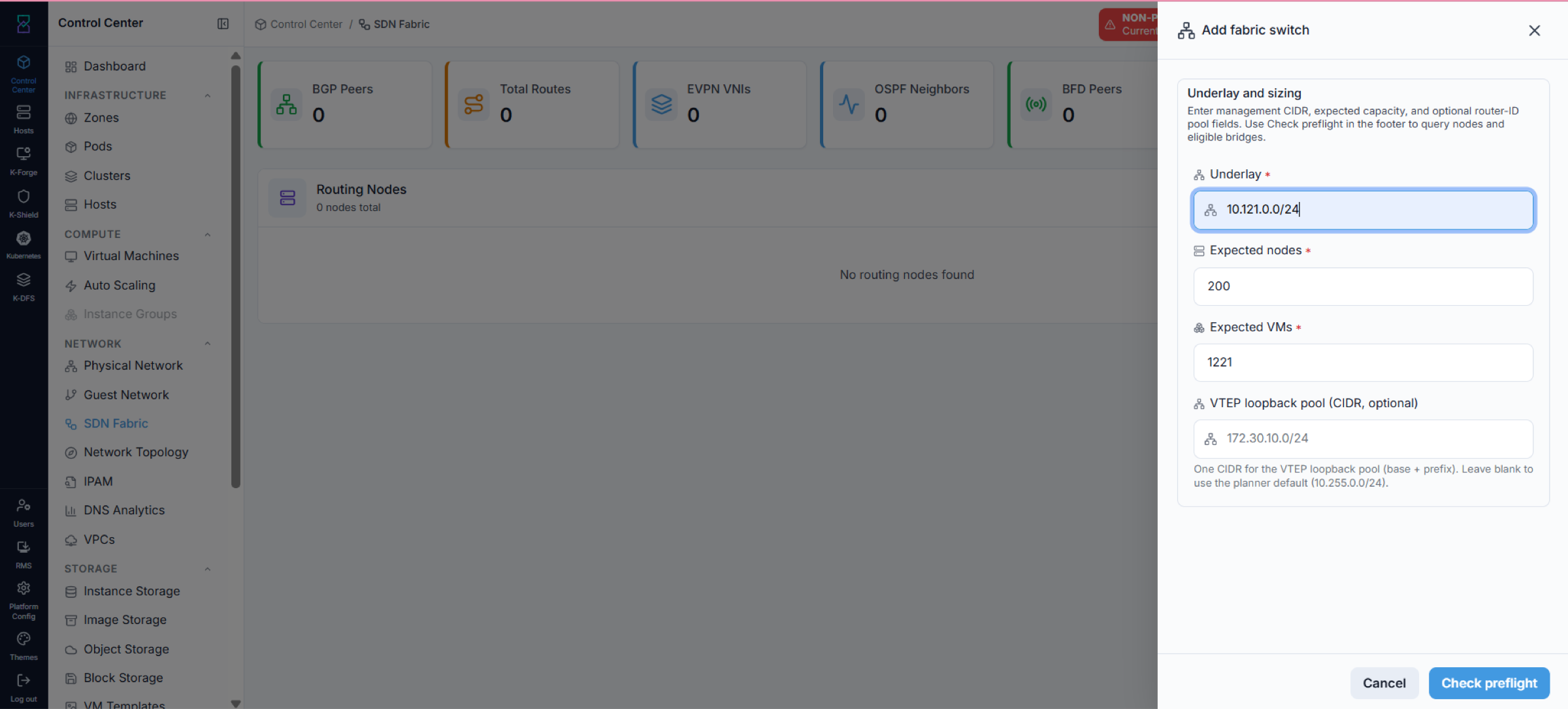
What it shows: the Underlay and sizing inputs, with an Underlay protocol selector
(OSPF + BGP-EVPN (OSPF underlay) or BGP-only (no OSPF)) and inline guidance
explaining each mode. Click Check preflight to validate the underlay before
continuing.
4.2.2. Run the Underlay Preflight
Purpose:
Confirm the underlay CIDR is actually present on a node’s fabric interface (bridge) before you enter the rest of the plan.
Important
Preflight is a hard gate. Until it passes, Continue to fabric details and
Configure fabric switch stay disabled - so the fabric cannot be configured, and the
VXLAN guest networks, VMs, and VPCs that depend on it cannot be created (see 4.6). Get
preflight green first; everything else is blocked behind it.
Steps:
Review the
OSPF fabric interface(bridge) the cluster pre-selected.Read the preflight result.
If it passed, click
Continue to fabric details.
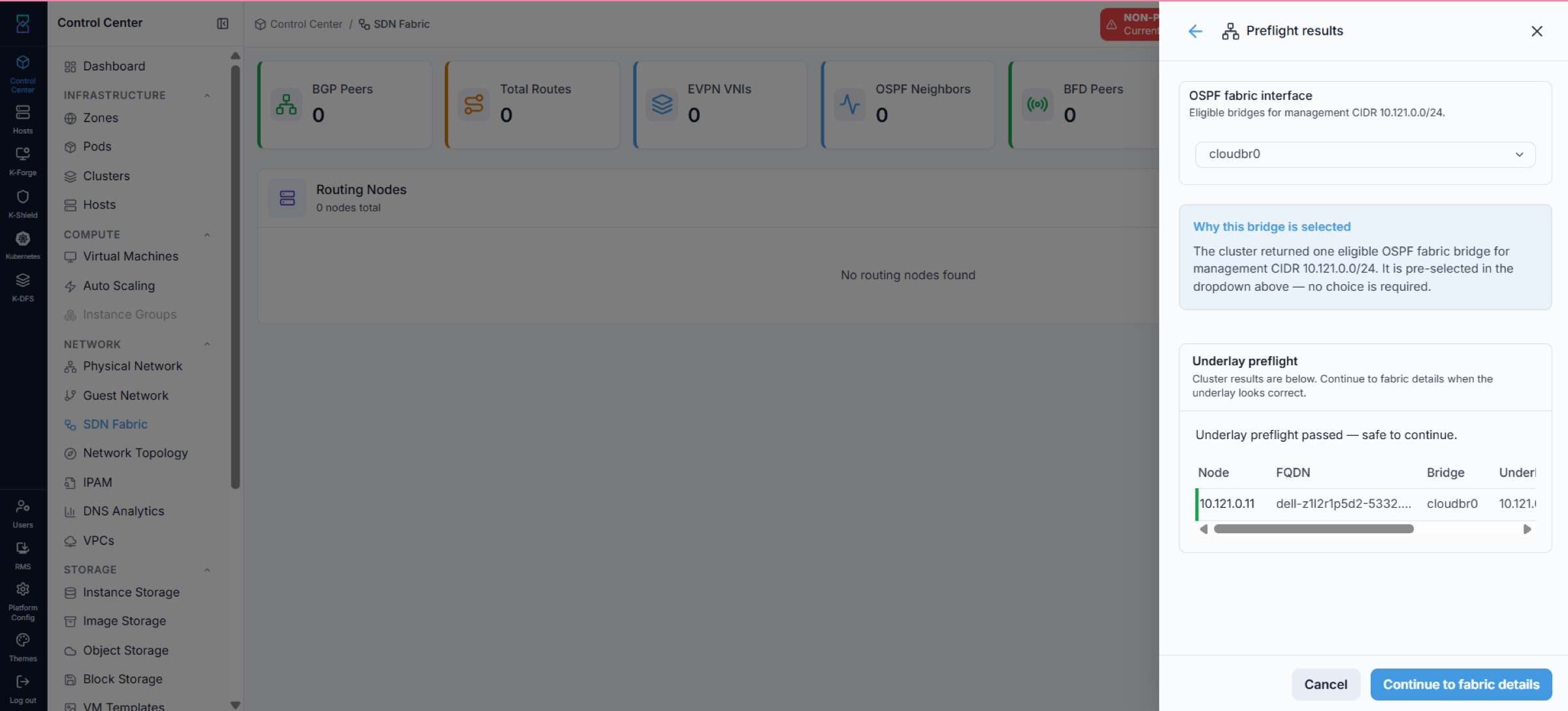
What it shows: a passed preflight. The eligible OSPF bridge (for example
cloudbr0) is pre-selected - no choice is required - and the matched node is listed.
Continue to fabric details is enabled.
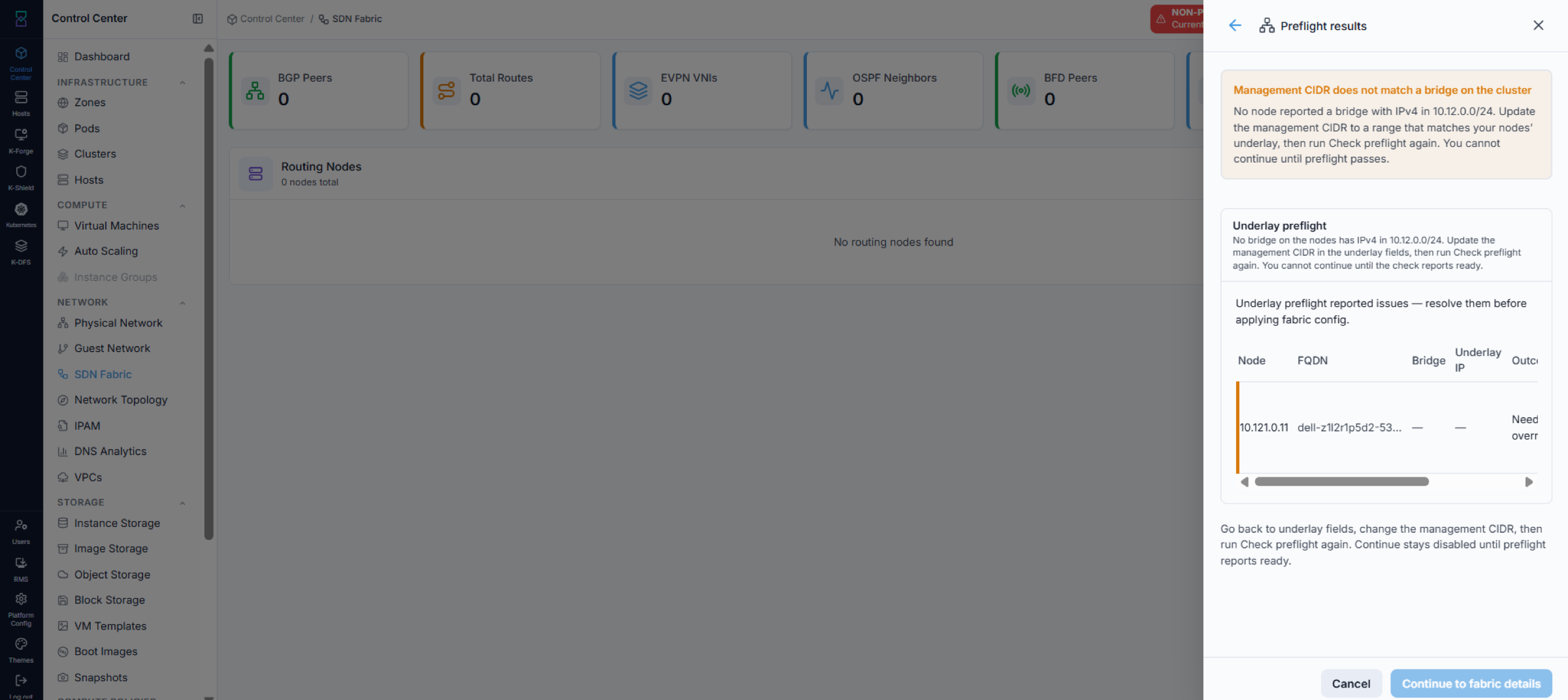
What it shows: a failed preflight. The management CIDR does not match a bridge on the
cluster, so the issues must be resolved first; Continue to fabric details stays
disabled.
Expected Outcome:
Preflight passes, the OSPF bridge is locked in, and
Continue to fabric detailsbecomes available.
After preflight passes, click Continue to fabric details to open the Plan inputs
form, then continue with 4.2.3 below. (For the full end-to-end sequence, see the Quick
Start above.)
If this fails:
Go back to the underlay field, correct the underlay/management CIDR, and click
Check preflightagain.If nodes report different underlay MTUs, preflight flags MTU drift (see below). Reconcile the underlay MTU so every node matches, then re-run the preflight.
VXLAN needs the same underlay MTU on every node along the path. The underlay MTU is the
master value and is normally declared at install time: once preflight has read a live MTU
from the cluster, the plan form (4.2.3) shows the field locked to that value, and
changing it afterwards is a Cluster MTU rollout on the
Network Config page, not an edit on this form. On a brand-new
cluster where no node has reported an MTU yet, the field is editable so first-time setup
can declare it. Preflight
only reads and reports MTU; it does not reconfigure your switch or your nodes. If the nodes
disagree, preflight shows a Cluster underlay MTU drift warning that lists each
offending node, bridge, and MTU, and blocks saving the fabric config until every node
reports the same underlay MTU.
If the path MTU is too small, raise it on your switch (every fabric port, SVI, and spine
uplink along the compute-to-peer path) and in the node underlay configuration so every node
agrees on the same value, then re-run Check preflight.
4.2.3. Enter the Plan Inputs
Purpose:
Provide the switch identity, addressing, MTUs, and BGP details, then generate the plan.
This form opens right after you click Continue to fabric details in the preflight
step. Fill in the fields below, then click Generate plan to move to the review stage
(4.2.4).
Field |
What it is |
Example |
|---|---|---|
|
Name of the fabric switch being configured. |
|
|
|
|
|
The switch network OS: |
|
|
The BGP peer (route reflector / spine) address. Must be a valid private (RFC 1918)
IPv4. In |
|
|
The switch BGP AS number. Must equal the Local AS - Karios is iBGP. |
|
|
The fabric AS used by the nodes. |
|
|
CIDR the per-node VTEP loopbacks are derived from. Required here if you left it blank in 4.2.1; shown read-only if you already entered it there. |
|
|
Locked to the live cluster underlay MTU once preflight has read it from the nodes. On
a brand-new cluster with no node reporting yet, the field is editable so you can
declare the underlay MTU for the first time. To change it afterwards, use the
|
|
|
MTU of the CloudStack virtual router’s public NIC. The form’s own hint reads
“Virtual router public NIC - not cloudbr2” - this is not the public bridge and
not a data-center-interconnect setting. Accepted range |
|
|
The cloud bridge OSPF runs on (the bridge confirmed by preflight). |
|
|
Optional TCP-MD5 BGP authentication. Leave blank for none. |
(blank) |
|
Underlay authentication: |
|
Note
The underlay MTU is the master value. The VXLAN overlay MTU is always derived as
Underlay MTU - 50 (VXLAN encapsulation overhead) - you never set the overlay MTU
directly.
Warning
iBGP rule: the Fabric switch AS and Local AS must be the same. Karios shares
one loopback for both BGP peering and the VXLAN tunnel endpoint, so eBGP would not
propagate EVPN routes. The form rejects mismatched ASNs.
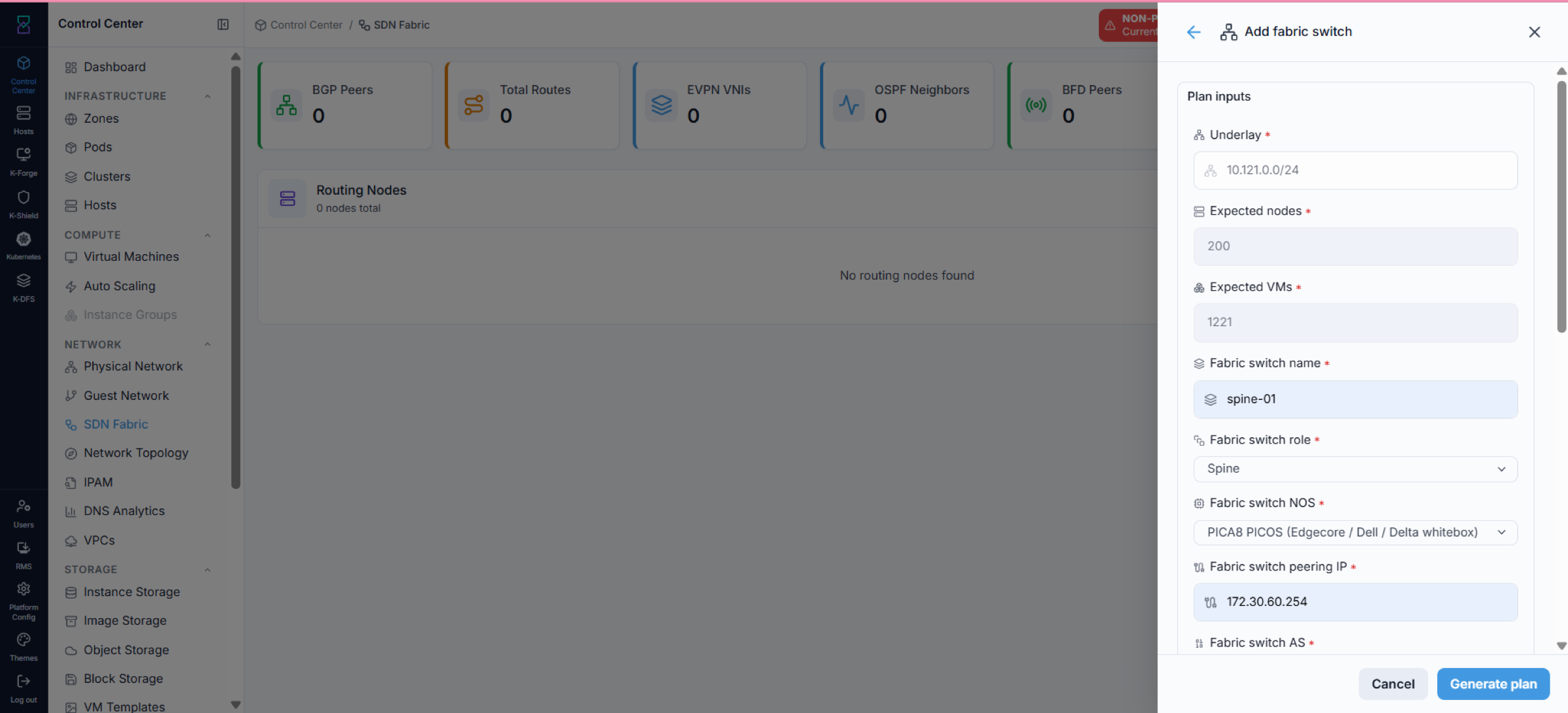
What it shows: identity and addressing - Underlay, Expected nodes / Expected
VMs (carried from 4.2.1), Fabric switch name, role, NOS, and peering IP.
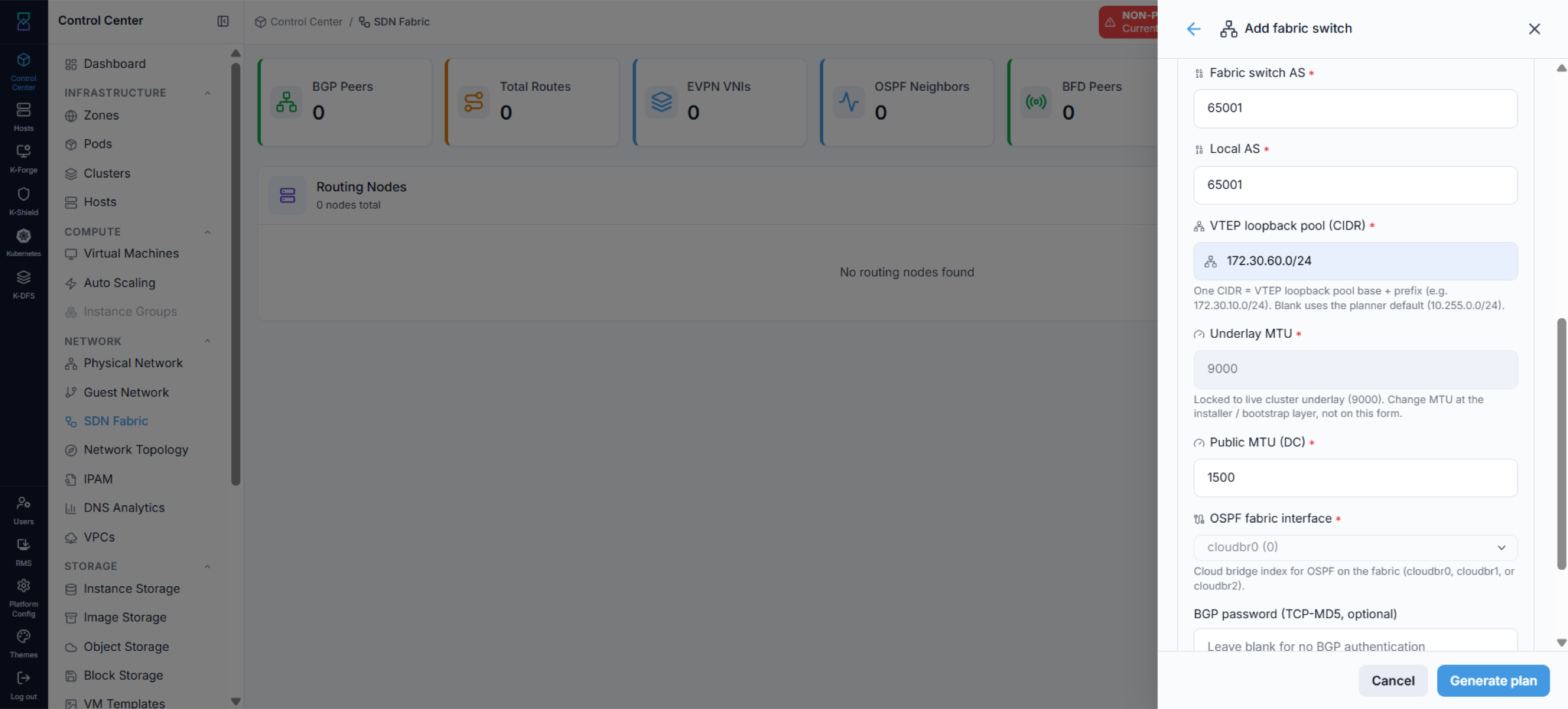
What it shows: Fabric switch AS and Local AS, the VTEP loopback pool,
Underlay MTU (locked, because preflight has read a live cluster MTU),
VR uplink MTU, the OSPF fabric interface, and the optional BGP password.
(This capture predates the field rename and still shows the old Public MTU (DC)
caption; the live form reads VR uplink MTU.)
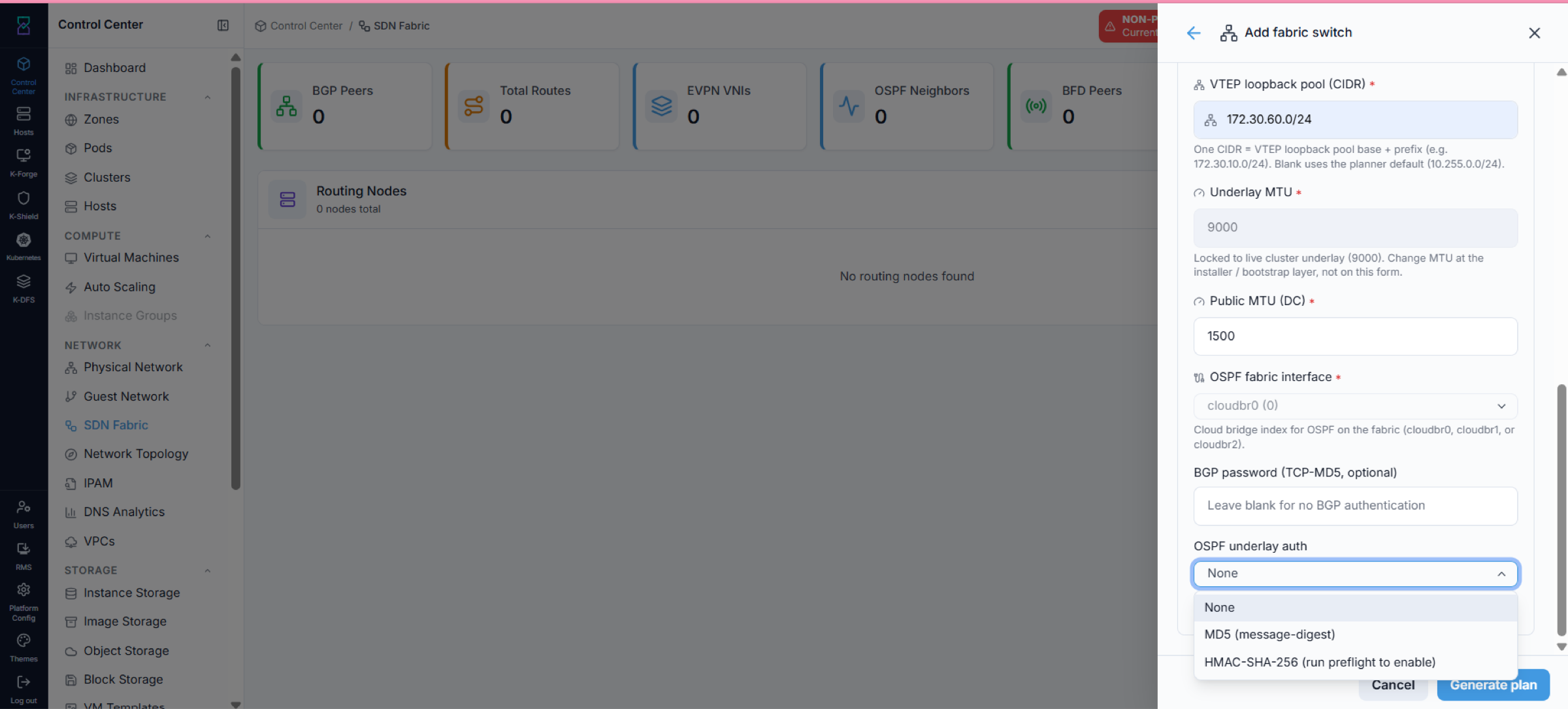
What it shows: the OSPF underlay auth choice (None / MD5 / HMAC-SHA-256).
When the fields are complete, click Generate plan.
4.2.4. Review the Plan and Confirm Prerequisites
Purpose:
Review the derived plan, its embedded preflight, the generated switch config, and accept the L3/BGP prerequisite before applying.
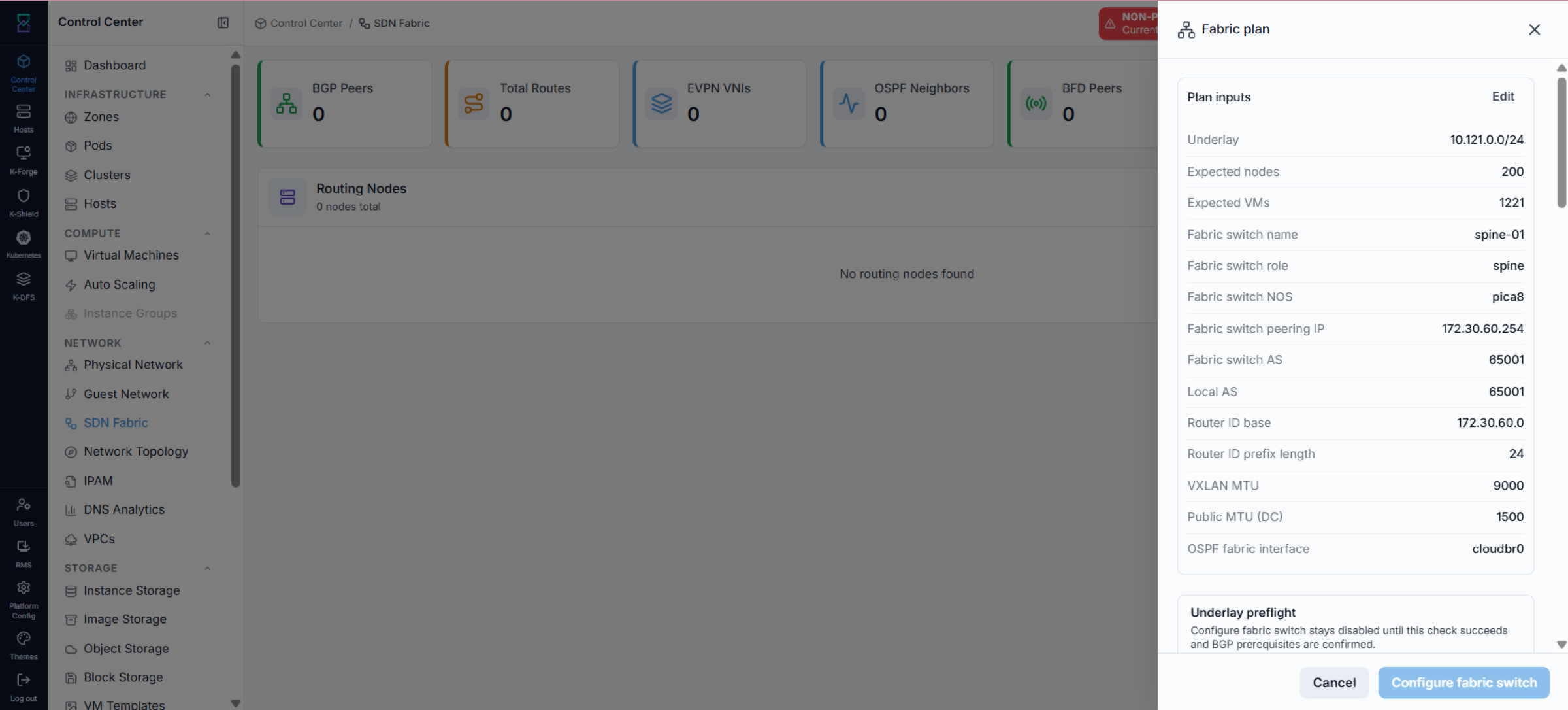
What it shows: the derived plan (names, AS, router-id base/prefix, MTUs, OSPF interface).
Use Edit to change any input. Configure fabric switch stays disabled until the
underlay preflight succeeds.
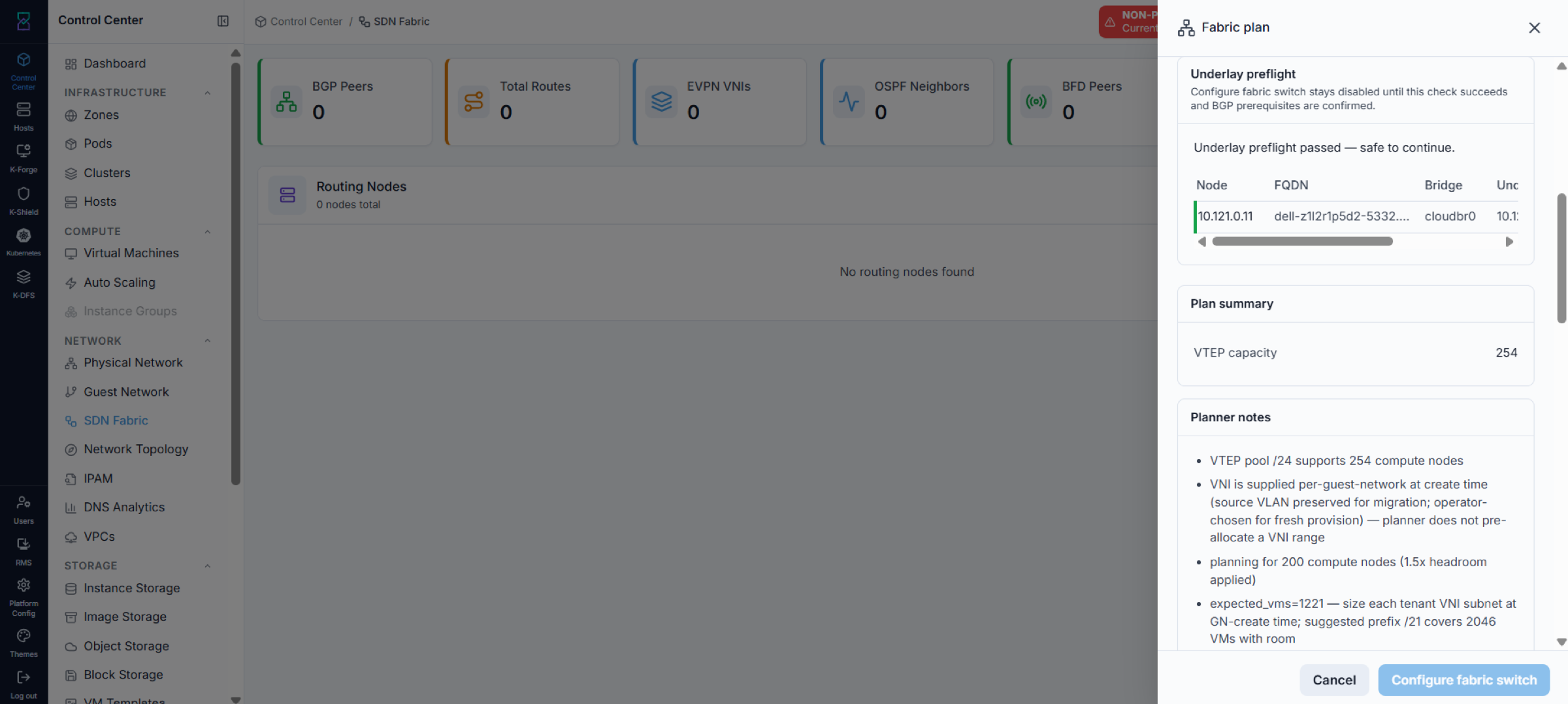
What it shows: the underlay preflight result, the plan summary (for example VTEP capacity), and planner notes.
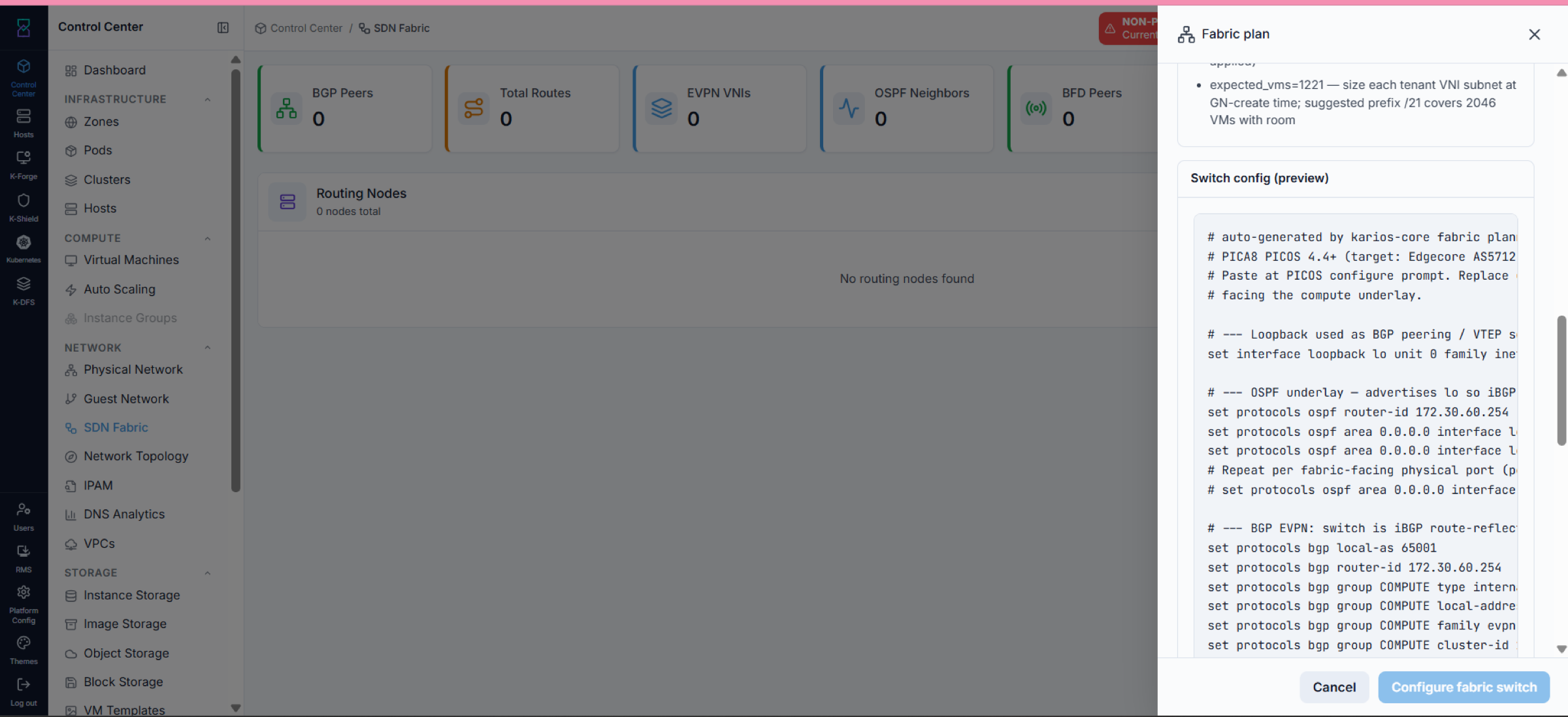
What it shows: the auto-generated FRR switch config - a read-only preview of what will be applied.
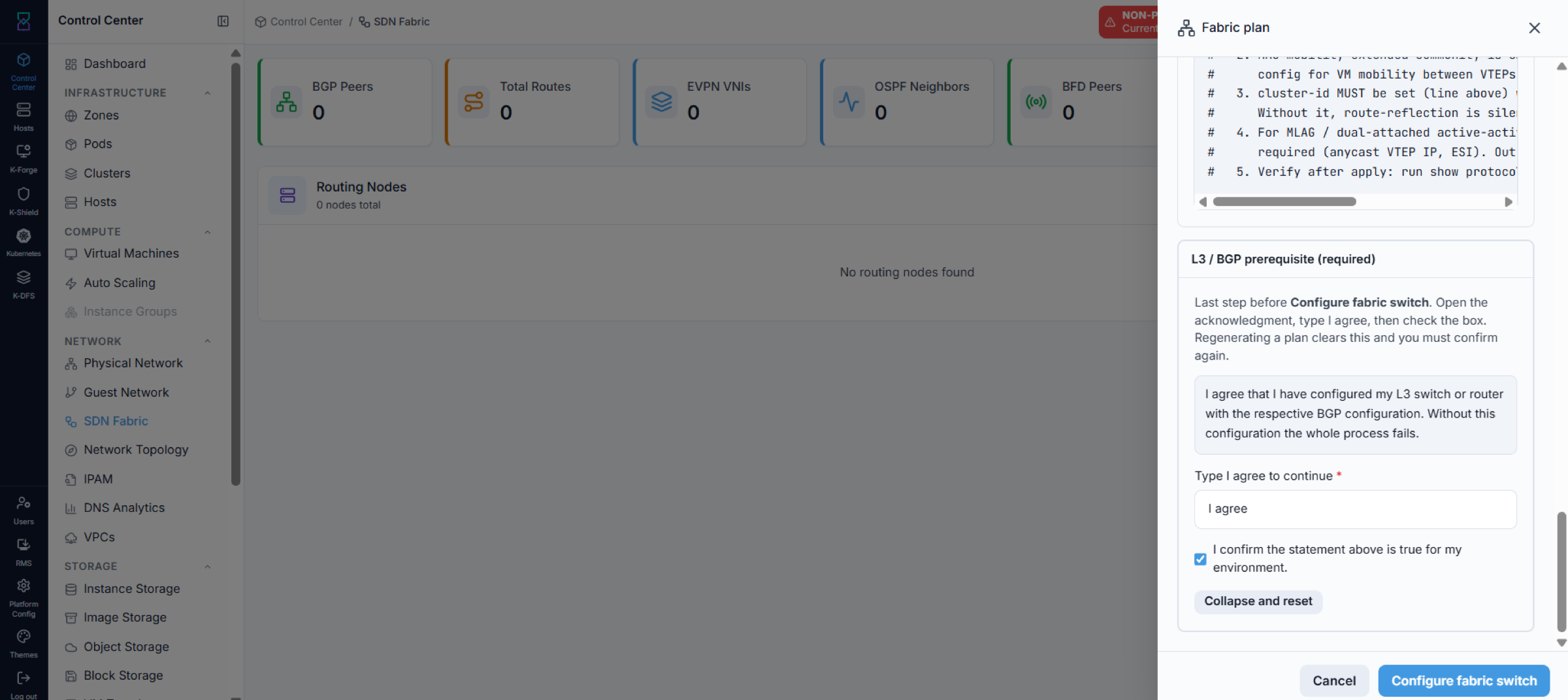
What it shows: the required acknowledgement that your L3 switch/router already has the
matching BGP configuration. Type I agree, tick the confirmation box, then click
Configure fabric switch.
4.2.5. Apply and Watch the Rollout
Steps:
Click
Configure fabric switchto start the rollout.Watch each node’s progress stream live in the rollout panel.
When every participating node finishes, the fabric is ready.
Note
Jumbo underlay (an ``Underlay MTU`` above 1500). Before it touches EVPN, the rollout raises the underlay link MTU on each node’s fabric interface - commit-confirmed, so a node that loses contact reverts itself - and then verifies the path to the fabric switch peering IP at that size with a do-not-fragment ping. If any node fails that check, the compute side is reverted to its baseline, no EVPN configuration is applied, and the apply fails naming the node and the size the path must carry: raise every fabric port, SVI, and spine hop on that path, then re-apply. The default 1500 path does no bump at all, and the step is skipped when there is no peering IP to verify against.
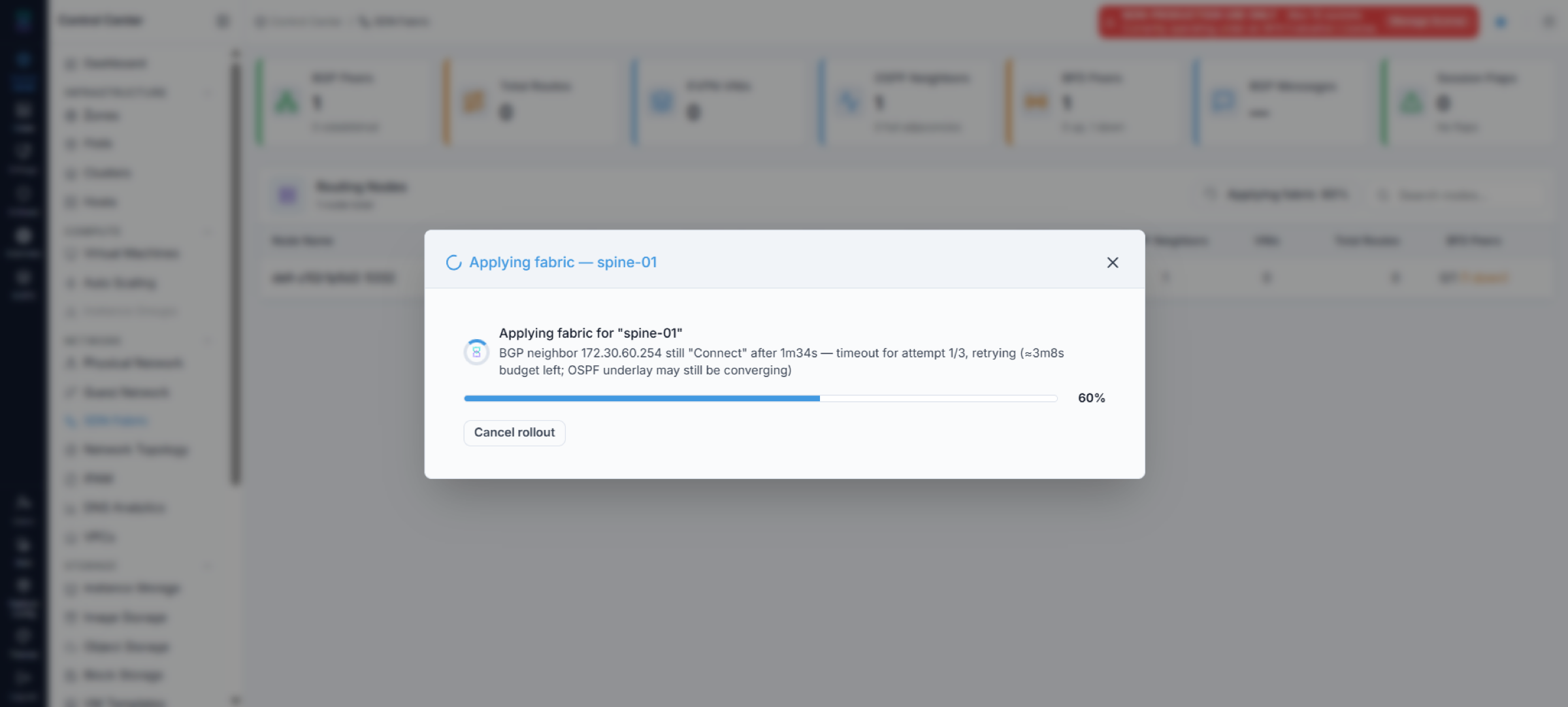
What it shows: the live apply for a node, including BGP/OSPF convergence (a peer may sit
in Connect and retry while the underlay converges). Use Cancel rollout to stop.
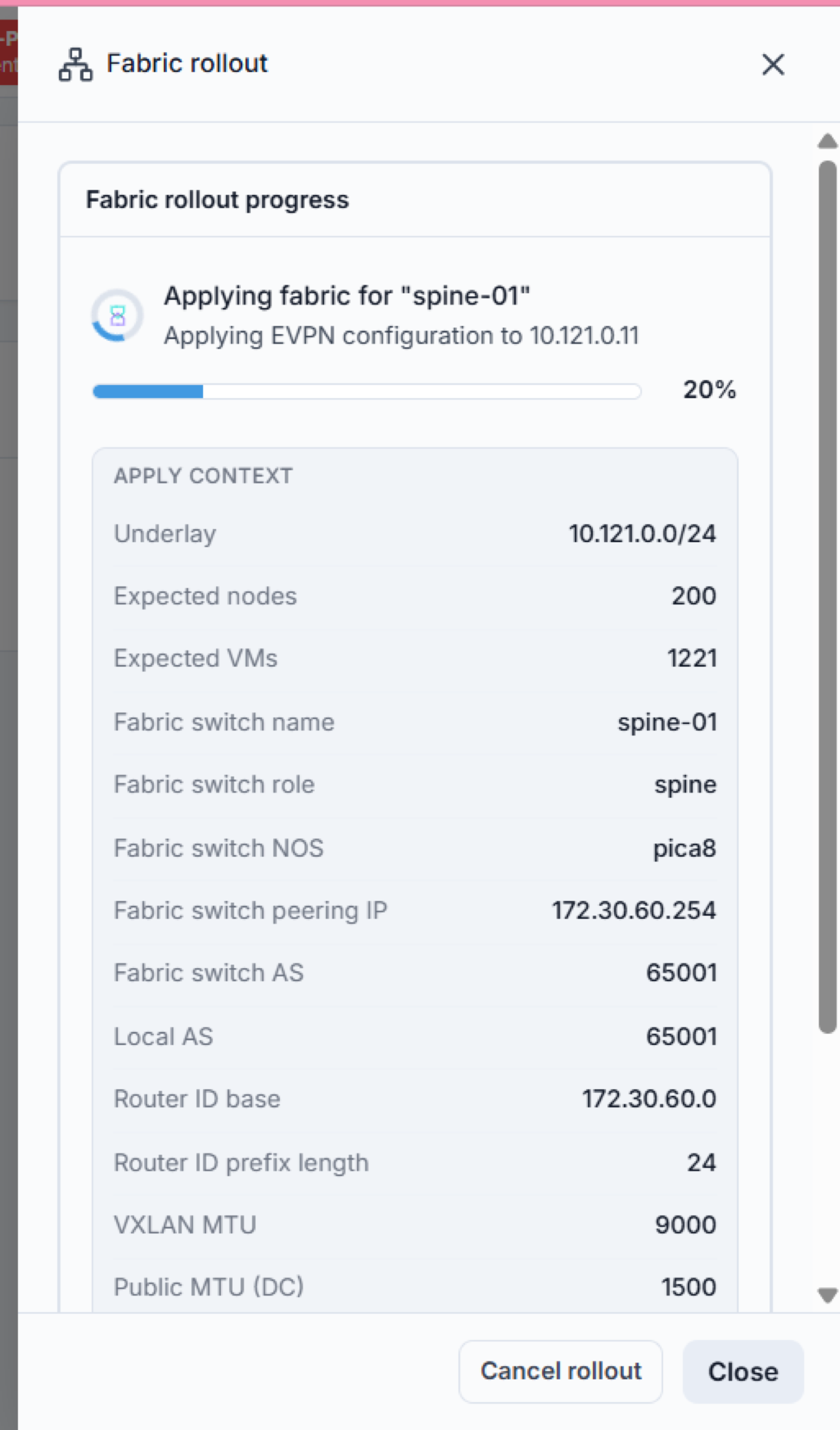
What it shows: per-node EVPN apply progress and the full apply context (underlay, AS,
router-id base, MTUs). Use Close when it completes.
4.2.6. Review and Manage the Configuration
After the rollout completes, the Fabric configuration view (also reachable from the
Fabric config button on the dashboard) summarises the applied fabric.
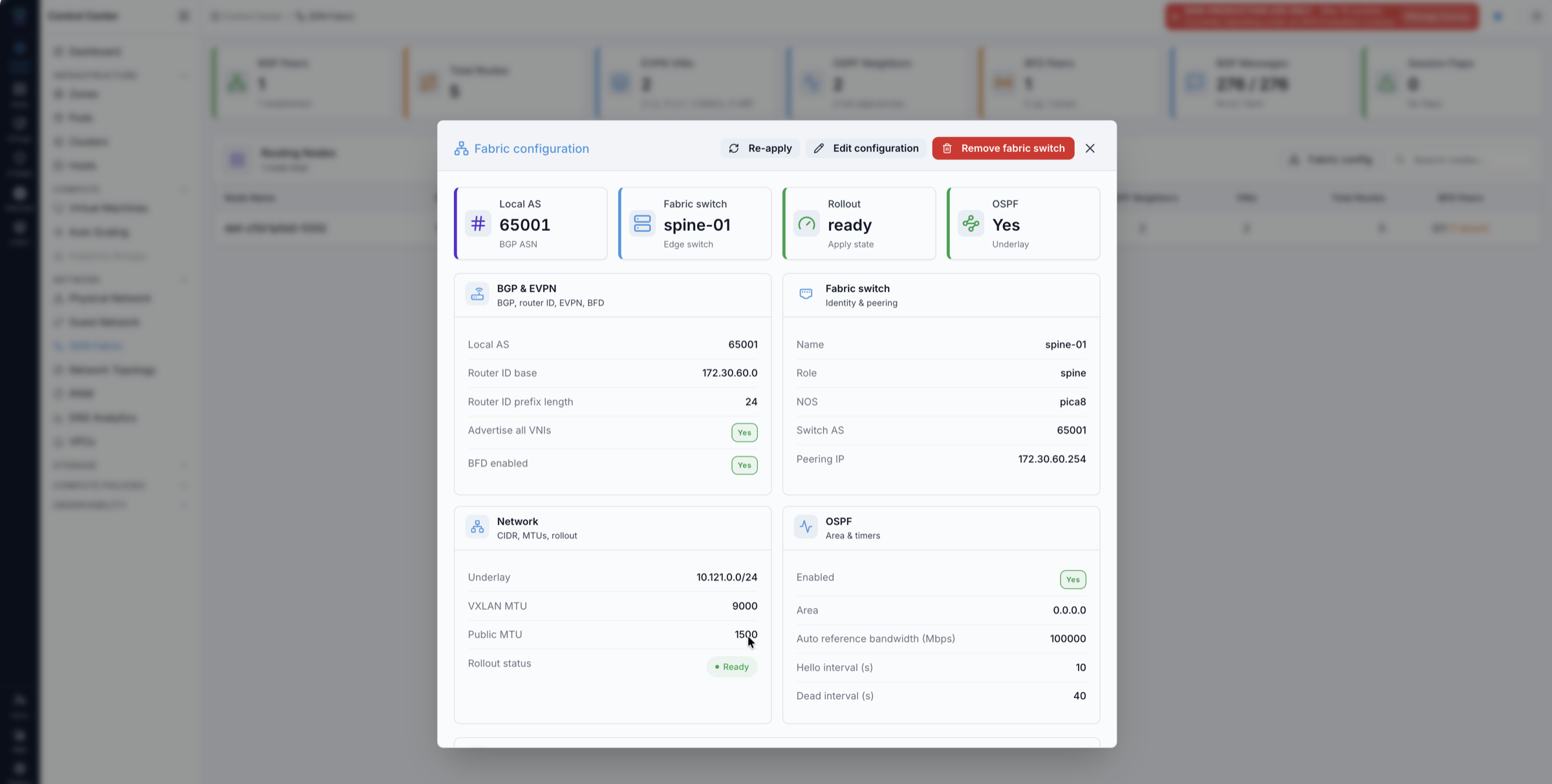
What it shows: Local AS, the fabric switch, Rollout: ready, OSPF: Yes, and the
BGP/EVPN, network, and OSPF details. Use Re-apply, Edit configuration, or
Remove fabric switch to manage it.
When a host converges onto the fabric, Karios marks it fabric-ready by mirroring the
karios-evpn-ready tag as a NetBox device tag (in atlas/DCIM). This is a
NetBox-side marker, not a platform host tag - confirm fabric readiness from the
dashboard (EVPN Health = ready) and the Fabric configuration view rather than the
platform Hosts page.
Done criteria - the fabric is ready when:
The
Fabric configurationview showsRollout: readyandOSPF: Yes.On the dashboard (4.3), the node’s
StatusisonlineandEVPN Healthisready.BGP Peersshows the peerEstablishedandOSPF Neighborsis non-zero.EVPN VNIsandTotal Routesmay still be0- that is expected until you create your first VXLAN network (see 4.8).
Editing the VTEP Loopback Pool (Switch Reconfiguration)
Changing the VTEP loopback pool of a fabric that already exists - its base address or its prefix length - is not an ordinary edit. The fabric switch’s BGP listen range has to be widened or narrowed before compute nodes start peering from the new pool. Otherwise a node allocated an address in the new range cannot peer with the route reflector, and the overlay breaks for that node alone, silently.
Karios enforces this with a switch-reconfiguration acknowledgement. It is a separate gate from the one-time L3/BGP prerequisite you accepted in 4.2.4 - do not confuse the two:
Saving a pool change is rejected with a
REQUIRES_SWITCH_RECONFIG_ACKresponse that carries a ready-to-paste BGP listen-range snippet for your switch NOS, a verify command, and a hash of that snippet.From this wizard, Karios acknowledges that response on your behalf and re-submits once, so
Edit configurationappears to save normally. Applying the switch-side change is still yours to do - if the listen range is not updated, newly allocated nodes will not peer.The
Grow VTEP Poolflow shows you the snippet and makes you tick the acknowledgement yourself before it re-submits. It is offered on the add-host form, which warns when the pool has ten or fewer loopbacks left and blocks the host when it has none.If the snippet template changed between the moment it was generated and the moment it was acknowledged, the save is rejected again with a refreshed snippet - re-apply it on the switch and acknowledge the new one.
The gate is skipped only when no fabric switch NOS is recorded, because a software route-reflector deployment has no switch to reconfigure.
4.3. SDN Fabric Dashboard
When to Use:
Use this first for SDN health checks and before opening BGP, OSPF, EVPN, or RIB on a node.
Use this when VMs on different hosts cannot communicate and you need a baseline.
Purpose:
Provide a single landing view of fabric health and entry points to node-level checks.
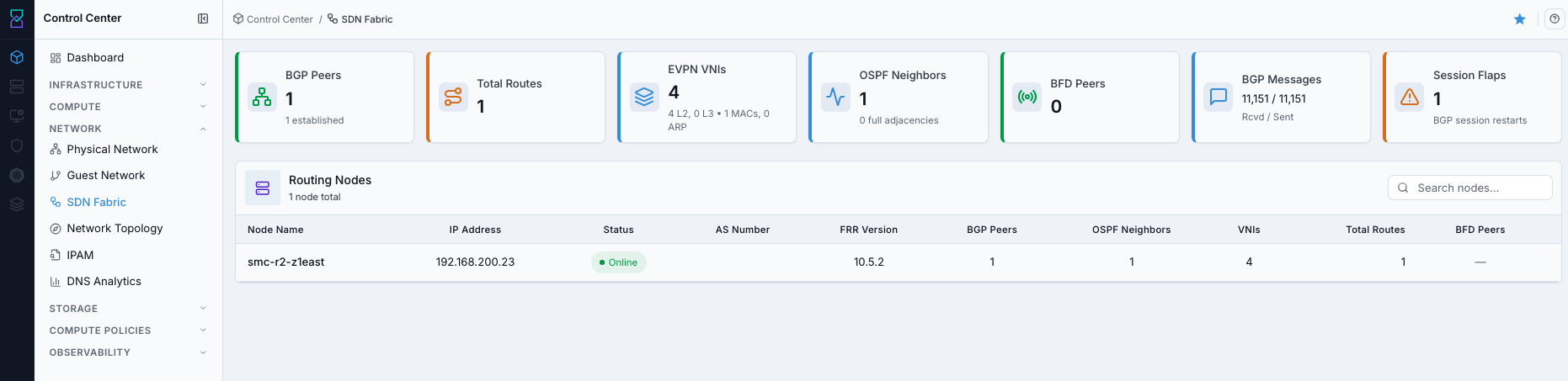
Summary stat cards (top of the page). Read the subtitles - they tell you when a “0” is normal:
Card |
Healthy reading |
When 0 is expected (not a bug) |
|---|---|---|
|
N peers, subtitle “N established” |
|
|
N neighbors |
|
|
grows as you add networks |
0 VNIs is normal until you create your first VXLAN guest network. |
|
grows as VMs run |
0 routes is normal until a VXLAN guest network exists. Type-3 (IMET) appears when a VTEP joins a VNI; Type-2 (MAC/IP) once VMs run on it. |
|
received / sent counts |
|
|
“No flaps” |
A non-zero value means BGP sessions have restarted - investigate (see 4.5). |
Note
The most common support question this answers: “BGP is Established and OSPF is Full, but Total Routes = 0 - is it broken?” No. Routes stay at 0 until a VXLAN guest network is created and VMs run on it. This is by design.
The Routing Nodes table lists every node in the cluster:
Column |
Meaning |
|---|---|
|
Hostname of the compute node. |
|
Node’s management/OS IP. |
|
|
|
Drift state: |
|
The node’s BGP AS. |
|
Routing-engine version. |
|
Peer count. |
|
Neighbor count. |
|
Overlay networks this node knows. |
|
Routes this node has. |
|
Up/down fast-failure-detection peers (for example, “3 (1 down)”). |
Steps:
Open
Control Center -> Network -> SDN Fabric.Review top summary cards for immediate routing health signals.
Review the
Routing Nodestable and identify the node to inspect.Optional: use
Search nodes…to find a specific node quickly.Click an online node name to drill into its BGP / OSPF / EVPN / RIB / Kernel Routes tabs.
If this fails:
Refresh the page and reopen
SDN Fabric.Verify your account can access Network observability pages.
If
Routing Nodesis empty, verify node discovery/registration in your environment.
4.3.1. Open the SDN Fabric Help Panel
When to Use:
Use this when you need BGP/OSPF/EVPN/RIB and card definitions in-product.
Steps:
Open
Control Center -> Network -> SDN Fabric.Click the top-right help icon.
Review and search the SDN help panel content.
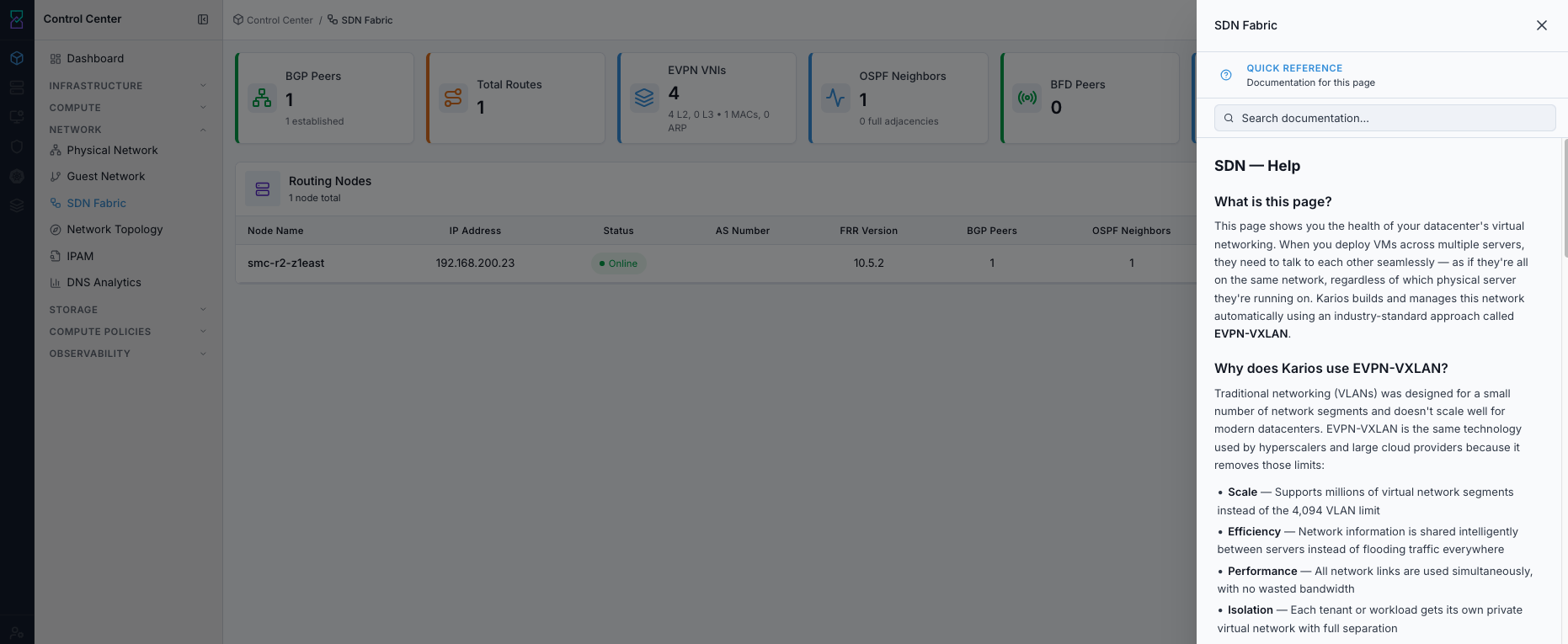
If this fails:
Refresh the page and click the help icon again.
Verify pop-up/panel rendering is not blocked by browser extensions.
Confirm access permissions for in-product help content.
4.3.2. Open a Node’s Detail Page
Steps:
Open
Control Center -> Network -> SDN Fabric.Optional: use
Search nodes…to find the node by name or IP.In the
Routing Nodestable, click the target (online) node name.
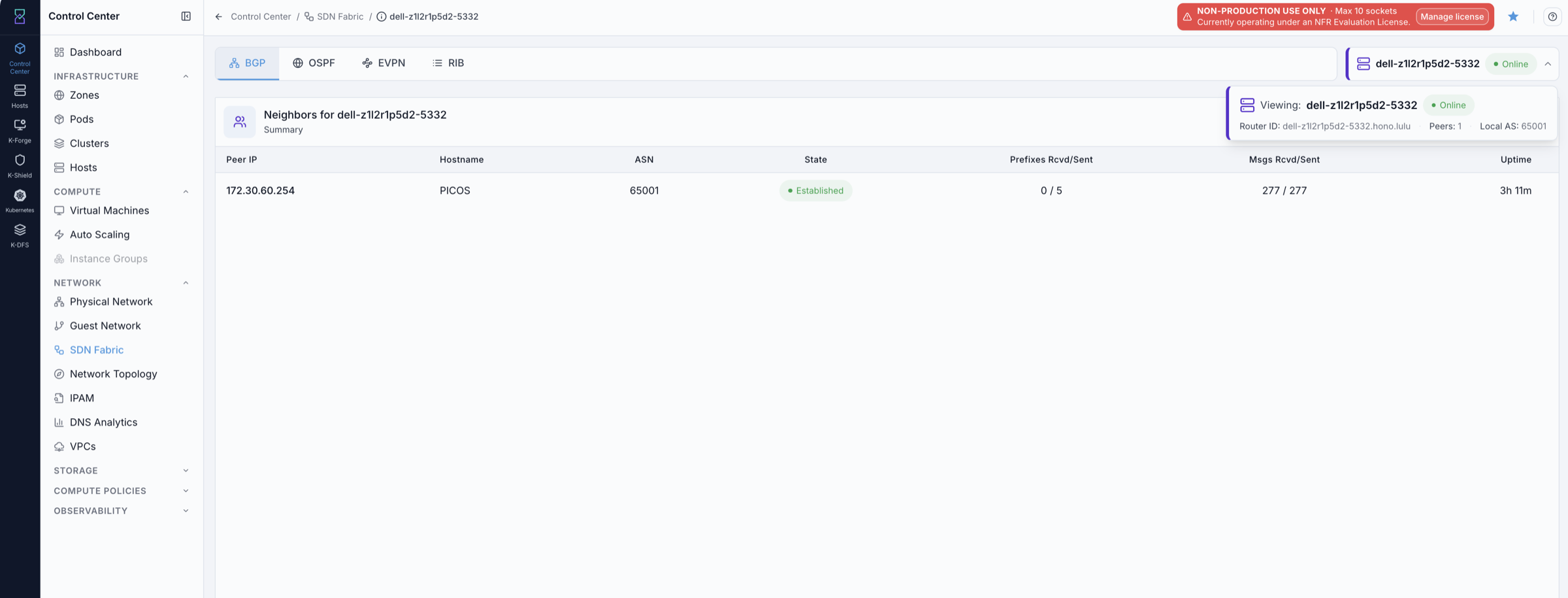
What it shows: the selected node’s detail page (the BGP tab opens by default; the
breadcrumb calls it BGP Summary). Use the node selector at the top right to switch
between nodes without returning to the dashboard.
Expected Outcome:
The node details page opens with the
BGPtab active by default.You can access the
OSPF,EVPN,RIB, andKernel Routestabs.
If this fails:
Clear the node search filter and retry from the full node list.
Verify the target node row is present and
onlineinRouting Nodes.Refresh the page and re-open the same node.
4.4. Node Detail Tabs: BGP, OSPF, EVPN, RIB, Kernel Routes
A node opens into five tabs: BGP (the breadcrumb names it BGP Summary), OSPF,
EVPN (VNIs + Routes), RIB, and Kernel Routes. Use this quick reference before
reviewing them:
Term |
What It Means |
Why It Matters Here |
|---|---|---|
|
Border Gateway Protocol for route exchange between SDN nodes. |
Determines whether nodes are exchanging reachability information. |
|
Open Shortest Path First underlay routing service. |
Confirms node-to-node path reachability in the fabric underlay. |
|
Ethernet VPN control-plane for MAC/IP endpoint advertisement. |
Confirms overlay endpoint and segment membership across nodes. |
|
Routing Information Base (active route table view). |
Shows which routes are selected and installed for forwarding. |
|
The routes actually installed in the host’s Linux kernel forwarding table. |
Confirms the RIB’s selected routes are imprinted into the live dataplane. |
4.4.1. BGP
When to Use:
Use this when validating BGP adjacency and route exchange for one SDN node.
Steps:
Open
Control Center -> Network -> SDN Fabric.Click a node in
Routing Nodes.Confirm the
BGPtab is active (it is the default landing tab).
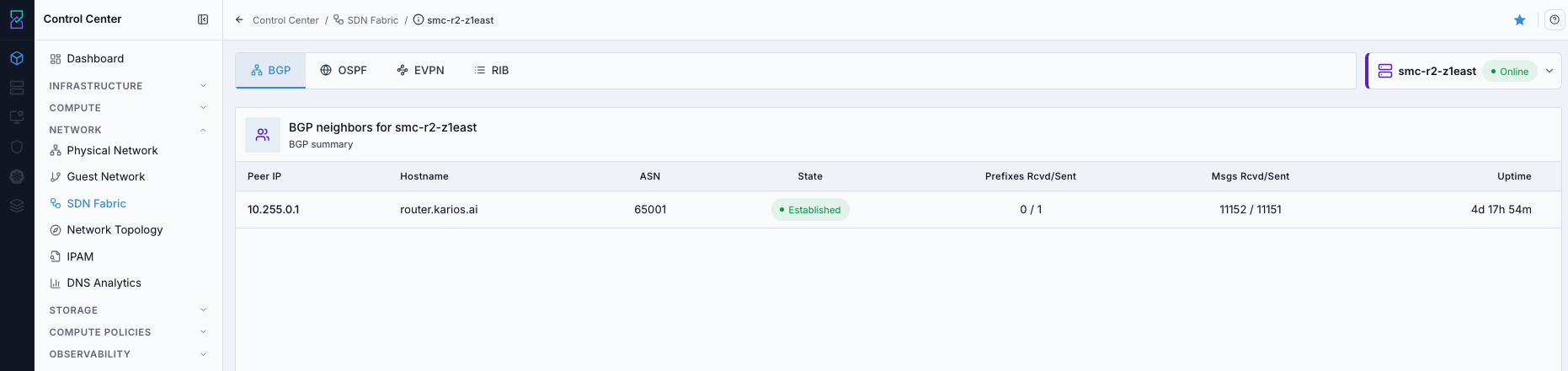
Summary cards across the top show Router ID, BGP Peers (established count),
Prefixes Rcvd/Sent, BGP Messages, and Session Flaps. Below, the tab lists
the node’s BGP neighbors with columns Peer IP, Hostname, ASN (equals ours -
iBGP), State, Prefixes Rcvd/Sent, Msgs Rcvd/Sent, Flaps, and Uptime.
Expand a neighbor row for Last reset reason/Last reset code and a per-type
Message breakdown (Rcvd / Sent) (Opens, Notifications, Updates, Keepalives).
BGP states:
State |
Meaning |
Action |
|---|---|---|
|
Healthy - session up, EVPN exchanging. |
None. |
|
Trying but not up. The console flags EVPN unhealthy. |
Go to the |
(blank) |
No session seen. |
Confirm the node was applied to the fabric. |
If this fails:
Confirm the selected node is online in
Routing Nodes.Reopen node details and retry
BGP.Refresh the page and re-check session visibility.
4.4.2. OSPF - Neighbors and Link-State Database
When to Use:
Use this when BGP is stuck in
Connector when validating underlay reachability.
Steps:
Open
Control Center -> Network -> SDN Fabric.Click a node in
Routing Nodes.Click
OSPFand reviewNeighborsand theLink State Database.
The OSPF tab opens with summary cards (Router ID, Total LSAs, Neighbors,
Areas) and three sub-tabs: Areas, Neighbors, and Link State Database.
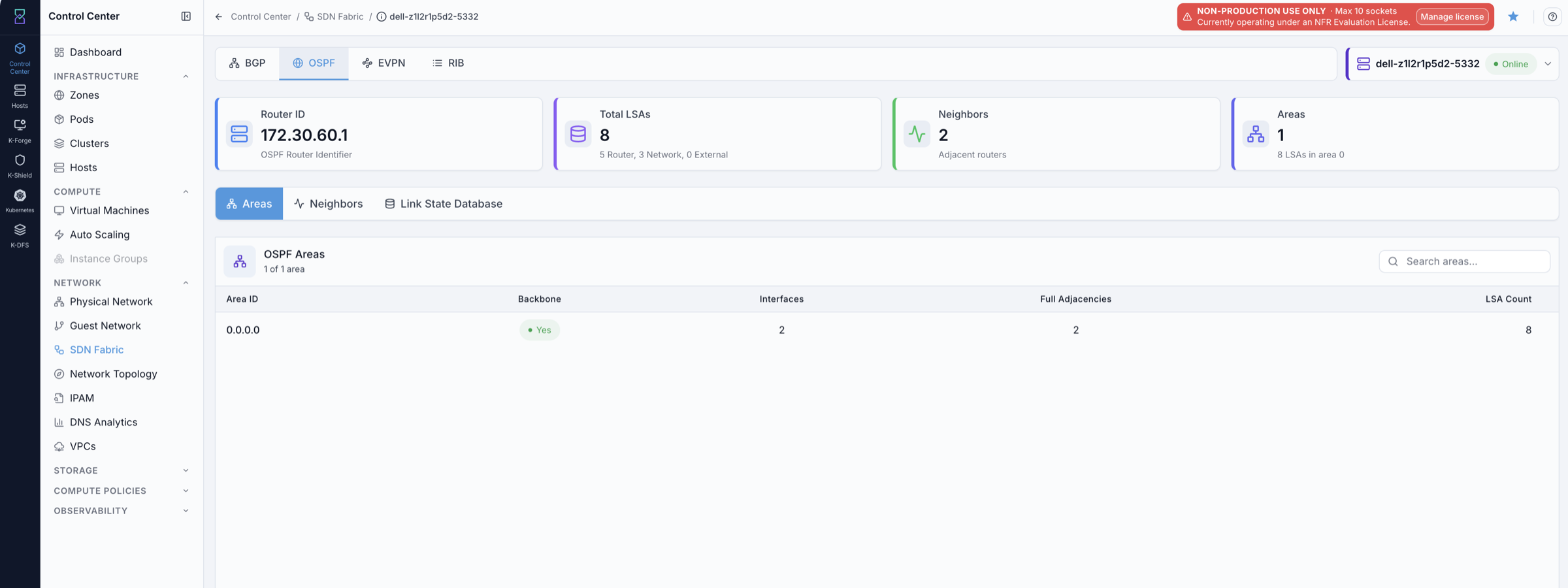
What it shows: the OSPF summary cards and the Areas sub-tab. The Areas table lists
each area with Backbone, Interfaces, Full Adjacencies, and LSA Count - for
a healthy backbone area 0.0.0.0, Full Adjacencies should match the neighbor count.
Neighbors columns: Neighbor ID, State, Address, Interface,
Priority, Dead Time. Look for the interface cloudbr0 tied to the node’s
router IP - that is the OSPF-speaking interface.
OSPF neighbor states:
State |
Meaning |
Action |
|---|---|---|
|
Healthy adjacency. |
None. |
|
OSPF is stuck - not forming. Top causes: an MTU mismatch on the switch side, wrong peering, hello/dead-timer mismatch. |
Check the switch interface first - its MTU, and whether it enforces the OSPF MTU check - then peering and the hello/dead timers. |
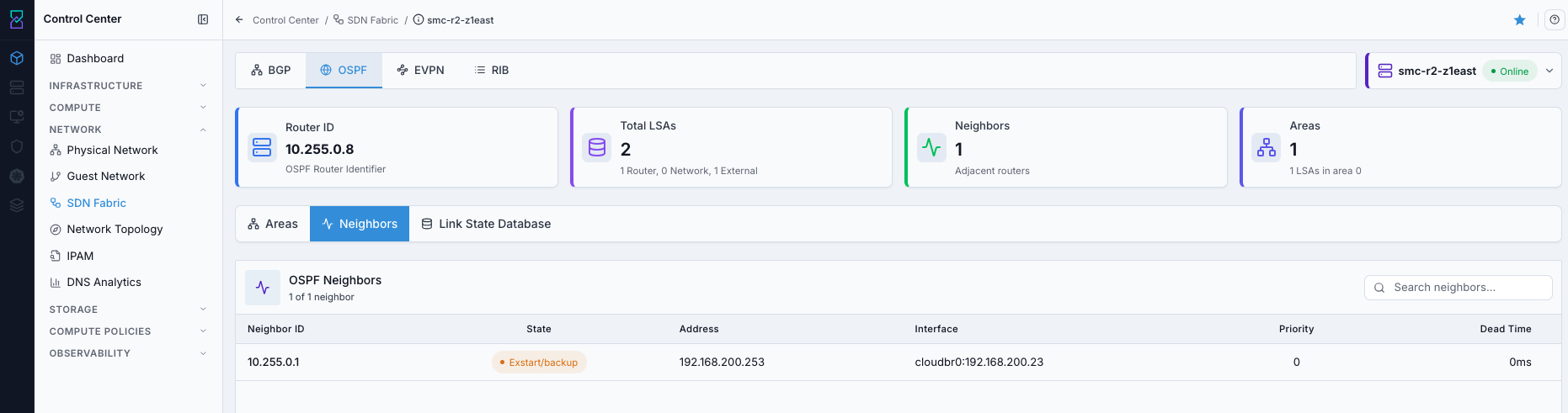
Karios configures ip ospf mtu-ignore on the node’s fabric interface whenever OSPF is
enabled, so the node side does not park in ExStart on an MTU mismatch - including
during an MTU rollout, when one node has taken the new value and its neighbour has not. If
a neighbour is still stuck in ExStart, look at the switch side first: its interface MTU
and whether it performs the OSPF MTU check. Karios does not configure your switch. This tab
is read-only; fix the MTU on the switch and in the node underlay configuration (set in the
installer’s Network step) so every node agrees, then re-run the underlay preflight during
setup (see 4.2.1-4.2.2).
Important
The Link-State Database lists every route OSPF discovered, including the external BGP
peering IP you entered when creating the fabric. The moment that peering IP appears in
the LSDB, BGP can find its peer and the BGP tab flips Connect -> Established.
This is the hinge of the entire fabric: if BGP is stuck in Connect, check whether the
peering IP is in the LSDB here.
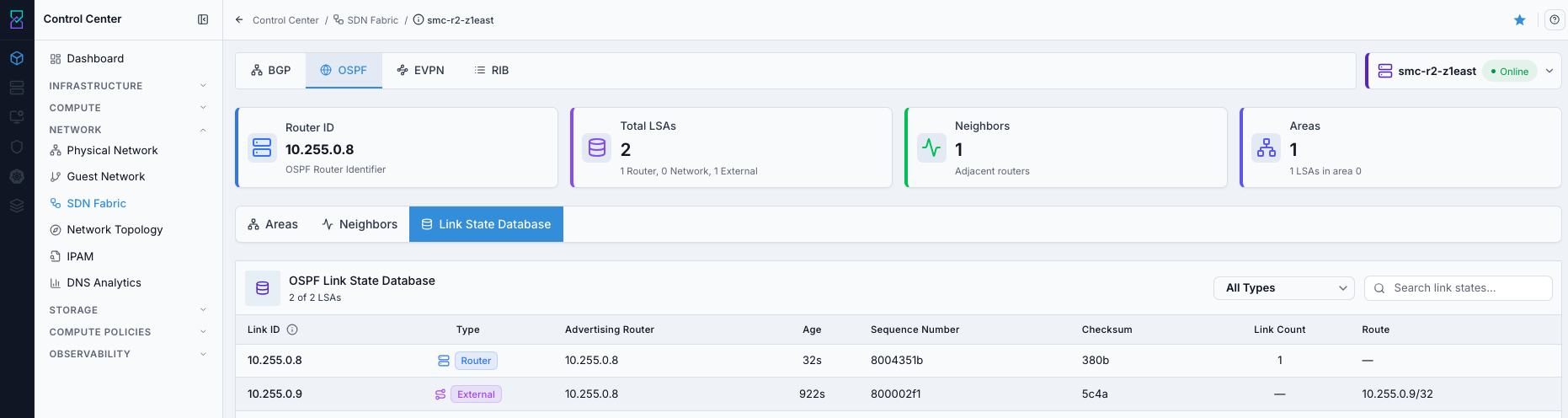
What it shows: the Link State Database sub-tab. Each row is an LSA with Link ID,
Type (Router / Network), Advertising Router, Age, Sequence
Number, Checksum, and Link Count; use All Types and the search box to
filter. Confirm the peering IP appears here.
If this fails:
Compare
Neighborsstate with the LSDB to find adjacency-driven gaps.For
ExStart, check the switch-side interface MTU and its OSPF MTU check first - the node side already setsip ospf mtu-ignore.Confirm the peering IP is present in the LSDB; if missing, OSPF has not converged.
4.4.3. EVPN - VNIs and Routes
When to Use:
Use this when checking overlay membership and endpoint advertisement.
Steps:
Open
Control Center -> Network -> SDN Fabric.Click a node in
Routing Nodes.Click
EVPNand review theVNIsandRoutesviews.
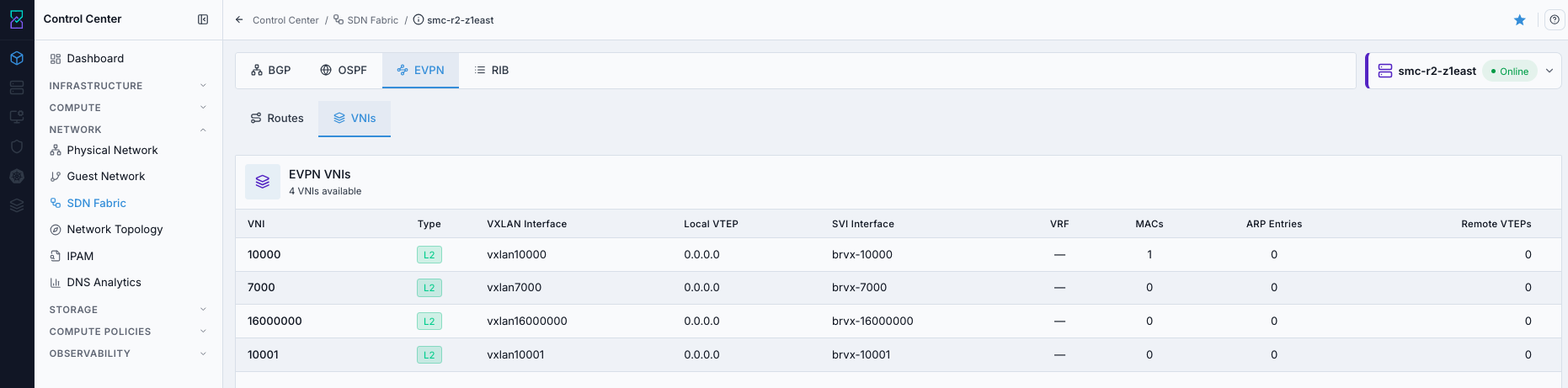
Each VNI row shows VNI, Type (L2/L3), VXLAN interface (vxlan_if),
Local VTEP, MACs / ARP entries, Remote VTEPs, and SVI / VRF.
Num Remote VTEPs should be non-zero when the segment spans hosts.
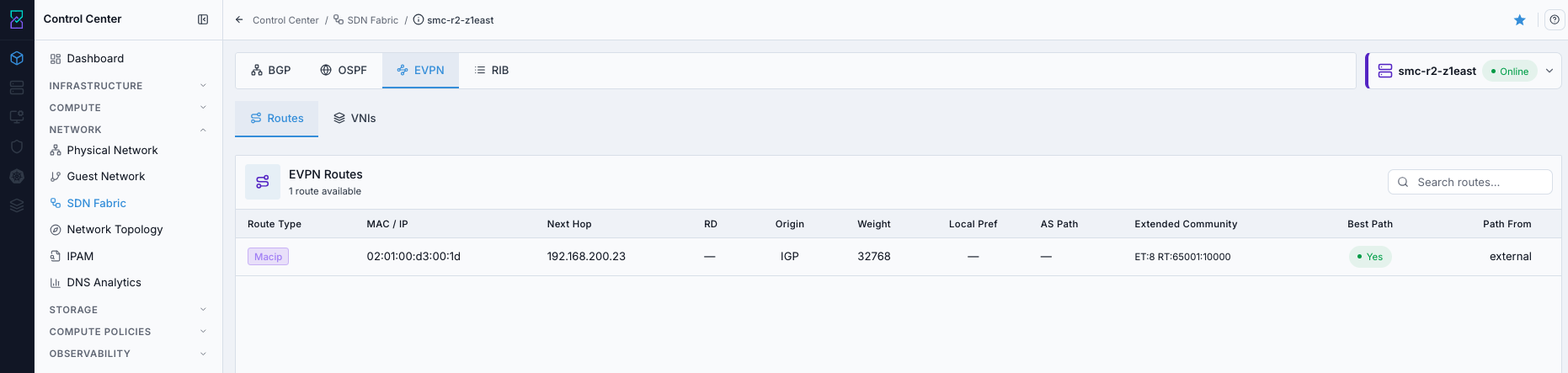
EVPN route types:
Type |
What it carries |
Appears when |
|---|---|---|
|
“I have this VNI” - VTEP membership. |
A VTEP joins a VNI (a VXLAN guest network exists). |
|
Endpoint MAC/IP bindings. |
VMs actually run on the VNI. |
Note
Karios runs a default-VRF, L2-only EVPN deployment, so it advertises only Type-3 (IMET) and Type-2 (MAC/IP) routes. It does not originate Type-5 (IP Prefix) routes.
Warning
If EVPN routes are missing, cross-host VM communication can fail. If the view reports
No EVPN routes found, verify that target VNIs/guest networks exist and that BGP
peering is established.
4.4.4. RIB
When to Use:
Use this when verifying final route selection and forwarding installation state.
Steps:
Open
Control Center -> Network -> SDN Fabric.Click a node in
Routing Nodes.Click
RIB.
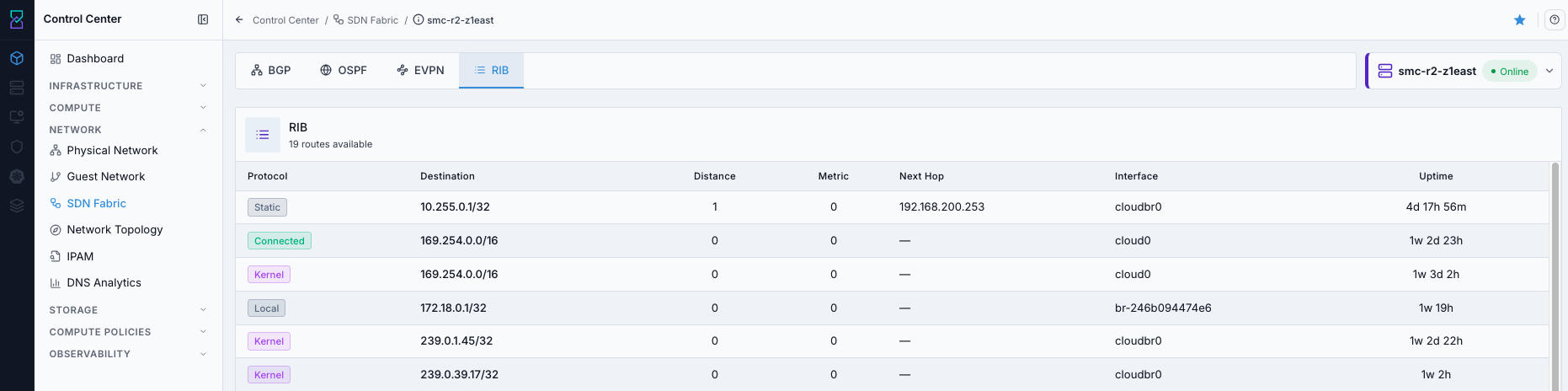
The RIB is the node’s end-to-end routing table. Visible columns are Protocol,
Destination, Distance, Metric, Next Hop, Interface, and Uptime.
The table itself has no per-route install flag; the Installed (FIB) summary card above
it counts how many of the node’s routes are imprinted into the host’s Linux kernel table -
that is, live in the dataplane - and reads N of M in the kernel.
Protocol (route source) interpretation:
Source |
What It Is |
Trust Level |
|---|---|---|
|
Local route created by the operating system on the node |
Highest |
|
Directly attached network route |
Highest |
|
Route learned from OSPF neighbors |
Medium |
|
Route learned through BGP |
Varies |
Install-state checks:
The
Installed (FIB)card readsN of M in the kernel. WhenNsits well belowM, routes are being selected but not installed - suspect an unresolved next hop.OSPF-learned routes to remote tunnel-endpoint
/32destinations should be listed here.To confirm one specific route reached the dataplane, look it up on the
Kernel Routestab (4.4.5) - that tab is the live kernel forwarding table.
4.4.5. Kernel Routes
When to Use:
Use this to confirm the routes the RIB selected are actually installed in the host’s Linux kernel forwarding table - the final dataplane check.
Steps:
Open
Control Center -> Network -> SDN Fabric.Click a node in
Routing Nodes.Click
Kernel Routes.
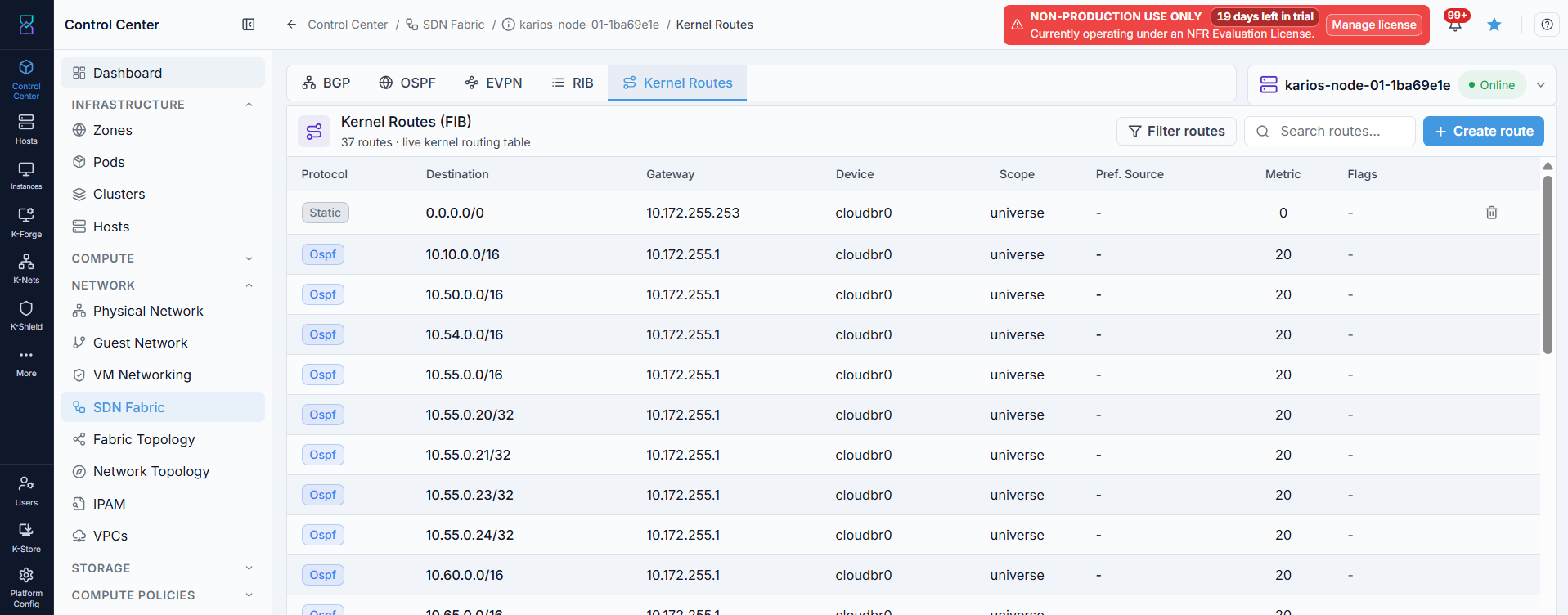
The Kernel Routes tab shows the node’s live kernel forwarding entries (the FIB):
Protocol (Static, Ospf, Boot, Kernel), Destination, Gateway,
Device, Scope, Pref. Source, Metric, and Flags. Every route counted by
the RIB tab’s Installed (FIB) card should have a matching entry here - confirming
the control-plane decision reached the kernel and traffic will follow it.
Add a Kernel Route
Use this to add a static route directly to a node’s kernel routing table (for example, a one-off route not carried by OSPF/BGP).
Click
+ Create route.Fill in
Destination (CIDR)andDevice(required);GatewayandMetricare optional.Click
Create route.
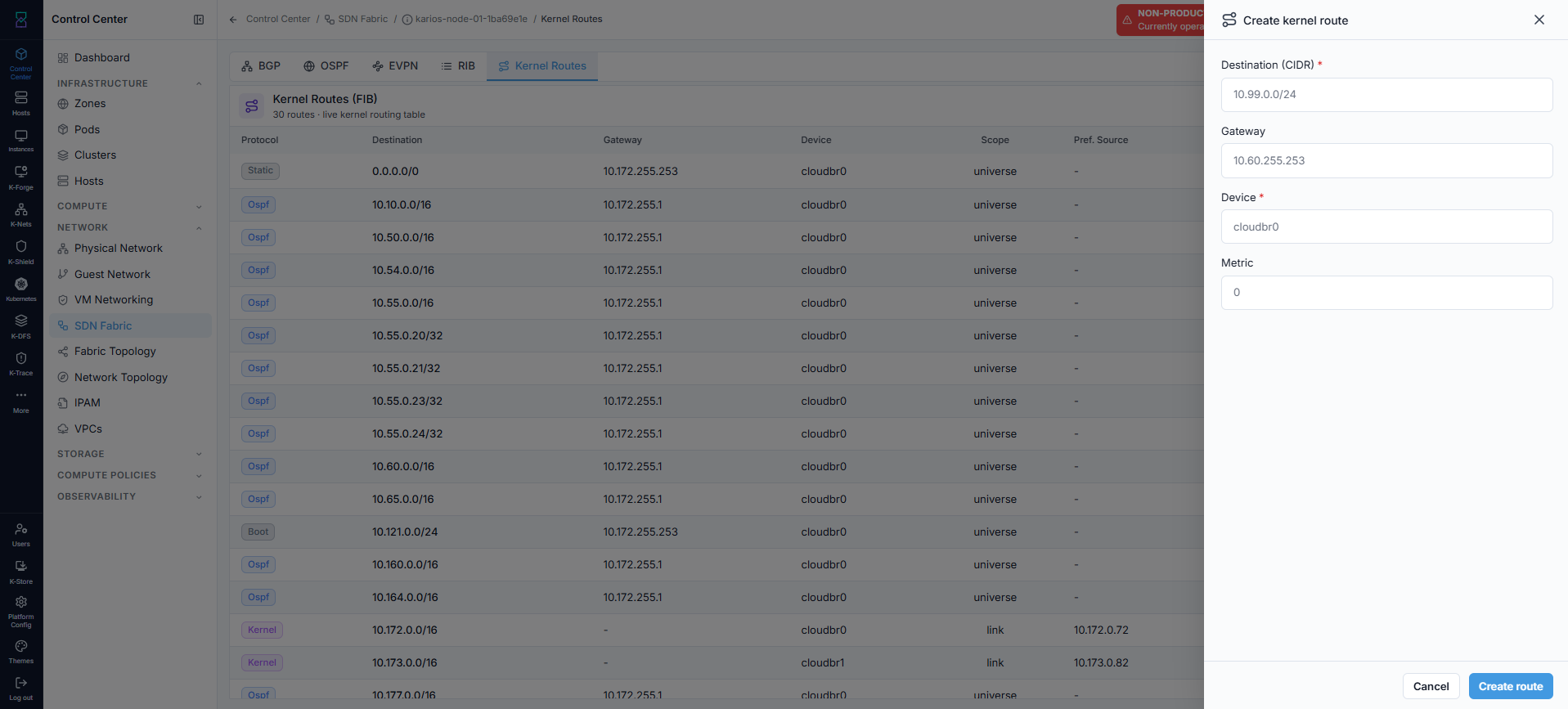
Only routes you added this way show a delete (trash) icon in the table - routes learned
from Static/Ospf/Boot/Kernel sources are not user-deletable here.
If this fails:
Cross-check against the
RIBtab: routes the RIB counts underInstalled (FIB)that are absent here indicate a kernel-install problem on the node.Confirm the node is
onlineandEVPN Healthisready.
4.5. Monitoring and Health Signals
Two independent signals tell you a fabric is degrading.
Node EVPN Health. The per-node fabric health shown as EVPN Health on the
dashboard. A background reconciler on the management node re-probes every configured
compute node roughly every 30 seconds - it always runs, there is no setting to switch it on
or off - and needs two consecutive bad checks before it flips a healthy node to unhealthy,
so a single blip will not trip it. Recovery is immediate: one good probe restores
ready. States: ready / failed / unreachable. An unhealthy node shows
offline / “EVPN not ready”.
Session flaps (early warning). On the dashboard, watch BGP Msgs Rcvd/Sent. When
they drift out of sync - for example 9 / 10, one side sent a message the other did
not process - the router eventually triggers a session flap (a BGP session restart).
Every flap weakens connectivity. A climbing Session Flaps card is an early symptom,
usually MTU or an unstable link, that shows up before the session fully drops. Treat a
rising flap count as “go look now.”
4.6. When the Fabric Blocks Creation
Karios blocks operations that would silently fail whenever the fabric is not in a state that can carry them: no fabric registered yet, its rollout failed or is still running, an MTU change still rolling out, or a participating node’s SDN has drifted out of health.
Action |
Result |
Why |
|---|---|---|
Provision a VM on a VXLAN network |
Blocked (error) |
The VM would land on a fabric that cannot carry its traffic. |
Create a new VXLAN guest network |
Blocked (error) |
The SDN fabric cluster is not complete/ready. |
Create a VPC tier, or a VM in a VXLAN VPC |
Blocked (error) |
Tiers are VXLAN networks; they need full BGP convergence. |
Any VXLAN creation while a |
Blocked (error) |
The rollout is mutating the same devices, and a resource created mid-rollout would be sized from an MTU still in flight. It unblocks when the rollout reaches a terminal state - |
Create an L2 guest network with VLAN encapsulation, or an untagged-trunk network |
Allowed |
VLAN-backed L2 rides your existing isolation-VLAN physical network and does not depend on the EVPN fabric, so it stays available while the fabric is down or unconfigured. |
Already-running VMs are not touched. They keep running and recover on their own once the fabric heals (BGP re-establishes, routes re-propagate). The block applies only to new VXLAN resource creation.
Note
The block is protecting you. Without it, you could create a VXLAN network or VM on a
broken fabric, everything would look successful, and a tenant would later report that
VMs cannot reach each other. Instead, Karios stops you at click-time and names the node.
The error names the failing node(s) and how many of the fabric’s nodes have drifted - for
example “1 of 2 nodes participating in the clustered BGP-EVPN fabric are not ready”. It
does not carry the individual probe that failed, so open that node’s BGP and OSPF
tabs to see which check tripped, following 4.7. Troubleshooting Flow.
4.7. Troubleshooting Flow
When to Use:
Use this when VMs on different hosts cannot communicate, or when a create is blocked.
Purpose:
Provide a fixed troubleshooting order so control-plane faults are isolated quickly.
Steps:
SDN Fabric- find the node(s) whoseEVPN Healthis red.Open the node -
BGPtab.Establishedmeans that node is fine (check the others);Connectmeans go to step 3.OSPFtab -Neighbors.ExStart/Initmeans check the switch interface first (its MTU and whether it enforces the OSPF MTU check), then peering and hello/dead timers - the node side already setsip ospf mtu-ignore.Fullmeans go to step 4.OSPFtab -Link State Database. Confirm the peering IP is listed. If missing, OSPF has not converged and BGP will stay inConnectuntil it appears.Once
OSPF = FullandBGP = Established, the node’sEVPN Healthreturns toready(within ~60s) and creation is unblocked. Retry your VM / network / VPC action.
If this fails:
Reopen the affected node and repeat checks in the same order.
Confirm node status is online and BGP/OSPF/EVPN/RIB tabs are populated.
Escalate with captured BGP/OSPF/EVPN/RIB evidence for the failing node.
4.8. Using the Fabric: Networks, VMs, and VPCs
Once the fabric is healthy, the fabric-dependent workflows are documented in their own sections - use these rather than configuring overlay networks from the SDN page:
Create an isolated VXLAN network - Guest Networks. Pick the VXLAN encapsulation and supply the VNI. In the list, VXLAN networks show a broadcast URI of
vxlan://<VNI>.VMs and per-network routers - Compute – Virtual Machines. Each isolated network also gets its own Virtual Router, listed on the
Virtual Routerstab ofControl Center -> Network -> Guest Network.VPCs - VPCs. A VXLAN VPC is built from tiers, and each tier is a VXLAN network that depends on a healthy fabric exactly like a standalone VXLAN network.
Note
When the first VXLAN guest network is created, the EVPN VNIs and Total Routes
cards on the SDN dashboard (see 4.3) start populating - this is when “0” becomes a
real number.
→ Next: Fabric Topology