K-Store
Note
K-Store is where the platform keeps everything you add after installation.
It has two sections: Updates for platform releases, and Plugins for
optional feature modules.
Where This Fits in Karios
You reach K-Store from the left rail once the install is complete and you
have signed in to Control Center. The ISO Install
guide ends by sending you here to turn on the optional features your deployment
needs.
Prerequisites
ISO Install completed and the node rebooted into first boot
Access to
Control Centerwith an administrator account
Key Concepts
Read these four points before using either section - they apply to both.
Two streams, one delivery model. Updates covers the Karios platform and
its core components - operating system and kernel, Ceph, networking, and the
web console. Plugins covers optional modules you switch on
individually. They are managed separately but arrive the same way, from the same
source.
Everything is signed and verified. Every bundle is checked with a cosign
signature - an artifact-signing standard - and a SHA-256 checksum before it
is installed. A bundle that fails either check is refused and never applied.
Platform releases are handled by the Release Management Service (RMS), the
component that fetches, verifies, and applies them.
Three ways to receive a bundle. Online for connected clusters,
Offline upload for air-gapped sites, and USB boot for strict air-gap.
Every mode is verified.
Updates can be destructive. On a cluster that is not highly available, a platform update may wipe your data. Read the warning under Applying An Update before you apply anything.
The source is configurable. The default is https://updates.karios.com.
You can point it at your own mirror instead. Saving a new source applies
immediately - no node restart.
Platform Updates
Platform releases are listed under K-Store -> Updates.
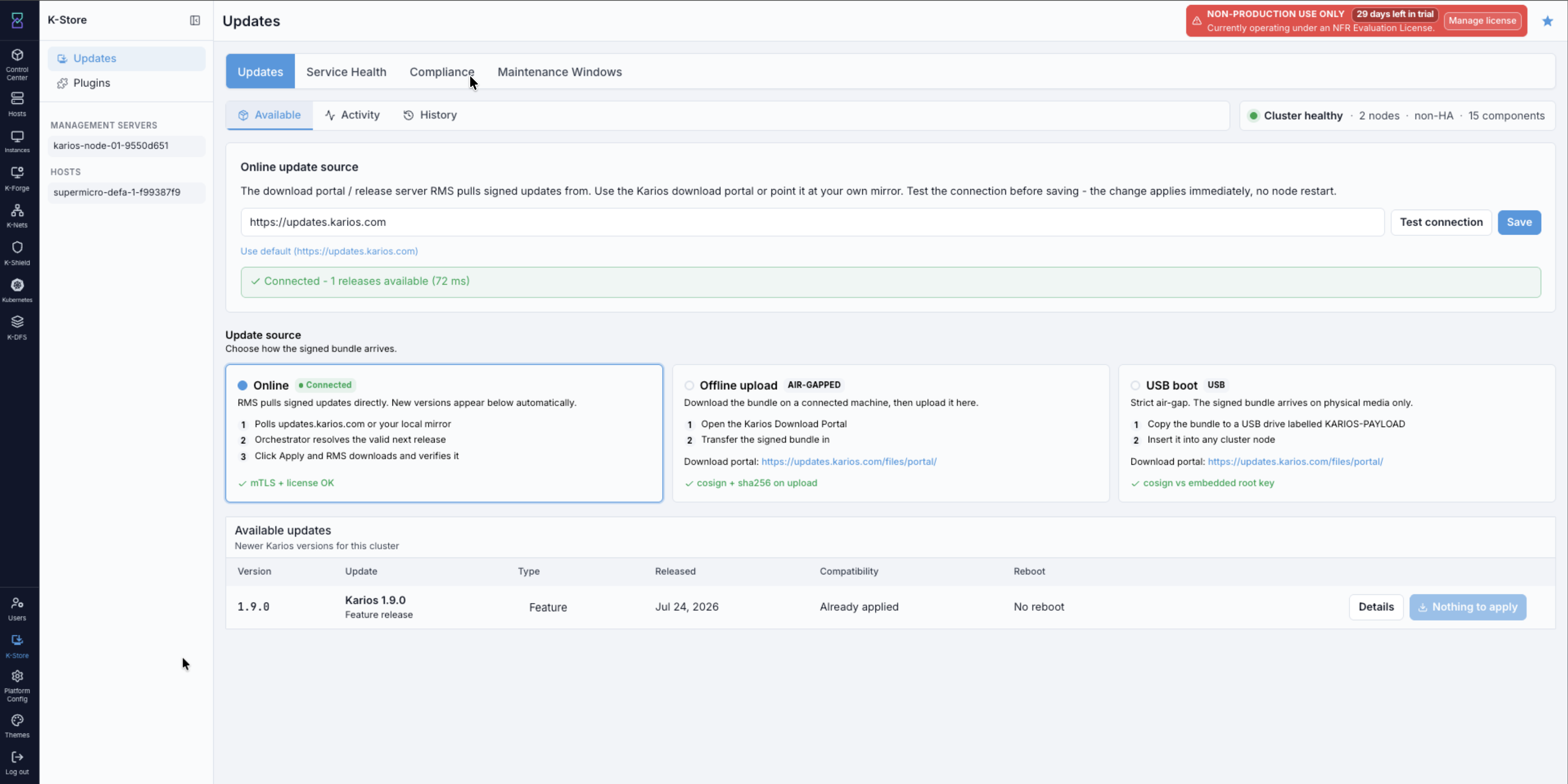
K-Store -> Updates: the configured source, the three delivery modes, and
the releases available to this cluster.
The page header reports Karios version, Released, Installed, and
this cluster’s Cluster ID, followed by the cluster’s current state - for
example Cluster healthy · 2 nodes · non-HA · 0 components. The tabs across
the top separate Available releases from Activity and History.
Note
An unregistered appliance shows This appliance isn't registered with
Karios yet on this page. With the Online card selected, select
Register now and fill in the short form. With an air-gapped card
(Offline upload or USB boot) selected, select Show my token to
copy this cluster’s installation token, then open the Updates Service Portal
at updates.karios.com on any internet-connected device and register the
cluster ID using that token together with your email. Back on the appliance,
select I have registered to confirm. Registration is what unlocks the
portal’s Plugins and Update Releases pages, shown under
The Download Portal below, for this cluster.
Setting The Update Source
The source is the release server the cluster pulls signed bundles from. It is the same base URL used for plugins.
Steps:
Under
Online update source, enter the base URL - the Karios download portal, or your own internal mirror.Select
Test connection.Select
Save.
Expected Outcome:
The page reports the result - for example Connected · 1 release · 12 ms (the
number of releases offered and the response time), or Not reachable.
The change applies immediately and no node restart is needed.
Use default resets the field to https://updates.karios.com.
Choosing A Delivery Mode
Under Update source, three cards describe how the signed bundle reaches the
cluster. Select the one that matches your environment.
Online - for clusters that can reach the source.
The cluster polls
updates.karios.comor your mirror.It resolves the valid next release for this cluster.
New versions appear under
Available updatesautomatically.
The card is tagged Connected when the update source is reachable and
Disconnected when it is not. Its footnote, mTLS + license OK, is a fixed
description of the checks applied to the online source, not a live licence
status.
Offline upload - for air-gapped sites.
On a machine with internet access, open the Karios download portal at
https://updates.karios.com/files/portal/.Download the signed bundle for the version you want.
Transfer it into the air-gapped environment.
Open
K-Store -> Updatesand upload the bundle on theOffline uploadcard.
The bundle is verified with cosign and SHA-256 on upload, then appears
under Available updates and is applied exactly as an online one.
USB boot - for strict air-gap, where nothing is uploaded through the console.
Download the bundle (
karios-rms-*.airgap.tar) on a connected machine, from the same portal.Copy it to any USB drive. No special volume label is needed.
Insert the drive into any cluster node. The
USB bootcard detects it.Select
Verify & import.
The bundle is verified against the signing key embedded in the node itself
before it is staged, and then appears under Available updates.
Applying An Update
Warning
On a cluster that is not highly available, applying a platform update puts your data at risk - it may be wiped completely. This is not just an outage. Treat it as a destructive operation and do not apply an update to a cluster carrying data you cannot afford to lose.
Check your own state before you start: the header of this page reports it, for
example Cluster healthy · 2 nodes · non-HA. Cluster healthy only means
that at least one node is listed (otherwise the header reads Node list
unavailable). The non-HA label is derived from the number of nodes (fewer
than three reads non-HA, three or more reads fault-tolerant); neither
confirms that high availability is healthy. Treat any cluster that is not a confirmed high-availability cluster as
carrying this risk - a node installed by the
ISO Install guide is one of them. Only a
high-availability cluster is exempt; there the VIP moves with no control-plane
outage.
Steps:
Open
K-Store -> Updates.Find the release under
Available updates. The table gives its version, type, release date, compatibility, and whether it needs a reboot. Select a row to open its details and release notes.With the
Onlinecard selected, selectDownloadon the release’s row. The cluster downloads the signed bundle and verifies it. A bundle staged by upload or USB import is already on the node, so this step does not apply to it.Select
Review & Apply. A preflight check runs first, then you accept the End-User License Agreement and chooseApply noworSchedule for later. When the cluster is already at or above every component in a release, the control readsNothing to applyand is disabled. When no newer release is offered on theOnlinecard, the list readsYou are up to date; on theOffline uploadandUSB bootcards an empty list readsNo bundle uploaded yet.
What the UI means:
The release applies as a rolling update, one node at a time, health-gated, with automatic rollback armed. Logs stream while it runs.
Karios reboots a node only when it detects that one is needed. The
Rebootcolumn tells you in advance:No reboot,Per-node, orNode rebootsfor a major OS upgrade, where every node reboots one at a time.When the cluster is already at or above every component in a release, the action reads
Nothing to apply.
The Download Portal
The portal is the human-facing side of the same release server, and is where
you fetch bundles for the two air-gapped modes. It is gated per cluster - see
the registration note under Platform Updates above if
K-Store -> Updates still reports the appliance as unregistered.
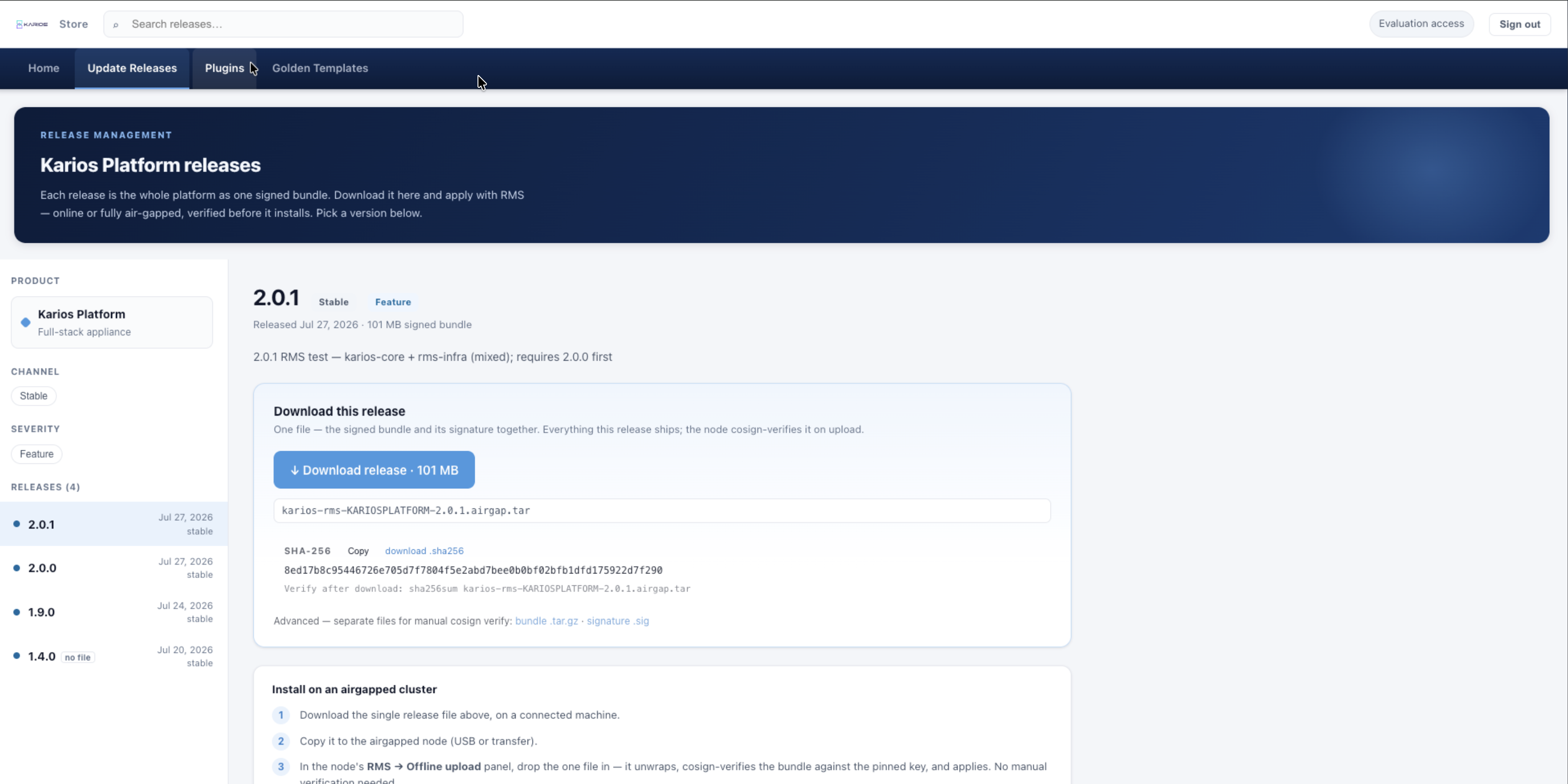
The download portal under Update Releases: each release is the whole
platform as one signed bundle.
Each release page gives the single signed bundle to download, tagged with its
channel and severity (for example Stable / Feature), plus Release
notes and an Air-gap install guide in collapsible panels. Verification is
automatic - the Offline upload card on K-Store -> Updates cosign-verifies
the bundle against the pinned key on upload, so no manual step is required. The
bundle’s SHA-256 and detached signature remain available under
Advanced for anyone who wants to verify by hand before transferring it.
Older versions remain listed under Releases, so you can fetch a specific
version rather than only the newest.
Plugins
Plugins are optional modules managed from K-Store -> Plugins. Enabling one
exposes its section and pages across the console; disabling it hides them again.
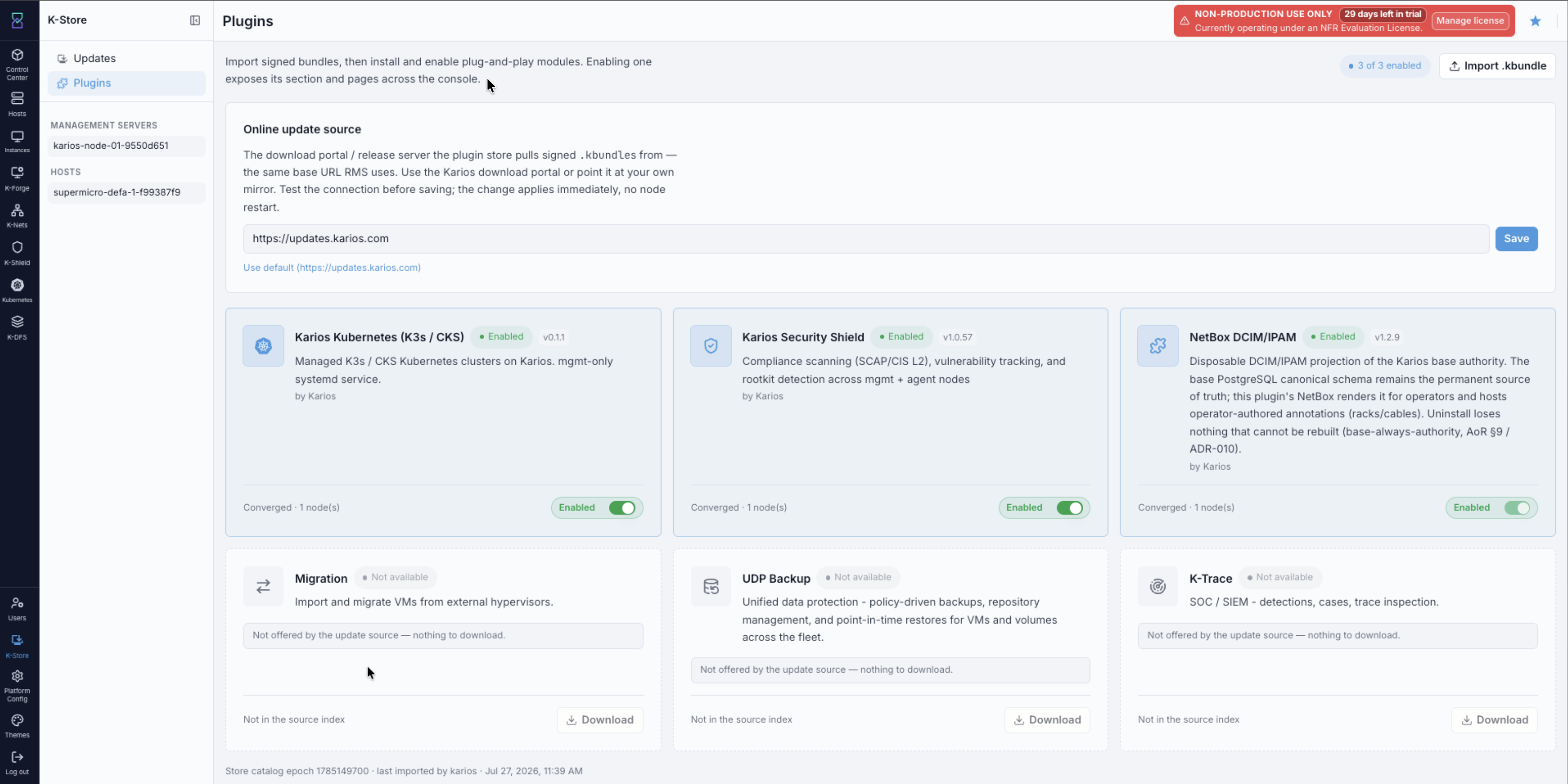
K-Store -> Plugins: enabled modules, their node scope, and plugins the
configured source does not offer.
What The Page Shows
A count in the header - for example
3 of 3 enabled.Import .kbundlefor bringing a bundle in by hand.Online update source, the same base URL used for platform updates.One card per plugin, showing its version, its node scope - for example
Converged · 1 node(s)- and, once the plugin is installed, anEnabledtoggle. A plugin whose bundle is on the cluster but not installed showsInstallinstead; a plugin whose bundle is not on the cluster yet showsDownload(Importwhen the cluster is air-gapped).
A plugin your configured source does not publish shows
Not offered by the configured update source. and cannot be downloaded until
you point the source somewhere that offers it, or import it by hand. On a
free-trial or evaluation cluster, a plugin reserved for the Enterprise tier is
marked Enterprise (or Enterprise license only once installed) with a note
such as Available with Karios Enterprise. Upgrade your license to enable.; its
download and enable controls stay disabled until the license allows it.
Getting A Plugin Onto The Cluster
Using a plugin takes separate actions. First you get its signed bundle onto
the cluster, by download or by import. That does not switch it on - the plugin
is present but needs Install and then Enabled before it is active; the
next section covers both. Once the bundle is on the cluster you can enable and
disable it freely without fetching it again.
Note
Every bundle is signed. The cluster verifies each .kbundle before adding it
to the catalog and rejects anything unsigned or tampered with. This applies to
both methods below.
If the cluster is connected, the plugin’s card offers Download. Select
it, and the cluster pulls the signed .kbundle from the source and verifies
it.
If the cluster is air-gapped:
On a machine with internet access, open the download portal at
https://updates.karios.com/files/portal/.Download the plugin’s
.kbundle.Transfer it to a machine that can reach
Control Center.Select
Import .kbundleand choose the file.
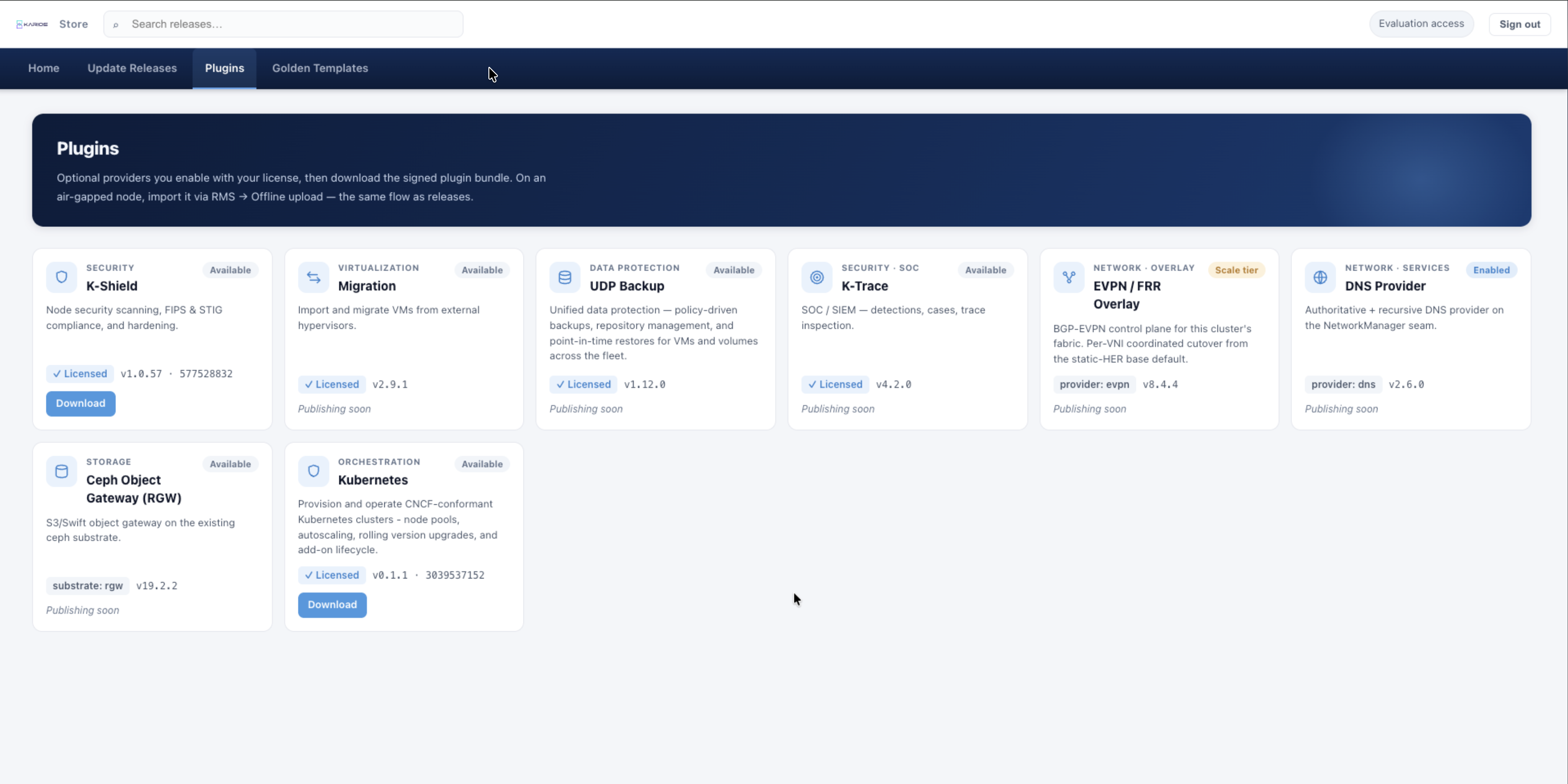
The download portal under Plugins: the module catalogue, with each
module’s licence state and version.
The bundle is verified on import, exactly as a downloaded one is.
Note
A plugin listed on the portal as Publishing soon has no bundle to download
yet, so there is nothing to import until it is released. Check the card’s
licence badge as well - the portal lists modules beyond your current
entitlement.
Note
The air-gapped route for platform releases is the Offline upload card on
K-Store -> Updates. For plugins, use Import .kbundle on the
Plugins page - it is the same verification, on the page that owns plugins.
Enabling And Disabling
Steps:
Open
K-Store -> Plugins.Find the plugin’s card.
Set the
Enabledtoggle. A plugin that is not installed yet needsInstallfirst (afterDownloadorImportif its bundle is not on the cluster yet); the toggle appears once it is installed.
Expected Outcome:
The plugin’s sidebar section appears and its pages become reachable. Disabling it hides the section again; the installation and its data are kept, so you can re-enable it at any time.
Important
Each toggle records your intent, and the cluster then reconciles its nodes to match. A card may show a transitional state before it settles. On larger clusters this takes a little time - wait for the final state before assuming the change is live.
Note
Kubernetes cannot be disabled while Kubernetes clusters still exist, since
that would orphan them. Delete or migrate the clusters first.
Disabling is not the same as removing. A disabled plugin stays on the cluster
with its data intact, ready to re-enable. NetBox DCIM/IPAM is the exception:
it is a projection of data Karios already holds, so once it is enabled its
toggle is locked on and it cannot be disabled from this page.
Quick Reference
Online |
Offline upload |
USB boot |
|
|---|---|---|---|
Updates arrive from |
The cluster polls |
Download portal, then upload on the |
Download portal, then any USB drive carrying the |
Plugins arrive from |
|
|
|
Verified |
|
|
|
Reboot |
Shown per release in the |
Same |
Same |
Source configurable |
Yes - applies live |
Yes - the portal URL |
Yes - the portal URL |
If This Fails
What you see |
What to do |
|---|---|
The update source reports it is not reachable |
The cluster cannot reach it. Use the offline upload path, or allow outbound access and test the connection again. |
|
The plugin is not published by your configured source. Check the portal
first: if it shows the plugin as |
A bundle is rejected on upload or import |
It is unsigned, tampered with, or incomplete. Download it again from the download portal and repeat the upload. |
A plugin card does not settle after being toggled |
A node has not applied the change yet. Open the card to read that node’s status; the cluster retries on its own. |
→ Next: Infrastructure